# SecOps Chat Overview
Supported in:
> [!NOTE]
> **Note:** This feature is covered by [Pre-GA Offerings Terms](https://chronicle.security/legal/service-terms/) of the Google Security Operations Service Specific Terms. Pre-GA features might have limited support, and changes to pre-GA features might not be compatible with other pre-GA versions. For more information, see the [Google SecOps Technical Support Service guidelines](https://chronicle.security/legal/technical-support-services-guidelines/) and the [Google SecOps Service Specific Terms](https://chronicle.security/legal/service-terms/).
> If this feature isn't visible in your environment, see [Manage preview features](https://docs.cloud.google.com/chronicle/docs/secops/preview-features-manage.md.txt) or contact your system administrator.
This guide explains how to navigate and use SecOps Chat, the Gemini
conversational assistant in Google Security Operations. Continue reading to learn
how to use SecOps Chat to
[answer questions about the product documentation](https://docs.cloud.google.com/chronicle/docs/secops/gemini-docs.md.txt#answer-documentation-questions),
generate YARA-L [search queries](https://docs.cloud.google.com/chronicle/docs/secops/gemini-docs.md.txt#generate-yara-l-search-queries) and
[detection rules](https://docs.cloud.google.com/chronicle/docs/secops/gemini-docs.md.txt#generate-yara-l-rules),
[research threat intelligence](https://docs.cloud.google.com/chronicle/docs/secops/gemini-docs.md.txt#threat-intelligence),
[investigate cases and alerts](https://docs.cloud.google.com/chronicle/docs/secops/gemini-docs.md.txt#investigate-cases-and-alerts) and
[perform other operational tasks](https://docs.cloud.google.com/chronicle/docs/secops/gemini-docs.md.txt#other-tasks).
## Navigate the SecOps Chat interface
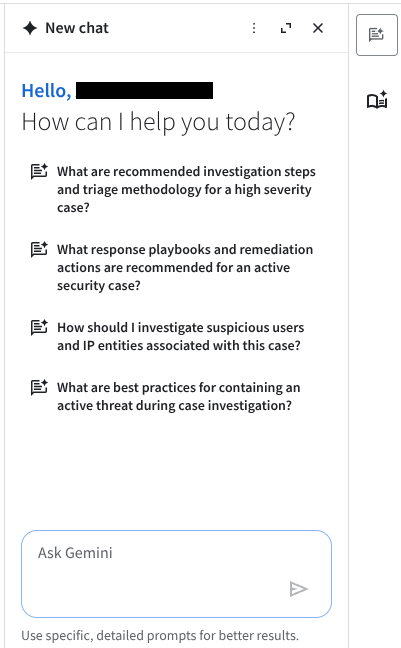
Open the SecOps Chat pane from any Google SecOps page by
clicking  in
the top navigation bar.
Depending on the Google SecOps screen you are on, the SecOps Chat
pane provides a contextual list of suggested prompts to help you get started.
Click on the top of the SecOps
Chat pane to start and delete chat sessions, and to view your chat history. The
chat supports multi-turn interactions. The assistant retains parameters and
context across conversational turns, so you can refine a question instead of
restating it.
From this menu, you can also toggle:
- **Agentic Chat** : If available in your instance, turn on this option to allow SecOps Chat to call Google SecOps tools on your behalf to answer operational questions. To see what the SecOps Chat can do in your environment, enter a prompt such as: `What are the capabilities of SecOps Chat?`.
- **Show agent thinking**: Turn on this option to display a thinking indicator that shows the steps and tools that the model invokes in the background to answer your question.
## Generate YARA-L search queries
Use natural language to generate a YARA-L 2.0 search query that you can use to
search for specific events in Google SecOps SIEM.
Try out the following example search prompts and follow-up questions in the
SecOps Chat pane:
- `Show me all failed logins for the last 3 days`
- `Generate a rule to help detect that behavior in the future`
- `Show me events associated with the principal user random.user`
- `Who is this user?`
- `Search for all of the events associated with the IP 198.51.100.121 in the
last 3 hours`
- `List all of the domains in the results set`
- `What types of events were returned?`
- `Show me events from my firewall in the last 24 hours`
- `What were the 16 unique hostnames in the results set?`
- `Narrow the query to only return results for failed attempts`
- `Change the time range to the last 7 days`
Review the generated search query. The search query uses YARA-L 2.0 syntax. If
the generated search query meets your requirements, click **Run search** .
Otherwise, click **Edit in Search Page** to modify the query.
After running the search query, Gemini produces a results
summary along with suggested actions.
## Generate YARA-L rules
You can use a natural language prompt to generate a YARA-L 2.0 detection rule,
and then open, edit, and activate the rule in the Rules Editor. Note that you
can only create single-event rules using this feature.
For example, to generate a rule to detect DNS responses that were truncated,
enter the following prompt in the SecOps Chat pane:
`Create a rule to count how many DNS responses were truncated per principal asset host.`
and then press Enter. Gemini generates a rule to detect the
behavior you've searched for.
Click **Open in rule editor** to view and modify the new rule in the Rules
Editor.
For example, using the previous rule prompt, Gemini could generate
the following rule:
rule gemini_rule {
meta:
author = "Gemini in Google SecOps"
description = "Prompt: Create a rule to count how many DNS responses were truncated per principal asset host."
events:
$e.metadata.event_type = "NETWORK_DNS"
$e.network.dns.response = true
$e.network.dns.truncated = true
$ph_principal_asset_hostname = $e.principal.asset.hostname
match:
$ph_principal_asset_hostname over 1h
outcome:
$event_count = count($e.metadata.id)
condition:
$e
}
To activate the rule, click **Save New Rule** . The rule appears in the list
of rules to the left. Hold the pointer over the rule, click the menu icon, and
toggle the **Live Rule** option to the right (green).
For more information, see
[Manage rules using Rules Editor](https://docs.cloud.google.com/chronicle/docs/detection/manage-all-rules.md.txt).
## Ask threat intelligence questions
Gemini can answer questions related to threat intelligence about
topics such as threat actors, their associations, and their behavior patterns,
including questions about [MITRE TTPs](https://docs.cloud.google.com/chronicle/docs/secops/gemini-docs.md.txt#mitre).
Answers that draw on threat intelligence in your environment, such as
Indicators of Compromise (IoC) matches from Applied Threat Intelligence,
depend on your Google SecOps package. The data that SecOps Chat
can access also depends on your IAM roles and data access scopes.
Try out the following example threat intelligence prompts in the SecOps Chat
pane:
- `How does APT44 operate?`
- `Are there any known attacker tools that use RDP to brute force logins?`
- `Is 103.224.80.44 suspicious?`
- `What types of attacks may be associated with CVE-2020-14145?`
- `Which MITRE ATT&CK techniques involve exploiting buffer overflows?`
- `What is UNC3782?`
Review the results and then, investigate further by asking Gemini
to create queries to look for specific indicators of compromise (IOCs)
referenced in the threat intelligence reports. Threat intelligence information
is subject to available entitlements from your Google SecOps
license.
At the bottom of the SecOps Chat pane,
click **Sources and related content**. Gemini provides links to some of
the articles that were used to generate the summary.
> [!NOTE]
> **Note:** If Gemini responds to a prompt with text written by someone else, the original source is cited in the *Referenced Sources* section of the SecOps Chat pane. For more information, see [How and when Gemini cites sources](https://docs.cloud.google.com/gemini/docs/discover/works.md.txt#how-when-gemini-cites-sources).
### Gemini and MITRE
The [MITRE ATT\&CK® Matrix](https://attack.mitre.org/) is a knowledge base that
documents the TTPs used by real-world cyber adversaries. The MITRE Matrix
provides an understanding of how your organization might be targeted and
provides a standardized syntax for discussing attacks.
You can ask Gemini questions about MITRE tactics, techniques, and
procedures (TTPs), and receive contextually relevant answers that include the
following MITRE details:
- Tactic
- Technique
- Sub-technique
- Detection suggestions
- Procedures
- Mitigations
Gemini returns a link to the curated detections
Google SecOps makes available for each TTP. You can also ask
Gemini follow up questions to gain additional insight on a MITRE TTP
and how it might impact your enterprise.
## Investigate cases and alerts
You can ask Gemini questions about cases, alerts, and playbooks
directly from the **Cases Management** pages. Your questions are
context-aware, based on the specific page or tab you're viewing, such as the
**Cases** page, **Alerts** tab, or **Playbooks** tab.
From one of the **Case** pages, open the SecOps Chat pane. Enter a case-related
prompt. The question can relate to the current tab:
- **Case Overview** or **Case Wall** : Ask about case-level information. For example, `Give me the names of everyone who left comments on the Case Wall.`
- **Alerts** : Ask about a specific question related to that alert. For example, `Can you summarize this alert?`
- **Alerts Playbooks** : Ask about the behavior of attached playbooks. For example, `Which playbooks are available for phishing alerts?`
Review the results returned by Gemini and refine your prompt if needed.
You can also summarize cases by using the
[Gemini case summary widget](https://docs.cloud.google.com/chronicle/docs/soar/investigate/working-with-cases/using-the-gemini-case-summary-widget.md.txt).
## Answer questions about Google SecOps documentation
Enter a prompt in the SecOps Chat pane to request information about any aspect
of how to use Google SecOps.
SecOps Chat uses a multi-stage reasoning process that's grounded on information
in the Google SecOps documentation to answer complex questions
with links to related documentation pages.
Try entering these example prompts in the SecOps Chat pane:
- `How do I deploy the Bindplane agent?`
- `How do I create a rule?`
- `How do I investigate user logins?`
SecOps Chat also uses Google Search grounding and citations to provide
nuanced, high-quality responses to your prompts. Grounding links model responses
to information found on the internet to provide additional, up-to-date context
for security investigations. Citations show you the specific data sources
Gemini used to formulate its answers, which improves explainability and
helps you verify the information.
When Gemini uses Google Search to ground a response, the web interface
displays the following elements:
- **Google G icon**: Indicates that Gemini connected to the internet to pull additional context for your prompt.
- **Search query chips**: Displays the exact search queries Gemini used to retrieve extra context.
- **Citations**: Provides references to the specific grounding data used to generate the answer.
Reviewing these search queries and citations helps you understand the steps
Gemini takes to research a prompt and ensures transparency in the
data it retrieves.
## Other tasks
As your central security assistant, SecOps Chat uses backend tools to perform
operational tasks across the Google SecOps platform.
### Case and alert management
- **Search and filter cases**: List all cases in your Google SecOps instance, or retrieve comprehensive details for a single case.
- **Investigate case evidence**: List case comments, retrieve specific case alerts, view raw connector events, and list the entities that are involved in an alert, such as IP addresses and hostnames.
### Entity and alert enrichment
- **Summarize entity activity**: Look up and summarize the historical activity of an entity in Google SecOps SIEM for rapid enrichment.
- **Identify IoCs**: Retrieve indicator of compromise (IoC) matches directly from your Google SecOps SIEM logs.
- **Fetch alert profiles**: Retrieve a profile of a SIEM alert that aggregates data from multiple sources.
- **Discover enrichment actions**: Retrieve a curated list of SOAR integration actions that are available for enriching a given SIEM alert.
### SIEM content and data management
- **Manage log data**: List the data tables and log types that are available in Google SecOps SIEM.
- **Review parsers**: List the parsers for a log type, or fetch the configuration details of a specific parser.
- **Monitor detection rules**: View configured detection rules, and list execution errors for specific rules to help you troubleshoot.
- **Access reference lists**: Retrieve the details and contents of a specific reference list by name.
### Orchestration and automation
- **Monitor integrations**: List the configured SOAR integrations and view their configured instances.
- **Review integration actions**: See which automated actions are available for a SOAR integration.
- **View playbooks**: List the automated playbooks that are configured in your environment.
### Automated investigations
- **Review triage output**: Retrieve the most recent automated triage investigation for an alert ID.
- **Fetch full reports**: Retrieve a complete, agent-generated investigation report by its ID.
- **Check configurations**: Review the configuration settings of your investigation agent.
## Supported MCP tools and sample prompts
The following table lists the MCP tools that SecOps Chat can call, with a sample
prompt for each tool.
| Tool | Sample prompt |
|---|---|
| `list_cases` | `List all open critical cases` |
| `get_case` | `Show case details for ID 12345` |
| `get_case_alert` | `Show details for alert ID 67890 in case ID 12345` |
| `list_case_comments` | `Get comments for case ID 12345` |
| `list_case_alerts` | `Retrieve all alerts associated with case ID 12345` |
| `list_connector_events` | `Get the connector events for alert ID 67890 in case ID 12345` |
| `list_involved_entities` | `Show all entities involved in alert ID 67890 in case ID 12345` |
| `summarize_entity` | `Summarize the history of host workstation-9` |
| `get_ioc_match` | `Show IoC matches in my environment from the last 24 hours` |
| `fetch_alert_data` | `Fetch the SIEM alert profile for alert ID 67890` |
| `fetch_enrichment_actions` | `What SOAR integration actions are available for alert ID 67890?` |
| `list_data_tables` | `List all SIEM data tables` |
| `list_log_types` | `List available log types` |
| `list_parsers` | `Show parsers configured for log type GCP_CLOUDAUDIT` |
| `get_parser` | `Show parser details for parser ID pa_12345678-1234-1234-1234-123456789012 and log type GCP_CLOUDAUDIT` |
| `list_rules` | `List all security detection rules` |
| `list_rule_errors` | `Show execution errors for rule ID ru_12345678-1234-1234-1234-1234567890ab` |
| `get_reference_list` | `Get details for the admin_ips reference list` |
| `list_integrations` | `List all configured SOAR integrations` |
| `list_integration_instances` | `Show configured instances for VirusTotal` |
| `list_integration_actions` | `List available actions for VirusTotal` |
| `list_playbooks` | `List all automated SOAR playbooks` |
| `get_alert_latest_investigation` | `Retrieve the latest triage investigation for alert ID 67890` |
| `get_investigation_by_id` | `Get investigation report for ID rpt_98765` |
| `get_agent_settings` | `Show current settings for the investigation agent` |
| `ask_cloud_assist` | `How do I configure Cloud NAT logging in Google Cloud?` |
## Required RBAC and IAM permissions to access SecOps Chat and GCA Q\&A
SecOps Chat connects to two managed MCP servers:
1. The **SecOps MCP Server (chronicle.googleapis.com/mcp)** for live SIEM/SOAR operations, and
2. The **Gemini Cloud Assist (GCA) MCP Server (geminicloudassist.googleapis.com/mcp --- ask_cloud_assist)** for enhanced "how-to" Q\&A and platform documentation queries.
To ensure users and the tenant's P4SA can access SecOps Chat and all MCP
tools without `403 Permission Denied` errors, ensure the following
IAM roles and APIs are configured on the tenant's
bound Google Cloud (BYOP) project.
### Recommended predefined IAM roles (quick setup)
| Feature / capability | Required predefined IAM role | Purpose and notes |
|---|---|---|
| GCA "How-To" Q\&A Tool (`ask_cloud_assist`) | `roles/geminicloudassist.user` (GCA User) | With P4SA integration active, no end-user GCA IAM role is required --- Chat authenticates to GCA using the tenant's Chronicle P4SA (`service-\@gcp-sa-chronicle.iam.gserviceaccount.com`). Only the P4SA (or the user principal in pre-P4SA environments) needs `roles/geminicloudassist.user`. |
| Managing Conversations | `roles/chronicle.editor` (or `roles/chronicle.admin`) | Required to create, rename, and delete conversations. |
| MCP Gateway Invocation (All Tools) | `roles/mcp.toolUser` (MCP Tool User) | Grants `mcp.tools.call` required to execute remote MCP tools across SecOps and GCA endpoints. |
| Tool Usage Billing | `roles/serviceusage.serviceUsageConsumer` (Service Usage Consumer) | Chat bills SecOps and GCA tool calls to the Google Cloud project bound to your Google SecOps instance. Required along with `roles/mcp.toolUser`. |
| SIEM Tools \& YARA-L Query Generation | `roles/chronicle.admin` (or `roles/chronicle.editor`) | Required for SIEM tools: UDM/YARA-L generation, Rules, Rule Errors, Parsers, Log Types, Data Tables, Reference Lists, Entity Summaries, and IoCs. Note that some SIEM tools like Parsers also require `roles/chronicle.admin` |
| SOAR Cases, Alerts \& Playbooks | `roles/chronicle.admin` (or `roles/chronicle.editor`) | Required for SOAR tools: Cases, Case Alerts, Case Comments, Connector Events, Playbooks, and Integrations. |
| Google Cloud Resource Context (Optional) | `roles/cloudasset.viewer` (Cloud Asset Viewer) | Recommended companion role for GCA so the assistant can resolve project/asset metadata during troubleshooting. |
### P4SA / custom IAM role permissions for GCA (`ask_cloud_assist`)
With P4SA integration, end-users don't need any GCA IAM
permissions (even when logging in using a 3P IdP / SAML / Okta). Instead, the
tenant's Chronicle P4SA
(`service-PROJECT_NUMBER@gcp-sa-chronicle.iam.gserviceaccount.com`) or
a custom role (in pre-P4SA environments) uses the following permissions on the
bound Google Cloud project:
- **`geminicloudassist.agents.invoke`** --- Required by the `ask_cloud_assist` tool to invoke the GCA agent.
- **`mcp.tools.call`** --- Required by the Google Cloud MCP gateway to execute tool calls over `geminicloudassist.googleapis.com/mcp` and `chronicle.googleapis.com/mcp`.
- **`serviceusage.services.use`** --- Required because Agentic Chat passes the tenant's project ID in the X-Goog-User-Project billing or quota header.
- **`cloudaicompanion.topics.create`, `cloudaicompanion.companions.generateChat`, and `cloudaicompanion.instances.completeTask`** --- Required to initialize and continue multi-turn GCA conversation topics.
- **`resourcemanager.projects.get`, `geminicloudassist.locations.get`, and `geminicloudassist.locations.list`** --- Required to resolve the tenant project number and global agent endpoint.
Note that even though the tenant has additional permissions, this fallback
only applies to GCA.
### Required Google Cloud Project APIs
Ensure the following Google Cloud APIs are enabled on the tenant's bound
Google Cloud project:
- **`chronicle.googleapis.com`** (Chronicle API)
- **`geminicloudassist.googleapis.com`** (GCA API)
- **`cloudaicompanion.googleapis.com`** (Gemini for Google Cloud API)
- **`cloudasset.googleapis.com`** (Cloud Asset API)
## Authentication for Workforce Identity Federation
[Workforce Identity Federation (WIF)](https://docs.cloud.google.com/iam/docs/workforce-identity-federation.md.txt)
lets you use your external IdP to authenticate your workforce --- users and groups
of users, such as employees, partners, and contractors. Users can then
access Google Cloud using single sign-on (SSO), through your IdP without syncing
their accounts to Cloud Identity, bypassing the need for Google Accounts.
To use GCA, you must first configure it. Refer to the
[WIF configuration guide](https://docs.cloud.google.com/gemini/docs/discover/configure-wif) for more details.
Add permissions to the `principalSet`. For example, if you're using a
third-party IdP, you can use the following command to grant permissions to the
`principalSet` in your tenant project:
```bash
gcloud projects add-iam-policy-binding PROJECT_ID \
--member="principalSet://iam.googleapis.com/locations/global/workforcePools/WIF_POOL_ID/*" \
--role="roles/geminicloudassist.user"
```
## Guardrails and safety
To help keep your environment secure, SecOps Chat operates with the following
guardrails:
- **Read-only actions**: The agent supports foundational read-only actions, such as generating search queries, retrieving cases, alerts, and entity summaries.
## Manage chat sessions and provide feedback
You can delete your chat sessions at any time, and you can rate the responses
that Gemini generates.
### Delete a chat session
You can delete your chat conversation session or delete all chat sessions.
Gemini maintains all user conversation histories privately and adheres
to Google Cloud's [responsible AI
practices](https://docs.cloud.google.com/duet-ai/docs/discover/responsible-ai). User history is never used to train models.
1. In the Gemini pane, select **Delete chat** from the menu at the top right.
2. Click **Delete chat** at the bottom right to delete the current chat session.
3. Optional: To delete all chat sessions, select **Delete all chat sessions** and then click **Delete all chats**.
### Provide feedback
You can provide feedback to responses generated by the Gemini AI
investigation assistance. Your feedback helps Google improve the feature and the
output generated by Gemini.
1. In the Gemini pane, click thumb_up **Thumb Up** or thumb_down **Thumb Down**.
2. Optional: Click thumb_down **Thumb Down** and provide feedback.
3. Click **Send feedback**.
**Need more help?** [Get answers from Community members and Google SecOps professionals.](https://security.googlecloudcommunity.com/)