# Ingest Google Cloud logs
Supported in:
This page describes how to enable and disable Google Cloud data ingestion into Google Security Operations. This lets you store, search, and examine aggregated security information for your enterprise, going back for months or longer, in accordance with your data retention period.
> [!NOTE]
> **Note:** If your organization implements [VPC Service Controls](https://docs.cloud.google.com/vpc-service-controls/docs/overview.md.txt), no additional ingress or egress rule is required for Google SecOps to access resources and services outside its service perimeter. When you configure Google Cloud data ingestion, Google SecOps doesn't create any resource in your Google Cloud organization; the internal system publishes Google Cloud logs to Google SecOps. For details about VPC Service Controls in Google SecOps, see [Configure VPC Service Controls for Google SecOps](https://docs.cloud.google.com/chronicle/docs/secops/vpcsc-for-secops.md.txt).
## Overview
There are two options to send Google Cloud data to Google SecOps. Choosing the right option depends on the log type.
### Option 1: Direct ingestion
A special Cloud Logging filter can be configured in Google Cloud to send specific log types to Google SecOps in real-time. These logs are generated by Google Cloud services.
Logs are collected starting from the time the filter is configured.
Logs generated prior to configuration are not included.
This real-time forwarding applies to Cloud Logging, Cloud Asset Metadata, and Security Command Center Premium findings.
Use this method for high-volume logs such as VPC Flow and DNS. This path is optimized for speed and doesn't require additional configuration in the Google Cloud console.
Google Security Operations only ingests supported log types. Available log types include:
- Cloud Audit Logs
- Cloud NAT
- Cloud DNS
- Cloud Next Generation Firewall
- Cloud Intrusion Detection System
- Cloud Load Balancing
- Cloud SQL
- Windows Event logs
- Linux syslog
- Linux Sysmon
- Zeek
- Google Kubernetes Engine
- Audit Daemon (`auditd`)
- Apigee
- Google Cloud Fraud Defense
- Cloud Run logs (`GCP_RUN`)
- Google Cloud Abuse Events
- Google Cloud DNS Advanced Threat Detection (`GCP_DNS_ATD`)
- Model Armor logs
For details about the specific log filters and more ingestion details, see [Export Google Cloud logs](https://docs.cloud.google.com/chronicle/docs/ingestion/default-parsers/ingest-gcp-logs.md.txt#export-logs) to Google SecOps.
You can also send Google Cloud asset metadata used for context enrichment.
For details, see [Export Google Cloud asset metadata](https://docs.cloud.google.com/chronicle/docs/ingestion/default-parsers/ingest-gcp-logs.md.txt#export-asset-metadata) to Google SecOps.
> [!NOTE]
> **Note:** To collect Compute Engine or Google Kubernetes Engine (GKE) application logs (such as Apache, Nginx, or IIS), use Option 2. Additionally, raise a Support ticket with Google SecOps to provide your feedback in support of possibly collecting this type of log using direct ingestion (Option 1) in the future.
> [!NOTE]
> **Note:** At this time, the direct ingestion method does not support Namespace or Label assignment.
### Option 2: Google Cloud Storage
You can use Cloud Logging to route logs to a Cloud Storage bucket and
configure a Google SecOps data feed to ingest those logs on a
scheduled basis.
Use this option in the following scenarios:
- You need to filter logs before they reach Google SecOps. You
can apply regular expression exclusion filters on the log sink so that only
security-relevant logs count against your quota.
- You need to assign an
[asset namespace](https://docs.cloud.google.com/chronicle/docs/investigation/asset-namespaces.md.txt) or
ingestion labels to the ingested logs.
- You need to ingest logs from an independent Google Cloud organization
without direct Identity and Access Management (IAM) access, such as in a Managed
Security Service Provider (MSSP) environment.
To ingest Google Cloud logs from a Cloud Storage bucket, complete the
following high-level steps:
1. Create a [Cloud Storage bucket](https://docs.cloud.google.com/storage/docs/creating-buckets.md.txt) to
receive the exported logs. In a cross-organization or MSSP deployment,
create this bucket in the project or organization that hosts
Google SecOps.
2. In the source project, folder, or organization, create a
[log sink](https://docs.cloud.google.com/logging/docs/export/configure_export_v2.md.txt) or an
organization-level [aggregated sink](https://docs.cloud.google.com/logging/docs/export/aggregated_sinks.md.txt)
(`--include-children`) that routes the supported Google Cloud logs to the
Cloud Storage bucket. Copy the sink's writer identity and grant it the
**Storage Object Creator** (`roles/storage.objectCreator`) role on the
destination bucket.
3. In Google SecOps, configure a **Cloud Storage v2**
(`GOOGLE_CLOUD_STORAGE_V2`) feed for the corresponding log type, such as
`GCP_CLOUDAUDIT` for Cloud Audit Logs. On the bucket, grant the
Google SecOps service account the **Storage Object Viewer**
(`roles/storage.objectViewer`) role. Also grant **Storage Legacy Bucket
Reader** (`roles/storage.legacyBucketReader`) if you keep source files, or
**Storage Legacy Bucket Writer** (`roles/storage.legacyBucketWriter`) if you
delete transferred files.
If a Cloud Logging log sink exports logs from multiple Google Cloud
services (such as Cloud Audit Logs and VPC Flow Logs) to the same
bucket, configure a separate feed for each Google SecOps log
type (such as `GCP_CLOUDAUDIT` or `GCP_VPC_FLOW`). In each feed, set the
**Storage bucket URI** to the specific log folder prefix, such as
`gs://BUCKET_NAME/cloudaudit.googleapis.com/` for all
Cloud Audit Logs (`GCP_CLOUDAUDIT`) or
`gs://BUCKET_NAME/compute.googleapis.com/vpc_flows/`
for VPC Flow Logs (`GCP_VPC_FLOW`). Alternatively, configure a
separate Cloud Storage bucket for each log type.
For setup instructions and role details, see
[Google Cloud Storage feed setup example](https://docs.cloud.google.com/chronicle/docs/administration/feed-management.md.txt#storage-example),
[Grant access to the Google SecOps service account](https://docs.cloud.google.com/chronicle/docs/administration/feed-management.md.txt#grant-sa-access),
and
[Google Cloud Storage v2](https://docs.cloud.google.com/chronicle/docs/reference/feed-management-api.md.txt#gc-storage-v2).
> [!NOTE]
> **Note:** This option generates additional Cloud Storage charges in the Google Cloud project that hosts the bucket.
## Before you begin
Before you can ingest Google Cloud data into a Google SecOps instance, you must ensure you have the appropriate permissions.
### Required Permissions
Grant one of the following
[IAM roles](https://docs.cloud.google.com/iam/docs/roles-permissions.md.txt) at an organizational
level to access the Google SecOps section, depending on your
goal:
- **To configure, enable, or modify ingestion:**
- **Chronicle Service Admin** (`roles/chroniclesm.admin`): Required to perform all configuration and enablement activities.
- **To view ingestion status only:**
- **Chronicle Service Viewer** (`roles/chroniclesm.viewer`): Lets you view the state of ingestion but does not grant permissions to enable or modify it.
### Additional Permissions
Depending on the type of data you plan to ingest or verify, you may also need:
- **Security Center Admin Editor** (`roles/securitycenter.adminEditor`): Required if you plan to enable the ingestion of **Cloud Asset Metadata**.
- **Organization Role Viewer** (`roles/iam.organizationRoleViewer`): Required to view default or custom IAM roles at the organization level.
- **Organization Administrator** (`roles/resourcemanager.organizationAdmin`): Required on target organizations so that isolated Google Cloud organizations appear in the **Organization** menu when configuring ingestion.
### Prerequisites
- If you plan to enable **Cloud Asset Metadata** , you must onboard the organization to the Security Command Center. See [Overview of organization-level activation](https://docs.cloud.google.com/security-command-center/docs/activate-scc-overview.md.txt#overview_of_organization-level_activation) for more information.
### Granting IAM roles
You can grant the required IAM roles using either the Google Cloud console or using the gcloud CLI.
To grant IAM roles using Google Cloud console, complete the following steps:
1. Sign in to the Google Cloud organization you want to connect to and go to the IAM screen using **Products \> IAM \& Admin \> IAM**.
2. From the **IAM** screen, select the user and click **Edit Member**.
> [!NOTE]
> **Note:** If you're not in the Organization view of IAM, the **Edit Member** button is disabled. To enable it, go to the organization's IAM screen.
3. In the Edit Permissions screen, click **Add Another Role** and search for Google SecOps to find the IAM roles.
4. Once you have assigned the roles, click **Save**.
> [!CAUTION]
> **Caution:** When ingesting logs across multiple projects or organizations, you must grant these organization-level IAM bindings on each target organization *before* enabling or saving ingestion scopes in the Google SecOps ingestion settings. Saving ingestion scopes without the required backend IAM bindings results in an `Attempted action failed` error when synchronizing permissions.
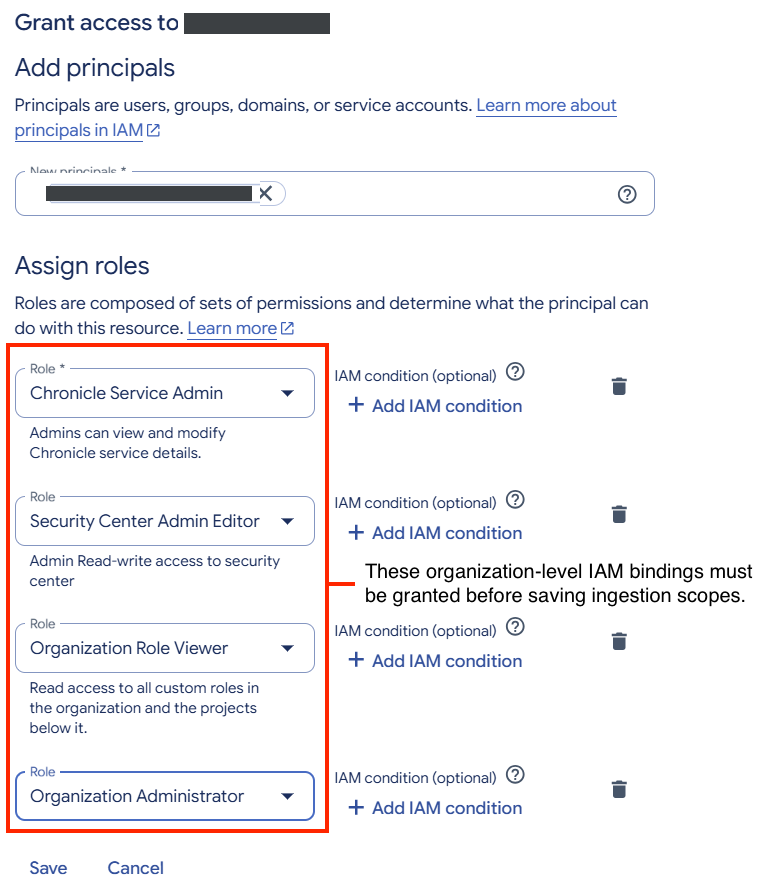
**Figure 1.** Required organization-level IAM roles and permission callout in the Google Cloud console
To grant IAM roles using the Google Cloud CLI, complete the following steps:
1. Run `gcloud init` to verify that you're logged into the correct organization and project.
2. Run the following command(s) corresponding to the specific role(s) you need to grant:
- **To grant the Chronicle Service Admin role:**
```bash
gcloud organizations add-iam-policy-binding ORGANIZATION_ID \
--member "user:USER_EMAIL" \
--role roles/chroniclesm.admin
```
Replace the following:
- `ORGANIZATION_ID`: the numeric organization ID.
- `USER_EMAIL`: the user's email address.
- **To grant the Chronicle Service Viewer role:**
```bash
gcloud organizations add-iam-policy-binding ORGANIZATION_ID \
--member "user:USER_EMAIL" \
--role roles/chroniclesm.viewer
```
- **To grant the Security Center Admin Editor role:**
```bash
gcloud organizations add-iam-policy-binding ORGANIZATION_ID \
--member "user:USER_EMAIL" \
--role roles/securitycenter.adminEditor
```
- **To grant the Organization Role Viewer role:**
```bash
gcloud organizations add-iam-policy-binding ORGANIZATION_ID \
--member "user:USER_EMAIL" \
--role roles/iam.organizationRoleViewer
```
## Enable direct ingestion from Google Cloud
The steps to enable direct ingestion from Google Cloud are different depending
on the ownership of the project that your Google SecOps instance is bound to.
- If it is bound to a project that you own and manage, follow the steps in
[Configure ingestion when project owned by customer](https://docs.cloud.google.com/chronicle/docs/ingestion/default-parsers/ingest-gcp-logs.md.txt#customer-owned-project).
This approach lets you configure the data ingestion from more than one Google Cloud organization.
- If it is bound to a project that Google Cloud owns and manages,
follow the steps in [Configure ingestion for a Google managed project](https://docs.cloud.google.com/chronicle/docs/ingestion/default-parsers/ingest-gcp-logs.md.txt#cloud-owned-project).
After you configure direct ingestion, your Google Cloud data is sent to Google SecOps.
You can use Google SecOps's analysis features to investigate security related issues.
### Configure ingestion when project owned by customer
Do the following steps if you own the Google Cloud project.
You can configure direct ingestion from multiple organizations using the same project-level
configuration page. Do the following steps to create a new configuration and edit an
existing configuration.
When you migrate an existing Google SecOps instance so that it binds to a project that you own,
and if direct ingestion was configured before the migration, the direct ingestion configuration is
migrated as well.
1. Go to the **Google SecOps** \> **Ingestion Settings** page in the Google Cloud console.
[Go to the **Google SecOps** page](https://console.cloud.google.com/security/chronicle/settings/ingestion)
2. Select the project that is bound to your Google SecOps instance.
3. In the **Organization** menu, select the organization from which logs will
be exported.
The menu displays organizations you have permission to access. The list can include organizations that aren't linked to the Google SecOps instance. You cannot configure an organization that sends data to a different Google SecOps instance.
> [!NOTE]
> **Note:** If an isolated Google Cloud organization doesn't appear in the **Organization** menu, verify that your identity has been granted the **Organization Administrator** (`roles/resourcemanager.organizationAdmin`) and **Chronicle Service Admin** (`roles/chroniclesm.admin`) IAM roles directly on that target organization.
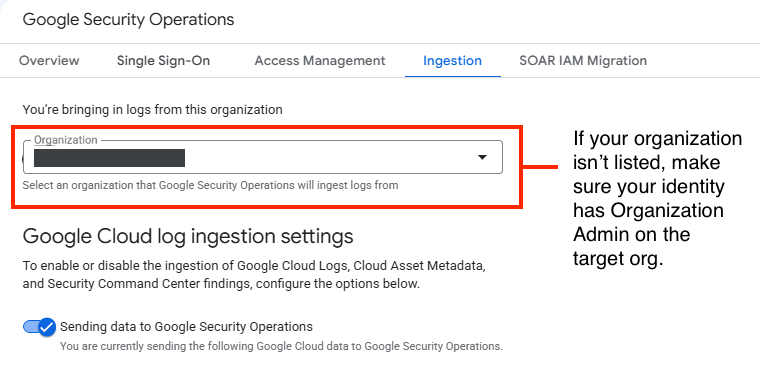
**Figure 2.** Organization selection menu with permission prerequisites in Google SecOps ingestion settings
4. Under the **Google Cloud Ingestion setting** section, click the **Sending data to Google Security Operations** toggle to enable logs to be sent to Google SecOps.
5. Select one or more of the following options to define the type of data sent to Google SecOps:
- **Google Cloud Logging** : For more information about this option, see [Export Google Cloud logs](https://docs.cloud.google.com/chronicle/docs/ingestion/default-parsers/ingest-gcp-logs.md.txt#export-logs).
- **Cloud Asset Metadata** : For more information about this option, see [Export Google Cloud asset metadata](https://docs.cloud.google.com/chronicle/docs/ingestion/default-parsers/ingest-gcp-logs.md.txt#export-asset-metadata).
- **Security Center Premium findings** : For more information about this option, see [Export Security Center Premium findings](https://docs.cloud.google.com/chronicle/docs/ingestion/default-parsers/ingest-gcp-logs.md.txt#export-scc-findings).
6. Under the **Customer export filter settings** section, configure
[export filters](https://docs.cloud.google.com/chronicle/docs/ingestion/default-parsers/ingest-gcp-logs.md.txt#export_filter_settings) to customize the Cloud Logging
data sent to Google SecOps. See [Google Cloud log types
supported for export](https://docs.cloud.google.com/chronicle/docs/ingestion/default-parsers/ingest-gcp-logs#supported-logs-for-export).
7. To ingest logs from an additional organization to the same Google SecOps instance,
select the organization from the **Organization** menu, and then repeat the
steps to define the type of data to export and export filters.
You will see multiple organizations listed in the **Organization** menu.
8. To export Sensitive Data Protection data (previously called Cloud Data Loss Prevention data) to Google SecOps, see
[Export Sensitive Data Protection data](https://docs.cloud.google.com/chronicle/docs/ingestion/default-parsers/ingest-gcp-logs.md.txt#export-dlp-data).
### Configure ingestion for a Google managed project
If Google Cloud owns the project, do the following to configure direct ingestion
from your Google Cloud organization into your Google SecOps instance:
1. Go to the **Google SecOps** \> **Overview** \> **Ingestion** tab in the Google Cloud console. [Go to the Google SecOps Ingestion tab](https://console.cloud.google.com/security/chronicle/settings/ingestion-settings)
2. Click the **Manage organization ingestion settings** button.
3. If a *Page not viewable for projects* message appears, select an organization, and click **Select**.
4. Enter your one-time access code in the **1-time Google SecOps access code** field.
5. Check the box labeled **I consent to the terms and conditions of
Google SecOps's usage of my Google Cloud data**.
6. Click **Connect Google SecOps**.
7. Go to the **Global Ingestion Settings** tab for the organization.
8. Select the type of data that will be sent by enabling one or more of the following options:
- **Google Cloud Logging** : For more information about this option, see [Export Google Cloud Logs](https://docs.cloud.google.com/chronicle/docs/ingestion/default-parsers/ingest-gcp-logs.md.txt#export-logs).
- **Cloud Asset Metadata** For more information about this option, see [Export Google Cloud asset metadata](https://docs.cloud.google.com/chronicle/docs/ingestion/default-parsers/ingest-gcp-logs.md.txt#export-asset-metadata).
- **Security Center Premium findings** : For more information about this option, see [Export Security Center Premium findings](https://docs.cloud.google.com/chronicle/docs/ingestion/default-parsers/ingest-gcp-logs.md.txt#export-scc-findings).
9. Go to the **Export Filter Settings** tab.
10. Under the **Customer export filter settings** section, configure
[export filters](https://docs.cloud.google.com/chronicle/docs/ingestion/default-parsers/ingest-gcp-logs.md.txt#export_filter_settings) to customize the Cloud Logging
data sent to Google SecOps. See [Google Cloud log types
supported for export](https://docs.cloud.google.com/chronicle/docs/ingestion/default-parsers/ingest-gcp-logs#supported-logs-for-export).
11. To export Sensitive Data Protection data (previously called Cloud Data Loss Prevention data) to Google SecOps, see
[Export Sensitive Data Protection data](https://docs.cloud.google.com/chronicle/docs/ingestion/default-parsers/ingest-gcp-logs.md.txt#export-dlp-data).
## Export Google Cloud logs
After [enabling Cloud Logging](https://docs.cloud.google.com/chronicle/docs/ingestion/default-parsers/ingest-gcp-logs.md.txt#enable-direct-ingestion), you can export log data for the supported
Google Cloud log types to your Google SecOps instance.
To export Google Cloud logs to Google SecOps, set the **Enable Cloud logs** toggle to **Enabled**.
> [!NOTE]
> **Note:** You can only export Google Cloud log types to Google SecOps that are supported for export.
### Log types supported for export
You can [customize the export filter](https://docs.cloud.google.com/chronicle/docs/ingestion/default-parsers/ingest-gcp-logs.md.txt#export_filter_settings) of the logs to export to Google SecOps. Include or exclude log types by adding or removing supported export filters, which are listed in this section.
> [!NOTE]
> **Note:** Use the text of the individual export filters without modification.
You can export the following Google Cloud log types to your Google SecOps instance. The following list is organized by log type and corresponding Google SecOps ingestion label:
- [Cloud Audit Logs](https://docs.cloud.google.com/logging/docs/audit.md.txt#types) (`GCP_CLOUDAUDIT`):
This includes Admin Activity, Data Access, System Event, Access Transparency, and Policy Denied logs.
> [!CAUTION]
> **Caution:** Data Access logs written by Cloud Audit Logs can produce a large volume of data that has low value for threat detection. The volume might result in data-throttling due to the enforcement of [burst limits](https://docs.cloud.google.com/chronicle/docs/ingestion/burst-limits.md.txt). To learn how to filter out logs that are generated by routine activities, see [Tune Cloud Audit Logs filters](https://docs.cloud.google.com/chronicle/docs/ingestion/default-parsers/ingest-gcp-logs.md.txt#tune-audit-filters).
- `log_id("cloudaudit.googleapis.com/activity")` (exported by the default filter)
- `log_id("cloudaudit.googleapis.com/system_event")` (exported by the default filter)
- `log_id("cloudaudit.googleapis.com/policy")`
- `log_id("cloudaudit.googleapis.com/access_transparency")`
- [Cloud NAT logs](https://docs.cloud.google.com/nat/docs/monitoring.md.txt) (`GCP_CLOUD_NAT`):
- `log_id("compute.googleapis.com/nat_flows")`
- [Cloud DNS logs](https://docs.cloud.google.com/dns/docs/monitoring.md.txt) (`GCP_DNS`):
- `log_id("dns.googleapis.com/dns_queries")` (exported by the default filter)
- [Firewall policy rules logging](https://docs.cloud.google.com/firewall/docs/firewall-policy-rules-logging-overview.md.txt) (`GCP_FIREWALL`):
- `log_id("compute.googleapis.com/firewall")`
- `GCP_IDS`:
- `log_id("ids.googleapis.com/threat")`
- `log_id("ids.googleapis.com/traffic")`
- `GCP_LOADBALANCING`:
This includes logs from Google Cloud Armor and Cloud Load Balancing (both
External and Internal).
- `log_id("requests")`
- `log_id("loadbalancing.googleapis.com/requests")`
- `log_id("loadbalancing.googleapis.com/external_regional_requests")`
- `GCP_CLOUDSQL`:
- `log_id("cloudsql.googleapis.com/mysql-general.log")`
- `log_id("cloudsql.googleapis.com/mysql.err")`
- `log_id("cloudsql.googleapis.com/postgres.log")`
- `log_id("cloudsql.googleapis.com/sqlagent.out")`
- `log_id("cloudsql.googleapis.com/sqlserver.err")`
- `GCP_VPC_FLOW`:
- `log_id("compute.googleapis.com/vpc_flows")` (for US and EU regions only)
- `log_id("networkmanagement.googleapis.com/vpc_flows")`
- `NIX_SYSTEM`:
- `log_id("syslog")`
- `log_id("authlog")`
- `log_id("securelog")`
- `log_id("osconfig.googleapis.com/patch_job")`
- `LINUX_SYSMON`:
- `log_id("sysmon.raw")`
- `WINEVTLOG`:
- `log_id("winevt.raw")`
- `log_id("windows_event_log")`
- `BRO_JSON`:
- `log_id("zeek_json_streaming_conn")`
- `log_id("zeek_json_streaming_dhcp")`
- `log_id("zeek_json_streaming_dns")`
- `log_id("zeek_json_streaming_http")`
- `log_id("zeek_json_streaming_ssh")`
- `log_id("zeek_json_streaming_ssl")`
- `KUBERNETES_NODE`:
- `log_id("events")`
- `log_id("stdout")`
- `log_id("stderr")`
- `AUDITD`:
- `log_id("audit_log")`
- `GCP_APIGEE_X`:
- `log_id("apigee.googleapis.com/ingress_instance")`
- `log_id("apigee.googleapis.com")`
- `log_id("apigee-logs")`
- `log_id("apigee")`
- `logName =~ "^projects/[\w\-]+/logs/apigee[\w\-\.]*$"`
- `GCP_RECAPTCHA_ENTERPRISE` (Google Cloud Fraud Defense):
- `log_id("recaptchaenterprise.googleapis.com/assessment")`
- `log_id("recaptchaenterprise.googleapis.com/annotation")`
- `GCP_RUN`:
- `log_id("run.googleapis.com/stderr")`
- `log_id("run.googleapis.com/stdout")`
- `log_id("run.googleapis.com/requests")`
- `log_id("run.googleapis.com/varlog/system")`
- `GCP_NGFW_ENTERPRISE`:
- `log_id("networksecurity.googleapis.com/firewall_threat")`
- `GCP_ABUSE_EVENTS`:
- `log_id("abuseevent.googleapis.com/abuse_events")`
- `GCP_DNS_ATD`
- `log_id("networksecurity.googleapis.com/dns_threat_events")`
- Model Armor logs (`GCP_MODEL_ARMOR`):
This includes logs for sanitization operations (screening prompts and responses) and template operations (creation, updates).
- `log_id("modelarmor.googleapis.com/sanitize_operations")`
- `log_id("modelarmor.googleapis.com/templates")`
### Customize export filter settings
By default, your Cloud Audit Logs (Admin Activity and System Event) and Cloud DNS
logs are sent to your Google SecOps instance. However, you can customize
the export filter to include or exclude specific types of logs.
Filters are subject to a maximum length of 20,000 characters. Be aware that overly complex filters, particularly those with many deeply nested `AND` or `OR` conditions, might be rejected even if they are within the character limit. Simplifying your filters can help avoid rejection. In addition, all elements within the filter must be explicitly scoped to the supported log types. You must use either `log_id()` or `logName` to reference log types listed in the [Log types supported for export](https://docs.cloud.google.com/chronicle/docs/ingestion/default-parsers/ingest-gcp-logs.md.txt#supported-logs-for-export) section.
> [!CAUTION]
> **Caution:** You can only export log types to Google SecOps that are listed in [Google Cloud log types supported for export](https://docs.cloud.google.com/chronicle/docs/ingestion/default-parsers/ingest-gcp-logs.md.txt#supported-logs-for-export) using the exact `log_id()` or `logName` format shown in that section. Adding any unsupported Google Cloud log type causes the filter to fail validation when you click **Save**.
To define a custom filter for your logs, do the following:
1. Identify the logs for your custom filter using the [log scoping tool](https://docs.cloud.google.com/architecture/security-log-analytics.md.txt#log_scoping_tool).
2. In the **Auto-generated log filter** section that follows the log scoping tool, copy the generated custom log filter code.
3. Go to the **Google SecOps** page in the Google Cloud console
and select a project.
[Go to the **Google SecOps** page](https://console.cloud.google.com/security/chronicle)
4. Launch the Logs Explorer using the link on the **Export Filter Settings** tab.
5. Copy your new query into the **Query** field and click **Run Query** to test it.
6. Copy your new query into the **Logs Explorer** \> **Query** field, and then click **Run Query** to test it.
7. Verify that the matched logs displayed in the **Logs Explorer** are exactly
what you intend to export to Google SecOps. When the filter is ready,
copy it to the **Custom export filter settings** section for Google SecOps.
8. Go back to the **Custom export filter settings** section on the **Google SecOps** page.
9. Click the **Edit** icon in the **Export filter** field, and then paste the copied filter into the field.
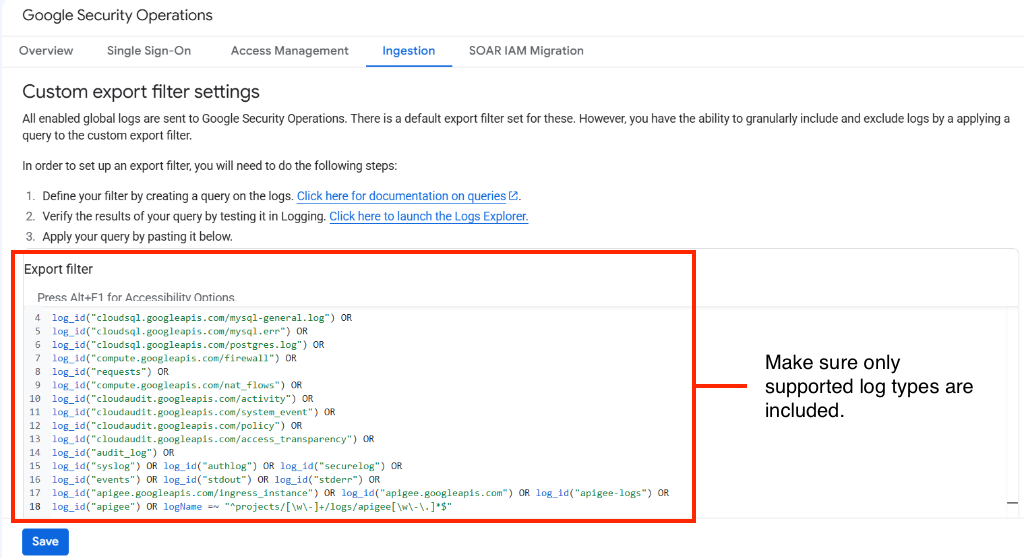
**Figure 3.** Example custom export filter syntax configured in Google SecOps
10. Click **Save**.
- If the following error message appears: "The provided filter can
potentially allow unsupported log types", there may be an unsupported log
type included in the export filter. Remove the unsupported log type from
the export filter. Only include log types listed in: [Google Cloud log types supported for
export](https://docs.cloud.google.com/chronicle/docs/ingestion/default-parsers/ingest-gcp-logs#supported-logs-for-export).
- If the save is successful, your new custom filter works against all new logs exported to your
Google SecOps instance.
- Optional: To reset the export filter to the default version, save a copy of your custom filter, and then click **Reset
to Default**.
### Tune Cloud Audit Logs filters
Data Access logs written by Cloud Audit Logs can produce a large volume of data without much value for threat detection. If you choose to send these logs to Google SecOps, you should filter out logs that are generated by routine activities.
The following export filter captures Data Access logs and excludes high-volume events such as Read and List operations of Cloud Storage and Cloud SQL:
( log_id("cloudaudit.googleapis.com/data_access")
AND NOT protoPayload.methodName =~ "^storage\.(buckets|objects)\.(get|list)$"
AND NOT protoPayload.request.cmd = "select"
AND NOT protoPayload.methodName =~ "^google\.spanner\.v1\.Spanner\.(ExecuteStreamingSql|BeginTransaction|Commit)$" )
For more information about tuning Data Access logs generated by Cloud Audit Logs, see [Manage the volume of Data Access audit logs](https://docs.cloud.google.com/architecture/security-log-analytics.md.txt#manage_the_volume_of_data_access_audit_logs).
### Export filter examples
The following export filter examples illustrate how you can include or exclude certain types of logs from the export to your Google SecOps instance.
> [!NOTE]
> **Note:** You can only export Google Cloud logs listed in: [Google Cloud log types supported for export](https://docs.cloud.google.com/chronicle/docs/ingestion/default-parsers/ingest-gcp-logs.md.txt#supported-logs-for-export).
#### Export filter example: Include additional log types
The following export filter exports access transparency logs in addition to the default logs:
log_id("dns.googleapis.com/dns_queries") OR
log_id("cloudaudit.googleapis.com/activity") OR
log_id("cloudaudit.googleapis.com/system_event") OR
log_id("cloudaudit.googleapis.com/access_transparency")
#### Export filter example: Include additional logs from a specific project
The following export filter exports access transparency logs from a specific project, in addition to the default logs:
log_id("dns.googleapis.com/dns_queries") OR
log_id("cloudaudit.googleapis.com/activity") OR
log_id("cloudaudit.googleapis.com/system_event") OR
logName = "projects/my-project-id/logs/cloudaudit.googleapis.com%2Faccess_transparency"
#### Export filter example: Include additional logs from a specific folder
The following export filter exports access transparency logs from a specific folder, in addition to the default logs:
log_id("dns.googleapis.com/dns_queries") OR
log_id("cloudaudit.googleapis.com/activity") OR
log_id("cloudaudit.googleapis.com/system_event") OR
logName = "folders/my-folder-id/logs/cloudaudit.googleapis.com%2Faccess_transparency"
#### Export filter example: Exclude logs from a specific project
The following export filter exports the default logs from the entire Google Cloud organization with the exception of a specific project:
(log_id("dns.googleapis.com/dns_queries") OR
log_id("cloudaudit.googleapis.com/activity") OR
log_id("cloudaudit.googleapis.com/system_event")) AND
(NOT logName =~ "^projects/my-project-id/logs/.*$")
#### Export filter example: Combine tuned Data Access logs with a project exclusion
When combining multiple `OR` conditions with `AND NOT` exclusions, wrap the `OR` conditions and any tuned log clauses in parentheses so that every branch remains explicitly scoped to a supported `log_id()` or `logName`:
(
log_id("cloudaudit.googleapis.com/activity") OR
log_id("cloudaudit.googleapis.com/system_event") OR
log_id("dns.googleapis.com/dns_queries") OR
(
log_id("cloudaudit.googleapis.com/data_access")
AND NOT protoPayload.methodName =~ "^storage\.(buckets|objects)\.(get|list)$"
AND NOT protoPayload.request.cmd = "select"
AND NOT protoPayload.methodName =~ "^google\.spanner\.v1\.Spanner\.(ExecuteStreamingSql|BeginTransaction|Commit)$"
)
)
AND NOT logName =~ "^projects/my-project-id/logs/.*$"
## Export Google Cloud asset metadata
You can export your Google Cloud asset metadata from Cloud Asset Inventory to Google SecOps.
This asset metadata is drawn from your Cloud Asset Inventory and consists of information
about your assets, resources, and identities including the following:
- Environment
- Location
- Zone
- Hardware models
- Access control relationships between resources and identities
The following types of Google Cloud asset metadata will be exported to your Google SecOps instance:
- `GCP_BIGQUERY_CONTEXT`
- `GCP_COMPUTE_CONTEXT`
- `GCP_IAM_CONTEXT`
- `GCP_IAM_ANALYSIS`
- `GCP_STORAGE_CONTEXT`
- `GCP_CLOUD_FUNCTIONS_CONTEXT`
- `GCP_SQL_CONTEXT`
- `GCP_NETWORK_CONNECTIVITY_CONTEXT`
- `GCP_RESOURCE_MANAGER_CONTEXT`
The following are examples of Google Cloud asset metadata:
- Application name---`Google-iamSample/0.1`
- Project name---`projects/my-project`
> [!NOTE]
> **Note:** You need to have either Security Command Center Standard or Security Command Center Premium enabled to export Google Cloud asset metadata to Google SecOps.
To export Google Cloud asset metadata to Google SecOps, set the **Cloud Asset Metadata** toggle to **Enabled**.
> [!CAUTION]
> **Caution:** Enabling **Cloud Asset Metadata** exports all supported context log types simultaneously, including `GCP_BIGQUERY_CONTEXT`. In environments with a large number of BigQuery datasets, tables, or jobs, enabling this option can significantly increase your log ingestion volume.
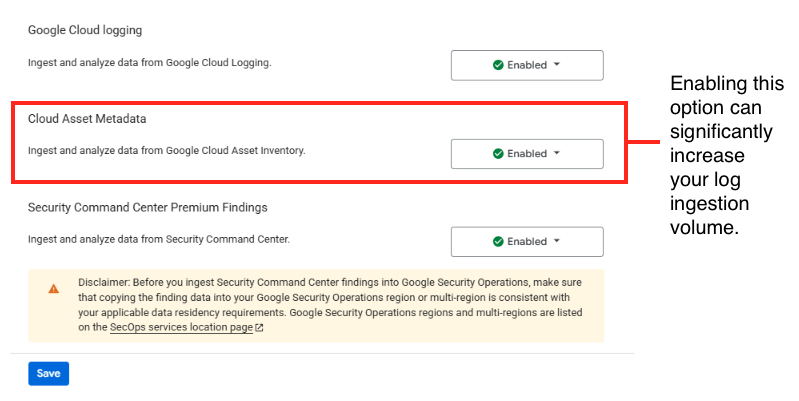
**Figure 4.** Cloud Asset Metadata toggle
For more information about exporting specific context logs and ingesting them into Google SecOps, see [Default parser configuration and ingestion](https://docs.cloud.google.com/chronicle/docs/ingestion/default-parsers/default-parser-configuration.md.txt) and search for 'context' or 'analysis'.
## Export Security Command Center findings
You can export Security Command Center Premium Event Threat Detection findings and all other findings to Google SecOps.
Google SecOps supports the following [Security Command Center finding classes](https://docs.cloud.google.com/security-command-center/docs/finding-classes.md.txt):
- `ERROR`
- `MISCONFIGURATION`
- `OBSERVATION`
- `POSITIVE_VALIDATION`
- `POSTURE_VIOLATION`
- `THREAT`
- `TOXIC_COMBINATION`
- `UNSPECIFIED`
- `VULNERABILITY`
For more information about ETD findings, see [Overview of Event Threat Detection](https://docs.cloud.google.com/security-command-center/docs/concepts-event-threat-detection-overview.md.txt).
To export your Security Command Center Premium findings to Google SecOps, set the **Security Command Center Premium Findings** toggle to **Enabled**. You must have Security Command Center Premium enabled at the organization level to export your Premium findings to Google SecOps.
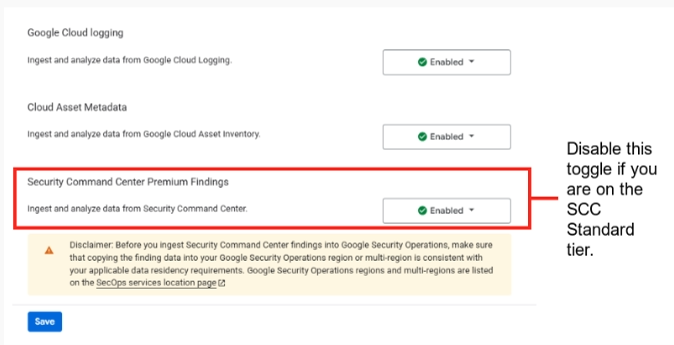
**Figure 5.** Security Command Center Premium Findings toggle
> [!NOTE]
> **Note:** Unlike Google Cloud logs, you cannot apply custom filters to include or exclude specific findings. When enabled, all findings from the Security Command Center ingestion labels are exported to Google SecOps.
### Troubleshooting Security Command Center findings
Google Cloud log ingestion stops if changes are made to your organization's Security Command Center Premium license. This can occur when downgrading the Security Command Center tier, after a trial expires, or due to other license modifications, causing Google SecOps to automatically disable Google Cloud log ingestion. The impact is an immediate cessation of log ingestion from your configured Google Cloud sources, resulting in a visibility gap. Note that logs generated while ingestion is disabled can't be retroactively collected.
To resolve this issue and resume log ingestion, manually re-enable the Google Cloud logs export in the Google Cloud console and apply any relevant export filters:
- **If you own the bound project** : In the Google Cloud console, go to **Security** \> **Google SecOps** \> **Ingestion Settings** , select your bound project and organization, and turn on the **Sending data to Google Security Operations** toggle. For detailed steps, see [Configure ingestion when project owned by customer](https://docs.cloud.google.com/chronicle/docs/ingestion/default-parsers/ingest-gcp-logs.md.txt#customer-owned-project).
- **If your instance uses a Google-managed project** : In the Google Cloud console, go to the **Google SecOps** \> **Overview** \> **Ingestion** tab, click **Manage organization ingestion settings** , and re-enable your data export options. For detailed steps, see [Configure ingestion for a Google managed project](https://docs.cloud.google.com/chronicle/docs/ingestion/default-parsers/ingest-gcp-logs.md.txt#cloud-owned-project).
- **If your instance uses a complex mapping**: If your instance maps multiple Google Cloud organizations to a single Google SecOps instance, no self-service option is available. Contact Google SecOps Support to re-enable ingestion.
Allow a few minutes for the connection to re-establish. You can verify that ingestion has resumed by searching for new logs in Search.
## Export Sensitive Data Protection data
> [!NOTE]
> **Note:** Cloud Data Loss Prevention (Cloud DLP) is now a part of Sensitive Data Protection.
You can export your Sensitive Data Protection data to Google SecOps.
To ingest Sensitive Data Protection asset metadata (`DLP_CONTEXT`), perform the following:
1. Enable Google Cloud data ingestion by completing the previous section in this document.
2. Configure Sensitive Data Protection to [profile data](https://docs.cloud.google.com/sensitive-data-protection/docs/profile-org-folder.md.txt).
3. Set the scan configuration to [publish data profiles](https://docs.cloud.google.com/sensitive-data-protection/docs/profile-org-folder.md.txt#chronicle) to Google SecOps.
See [Sensitive Data Protection documentation](https://docs.cloud.google.com/sensitive-data-protection/docs/data-profiles.md.txt) for detailed information
about creating data profiles for BigQuery data.
## Disable Google Cloud data ingestion
The steps to disable direct ingestion of data from Google Cloud are different depending on how Google SecOps is configured. Choose one of the following:
- If your Google SecOps instance is bound to a project that you own and
manage, perform the following steps:
1. Select the project that is bound to your Google SecOps instance.
2. In the Google Cloud console, go to the **Ingestion** tab under **Google SecOps** .
[Go to the **Google SecOps** page](https://console.cloud.google.com/security/chronicle/settings/ingestion)
3. In the **Organization** menu, select the organization from which logs are exported.
4. Set the **Sending data to Google Security Operations** toggle to **Disabled**.
5. If you configured data export from multiple Organizations, and you want to disable these as well, do these steps for each organization.
- If your Google SecOps instance is bound to a project that Google Cloud owns
and manages, perform the following steps:
> [!NOTE]
> **Note:** After completing these steps, you will need to obtain a new one-time access code from your Google SecOps representative and complete the procedure to [enable direct ingestion from Google Cloud](https://docs.cloud.google.com/chronicle/docs/ingestion/default-parsers/ingest-gcp-logs.md.txt#cloud-owned-project) to restart Google Cloud log ingestion.
1. Go to the **Google SecOps** \> **Ingestion** page in the Google Cloud console.
[Go to the **Google SecOps** page](https://console.cloud.google.com/security/chronicle/settings/ingestion)
2. In the resource menu, select the organization that is bound to your Google SecOps instance and that you are ingesting data from.
3. Check the box labeled **I want to disconnect Google SecOps and stop sending Google Cloud Logs into Google SecOps**.
4. Click **Disconnect Google SecOps**.
## Control the rate of ingestion
When the data ingestion rate for a tenant reaches a certain threshold,
Google Security Operations restricts the rate of ingestion for new data feeds to prevent
a source with a high ingestion rate from affecting the ingestion rate of another
data source. In this case, there is a delay but no data is lost. The ingestion
volume and tenant's usage history determine the threshold.
You can request a rate limit increase by contacting
[Cloud Customer Care](https://cloud.google.com/support-hub).
## Troubleshooting
- If the relationships between resources and identities are missing from your Google SecOps instance, disable and then re-enable direct ingestion of log data to Google SecOps.
- Google Cloud asset metadata is periodically ingested into Google SecOps. Allow several hours for changes to appear in the Google SecOps UI and APIs.
- When you add a log type to the export filter, you may see this message: "The provided filter can potentially allow unsupported log types".
Workaround: Only include log types to the export filter, that appear in the following list: [Google Cloud log types
supported for export](https://docs.cloud.google.com/chronicle/docs/ingestion/default-parsers/ingest-gcp-logs#supported-logs-for-export).
- When you save Google Cloud ingestion scopes or settings in the Google Cloud console, you might see an `"Attempted action failed"` error, or scopes might appear saved in the UI but fail to synchronize.
Workaround: Verify that all required organization-level [IAM roles](https://docs.cloud.google.com/chronicle/docs/ingestion/default-parsers/ingest-gcp-logs.md.txt#granting-iam-roles) (`roles/chroniclesm.admin`, `roles/iam.organizationRoleViewer`, and `roles/securitycenter.adminEditor` if exporting asset metadata) are granted on each target organization before saving your ingestion settings.
## What's next
- Open your Google SecOps instance using the customer specific URL provided by your Google SecOps representative.
- Learn more about [Google SecOps](https://chronicle.security).
**Need more help?** [Get answers from Community members and Google SecOps professionals.](https://security.googlecloudcommunity.com/)