A cacheable response is an HTTP response that Cloud CDN can store and quickly
retrieve, thus allowing for faster load times. Not all HTTP responses are
cacheable. Cloud CDN uses HTTP response headers that your origin
server sends to determine how to cache content at the edge. You can use standard
`Cache-Control` headers to manage caching universally, or use targeted
`CDN-Cache-Control` headers to apply specific caching rules to Cloud CDN
without affecting how end-user browsers cache your content.
## Cache modes
With cache modes, you can control the factors that determine whether
Cloud CDN caches your content.
Cloud CDN offers three cache modes, which define how responses
are cached, whether Cloud CDN respects cache directives sent by the
origin, and how [cache TTLs](https://docs.cloud.google.com/cdn/docs/using-ttl-overrides) are applied.
The available cache modes are shown in the following table:
| Cache mode | Behavior |
|---|---|
| `CACHE_ALL_STATIC` | Automatically caches successful responses with [static content](https://docs.cloud.google.com/cdn/docs/caching#static) that isn't otherwise [non-cacheable](https://docs.cloud.google.com/cdn/docs/caching#non-cacheable_content). Origin responses that set valid caching directives are also cached. This behavior is the *default* for Cloud CDN-enabled backends created by using the Google Cloud CLI or the REST API. |
| `USE_ORIGIN_HEADERS ` | Requires successful origin responses to set [valid cache directives and valid caching headers](https://docs.cloud.google.com/cdn/docs/caching#cacheability). Successful responses without these directives are forwarded from the origin. |
| `FORCE_CACHE_ALL` | Unconditionally caches successful responses, overriding any cache directives set by the origin. This mode might not be appropriate if the backend serves private, per-user (user identifiable) content, such as dynamic HTML or API responses. **Note:** When private bucket access is enabled on a bucket, you must set the `FORCE_CACHE_ALL` cache mode to cache private content from that bucket. |
Error responses [may be cached](https://docs.cloud.google.com/cdn/docs/using-negative-caching) even
in the absence of valid cache directives.
Before you set the cache mode to `FORCE_CACHE_ALL`, consider the following
behaviors:
- For [signed URLs or signed cookies](https://docs.cloud.google.com/cdn/docs/private-content),
`FORCE_CACHE_ALL` overrides the maximum age specified through the **Cache
entry maximum age** setting in the Google Cloud console or the `gcloud
--signed-url-cache-max-age` option.
- `FORCE_CACHE_ALL` changes the time to live (TTL) of any previously cached
content. This change can cause some entries that were previously considered
fresh (due to having longer TTLs from origin headers) to be considered stale,
and it can cause some entries that were previously considered stale to be
considered fresh.
- `FORCE_CACHE_ALL` overrides cache directives (`Cache-Control` and `Expires`)
but does not override other origin response headers. In particular, a `Vary`
header might suppress caching even if the cache mode is `FORCE_CACHE_ALL`. For
more information, see [Vary headers](https://docs.cloud.google.com/cdn/docs/caching#vary-headers).
For setup instructions, see [Setting the cache mode](https://docs.cloud.google.com/cdn/docs/using-cache-modes#cache-mode).
### Static content
Static content is content that is always the same, even when accessed by
different users. The CSS that you use to style your site, JavaScript to provide
interactivity, video, and image content typically don't change for each user for
a given URL (*cache key*), and thus benefit from being cached across
Cloud CDN's global edge network.
When you set the cache mode to `CACHE_ALL_STATIC`, and a response
does not have explicit caching directives in `Cache-Control` or `Expires`
headers, Cloud CDN *automatically* caches that response for the
following:
- Web Assets, including CSS (`text/css`), JavaScript (`application/javascript`) and all web fonts, including WOFF2 (`font/woff2`)
- Images, including JPEG (`image/jpg`) and PNG (`image/png`)
- Videos, including H.264, H.265, and MP4 (`video/mp4`)
- Audio files, including MP3 (`audio/mpeg`) and MP4 (`audio/mp4`)
- Formatted documents, including PDF (`application/pdf`)
> [!IMPORTANT]
> **Important:** The static content rules described here apply only to successful responses (for example, HTTP `200 OK` responses). By contrast, error responses are cached based on the [negative caching](https://docs.cloud.google.com/cdn/docs/using-negative-caching) settings, regardless of content type.
The following table provides a summary.
| Category | MIME types |
|---|---|
| **Web assets** | `text/css text/ecmascript text/javascript application/javascript` |
| **Fonts** | Any `Content-Type` matching `font/*` |
| **Images** | Any `Content-Type` matching `image/*` |
| **Videos** | Any `Content-Type` matching `video/*` |
| **Audio** | Any `Content-Type` matching `audio/*` |
| **Formatted document types** | `application/pdf` and `application/postscript` |
Cloud CDN inspects the `Content-Type` HTTP response header, which
reflects the [MIME
type](https://developer.mozilla.org/en-US/docs/Glossary/MIME_type)
of the content being served.
Note the following:
- Your origin's web server software must set the `Content-Type` for each
response. Many web servers automatically set the `Content-Type` header,
including NGINX, Varnish, and Apache.
- Cloud Storage sets the `Content-Type` header [automatically](https://docs.cloud.google.com/storage/docs/metadata#content-type)
when you use the Google Cloud console or the Google Cloud CLI to upload content.
- Cloud Storage always provides a `Cache-Control` header to
Cloud CDN. If no value is explicitly chosen, it sends a default value.
As a result, all successful Cloud Storage responses are cached
according to Cloud Storage default values, unless you explicitly
adjust the [cache control metadata](https://docs.cloud.google.com/storage/docs/metadata#cache-control) for
objects in Cloud Storage or use `FORCE_CACHE_ALL` mode to override
the values sent by Cloud Storage.
- If you want to cache `text/html` and `application/json` content types, you
must set [explicit `Cache-Control` headers in the response](https://docs.cloud.google.com/cdn/docs/caching#cacheability),
being careful not to accidentally cache one user's data and serve it to all
users.
If a response is cacheable based on its MIME type but has a `Cache-Control`
response header of `private` or `no-store`, or a `Set-Cookie`
header, it isn't cached. To learn more, see [cacheability rules](https://docs.cloud.google.com/cdn/docs/caching#cacheability).
Other content types, such as HTML (`text/html`) and JSON
(`application/json`), are not cached by default for successful responses. These
types of responses are typically dynamic (per user). Examples include shopping
carts, product pages with user personalization, and authenticated API
responses. [Negative caching](https://docs.cloud.google.com/cdn/docs/using-negative-caching), if enabled, can
still cause them to be cached for certain status codes, however.
Cloud CDN doesn't use file extensions in the URL path to determine
whether a response is cacheable because many valid cacheable responses aren't
reflected in URLs.
## Cache policy configuration methods
Depending on how much control you need over caching behavior, you can configure
caching behavior for Cloud CDN at the backend service, backend bucket,
or at a more granular level in URL maps.
### Backend service or backend bucket cache policy
Configure a cache policy on a backend service or backend bucket to apply
a single caching policy to all requests that are routed to that backend.
### Cache policies in URL maps
You can configure Cloud CDN cache policies at various levels of the URL
map. This provides granular control over caching policies based on criteria like
hostname, URL path, HTTP headers, and query parameters for specific routes.
> [!NOTE]
> **Note:** Setting cache policies at various levels of the URL map is supported only for the global external Application Load Balancer, and not for the classic Application Load Balancer.
Setting cache policies at different levels of the URL map, such as root, path matchers,
path rules, and route rules, gives you granular control over
caching different types of content served by the same backend.
For example, you can configure path rules to:
- Cache static images in the `/images/*` path for 24 hours.
- Cache HTML pages in the `/pages/*` path for 5 minutes.
You can configure cache policies in URL maps when:
- a single backend serves different types of content
- different paths require different caching behavior
- you want to enable caching for specific routes only
For details on how to configure cache policies in URL map, see
[Configure a Cloud CDN cache policy](https://docs.cloud.google.com/load-balancing/docs/https/setting-up-global-traffic-mgmt#cdn-cache-policy).
> [!NOTE]
> **Note:** Some Cloud CDN features are configured only on the backend. For example, [Dynamic compression](https://docs.cloud.google.com/cdn/docs/dynamic-compression), [Signed URLs](https://docs.cloud.google.com/cdn/docs/using-signed-urls) and [Signed cookies](https://docs.cloud.google.com/cdn/docs/using-signed-cookies) are managed on the backend.
## Default values for caching
For caching parameters, Cloud CDN uses the following default values:
| Parameter | Default value | Description |
|---|---|---|
| Cache mode | `CACHE_ALL_STATIC` | Automatically caches successful responses for common static content types. |
| Client TTL | `3600s` | Sets a 1-hour `max-age` for the client's browser cache. |
| Default TTL | `3600s` | Sets a 1-hour cache duration if the origin provides no headers. |
| Include Host | `true` | The request host is included in the cache key. |
| Include Protocol | `true` | HTTP and HTTPS requests are cached as separate objects. |
| Include Query String | `true` | The entire query string is part of the cache key. |
| Max TTL | `86400s` | The absolute maximum time (24 hours) an object remains in the cache. |
| Negative Caching | `false` | Error responses, such as, 404s are not cached by default. |
| Serve While Stale | `86400s` | Serves stale content for up to 24 hours if the origin is unreachable. |
## GKE controller feature support
The following table compares the availability of specific Cloud CDN
features when managed through the GKE Ingress controller versus
the GKE Gateway controller.
| Feature | GKE ingress through backend configuration | GKE gateway using `GCPHTTPFilter` |
|---|---|---|
| Basic Caching (Modes/TTLs) | Yes | Yes |
| Cache Key Customization | Yes | Yes |
| Negative Caching | Yes | Yes |
| Serve While Stale | Yes | Yes |
| Dynamic Compression | Yes | |
| Signed URLs \& Cookies | Yes | |
| Request Coalescing | Yes | Yes |
## Cacheable content
Cloud CDN caches responses that meet all of the requirements in
this section. Some of these requirements are specified by [RFC
7234](https://tools.ietf.org/html/rfc7234), and others are
specific to Cloud CDN.
Cloud CDN may periodically change the exact set of conditions under
which it caches content. If you want to explicitly prevent Cloud CDN
from caching your content, follow the guidelines in RFC 7234 to
determine how to specify a guaranteed-uncacheable response. See also the
[non-cacheable content based on origin headers](https://docs.cloud.google.com/cdn/docs/caching#non-cacheable_content) section.
Cloud CDN stores responses in cache if all of the following are true.
| Attribute | Requirement |
|---|---|
| Served by | Backend service, backend bucket, or an external backend with Cloud CDN enabled |
| In response to | `GET` request |
| Status code | `200`, `203`, `204`, `206`, `300`, `301`, `302`, `307`, `308`, `404`, `405`, `410`, `421`, `451`, or `501`. |
| Freshness | The response has a `Cache-Control` header with a `max-age` or `s-maxage` directive, or an `Expires` header with a timestamp in the future. For cacheable responses without an age (for example, with `no-cache`), the `public` directive must be explicitly provided. With the `CACHE_ALL_STATIC` cache mode, if no freshness directives are present, a successful response with static content type is still eligible for caching. The `FORCE_CACHE_ALL` cache mode unconditionally caches all successful responses from the origin, regardless of origin-set cache directives. This setting can lead to the unintentional caching of private or per-user content. You must use `FORCE_CACHE_ALL` for backends that serve public, static content or for Cloud Storage buckets with objects intended for broad public access. **Note:** When private bucket access is enabled for Cloud Storage buckets, `FORCE_CACHE_ALL` is required to cache content from those buckets. If [negative caching](https://docs.cloud.google.com/cdn/docs/using-negative-caching) is enabled and the status code matches one for which negative caching specifies a TTL, the response is eligible for caching, even without explicit freshness directives. |
| Content | For HTTP/1 origins, the response must contain a valid `Content-Length`, `Content-Range`, or `Transfer-Encoding: chunked` header. For origins that use more advanced HTTP protocol versions (HTTP/2 and later), the response need not have such headers. |
| Size | Less than or equal to the [maximum size](https://docs.cloud.google.com/cdn/docs/caching#maximum-size). For responses with sizes between 10 MiB and 100 GiB, see the additional cacheability constraints described in [byte range requests](https://docs.cloud.google.com/cdn/docs/caching#byte-range-requests). |
For Cloud Storage backend buckets, follow these additional suggestions:
- [Make your bucket publicly readable](https://docs.cloud.google.com/storage/docs/access-control/making-data-public#buckets).
This is the approach that we recommend for public content. With this
setting, anyone on the internet can view and list your objects and their
metadata, excluding ACLs. The recommended practice is to dedicate specific
buckets for public objects.
- Use [managed folders](https://docs.cloud.google.com/storage/docs/managed-folders) to
[make a portion of your bucket publicly readable](https://docs.cloud.google.com/storage/docs/access-control/making-data-public#managed-folders).
- [Make individual objects publicly readable](https://docs.cloud.google.com/storage/docs/access-control/create-manage-lists#set-an-acl).
We don't recommend this approach, because it uses a legacy,
Cloud Storage-specific permissioning system.
- Don't store the object in a bucket that has [Requester Pays](https://docs.cloud.google.com/storage/docs/requester-pays) enabled
or resides within a [Virtual Private Cloud service perimeter](https://docs.cloud.google.com/vpc-service-controls/docs/service-perimeters).
- Don't encrypt the object by using [customer-managed encryption keys](https://docs.cloud.google.com/storage/docs/encryption/customer-managed-keys) or
[customer-supplied encryption keys](https://docs.cloud.google.com/storage/docs/encryption/customer-supplied-keys).
By default, when an object is public and doesn't specify `Cache-Control`
metadata, Cloud Storage assigns a `Cache-Control: public, max-age=3600`
header to the object. You can set different values by using
[`Cache-Control` metadata](https://docs.cloud.google.com/storage/docs/metadata#cache-control).
For an example that shows how to configure an external Application Load Balancer with a backend
bucket, see [Setting up Cloud CDN with a backend
bucket](https://docs.cloud.google.com/cdn/docs/setting-up-cdn-with-bucket).
> [!NOTE]
> **Note:** To ensure that content in your storage buckets can be accessed only through Cloud CDN or Cloud Load Balancing, use [Private bucket access](https://docs.cloud.google.com/cdn/docs/configure-private-bucket-access), [private origin authentication](https://docs.cloud.google.com/cdn/docs/configure-private-origin-authentication) or [signed URLs](https://docs.cloud.google.com/cdn/docs/using-signed-urls).
### Maximum size
Cloud CDN enforces a maximum size for each response. Any response with
a body larger than the maximum size is not cached but is still delivered to the
client.
The maximum size varies depending on whether the origin server supports [byte
range requests](https://docs.cloud.google.com/cdn/docs/caching#byte-range-requests).
| Origin server supports byte range requests | Origin server does not support byte range requests |
|---|---|
| 100 GiB (107,374,182,400 bytes) | 10 MiB (10,485,760 bytes) |
Nearly all modern web servers (including NGINX, Apache, and Varnish) support
byte range requests.
## Non-cacheable content based on origin headers
There are checks that block caching of responses. Cloud CDN may
periodically change the exact set of conditions under which it caches content,
so if you want to explicitly prevent Cloud CDN
from caching your content, follow the guidelines in the standard ([RFC
7234](https://tools.ietf.org/html/rfc7234)) to determine how to specify a
guaranteed-uncacheable response.
Cloud CDN doesn't cache a response if it does not meet the requirements
for [Cacheable content](https://docs.cloud.google.com/cdn/docs/caching#cacheability), or if any of the following is true.
| Attribute | Requirement |
|---|---|
| Served by | Backend service or external backend that doesn't have Cloud CDN enabled |
| Cookie | Has a `Set-Cookie` header |
| `Vary` header | Has a value other than `Accept`, `Accept-Encoding`, `Access-Control-Request-Headers`, `Access-Control-Request-Method`, `Available-Dictionary`, `Origin`, `Sec-Fetch-Dest`, `Sec-Fetch-Mode`, `Sec-Fetch-Site`, `X-Goog-Allowed-Resources`, `X-Origin`, or one of the headers that are configured to be part of the [cache key settings](https://docs.cloud.google.com/cdn/docs/caching#http-headers-cookies). |
| Response directive | Response has a `Cache-Control` header with the `no-store` or `private` directive (unless using the `FORCE_CACHE_ALL` cache mode, in which case the `Cache-Control` header is ignored) |
| Request directive | Request has a `Cache-Control: no-store` directive |
| Request authorization | Request has an `Authorization` header, unless [overridden](https://docs.cloud.google.com/cdn/docs/caching#prevent-caching) by the response Cache-Control. |
| Size | Larger than the [maximum size](https://docs.cloud.google.com/cdn/docs/caching#maximum-size) |
If `Cache-Control: no-store` or `private` is present, but the
content is still being cached, this is due to one of the following:
- URL signing is configured.
- The Cloud CDN cache mode is set to force caching of all responses.
### Prevent caching
To prevent private information from being cached in Cloud CDN
caches, do the following:
1. Make sure that Cloud CDN cache mode isn't set to the `FORCE_CACHE_ALL` mode, which unconditionally caches all successful responses.
2. Include a `Cache-Control: private` header in responses that shouldn't be stored in Cloud CDN caches, or a `Cache-Control: no-store` header in responses that shouldn't be stored in any cache, even a web browser's cache.
3. Don't [sign URLs](https://docs.cloud.google.com/cdn/docs/using-signed-urls) that provide access to private information. When content is accessed by using a signed URL, it is potentially eligible for caching regardless of any `Cache-Control` directives in the response.
4. For origin (cache fill) requests that include the `Authorization` request header, Cloud CDN only caches responses that include the `public`, `must-revalidate`, or `s-maxage` cache control directives when the cache mode is set to `USE_ORIGIN_HEADERS` or `CACHE_ALL_STATIC`. This prevents accidentally caching per-user content and content that requires authentication. The `FORCE_CACHE_ALL` cache mode does not have this restriction.
## Custom response headers
With [custom response headers](https://docs.cloud.google.com/load-balancing/docs/custom-headers#variables),
you can specify headers that the classic Application Load Balancer adds to proxied
responses. Custom response headers let you reflect the cache status to your
clients, client geographic data, and your own static response headers.
For instructions, see [Configure custom response headers](https://docs.cloud.google.com/load-balancing/docs/custom-headers#working-with-response).
## Cache keys
Each cache entry in a Cloud CDN cache is identified by a *cache
key*. When a request comes into the cache, the cache converts the URI of the
request into a cache key, and then compares it with keys of cached entries.
If it finds a match, the cache returns the object associated with that key.
For backend services, Cloud CDN defaults to using the complete request URI as the cache key.
For example, `https://example.com/images/cat.jpg` is the complete URI for a
particular request for the `cat.jpg` object. This string is used as the default
cache key. Only requests with this exact string match. Requests for
`http://example.com/images/cat.jpg` or
`https://example.com/images/cat.jpg?user=user1` don't match.
For backend buckets, the default is for the cache key to consist of the URI
without the protocol or host. By default, only query parameters that are known
to Cloud Storage are included as part of the cache key (for example,
"generation").
Thus, for a given backend bucket, the following URIs resolve to the same cached
object:
- `http://example.com/images/cat.jpg`
- `https://example.com/images/cat.jpg`
- `https://example.com/images/cat.jpg?user=user1`
- `http://example.com/images/cat.jpg?user=user1`
- `https://example.com/images/cat.jpg?user=user2`
- `https://media.example.com/images/cat.jpg`
- `https://www.example.com/images/cat.jpg`
You can change which parts of the URI are used in the cache key. While the
filename and path must always be part of the key, you can include or omit any
combination of protocol, host, or query string when customizing your cache key.
[Using cache keys](https://docs.cloud.google.com/cdn/docs/using-cache-keys) describes how to customize your
cache keys.
| URI part | Customization | Example URLs that have the same cache key |
|---|---|---|
| Protocol | Omit the protocol from the cache key. | - `https://example.com/images/cat.jpg` - `http://example.com/images/cat.jpg` |
| Host | Omit the host from the cache key. | - `https://example.com/images/cat.jpg` - `https://example2.com/images/cat.jpg` |
| Query string | Omit the query string from the cache key. Selectively omit or include portions of the query string. | - `https://example.com/images/cat.jpg?user=user1` - `https://example.com/images/cat.jpg?user=user2` |
In addition to including or omitting the entire query string, you can use
portions of the query string by using include lists and exclude lists.
### Query string include list
You can selectively control which query string parameters Cloud CDN
incorporates into cache keys. For example, if you create an include list of
`user`, then`https://example.com/images/cat.jpg?user=user1&color=blue`
creates a cache key of `https://example.com/images/cat.jpg?user=user1` that
also matches `https://example.com/images/cat.jpg?user=user1&color=red`.
To use this option, you must include the query string, specify a
non-empty include list, and *not* specify an exclude list.
#### Query string include list for Cloud Storage cache keys
> [!NOTE]
> **Note:** Make sure that you're using gcloud CLI version `369.0.0` or later.
Including URL query parameters in cache keys for Cloud Storage buckets
helps support *cache busting*. Cache busting lets a user retrieve a new version
of the file that has been uploaded, even if the earlier version is still validly
cached based on the TTL setting.
You can use an include list with query string parameters in the cache key used for
serving responses from a backend bucket. Although Cloud Storage does
not serve different content or route based on query parameters, you can choose
to include parameters that allow you to cache-bust static content stored in
Cloud Storage buckets.
For example, you can append a `?version=VERSION` or `?hash=HASH` query parameter
that is based on the underlying content. This limits the need to proactively
invalidate content and aligns with modern web development workflows, where web
frameworks and URLs use a hash of the content to avoid serving stale objects
across deployments.
Because including query parameters in the cache key is opt-in only,
Cloud CDN doesn't support excluding query parameters from a cache key
to a backend bucket.
### Query string exclude list
You can selectively control which query string parameters Cloud CDN
ignores by using an exclude list. For example, if you create an exclude list of
`user`, all query string parameters *except* `user` are used in the cache key.
With the exclude list configured and an input of
`https://example.com/images/cat.jpg?user=user1&color=blue`, Cloud CDN
creates a cache key of `https://example.com/images/cat.jpg?color=blue` that also
matches `https://example.com/images/cat.jpg?user=user2&color=blue` but not
`https://example.com/images/cat.jpg?user=user1&color=red`.
To use this option, you must include the query string, specify a non-empty
exclude list, and *not* specify an include list.
### Query parameter order
The generated cache key doesn't depend on the order of the query parameters.
For example, the following query parameters generate the same cache key:
- `info=123&variant=13e&geography=US`
- `geography=US&variant=13e&info=123`
### HTTP headers and HTTP cookies settings
> [!NOTE]
> **Note:** Make sure that you're using gcloud CLI version 369.0.0 or later.
You can improve cache hit rates and origin offload with the following cache key
configuration settings:
- **For backend services and buckets:** Use HTTP headers as part of cache keys by including named headers in the cache key configuration.
- **For backend services only:** Use named HTTP cookies as cache keys, such as for A/B (multivariate) testing, canarying, and similar scenarios.
> [!NOTE]
> **Note:** Increasing the number of unique cache keys can reduce the cache hit rate, especially if there is a large number of possible values.
Cache requests that include additional HTTP headers or HTTP cookies in the
request are cached on the third request in a cache location for that cache key.
This reduces the impact of high-cardinality header or cookie values on your
cache eviction rates. Under normal circumstances and user traffic conditions,
this shouldn't be noticeable and helps ensure that popular content remains
cached.
#### Include request headers
To cache additional variations of a response, you can include additional request
headers in the cache key.
Some headers are not allowed in cache keys because they are
typically very high cardinality. In most cases, the values of these headers are
either unique per user (`Cookie`,`Authorization`) or have thousands of likely
values (`Referer`, `User-Agent`, `Accept`). For example, the `User-Agent` header
can have over 5,000 unique values given the large variety of browsers,
user-devices, and operating systems. These types of headers would have a
severe negative impact on cache hit rates.
Only valid HTTP header field names are accepted per
[RFC 7230](https://datatracker.ietf.org/doc/html/rfc7230#section-3.2).
Header field names are case-insensitive, and duplicates are rejected.
You may optionally configure your origin server to include configured cache-key
request headers in the `Vary` response. It is not required for
Cloud CDN, but can be helpful for downstream caches. For more
information, see [Vary headers](https://docs.cloud.google.com/cdn/docs/caching#vary-headers).
If an `x-http-method-override` header is present in the request, and specifies a
method that doesn't match the underlying GET or HEAD method, the header will
automatically be added to the cache key. Origin servers are unpredictable in how
they respond to this header, so Cloud CDN treats the presence of the
header conservatively and caches separate responses for different header values.
Cloud CDN doesn't allow the following headers to be included in the
list of headers:
- `Accept`
- `Accept-Encoding`
- `Authority`, because this is controlled by configuration (`cdnPolicy.includeHost`)
- `Authorization`, typically per-user as in OAuth `Bearer` tokens
- `CDN-Loop`
- `Connection`
- `Content-MD5`
- `Content-Type`
- `Cookie`
- `Date`
- `Forwarded`, often per-client or per-proxy
- `From`
- `Host`, because this is controlled by configuration (`cdnPolicy.includeHost`)
- `If-Match`, `If-Modified-Since`, or `If-None-Match`
- `Origin`
- `Proxy-Authorization`
- `Range`
- `Referer` (or `Referrer`)
- `User-Agent`
- `Want-Digest`
- `X-CSRFToken` and `X-CSRF-Token` as used by Django and Ruby on Rails
- `X-Forwarded-For`, often per-client or per-proxy
- `X-User-IP`
- Any header starting with the following:
- `Access-Control-`, such as `Access-Control-Request-Headers` and `Access-Control-Request-Method`
- `Sec-Fetch-`
- `Sec-GFE-`
- `Sec-Google-`
- `X-Amz-`
- `X-GFE-`
- `X-Goog-`
- `X-Google-`
#### Use custom variables with request headers
Cache keys are helpful when you need to serve content differently based
on each user's device and location. For example, you can enable a responsive
website to serve the appropriate images for users that are viewing content
based on their device type or set a helpful default language based on their location.
You can define cache keys by using custom request headers and custom variables.
To use custom variables with request headers, do the following:
1. [Define a custom request header](https://docs.cloud.google.com/load-balancing/docs/https/custom-headers#working-with-request) for your backend service. Include one or more variables for the custom request header value.
2. [Update the cache key](https://docs.cloud.google.com/cdn/docs/using-cache-keys#enable-cdn) to use the custom request header.
For Cloud CDN, you can use only the following variables when defining
headers that are both custom request headers and cache key headers:
- `device_request_type`
- `user_agent_family`
- `client_region`
- `client_region_subdivision`
Cloud CDN limits the variables to help maintain cache performance.
This is similar to limits on the [headers that can be used as cache keys](https://docs.cloud.google.com/cdn/docs/caching#include-request-headers).
For example, if you could specify `X-Lat-Long:{client_city_lat_long}` as a
custom request header and then add `X-Lat-Long` to your set of cache key
headers, Cloud CDN would attempt to cache one copy of the response for
each value of `client_city_lat_long`. This would ultimately lead to cache
overuse, unnecessary content flushing, and reduced opportunity to return cache
hits.
For these reasons, variables that have high cardinality aren't included in the
list of variables that are used to define custom request headers and
subsequently cache keys.
#### Same headers with different values
Suppose the user sends multiple same-named headers with different header
values---for example:
My-Header: Value1
My-Header: Value2
In this case, Cloud CDN modifies the request by assuming that the
header must follow the standard convention that allows some headers to have
multiple values. Cloud CDN collapses them into a comma-separated list
to send to the backend, so it's as if the client sent the following:
My-Header: Value1, Value2
### Include named cookies
> [!NOTE]
> **Note:** Make sure that you're using gcloud CLI version `369.0.0` or later.
An HTTP cookie is a `name=value` pairing, and a request can include
multiple HTTP cookies, either separated by a semicolon on the same line, or
as discrete `Cookie` request headers with one cookie per header.
You can provide a list of up to five cookie names.
User agents (such as web browsers) often limit the number of cookies
stored per domain to 4 KB; make sure not to send too many
(or too large) cookies, as the user agent might not send all cookies in a
request. This can impact whether a user receives a specific cached response.
If you are serving your static content from a different hostname from which you
issue cookies, ensure that the `Domain` attribute of the cookie
(and the `Path`) attribute allows the cookie to be sent along with requests
for static content.
If a request includes multiple instances of the same cookie name, only the first
one is honored.
### Cache control header precedence
Origin servers often return multiple cache control headers in a single response
to target different caching layers. When evaluating an origin response,
Cloud CDN uses a strict order of precedence to select one header to
define its caching behavior.
The precedence order, from highest to lowest priority, is:
1. `CDN-Cache-Control`: The industry-standard targeted header for CDNs. If present,
Cloud CDN uses these directives exclusively and ignores any standard
headers below it. This header is preserved and forwarded downstream to the client.
2. `Cache-Control`: The standard web cache header. Cloud CDN uses this
only if no `CDN-Cache-Control` header is found in the response.
**Provider-specific headers**
Cloud CDN ignores targeted cache control headers intended for specific
third-party CDNs. These headers fall outside of this precedence logic.
### Header syntax and limitations
Cloud CDN doesn't support structural fallback for malformed headers.
If a `CDN-Cache-Control` header is present in the response, Cloud CDN
commits to using it. If the header contains syntax errors, parsing issues,
or invalid values, such as a non-numeric `max-age`, Cloud CDN doesn't
fall back to evaluate the standard `Cache-Control` header. Instead,
Cloud CDN might treat the response as uncacheable.
Ensure your targeted headers strictly comply with the dictionary structured
fields requirements outlined in [RFC 9213](https://www.rfc-editor.org/rfc/rfc9213).
## Cache control directives
HTTP cache control directives affect Cloud CDN's behavior, as outlined
in the following table.
**N/A** signifies that a directive is not applicable to a request or response.
| Directive | Request | Response |
|---|---|---|
| `no-store` | When present in a request, Cloud CDN honors this and does not store the response in the cache. | A response with `no-store` isn't cached. This can be overridden on a per-backend basis with the `FORCE_CACHE_ALL` cache mode. |
| `no-cache` | The `no-cache` request directive is ignored to prevent clients from potentially initiating or forcing revalidation to the origin. | A response with `no-cache` is cached but must be revalidated with the origin before being served. This can be overridden on a per-backend basis with the `FORCE_CACHE_ALL` cache mode. |
| `public` | N/A | This directive is not required for cacheability, but it is a best practice to include it for content that should be cached by proxies. |
| `private` | N/A | A response with the `private` directive isn't cached by Cloud CDN, even if the response is otherwise considered cacheable. Clients (such as browsers) might still cache the result. This can be overridden on a per-backend basis with the `FORCE_CACHE_ALL` cache mode. Use `no-store` to prevent all caching of responses. |
| ` max-age=SECONDS ` | The `max-age` request directive is ignored. A cached response is returned as if this header was not included in the request. | A response with the `max-age` directive is cached up to the defined SECONDS. |
| ` s-maxage=SECONDS ` | N/A | A response with the `s-maxage` directive is cached up to the defined SECONDS. If both `max-age` and `s-maxage` are present, `s‑maxage` is used by Cloud CDN. Responses with this directive aren't served stale. `s-max-age` (two hyphens) is not valid for the purposes of caching. |
| ` min-fresh=SECONDS ` | The `min-fresh` request directive is ignored. A cached response is returned as if this header was not included in the request. | N/A |
| `max-stale=SECONDS` | The `max-stale` request directive dictates the maximum *staleness* (in seconds) that the client is willing to accept. Cloud CDN honors this, and returns a stale cached response only if the staleness of the response is less than the `max-stale` directive. Otherwise, it revalidates before serving the request. | N/A |
| ` stale-while-revalidate=SECONDS ` | N/A | A response with `stale-while-revalidate` is served to a client for up to SECONDS while revalidation takes place asynchronously. This behavior can be enabled for all responses by setting `cdnPolicy.serveWhileStale` on the backend. |
| ` stale-if-error=SECONDS ` | The `stale-if-error` request directive is ignored. A cached response is returned as if this header was not included in the request. | This response header has no effect. |
| `must-revalidate` | N/A | A response with `must-revalidate` is revalidated with the origin server after it expires. Responses with this directive aren't served stale. |
| `proxy-revalidate` | | A response with `proxy-revalidate` is revalidated with the origin server after it expires. Responses with this directive aren't served stale. |
| `immutable` | N/A | No effect. This is passed on to the client in the response. |
| `no-transform` | N/A | No transforms are applied by Cloud CDN. |
| `only-if-cached` | The `only-if-cached` request directive is ignored. A cached response is returned as if this header was not included in the request. | N/A |
Where possible, Cloud CDN endeavors to be RFC-compliant (HTTP RFC
7234), but favors optimizing for cache offload and minimizing the impact that
clients can have on hit rate and overall origin load.
For responses that use the HTTP/1.1 `Expires` header:
- The value of the `Expires` header must be a valid HTTP-date as [defined in RFC 7231](https://tools.ietf.org/html/rfc7231#section-7.1.1.1).
- A date value in the past, an invalid date, or a value of `0` indicates that the content has already expired and requires revalidation.
- If a `Cache-Control` header is present in the response, Cloud CDN ignores the `Expires` header.
The presence of a valid, future `Expires` header in the response lets the
response be cached, and does not require other cache directives to be specified.
The HTTP/1.0 `Pragma` header, if present in a response, is ignored and
passed through as-is to the client. Client requests with this header are
passed to the origin and don't impact how a response is served by
Cloud CDN.
## `Vary` headers
The [`Vary`](https://tools.ietf.org/html/rfc7231#section-7.1.4)
header indicates that the response varies depending on the client's
request headers. In addition to the request URI, Cloud CDN respects
`Vary` headers that origin servers include in responses. For example, if a
response specifies `Vary: Accept`, Cloud CDN uses one cache entry for
requests that specify `Accept: image/webp,image/*,*/*;q=0.8` and another for
requests that specify `Accept: */*`.
The table in the
[Non-cacheable content](https://docs.cloud.google.com/cdn/docs/caching#non-cacheable_content) section lists
the `Vary` headers that allow content to be cached. Other `Vary` header values
prevent content from being cached.
The `FORCE_CACHE_ALL` cache mode does *not* override this behavior. The `Vary`
headers are important to avoid cache poisoning between multiple possible origin
server responses. It would be dangerous for `FORCE_CACHE_ALL` to cause those
responses to be cached.
`Vary` headers are sometimes used when serving compressed content.
Cloud CDN does not compress or decompress responses itself (unless
[dynamic compression](https://docs.cloud.google.com/cdn/docs/dynamic-compression) is
enabled), but it can serve responses that the origin server has compressed. If your
origin server chooses whether to serve compressed content or uncompressed content based
on the value of the `Accept-Encoding` request header, make sure that the
response specifies `Vary: Accept-Encoding`.
When using [HTTP headers in the cache key](https://docs.cloud.google.com/cdn/docs/caching#http-headers-cookies),
Cloud CDN caches multiple copies of the response based on the values
of the specified request headers, similar to `Vary` support but without the
need for the origin server to explicitly specify any `Vary` response header.
If the origin does specify the cache-key headers in the `Vary` response,
Cloud CDN treats the response correctly, the same as if the
headers were not mentioned in the `Vary` response.
## Expiration times and validation requests
A cache entry's expiration time defines how long a cache entry remains valid.
The value provided by the `s-maxage` (or `max-age` or `expires`) value allows
for automatic revalidation of stale, user-generated cached content.
When Cloud CDN receives a request, it looks up the corresponding
cache entry and checks its age. If the cache entry exists and is fresh enough,
the response can be served from the cache. If the expiration time has
passed, Cloud CDN attempts to revalidate the cache entry by contacting
one of your backends. This is done before serving the response, unless you
enable [serve-while-stale](https://docs.cloud.google.com/cdn/docs/serving-stale-content), in
which case revalidation is performed asynchronously.
For some cache modes, you can set TTL values. For more information, see
[Using TTL settings and overrides](https://docs.cloud.google.com/cdn/docs/using-ttl-overrides).
The cache mode affects how freshness is determined.
| Cache mode | Validation behavior |
|---|---|
| `CACHE_ALL_STATIC` | The origin headers (`Cache-Control: s-maxage`, `Cache-Control: max-age`, or `Expires` headers) are consulted to determine freshness. For static content, if origin headers are not present, the configured `default_ttl` determines freshness. After the static content is older than `default_ttl`, Cloud CDN revalidates it. |
| `USE_ORIGIN_HEADERS` | Each cache entry in a Cloud CDN cache has an expiration time defined by the `Cache-Control: s-maxage`, `Cache-Control: max-age`, or `Expires` headers in accordance with [RFC 7234](https://tools.ietf.org/html/rfc7234). |
| `FORCE_CACHE_ALL` | Instead of origin headers, the configured `default_ttl` determines freshness. After the content is older than `default_ttl`, Cloud CDN revalidates it. |
If more than one is present, `Cache-Control: s-maxage` takes
precedence over `Cache-Control: max-age`, and
`Cache-Control: max-age` takes precedence over `Expires`.
By default, when the expiration time value exceeds 30 days (2,592,000
seconds), Cloud CDN treats the expiration value as if it were 2,592,000
seconds. Downstream clients still see the accurate values of `max-age` and
`s-maxage`, even if they exceed 30 days.
### Eviction
There is no guarantee that a cache entry remains in the cache until it expires
because unpopular entries can be evicted before they expire *at any time* to
make room for new content. As an upper bound, cache entries that aren't accessed
for 30 days are automatically evicted.
For more information, see
[Cache expiration and eviction policies](https://docs.cloud.google.com/cdn/docs/overview#eviction_and_expiration).
### Use conditional requests for validation
Cloud CDN can attempt to use the information in the cached response
headers to validate the cache entry with the backend. This happens when
both of the following are true:
- The previously cached response has a `Last-Modified` or `ETag` header.
- The client request is a `GET` request that does not contain `If-Modified-Since` or `If-None-Match` headers.
Cloud CDN performs this validation slightly differently depending on
whether the response was cached by using [byte range
requests](https://docs.cloud.google.com/cdn/docs/caching#byte-range-requests):
- If the response was cached by using byte range requests, Cloud CDN initiates a separate validation request that includes `If-Modified-Since` and `If-None-Match` headers.
- Otherwise, Cloud CDN adds `If-Modified-Since` and `If-None-Match` headers to the client request and forwards the modified request to the backend.
If the cached copy is still up to date, the backend can validate the existing
cache entry by sending a `304 Not Modified` response. In this case, the backend
sends only the response headers, not the response body. Cloud CDN
inserts the new response headers into the cache, updates the expiration time,
and serves the new response headers and cached response body to the client.
If the previously cached response does not have a `Last-Modified` or an `ETag`
header, Cloud CDN ignores the expired cache entry and forwards
the client request to the backend unmodified.
## Support for byte range requests
A response that satisfies the following criteria indicates that the origin
server supports byte range requests:
- Status code: `200 OK` or `206 Partial Content`
- Header: `Accept-Ranges: bytes`
- Header: `Content-Length`, and for a `206 Partial Content` response, a `Content-Range` value that indicates the complete length of the origin object. For example, `Content-length: 0-100/999` is cacheable whereas `Content-length: 0-100/*` isn't.
- Header: `Last-Modified` and `ETag` with a strong validator.
Cloud Storage supports byte range requests for most objects. However,
Cloud Storage does not support byte range requests for objects with
`Content-Encoding: gzip` metadata unless the client request includes an `Accept-
Encoding: gzip` header. If you have Cloud Storage objects larger than
10 MB, make sure that they don't have `Content-Encoding: gzip`
metadata. For information about how to edit object metadata, see [Viewing and
editing object metadata](https://docs.cloud.google.com/storage/docs/viewing-editing-metadata).
Popular web server software also supports byte range requests. Consult the
documentation for your web server for details about how to enable support. For
more information about byte range requests, see the
[HTTP specification](https://tools.ietf.org/html/rfc7233).
When an origin server supports byte range requests, a Cloud CDN
cache declines to store an otherwise cacheable response the first time it is
requested if either of the following is true:
- The response body is incomplete because the client requested only part of the content.
- The response body is larger than 1 MB (1,048,576 bytes).
When this happens and the response would otherwise satisfy the normal
[cacheability requirements](https://docs.cloud.google.com/cdn/docs/caching#cacheability), the cache records that the origin
server supports byte range requests for that cache key and forwards the origin
server's response to the client.
On a cache miss, the cache checks whether the origin server is known to support
byte range requests. If byte range requests are known to be supported for the
cache key, the cache does not forward the client request to the external Application Load Balancer.
Instead, the cache initiates its own byte range cache fill
requests for the missing parts of the content.
The origin server returns a `206 Partial Content` response when
Cloud CDN initiates its own byte range cache fill request. For a
`206 Partial Content` response to be considered while caching, it must include
a `Content-Range` header with a `complete-length` directive that doesn't
include asterisks, for example,`0-100/999`. Cloud CDN then caches that
returned `206 Partial Content` response and uses it to respond to future client
requests for that content.
A cache stores a `206 Partial Content` response only when it is received in
response to a byte range request that the cache initiated. Because a cache
doesn't initiate a byte range request unless it had previously recorded that the
origin server supports byte range requests for that cache key, a given cache
doesn't store content that's larger than 1 MB until the second time that
content is accessed.
Due to its distributed nature, Cloud CDN might sometimes fetch the
final chunk from the origin more than once per location. This only impacts the
first few requests per cache key.
## Request collapsing (coalescing)
Request collapsing (also called *coalescing* ) actively collapses multiple
user-driven cache fill requests for the same cache key into a single origin
request per edge node. This can actively reduce the load on the origin, and
applies to both *item* requests (responses fetched directly) and
[*chunk* requests](https://docs.cloud.google.com/cdn/docs/caching#byte-range-requests), where
Cloud CDN uses `Range` requests to fetch larger objects more
efficiently.
Request collapsing is enabled by default.
Collapsed requests behave in the following manner:
- Collapsed requests log both the client-facing request and the (collapsed) cache fill request.
- The *leader* of the collapsed session is used to make the origin fill request.
- Request attributes that aren't part of the cache key, such as the `User-Agent` or `Accept-Encoding` header, only reflect the *leader* of the collapsed session.
- Requests that don't have the same cache key cannot be collapsed.
The following diagram shows how requests are coalesced:
[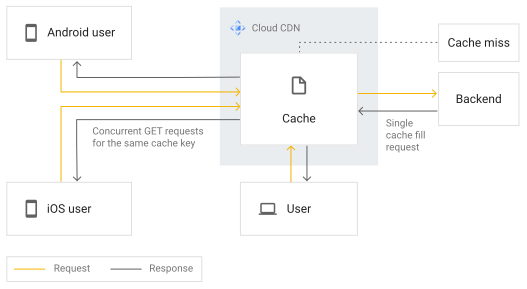](https://docs.cloud.google.com/static/cdn/images/cdn-with-request-coalescing.svg) Cloud CDN with request collapsing enabled (click to enlarge).
In comparison, with request collapsing disabled or for requests that cannot be
coalesced, the number of origin requests and *responses* can be equal to the
number of clients attempting to retrieve an object that's not cached.
[](https://docs.cloud.google.com/static/cdn/images/cdn-without-request-coalescing.svg) Cloud CDN without request collapsing enabled (click to enlarge).
For all types of requests, collapsing is enabled by default. For item request
types, you can disable collapsing. We recommend disabling collapsing for item
requests in highly latency sensitive scenarios, such as ad-serving, where origin
load is not a consideration.
The following table summarizes the default behavior and configurability for
different request types.
| Request type | Default behavior | Configurable | Benefits of collapsing |
|---|---|---|---|
| Chunk requests | Enabled | No | Can significantly reduce origin bandwidth |
| Item requests | Enabled | Yes | Can reduce origin request volume |
To *disable* item request collapsing using the Google Cloud CLI for a backend bucket
that references a Cloud Storage bucket:
> [!NOTE]
> **Note:** Google Cloud CLI support for the `--request-coalescing` flag was introduced in Google Cloud CLI [version 330.0.0](https://docs.cloud.google.com/sdk/docs/release-notes#compute_engine).
### gcloud
Use the `gcloud compute backend-services` or `backend-buckets` command:
```
gcloud compute backend-services update BACKEND_SERVICE_NAME \
--no-request-coalescing
```
To enable item request collapsing on a backend bucket using the Google Cloud CLI:
### gcloud
Use the `gcloud compute backend-buckets` command:
```
gcloud compute backend-buckets update BACKEND_BUCKET_NAME \
--request-coalescing
```
To enable item request collapsing using the Google Cloud CLI for a backend service,
including VM groups and external backends:
### gcloud
Use the `gcloud compute backend-services` command:
```
gcloud compute backend-services update BACKEND_SERVICE_NAME \
--request-coalescing
```
## Requests initiated by Cloud CDN
When your origin server supports [byte range requests](https://docs.cloud.google.com/cdn/docs/caching#byte-range-requests),
Cloud CDN can send multiple requests to your origin server in reaction
to a single client request. Cloud CDN can initiate two types of
requests: validation requests and byte range requests.
If the response that indicated that your origin server supported byte range requests
for a particular cache key has expired, Cloud CDN initiates
a validation request to confirm that the content hasn't changed and that your
origin server still supports range requests for the content. If your origin
server responds with a `304 Not Modified` response, Cloud CDN
proceeds to serve the content by using byte ranges. Otherwise,
Cloud CDN forwards your origin server's response to the
client. You control expiration times by using the [`Cache-Control` and `Expires`
response headers](https://docs.cloud.google.com/cdn/docs/caching#expiration).
On a cache miss, Cloud CDN initiates cache fill requests for a
set of byte ranges that overlap the client request. If some ranges of the
content requested by the client are present in the cache,
Cloud CDN serves whatever it can from the cache and sends byte
range requests for only the missing ranges to your origin server.
Each byte range request initiated by Cloud CDN specifies a range
that begins at an offset that's a multiple of 2,097,136 bytes. With the possible
exception of the final range, each range is also 2,097,136 bytes. If
the content isn't a multiple of that size, the final range is smaller. The
size and offsets used in byte range requests might change in the future.
As an example, consider a client request for bytes 1,000,000 through 3,999,999
of content that is not present in the cache. In this example,
Cloud CDN could initiate two GET requests, one for the first
2,097,136 bytes of the content and another for the second 2,097,136 bytes. This
results in 4,194,272 bytes of cache fill even though the client requested only
3,000,000 bytes.
When you use a Cloud Storage bucket as your origin, each GET request is
billed as a separate [Class B operation](https://cloud.google.com/storage/pricing#operations-pricing).
You are charged for all GET requests processed by Cloud Storage,
including any requests initiated by Cloud CDN. When a response is
served entirely from a Cloud CDN cache, no GET requests are sent to
Cloud Storage, and you are not charged for any Cloud Storage
operations.
When Cloud CDN initiates a validation request or byte range
request, it does not include client-specific headers such as `Cookie` or
`User-Agent`.
In the Cloud Logging
[`HttpRequest.userAgent`](https://docs.cloud.google.com/logging/docs/reference/v2/rest/v2/LogEntry#httprequest) field,
`Cloud-CDN-Google` means that Cloud CDN initiated the request.
## Bypass the cache
Cache bypass allows requests containing specific request headers to bypass the
cache, even if the content was previously cached.
This section provides information about bypassing the cache with HTTP headers,
such as `Pragma` and `Authorization`. This feature is useful when you want to
make sure that your users or customers always have the latest content fetched
fresh from the origin server. You might want to do this for testing, setting up
staging directories, or scripts.
If a specified header matches, the cache is bypassed for all cache mode
settings, even `FORCE_CACHE_ALL`. Cache bypass results in a large number of
cache misses if the specified headers are common to many requests.
### Before you begin
- Ensure that Cloud CDN is enabled; for instructions, see
[Setup overview](https://docs.cloud.google.com/cdn/docs/using-cdn).
- If necessary, update to the latest version of the Google Cloud CLI:
```
gcloud components update
```
> [!NOTE]
> **Note:** Make sure that you're using gcloud CLI version `324.0.0` or later.
### Configure cache bypass
You can specify up to five HTTP header names. Values are case-insensitive.
The header name must be a [valid HTTP header field
token](https://tools.ietf.org/html/rfc7230#section-3.2.6).
A header name must not appear more than once in the list of added headers. For
the rules about valid header names, see [How custom headers
work](https://docs.cloud.google.com/load-balancing/docs/custom-headers#how_custom_headers_work).
### Console
1. In the Google Cloud console, go to the **Load Balancing** page.
[Go to the Load balancing page](https://console.cloud.google.com/networking/loadbalancing/list)
2. Click the name of your external Application Load Balancer.
3. Click **Edit** .
4. In **Backend configuration** , select a backend and click **Edit** .
5. Make sure that **Enable Cloud CDN** is selected.
6. At the bottom of the window, click **Advanced configurations**.
7. Under **Bypass cache on request header** , click **Add header**.
8. Type a header name, such as `Pragma` or `Authorization`.
9. Click **Update**.
10. Click **Update** again.
### gcloud
For backend buckets, use the [gcloud compute backend-buckets
create](https://docs.cloud.google.com/sdk/gcloud/reference/compute/backend-buckets/create) or
[gcloud compute backend-buckets
update](https://docs.cloud.google.com/sdk/gcloud/reference/compute/backend-buckets/update) command
with the `--bypass-cache-on-request-headers` flag.
For backend services, use the [gcloud compute backend-services
create](https://docs.cloud.google.com/sdk/gcloud/reference/compute/backend-services/create) or
[gcloud compute backend-services
update](https://docs.cloud.google.com/sdk/gcloud/reference/compute/backend-services/update) command
with the `--bypass-cache-on-request-headers` flag.
```
gcloud compute backend-buckets (create | update) BACKEND_BUCKET_NAME
--bypass-cache-on-request-headers=BYPASS_REQUEST_HEADER
```
```
gcloud compute backend-services (create | update) BACKEND_SERVICE_NAME
--bypass-cache-on-request-headers=BYPASS_REQUEST_HEADER
```
For example:
```
gcloud compute backend-services update my-backend-service
--bypass-cache-on-request-headers=Pragma
--bypass-cache-on-request-headers=Authorization
```
### API
For backend buckets, use the
[Method: backendBuckets.insert](https://docs.cloud.google.com/compute/docs/reference/rest/v1/backendBuckets/insert),
[Method: backendBuckets.update](https://docs.cloud.google.com/compute/docs/reference/rest/v1/backendBuckets/update),
or [Method: backendBuckets.patch](https://docs.cloud.google.com/compute/docs/reference/rest/v1/backendBuckets/patch)
API call.
For backend services, use the
[Method: backendServices.insert](https://docs.cloud.google.com/compute/docs/reference/rest/v1/backendServices/insert),
[Method: backendServices.update](https://docs.cloud.google.com/compute/docs/reference/rest/v1/backendServices/update),
or [Method: backendServices.patch](https://docs.cloud.google.com/compute/docs/reference/rest/v1/backendServices/patch)
API call.
For example:
```
PATCH https://compute.googleapis.com/compute/v1/projects/PROJECT_ID/global/backendBuckets
```
Add the following snippet to the JSON request body:
```
"cdnPolicy": {
"bypassCacheOnRequestHeaders": [
{
"headerName": string
}
]
}
```
### Disable cache bypass
### gcloud
For backend buckets, use the [gcloud compute backend-buckets
create](https://docs.cloud.google.com/sdk/gcloud/reference/compute/backend-buckets/create) or
[gcloud compute backend-buckets
update](https://docs.cloud.google.com/sdk/gcloud/reference/compute/backend-buckets/update) command
with the `--no-bypass-cache-on-request-headers` flag.
For backend services, use the [gcloud compute backend-services
create](https://docs.cloud.google.com/sdk/gcloud/reference/compute/backend-services/create) or
[gcloud compute backend-services
update](https://docs.cloud.google.com/sdk/gcloud/reference/compute/backend-services/update) command
with the `--no-bypass-cache-on-request-headers` flag.
```
gcloud compute backend-services (create | update) (BACKEND_SERVICE_NAME | BACKEND_BUCKET_NAME)
--no-bypass-cache-on-request-headers
```
### API
For backend buckets, use the
[Method: backendBuckets.insert](https://docs.cloud.google.com/compute/docs/reference/rest/v1/backendBuckets/insert) or
[Method: backendBuckets.update](https://docs.cloud.google.com/compute/docs/reference/rest/v1/backendBuckets/update)
API call.
For backend services, use the
[Method: backendServices.insert](https://docs.cloud.google.com/compute/docs/reference/rest/v1/backendServices/insert) or
[Method: backendServices.update](https://docs.cloud.google.com/compute/docs/reference/rest/v1/backendServices/update)
API call.
Use one of the following API calls:
```
POST https://compute.googleapis.com/compute/v1/projects/PROJECT_ID/global/backendBuckets
PUT https://compute.googleapis.com/compute/v1/projects/PROJECT_ID/global/backendBuckets/BACKEND_BUCKET
POST https://compute.googleapis.com/compute/v1/projects/PROJECT_ID/global/backendServices
PUT https://compute.googleapis.com/compute/v1/projects/PROJECT_ID/global/backendServices/BACKEND_SERVICE
```
Add the following snippet to the JSON request body:
```
"cdnPolicy": {
"fields": "bypassCacheOnRequestHeaders"
}
```
## What's next
- To understand how cache modes make it easier to cache content, see [Change
cache modes](https://docs.cloud.google.com/cdn/docs/using-cache-modes).
- To enable Cloud CDN for your HTTP(S) load balanced instances and storage buckets, see [Using Cloud CDN](https://docs.cloud.google.com/cdn/docs/using-cdn).
- To learn about invalidating caches, see [Cache invalidation
overview](https://docs.cloud.google.com/cdn/docs/cache-invalidation-overview).
- To find GFE points of presence, see [Cache locations](https://docs.cloud.google.com/cdn/docs/locations).