This tutorial shows you how to create a Binary Authorization attestation in a Cloud Build pipeline. This setup helps ensure that only container images built
and signed as part of the Cloud Build build process are automatically
authorized to run in your deployment environment.
## Cloud Build overview
Cloud Build ([overview](https://docs.cloud.google.com/build/docs/overview)) takes source code
stored in a hosted repository, runs your builds
and tests, and stores the resulting software outputs in Container Registry or
another storage service on Google Cloud Platform.
## Binary Authorization overview
Binary Authorization ([overview](https://docs.cloud.google.com/binary-authorization/docs/overview)) is a
Google Cloud product that enforces deploy-time constraints on applications. Its
Google Kubernetes Engine (GKE) integration allows users to
enforce that containers deployed to a Kubernetes cluster are cryptographically
signed by a trusted authority and verified by a Binary Authorization attestor.
You can configure Binary Authorization to require
[attestations](https://docs.cloud.google.com/binary-authorization/docs/key-concepts#attestations) based on the location of the source
code to prevent container images built from unauthorized source from being
deployed.
> [!NOTE]
> **Note:** This page assumes some familiarity with Binary Authorization, including how to set up a Binary Authorization enforcement policy with an attestor on a GKE cluster.
To learn more:
- [A general introduction to Binary Authorization](https://cloud.google.com/binary-authorization/docs/overview)
- [Codelab: Securing Your GKE Deployments with Binary Authorization](https://codelabs.developers.google.com/codelabs/cloud-binauthz-intro/index.html#0)
## Architecture
The following diagram shows the components in a
Binary Authorization/Cloud Build setup:
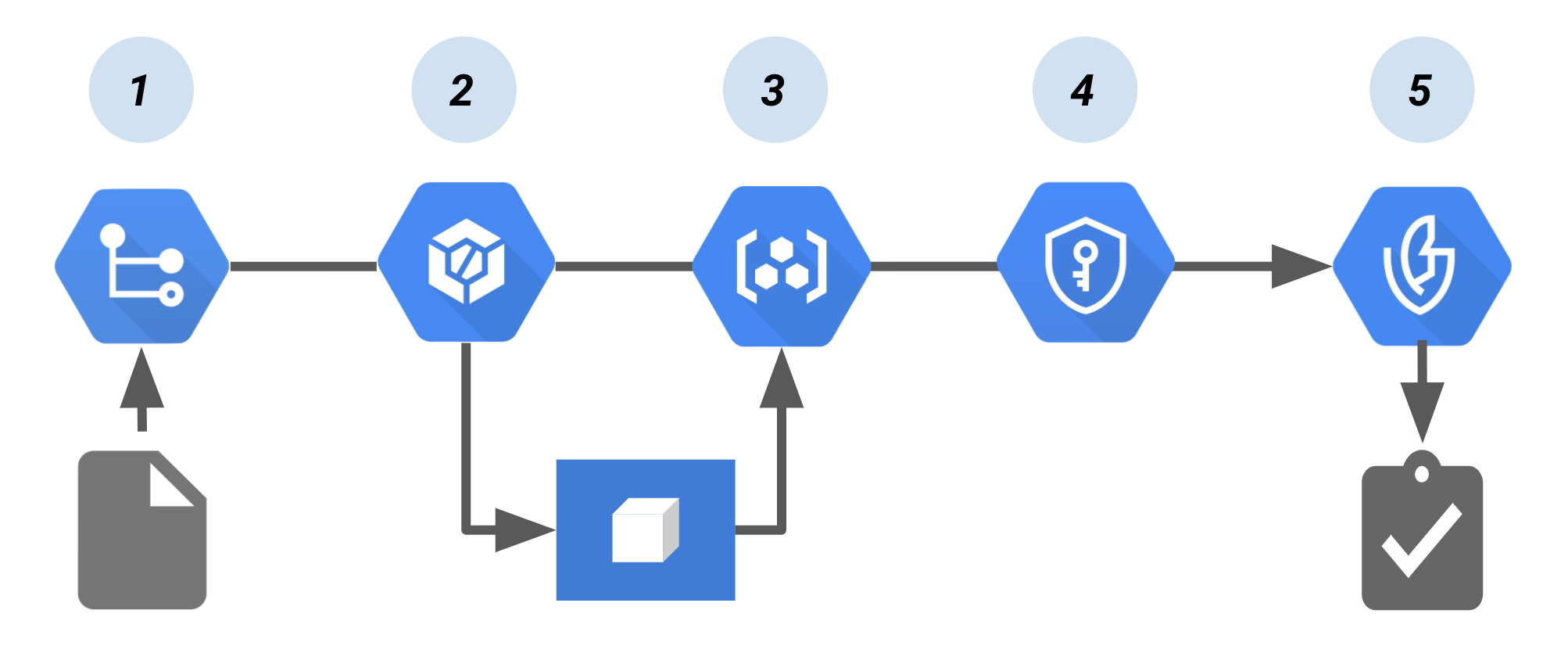 **Figure 1.**Cloud Build pipeline that creates a Binary Authorization attestation.
In this pipeline:
1. Code to build the container image is pushed to a source repository.
2. A continuous integration (CI) tool, [Cloud Build](https://docs.cloud.google.com/build/docs)
builds and tests the container.
3. The build pushes the container image to [Container Registry](https://docs.cloud.google.com/container-registry/docs)
or another registry that stores your built images.
4. [Cloud Key Management Service](https://docs.cloud.google.com/kms/docs), which provides key management for the
[cryptographic key pair](https://docs.cloud.google.com/binary-authorization/docs/key-concepts#cryptographic_keys), signs the
container image. The resulting signature is then stored in a newly created
attestation.
5. At deploy time, the attestor verifies the attestation using the
public key from the key pair. [Binary Authorization](https://docs.cloud.google.com/binary-authorization/docs)
enforces the [policy](https://docs.cloud.google.com/binary-authorization/docs/key-concepts#policies) by requiring signed
[attestations](https://docs.cloud.google.com/binary-authorization/docs/key-concepts#attestations) to deploy the container image.
## Create an attestation using Cloud Build with Cloud Key Management Service
This section shows you how to implement the above architecture. It uses an open
source custom build step from the Cloud Build community. The custom build
step signs a container image, creates the attestation, and uploads it to
Binary Authorization.
### Configure Identity and Access Management
To use this build step, the Cloud Build service account needs the following
IAM roles:
- Binary Authorization Attestor Viewer
- `roles/binaryauthorization.attestorsViewer`
- Cloud KMS CryptoKey Signer/Verifier (if using key in KMS to sign attestation)
- `roles/cloudkms.signerVerifier`
- Artifact Analysis Notes Attacher
- `roles/containeranalysis.notes.attacher`
The following commands can be used to add the roles to your project's
Cloud Build Service Account:
1. Enable Cloud Build:
[Enable the Cloud Build API](https://console.cloud.google.com/apis/enableflow?apiid=cloudbuild.googleapis.com)
in the target Google Cloud project.
2. Save your project ID to an environment variable:
```
PROJECT_ID=PROJECT_ID
```
where PROJECT_ID is your Google Cloud project ID.
3. Set the project Google Cloud CLI:
gcloud config set project ${PROJECT_ID}
4. Get the project number:
PROJECT_NUMBER=$(gcloud projects list --filter="${PROJECT_ID}" --format="value(PROJECT_NUMBER)")
5. Add Binary Authorization Attestor Viewer role to Cloud Build Service Account:
gcloud projects add-iam-policy-binding ${PROJECT_ID} \
--member serviceAccount:${PROJECT_NUMBER}@cloudbuild.gserviceaccount.com \
--role roles/binaryauthorization.attestorsViewer
6. Add Cloud KMS CryptoKey Signer/Verifier role to Cloud Build Service Account (KMS-based Signing):
gcloud projects add-iam-policy-binding ${PROJECT_ID} \
--member serviceAccount:${PROJECT_NUMBER}@cloudbuild.gserviceaccount.com \
--role roles/cloudkms.signerVerifier
7. Add Artifact Analysis Notes Attacher role to Cloud Build Service Account:
gcloud projects add-iam-policy-binding ${PROJECT_ID} \
--member serviceAccount:${PROJECT_NUMBER}@cloudbuild.gserviceaccount.com \
--role roles/containeranalysis.notes.attacher
### Build and register the custom build step with Cloud Build
1. Clone the Google Cloud Build community repository:
```
git clone https://github.com/GoogleCloudPlatform/cloud-builders-community.git
```
2. Configure the Binary Authorization signer for Cloud Build:
Before use, the code for the custom build step must be built into a
container and pushed to Cloud Build. To do this, run the following
commands:
```
cd cloud-builders-community/binauthz-attestation
gcloud builds submit . --config cloudbuild.yaml
```
The custom build step was pushed to your current project's Google
Container Registry and is now ready for use.
### Create an attestor in Binary Authorization
Create an [attestor](https://docs.cloud.google.com/binary-authorization/docs/key-concepts#attestors) that Binary Authorization will use at
deploy time to verify the attestation.
Set up an attestor and Cloud Key Management Service key pair in Binary Authorization:
See [Create an attestor using the CLI](https://docs.cloud.google.com/binary-authorization/docs/creating-attestors-cli)
> [!NOTE]
> **Note:** The environment variables created in [Create an attestor using the CLI](https://docs.cloud.google.com/binary-authorization/docs/creating-attestors-cli) are used in the steps below.
### Verify that the attestor was created
```
gcloud --project="${ATTESTOR_PROJECT_ID}" container binauthz attestors list
```
### Add a "create-attestation" step to your `cloudbuild.yaml`
To use the `binauthz-attestation` step, you must update your `cloudbuild.yaml`
by adding the step that will sign the build that has been pushed to
Container Registry.
Two methods are provided below:
- Update your `cloudbuild.yaml` manually.
- Run an example pipeline with the environment variables you set earlier.
#### Update your `cloudbuild.yaml` manually
1. Update your `cloudbuild.yaml` manually by adding the build step below after
the step where your container is uploaded to Container Registry.
**Note:** you must replace ATTESTOR_NAME, KMS_KEY_LOCATION,
KMS_KEYRING_NAME, KMS_KEY_NAME, and KMS_KEY_VERSION with your own values
manually:
- id: 'create-attestation'
name: 'gcr.io/${PROJECT_ID}/binauthz-attestation:latest'
args:
- '--artifact-url'
- 'gcr.io/${PROJECT_ID}/helloworld:latest'
- '--attestor'
- 'projects/${PROJECT_ID}/attestors/ATTESTOR_NAME'
- '--keyversion'
- 'projects/${PROJECT_ID}/locations/KMS_KEY_LOCATION/keyRings/KMS_KEYRING_NAME/cryptoKeys/KMS_KEY_NAME/cryptoKeyVersions/KMS_KEY_VERSION'
The following is also valid:
- id: 'create-attestation'
name: 'gcr.io/${PROJECT_ID}/binauthz-attestation:latest'
args:
- '--artifact-url'
- 'gcr.io/${PROJECT_ID}/helloworld:latest'
- '--attestor'
- 'ATTESTOR_NAME'
- '--attestor-project'
- '${PROJECT_ID}'
- '--keyversion'
- 'KEY_VERSION'
- '--keyversion-project'
- '${PROJECT_ID}'
- '--keyversion-location'
- 'KEY_LOCATION'
- '--keyversion-keyring'
- 'KEYRING_NAME'
- '--keyversion-key'
- 'KEY_NAME'
#### Optional: Test the pipeline
To test an example Cloud Build attestation pipeline, perform
the following steps:
1. Create a `cloudbuild.yaml` file with the environment variables you
set earlier:
cd example
cat < cloudbuild_example.yaml
steps:
- id: 'build'
name: 'gcr.io/cloud-builders/docker'
args:
- 'build'
- '-t'
- 'gcr.io/$PROJECT_ID/helloworld:latest'
- '.'
- id: 'publish'
name: 'gcr.io/cloud-builders/docker'
args:
- 'push'
- 'gcr.io/$PROJECT_ID/helloworld:latest'
- id: 'create-attestation'
name: 'gcr.io/$PROJECT_ID/binauthz-attestation:latest'
args:
- '--artifact-url'
- 'gcr.io/$PROJECT_ID/helloworld:latest'
- '--attestor'
- 'projects/$PROJECT_ID/attestors/${ATTESTOR_NAME}'
- '--keyversion'
- 'projects/${PROJECT_ID}/locations/${KMS_KEY_LOCATION}/keyRings/${KMS_KEYRING_NAME}/cryptoKeys/${KMS_KEY_NAME}/cryptoKeyVersions/${KMS_KEY_VERSION}'
tags: ['cloud-builders-community']
EOM
2. Run Cloud Build with the example `cloudbuild_example.yaml`:
From the `cloud-builders-community/binauthz-attestation/example` directory, run the
following commands:
```
gcloud builds submit . --config cloudbuild_example.yaml
```
## What's next
- [Create a custom Cloud Build step to sign and upload Binary Authorization attestations on GitHub](https://github.com/GoogleCloudPlatform/cloud-builders-community/tree/master/binauthz-attestation).