This document explains how to send budget notifications to Slack.
[Budgets](https://docs.cloud.google.com/billing/docs/how-to/budgets#manage-notifications)
are typically configured to send email notifications. However, email isn't
always the best way to stay up to date on your cloud costs, particularly if
your budget is critical and time sensitive. With programmatic notifications,
you can forward your budget messages to other mediums, such as
[Slack](https://slack.com/).
## Before you begin
Before you begin, you must complete the following tasks:
1. [Enable the Cloud Billing API](https://console.cloud.google.com/apis/api/cloudbilling.googleapis.com)
2. [Create a budget](https://docs.cloud.google.com/billing/docs/how-to/budgets)
3. [Set up programmatic budget notifications](https://docs.cloud.google.com/billing/docs/how-to/budgets-programmatic-notifications)
## Set up a Slack channel and permissions
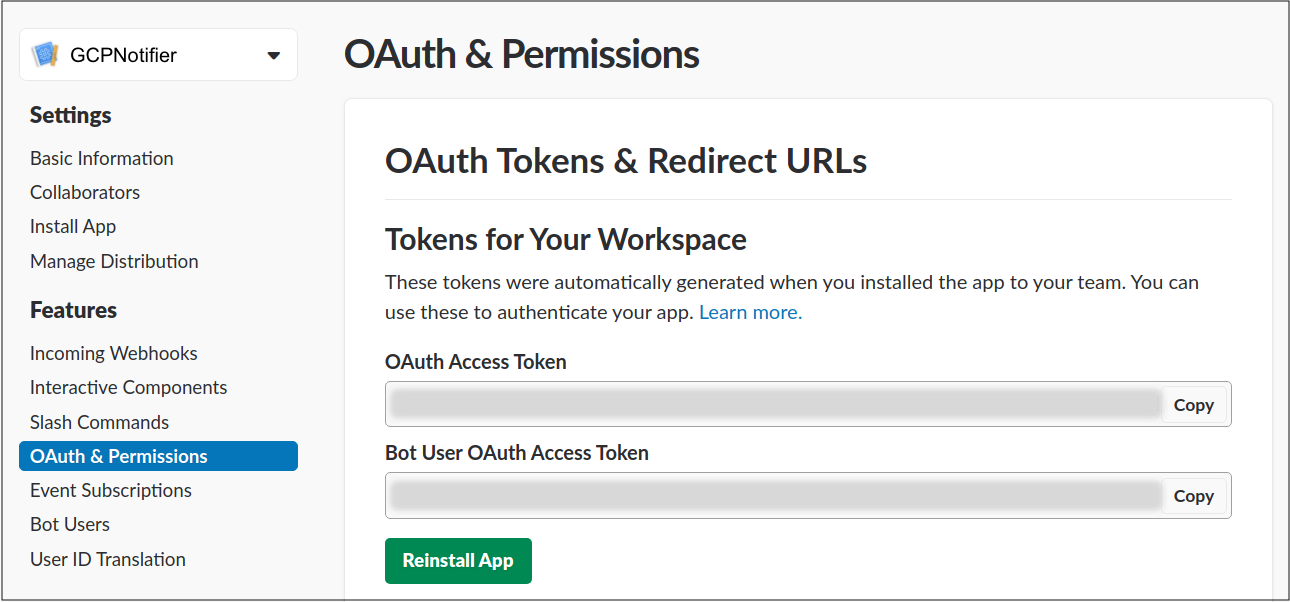
The first step is to create your Slack workspace and the bot user tokens
that are used to call the Slack API. API tokens can be managed at
.
For detailed instructions, see
[Bot Users](https://api.slack.com/bot-users)
on the Slack site.
## Set up a Cloud Run function
1. Complete the steps in
[Create a Cloud Run function](https://docs.cloud.google.com/billing/docs/how-to/listen-to-notifications#create-function).
Ensure that the **Trigger type** is set to the same Pub/Sub
topic that your budget will use.
2. Add the following dependencies:
### Node.js
Copy the following to your `package.json`:
{
"name": "cloud-functions-billing",
"private": "true",
"version": "0.0.1",
"description": "Examples of integrating Cloud Functions with billing",
"main": "index.js",
"engines": {
"node": ">=20.0.0"
},
"scripts": {
"compute-test": "c8 mocha -p -j 2 test/periodic.test.js --timeout=600000",
"test": "c8 mocha -p -j 2 test/index.test.js --timeout=5000 --exit"
},
"author": "Ace Nassri ",
"license": "Apache-2.0",
"dependencies": {
"@google-cloud/billing": "^5.0.0",
"@google-cloud/compute": "^6.0.0",
"@slack/web-api": "^8.0.0",
"google-auth-library": "^9.0.0",
"googleapis": "^143.0.0"
},
"devDependencies": {
"@google-cloud/functions-framework": "^5.0.0",
"c8": "^12.0.0",
"gaxios": "^7.0.0",
"mocha": "^10.0.0",
"promise-retry": "^2.0.0",
"proxyquire": "^2.1.0",
"sinon": "^18.0.0",
"wait-port": "^1.0.4"
}
}
### Python
Copy the following to your `requirements.txt`:
slackclient==2.9.4
google-api-python-client==2.131.0
3. Copy the following code into your Cloud Run function to post
budget notifications to a Slack chat channel using the Slack API:
### Node.js
const {WebClient} = require('@slack/web-api');
// TODO(developer) replace these with your own values
const BOT_ACCESS_TOKEN =
process.env.BOT_ACCESS_TOKEN || 'xxxx-111111111111-abcdefghidklmnopq';
const CHANNEL = process.env.SLACK_CHANNEL || 'general';
const slackClient = new WebClient(BOT_ACCESS_TOKEN);
exports.notifySlack = async pubsubEvent => {
const pubsubAttrs = pubsubEvent.attributes;
const pubsubData = Buffer.from(pubsubEvent.data, 'base64').toString();
const budgetNotificationText = `${JSON.stringify(
pubsubAttrs
)}, ${pubsubData}`;
await slackClient.chat.postMessage({
channel: CHANNEL,
text: budgetNotificationText,
});
return 'Slack notification sent successfully';
};
### Python
import base64
import json
import os
import slack
from slack.errors import SlackApiError
# See https://api.slack.com/docs/token-types#bot for more info
BOT_ACCESS_TOKEN = "xxxx-111111111111-abcdefghidklmnopq"
CHANNEL = "C0XXXXXX"
slack_client = slack.WebClient(token=BOT_ACCESS_TOKEN)
def notify_slack(data, context):
pubsub_message = data
# For more information, see
# https://cloud.google.com/billing/docs/how-to/budgets-programmatic-notifications#notification_format
try:
notification_attr = json.dumps(pubsub_message["attributes"])
except KeyError:
notification_attr = "No attributes passed in"
try:
notification_data = base64.b64decode(data["data"]).decode("utf-8")
except KeyError:
notification_data = "No data passed in"
# This is just a quick dump of the budget data (or an empty string)
# You can modify and format the message to meet your needs
budget_notification_text = f"{notification_attr}, {notification_data}"
try:
slack_client.api_call(
"chat.postMessage",
json={"channel": CHANNEL, "text": budget_notification_text},
)
except SlackApiError:
print("Error posting to Slack")
4. Ensure the following Slack API postMessage parameters are set correctly:
- Bot User OAuth access token
- Channel name
## Test your function
To ensure your function works as expected, follow the steps in
[Test a Cloud Run function](https://docs.cloud.google.com/billing/docs/how-to/listen-to-notifications#test-function).
If successful, a message will show up in Slack.
## What's next
Review other programmatic notification examples to learn how to do the
following:
- [Listen to your notifications](https://docs.cloud.google.com/billing/docs/how-to/listen-to-notifications)
- [Control resource usage with notifications](https://docs.cloud.google.com/billing/docs/how-to/control-usage)
- [Disable billing usage with notifications](https://docs.cloud.google.com/billing/docs/how-to/disable-billing-with-notifications)