> [!WARNING]
>
> **Preview**
>
>
> This product or feature is
>
> subject to the "Pre-GA Offerings Terms" in the General Service Terms section
> of the [Service Specific
> Terms](https://docs.cloud.google.com/terms/service-terms#1).
>
> Pre-GA products and features are available "as is" and might have limited support.
>
> For more information, see the
> [launch stage descriptions](https://cloud.google.com/products/#product-launch-stages).
This document is an introduction to the Cloud Billing tools that are
available to Google Cloud project owners, solution owners, and DevOps managers
to help you track and understand your Google Cloud spending and optimize
your costs in the projects you control.
This document covers the following topics:
- An [introduction to Cloud Billing accounts and Google Cloud projects](https://docs.cloud.google.com/billing/docs/how-to/project-owners/overview#billing_account).
Cloud Billing accounts track and pay for your billable usage of
Google Cloud, Google Maps Platform, Firebase, and
Gemini API in AI Studio resources.
- The [permissions needed for multi-project or single-project access to view
Google Cloud costs](https://docs.cloud.google.com/billing/docs/how-to/project-owners/overview#required-permissions).
- To view costs for a single project, one project at a time, you only need project-side billing permissions.
- To view costs aggregated for multiple projects, you need to [set up multi-project-scoped access to Cloud Billing accounts](https://docs.cloud.google.com/billing/docs/how-to/project-owners/setup-multi-project-access).
- An [introduction to the Cloud Billing tools](https://docs.cloud.google.com/billing/docs/how-to/project-owners/overview#intro-tools) for project owners.
When your cost view permissions are limited to viewing costs for one or many
projects, billing-account-level tools and features aren't available.
## About Cloud Billing accounts and Google Cloud projects
- A Cloud Billing account defines who pays for Google Cloud and cloud-adjacent products and resources that are consumed.
- Google Cloud projects contain Google Cloud, Google Maps Platform, Firebase, and Gemini API in AI Studio resources and tracks the usage of each resource.
- Projects are linked to a billing account and the billing account calculates and tracks the cost of usage in all of its associated projects.
- To run Google Cloud and Google Maps Platform resources and services
in a project, the project must be linked to an active Cloud Billing
account.
> [!NOTE]
> **Note:** [Firebase](https://firebase.google.com/docs/projects/billing/firebase-pricing-plans) and [Gemini API in AI Studio](https://ai.google.dev/gemini-api/docs/billing) provide limited free usage without requiring a Cloud Billing account.
- One or more projects can be linked to a billing account; a project is linked
only to one billing account at a time.
- An application can be configured to use resources in more than one project.
- An application's projects can be linked to different Cloud Billing
accounts.
- You can have billing-specific project permissions granted on multiple
Google Cloud projects.
- In the Billing section of the Google Cloud console, you can view project costs
for one Cloud Billing account at a time.
- With multi-project permissions granted on a Cloud Billing account, you can access Billing Reports and the FinOps hub to view costs aggregated by all of your projects that are linked to the Cloud Billing account that you are authorized to view.
- With cost view access limited to projects only, you can access Billing Reports to view costs for your authorized projects, one project at a time.
> [!CAUTION]
> **Important** : If [billing is disabled on a project](https://docs.cloud.google.com/billing/docs/how-to/modify-project#disable_billing_for_a_project) --- that is, your project isn't [linked to an active, valid Cloud Billing account](https://docs.cloud.google.com/billing/docs/how-to/verify-billing-enabled) --- you won't be able to use the Google Cloud and Google Maps Platform products and services that are enabled in your project. This is true even if your project only uses [services that are free](https://docs.cloud.google.com/free/docs/free-cloud-features#free-tier).
## About *project* permissions required to access Cloud Billing data
Depending on your level of Cloud Billing access, you can access the
tools in Cloud Billing to view costs and other billing data for
multiple projects linked to a Cloud Billing account,
or you can view billing information for one project at a time.
| Access a billing account for *multiple* Google Cloud projects | Access billing for an *individual* Google Cloud project |
|---|---|
| To view *aggregated* billing data for all of your authorized Google Cloud projects, you need a *combination* of project and billing account permissions: - **Projects** : You need billing-specific cost view permissions on *each Google Cloud project* . Project permissions are granted with roles on the *Google Cloud project or folder*. - **Cloud Billing account** : You need project-scoped billing permissions on the *Cloud Billing account* that is linked to your authorized projects. Billing account permissions are granted using roles on the *Cloud Billing account*. Learn more about the [permissions required for multi-project-scoped access to Cloud Billing accounts](https://docs.cloud.google.com/billing/docs/how-to/project-owners/setup-multi-project-access#required-permissions). | To access Cloud Billing to view costs for an *individual* Google Cloud project, one project at a time, you need *billing-specific* permissions on the *Google Cloud project*. - **Projects** : You need billing-specific cost view permissions on the *Google Cloud project* . Project permissions are granted using roles on the *Google Cloud project*. - **Cloud Billing account** : Billing account permissions ***aren't required***. If you are viewing billing information for one project at a time, you don't need permissions on the Cloud Billing account that is linked to your Google Cloud project. Learn more about the [*project* permissions required for *single-project-scoped access* to Cloud Billing accounts](https://docs.cloud.google.com/billing/docs/how-to/project-owners/setup-multi-project-access#project-permissions). |
## About Cloud Billing tools for project owners
For the projects that you are authorized to view, the tools in
Cloud Billing help you monitor your usage costs, forecast your
spending, and identify optimization opportunities to save on costs.
| Billing tools available for users with *multi-project* access | Billing tools available for users with *project-only* permissions |
|---|---|
| - [Reports](https://docs.cloud.google.com/billing/docs/how-to/reports) - [Budgets \& alerts](https://docs.cloud.google.com/billing/docs/how-to/budgets)\* - [Anomalies](https://docs.cloud.google.com/billing/docs/how-to/manage-anomalies)\* - [FinOps hub](https://docs.cloud.google.com/billing/docs/how-to/finops-hub) - Account management | - [Reports](https://docs.cloud.google.com/billing/docs/how-to/reports) - [Budgets \& alerts](https://docs.cloud.google.com/billing/docs/how-to/budgets) - [Anomalies](https://docs.cloud.google.com/billing/docs/how-to/manage-anomalies) - Account management |
| \* Budgets and Anomalies limited to viewing one project at a time. | All tools limited to one project at a time - the project you opened before you entered the Billing section of the Google Cloud console. |
## Monitor costs in projects
### Cost Reports for project costs
**View your billing reports and cost trends**. The billing report helps you
answer questions like "Which Google Cloud services (such as
Compute Engine or Cloud Storage) cost me the most?".
 Click image to view an enlarged version.

- If you have **multi-project access** to a Cloud Billing account,
you can use the report's
[Projects filter](https://docs.cloud.google.com/billing/docs/how-to/reports#filter-by-projects)
to select all of your billing-authorized projects, so you can view costs
aggregated across all of the projects you own that are linked to the
Cloud Billing account you are viewing.
- If you're accessing Cloud Billing information using **project
permissions only** , then the Reports page is automatically scoped to a
single project -- the project that you selected in the Google Cloud console
before you accessed the Billing section. With *single-project* access, if
you want to select a different project to view cost reports for, then you
must exit the Billing section, select a different project using the
Google Cloud console project selector, and then access the Billing
section again.
[Learn more about cost reports](https://docs.cloud.google.com/billing/docs/how-to/reports)
[Launch the Cloud Billing reports tour](https://console.cloud.google.com/billing/overview?walkthrough_tutorial_id=understanding_billing_reports)
### Budgets \& alerts for a project
**Create a budget for a project and set up spending alerts**. For each project
that you own, you can use budgets to track your actual Google Cloud
spend against your planned spend. Then, set up alerts to stay informed about
the costs accruing in each project.
 Click image to view an enlarged version.

- If you have **multi-project access** to a Cloud Billing account,
the Budgets \& alerts page provides a project picker, so you can switch
between projects that you are authorized to view without requiring you to
exit billing.
- If you're accessing Cloud Billing information using **project
permissions only** , then the Budgets \& alerts page is automatically
scoped to a single project -- the project that you selected in the Google Cloud console before you accessed the Billing section.
With *single-project* access, if you want to select a different project
to view budgets, then you must exit the Billing section, select a
different project using the Google Cloud console project selector, and
then access the Billing section again.
[Learn more about budgets \& alerts](https://docs.cloud.google.com/billing/docs/how-to/budgets)
[Walkthrough creating a budget for a project](https://console.cloud.google.com/billing/overview?walkthrough_tutorial_id=billing--billing_budgets_for_projects)
### Cost anomalies for a project
**Review anomalies for a project** . Anomalies are spikes or deviations in
usage costs that differ from your expected spend, when compared to historical
spending patterns. With project-level access to billing information, you can
review cost anomalies for each of the projects you are authorized to view,
*one project at a time*.
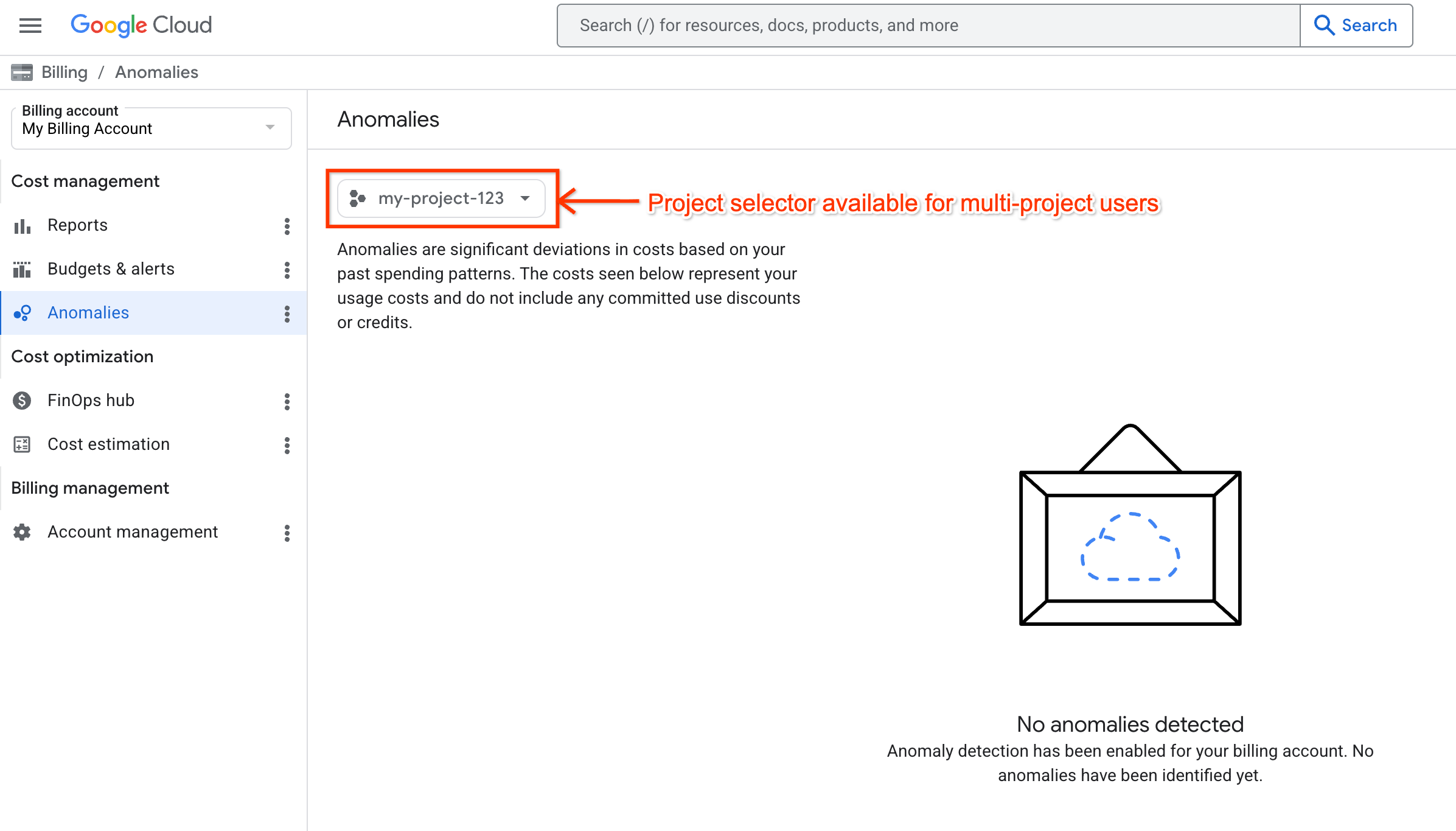 Click image to view an enlarged version.

- If you have **multi-project access** to a Cloud Billing account,
the Anomalies page provides a project picker, so you can switch between
projects that you are authorized to view without requiring you to exit
billing.
- If you're accessing Cloud Billing information using **project
permissions only** , then the Anomalies page is automatically scoped to a
single project -- the project that you selected in the Google Cloud console
before you accessed the Billing section. With *single-project* access, if
you want to select a different project to view anomalies for, then you must
exit the Billing section, select a different project using the
Google Cloud console project selector, and then access the Billing
section again.
[Learn more about cost anomalies](https://docs.cloud.google.com/billing/docs/how-to/manage-anomalies)
## Optimize and control costs in projects
### FinOps hub for multi-project users
**View the FinOps hub for recommendations and utilization insights** . If you
have the `Project Billing Costs Manager` role on a Cloud Billing
account granting you multi-project permissions to access billing, you can view
the FinOps hub in the associated Cloud Billing account for all your
authorized projects.
 Click image to view an enlarged version.

When you access the FinOps hub using multi-project permissions, the FinOps
hub is scoped to all of your authorized projects that are linked to the
Cloud Billing account that you are viewing. Click the **Scope**
to open the **Account management** page to view the list of projects that
are in scope.
With the FinOps hub, you can monitor and communicate your current savings,
explore new recommended opportunities to optimize costs, gain utilization
insights for potential wasted usage, and plan your optimization goals.
[Learn more about the FinOps hub](https://docs.cloud.google.com/billing/docs/how-to/finops-hub)
### Automate cost management
**Automate cost controls with programmatic notifications**. Use programmatic
notifications to automate cost control responses when you get a budget or
anomaly alert, such as forwarding alerts to other mediums, or controlling
your resource usage by adjusting quotas.
[Launch the tutorial for automated responses to budget notifications](https://console.cloud.google.com/welcome?walkthrough_tutorial_id=billing--budget--cost_enforcement)
[Learn more about programmatic notifications](https://docs.cloud.google.com/billing/docs/how-to/budgets-programmatic-notifications)
## Limitations of multi-project views
### Project limits in Cloud Billing accounts with multi-project views
The `Project Billing Costs Manager` role on a Cloud Billing account
grants you *project-scoped* billing account permissions, giving you
multi-project access to billing. For *projects* where you have project-side
billing permissions, multi-project access lets you view costs aggregated for
your authorized projects linked to a Cloud Billing account. For each billing
account, you are limited to 300 projects that can be included in the scope for
Cost Reports and the FinOps hub.
If you have project-side billing permissions for more than 300 projects
that are linked to the same Cloud Billing account, when you access the
Billing section of the Google Cloud console using multi-project billing
permissions, you'll see an error message and you'll be
redirected to the
[**Billing account management \> Your projects**](https://console.cloud.google.com/billing/projects)
page.
When you exceed the project limit for multi-project views, you can still view
project costs for one project at a time:
1. On the **Billing account management \> Your projects** page, locate the project you want to view.
2. Select the billing account for the project to open the Cloud Billing account and view costs for that project in *single-project* mode.
### Aggregated multi-project views limited to Reports and FinOps hub
With only project-side billing permissions granted on Google Cloud projects
(but without multi-project access granted on the Cloud Billing
account), you can access the
[following Billing pages in the Google Cloud console](https://docs.cloud.google.com/billing/docs/how-to/project-owners/overview#intro-tools)
to view costs for individual projects, *one project at a time*:
- Reports
- Budgets \& alerts
- Anomalies
With multi-project views (granted by a combination of project-side
Google Cloud project permissions *and* project-scoped permissions on the linked
Cloud Billing account), then the
[following Billing pages in the Google Cloud console](https://docs.cloud.google.com/billing/docs/how-to/project-owners/overview#intro-tools)
let you view costs in the billing account that are *aggregated* across all of
the projects that you are authorized to view:
- Reports
- FinOps hub
Both single-project and multi-project views let you access the
**Account management** page, where you can confirm your level of access to view
project costs, and which project or projects you are authorized to view billing
data.
## What's next
Learn more about how to
[configure multi-project-scoped access to Cloud Billing accounts](https://docs.cloud.google.com/billing/docs/how-to/project-owners/setup-multi-project-access),
including information about roles and required permissions.