> [!NOTE]
> **Note** : This document discusses some spend-based committed use discounts (CUDs) that automatically migrate to a new consumption model, which leverages discounts rather than credits. The migration date is indicated by a notification in the Google Cloud console Billing Overview page. For more information about the improvements, the affected CUDs, and any required actions on your part, see [Spend-based CUDs](https://docs.cloud.google.com/docs/cuds-multiprice).


The **Cost table** report, available in the Google Cloud console,
is a cost management tool that you can use to understand the costs
that reconcile to your invoice. The report gives you a detailed tabular view of
your costs for a given invoice or statement (by **Invoice month** ). If you're
viewing the report using
[filters in their default state](https://docs.cloud.google.com/billing/docs/how-to/cost-table#filters),
the **Cost table** report totals match your invoice or statement totals, and the
report generally includes all costs incurred during a given calendar month.
The **Cost table** report includes project-level cost details from your invoices
and statements, including your
[tax costs broken out by project](https://docs.cloud.google.com/billing/docs/how-to/cost-table#taxes).
The report also includes other details like
[service IDs](https://docs.cloud.google.com/billing/docs/how-to/cost-table#service-id),
[SKU IDs](https://docs.cloud.google.com/billing/docs/how-to/cost-table#sku-id),
and
[project numbers](https://docs.cloud.google.com/billing/docs/how-to/cost-table#project-number).
The report view is customizable and downloadable to CSV.
Beginning with your *January 2021 invoice or statement* (available in
February 2021), all cost details, including product-level costs and costs by
subaccounts (for Resellers), were removed from the invoices and statements that
you receive (both PDF and CSV format). The invoices and statements contain
company information (such as billing address, Cloud Billing
account ID, and payment terms), your cost totals, taxes, and remittance
instructions. Instead of the cost details, your invoice provides a
link to the **Cost table** report for the Cloud Billing account.
In the **Cost table** report, **Invoice month** refers to the
time period that an invoice or statement covers. The detailed usage costs
included for an invoice month might differ slightly from the detailed usage
costs for a calendar month. For more information, see
[How costs are calculated for an invoice month](https://docs.cloud.google.com/billing/docs/how-to/cost-table#invoice-month).
### Permissions required to access the Cost table report
To view the **Cost table** report for your Cloud Billing account,
you need a role that includes the following
[permission](https://docs.cloud.google.com/iam/docs/roles-permissions/billing)
on your Cloud Billing account:
- [`billing.accounts.getSpendingInformation`](https://docs.cloud.google.com/billing/docs/how-to/custom-roles#payment_information) to view costs and usage for a billing account.
To gain this permission, ask your administrator to grant you one of the
following
[Cloud Billing IAM](https://docs.cloud.google.com/billing/docs/how-to/billing-access)
roles on your Cloud Billing account:
- Billing Account Viewer
- Billing Account Costs Manager
- Billing Account Administrator
For more information about billing permissions, see:
- [Overview of Cloud Billing access control](https://docs.cloud.google.com/billing/docs/how-to/billing-access)
- [Create custom roles for Cloud Billing](https://docs.cloud.google.com/billing/docs/how-to/custom-roles#resource_associations)
- [Understanding predefined IAM roles for Cloud Billing](https://docs.cloud.google.com/iam/docs/roles-permissions/billing)
## Access the report
To view the **Cost table** report for your Cloud Billing account:
1. In the Google Cloud console, go to your Cloud Billing account.
[Go to your Cloud Billing account](https://console.cloud.google.com/billing/overview)
2. At the prompt, **choose the Cloud Billing account**
for which you want to view reports. The **Billing Overview** page opens for
the selected billing account.
3. In the **Cost management** section of the **Billing navigation menu** ,
select **Cost table**.
By default, when you first access the report, you see the data for the most
recent complete month, grouped by `Project > Service > SKU > Consumption model`,
without any filtering of the data, and including all the applicable
[columns of data](https://docs.cloud.google.com/billing/docs/how-to/cost-table#columns_in_the_cost_table).
## How to read the cost table
The **Cost table** shows you a detailed breakdown of all your costs and credits
for the selected invoice or statement and provides tools for cost analysis.
 **Figure 1** : Example of the default **Cost table** report, grouped by Project \> Service \> SKU \> Consumption model. The screenshot highlights the different sections of the cost table report page.

The previous screenshot highlights the different sections of the
**Cost table** page. The following information provides an overview of each
section (the numbers below match the number in the screenshot for each section).
1. Header information for the invoice or
statement. Starting with the *September 2020* invoice month, the
**Cost table** report includes invoice or statement header information. The
header includes your billing account ID, the invoice number and date, the
invoice total, the currency of your Cloud Billing account, and the
currency exchange rate (available starting April 2021, for accounts billed
in a non-USD currency).
Starting with the *November 2024*
invoice month, the header includes a *Publisher type* field, to indicate the
publisher associated with the transactions and to support
[split invoices](https://docs.cloud.google.com/billing/docs/how-to/cost-table#split-invoices),
separating transactions made directly with Google (first party) from
transactions made with a partner (third party). The possible *Publisher type*
values are:
- Google: First-party, unregulated transaction by Google Cloud.
- Partner: A third-party, regulated or unregulated transaction by a partner.
If you're a *Reseller*, the invoice header information displays only on the
parent Cloud Billing account, and isn't displayed when viewing the
report for one of your Cloud Billing subaccounts.
2. Table view of your detailed costs. You can
customize the table view using the
[report settings](https://docs.cloud.google.com/billing/docs/how-to/cost-table#table-settings).
Two different types of table views are available:
[nested table](https://docs.cloud.google.com/billing/docs/how-to/cost-table#nested-table-view)
(default) and
[flat table](https://docs.cloud.google.com/billing/docs/how-to/cost-table#flat-table-view).
You can also
[control which columns are displayed](https://docs.cloud.google.com/billing/docs/how-to/cost-table#columns_in_the_cost_table)
in the table, and you can use
[filters](https://docs.cloud.google.com/billing/docs/how-to/cost-table#filters)
to refine the report data to analyze your costs.
To gain more flexibility when analyzing your data in the **Cost table** ,
you can enable a floating
[summary bar](https://docs.cloud.google.com/billing/docs/how-to/cost-table#summary-bar)
when you select specific rows to analyze. The summary bar works in both
nested and flat table views.
3. Table footer that displays the totals of the
costs in the table view.
When you view the report using filters in their default state, the report
data in the table returns all costs for the selected invoice month, and
the
[total in the footer](https://docs.cloud.google.com/billing/docs/how-to/cost-table#about-totals)
matches the total in the report header (1) and matches the
[invoice or statement total](https://docs.cloud.google.com/billing/docs/how-to/cost-table#match-invoice)
for the selected document.
If you use the
[filters](https://docs.cloud.google.com/billing/docs/how-to/cost-table#filters)
to adjust the data in the table (such as filtering on selected projects or
services), the footer totals will change to reflect the results of the report
filters. You can
[reset the filters](https://docs.cloud.google.com/billing/docs/how-to/cost-table#reset-filters)
to return the filters to their default state.
The totals in the footer include
[taxes](https://docs.cloud.google.com/billing/docs/how-to/cost-table#taxes)
(for each tax type),
[invoice corrections and billing modifications](https://docs.cloud.google.com/billing/docs/how-to/resolve-issues#understand-memos),
and
[rounding errors](https://docs.cloud.google.com/billing/docs/how-to/cost-table#unrounded-cost)
(if applicable to your Cloud Billing account), as well as the
total of the costs in the table, based on the selected filters.
4. Table settings and report tools to
[adjust the display of the table](https://docs.cloud.google.com/billing/docs/how-to/cost-table#table-settings)
and to
[download the report data to CSV](https://docs.cloud.google.com/billing/docs/how-to/cost-table#download-to-csv).
5. Report filters to
[refine the cost data](https://docs.cloud.google.com/billing/docs/how-to/cost-table#filters)
returned in the **Cost table**.
## Understand the Cost table views
The detailed cost information for the selected **Invoice month** and filters is
displayed in the table view of the **Cost table** report.
Two different types of table views are available:
[nested table](https://docs.cloud.google.com/billing/docs/how-to/cost-table#nested-table-view)
and
[flat table](https://docs.cloud.google.com/billing/docs/how-to/cost-table#flat-table-view).
When analyzing your data in the **Cost table** , you can enable a floating
[summary bar](https://docs.cloud.google.com/billing/docs/how-to/cost-table#summary-bar)
when you select specific rows to analyze. The summary bar works in both
nested and flat table views.
You can customize the display of the table view using the table settings.
You can also control which columns are displayed in the table, and you can
use filters to refine the usage and cost data returned to the table. For more
information, see
[configure your report views and settings](https://docs.cloud.google.com/billing/docs/how-to/cost-table#customize_your_report_view).
### Nested table view
A nested table view is a hierarchical, tree-structured view of your cost data,
grouped by various dimensions that you specify. Use nested views to
see your invoice costs summarized by the grouping dimensions (such as
*Project \> Service \> SKU \> Consumption model* ). You can drill down on the cost details for each
grouping dimension to see the **Cost breakdown** of each grouped row.
 **Figure 2 - Nested table view** : Example of the **Cost table** report grouped by **Custom grouping** , setting the custom **Group by** dimensions to use **Labels** and **SKU ID** , and with the `environment:test` label row expanded to view the charges by SKUs tagged with that label key.

In the nested table view:
- The first column in the table groups the cost details by the
[selected option](https://docs.cloud.google.com/billing/docs/how-to/cost-table#cost-grouping-options).
For example, the *Project \> Service \> SKU \> Consumption model* **Group by**
option generates a single column called
`Project > Service > SKU > Consumption model`.
If you configure a *Custom grouping* **Group by** option, the first column
of the table is titled `Custom grouping hierarchy`.
> [!NOTE]
> **Note:** Some usage costs are owned by the Cloud Billing account and aren't included in a project (for example, Support costs). For these charges, the `project name` displays *\[Charges not specific to a project\]* , and the `project ID` and `Project number` fields are empty.
- You can expand or collapse the hierarchical cost data in each of the grouped
rows to analyze the **Cost breakdown** of the grouped total.
- Each row in the nested table displays hierarchical cost data representing the
costs by the grouping level (for example, total costs for a project, or for
a service).
- Starting with your September 2020 invoice month, your tax costs are separated
by each project. To view your tax costs by project in the nested table
view, you must use or configure a **Group by** option with `Project` as the
first grouping dimension. For example, group by
*Project \> Service \> SKU \> Consumption model*.
- *Prior to January 2022* , if any of your projects have been
[deleted or moved to a different Cloud Billing account](https://docs.cloud.google.com/billing/docs/how-to/cost-table#historical-cost-data),
the project associated with the costs is identified only by the
[`Project number`](https://docs.cloud.google.com/billing/docs/how-to/cost-table#project-number).
*Starting January 2022* ,
[historical project metadata](https://docs.cloud.google.com/billing/docs/how-to/cost-table#historical-cost-data)
is available with the addition of
[project hierarchy data](https://docs.cloud.google.com/billing/docs/how-to/cost-table#project-hierarchy).
The values in the project hierarchy column are displayed in the nested
table view when you're
[grouped by *Project \> Service \> SKU \> Consumption model*](https://docs.cloud.google.com/billing/docs/how-to/cost-table#cost-grouping-options).
Project hierarchy values are also displayed in the
[flat table view](https://docs.cloud.google.com/billing/docs/how-to/cost-table#flat-table-view)
of the **Cost table**.
### Flat table view
A flat table view is an itemized list of each of the costs and credits incurred
for the **Invoice month** selected. The data displayed in the flat table view
depends on the filters that you set. If you're using
[filters in their default state](https://docs.cloud.google.com/billing/docs/how-to/cost-table#filters),
the flat table view includes rows for *all* costs and credits incurred for the
selected invoice month, and the **Cost table** report totals match your invoice or
statement totals.
 **Figure 3 - Flat table view** : Example of the **Cost table** report with no grouping option selected, and a few columns deselected for display (such as billing account name and billing account ID).

To view your cost data in a non-nested flat table, set the
Table configuration
[**Group by setting**](https://docs.cloud.google.com/billing/docs/how-to/cost-table#cost-grouping-options)
to **No grouping**.
In the flat table view:
- Each column contains one type of data (for example, Project name, Service
description, or SKU description).
- Each row with a *Usage* `Cost type` represents the total usage costs for a
SKU, for a project.
If you selected a
[cost label key](https://docs.cloud.google.com/billing/docs/how-to/cost-table#cost-label-key),
each row represents the total usage costs for a `label_key:label_value` pair
for a SKU, for a project
(or [project hierarchy](https://docs.cloud.google.com/billing/docs/how-to/cost-table#project-hierarchy)).
> [!NOTE]
> **Note:** Some usage costs are owned by the Cloud Billing account and aren't included in a project (for example, Support costs). For these charges, the `project name` displays *\[Charges not specific to a project\]* , and the `project ID` field is empty.
- If applicable to your Cloud Billing account, the **Cost table** also
includes rows for earned discounts, taxes, rounding errors, and any invoice
adjustments.
- Starting with your September 2020 invoice month, your tax costs are broken
out by each project. In the flat table view, if you've incurred tax costs,
each row with a *Tax* `Cost type` represents the total tax costs for a
`SKU description` (specific tax type and percentage), for a `Project ID`.
- *Prior to January 2022* , if any of your projects have been
[deleted or moved to a different Cloud Billing account](https://docs.cloud.google.com/billing/docs/how-to/cost-table#historical-cost-data),
the project associated with the costs is identified only by the
[`Project number`](https://docs.cloud.google.com/billing/docs/how-to/cost-table#project-number).
*Starting January 2022* ,
[historical project metadata](https://docs.cloud.google.com/billing/docs/how-to/cost-table#historical-cost-data)
is available with the addition of
[project hierarchy data](https://docs.cloud.google.com/billing/docs/how-to/cost-table#project-hierarchy).
The values in the project hierarchy column are displayed only
when you're viewing a flat table view or a nested table view
[grouped by *Project \> Service \> SKU \> Consumption model*](https://docs.cloud.google.com/billing/docs/how-to/cost-table#cost-grouping-options).
### Report views with summary bar
The
**summary bar** helps you to perform quick cost analyses of the data returned
in the table view. In the **Cost table** , select the rows you want to analyze;
the **summary bar** displays the sum of the costs and credits, the percentage
of savings earned, and the subtotal (net cost) of the selected rows. The
**summary bar** works in both nested and flat table views.
 **Figure 4 - Summary bar displayed** : Example of the **Cost table** report showing the floating summary bar displayed, which automatically opens when you select specific rows to summarize. The summary bar is available for both nested and flat table views.

To open the **summary bar**, take one of the following actions:
- Click the **summary bar** icon in the toolbar to open or close the summary bar.
- Select individual rows in the table by clicking the **row selector** check boxes.
When open, the blue, floating **summary bar** appears on the bottom of the
**Cost table** page.
#### Information in summary bar
- ***n* selections**: Indicates the number of rows selected.
- **Cost** : The total, gross cost of all selected rows. Click the *Cost* help icon () to open a cost detail panel. In the panel, costs are grouped by projects, sorted by project name in ascending order.
- **Credits** : The sum of all credits for the selected rows. Click the *Credits* help icon () to open a credits detail panel. In the panel, credits are grouped by projects, sorted by project name in ascending order.
- **Savings**: The percentage of savings comparing costs to credits for the
selected rows.
- **Subtotal**: The net cost of the selected rows.
Click the *Subtotal* help icon
()
to open a subtotal detail panel. In the panel, subtotals are grouped by
projects, sorted by project name in ascending order.
To close the summary bar, take one of the following actions:
- Click the **summary bar** icon in the toolbar to open or close the summary bar.
- In the summary bar, click **close** ().
## Configure your report views and settings
You can select the costs you want to analyze and configure the display of your
**Cost table** report using the following features:
- [Invoice month](https://docs.cloud.google.com/billing/docs/how-to/cost-table#time-range)
- [Filters](https://docs.cloud.google.com/billing/docs/how-to/cost-table#filters)
- [Table setting and report tools](https://docs.cloud.google.com/billing/docs/how-to/cost-table#table-settings)
As you configure the report filters, your page URL updates to include your
selections. Use
[**Share**](https://docs.cloud.google.com/billing/docs/how-to/cost-table#share-report)
to copy the URL to share the report.
 **Figure 5** : Example of the **Cost table** report, highlighting the report filters, table settings, and share button.

By default, when you first access the report, you see a nested
table displaying the data for the most recent complete month, grouped by
*Project \> Service \> SKU \> Consumption model* , without any filtering of the
data, and including all the applicable
[columns of data](https://docs.cloud.google.com/billing/docs/how-to/cost-table#columns_in_the_cost_table).
### Invoice month


In the **Filters** panel, use the **Invoice month** selector to choose the
invoice or statement you want to view.
**Cost table** reports are available for complete months (back to May 2019).
Starting with your September 2020 invoice or statement, the invoice
or statement number is appended to the month and year. For example,
*September 2020 - Invoice 1234567890*.
**Invoice month** returns usage and cost details on the invoice or statement
issued for the month selected.
For
[invoiced accounts](https://docs.cloud.google.com/billing/docs/concepts#billing_account_types),
it's possible to receive more than one invoice in a calendar month.
- You can select to view only one invoice at a time. You can differentiate between invoices based on the invoice number appended to the invoice month (for example, two different invoices that were issued in April 2021 might look like this: *April 2021 - Invoice 1002003011* and *April 2021 -
Invoice 1002003022*).
- To support [split invoices](https://docs.cloud.google.com/billing/docs/how-to/cost-table#split-invoices), starting with the November 2024 invoice month, the [publisher type](https://docs.cloud.google.com/billing/docs/how-to/cost-table#publisher-type-in-header) (either Google or Partner) is displayed below the invoice month and number.
For
[self-serve, online accounts](https://docs.cloud.google.com/billing/docs/concepts#billing_account_types),
only one statement is issued each month.
### Filters
The **Cost table** report can show all costs and credits for the selected invoice
or statement, or can be filtered to focus on a specific set of resources. By default,
when you first access the report, the filters are configured to include all
values, and the report total
[matches the total of your invoice or statement](https://docs.cloud.google.com/billing/docs/how-to/cost-table#match-invoice).
As you set filters, the data displayed in the **Cost table** report
adjusts to represent the costs and credits based on the filters selected.


- **Subaccounts** : If you're viewing a primary billing account with
[subaccounts](https://docs.cloud.google.com/billing/docs/concepts#subaccounts),
you can select all subaccounts (default) or select a subset of subaccounts
by clicking them in the list.
- **Folders \& Organizations** : Folders and organizations are components of a
[project hierarchy](https://docs.cloud.google.com/billing/docs/how-to/reports-project-hierarchy#about-project-hierarchy),
the resource hierarchy mapping of a project. If the **Invoice month** is
configured to *start on or after January 2022* , you can select all
folders and organizations (default) that are associated with the
[projects that are linked to the Cloud Billing account](https://docs.cloud.google.com/billing/docs/how-to/view-linked),
or select a subset of folders/organizations.
The values in the selector are listed in alphabetical order by resource
name. To determine if a value is an organization or a folder, look at the
[ID number displayed below each name](https://docs.cloud.google.com/billing/docs/release-notes#March_08_2022).
ID numbers are prefaced with *folders/* or *organizations/* to indicate the
type of resource.
For the Cloud Billing account you're viewing, if none of the
[linked projects](https://docs.cloud.google.com/billing/docs/how-to/view-linked)
are associated with any folders or organizations, then this filter option
isn't displayed.
To view the folders and organizations in the **Cost table** report, look at
the values displayed in the
[**project hierarchy**](https://docs.cloud.google.com/billing/docs/how-to/cost-table#project-hierarchy)
column.
To learn more about organizations, folders, and project
hierarchy, see
[Billing reports: Analyzing your costs by project hierarchy](https://docs.cloud.google.com/billing/docs/how-to/reports-project-hierarchy).
- **Projects**: You can select all Google Cloud projects under the
Cloud Billing account (default) or select a subset of projects
by clicking them in the list.
- **Services**: You can select all services (default) or select a subset of
services by clicking them in the list.
- **SKUs** : You can select all SKUs (default) or select a subset of SKUs by
clicking them in the list. To learn more about SKUs, see the
[pricing table report](https://docs.cloud.google.com/billing/docs/how-to/pricing-table).
- **Applications** : You can select all
[App Hub](https://docs.cloud.google.com/app-hub/docs/overview)
applications (default) or select a subset of applications by clicking
them in the list.
App Hub applications might incur usage and costs in more than
one billing account and associated projects. Cost data filtered by
application might be based on partial data, limited to projects and costs
for the Cloud Billing account you are actively viewing.
To filter on costs that are not part of an App Hub application,
select *\[Charges not specific to an
application\]*.


- **Locations** : By default, all locations are enabled. By clicking the
location tiles, you can filter on a subset of locations by **geography**
(such as Europe), **multi-region** (such as Global), or **region** (such as
us-east1). Specifically, the report is filtered by the **regions** and
**multi-regions** selected.
Use the tiles in **geography** to quickly select
(or deselect) all regions and multi-regions in that geography. Multi-regions
tiles are marked with an asterisk (for example, `us*`).
Learn more about
[geography and regions](https://docs.cloud.google.com/docs/geography-and-regions).


- **Labels**: Labels are key/value pairs you
attach to resource usage (for example, Compute Engine or
Cloud Storage). To filter usage by label:
1. Expand the **Labels** section.
2. Select the label **Key**.
3. Select the **Value** under that key you want to filter on (the default is all values under the selected key).
To add another label with a different key, click **+ Add Label** , and
then select the **key** and **value(s)** for the label filter.
To remove a label filter, click
(delete)
for each *label key/value* pair you want to remove.
If you want to view costs for Google Kubernetes Engine, you can filter your
resources using the following label keys:
- `goog-fleet-project`: Filter cluster resources by [fleet host
project](https://docs.cloud.google.com/anthos/fleet-management/docs/fleet-concepts#fleet-host-project), if the cluster is registered to a fleet.
- `goog-k8s-cluster-location`: Filter GKE resources by location.
- `goog-k8s-cluster-name`: Filter GKE resources by cluster.
- `goog-k8s-node-pool-name`: Filter cluster resources by node pool.
To filter GKE resources using the following label keys, you
must [enable cost allocation for your GKE
clusters](https://docs.cloud.google.com/kubernetes-engine/docs/how-to/cost-allocations):
- `k8s-namespace`: Filter GKE resources by namespace.
- `k8s-namespace-labels`: Filter GKE resources by [fleet
namespace
label](https://docs.cloud.google.com/anthos/fleet-management/docs/setup-teams#manage_fleet_namespace_labels).
When filtering by label keys, you can't select labels applied
to a project. You can select other *user-created* labels that you set up and
applied to Google Cloud services. For more information about labels,
see
[common uses of labels](https://docs.cloud.google.com/resource-manager/docs/creating-managing-labels#common-uses)
and
[creating and managing resource labels](https://docs.cloud.google.com/resource-manager/docs/creating-managing-labels).


- **Savings Programs**: You can select all applicable savings options (default) to be
included in the cost calculations, or you can clear some or all of the
savings options to exclude credits and discounts from the cost calculations.
The **Savings Programs** filter displays only the specific discount and credit types that
you incurred in your Google Cloud costs. If a particular type of Savings
option doesn't apply to your Cloud Billing account, you won't see that
discount or credit option in the list.
In the **Cost table** , information about your Savings options is shown in
the
[*Credit type*](https://docs.cloud.google.com/billing/docs/how-to/cost-table#credit-type),
[*Credit name*](https://docs.cloud.google.com/billing/docs/how-to/cost-table#credit-name), and
[*Credit ID*](https://docs.cloud.google.com/billing/docs/how-to/cost-table#credit-id)
columns. A SKU's
[*Consumption model*](https://docs.cloud.google.com/billing/docs/how-to/cost-table#consumption-model-desc)
is also factored into some types of credits and discounts.
See Cloud Billing Reports to
[learn more about Savings](https://docs.cloud.google.com/billing/docs/how-to/reports#credits).
- **Invoice level charges** : You can select all invoice-level charges
(default) to be included in the **Cost table** report, or you can clear
some or all of the invoice-level options. Invoice-level charges display
in the **Cost table** and in the footer below the table.
- **Reset** button: In the **Cost table** report, when filters are in their default state, the costs displayed in the report [reconcile to the costs on your invoice or statement](https://docs.cloud.google.com/billing/docs/how-to/cost-table#match-invoice). If you set any filters during your report analysis, you can return the report filters to their default state by clicking the **Reset** button.
### Table settings and report tools

The table settings and report tools are located above the table, and include
options to set the table configuration
(),
control the columns displayed in the table
(),
toggle the visibility of the summary bar
(),
and download the report data to CSV
().
#### Table configuration


- **Label data**:
The cost label key setting controls which cost *label values* are displayed
in the **Label** column, and enables labels as a grouping dimension option
when you are configuring a custom **Group by** option.
To select or change the cost label values that display in the *Label* column,
open the
**Table configuration** dialog, select a **Label key** , and then click
**Submit**.
- You can select one label key at a time.
- When a label key is selected, a `label_key:label_value` pair is displayed in the **Labels** column for the resources tagged by the selected cost label key.
- You can use the selected label key as a [custom **Group by** grouping dimension](https://docs.cloud.google.com/billing/docs/how-to/cost-table#custom-grouping).
You can also
[filter on labels](https://docs.cloud.google.com/billing/docs/how-to/cost-table#filter-by-labels)
even if you don't set a cost label key. However, the **Label** column doesn't
display any values until you set a cost label key in the table configuration
dialog.
Learn more about
[creating and managing resource labels](https://docs.cloud.google.com/resource-manager/docs/creating-managing-labels).
- **Group by**:
The **Group by** setting controls your table view, letting you switch between
a flat table view and various nested table views. This setting also
controls which rows download to CSV. Each row in the CSV file shows the costs
summarized by lowest-level cost breakdown of the grouping dimension you
specify (such as *Project \> Service \> SKU \> Consumption model*).
Open the
**Table configuration** dialog and choose one of the **Group by** settings to
see a flat or a nested, hierarchical view of the cost data, grouped by the
option selected. You can choose a pre-defined **Group by** option, or define
a custom grouping. A nested table summarizes costs into expandable rows,
letting you drill down to view the cost details of the rows.
The **Group by** options available are:
- **No grouping** : Shows a
[flat **Cost table**](https://docs.cloud.google.com/billing/docs/how-to/cost-table#flat-table-view).
- **Project \> Service \> SKU \> Consumption model** : Shows a
[nested **Cost table**](https://docs.cloud.google.com/billing/docs/how-to/cost-table#nested-table-view)
and groups costs first by project, then service, then SKU, then Consumption
model. Click the arrows
(
or )
next to a row to expand and collapse the details of the row.
> [!NOTE]
> **Note:** When viewing a primary billing account *with subaccounts* (reseller account), your costs are grouped by subaccount first, and then grouped by project, then service, then SKU, then Consumption model.
- **Service \> SKU \> Consumption model** : Shows a
[nested **Cost table**](https://docs.cloud.google.com/billing/docs/how-to/cost-table#nested-table-view)
and groups costs first by service, then SKU, then Consumption model. Click
the arrows
( or
)
next to a row to expand and collapse the details of the row.
> [!NOTE]
> **Note:** When viewing a primary billing account *with subaccounts* (reseller account), your costs are grouped by subaccount first, and then grouped by service, then SKU, then Consumption model.
- **Custom grouping** : Shows a
[nested **Cost table**](https://docs.cloud.google.com/billing/docs/how-to/cost-table#nested-table-view)
and groups costs by up to three grouping dimensions that you choose, nested
hierarchically in the order that you set for the selected dimensions. Click
the arrows
( or
)
next to a row to expand and collapse the details of the row.
Available custom grouping dimensions include the following:
- **Project ID** , **Service ID** , and **SKU ID** options are always available.
- **Consumption model ID** is the Consumption model description (such as *Default*) of the consumption model that applies to the price of usage of a SKU.
- A **Labels** dimension is available if you first [set a Label key](https://docs.cloud.google.com/billing/docs/how-to/cost-table#cost-label-key). If you group your costs by labels, you will see rows for resource costs grouped by the selected cost label key, and a row for *Charges
not tagged by the label key*.
- A **Billing account ID** dimension is available for primary billing accounts *with subaccounts* (reseller accounts). If you're viewing a primary account, the *Billing account ID* dimension lets you group your costs by the [Cloud Billing subaccount](https://docs.cloud.google.com/billing/docs/concepts#subaccounts).
#### Column display options

- Select the columns to display: You can
select or deselect the columns to show in the table using the
**Column display options** selector. This setting also controls which columns
download to CSV; that is, only the *columns you specify* are
downloaded.
Depending on your screen width and the number of columns that you're
displaying, you might need to scroll horizontally to view all of the columns.
- Change the sort order of the data: Click a column header to sort the
data in the table by that column. You can toggle the sort between descending
() and
ascending
() order.
##### New columns and filters in the Cost table report
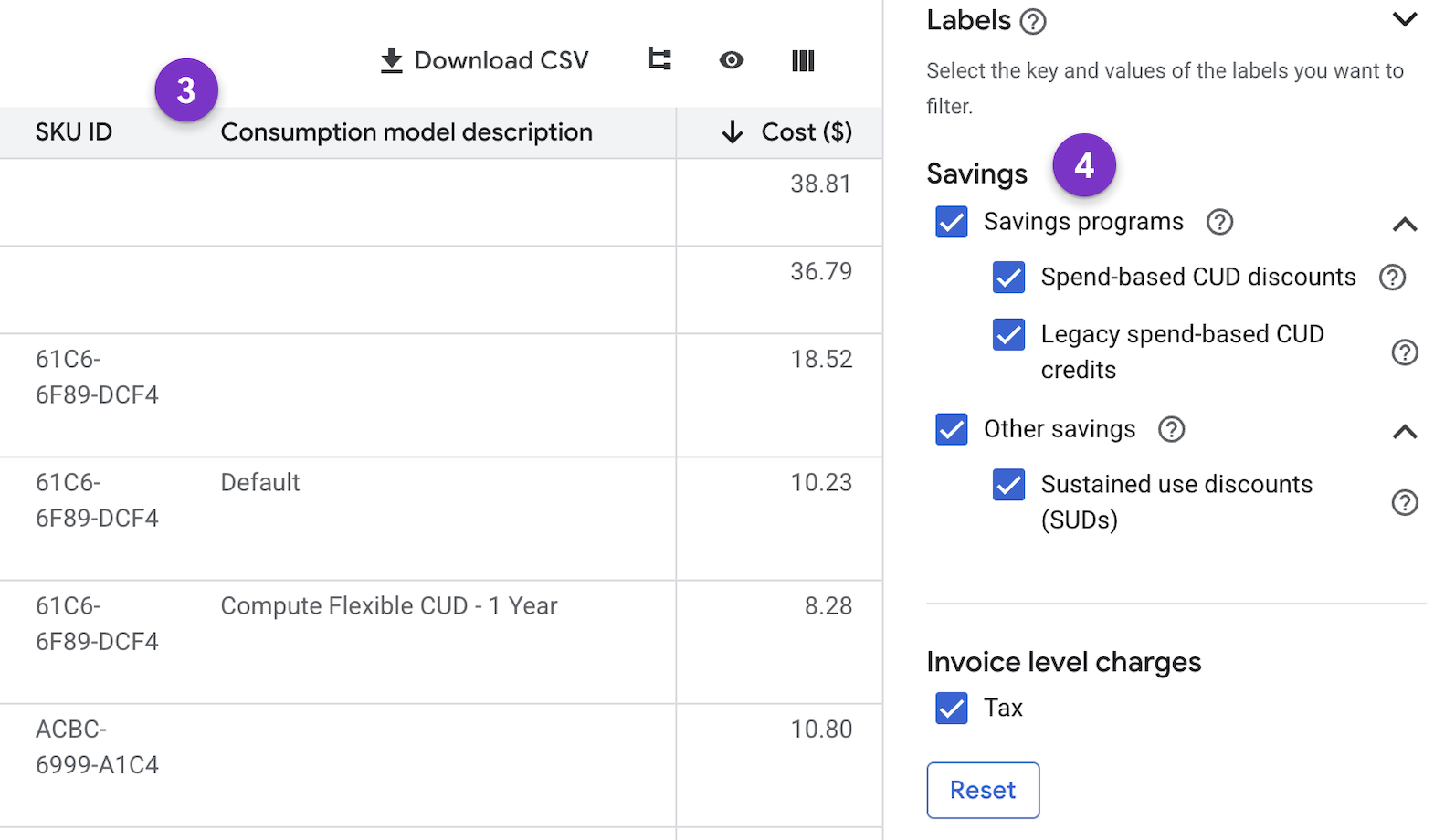
In the Cost table report, new columns and filters show you how the consumption
model affects your costs and let you filter the savings data for more
flexibility:
#### Summary bar visibility
Click the
**summary bar** icon in the toolbar to open or close the
[**summary bar**](https://docs.cloud.google.com/billing/docs/how-to/cost-table#summary-bar).
Using the **summary bar** , you can quickly analyze a subset of data in the cost
table. The **summary bar** works in both
[nested table views](https://docs.cloud.google.com/billing/docs/how-to/cost-table#nested-table-view)
and
[flat table views](https://docs.cloud.google.com/billing/docs/how-to/cost-table#flat-table-view).
For more information, see
[report views with summary bar](https://docs.cloud.google.com/billing/docs/how-to/cost-table#summary-bar).
#### Download report data to CSV
Click the
**Download to CSV** icon in the toolbar to download the report data to CSV.
For more details on the CSV download, see
[download report to CSV](https://docs.cloud.google.com/billing/docs/how-to/cost-table#download-to-csv).
## Share or bookmark the URL of a customized report
You can bookmark or share the URL of a **Cost table** report you have
customized. As you configure your **Cost table** report by setting the
[**Invoice month**](https://docs.cloud.google.com/billing/docs/how-to/cost-table#time-range),
[cost grouping options](https://docs.cloud.google.com/billing/docs/how-to/cost-table#cost-grouping-options),
and report
[filters](https://docs.cloud.google.com/billing/docs/how-to/cost-table#filters),
your page URL updates to include your selections.
Note that
[column display settings](https://docs.cloud.google.com/billing/docs/how-to/cost-table#column-selector)
() are *not
included* in the URL, due to potential URL length limitations. Your shared
URL will open the report with the default columns enabled to display.

- You can share the report by copying the URL. Click **Share** to copy the URL to your clipboard.
- Optionally, in your browser, you can bookmark the URL to save the URL
with your report settings.
> [!NOTE]
> **Note:** As you configure your report by setting filters, your page URL updates to include your selections. It's possible that the URL length limit might be reached if you select many settings (for example, selecting 374 SKUs out of 375). In these instances, the **Share** button is disabled and you see a notification on the reports page: *The URL
> may no longer reflect your selected filters, due to length limitations*.
## Download the Cost table report to CSV
You can download the **Cost table** data to a comma-separated values (CSV) file
using the
**Download CSV** selector in the toolbar above the table. The CSV report is a
flat file, without any formatting or nested data options. The data that
downloads is limited by any
[filters that you set](https://docs.cloud.google.com/billing/docs/how-to/cost-table#filters),
includes only the
[columns that you selected to view](https://docs.cloud.google.com/billing/docs/how-to/cost-table#column-selector),
and includes only the rows that match the table configuration
()
[Group by setting](https://docs.cloud.google.com/billing/docs/how-to/cost-table#cost-grouping-options).
Starting with your September 2020 invoice or
statement, the CSV file also includes the invoice or statement header
information.
### CSV file name
For the **Cost table** report, the file name follows this pattern:
`[Billing Account name]_Cost table, [YYYY-MM-DD] --- [YYYY-MM-DD].csv`
For example, a CSV file of the cost table data downloaded for a
Cloud Billing account named *My Billing Account* , for an invoice month
of *March 2023*, is named:
`My Billing Account_Cost table, 2023-03-01 --- 2023-03-31.csv`
> [!NOTE]
> **Note:** If you download a report with the same invoice month multiple times, then the default report name will be the same. If you configured your **Cost table** report with a specific set of parameters, you might want to rename the CSV file to something that'll help you differentiate between reports run using the same invoice month but using different report settings or filters.
### Notes about the data downloaded to CSV
- The [filters you set](https://docs.cloud.google.com/billing/docs/how-to/cost-table#filters) customize both your online report view (affecting the rows that are displayed in the table), and the data that's downloaded to CSV. If you want to download all of the cost data on your invoice, [reset the filters](https://docs.cloud.google.com/billing/docs/how-to/cost-table#reset-filters) to their default state.
- The
[cost grouping option](https://docs.cloud.google.com/billing/docs/how-to/cost-table#cost-grouping-options)
()
you select is used to create a
[nested view](https://docs.cloud.google.com/billing/docs/how-to/cost-table#nested-table-view)
in the *online* analysis. When you download the data to CSV, a
[flat file](https://docs.cloud.google.com/billing/docs/how-to/cost-table#flat-table-view)
is downloaded, including all of the rows in the **Cost table** report, with data
in individual (not nested) columns. The number of rows of data downloaded is
limited by the
[**Group by** option](https://docs.cloud.google.com/billing/docs/how-to/cost-table#cost-grouping-options)
you select.
To view and download an itemized list of each of the costs and credits
incurred for the selected invoice, choose the
[No grouping option](https://docs.cloud.google.com/billing/docs/how-to/cost-table#cost-grouping-options).
- The
[column selector](https://docs.cloud.google.com/billing/docs/how-to/cost-table#column-selector)
() lets
you customize both your online report view and which fields are
downloaded. When you download to CSV, only the *columns you specify* are
downloaded.
- Starting with your September 2020 invoice or statement, the **Cost table**
report includes header information pulled from the generated document,
including the billing account ID, total amount of the invoice or statement,
and currency of the invoice or statement amount. This header information
is downloaded to CSV.
### Errors when attempting to download CSV
If the CSV file fails to download, you might see one of the following errors:
**Something went wrong while processing the CSV** : The CSV file is limited to 4
million rows. If you attempt to download a CSV file with more than 4 million
rows, you'll see an error message similar to *Something went wrong while
processing the CSV*.
**This file is too large to download** : The CSV file size is limited to 150 MB.
If you attempt to download a file that exceeds 150 MB, you'll see an error
message similar to *This file is too large to download*.
If your file contains more than 4 million rows or exceeds 150 MB in size,
here are a few options you can try to reduce the size of the CSV file:
- Set custom [Group by options](https://docs.cloud.google.com/billing/docs/how-to/cost-table#cost-grouping-options) to limit the number of rows in the report data. For example, group by *Service \> SKU*.
- To reduce file size, use additional [report filters](https://docs.cloud.google.com/billing/docs/how-to/cost-table#filters) to limit the data that's returned to the **Cost table**, then download the filtered report.
- [Deselect (hide) columns](https://docs.cloud.google.com/billing/docs/how-to/cost-table#column-selector) of data that you don't need in your CSV file. Selecting fewer columns to display in the **Cost table** reduces the amount of data returned and reduces the CSV file size.
- [Enable billing data export to BigQuery](https://docs.cloud.google.com/billing/docs/how-to/export-data-bigquery). From your BigQuery tables, you can choose to [export your BigQuery data as CSV (or other formats) to a
Cloud Storage bucket](https://docs.cloud.google.com/bigquery/docs/exporting-data).
- If you're a Google Cloud reseller or distributor, consider [exporting your Channel Services billing data to BigQuery](https://docs.cloud.google.com/channel/docs/rebilling/export-data-to-bigquery), for detailed billing data that includes all of your customers. Learn more about [Channel Services](https://docs.cloud.google.com/channel/docs/overview) and [rebilling your Google Cloud customers](https://docs.cloud.google.com/channel/docs/rebilling/rebilling-overview).
**The download request took too long to respond**: The CSV query can take up
to 90 seconds to gather data before building the report. A timeout condition
can occur when downloading large data sets or if latency issues are encountered.
If your CSV download times out, here are a few options you can try:
- Use additional [report filters](https://docs.cloud.google.com/billing/docs/how-to/cost-table#filters) to limit report results and reduce file size and response time.
- [Deselect (hide) columns](https://docs.cloud.google.com/billing/docs/how-to/cost-table#column-selector) of data that you don't need in your CSV file.
- Don't run concurrent queries. If you started a CSV download, wait until the download process finishes before starting another CSV download. Large files might take about three minutes to process and download.
## Columns in the Cost table
The following data is available in the **Cost table** report (if applicable to
your Cloud Billing account).
When you first load the online view of the **Cost table** report,
by default, some columns are *not* selected to display. You can
[choose which columns to view](https://docs.cloud.google.com/billing/docs/how-to/cost-table#column-selector)
in the report by setting the
[column display options](https://docs.cloud.google.com/billing/docs/how-to/cost-table#column-selector).
Also, when you download the report to CSV, only the columns that you've
selected to view are downloaded.
| Cost Table Field | Corresponding Invoice Field | Description |
| Billing account name | Account Name | The name of the Cloud Billing account that the usage is associated with. If you have access to a primary billing account with subaccounts (a reseller account), this might be the [Cloud Billing Subaccount](https://docs.cloud.google.com/billing/docs/concepts#subaccounts). |
| Billing account ID | Account ID | The Cloud Billing account ID that the usage is associated with. If you have access to a primary billing account with subaccounts (a reseller account), this might be the [Cloud Billing Subaccount](https://docs.cloud.google.com/billing/docs/concepts#subaccounts) |
| Project name | Source\* \* N/A, starting with your November 2019 invoice | The name of the project that generated the Cloud Billing data. When viewing the report for an invoice month *prior to January 2022*, if a project was [deleted or moved to a different Cloud Billing account](https://docs.cloud.google.com/billing/docs/how-to/cost-table#historical-cost-data), this value is blank, and the project is identified by the `Project number`. **Starting with the January 2022 invoice month** , `Project hierarchy` data is available. If a project was [deleted or moved to a different Cloud Billing account](https://docs.cloud.google.com/billing/docs/how-to/cost-table#historical-cost-data), the `Project name` is displayed when the `Project hierarchy` values are populated. > [!CAUTION] > **Caution** : Starting with your *November 2019 invoice* (available in December 2019), we removed the project-level cost detail from your [invoices](https://docs.cloud.google.com/billing/docs/how-to/read-invoice); that is, the `Source` field was removed from the invoice CSV. The **Cost table** report provides project-level cost details that are [downloadable to CSV](https://docs.cloud.google.com/billing/docs/how-to/cost-table#download-to-csv). |
| Project ID | N/A | The ID of the project that generated the Cloud Billing data. When viewing the report for an invoice month *prior to January 2022*, if a project was [deleted or moved to a different Cloud Billing account](https://docs.cloud.google.com/billing/docs/how-to/cost-table#historical-cost-data), this value is blank, and the project is identified by the `Project number`. **Starting with the January 2022 invoice month** , `project hierarchy` data is available. If a project was [deleted or moved to a different Cloud Billing account](https://docs.cloud.google.com/billing/docs/how-to/cost-table#historical-cost-data), the `Project ID` is displayed when the `Project hierarchy` values are populated. |
| Project number | N/A | An internally-generated, anonymized, unique identifier for the project. In your support cases and other customer communication, to protect your privacy, Google will refer to your projects by this project number. When viewing the report for an invoice month *prior to January 2022*, if you [delete a project or move the project to a different Cloud Billing account](https://docs.cloud.google.com/billing/docs/how-to/cost-table#historical-cost-data), the `Project name` and `Project ID` are removed from the **Cost table** report views, but the `Project number` persists in your reports. **Starting with the January 2022 invoice month** , `Project hierarchy` data is available. If a [project was deleted or moved to a different Cloud Billing account](https://docs.cloud.google.com/billing/docs/how-to/cost-table#historical-cost-data), the `Project name`, `Project ID`, and `Project number` are displayed when the `Project hierarchy` values are populated. Note: When you first load the **Cost table** report, by default, the `Project number` column isn't displayed. To view the `Project number` column in your **Cost table** , select *Project number* in the [column display options](https://docs.cloud.google.com/billing/docs/how-to/cost-table#column-selector). |
| Project hierarchy | N/A | Project hierarchy data is available *starting on January 1, 2022*. [Projects](https://docs.cloud.google.com/billing/docs/concepts#projects) form the basis for creating, enabling, and using all Google Cloud services. *Project hierarchy* is the ancestry of a project, the [resource hierarchy mapping](https://docs.cloud.google.com/billing/docs/concepts#gcp_resource_hierarchy_overview) of the project (Organization \> Folder \> Project). Projects can stand alone (not be associated with any folders or organizations) or be the child of an *Organization* or *Folder*. Project hierarchy tracks the current and historical project ancestry. For example, changing a project's name, or moving a project to a different folder or organization, affects the [historical project ancestry](https://docs.cloud.google.com/billing/docs/how-to/reports-project-hierarchy#project-ancestry-changes). *** ** * ** *** Starting with the *January 2022 invoice month*, the **Cost table** report returns a row for each distinct combination of *Organization* \> *Folder* \> *Project*, and the table includes columns for *Project name*, *Project ID*, *Project number*, and *Project hierarchy*. The values listed in the **Project hierarchy** column show *Organization name* \> *Folder name*. - Values in the project hierarchy column are populated starting with the January 2022 invoice month. Before January 2022, the column is blank. - The values in the project hierarchy column are displayed when you're viewing a [flat table view](https://docs.cloud.google.com/billing/docs/how-to/cost-table#flat-table-view) or when you're viewing the *default* [nested table view](https://docs.cloud.google.com/billing/docs/how-to/cost-table#nested-table-view) (grouped by Project \> Service \> SKU). - To see the project hierarchy values when the **Cost table** is configured to use a [nested table view](https://docs.cloud.google.com/billing/docs/how-to/cost-table#nested-table-view), expand the hierarchical cost data in each of the grouped rows until you're viewing rows that display the costs *for a SKU, for a project*. *** ** * ** *** To analyze your costs by project hierarchy, set the [Table configuration **Group by**](https://docs.cloud.google.com/billing/docs/how-to/cost-table#cost-grouping-options) setting to **No grouping** , and [sort the **Cost table** data](https://docs.cloud.google.com/billing/docs/how-to/cost-table#column-selector) on different columns: - To see *all* of the projects that have the same project hierarchy, sort the table by the **Project hierarchy** column. - To see if you have the same project associated with more than one ancestry, sort the table by the **Project ID** column. *** ** * ** *** To learn more about organizations, folders, and project hierarchy, see [Billing reports: Analyzing your costs by project hierarchy](https://docs.cloud.google.com/billing/docs/how-to/reports-project-hierarchy). |
| Service description | Product | The invoice description of the Google Cloud service or Google Maps Platform API that reported the Cloud Billing data. For example, *Compute Engine*. |
| Service ID | N/A | The ID of the Google Cloud service or Google Maps Platform API that reported the Cloud Billing data. For example, *6F81-5844-456A*. |
| SKU description | Resource Type | The invoice description of the resource SKU used by the service. For example, *N1 Predefined Instance Core running in Americas*. SKU description also includes [different tax types](https://docs.cloud.google.com/billing/docs/how-to/cost-table#taxes). For example, *State sales tax (4.71%)* or *PST/QST/RST (9.975%)*. |
| SKU ID | SKU ID | The ID of the resource SKU used by the service. For example, *2E27-4F75-95CD*. For the full list of SKUs, see [Google Cloud SKUs](https://cloud.google.com/skus/). |
| Consumption model description | N/A | A consumption model represents the price you pay for a certain amount of SKU usage within a certain context. A SKU can have several consumption models, but only one applies to any given amount of usage at a particular time. Each SKU has at least one consumption model, whose description is `Default`. Consumption models often represent various kinds of *discounted* prices for SKU usage, such as SKUs covered by committed use discounts (CUDs). For example, if a one-year Flex CUD covers a particular VM usage, then the consumption model that applies to that SKU usage has the description `Compute Flexible CUD - 1 Year`. For more information, see [Spend-based CUDs program improvements](https://docs.cloud.google.com/docs/cuds-multiprice). Note: The first invoice month with `Consumption model` data is July 2025, for usage that was recorded on or after July 15, 2025. |
| Consumption model ID | N/A | The ID of the consumption model that applies to the price of usage for a SKU. For example, *7754-699E-0EBF*. For a list of Consumption model IDs that apply to the new *Spend-based CUDs discounts*, see [Offers and consumption model IDs](https://docs.cloud.google.com/docs/cuds-multiprice-datamodel#offer-consumption-ids). Note: The first invoice month with `Consumption model` data is July 2025, for usage that was recorded on or after July 15, 2025. When you first load the **Cost table** report, by default, the `Consumption model ID` column isn't displayed. To view the `Consumption model ID` column in your **Cost table** , select *Consumption model ID* in the [column display options](https://docs.cloud.google.com/billing/docs/how-to/cost-table#column-selector). |
| Credit type | N/A | This field describes the purpose or origin of the `Credit ID`. Credit types include: - `FEE_UTILIZATION_OFFSET` For the [new Spend-based CUD discounts](https://docs.cloud.google.com/docs/cuds-multiprice), this credit is used to offset the fees paid to purchase CUDs. With the new model, you purchase commitments at a discounted price. As you use the SKUs covered by the CUD, this credit offsets the fee. When you fully utilize your commitment, the offset reduces the fee to zero, with your eligible SKU usage charged at the discounted price. - [`COMMITTED_USAGE_DISCOUNT_DOLLAR_BASE`](https://docs.cloud.google.com/docs/cuds-spend-based): For legacy spend-based committed use discounts (CUDs) that aren't part of the [new pricing model](https://docs.cloud.google.com/docs/cuds-multiprice), this is the credit earned in exchange for your commitment to spend a minimum amount for a service in a particular region. - [`COMMITTED_USAGE_DISCOUNT`](https://docs.cloud.google.com/compute/docs/instances/signing-up-committed-use-discounts): Resource-based committed use contracts purchased for Compute Engine in return for deeply discounted prices for VM usage. - `DISCOUNT`: The discount credit type is used for credits earned after a contractual spending threshold is reached. Note that in the Cloud Billing reports available in the Google Cloud console, the discount credit type is listed as *Spending-based discounts*. - [`FREE_TIER`](https://docs.cloud.google.com/free/docs/gcp-free-tier#free-tier): Some services offer [free resource usage up to specified limits](https://docs.cloud.google.com/free/docs/gcp-free-tier#free-tier-usage-limits). For these services, credits are applied to implement the free tier usage. - `PROMOTION`: The promotion credit type includes [spend-based milestone credits](https://docs.cloud.google.com/billing/docs/how-to/incentives-program-tracker), [Google Cloud Free Trial](https://docs.cloud.google.com/free/docs/gcp-free-tier#free-trial) and marketing campaign credits, or other grants to use Google Cloud. When available, promotional credits are considered a form of payment and are automatically applied to reduce your total bill. - `RESELLER_MARGIN`: If you're a reseller, the *reseller margin* credit type indicates the *Reseller Program Discounts* earned on every eligible line item. - `SUBSCRIPTION_BENEFIT`: Credits earned by purchasing long-term subscriptions to services in exchange for discounts. - [`SUSTAINED_USAGE_DISCOUNT`](https://docs.cloud.google.com/compute/docs/sustained-use-discounts): The sustained use discounts credit type is an automatic discount that you receive for running eligible Compute Engine resources for a significant portion of the billing month, with no commitment required. If the `Credit type` field is empty, then the product SKU isn't associated with a credit. Note: The first invoice month with `Credit type` data is July 2020, for usage that was recorded on or after July 8, 2020. |
| Credit name | N/A | The name of the credit associated with the product SKU. This is a human-readable description of an *alphanumeric* `Credit ID`. Examples include *Free trial credit* or [*Spend-based CUD*](https://docs.cloud.google.com/docs/cuds). `Credit name` values are only present for SKUs with an *alphanumeric* `Credit ID`. If the value of the `Credit ID` is a description of the credit type (such as [*Committed Usage Discount: CPU*](https://docs.cloud.google.com/docs/cuds)), then the `Credit name` field will be empty. Note: The first invoice month with `Credit name` data is July 2020, for usage recorded on or after July 8, 2020. When you first load the **Cost table** report, by default, the `Credit name` column isn't displayed. To view the `Credit name` column in your **Cost table** , select *Credit name* in the [column display options](https://docs.cloud.google.com/billing/docs/how-to/cost-table#column-selector). |
| Credit ID | N/A | If present, indicates that a credit is associated with the product SKU. `Credit ID` values are either an alphanumeric unique identifier (for example, *12-b34-c56-d78*), or a description of the credit type (such as [*Committed Usage Discount: CPU*](https://docs.cloud.google.com/docs/cuds)). If the credit ID field is empty, then the product SKU isn't associated with a credit. Note: The first invoice month with `Credit ID` data is July 2020, for usage that was recorded on or after July 8, 2020. When you first load the **Cost table report** , by default, the `Credit ID` column isn't displayed. To view the `Credit ID` column in your **Cost table** , select *Credit ID* in the [column display options](https://docs.cloud.google.com/billing/docs/how-to/cost-table#column-selector). |
| Label | N/A | The `label_key:label_value` pair. For example, *environment:production*. The `label_key` (for example, *environment*) is selected using the Label key selector accessible in the **Table configuration** dialog. The `label_value` (for example, *production*) is one of the values corresponding to the selected label key. Learn more about [creating and managing resource labels](https://docs.cloud.google.com/resource-manager/docs/creating-managing-labels). |
| Cost type | Description | A description of the type of cost for the line item. - **Usage** represents the cost of the row's Google Cloud usage. - **Adjustment** represents any invoice-level, manual adjustments made (this is rare). - **Rounding Error** represents the total rounding error that occurred during cost calculation. (When calculating usage costs, all costs are converted to the lowest billable unit, then summed to determine the invoice total. Sometimes, small rounding errors occur due to this cost conversion.) - **Tax** represents [project-level taxes](https://docs.cloud.google.com/billing/docs/how-to/cost-table#taxes) on usage and adjustments. - **Total** represents the total cost for the invoice month. |
| Usage start date | Start Date | The date of the first occurrence of usage for this invoice month (see previous note on the possibility of late-arriving usage). |
| Usage end date | End Date | The date of the last occurrence of usage for this invoice month (see previous note on the possibility of late-arriving usage). |
| Usage amount | Quantity | The quantity of usage units used. |
| Usage unit | Unit | The billing unit of the usage (such as hour or gibibyte month). |
| Seller name | N/A | The legal name of the seller. **Note:** The first full month of data with this column is December 2024. When you first load the **Cost table** report, by default, the `Seller name` column isn't displayed. To view the `Seller name` column in your **Cost table** , select *Seller name* in the [column display options](https://docs.cloud.google.com/billing/docs/how-to/cost-table#column-selector). |
| Transaction type | N/A | The transaction type of the seller. The transaction type might be one of the following: - GOOGLE = Services sold by Google Cloud. - THIRD_PARTY_RESELLER = Third party services resold by Google Cloud. - THIRD_PARTY_AGENCY = Third party services sold by a partner, with Google Cloud acting as the agent. **Note:** The first full month of data with this column is October 2023. When you first load the **Cost table** report, by default, the `Transaction type` column isn't displayed. To view the `Transaction type` column in your **Cost table** , select *Transaction type* in the [column display options](https://docs.cloud.google.com/billing/docs/how-to/cost-table#column-selector). |
| Cost in micros | N/A | The calculated cost of the usage in micro units (µ). *Micro* is a unit prefix in the metric system denoting a factor of 10^−6^ (one millionth). When we calculate your usage costs, we convert all costs to micro units to provide the level of accuracy needed to calculate any rounding errors. Examples: - 999,741 `Cost in micros` = 1.00 `Cost` (in currency). - -10,011,960 `Cost in micros` = -10.01 `Cost` (in currency). When you first load the **Cost table** report, by default, the `Cost in micros` column isn't displayed. To view the `Cost in micros` column in your **Cost table** , select *Cost in micros* in the [column display options](https://docs.cloud.google.com/billing/docs/how-to/cost-table#column-selector). |
| List cost | N/A | The `List cost` column is available for Cloud Billing accounts ***associated with a custom pricing contract*** , and represents the monthly cost of your usage calculated using [list prices](https://docs.cloud.google.com/billing/docs/how-to/pricing-table). The other cost columns, `Unrounded cost` and `Cost`, are calculated using the price that's applicable to your billing account (either *list prices* or *contract prices*). If your account has contract pricing, you can compare `List cost` amounts to `Cost` amounts to determine how much you're saving with your custom contract prices. > [!NOTE] > **Note** : The `List cost` column is available starting with your *May 2021* invoice, and only for Cloud Billing accounts *associated with a custom pricing contract*. When you first load the **Cost table** report, by default, the `List cost` column isn't displayed. To view the `List cost` column in your **Cost table** , select *List cost* in the [column display options](https://docs.cloud.google.com/billing/docs/how-to/cost-table#column-selector). |
| Unrounded cost | N/A | The calculated cost of the usage, in the [currency](https://docs.cloud.google.com/billing/docs/resources/currency) the Cloud Billing account is configured to use, to a precision of up to six decimal places. `Unrounded cost` is calculated using the [SKU prices](https://docs.cloud.google.com/billing/docs/how-to/cost-table#sku-prices) associated with your Cloud Billing account and can be helpful when analyzing your cost details and understanding the source of any discrepancies due to rounding.
If you're using the [CSV version of this report](https://docs.cloud.google.com/billing/docs/how-to/cost-table#download-to-csv) for analysis, we recommend using the `Unrounded cost` column for your calculations. > [!NOTE] > **Note** : If you have custom contract pricing, the `Unrounded cost` amounts are calculated using your contract prices; otherwise `Unrounded cost` amounts are calculated using list prices. |
| Cost | Amount | The calculated cost of the usage, in the [currency](https://docs.cloud.google.com/billing/docs/resources/currency) the Cloud Billing account is configured to use, rounded to two decimal places. `Cost` is calculated using the [SKU prices](https://docs.cloud.google.com/billing/docs/how-to/cost-table#sku-prices) associated with your Cloud Billing account and represents the amount charged for usage. **Note** : If you have custom contract pricing, the `Cost` amounts are calculated using your contract prices; otherwise `Cost` amounts are calculated using list prices. |
|---|---|---|
## Notes about the Cost table report
### Matching your invoice
When viewing the report using the
[default filter settings](https://docs.cloud.google.com/billing/docs/how-to/cost-table#filters),
the **Cost table** report matches your existing invoice as closely as possible.
On the **Cost table** report, the display of credits and usage-based discounts
(for example, promotional credits or sustained use discounts) are listed as
separate line items.
[Online Cloud Billing reports](https://docs.cloud.google.com/billing/docs/how-to/reports#credits)
and
[Cloud Billing Export to BigQuery](https://docs.cloud.google.com/billing/docs/how-to/export-data-bigquery)
don't separate credits and discounts into separate line items.
To ensure that you receive the maximum discount coverage, Google Cloud
automatically pools and optimizes the application of credits across all eligible
usage within a billing account. To optimize credit application across numerous
products and pricing models, credits are sometimes applied in a way that
prevents you from isolating and reconciling costs, credits, or reseller margins
at the individual SKU level. This cross-application is expected system behavior
designed to increase your overall savings. For an accurate and precise financial
reconciliation of all costs, credits, and margins, refer to the aggregated
totals at the Billing Account level, which are the definitive source.
The **Total** amount listed in your invoice is the sum of all `Unrounded cost`
line items, rounded to two decimal places. If you're using the
[CSV version of this report](https://docs.cloud.google.com/billing/docs/how-to/cost-table#download-to-csv)
to reconcile to your invoice total, we recommend doing the following:
- Before you download to CSV, [reset your filters](https://docs.cloud.google.com/billing/docs/how-to/cost-table#reset-filters) to their default state.
- Use the [`Unrounded cost`](https://docs.cloud.google.com/billing/docs/how-to/cost-table#unrounded-cost) amounts for your calculations.
### How costs are calculated for an invoice month
Invoice month refers to the time period that an invoice or
statement covers.
- The type of document you receive depends on the [type of Cloud Billing account](https://docs.cloud.google.com/billing/docs/concepts#billing_account_types) you are viewing.
- Invoiced (offline) accounts receive invoices.
- Self-serve (online) accounts receive statements.
- Google Cloud and billing-eligible products such as Google Maps Platform, Google AI Studio, and Firebase report usage data to Cloud Billing at varying intervals. Due to the complexity of our billing and processing systems, you might see a delay between your use of services, and the *usage and costs* being available to view in Cloud Billing and other cost reports and billing dashboards. Typically, your cost details are available within a day, but can sometimes take more than 24 hours to appear.
- Late-reported usage costs at the end of an invoice month might not be included on that invoice month's statement or invoice and are reported on the next month's invoice or statement.
- The **Cost table** report is meant to match the charges on your invoice or statement. The possible result of late-reported usage is that your **Cost
table** report might include costs from more than one calendar month. For example, your October invoice or statement might include costs incurred at the end of September combined with the October costs.
- To view your usage costs by actual usage date (calendar date or date range), see the [online reports](https://docs.cloud.google.com/billing/docs/how-to/reports#invoice-charges) or analyze your [exported billing data](https://docs.cloud.google.com/billing/docs/how-to/export-data-bigquery).
- Invoice-level charges, including taxes, adjustments, and rounding errors, are included in the **Cost table** footer. For guidance on understanding and analyzing any adjustments, see [Understand memos and adjustments](https://docs.cloud.google.com/billing/docs/how-to/resolve-issues#understand-memos).
- If you have a custom pricing contract, you might receive *promotional*
credits to use on Google Cloud as part of the contract. For example,
you might receive $1,000 to use on Compute Engine resources.
Promotional credits are typically considered a form of payment. When
available, promotional credits are automatically applied to reduce your
total bill.
The terms of your contract specify whether the promotional credits apply to
your costs calculated at the *list price* of a SKU, or the *net price*
(after discounts). View the `List cost` column to see your usage costs
calculated using list prices.
If your promotional credits apply to costs that are calculated at the *list
price* , in the **Cost table** report, there's a service called `Invoice`,
with a SKU called `Contract billing adjustment`. This SKU adjusts your
credits so that they apply to the costs at list price. To see the usage that
the adjustment is for,
[use the Cloud Billing data export to BigQuery](https://docs.cloud.google.com/billing/docs/how-to/export-data-bigquery-tables/standard-usage#credits-contracts).
### SKU Prices
Invoice usage details don't include a column for the SKU price. If your
Cloud Billing account is associated with a custom pricing contract,
the `Unrounded cost` and `Cost` amounts are calculated using the contract
prices. The `List cost` amounts are calculated using the
publicly available list prices. You can compare `List cost` to `Cost` to
determine how much you're saving with your custom contract prices.
To view your prices per SKU, see the
[Pricing table report](https://docs.cloud.google.com/billing/docs/how-to/pricing-table)
or
[export your Cloud Billing prices to BigQuery](https://docs.cloud.google.com/billing/docs/how-to/export-data-bigquery).
If you have questions regarding pricing per SKU, contact your Account
Representative for more details.
### Historical project data
*Prior to January 1, 2022:*
When viewing reports for invoice months *prior to January 2022* , historical
project metadata is *not* supported in the **Cost table** report.
If you delete a project or move the project to a different
Cloud Billing account, the following values are *no longer displayed*
in the **Cost table** for the project: Project Name, Project ID, Billing account ID,
and Billing account name. The
[Project number](https://docs.cloud.google.com/billing/docs/how-to/cost-table#project-number)
value persists after a project is deleted. If you enabled the
[export of Cloud Billing data to BigQuery](https://docs.cloud.google.com/billing/docs/how-to/export-data-bigquery),
you can find your historical project information in your BigQuery
tables.
*Starting on January 1, 2022:*
When viewing reports for an invoice month *on or after January 2022* , with the
addition of
[project hierarchy data](https://docs.cloud.google.com/billing/docs/how-to/cost-table#project-hierarchy),
historical project metadata is supported in the **Cost table** . Starting
January 1, 2022, when you delete a project or move a project to a different
Cloud Billing account, *if that project incurred usage during the
time period selected* , the following values are listed in the **Cost table** for
the project: Billing account name, Billing account ID, Project Name, Project
ID, Project number, and
[Project hierarchy](https://docs.cloud.google.com/billing/docs/how-to/cost-table#project-hierarchy).
If you enabled the
[export of Cloud Billing data to BigQuery](https://docs.cloud.google.com/billing/docs/how-to/export-data-bigquery),
the **Cost table**'s project metadata information should match the historical
project information in your BigQuery tables.
### Taxes by project and by invoice
Starting September 1, 2020, your cost details in the **Cost table**
show your tax costs for each of your projects, instead of as an invoice-level
cost. Invoice-level tax totals continue to be displayed in the footer of the
**Cost table** report. You can identify and filter on your tax details using the
`Cost type` column and the `SKU description` column.
For example, for costs recorded *before* September 1, 2020, your cost
detail data looked similar to the following example, which shows a total tax
cost of $10.
| **`Billing account ID`** | **`Project ID`** | **`SKU description`** | **`Cost type`** | **`Cost`** |
|---|---|---|---|---|
| 123456-ABCDEF-123456 | example-project | N1 Predefined Instance Core | Usage | $60 |
| 123456-ABCDEF-123456 | test-project | N1 Predefined Instance Core | Usage | $40 |
| 123456-ABCDEF-123456 | 0 | State sales tax (10.0%) | Tax | $10 |
For costs recorded *after* September 1, 2020, the $10 tax total is broken
out to attribute $6 for `example-project`, and $4 for `test-project`:
| **`Billing account ID`** | **`Project ID`** | **`SKU description`** | **`Cost type`** | **`Cost`** |
|---|---|---|---|---|
| 123456-ABCDEF-123456 | example-project | N1 Predefined Instance Core | Usage | $60 |
| 123456-ABCDEF-123456 | example-project | State sales tax (10.0%) | Tax | $6 |
| 123456-ABCDEF-123456 | test-project | N1 Predefined Instance Core | Usage | $40 |
| 123456-ABCDEF-123456 | test-project | State sales tax (10.0%) | Tax | $4 |
#### Viewing project-level taxes in the nested table view
To view your tax costs by project in the
[nested table view](https://docs.cloud.google.com/billing/docs/how-to/cost-table#nested-table-view),
you must use or configure a
[**Group by** option](https://docs.cloud.google.com/billing/docs/how-to/cost-table#cost-grouping-options)
with **Project** as the first grouping dimension. For example, group by
*Project -\> Service -\> SKU*.
#### Viewing project-level taxes in the flat table view
In the
[flat table view](https://docs.cloud.google.com/billing/docs/how-to/cost-table#flat-table-view), if you have incurred tax costs,
project-level taxes are displayed in rows near the end of the table. Each
row with a *Tax* `Cost type` represents the total tax costs for a
`SKU description` (specific tax type and percentage), attributed to a *project*.
> [!NOTE]
> **Note:** If the tax isn't related to a project, the `Project ID` column displays `0`. For example, Support costs are owned by the Cloud Billing account, and not by a specific project. For taxes on these costs, the `Project ID` column displays `0`.
### About split invoices
You might receive multiple invoices for a set of transactions, also known as
[split invoices](https://docs.cloud.google.com/billing/docs/how-to/split-invoice),
if your product purchases meet all of the following criteria:
- You use the Cloud Marketplace to purchase first-party Google products and third-party products from a Google partner reseller.
- Your transactions occur through the [agency transaction model](https://docs.cloud.google.com/marketplace/docs/partners/transaction-models).
Split invoices separate the Google services you buy through a Google partner
reseller (third-party transactions) from services you buy directly from Google
(first-party transactions).
Starting with the *November 2024* invoice month, invoices include a
[*Publisher type*](https://docs.cloud.google.com/billing/docs/how-to/cost-table#publisher-type-in-header)
to indicate the publisher associated with the transactions. The *Publisher type*
is displayed in the
[Cost table header](https://docs.cloud.google.com/billing/docs/how-to/cost-table#table-header),
and in the
[Invoice month filter](https://docs.cloud.google.com/billing/docs/how-to/cost-table#time-range).
The possible *Publisher type* values are:
- **Google**: First-party, unregulated transaction by Google Cloud.
- **Partner**: A third-party, regulated or unregulated transaction by a partner.
The **Cost table** also provides additional
[columns](https://docs.cloud.google.com/billing/docs/how-to/cost-table#columns_in_the_cost_table)
you can view to see purchase information about your transactions:
- [`Seller name`](https://docs.cloud.google.com/billing/docs/how-to/cost-table#seller-name-column): The legal name of the seller.
- [`Transaction type`](https://docs.cloud.google.com/billing/docs/how-to/cost-table#transaction-type-column): The transaction type of the seller, indicating services sold by Google, or third-party services either resold by Google or sold by a partner.
These columns are not visible by default. To view the `Seller name` or
`Transaction type` columns in your Cost table, select them in the
[column display options](https://docs.cloud.google.com/billing/docs/how-to/cost-table#column-selector).
For more information about split invoices, see
[Split invoicing for agency model transactions](https://docs.cloud.google.com/billing/docs/how-to/split-invoice).
### About totals in the invoice header and the Cost table footer
When your **Cost table** report is configured to view all costs and credits for
an invoice month, typically, the total in the invoice header and the **Cost table**
footer are the same. Rarely, you might notice the header total doesn't match
the footer total.
Starting with the *September 2020* invoice or statement, the **Cost table**
report includes header information for the document providing details such as
the invoice number, the billing account ID, and the invoice or statement totals.
- The invoice *total amount due* or statement *total new activity* listed in the header is determined based on the timing of when the invoice or statement document was generated. The total in the report header isn't affected by any filters you might set in the **Cost table** report.
- The **Total** listed in the **Cost table** footer is generated by summing all the `Unrounded cost` line items in the **Cost table** report, then rounding to two places. If you set filters to refine the costs returned in the **Cost table**, the footer total is calculated on the filtered costs.
In some cases, when viewing an unfiltered report, the two totals might not
match. This might occur if your Cloud Billing account is issued more
than one invoice or statement in a month, or if a credit or debit memo is
issued for your billing account. For example:
- If you close your Cloud Billing account, you might be issued more than one invoice or statement in the same month. There is a delay in usage reporting, so you might get an additional invoice to cover the cost of usage that was reported after you closed your Cloud Billing account.
- If you're issued a credit memo, those credits or charges might be applied to your invoice, but not be reflected in the cost line items on the **Cost table** report. For guidance on understanding and analyzing any adjustments, see [Understand memos and adjustments](https://docs.cloud.google.com/billing/docs/how-to/resolve-issues#understand-memos).
If you notice the totals in your **Cost table** report's header and footer don't
match, and you need help reconciling your invoice or statement,
[contact Cloud Billing Support for assistance](https://docs.cloud.google.com/billing/docs/support).
## Related topics
- [Get an invoice, statement, or receipt](https://docs.cloud.google.com/billing/docs/how-to/get-invoice)
- [Understand your monthly invoice](https://docs.cloud.google.com/billing/docs/how-to/read-invoice)
- [View your Cloud Billing reports and cost trends](https://docs.cloud.google.com/billing/docs/how-to/reports)
- [Export Cloud Billing data to BigQuery](https://docs.cloud.google.com/billing/docs/how-to/export-data-bigquery)
- [View your cost and payment history](https://docs.cloud.google.com/billing/docs/how-to/view-history)