Learn how to send a few simple requests to the Cloud Billing Budget API.
For a full list of methods, see the
[REST API](https://docs.cloud.google.com/billing/docs/reference/budget/rest)
reference documentation.
## Before you begin
You should do the following before reading this guide:
1. Read [Cloud Billing Budget API overview](https://docs.cloud.google.com/billing/docs/how-to/budget-api-overview).
2. Read [Cloud Billing Budget API prerequisites](https://docs.cloud.google.com/billing/docs/how-to/budget-api-prereqs).
3. Perform [setup steps](https://docs.cloud.google.com/billing/docs/how-to/budget-api-setup).
### Identify your Cloud Billing account ID
For every Cloud Billing Budget API call, you need your
**Cloud Billing account ID**.
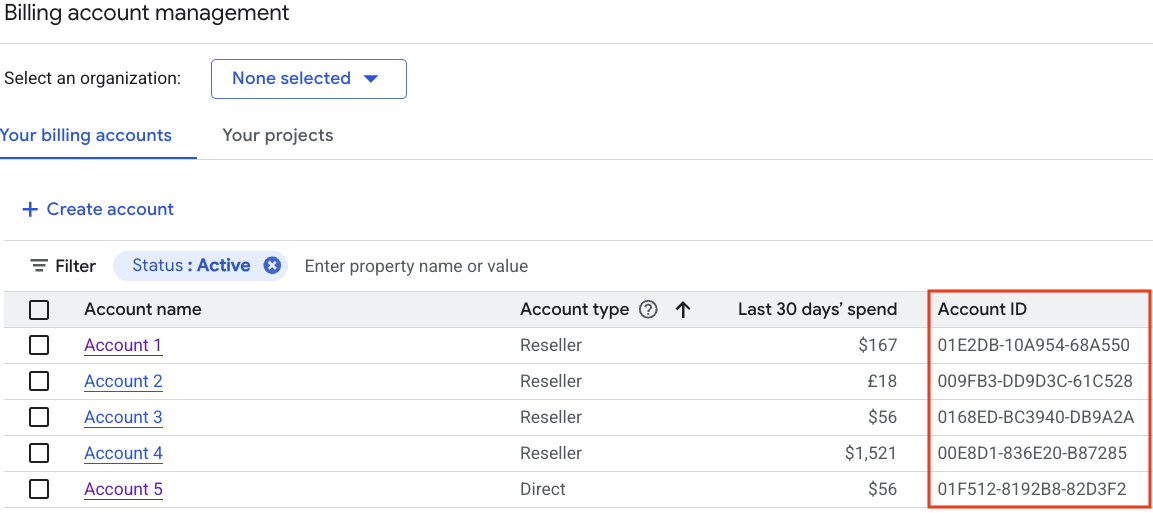
1. Go to the [Google Cloud console Manage billing accounts page](https://console.cloud.google.com/billing).
2. On the *Your billing accounts* tab, you see the list of Cloud Billing accounts by name and ID. Locate the **Account ID** value for the account where you manage budgets.
## Key budget concepts
- An alerts-only budget can be applied to an entire billing account, or [scoped (filtered)](https://docs.cloud.google.com/billing/docs/how-to/budgets#budget-scope) using granular budget filters to monitor specific slices of your costs.
- An alerts-only budget that is applied to an entire Cloud Billing account includes costs from all of the [Google Cloud projects paid for by that billing account](https://docs.cloud.google.com/billing/docs/how-to/view-linked).
- If you have limited or no access to the Cloud Billing account, you can create single-project budgets for projects that you own. If you are a Cloud Billing account-level user, you can create single-project alerts-only budgets that can't be modified by project-level users using the [`OwnershipScope`](https://docs.cloud.google.com/billing/docs/reference/budget/rest/v1/billingAccounts.budgets#ownershipscope) field in the budget.
- You can narrow the scope of an alerts-only budget [using filters](https://docs.cloud.google.com/billing/docs/reference/budget/rest/v1/billingAccounts.budgets#filter), such as a subset of organizations, folders, projects, services, and other budget filters applicable to your Cloud Billing account.
- You can specify the time period of an alerts-only budget. By default, a budget monitors costs incurred during a calendar month. Using the `usage_period` filter that is available in the Cloud Billing Budget API, you can configure an alerts-only budget's time period to a [`CalendarPeriod`](https://docs.cloud.google.com/billing/docs/reference/budget/rest/v1/billingAccounts.budgets#CalendarPeriod) or a [`CustomPeriod`](https://docs.cloud.google.com/billing/docs/reference/budget/rest/v1/billingAccounts.budgets#CustomPeriod), allowing you to create alerts-only budgets to monitor time frames beyond the default calendar month, such as a quarter, a year, or a custom date range that you specify.
- For alerts-only budgets, you can set the [budget amount](https://docs.cloud.google.com/billing/docs/reference/budget/rest/v1/billingAccounts.budgets#budgetamount) to a total that you specify, or base the budget amount on the spend from the previous calendar period.
- You can set [budget threshold rules](https://docs.cloud.google.com/billing/docs/reference/budget/rest/v1/billingAccounts.budgets#thresholdrule) to trigger email alert notifications. When your costs (actual costs or forecasted costs) exceed a percentage of your budget (based on the rules you set), alert emails are sent to the [recipients you specify](https://docs.cloud.google.com/billing/docs/reference/budget/rest/v1/billingAccounts.budgets#notificationsrule).
- For alerts-only budgets, you can set the budget's [notification rules](https://docs.cloud.google.com/billing/docs/reference/budget/rest/v1/billingAccounts.budgets#notificationsrule), to [specify the email recipients](https://docs.cloud.google.com/billing/docs/how-to/budgets-notification-recipients) of budget alerts, and to enable [programmatic notifications using Pub/Sub](https://docs.cloud.google.com/billing/docs/how-to/budgets-programmatic-notifications).
- For alerts-only budgets, you can use [Pub/Sub topics](https://docs.cloud.google.com/billing/docs/reference/budget/rest/v1/billingAccounts.budgets#notificationsrule) for [programmatic notifications](https://docs.cloud.google.com/billing/docs/how-to/budgets-programmatic-notifications) (for example, to forward your budget messages to other mediums such as Slack, or to automate cost management tasks).
**Quota limitation** : Each individual Cloud Billing account can have
[**several thousand budgets**](https://docs.cloud.google.com/billing/quotas)
associated with it at a time. See
[Quotas and limits](https://docs.cloud.google.com/billing/quotas)
for current limits and additional information.
## Calling the API
The following samples show how to send a few simple requests to the
Cloud Billing Budget API.
### List budgets
This API method lists all budgets available for a given Cloud Billing
account.
### REST
Before using any of the request data,
make the following replacements:
- billing-account-id: The Cloud Billing account ID the budgets apply to.
- project-id: The Google Cloud project where the Cloud Billing Budget API is enabled.
HTTP method and URL:
```
GET https://billingbudgets.googleapis.com/v1/billingAccounts/billing-account-id/budgets
```
To send your request, expand one of these options:
#### curl (Linux, macOS, or Cloud Shell)
> [!NOTE]
> **Note:** The following command assumes that you have logged in to the `gcloud` CLI with your user account by running [`gcloud init`](https://docs.cloud.google.com/sdk/gcloud/reference/init) or [`gcloud auth login`](https://docs.cloud.google.com/sdk/gcloud/reference/auth/login) , or by using [Cloud Shell](https://docs.cloud.google.com/shell/docs), which automatically logs you into the `gcloud` CLI . You can check the currently active account by running [`gcloud auth list`](https://docs.cloud.google.com/sdk/gcloud/reference/auth/list).
Execute the following command:
```
curl -X GET \
-H "Authorization: Bearer $(gcloud auth print-access-token)" \
-H "x-goog-user-project: project-id" \
"https://billingbudgets.googleapis.com/v1/billingAccounts/billing-account-id/budgets"
```
#### PowerShell (Windows)
> [!NOTE]
> **Note:** The following command assumes that you have logged in to the `gcloud` CLI with your user account by running [`gcloud init`](https://docs.cloud.google.com/sdk/gcloud/reference/init) or [`gcloud auth login`](https://docs.cloud.google.com/sdk/gcloud/reference/auth/login) . You can check the currently active account by running [`gcloud auth list`](https://docs.cloud.google.com/sdk/gcloud/reference/auth/list).
Execute the following command:
```
$cred = gcloud auth print-access-token
$headers = @{ "Authorization" = "Bearer $cred"; "x-goog-user-project" = "project-id" }
Invoke-WebRequest `
-Method GET `
-Headers $headers `
-Uri "https://billingbudgets.googleapis.com/v1/billingAccounts/billing-account-id/budgets" | Select-Object -Expand Content
```
You should receive a JSON response similar to the following:
```
{
"budgets": [
{
"name": "billingAccounts/000000-111111-222222/budgets/33333333-4444-5555-6666-777777777777",
"displayName": "Forecasted spend budget with Service Filter",
"budgetFilter": {
"projects": [
"projects/123456789"
],
"services": [
"services/A1E8-BE35-7EBC"
],
"creditTypesTreatment": "EXCLUDE_ALL_CREDITS",
"calendarPeriod": "MONTH"
},
"amount": {
"lastPeriodAmount": {}
},
"thresholdRules": [
{
"thresholdPercent": 0.9,
"spendBasis": "FORECASTED_SPEND"
}
],
"allUpdatesRule": {},
"etag": "c9d6c011f6fa6b5c"
}
]
}
```
### Get budget
This API method gets the details for a particular budget.
### REST
To call this method, you need the budget-id of the
budget you want to update. You can get the budget ID from the
`createBudget` output when you create your budget, or
`listBudgets` output if you list all of your
budgets.
Before using any of the request data,
make the following replacements:
- billing-account-id: The Cloud Billing account ID this budget applies to.
- budget-id: The ID of the budget you want to get.
- project-id: The Google Cloud project where the Cloud Billing Budget API is enabled.
HTTP method and URL:
```
GET https://billingbudgets.googleapis.com/v1/billingAccounts/billing-account-id/budgets/budget-id
```
To send your request, expand one of these options:
#### curl (Linux, macOS, or Cloud Shell)
> [!NOTE]
> **Note:** The following command assumes that you have logged in to the `gcloud` CLI with your user account by running [`gcloud init`](https://docs.cloud.google.com/sdk/gcloud/reference/init) or [`gcloud auth login`](https://docs.cloud.google.com/sdk/gcloud/reference/auth/login) , or by using [Cloud Shell](https://docs.cloud.google.com/shell/docs), which automatically logs you into the `gcloud` CLI . You can check the currently active account by running [`gcloud auth list`](https://docs.cloud.google.com/sdk/gcloud/reference/auth/list).
Execute the following command:
```
curl -X GET \
-H "Authorization: Bearer $(gcloud auth print-access-token)" \
-H "x-goog-user-project: project-id" \
"https://billingbudgets.googleapis.com/v1/billingAccounts/billing-account-id/budgets/budget-id"
```
#### PowerShell (Windows)
> [!NOTE]
> **Note:** The following command assumes that you have logged in to the `gcloud` CLI with your user account by running [`gcloud init`](https://docs.cloud.google.com/sdk/gcloud/reference/init) or [`gcloud auth login`](https://docs.cloud.google.com/sdk/gcloud/reference/auth/login) . You can check the currently active account by running [`gcloud auth list`](https://docs.cloud.google.com/sdk/gcloud/reference/auth/list).
Execute the following command:
```
$cred = gcloud auth print-access-token
$headers = @{ "Authorization" = "Bearer $cred"; "x-goog-user-project" = "project-id" }
Invoke-WebRequest `
-Method GET `
-Headers $headers `
-Uri "https://billingbudgets.googleapis.com/v1/billingAccounts/billing-account-id/budgets/budget-id" | Select-Object -Expand Content
```
You should receive a JSON response similar to the following:
```
{
"name": "billingAccounts/000000-111111-222222/budgets/33333333-4444-5555-6666-777777777777",
"displayName": "Forecasted spend budget with Service Filter",
"budgetFilter": {
"projects": [
"projects/123456789"
],
"services": [
"services/A1E8-BE35-7EBC"
],
"creditTypesTreatment": "EXCLUDE_ALL_CREDITS",
"calendarPeriod": "MONTH"
},
"amount": {
"lastPeriodAmount": {}
},
"thresholdRules": [
{
"thresholdPercent": 0.9,
"spendBasis": "FORECASTED_SPEND"
}
],
"allUpdatesRule": {},
"etag": "c9d6c011f6fa6b5c"
}
```
### Create budget
This API method creates an alerts-only
[Cloud Billing budget](https://docs.cloud.google.com/billing/docs/how-to/budgets)
applied to the specified Cloud Billing account.
### REST
This sample shows how to create a budget for a given Cloud Billing account
that is
[scoped (filtered)](https://docs.cloud.google.com/billing/docs/reference/budget/rest/v1/billingAccounts.budgets#filter) by a Google Cloud project that you specify and set
for a
[calendar time period](https://docs.cloud.google.com/billing/docs/reference/budget/rest/v1/billingAccounts.budgets#calendarperiod) of a quarter.
Before using any of the request data,
make the following replacements:
- `projects/`budget-scope-project-id: The Google Cloud project ID you want to set as a [budget scope](https://docs.cloud.google.com/billing/docs/reference/budget/rest/v1/billingAccounts.budgets#filter) (`budgetFilter`).
- billing-account-id: The Cloud Billing account ID this budget applies to.
- api-user-project-id: The Google Cloud project where the Cloud Billing Budget API is enabled.
HTTP method and URL:
```
POST https://billingbudgets.googleapis.com/v1/billingAccounts/billing-account-id/budgets
```
Request JSON body:
```
{
"displayName": "Keep my spending down",
"budgetFilter": {
"projects": [
"projects/budget-scope-project-id"
],
"calendar_period": "QUARTER"
},
"amount": {
"lastPeriodAmount": {}
},
"thresholdRules": {
"thresholdPercent": 0.8,
"spendBasis": "CURRENT_SPEND"
}
}
```
To send your request, expand one of these options:
#### curl (Linux, macOS, or Cloud Shell)
> [!NOTE]
> **Note:** The following command assumes that you have logged in to the `gcloud` CLI with your user account by running [`gcloud init`](https://docs.cloud.google.com/sdk/gcloud/reference/init) or [`gcloud auth login`](https://docs.cloud.google.com/sdk/gcloud/reference/auth/login) , or by using [Cloud Shell](https://docs.cloud.google.com/shell/docs), which automatically logs you into the `gcloud` CLI . You can check the currently active account by running [`gcloud auth list`](https://docs.cloud.google.com/sdk/gcloud/reference/auth/list).
Save the request body in a file named `request.json`,
and execute the following command:
```
curl -X POST \
-H "Authorization: Bearer $(gcloud auth print-access-token)" \
-H "x-goog-user-project: api-user-project-id" \
-H "Content-Type: application/json; charset=utf-8" \
-d @request.json \
"https://billingbudgets.googleapis.com/v1/billingAccounts/billing-account-id/budgets"
```
#### PowerShell (Windows)
> [!NOTE]
> **Note:** The following command assumes that you have logged in to the `gcloud` CLI with your user account by running [`gcloud init`](https://docs.cloud.google.com/sdk/gcloud/reference/init) or [`gcloud auth login`](https://docs.cloud.google.com/sdk/gcloud/reference/auth/login) . You can check the currently active account by running [`gcloud auth list`](https://docs.cloud.google.com/sdk/gcloud/reference/auth/list).
Save the request body in a file named `request.json`,
and execute the following command:
```
$cred = gcloud auth print-access-token
$headers = @{ "Authorization" = "Bearer $cred"; "x-goog-user-project" = "api-user-project-id" }
Invoke-WebRequest `
-Method POST `
-Headers $headers `
-ContentType: "application/json; charset=utf-8" `
-InFile request.json `
-Uri "https://billingbudgets.googleapis.com/v1/billingAccounts/billing-account-id/budgets" | Select-Object -Expand Content
```
You should receive a JSON response similar to the following:
```
{
"name": "billingAccounts/000000-111111-222222/budgets/33333333-4444-5555-6666-777777777777",
"displayName": "Keep my spending down",
"budgetFilter": {
"projects": [
"projects/123456789"
],
"creditTypesTreatment": "INCLUDE_ALL_CREDITS",
"calendar_period": "QUARTER"
},
"amount": {
"lastPeriodAmount": {}
},
"thresholdRules": {
"thresholdPercent": 0.8,
"spendBasis": "CURRENT_SPEND"
},
"allUpdatesRule": {},
"etag": "f7928d8010160668"
}
```
### Update budget
Use this API method to modify an
[existing Cloud Billing budget](https://docs.cloud.google.com/billing/docs/how-to/budgets)
to change the
[budget amount](https://docs.cloud.google.com/billing/docs/reference/budget/rest/v1/billingAccounts.budgets#budgetamount),
the [budget filters (budget scope)](https://docs.cloud.google.com/billing/docs/reference/budget/rest/v1/billingAccounts.budgets#filter),
the [budget time period](https://docs.cloud.google.com/billing/docs/reference/budget/rest/v1/billingAccounts.budgets#calendarperiod),
or [threshold rules](https://docs.cloud.google.com/billing/docs/reference/budget/rest/v1/billingAccounts.budgets#thresholdrule).
### REST
This sample shows how to update an existing alerts-only budget to set a
[scope (filter)](https://docs.cloud.google.com/billing/docs/reference/budget/rest/v1/billingAccounts.budgets#filter) by a Google Cloud project you specify, and to
update the budget's time period from a monthly budget to a quarterly
budget.
To call this method, you need the budget-id of the
budget you want to update. You can get the budget ID from the
`createBudget` output when you create your budget, or
`listBudgets` output if you list all of your
budgets.
Before using any of the request data,
make the following replacements:
- `projects/`budget-scope-project-id: The Google Cloud project I you want to set as a [budget scope](https://docs.cloud.google.com/billing/docs/reference/budget/rest/v1/billingAccounts.budgets#filter) (`budgetFilter`).
- billing-account-id: The Cloud Billing account ID this budget applies to.
- budget-id: The ID of the budget you want to update.
- api-user-project-id: The Google Cloud project where the Cloud Billing Budget API is enabled.
HTTP method and URL:
```
PATCH https://billingbudgets.googleapis.com/v1/billingAccounts/billing-account-id/budgets/budget-id
```
Request JSON body:
```
{
"budget": {
"displayName": "My fancy budget",
"budgetFilter": {
"projects": [
"projects/budget-scope-project-id"
],
"calendar_period": "QUARTER"
},
"amount": {
"specifiedAmount": {
"units": 500
}
},
"thresholdRules": {
"thresholdPercent": 0.8,
"spendBasis": "CURRENT_SPEND"
}
}
}
```
To send your request, expand one of these options:
#### curl (Linux, macOS, or Cloud Shell)
> [!NOTE]
> **Note:** The following command assumes that you have logged in to the `gcloud` CLI with your user account by running [`gcloud init`](https://docs.cloud.google.com/sdk/gcloud/reference/init) or [`gcloud auth login`](https://docs.cloud.google.com/sdk/gcloud/reference/auth/login) , or by using [Cloud Shell](https://docs.cloud.google.com/shell/docs), which automatically logs you into the `gcloud` CLI . You can check the currently active account by running [`gcloud auth list`](https://docs.cloud.google.com/sdk/gcloud/reference/auth/list).
Save the request body in a file named `request.json`,
and execute the following command:
```
curl -X PATCH \
-H "Authorization: Bearer $(gcloud auth print-access-token)" \
-H "x-goog-user-project: api-user-project-id" \
-H "Content-Type: application/json; charset=utf-8" \
-d @request.json \
"https://billingbudgets.googleapis.com/v1/billingAccounts/billing-account-id/budgets/budget-id"
```
#### PowerShell (Windows)
> [!NOTE]
> **Note:** The following command assumes that you have logged in to the `gcloud` CLI with your user account by running [`gcloud init`](https://docs.cloud.google.com/sdk/gcloud/reference/init) or [`gcloud auth login`](https://docs.cloud.google.com/sdk/gcloud/reference/auth/login) . You can check the currently active account by running [`gcloud auth list`](https://docs.cloud.google.com/sdk/gcloud/reference/auth/list).
Save the request body in a file named `request.json`,
and execute the following command:
```
$cred = gcloud auth print-access-token
$headers = @{ "Authorization" = "Bearer $cred"; "x-goog-user-project" = "api-user-project-id" }
Invoke-WebRequest `
-Method PATCH `
-Headers $headers `
-ContentType: "application/json; charset=utf-8" `
-InFile request.json `
-Uri "https://billingbudgets.googleapis.com/v1/billingAccounts/billing-account-id/budgets/budget-id" | Select-Object -Expand Content
```
You should receive a JSON response similar to the following:
```
{
"name": "billingAccounts/000000-111111-222222/budgets/33333333-4444-5555-6666-777777777777",
"displayName": "My fancy budget",
"budgetFilter": {
"projects": [
"projects/123456789"
],
"creditTypesTreatment": "INCLUDE_ALL_CREDITS",
"calendar_period": "QUARTER"
},
"amount": {
"specifiedAmount": {
"units": 500
}
},
"thresholdRules": {
"thresholdPercent": 0.8,
"spendBasis": "CURRENT_SPEND"
},
"allUpdatesRule": {},
"etag": "f7928d8010160668"
}
```
### Delete a budget
Use this API method to delete an
[existing Cloud Billing budget](https://docs.cloud.google.com/billing/docs/how-to/budgets).
### REST
To call this method, you need the budget-id of the
budget you want to update. You can get the budget ID from the
`createBudget` output when you create your budget, or
`listBudgets` output if you list all of your
budgets.
Before using any of the request data,
make the following replacements:
- billing-account-id: The Cloud Billing account ID this budget applies to.
- budget-id: The ID of the budget you want to delete.
- project-id: The Google Cloud project where the Cloud Billing Budget API is enabled.
HTTP method and URL:
```
DELETE https://billingbudgets.googleapis.com/v1/billingAccounts/billing-account-id/budgets/budget-id
```
To send your request, expand one of these options:
#### curl (Linux, macOS, or Cloud Shell)
> [!NOTE]
> **Note:** The following command assumes that you have logged in to the `gcloud` CLI with your user account by running [`gcloud init`](https://docs.cloud.google.com/sdk/gcloud/reference/init) or [`gcloud auth login`](https://docs.cloud.google.com/sdk/gcloud/reference/auth/login) , or by using [Cloud Shell](https://docs.cloud.google.com/shell/docs), which automatically logs you into the `gcloud` CLI . You can check the currently active account by running [`gcloud auth list`](https://docs.cloud.google.com/sdk/gcloud/reference/auth/list).
Execute the following command:
```
curl -X DELETE \
-H "Authorization: Bearer $(gcloud auth print-access-token)" \
-H "x-goog-user-project: project-id" \
"https://billingbudgets.googleapis.com/v1/billingAccounts/billing-account-id/budgets/budget-id"
```
#### PowerShell (Windows)
> [!NOTE]
> **Note:** The following command assumes that you have logged in to the `gcloud` CLI with your user account by running [`gcloud init`](https://docs.cloud.google.com/sdk/gcloud/reference/init) or [`gcloud auth login`](https://docs.cloud.google.com/sdk/gcloud/reference/auth/login) . You can check the currently active account by running [`gcloud auth list`](https://docs.cloud.google.com/sdk/gcloud/reference/auth/list).
Execute the following command:
```
$cred = gcloud auth print-access-token
$headers = @{ "Authorization" = "Bearer $cred"; "x-goog-user-project" = "project-id" }
Invoke-WebRequest `
-Method DELETE `
-Headers $headers `
-Uri "https://billingbudgets.googleapis.com/v1/billingAccounts/billing-account-id/budgets/budget-id" | Select-Object -Expand Content
```
You should receive a JSON response similar to the following:
```
{}
```