Learn how to send a few spend cap budget requests to the Cloud Billing Budget API.
For a full list of methods, see the
[REST API](https://docs.cloud.google.com/billing/docs/reference/budget/rest)
reference documentation.
## Before you begin
You should do the following before reading this guide:
1. Read [Cloud Billing Budget API overview](https://docs.cloud.google.com/billing/docs/how-to/budget-api-overview).
2. Read [Cloud Billing Budget API prerequisites](https://docs.cloud.google.com/billing/docs/how-to/budget-api-prereqs).
3. Perform [setup steps](https://docs.cloud.google.com/billing/docs/how-to/budget-api-setup).
### Identify your Cloud Billing account ID
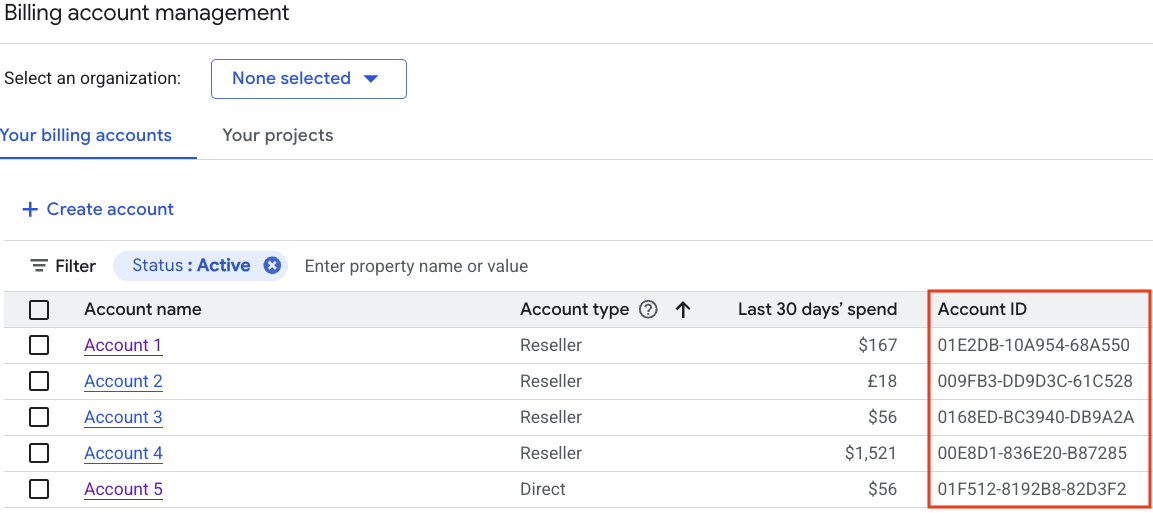
For every Cloud Billing Budget API call, you need your
**Cloud Billing account ID** . Spend cap budgets are limited to first-party
Google Cloud customers and Cloud Billing accounts. **Reseller billing
accounts are out of scope**.
1. Go to the [Google Cloud console Manage billing accounts page](https://console.cloud.google.com/billing).
2. On the *Your billing accounts* tab, you see the list of Cloud Billing accounts by name and ID. Locate the **Account ID** value for the account where you manage budgets.
## Key spend cap budget concepts and limitations
Spend cap budgets use *gross, estimated* costs to trigger alerts and enforce
spend limits, blocking usage and cost accrual until the spend cap is lifted.
### Spend cap budget field restrictions
When
[`spendCap`](https://docs.cloud.google.com/billing/docs/reference/budget/rest/v1/billingAccounts.budgets#spendcap)
is set on a budget,
[strict field restrictions](https://docs.cloud.google.com/billing/docs/reference/budget/rest/v1/billingAccounts.budgets#resource:-budget)
apply to the budget. See the field-level comments on
[`Filters`](https://docs.cloud.google.com/billing/docs/reference/budget/rest/v1/billingAccounts.budgets#filter),
[`BudgetAmount`](https://docs.cloud.google.com/billing/docs/reference/budget/rest/v1/billingAccounts.budgets#budgetamount),
[`ThresholdRule`](https://docs.cloud.google.com/billing/docs/reference/budget/rest/v1/billingAccounts.budgets#thresholdrule),
[`NotificationsRule`](https://docs.cloud.google.com/billing/docs/reference/budget/rest/v1/billingAccounts.budgets#notificationsrule),
and
[`OwnershipScope`](https://docs.cloud.google.com/billing/docs/reference/budget/rest/v1/billingAccounts.budgets#ownershipscope).
- **billing-account-id**: Spend cap budgets are limited to first-party Google Cloud customers and Cloud Billing accounts. Reseller billing accounts are out of scope.
- [`BudgetFilters`](https://docs.cloud.google.com/billing/docs/reference/budget/rest/v1/billingAccounts.budgets#filter)
must include the following parameters:
- A spend cap budget is limited to budgets that are scoped (filtered) to a *single* Google Cloud project and a *single* [eligible service](https://docs.cloud.google.com/billing/docs/how-to/budgets-spend-caps#eligible-services).
- The budget period *time range* for a spend cap budget is limited to a [`CalendarPeriod`](https://docs.cloud.google.com/billing/docs/reference/budget/rest/v1/billingAccounts.budgets#calendarperiod) of a `MONTH`.
- The cost calculations for spend caps are based on gross costs and don't include savings and credits. You must set [`creditTypesTreatment`](https://docs.cloud.google.com/billing/docs/reference/budget/rest/v1/billingAccounts.budgets#credittypestreatment) to `EXCLUDE_ALL_CREDITS`.
- Other budget filters aren't supported for spend caps and must be empty, including `resourceAncestors`, `credit_types`, `subaccounts`, and `labels`.
- The
[`BudgetAmount`](https://docs.cloud.google.com/billing/docs/reference/budget/rest/v1/billingAccounts.budgets#budgetamount)
must use a `specifiedAmount`. On input, `currencyCode` is optional. If
specified when creating a budget, the currency code must match the currency
of the Cloud Billing account. The `currencyCode` is provided on
output.
- [`ThresholdRules`](https://docs.cloud.google.com/billing/docs/reference/budget/rest/v1/billingAccounts.budgets#thresholdrule)
must contain exactly three rules with `thresholdPercent` values of `0.5`,
`0.8`, and `1.0` (50%, 80%, and 100%), with a
[`spendBasis`](https://docs.cloud.google.com/billing/docs/reference/budget/rest/v1/billingAccounts.budgets#basis)
set to
`CURRENT_SPEND` or `BASIS_UNSPECIFIED` (`FORECASTED_SPEND` isn't supported
for spend caps).
- [`NotificationsRule`](https://docs.cloud.google.com/billing/docs/reference/budget/rest/v1/billingAccounts.budgets#notificationsrule)
must set `enableProjectLevelRecipients` to `true`. All other
`NotificationsRule` parameters are unsupported.
- [`OwnershipScope`](https://docs.cloud.google.com/billing/docs/reference/budget/rest/v1/billingAccounts.budgets#ownershipscope)
must be set to `OWNERSHIP_SCOPE_UNSPECIFIED` or `ALL_USERS` (`BILLING_ACCOUNT`
isn't supported for spend caps).
- When creating a spend cap budget, the
[`inputState`](https://docs.cloud.google.com/billing/docs/reference/budget/rest/v1/billingAccounts.budgets#spendcap)
parameter must be set to `CONFIGURED`.
### How spend cap budgets work to help you control spend
- **Faster spend calculations using estimated costs** : For faster enforcement
of a spend cap amount, spend cap budgets use *gross, estimated* costs to
trigger alerts and enforce the spend cap. The estimated costs are calculated
based on the list price of services and don't include savings and credits.
- **Automatic pause of usage and cost accrual when the spend cap is triggered** :
In the specified project, when your *gross, estimated* usage costs for the
specific service exceed your budget target amount, the spend cap is triggered
and enforced for the remainder of the budget period. On the budget, the
[`outputState`](https://docs.cloud.google.com/billing/docs/reference/budget/rest/v1/billingAccounts.budgets#spendcap)
parameter is set to `ENFORCED`. While a spend cap is enforced, the following
applies:
- All *new* usage for the specific service in the specified project is paused, including on-demand, pay-as-you-go usage and usage covered by commitments such as [Committed use discounts (CUDs)](https://docs.cloud.google.com/docs/cuds).
- Any *in-flight* requests of the specified service are processed to completion, with charges accruing as applicable.
- Spend caps don't pause any on-going, fixed usage associated with *persistent* resources (such as compute and storage services), which remain active and continue to accrue charges.
- **Important:** While it's in an enforced state, you can't edit the settings of a spend cap budget or delete the budget. Before editing or deleting an enforced budget, you must first [manually lift the spend cap](https://docs.cloud.google.com/billing/docs/how-to/budget-api-spend-cap#lift).
- **Lift an enforced spend cap to restore services and spending**: When a spend
cap is enforced, usage of the specific service in the specified project is
blocked until the spend cap is lifted. You can lift a spend cap in the
following ways:
- **Automatically lift a spend cap** : An enforced spend cap is automatically
lifted at the start of the next budget period (typically the first day of
the next month). When a spend cap is automatically lifted, the spend amount
of the budget resets to zero, the
[spend cap state](https://docs.cloud.google.com/billing/docs/reference/budget/rest/v1/billingAccounts.budgets#state)
resets to `CONFIGURED`, and the specified services are unblocked, restoring
normal function to the API calls.
- **Manually lift a spend cap** : If you need to reverse a usage block during
the same budget period when the spend cap is enforced, you can edit the
budget to
[*manually lift* the spend cap](https://docs.cloud.google.com/billing/docs/how-to/budget-api-spend-cap#lift).
Manually lifting a spend cap has the following results:
- Manually lifting a spend cap restores normal function to the API calls.
- If you manually lift the spend cap by setting the [spend cap state](https://docs.cloud.google.com/billing/docs/reference/budget/rest/v1/billingAccounts.budgets#state) to `AWAITING_NEXT_PERIOD`, the spend cap won't trigger again for the rest of the budget period, unless you [subsequently edit the budget](https://docs.cloud.google.com/billing/docs/how-to/budget-api-spend-cap#update) to increase the spend cap amount and set the `inputState` to `CONFIGURED`.
After a spend cap is lifted, services might take up to one hour to fully
return to normal function.
- **Automatic reset of spend cap budgets** : At the start of the next budget
period (typically the first day of the next month), all spend cap budgets
automatically reset, setting the *gross, estimated* spend amount to zero
and the
[spend cap state](https://docs.cloud.google.com/billing/docs/reference/budget/rest/v1/billingAccounts.budgets#state)
to `CONFIGURED`.
**Quota limitation** : Each individual Cloud Billing account can have
[**several thousand budgets**](https://docs.cloud.google.com/billing/quotas)
associated with it at a time. See
[Quotas and limits](https://docs.cloud.google.com/billing/quotas)
for current limits and additional information.
## Calling the API
The following samples show how to send a few requests to the
Cloud Billing Budget API to manage spend cap budgets.
### Create a spend cap budget
This API method creates a
[Cloud Billing spend cap budget](https://docs.cloud.google.com/billing/docs/how-to/budgets-spend-caps)
applied to a single project and
[eligible service](https://docs.cloud.google.com/billing/docs/how-to/budgets-spend-caps#eligible-services).
### REST
This sample shows how to create a spend cap budget for the use of the
*Gemini API* service in a specific project. The budget is
[scoped (filtered)](https://docs.cloud.google.com/billing/docs/reference/budget/rest/v1/billingAccounts.budgets#filter) to a single Google Cloud project that you specify, a single
[eligible service](https://docs.cloud.google.com/billing/docs/how-to/budgets-spend-caps#eligible-services), and set for a
[*monthly*](https://docs.cloud.google.com/billing/docs/reference/budget/rest/v1/billingAccounts.budgets#calendarperiod) budget amount of $100.
Before using any of the request data,
make the following replacements:
- `projects/`budget-scope-project-id: The Google Cloud project ID that you want to set as a [budget scope](https://docs.cloud.google.com/billing/docs/reference/budget/rest/v1/billingAccounts.budgets#filter) (`budgetFilter`).
- `services/`eligible-service_id: One of the [eligible service IDs](https://docs.cloud.google.com/billing/docs/how-to/budgets-spend-caps#eligible-services) that you want to set as a [budget scope](https://docs.cloud.google.com/billing/docs/reference/budget/rest/v1/billingAccounts.budgets#filter) (`budgetFilter`). In the sample, we are using service ID `AEFD-7695-64FA` for the *Gemini API* service.
- billing-account-id: The Cloud Billing account ID this budget applies to. Spend cap budgets are limited to first-party Google Cloud customers and Cloud Billing accounts. Reseller billing accounts are out of scope.
- api-user-project-id: The Google Cloud project where the Cloud Billing Budget API is enabled.
HTTP method and URL:
```
POST https://billingbudgets.googleapis.com/v1/billingAccounts/billing-account-id/budgets
```
Request JSON body:
```
{
"displayName": "My Gemini API Spend Cap",
"budgetFilter": {
"projects": [
"projects/budget-scope-project-id"
],
"services": [
"services/AEFD-7695-64FA"
],
"creditTypesTreatment": "EXCLUDE_ALL_CREDITS",
"calendarPeriod": "MONTH"
},
"amount": {
"specifiedAmount": {
"units": "100",
"nanos": 0
}
},
"thresholdRules": [
{ "thresholdPercent": 0.5 },
{ "thresholdPercent": 0.8 },
{ "thresholdPercent": 1.0 }
],
"notificationsRule": {
"enableProjectLevelRecipients": true
},
"spendCap": {
"inputState": "CONFIGURED"
}
}
```
To send your request, expand one of these options:
#### curl (Linux, macOS, or Cloud Shell)
> [!NOTE]
> **Note:** The following command assumes that you have logged in to the `gcloud` CLI with your user account by running [`gcloud init`](https://docs.cloud.google.com/sdk/gcloud/reference/init) or [`gcloud auth login`](https://docs.cloud.google.com/sdk/gcloud/reference/auth/login) , or by using [Cloud Shell](https://docs.cloud.google.com/shell/docs), which automatically logs you into the `gcloud` CLI . You can check the currently active account by running [`gcloud auth list`](https://docs.cloud.google.com/sdk/gcloud/reference/auth/list).
Save the request body in a file named `request.json`,
and execute the following command:
```
curl -X POST \
-H "Authorization: Bearer $(gcloud auth print-access-token)" \
-H "x-goog-user-project: api-user-project-id" \
-H "Content-Type: application/json; charset=utf-8" \
-d @request.json \
"https://billingbudgets.googleapis.com/v1/billingAccounts/billing-account-id/budgets"
```
#### PowerShell (Windows)
> [!NOTE]
> **Note:** The following command assumes that you have logged in to the `gcloud` CLI with your user account by running [`gcloud init`](https://docs.cloud.google.com/sdk/gcloud/reference/init) or [`gcloud auth login`](https://docs.cloud.google.com/sdk/gcloud/reference/auth/login) . You can check the currently active account by running [`gcloud auth list`](https://docs.cloud.google.com/sdk/gcloud/reference/auth/list).
Save the request body in a file named `request.json`,
and execute the following command:
```
$cred = gcloud auth print-access-token
$headers = @{ "Authorization" = "Bearer $cred"; "x-goog-user-project" = "api-user-project-id" }
Invoke-WebRequest `
-Method POST `
-Headers $headers `
-ContentType: "application/json; charset=utf-8" `
-InFile request.json `
-Uri "https://billingbudgets.googleapis.com/v1/billingAccounts/billing-account-id/budgets" | Select-Object -Expand Content
```
You should receive a JSON response similar to the following:
```
{
"name": "billingAccounts/000000-111111-222222/budgets/33333333-4444-5555-6666-777777777777",
"displayName": "My Gemini API Spend Cap",
"budgetFilter": {
"projects": [
"projects/123456789"
],
"services": [
"services/AEFD-7695-64FA"
],
"creditTypesTreatment": "EXCLUDE_ALL_CREDITS",
"calendarPeriod": "MONTH"
},
"amount": {
"specifiedAmount": {
"currencyCode": "USD",
"units": "100"
}
},
"thresholdRules": [
{
"thresholdPercent": 0.5,
"spendBasis": "CURRENT_SPEND"
},
{
"thresholdPercent": 0.8,
"spendBasis": "CURRENT_SPEND"
},
{
"thresholdPercent": 1,
"spendBasis": "CURRENT_SPEND"
}
],
"notificationsRule": {
"enableProjectLevelRecipients": true
},
"etag": "1790365289674138",
"spendCap": {
"outputState": "CONFIGURED"
}
}
```
### Lift a spend cap using `PATCH`
Use the `PATCH` API method to modify an
[existing Cloud Billing spend cap budget](https://docs.cloud.google.com/billing/docs/how-to/budgets-spend-caps)
to manually lift an enforced spend cap.
### REST
This sample shows how to manually lift an `ENFORCED` spend cap on
an existing budget by updating the
[SpendCap.inputState](https://docs.cloud.google.com/billing/docs/reference/budget/rest/v1/billingAccounts.budgets#spendcap) parameter to `AWAITING_NEXT_PERIOD`.
**Important:** When the `spend_cap.output_state` is
`ENFORCED`, you must first lift the spend cap by sending an
`UpdateBudget` request to modify the
`spend_cap.input_state`, such as setting the
`input_state` to `AWAITING_NEXT_PERIOD` which will lift
the cap. If you attempt to modify any other budget field while the budget is in
an enforced state, the update request will fail with
`FAILED_PRECONDITION`.
To call this method, you need the budget-id of the
budget you want to update. You can get the budget ID from the
`createBudget` output when you create your budget, or
`listBudgets` output if you list all of your
budgets.
Before using any of the request data,
make the following replacements:
- billing-account-id: The Cloud Billing account ID this budget applies to. Spend cap budgets are limited to first-party Google Cloud customers and Cloud Billing accounts. Reseller billing accounts are out of scope.
- budget-id: The ID of the budget you want to update.
- api-user-project-id: The Google Cloud project where the Cloud Billing Budget API is enabled.
HTTP method and URL:
```
PATCH https://billingbudgets.googleapis.com/v1/billingAccounts/billing-account-id/budgets/budget-id?updateMask=spendCap.inputState
```
Request JSON body:
```
{
"spendCap": {
"inputState": "AWAITING_NEXT_PERIOD"
}
}
```
To send your request, expand one of these options:
#### curl (Linux, macOS, or Cloud Shell)
> [!NOTE]
> **Note:** The following command assumes that you have logged in to the `gcloud` CLI with your user account by running [`gcloud init`](https://docs.cloud.google.com/sdk/gcloud/reference/init) or [`gcloud auth login`](https://docs.cloud.google.com/sdk/gcloud/reference/auth/login) , or by using [Cloud Shell](https://docs.cloud.google.com/shell/docs), which automatically logs you into the `gcloud` CLI . You can check the currently active account by running [`gcloud auth list`](https://docs.cloud.google.com/sdk/gcloud/reference/auth/list).
Save the request body in a file named `request.json`,
and execute the following command:
```
curl -X PATCH \
-H "Authorization: Bearer $(gcloud auth print-access-token)" \
-H "x-goog-user-project: api-user-project-id" \
-H "Content-Type: application/json; charset=utf-8" \
-d @request.json \
"https://billingbudgets.googleapis.com/v1/billingAccounts/billing-account-id/budgets/budget-id?updateMask=spendCap.inputState"
```
#### PowerShell (Windows)
> [!NOTE]
> **Note:** The following command assumes that you have logged in to the `gcloud` CLI with your user account by running [`gcloud init`](https://docs.cloud.google.com/sdk/gcloud/reference/init) or [`gcloud auth login`](https://docs.cloud.google.com/sdk/gcloud/reference/auth/login) . You can check the currently active account by running [`gcloud auth list`](https://docs.cloud.google.com/sdk/gcloud/reference/auth/list).
Save the request body in a file named `request.json`,
and execute the following command:
```
$cred = gcloud auth print-access-token
$headers = @{ "Authorization" = "Bearer $cred"; "x-goog-user-project" = "api-user-project-id" }
Invoke-WebRequest `
-Method PATCH `
-Headers $headers `
-ContentType: "application/json; charset=utf-8" `
-InFile request.json `
-Uri "https://billingbudgets.googleapis.com/v1/billingAccounts/billing-account-id/budgets/budget-id?updateMask=spendCap.inputState" | Select-Object -Expand Content
```
You should receive a JSON response similar to the following:
```
{
"name": "billingAccounts/000000-111111-222222/budgets/33333333-4444-5555-6666-777777777777",
"displayName": "My Gemini API Spend Cap",
"budgetFilter": {
"projects": [
"projects/123456789"
],
"services": [
"services/AEFD-7695-64FA"
],
"creditTypesTreatment": "EXCLUDE_ALL_CREDITS",
"calendarPeriod": "MONTH"
},
"amount": {
"specifiedAmount": {
"currencyCode": "USD",
"units": "100"
}
},
"thresholdRules": [
{
"thresholdPercent": 0.5,
"spendBasis": "CURRENT_SPEND"
},
{
"thresholdPercent": 0.8,
"spendBasis": "CURRENT_SPEND"
},
{
"thresholdPercent": 1,
"spendBasis": "CURRENT_SPEND"
}
],
"notificationsRule": {
"enableProjectLevelRecipients": true
},
"etag": "1790365289674138",
"spendCap": {
"outputState": "AWAITING_NEXT_PERIOD",
"reconciling": true
}
}
```
### Update a spend cap budget using `PATCH`
Use this API method to modify an
[existing Cloud Billing spend cap budget](https://docs.cloud.google.com/billing/docs/how-to/budgets-spend-caps)
to change the
[budget amount](https://docs.cloud.google.com/billing/docs/reference/budget/rest/v1/billingAccounts.budgets#budgetamount) and
the [budget filters (budget scope)](https://docs.cloud.google.com/billing/docs/reference/budget/rest/v1/billingAccounts.budgets#filter).
### REST
This sample shows how to update an existing spend cap budget to change the
[budget amount](https://docs.cloud.google.com/billing/docs/reference/budget/rest/v1/billingAccounts.budgets#budgetamount). If the
[spend cap state](https://docs.cloud.google.com/billing/docs/reference/budget/rest/v1/billingAccounts.budgets#State) is `AWAITING_NEXT_PERIOD`, this sample also
shows how to reset a lifted spend cap by updating the
[SpendCap.inputState](https://docs.cloud.google.com/billing/docs/reference/budget/rest/v1/billingAccounts.budgets#spendcap) parameter to `CONFIGURED`.
To call this method, you need the budget-id of the
budget you want to update. You can get the budget ID from the
`createBudget` output when you create your budget, or
`listBudgets` output if you list all of your
budgets.
Before using any of the request data,
make the following replacements:
- `projects/`budget-scope-project-id: The Google Cloud project ID you want to set as a [budget scope](https://docs.cloud.google.com/billing/docs/reference/budget/rest/v1/billingAccounts.budgets#filter) (`budgetFilter`).
- `services/`eligible-service_id: One of the [eligible service IDs](https://docs.cloud.google.com/billing/docs/how-to/budgets-spend-caps#eligible-services) that you want to set as a [budget scope](https://docs.cloud.google.com/billing/docs/reference/budget/rest/v1/billingAccounts.budgets#filter) (`budgetFilter`). In the sample, we are using service ID `AEFD-7695-64FA` for the *Gemini API* service.
- billing-account-id: The Cloud Billing account ID this budget applies to. Spend cap budgets are limited to first-party Google Cloud customers and Cloud Billing accounts. Reseller billing accounts are out of scope.
- budget-id: The ID of the budget you want to update.
- api-user-project-id: The Google Cloud project where the Cloud Billing Budget API is enabled.
HTTP method and URL:
```
PATCH https://billingbudgets.googleapis.com/v1/billingAccounts/billing-account-id/budgets/budget-id?updateMask=amount.specifiedAmount,spendCap.inputState
```
Request JSON body:
```
{
"displayName": "My Gemini API Spend Cap",
"budgetFilter": {
"projects": [
"projects/budget-scope-project-id"
],
"services": [
"services/AEFD-7695-64FA"
],
"creditTypesTreatment": "EXCLUDE_ALL_CREDITS",
"calendarPeriod": "MONTH"
},
"amount": {
"specifiedAmount": {
"units": "500",
"nanos": 0
}
},
"thresholdRules": [
{ "thresholdPercent": 0.5 },
{ "thresholdPercent": 0.8 },
{ "thresholdPercent": 1.0 }
],
"notificationsRule": {
"enableProjectLevelRecipients": true
},
"spendCap": {
"inputState": "CONFIGURED"
}
}
```
To send your request, expand one of these options:
#### curl (Linux, macOS, or Cloud Shell)
> [!NOTE]
> **Note:** The following command assumes that you have logged in to the `gcloud` CLI with your user account by running [`gcloud init`](https://docs.cloud.google.com/sdk/gcloud/reference/init) or [`gcloud auth login`](https://docs.cloud.google.com/sdk/gcloud/reference/auth/login) , or by using [Cloud Shell](https://docs.cloud.google.com/shell/docs), which automatically logs you into the `gcloud` CLI . You can check the currently active account by running [`gcloud auth list`](https://docs.cloud.google.com/sdk/gcloud/reference/auth/list).
Save the request body in a file named `request.json`,
and execute the following command:
```
curl -X PATCH \
-H "Authorization: Bearer $(gcloud auth print-access-token)" \
-H "x-goog-user-project: api-user-project-id" \
-H "Content-Type: application/json; charset=utf-8" \
-d @request.json \
"https://billingbudgets.googleapis.com/v1/billingAccounts/billing-account-id/budgets/budget-id?updateMask=amount.specifiedAmount,spendCap.inputState"
```
#### PowerShell (Windows)
> [!NOTE]
> **Note:** The following command assumes that you have logged in to the `gcloud` CLI with your user account by running [`gcloud init`](https://docs.cloud.google.com/sdk/gcloud/reference/init) or [`gcloud auth login`](https://docs.cloud.google.com/sdk/gcloud/reference/auth/login) . You can check the currently active account by running [`gcloud auth list`](https://docs.cloud.google.com/sdk/gcloud/reference/auth/list).
Save the request body in a file named `request.json`,
and execute the following command:
```
$cred = gcloud auth print-access-token
$headers = @{ "Authorization" = "Bearer $cred"; "x-goog-user-project" = "api-user-project-id" }
Invoke-WebRequest `
-Method PATCH `
-Headers $headers `
-ContentType: "application/json; charset=utf-8" `
-InFile request.json `
-Uri "https://billingbudgets.googleapis.com/v1/billingAccounts/billing-account-id/budgets/budget-id?updateMask=amount.specifiedAmount,spendCap.inputState" | Select-Object -Expand Content
```
You should receive a JSON response similar to the following:
```
{
"name": "billingAccounts/000000-111111-222222/budgets/33333333-4444-5555-6666-777777777777",
"displayName": "My Gemini API Spend Cap",
"budgetFilter": {
"projects": [
"projects/123456789"
],
"services": [
"services/AEFD-7695-64FA"
],
"creditTypesTreatment": "EXCLUDE_ALL_CREDITS",
"calendarPeriod": "MONTH"
},
"amount": {
"specifiedAmount": {
"currencyCode": "USD",
"units": "500"
}
},
"thresholdRules": [
{
"thresholdPercent": 0.5,
"spendBasis": "CURRENT_SPEND"
},
{
"thresholdPercent": 0.8,
"spendBasis": "CURRENT_SPEND"
},
{
"thresholdPercent": 1,
"spendBasis": "CURRENT_SPEND"
}
],
"notificationsRule": {
"enableProjectLevelRecipients": true
},
"etag": "1790365289674138",
"spendCap": {
"outputState": "CONFIGURED"
}
}
```
### List budgets
This API method lists all budgets available for a given Cloud Billing
account.
### REST
Before using any of the request data,
make the following replacements:
- billing-account-id: The Cloud Billing account ID the budgets apply to. Spend cap budgets are limited to first-party Google Cloud customers and Cloud Billing accounts. Reseller billing accounts are out of scope.
- project-id: The Google Cloud project where the Cloud Billing Budget API is enabled.
HTTP method and URL:
```
GET https://billingbudgets.googleapis.com/v1/billingAccounts/billing-account-id/budgets
```
To send your request, expand one of these options:
#### curl (Linux, macOS, or Cloud Shell)
> [!NOTE]
> **Note:** The following command assumes that you have logged in to the `gcloud` CLI with your user account by running [`gcloud init`](https://docs.cloud.google.com/sdk/gcloud/reference/init) or [`gcloud auth login`](https://docs.cloud.google.com/sdk/gcloud/reference/auth/login) , or by using [Cloud Shell](https://docs.cloud.google.com/shell/docs), which automatically logs you into the `gcloud` CLI . You can check the currently active account by running [`gcloud auth list`](https://docs.cloud.google.com/sdk/gcloud/reference/auth/list).
Execute the following command:
```
curl -X GET \
-H "Authorization: Bearer $(gcloud auth print-access-token)" \
-H "x-goog-user-project: project-id" \
"https://billingbudgets.googleapis.com/v1/billingAccounts/billing-account-id/budgets"
```
#### PowerShell (Windows)
> [!NOTE]
> **Note:** The following command assumes that you have logged in to the `gcloud` CLI with your user account by running [`gcloud init`](https://docs.cloud.google.com/sdk/gcloud/reference/init) or [`gcloud auth login`](https://docs.cloud.google.com/sdk/gcloud/reference/auth/login) . You can check the currently active account by running [`gcloud auth list`](https://docs.cloud.google.com/sdk/gcloud/reference/auth/list).
Execute the following command:
```
$cred = gcloud auth print-access-token
$headers = @{ "Authorization" = "Bearer $cred"; "x-goog-user-project" = "project-id" }
Invoke-WebRequest `
-Method GET `
-Headers $headers `
-Uri "https://billingbudgets.googleapis.com/v1/billingAccounts/billing-account-id/budgets" | Select-Object -Expand Content
```
You should receive a JSON response similar to the following:
```
{
"budgets": [
{
"name": "billingAccounts/000000-111111-222222/budgets/33333333-4444-5555-6666-777777777777",
"displayName": "Gemini API Spend Cap in My Project",
"budgetFilter": {
"projects": [
"projects/987654321"
],
"services": [
"services/AEFD-7695-64FA"
],
"creditTypesTreatment": "EXCLUDE_ALL_CREDITS",
"calendarPeriod": "MONTH"
},
"amount": {
"specifiedAmount": {
"currencyCode": "USD",
"units": "500"
}
},
"thresholdRules": [
{
"thresholdPercent": 0.5,
"spendBasis": "CURRENT_SPEND"
},
{
"thresholdPercent": 0.8,
"spendBasis": "CURRENT_SPEND"
},
{
"thresholdPercent": 1,
"spendBasis": "CURRENT_SPEND"
}
],
"notificationsRule": {
"enableProjectLevelRecipients": true
},
"allUpdatesRule": {},
"etag": "17fc365289f74138c",
"spendCap": {
"outputState": "ENFORCED"
}
}
]
}
```
### Get budget
This API method gets the details for a particular budget.
### REST
To call this method, you need the budget-id of the
budget you want to update. You can get the budget ID from the
`createBudget` output when you create your budget, or
`listBudgets` output if you list all of your
budgets.
Before using any of the request data,
make the following replacements:
- billing-account-id: The Cloud Billing account ID this budget applies to. Spend cap budgets are limited to first-party Google Cloud customers and Cloud Billing accounts. Reseller billing accounts are out of scope.
- budget-id: The ID of the budget you want to get.
- project-id: The Google Cloud project where the Cloud Billing Budget API is enabled.
HTTP method and URL:
```
GET https://billingbudgets.googleapis.com/v1/billingAccounts/billing-account-id/budgets/budget-id
```
To send your request, expand one of these options:
#### curl (Linux, macOS, or Cloud Shell)
> [!NOTE]
> **Note:** The following command assumes that you have logged in to the `gcloud` CLI with your user account by running [`gcloud init`](https://docs.cloud.google.com/sdk/gcloud/reference/init) or [`gcloud auth login`](https://docs.cloud.google.com/sdk/gcloud/reference/auth/login) , or by using [Cloud Shell](https://docs.cloud.google.com/shell/docs), which automatically logs you into the `gcloud` CLI . You can check the currently active account by running [`gcloud auth list`](https://docs.cloud.google.com/sdk/gcloud/reference/auth/list).
Execute the following command:
```
curl -X GET \
-H "Authorization: Bearer $(gcloud auth print-access-token)" \
-H "x-goog-user-project: project-id" \
"https://billingbudgets.googleapis.com/v1/billingAccounts/billing-account-id/budgets/budget-id"
```
#### PowerShell (Windows)
> [!NOTE]
> **Note:** The following command assumes that you have logged in to the `gcloud` CLI with your user account by running [`gcloud init`](https://docs.cloud.google.com/sdk/gcloud/reference/init) or [`gcloud auth login`](https://docs.cloud.google.com/sdk/gcloud/reference/auth/login) . You can check the currently active account by running [`gcloud auth list`](https://docs.cloud.google.com/sdk/gcloud/reference/auth/list).
Execute the following command:
```
$cred = gcloud auth print-access-token
$headers = @{ "Authorization" = "Bearer $cred"; "x-goog-user-project" = "project-id" }
Invoke-WebRequest `
-Method GET `
-Headers $headers `
-Uri "https://billingbudgets.googleapis.com/v1/billingAccounts/billing-account-id/budgets/budget-id" | Select-Object -Expand Content
```
You should receive a JSON response similar to the following:
```
{
"name": "billingAccounts/000000-111111-222222/budgets/33333333-4444-5555-6666-777777777777",
"displayName": "Cloud Run Spend Cap in My Project",
"budgetFilter": {
"projects": [
"projects/987654321"
],
"services": [
"services/152E-C115-5142"
],
"creditTypesTreatment": "EXCLUDE_ALL_CREDITS",
"calendarPeriod": "MONTH"
},
"amount": {
"specifiedAmount": {
"currencyCode": "USD",
"units": "450"
}
},
"thresholdRules": [
{
"thresholdPercent": 0.5,
"spendBasis": "CURRENT_SPEND"
},
{
"thresholdPercent": 0.8,
"spendBasis": "CURRENT_SPEND"
},
{
"thresholdPercent": 1,
"spendBasis": "CURRENT_SPEND"
}
],
"notificationsRule": {
"enableProjectLevelRecipients": true
},
"allUpdatesRule": {},
"etag": "c9d6c011f6fa6b5c",
"spendCap": {
"outputState": "CONFIGURED"
}
}
```
### Delete a budget
Use this API method to delete an
[existing Cloud Billing budget](https://docs.cloud.google.com/billing/docs/how-to/budgets).
### REST
To call this method, you need the budget-id of the
budget you want to update. You can get the budget ID from the
`createBudget` output when you create your budget, or
`listBudgets` output if you list all of your
budgets.
Before using any of the request data,
make the following replacements:
- billing-account-id: The Cloud Billing account ID this budget applies to.
- budget-id: The ID of the budget you want to delete.
- project-id: The Google Cloud project where the Cloud Billing Budget API is enabled.
HTTP method and URL:
```
DELETE https://billingbudgets.googleapis.com/v1/billingAccounts/billing-account-id/budgets/budget-id
```
To send your request, expand one of these options:
#### curl (Linux, macOS, or Cloud Shell)
> [!NOTE]
> **Note:** The following command assumes that you have logged in to the `gcloud` CLI with your user account by running [`gcloud init`](https://docs.cloud.google.com/sdk/gcloud/reference/init) or [`gcloud auth login`](https://docs.cloud.google.com/sdk/gcloud/reference/auth/login) , or by using [Cloud Shell](https://docs.cloud.google.com/shell/docs), which automatically logs you into the `gcloud` CLI . You can check the currently active account by running [`gcloud auth list`](https://docs.cloud.google.com/sdk/gcloud/reference/auth/list).
Execute the following command:
```
curl -X DELETE \
-H "Authorization: Bearer $(gcloud auth print-access-token)" \
-H "x-goog-user-project: project-id" \
"https://billingbudgets.googleapis.com/v1/billingAccounts/billing-account-id/budgets/budget-id"
```
#### PowerShell (Windows)
> [!NOTE]
> **Note:** The following command assumes that you have logged in to the `gcloud` CLI with your user account by running [`gcloud init`](https://docs.cloud.google.com/sdk/gcloud/reference/init) or [`gcloud auth login`](https://docs.cloud.google.com/sdk/gcloud/reference/auth/login) . You can check the currently active account by running [`gcloud auth list`](https://docs.cloud.google.com/sdk/gcloud/reference/auth/list).
Execute the following command:
```
$cred = gcloud auth print-access-token
$headers = @{ "Authorization" = "Bearer $cred"; "x-goog-user-project" = "project-id" }
Invoke-WebRequest `
-Method DELETE `
-Headers $headers `
-Uri "https://billingbudgets.googleapis.com/v1/billingAccounts/billing-account-id/budgets/budget-id" | Select-Object -Expand Content
```
You should receive a JSON response similar to the following:
```
{}
```