# Create saved queries
Saved queries let you store the SQL that you write in the query editor and
share it with other users, so that your team can reuse and collaborate on
queries. Saved queries
are [BigQuery Studio](https://docs.cloud.google.com/bigquery/docs/query-overview#bigquery-studio) code
assets powered by [Dataform](https://docs.cloud.google.com/dataform/docs/overview).
For more information on deleting saved queries and managing saved query history,
see [Manage saved queries](https://docs.cloud.google.com/bigquery/docs/manage-saved-queries).
## Required permissions
Set the appropriate permissions to create, edit, or view saved queries.
All users with the
[Dataform Admin role](https://docs.cloud.google.com/dataform/docs/access-control#dataform.admin)
(`roles/dataform.admin`) have owner access to all saved queries created in the
project.
For more information about BigQuery Identity and Access Management (IAM),
see [Access control with IAM](https://docs.cloud.google.com/bigquery/docs/access-control).
### Permissions to create saved queries
To create and run saved queries, you need the following IAM
permissions:
- `dataform.locations.get`
- `dataform.locations.list`
- `dataform.repositories.list`
- `dataform.repositories.create`
You can get these permissions from the following IAM roles:
- [BigQuery Job User](https://docs.cloud.google.com/bigquery/docs/access-control#bigquery.jobUser) (`roles/bigquery.jobUser`)
- [BigQuery Read Session User](https://docs.cloud.google.com/bigquery/docs/access-control#bigquery.readSessionUser) (`roles/bigquery.readSessionUser`)
- [Code Creator](https://docs.cloud.google.com/dataform/docs/access-control#dataform.codeCreator) (`roles/dataform.codeCreator`)
> [!NOTE]
> **Note:** Users assigned the Code Creator role in a project can list the names of code assets in that project by using the Dataform API or the Dataform command-line interface (CLI).
> [!NOTE]
> **Note:** When you create a saved query, BigQuery grants you the [Dataform Admin role](https://docs.cloud.google.com/dataform/docs/access-control#dataform.admin) (`roles/dataform.admin`) on that saved query. All users with the Dataform Admin role granted on the Google Cloud project have owner access to all the saved queries created in the project. To override this behavior, see [Grant a specific role upon resource creation](https://docs.cloud.google.com/dataform/docs/access-control#grant-specific-role).
### Permissions to edit saved queries
To edit and run saved queries, you need the following IAM
roles:
- [BigQuery Job User](https://docs.cloud.google.com/bigquery/docs/access-control#bigquery.jobUser) (`roles/bigquery.jobUser`)
- [BigQuery Read Session User](https://docs.cloud.google.com/bigquery/docs/access-control#bigquery.readSessionUser) (`roles/bigquery.readSessionUser`)
- [Code Editor](https://docs.cloud.google.com/dataform/docs/access-control#dataform.codeEditor) (`roles/dataform.codeEditor`)
### Permissions to view saved queries
To view and run saved queries, you need the following IAM
roles:
- [BigQuery Job User](https://docs.cloud.google.com/bigquery/docs/access-control#bigquery.jobUser) (`roles/bigquery.jobUser`)
- [BigQuery Read Session User](https://docs.cloud.google.com/bigquery/docs/access-control#bigquery.readSessionUser) (`roles/bigquery.readSessionUser`)
- [Code Viewer](https://docs.cloud.google.com/dataform/docs/access-control#dataform.codeViewer) (`roles/dataform.codeViewer`)
### Security considerations for saved queries
Because code assets in BigQuery are powered by Dataform, you should consider the following security implications for users with access to these assets:
- Visibility for code assets is governed by project-level Dataform permissions. Users with the `dataform.repositories.list` permission---which is included in standard BigQuery roles such as [BigQuery Job User](https://docs.cloud.google.com/bigquery/docs/access-control#bigquery.jobUser), [BigQuery Studio User](https://docs.cloud.google.com/bigquery/docs/access-control#bigquery.studioUser), and [BigQuery User](https://docs.cloud.google.com/bigquery/docs/access-control#bigquery.user)---can see all code assets in the **Explorer** panel of the Google Cloud project, regardless of whether they created these assets or these assets were shared with them. To restrict visibility, you can create [custom roles](https://docs.cloud.google.com/iam/docs/creating-custom-roles) that exclude the `dataform.repositories.list` permission.
- Any secrets shared with the Dataform service agent can potentially be accessed by users who can edit these assets. To secure your credentials, restrict creation and edit access to trusted users, and limit the secrets accessible to the Dataform service agent. For more information, see [Secrets access during package installation](https://docs.cloud.google.com/dataform/docs/access-control#secret-access-risk).
For more information, see [Security considerations for Dataform permissions](https://docs.cloud.google.com/dataform/docs/access-control#security-considerations-permissions).
## Set the default region for code assets
All new code assets in your Google Cloud project use a default region. After the
asset is created, you can't change its region.
> [!IMPORTANT]
> **Important:** If you change the region while creating a code asset, that region becomes the default for all subsequent code assets. Existing code assets are not affected.
To set the default region for new code assets, do the following:
1. Go to the **BigQuery** page.
[Go to BigQuery](https://console.cloud.google.com/bigquery)
2. In the left pane, click **Files**
to open the file browser:

3. Next to the project name, click
**View files panel actions** \> **Switch code region**.
4. Select the code region that you want to use as a default.
5. Click **Save**.
For a list of supported regions, see
[BigQuery Studio locations](https://docs.cloud.google.com/bigquery/docs/locations#bqstudio-loc).
## Encrypt with CMEK
You can encrypt your Dataform-backed saved queries with
customer-managed encryption keys (CMEK) by using the default project-level CMEK
key for the Dataform API. You can't apply individual CMEK keys to saved
queries in Google Cloud console. New settings are applied only to newly
created saved queries.
For more information and instructions on setting the default key, see
[Use CMEK to protect BigQuery Studio code assets](https://docs.cloud.google.com/bigquery/docs/customer-managed-encryption#cmek-studio).
## Create saved queries
To create a saved query, follow these steps:
1. In the Google Cloud console, go to the **BigQuery** page.
[Go to BigQuery](https://console.cloud.google.com/bigquery)
2. Click **SQL query**.
3. In the query editor, enter a valid SQL query. For example, you can query a
[public dataset](https://cloud.google.com/bigquery/public-data):
```googlesql
SELECT
name,
SUM(number) AS total
FROM
`bigquery-public-data.usa_names.usa_1910_2013`
GROUP BY
name
ORDER BY
total DESC
LIMIT
10;
```
Alternatively, you can use the [**Reference** panel](https://docs.cloud.google.com/bigquery/docs/running-queries#use-reference-panel) to
construct new queries.
4. Click 
**Save \> Save query** or press Control+S (or Command+S on macOS).
5. In the **Save query** dialog, type a name for the saved query.
6. Optional: To change the region used by this saved query and all
other code assets in the future, select a new region in the **Region** field.
7. Click **Save**.
The first version of the saved query is created.
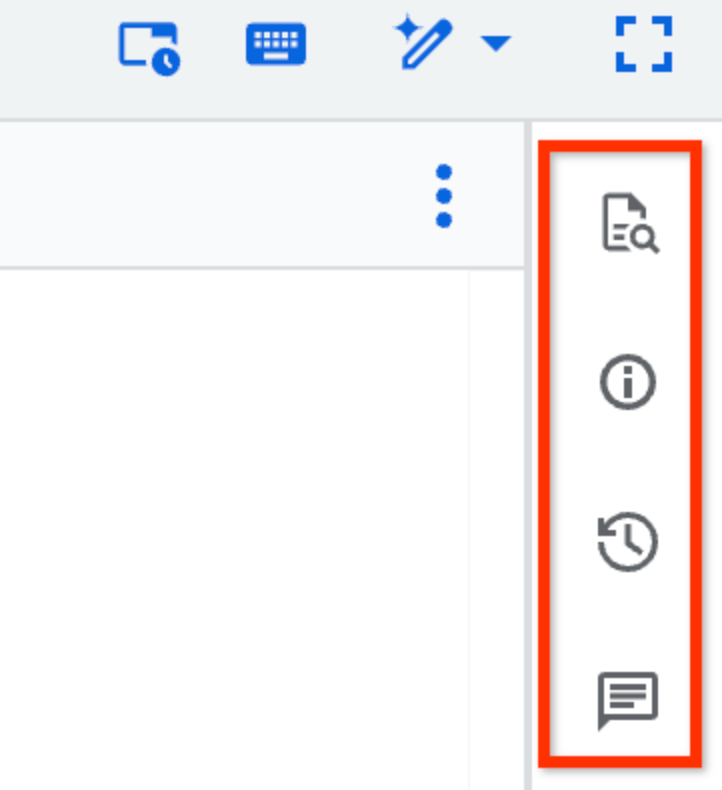
8. Optional: After you save the query, use the following toolbar to view the
query details or the [version history](https://docs.cloud.google.com/bigquery/docs/work-with-saved-queries#open_a_saved_query_version_as_a_new_query),
add new comments, or reply to or get a link to an existing comment:
The **Comments** toolbar feature is in
[Preview](https://cloud.google.com/products#product-launch-stages). To
provide feedback or request support for this feature, send an email to
[bqui-workspace-pod@google.com](mailto:bqui-workspace-pod@google.com).
## Share saved queries
To share a saved query with a user, you first grant that user access to the
saved query and add them to an appropriate IAM role. Then you
generate a link to the saved query and share that link with the user.
Users that you share a query with only see the most recent version of a query.
Autosaved changes that you haven't explicitly saved don't appear in the shared
query.
To share a saved query, follow these steps:
1. In the Google Cloud console, go to the
**BigQuery** page.
[Go to BigQuery](https://console.cloud.google.com/bigquery)
2. In the left pane, click **Files**
to open the file browser.
If you don't see the left pane, click **Expand left pane** to open the pane.
3. In the **Files** pane, expand your project and subfolders
to find the saved query that you want to share.
4. Click
**View actions** next to the saved query, and then click
**Share** \> **Manage permissions**.
5. In the **Manage permissions** pane, click **Add user/group**.
6. In the **New principals** field, enter a principal.
7. In the **Role** list, select one of
the following roles:
- [**Code Owner**](https://docs.cloud.google.com/dataform/docs/access-control#dataform.codeOwner): can perform any action on the saved query, including deleting or sharing it.
- [**Code Editor**](https://docs.cloud.google.com/dataform/docs/access-control#dataform.codeEditor): can edit the query.
- [**Code Viewer**](https://docs.cloud.google.com/dataform/docs/access-control#dataform.codeViewer): can view the query.
> [!NOTE]
> **Note:** The principal must also have the [BigQuery User (`roles/bigquery.user`)](https://docs.cloud.google.com/bigquery/docs/access-control#bigquery.user) role to run the saved query.
8. Optional: To view a complete list of roles and advanced sharing settings,
click **Advanced sharing**.
9. Click **Save**.
10. To return to the saved query details, click **Close**.
11. To generate a link to the saved query, click
**View actions** \> **Share** \> **Copy link**.
The link is copied to your clipboard.
## Open a saved query version as a new query
To open any version of an existing saved query as a new query, follow these
steps:
1. In the Google Cloud console, go to the **BigQuery** page.
[Go to BigQuery](https://console.cloud.google.com/bigquery)
2. In the left pane, click **Files**
to open the file browser:

If you don't see the left pane, click **Expand left pane** to open the pane.
3. In the **Files** pane, expand your project and subfolders
to find the saved query that you want to open.
4. Click the saved query, and then click **Version history**.
5. Click
**View actions** next to a saved query version and then click
**Open as new query**.
## Update saved queries
Changes that you make to the text of a saved query are automatically saved two
seconds after you stop typing and appear in your **Version history** as
**Your changes** . Autosaved changes aren't a new version of the query.
Your autosaved changes reappear any time you open the query but aren't visible
to anyone else unless you explicitly save them as a new
[version](https://docs.cloud.google.com/bigquery/docs/manage-saved-queries#work_with_saved_query_versions) of
the query. Autosaved queries are in [Preview](https://cloud.google.com/products#product-launch-stages).
1. In the Google Cloud console, go to the **BigQuery** page.
[Go to BigQuery](https://console.cloud.google.com/bigquery)
2. In the left pane, click **Files**
to open the file browser:

If you don't see the left pane, click **Expand left pane** to open the pane.
3. In the **Files** pane, expand your project and subfolders
to find the saved query that you want to update.
4. Click the saved query to open it.
5. Modify the query.
6. To save the modified query, click
 **Save query \> Save query**
or press Control+S (or Command+S on macOS).
A new version of the query is created.
## Upload saved queries
You can upload a local SQL query to use it as a saved query in
BigQuery Studio. The uploaded saved query is then also visible in the
BigQuery page of the Google Cloud console.
To upload a saved query, follow these steps:
1. In the Google Cloud console, go to the **BigQuery** page.
[Go to BigQuery](https://console.cloud.google.com/bigquery)
2. In the left pane, click **Files**
to open the file browser:

If you don't see the left pane, click **Expand left pane** to open the pane.
3. In the **Files** pane, click
**View actions** next to the folder that you want to upload the query to,
and then click **Upload** \> **Query**.
4. In the **Upload SQL** dialog, in the **SQL** field,
click **Browse**, and then select the query that you want to
upload.
5. Optional: In the **SQL name** field, edit the name of the query.
6. In the **Region** field, select the region where you want to upload your saved query.
7. Click **Upload**.
Your saved query can be accessed through the **Files** or the **Explorer** pane.
## Troubleshoot saved queries
This section describes how to resolve common issues with saved queries.
### Unable to save queries
If you are unable to save a query, the Dataform API might not be enabled
for the project. The Dataform API is automatically enabled for most
projects, but it's not enabled for projects that use the
[Restrict Resource Service Usage](https://docs.cloud.google.com/resource-manager/docs/organization-policy/restricting-resources)
organization policy constraint, such as
[assured projects](https://docs.cloud.google.com/assured-workloads/docs/concepts).
To resolve this issue, ensure that the Dataform API is enabled:
1. In the Google Cloud console, go to the **APIs \& Services** page.
2. Search for **Dataform API** and ensure it is enabled.
3. If the API is not enabled, click **Enable**.
4. Retry using saved queries.
### Region mismatch for saved queries
Changing the [default region for code assets](https://docs.cloud.google.com/bigquery/docs/work-with-saved-queries#set-the-default-region-for-code-assets)
only affects assets created after the change. Existing assets remain in their
[original region](https://docs.cloud.google.com/bigquery/docs/saved-queries-introduction#supported_regions).
To resolve this issue, ensure that the region selected for the saved query
matches one of the supported regions. If necessary, create a new saved query in
a supported region or adjust the default region for your code assets.
## Classic saved queries
> [!WARNING]
> **Deprecated:** Saved queries, available in [BigQuery Studio](https://docs.cloud.google.com/bigquery/docs/enable-assets), will fully replace classic saved queries in the future. The deprecation timeline is being reviewed. For more information, see [Deprecation of classic saved queries](https://docs.cloud.google.com/bigquery/docs/saved-queries-introduction#classic_saved_queries_deprecated). To learn how to migrate to saved queries, see [Migrate classic saved queries](https://docs.cloud.google.com/bigquery/docs/manage-saved-queries#migrate_classic_saved_queries).
Use the following sections to learn how to create and update
[classic saved queries](https://docs.cloud.google.com/bigquery/docs/saved-queries-introduction#classic_saved_queries_deprecated).
For more information on sharing, migrating, and deleting classic saved queries,
see
[Classic saved queries](https://docs.cloud.google.com/bigquery/docs/manage-saved-queries#classic_saved_queries).
### Required permissions for classic saved queries
The following IAM permissions are required to create, view,
update, and delete classic saved queries:
- **Private** classic saved queries:
- Creating private classic saved queries requires no special permissions. You can save a private query in any project, but only you can view, update, or delete the query.
- **Project-level** classic saved queries:
- **Creating** a project-level classic saved query requires `bigquery.savedqueries.create` permissions. The `bigquery.admin` predefined role includes `bigquery.savedqueries.create` permissions.
- **Viewing** a project-level classic saved query requires `bigquery.savedqueries.get` and `bigquery.savedqueries.list` permissions. The `bigquery.admin` and `bigquery.user` predefined roles include `bigquery.savedqueries.get` and `bigquery.savedqueries.list` permissions.
- **Updating** a project-level classic saved query requires `bigquery.savedqueries.update` permissions. The `bigquery.admin` predefined role includes `bigquery.savedqueries.update` permissions.
- **Deleting** a project-level classic saved query requires `bigquery.savedqueries.delete` permissions. The `bigquery.admin` predefined role includes `bigquery.savedqueries.delete` permissions.
- **Public** classic saved queries:
- Creating public classic saved queries requires no special permissions. You can save a public classic saved query in any project, but only you can update or delete the query. Anyone with the link can view a public classic saved query.
For more information on IAM roles in BigQuery, see
[Predefined roles and permissions](https://docs.cloud.google.com/bigquery/docs/access-control).
### Create classic saved queries
1. In the Google Cloud console, go to the **BigQuery** page.
[Go to BigQuery](https://console.cloud.google.com/bigquery)
2. Click **SQL query**.
3. In the query editor, enter a valid SQL query. For example, you can query a
[public dataset](https://cloud.google.com/bigquery/public-data):
```googlesql
SELECT
name,
SUM(number) AS total
FROM
`bigquery-public-data.usa_names.usa_1910_2013`
GROUP BY
name
ORDER BY
total DESC
LIMIT
10;
```
4. Click  **Save Query (Classic) \> Save query (Classic)**.
5. In the **Save query** dialog, enter a name for your query,
and then set **Visibility** to one of the following options:
- **Personal (editable only by you)** for a private classic saved query.
- **Project (editable by principals with appropriate permissions)** for a project-level classic saved query.
- **Public** for a public classic saved query.
6. Click **Save**.
### Share classic saved queries
You can share classic saved queries that you have given project or public
visibility. Project visibility allows principals with the
[required permissions](https://docs.cloud.google.com/bigquery/docs/work-with-saved-queries#required_permissions_for_classic_saved_queries)
to view, update, or delete the query. Public visibility allows anyone with
the query link to view but not update or delete the query.
You share a classic saved query with other users by generating and sharing
a link to the classic saved query.
To run a classic shared query, users must have access to the data that the query
accesses. For more information, see
[Grant access to a dataset](https://docs.cloud.google.com/bigquery/docs/control-access-to-resources-iam#grant_access_to_a_dataset).
If you are planning to share a classic saved query, consider including a
comment in the query that describes its purpose.
To share a classic saved query, follow these steps:
1. In the left pane, click **Explorer**.
If you don't see the left pane, click **Expand left pane** to open the pane.
2. In the **Explorer** pane, expand your project and click **(Classic) Queries**.
3. Find and click the classic saved query that you want to grant access to.
You can use the search feature or filters to find your query.
4. Click
**View actions** next to the query and then click **Copy link**.
5. Share the link with the users you want to grant access to the query.
### Update classic saved queries
1. In the Google Cloud console, go to the **BigQuery** page.
[Go to BigQuery](https://console.cloud.google.com/bigquery)
2. In the left pane, click **Explorer**:

If you don't see the left pane, click **Expand left pane** to open the pane.
3. In the **Explorer** pane, expand your project and click **(Classic) Queries**.
4. Click the name of a classic saved query to open it.
5. Modify the query.
6. To save the modified query, click
 **Save Query (Classic) \> Save query (Classic)**.
### Troubleshoot classic saved queries
This section describes how to resolve common issues with classic saved queries.
#### Can't access saved queries of a deactivated user
Unlike BigQuery Studio saved queries, which can be accessed by project
administrators, private classic saved queries become inaccessible if the user
who created them has left an organization and their Google Account has been
deactivated or suspended. The queries disappear from the Google Cloud console
for all users except the original owner.
To recover these queries, a Google Workspace or Cloud Identity administrator
must perform the following steps:
1. Temporarily reactivate the deactivated user's account.
2. Reset the user's password.
3. Sign in to the Google Cloud console as the reactivated user.
4. In the query editor, open each saved query.
5. Click **Save** or **Save query as**.
6. Change the **Visibility** from **Personal** to **Project**.
7. Click **Save**. This makes the query visible to other users in the same project who have the necessary permissions.
8. Once all queries have been migrated, re-suspend the user's account.
To prevent this issue, save business-critical or team-shared queries with
**Project** visibility.
## What's next
- Learn how to [manage saved queries](https://docs.cloud.google.com/bigquery/docs/manage-saved-queries).