# Troubleshoot transfer configurations
Inspect the BigQuery Data Transfer Service run history and logs to diagnose and
resolve common setup, permission, quota, and scheduling errors. You can address
general configuration issues, fix authorization failures, and recover failed
transfers across your data sources.
If you encounter a problem that isn't covered in this document, you can
[request support](https://docs.cloud.google.com/bigquery/docs/getting-support). Before contacting
Cloud Customer Care, record your transfer configuration and run information. For
more information, see [Get transfer
details](https://docs.cloud.google.com/bigquery/docs/working-with-transfers#get_transfer_details) and [View
transfer run details and log
messages](https://docs.cloud.google.com/bigquery/docs/working-with-transfers#view_transfer_run_details_and_log_messages).
## Examine errors
If your initial transfer run fails, you can examine the details in the
[run history](https://docs.cloud.google.com/bigquery/docs/working-with-transfers#view_transfer_run_history).
Errors listed in the run history can help you identify an appropriate resolution
using this document.
You can also view error messages for a specific transfer job using the [Logs Explorer](https://docs.cloud.google.com/logging/docs/view/logs-explorer-interface).
The following Logs Explorer filter returns information about a
specific transfer configuration job, along with any error messages:
resource.type="bigquery_dts_config"
labels.run_id="RUN_ID"
resource.labels.config_id="CONFIG_ID"
Replace the following:
- `RUN_ID`: the ID number of a specific job run
- `CONFIG_ID`: the ID number of a transfer configuration job
Before contacting Customer Care, capture any relevant information from
the run history or Logs Explorer including any error messages.
If you use [event-driven transfers](https://docs.cloud.google.com/bigquery/docs/event-driven-transfer), the
event-driven transfer configuration might fail to trigger a transfer run.
You can view error messages at the top of the
[run history](https://docs.cloud.google.com/bigquery/docs/working-with-transfers#view_transfer_run_history)
page or [configuration](https://docs.cloud.google.com/bigquery/docs/working-with-transfers#get_transfer_details)
page.
## General issues
When diagnosing general transfer issues, verify the following:
- Verify that you have completed all the steps in the "Before You Begin" section of the documentation page for your transfer type.
- The transfer configuration properties are correct.
- The user account used to create the transfer has access to the underlying resources.
If your transfer configuration is correct, and the appropriate permissions are
granted, refer to the following for solutions to commonly encountered issues.
Error: `An unexpected issue was encountered. If this issue persists, please contact customer support.`
: **Resolution:** This error typically indicates a temporary outage or an issue
within BigQuery. Wait approximately 2 hours for the issue to be
resolved. If the problem persists, [request support](https://docs.cloud.google.com/bigquery/docs/getting-support).
Error: `INTERNAL: An internal error occurred and the request could not be completed. This is usually caused by a transient issue...`
: **Resolution:** This error typically indicates a transient internal issue. If
you encounter this error, you can wait to see if it resolves in the next
scheduled run, or you can
[manually trigger a backfill](https://docs.cloud.google.com/bigquery/docs/working-with-transfers#manually_trigger_a_transfer)
for the affected dates. If the issue persists,
[request support](https://docs.cloud.google.com/bigquery/docs/getting-support).
Error: `Quota Exceeded.`
: **Resolution:** Transfers are subject to BigQuery
[quotas on load jobs](https://docs.cloud.google.com/bigquery/quotas#load_jobs). If you need to increase
your quota, contact your Google Cloud sales representative. For more
information, see [Quotas and limits](https://docs.cloud.google.com/bigquery/quotas).
If you are loading Cloud Billing exports to BigQuery, you
can encounter the `Quota Exceeded` error. Both the Cloud Billing export
tables, and the destination BigQuery tables created by the
BigQuery Data Transfer Service service are partitioned. Choosing the
**overwrite** option while setting such BigQuery Data Transfer Service jobs causes
the quota errors depending on how much data is exported. For
information about troubleshooting quotas, see [Troubleshoot quota and limit
errors](https://docs.cloud.google.com/bigquery/docs/troubleshoot-quotas).
If the error is because of BigQuery Data Transfer Service jobs for Cloud Billing
exports, then note, that since the individual Cloud
Billing Export tables are partitioned, so is the target table created by
the BigQuery Data Transfer Service, and hence choosing the **overwrite** option
while setting up such data transfer jobs will result into (DML) Quota errors
depending on how old the Billing Accounts are. For information about
troubleshooting quotas, see [Troubleshoot quota and limit errors](https://docs.cloud.google.com/bigquery/docs/troubleshoot-quotas).
Error: `The caller does not have permission.`
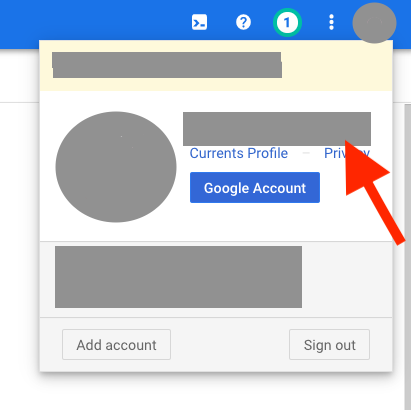
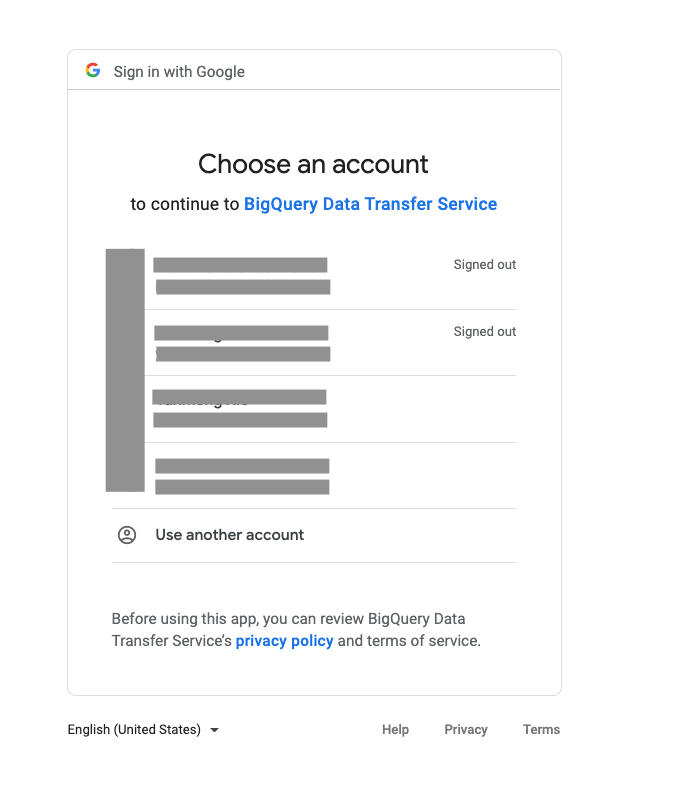
: **Resolution:** Confirm the signed-in account in Google Cloud console is the same as the account you select for BigQuery Data Transfer Service when creating the transfer.
- Signed-in account in Google Cloud console:
- Choose an account to continue to BigQuery Data Transfer Service:
Error: `Access Denied: ... Permission bigquery.tables.get denied on table ...`
: **Resolution:** Confirm that the BigQuery Data Transfer Service
[service agent](https://docs.cloud.google.com/bigquery/docs/enable-transfer-service#service_agent) is granted
the
[`bigquery.dataEditor` role](https://docs.cloud.google.com/bigquery/docs/access-control#bigquery.dataEditor)
on the target dataset. This grant is automatically applied when creating and
updating the transfer, but it's possible that the access policy was modified
manually afterwards. To regrant the permission, see
[Grant access to a dataset](https://docs.cloud.google.com/bigquery/docs/control-access-to-resources-iam#grant_access_to_a_dataset).
Error: `region violates constraint constraints/gcp.resourceLocations on the resource projects/project_id`
: **Resolution:** This error occurs when a user tries to create a transfer
configuration in a restricted location, as specified in the [location restriction organization policy](https://docs.cloud.google.com/resource-manager/docs/organization-policy/defining-locations).
You can resolve this issue by [changing the organization policy](https://docs.cloud.google.com/resource-manager/docs/organization-policy/defining-locations#setting_the_organization_policy)
to allow for the region, or by changing the transfer configuration to a
destination dataset located in a region unrestricted by the organization policy.
Error: `Please look into the errors[] collection for more details.`
: **Resolution:** This error can occur when a data transfer fails. For more
information about why the data transfer failed, you can [use Cloud Logging to
view your logs](https://docs.cloud.google.com/bigquery/docs/dts-monitor#logs). You can [find logs for a
specific run](https://docs.cloud.google.com/bigquery/docs/dts-monitor#view_transfer_run_logs) by searching
using the transfer `run_id`.
Error: `Network Attachment with connected endpoints cannot be deleted.`
: **Resolution:** This error can occur when a user tries to delete their network
attachments soon after they have [deleted their
transfer](https://docs.cloud.google.com/bigquery/docs/working-with-transfers#delete_a_transfer). This
happens because it can take several days after a transfer deletion before the
BigQuery Data Transfer Service can fully remove all resources associated with the
transfer, which can prevent the network attachments from being deleted. To
resolve this error, wait several days before trying to delete the network
attachments. If you want to have the network attachments deleted sooner, you
can [contact support](https://docs.cloud.google.com/bigquery/docs/getting-support).
Error: `Error while reading data, error message: CSV processing encountered too many errors, giving up.`
: **Resolution:** This error can occur when there is a mismatch between the
configuration of your CSV file in your data source and the configuration of the
CSV in the transfer configuration. For example, this error can occur if
**Header rows to skip** is set to `0`, but your source CSV file contains 1 or
more header rows. To fix this error, verify that the CSV configuration in the
transfer configuration is correct and that it matches the configuration of your
source CSV file.
Error: `Error 400: DTS service agent needs iam.serviceAccounts.getAccessToken permission or [SERVICE_ACCOUNT] doesn't exist.`
: **Root Cause:** This error indicates that the BigQuery Data Transfer Service
(DTS) service agent lacks the necessary permission to impersonate the service
account used for the transfer. This typically happens in cross-project
authorization scenarios or when the transfer is configured using
Infrastructure-as-Code (IaC) tools like Terraform.
: **Resolution:** Grant the Service Account Token Creator role
(`roles/iam.serviceAccountTokenCreator`) to the DTS service agent on the
specific service account it needs to impersonate.
```bash
gcloud iam service-accounts add-iam-policy-binding service_account \
--member serviceAccount:service-destination_project_number@gcp-sa-bigquerydatatransfer.iam.gserviceaccount.com \
--role roles/iam.serviceAccountTokenCreator
```
Where:
- service_account is the email of the account used to authorize the transfer.
- destination_project_number is the project number where the transfer configuration resides. To learn how to identify your project number, see [Find the project name, number, and ID](https://docs.cloud.google.com/resource-manager/docs/view-update-projects).
Error: `For asset "ASSET", no eligible column found for splitting (Reason: Primary or Indexed Key columns found, but none are of supported types (INTEGER, TINYINT, SMALLINT, FLOAT, REAL, DOUBLE, NUMERIC, BIGINT, DECIMAL, DATE, BOOLEAN))`
: **Resolution:** This error can occur when you are trying to transfer more than
2,000,000 records from a source table to a BigQuery table and
there isn't a primary key or indexed column of supported data type
in the source table. To resolve this issue, configure a column with one of the
supported data types as primary key or indexed column in your source table. For
more information, see the limitations section of your transfer source guide.
Error: `Permission bigquery.tables.create denied.`
: **Symptom:**
Error code 7 : Access Denied : Dataset [PROJECT_ID]:[DATASET_ID] : Permission bigquery.tables.create denied on dataset [PROJECT_ID]:[DATASET_ID] (or it may not exist).
A Cloud Storage transfer fails with an access denied error for table
creation, even if the destination table already exists and the service
account has standard data editor roles.
: **Cause:** This error occurs when a Cloud Storage transfer run involves more than 10,000 files and the `bigquery.tables.create` permission isn't granted. When transfers exceed 10,000 files, the service shards data into temporary staging tables created dynamically. Doing so requires the bigquery.tables.create permission even if a project is enrolled for high-volume transfers (or has an approved quota increase).
: **Resolution:** To successfully transfer more than 10,000 files, ensure you
meet both of the following requirements:
1. **Verify Quota and Feature Enrollment:** Ensure that your project is
enrolled for high-volume Cloud Storage transfers (exceeding 10,000
files). If you need to transfer more than 10,000 files, [contact support](https://docs.cloud.google.com/bigquery/docs/getting-support)
to request a quota increase for the maximum files per transfer run.
2. **Grant Required IAM Permissions:** Grant the service account or user
identity running the transfer the `bigquery.tables.create` permission on the
destination dataset. This permission is included in the BigQuery Data Editor
(`roles/bigquery.dataEditor`) and BigQuery Admin (`roles/bigquery.admin`)
roles. If you continue to see failures after granting the necessary
permissions, you may need to [contact support](https://docs.cloud.google.com/bigquery/docs/getting-support) to confirm your allowlist
status.
**Alternatives:** If you can't grant the required permissions or wait for a
quota increase and configuration change, consider the following options:
- Reduce the number of files per transfer run to 10,000 or fewer---for example, by using more specific URI wildcards or splitting the transfer into multiple smaller configurations.
- For one-off transfers or urgent loads, use a BigQuery [load job](https://docs.cloud.google.com/bigquery/docs/batch-loading-data) or the [`LOAD DATA` statement](https://docs.cloud.google.com/bigquery/docs/reference/standard-sql/load-statements#load_data_statement), both of which support a higher [maximum number of files per load job](https://docs.cloud.google.com/bigquery/quotas#load_jobs).
## Authorization and permission issues
The following are some common permission errors that you can encounter when you
transfer data from different data sources:
Error: `BigQuery Data Transfer Service is not enabled for `
Error: `BigQuery Data Transfer Service has not been used in project before or it is disabled ...`
: **Resolution:**
Verify that the service agent role is granted with the following steps:
1. In the Google Cloud console, go to the **IAM \& Admin** page.
[Go to IAM \& Admin](https://console.cloud.google.com/iam-admin/iam?project)
2. Select the **Include Google-provided role grants** checkbox.
3. Verify that the service account with the name `service-@gcp-sa-bigquerydatatransfer.iam.gserviceaccount.com`
is shown or that it has been granted the BigQuery Data Transfer Service the
[BigQuery Data Transfer Service Agent role](https://docs.cloud.google.com/bigquery/docs/access-control#bigquerydatatransfer.serviceAgent).

If the service account is not shown, or it does not have the BigQuery Data Transfer Service
service agent role granted, grant the predefined role in the Google Cloud console
or by running the following Google Cloud CLI command:
gcloud projects add-iam-policy-binding PROJECT_NUMBER \
--member serviceAccount:service-PROJECT_NUMBER@gcp-sa-bigquerydatatransfer.iam.gserviceaccount.com \
--role roles/bigquerydatatransfer.serviceAgent
Replace `PROJECT_NUMBER` with the project number associated
with this service account.
Error: `There was an error loading this table. Check that the table exists and that you have the correct permissions.`
: **Resolution:**
1. In the Google Cloud console, go to the **BigQuery** page.
[Go to BigQuery](https://console.cloud.google.com/bigquery)
2. Click the destination dataset used in the transfer.
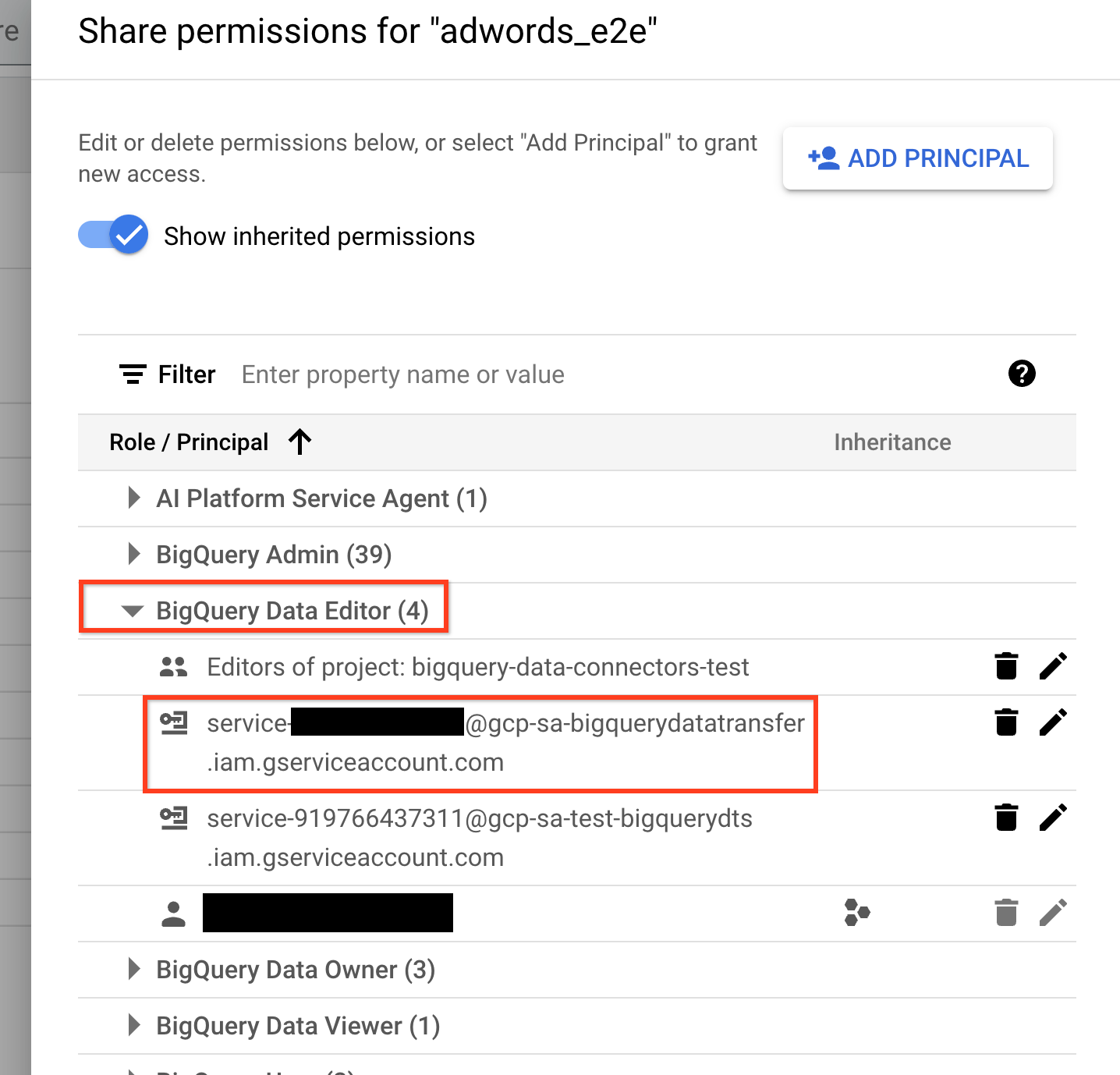
3. Click the **Sharing** menu, and then click **Permissions**.
4. Expand the **BigQuery Data Editor** role.
5. Verify that the BigQuery Data Transfer Service service agent is added to this
role. If not, grant the BigQuery Data Editor (`roles/bigquery.dataEditor`)
role to the BigQuery Data Transfer Service service agent.
Error: `A permission denied error was encountered: PERMISSION_DENIED. Please ensure that the user account setting up the transfer config has the necessary permissions, and that the configuration settings are correct`
: **Resolution:**
1. In the Google Cloud console, go to the **Data Transfers** page.
[Go to Data Transfers](https://console.cloud.google.com/bigquery/transfers?project)
2. Click the failed transfer, then select the **Configuration** tab.
3. Verify that the transfer owner listed in the **User** field has all the
required permissions for the data source.
If the transfer owner does not have all the required permissions, grant the
required permissions by [updating their credentials](https://docs.cloud.google.com/bigquery/docs/working-with-transfers#update_credentials).
You can also change the transfer owner to another user with the required
permissions.
Error: `Authentication failure: User Id not found. Error code: INVALID_USERID`
: **Resolution:** The transfer owner has an invalid user ID. Change the transfer
owner to a different user by [updating their credentials](https://docs.cloud.google.com/bigquery/docs/working-with-transfers#update_credentials).
If you are using a service account, you should also verify that the accounts
running the data transfer have all the [required permissions to use a service account](https://docs.cloud.google.com/bigquery/docs/use-service-accounts#required_permissions).
Error: `The user does not have permission`
: **Resolution:** Verify that the transfer owner is a service account, and that
the service has all the required permissions set. Another possibility is that
the service account used was created under a different project than the project
used to create this transfer. To resolve cross-project permission issues, see
the following resources:
- [Enable service accounts to be attached across projects](https://docs.cloud.google.com/iam/docs/attach-service-accounts#enabling-cross-project)
- [Cross-project Service Account Authorization](https://docs.cloud.google.com/bigquery/docs/enable-transfer-service#cross-project_service_account_authorization) (for granting the necessary permissions)
Error: `HttpError 403 when requesting returned "The caller does not have permission"`
: `googleapiclient.errors.HttpError: `
: This error might appear when you attempt to set up a scheduled query with a
service account.
: **Resolution:** Ensure that the service account has all the [permissions required to schedule or modify a scheduled query](https://docs.cloud.google.com/bigquery/docs/scheduling-queries#required_permissions),
and ensure that the user setting up the scheduled query has [access to the service account](https://docs.cloud.google.com/iam/docs/service-account-overview#service-account-permissions).
If the correct permissions are all assigned but you still encounter the
error, check if the **Disable Cross-Project Service Account Usage**
policy is enforced on the project by default. You can check for the policy in
the Google Cloud console by navigating to **IAM \& Admin** \>
**Organization Policies** and searching for the policy.
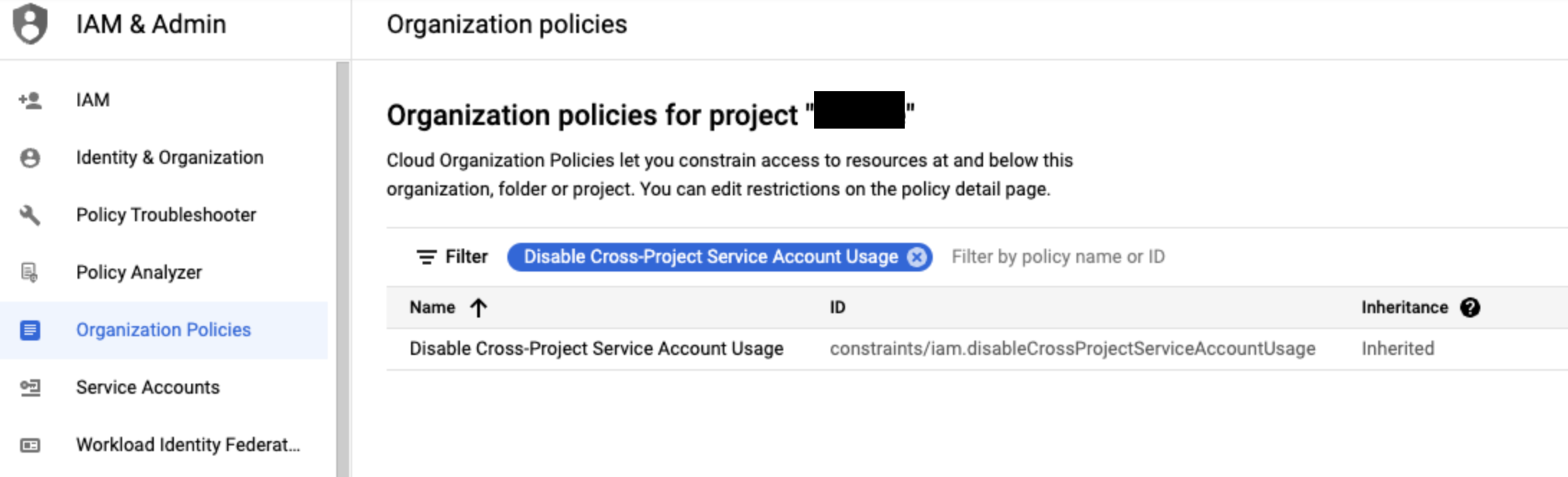
If the **Disable Cross-Project Service Account Usage** policy is enforced,
you can disable the policy by doing the following:
1. Identify the service accounts associated with the project using the Google Cloud console, by navigating to **IAM \& Admin** \> **Service Accounts**. This view displays all service accounts for the current project.
2. Disable the policy in the project where the service accounts are located using the following command. To disable this policy, the user must be an [Organization Policy Administrator](https://docs.cloud.google.com/iam/docs/roles-permissions/orgpolicy#orgpolicy.policyAdmin). Only the Organization Administrator can grant a user this role.
```bash
gcloud resource-manager org-policies disable-enforce iam.disableCrossProjectServiceAccountUsage --project=[PROJECT-ID]
```
## Event-driven transfer configuration issues
The following are common issues you might encounter when creating an
event-driven transfer.
Error: `Data Transfer Service is not authorized to pull message from the provided Pub/Sub subscription.`
: **Resolution:** Verify that the BigQuery Data Transfer Service
[service agent](https://docs.cloud.google.com/bigquery/docs/enable-transfer-service#service_agent) is granted
the [`pubsub.subscriber` role](https://docs.cloud.google.com/iam/docs/roles-permissions/pubsub#pubsub.subscriber):
1. In the Google Cloud console, go to the **Pub/Sub** page.
[Go to Pub/Sub](https://console.cloud.google.com/cloudpubsub/subscription/list?project)
2. Select the Pub/Sub subscription that you used in the event-driven
transfer.
3. If the info panel is hidden, click **Show info panel** in the upper right
corner.
4. In the **Permissions** tab, verify that the BigQuery Data Transfer Service [service agent](https://docs.cloud.google.com/bigquery/docs/enable-transfer-service#service_agent)
has the [`pubsub.subscriber` role](https://docs.cloud.google.com/iam/docs/roles-permissions/pubsub#pubsub.subscriber)

: If the service agent doesn't have the `pubsub.subscriber` role granted. Click
**Add principal** to grant the
`pubsub.subscriber` role to `service-PROJECT_NUMBER@gcp-sa-bigquerydatatransfer.iam.gserviceaccount.com`
Error: `Cloud Pub/Sub API has not been used in project PROJECT_NUMBER before or it is disabled.`
: **Resolution:** Verify that Cloud Pub/Sub API is enabled for your project:
1. In the Google Cloud console, go to the **APIs \& Services** page.
[Go to APIs \& Services](https://console.cloud.google.com/apis/dashboard?project)
2. Click **Enable APIs and services**.
3. Search for `Cloud Pub/Sub API`, select the first result and click **Enable**.
Error: `Data Transfer Service does not have required permission to use project quota of project PROJECT_NUMBER to access Pub/Sub.`
: **Resolution:** Verify that the BigQuery Data Transfer Service
[service agent](https://docs.cloud.google.com/bigquery/docs/enable-transfer-service#service_agent) is granted
the [`serviceusage.serviceUsageConsumer` role](https://docs.cloud.google.com/iam/docs/roles-permissions/serviceusage#serviceusage.serviceUsageConsumer):
1. In the Google Cloud console, go to the **IAM \& Admin** page.
[Go to IAM \& Admin](https://console.cloud.google.com/iam-admin/iam?project)
2. Select the **Include Google-provided role grants** checkbox.
3. Verify that the service account with the name `service-@gcp-sa-bigquerydatatransfer.iam.gserviceaccount.com`
is shown and that it has been granted the
[Service Usage Consumer role](https://docs.cloud.google.com/iam/docs/roles-permissions/serviceusage#serviceusage.serviceUsageConsumer).

Issue: When you use Cloud Storage event-driven transfer, no transfer run is triggered after uploading or updating files in Cloud Storage bucket.
: Transfer runs are not triggered immediately after an event is received. It
might take several minutes to trigger a transfer run. To check the status of the
next transfer run, you can check the **Target date for next run** field in the
[run history](https://docs.cloud.google.com/bigquery/docs/working-with-transfers#view_transfer_run_history).
This field displays the schedule time for the next run, or displays
*waiting for events to schedule next run* if no events were received. If you
have uploaded or updated files in your Cloud Storage bucket, but the
**Target date for next run** has not updated and no runs are triggered for 10-20
minutes, see the following resolution.
: **Resolution:** Verify that your Pub/Sub subscription specified in the
transfer config is able to get messages published from Cloud Storage events:
1. In the Google Cloud console, go to the **Pub/Sub** page.
[Go to Pub/Sub](https://console.cloud.google.com/cloudpubsub/subscription/list?project)
2. Select the Pub/Sub subscription that you used in the event-driven
transfer.
3. In the **Metrics** tab, check the "Oldest unacked message age" graph and
see if there are any messages.
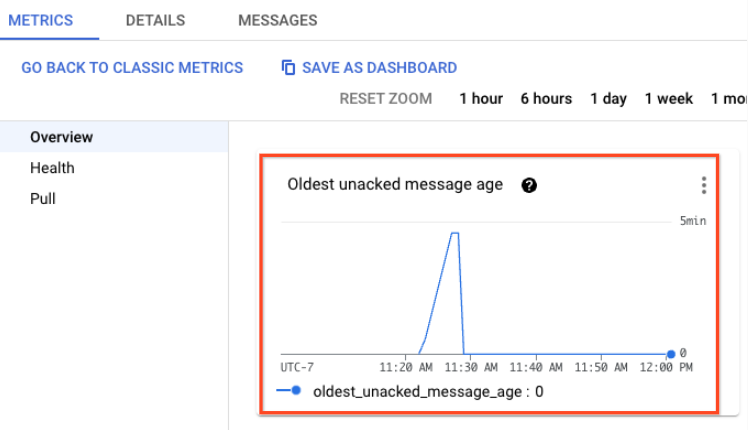
: If no messages are published, check if Pub/Sub notification is
correctly configured for Cloud Storage. You may use the following Google Cloud CLI
command to check the notification configurations associated with your bucket:
gcloud storage buckets notifications list gs://BUCKET_NAME
Replace `BUCKET_NAME` with the name of the bucket that you
use for notification. For information on configuring a Pub/Sub notification
for Cloud Storage, see [Configure Pub/Sub notification for Cloud Storage](https://docs.cloud.google.com/storage/docs/reporting-changes).
: If there are messages, check if the same Pub/Sub subscription is used
in another event-driven transfer config. The same Pub/Sub subscription
cannot be reused by multiple event-driven transfer configs. For more information
about event-driven transfers, see [Event-driven transfers](https://docs.cloud.google.com/bigquery/docs/event-driven-transfer).
## Amazon S3 transfer issues
The following are common errors encountered when [creating an Amazon S3
transfer](https://docs.cloud.google.com/bigquery/docs/s3-transfer).
### Amazon S3 `PERMISSION_DENIED` errors
Error: `The AWS Access Key Id you provided does not exist in our records.`
: **Resolution:** Verify that the access key exists and the ID is correct.
Error: `The request signature we calculated does not match the signature you provided. Check your key and signing method.`
: **Resolution:** Verify that the transfer configuration has the correct corresponding Secret Access Key
Error: `Failed to obtain the location of the source S3 bucket. Additional details: Access Denied`
Error: `Failed to obtain the location of the source S3 bucket. Additional details: HTTP/1.1 403 Forbidden`
Error: `Access Denied` (S3 error message)
: **Resolution:** Ensure the AWS IAM user has permission to perform the
following:
- List the Amazon S3 bucket.
- Get the location of the bucket.
- Read the objects in the bucket.
Error: `Server unable to initialize object upload.; InvalidObjectState: The operation is not valid for the object's storage class`
Error: `Failed to obtain the location of the source S3 bucket. Additional details: All access to this object has been disabled`
: **Resolution:** Restore any objects that are archived to Amazon Glacier. Objects in Amazon S3 that are archived to Amazon Glacier are not accessible until they are restored
Error: `All access to this object has been disabled`
: **Resolution:** Confirm that the Amazon S3 URI in the transfer configuration is correct
### Amazon S3 transfer limit errors
Error: `Number of files in transfer exceeds limit of 10,000.`
: **Resolution:** Evaluate if the number of [wildcards](https://docs.cloud.google.com/bigquery/docs/s3-transfer-intro#wildcard-support)
in the Amazon S3 URI can be reduced to just one. If this is possible, retry with
a new transfer configuration, as the [maximum number of files per transfer run will be higher](https://docs.cloud.google.com/bigquery/docs/s3-transfer-intro#quotas_and_limits).
You can also evaluate if the transfer configuration can be split into multiple
transfer configurations, each transferring a portion of the source data.
Error: `Size of files in transfer exceeds limit of 16492674416640 bytes.`
: **Resolution:** Evaluate if the transfer configuration can be split into multiple transfer configurations, each transferring a portion of the source data.
### General Amazon S3 issues
Issue: Files are transferred from Amazon S3 but not loaded into BigQuery.
: The transfer logs may look similar to the following: `Moving data from Amazon S3 to Google Cloud complete: Moved N object(s).
No new files found matching Amazon_S3_URI.`
: **Resolution:** Confirm that the Amazon S3 URI in the transfer configuration
is correct. If the transfer configuration was meant to load all files with a
common prefix, ensure that the Amazon S3 URI ends with a wildcard. For
example, to load all files in `s3://my-bucket/my-folder/`, the Amazon S3 URI
in the transfer configuration must be `s3://my-bucket/my-folder/*`, not just
`s3://my-bucket/my-folder/`.
## Azure Blob Storage transfer issues
The following are common errors encountered when [creating an
Blob Storage transfer](https://docs.cloud.google.com/bigquery/docs/blob-storage-transfer).
Error: `Number of files in transfer exceeds the limit of 10,000.`
: **Resolution:** Reduce the number of [wildcards](https://docs.cloud.google.com/bigquery/docs/blob-storage-transfer-intro#wildcard-support)
in the Blob Storage data path to 0 or 1, so the file limit
increases to 10,000,000. You can also split into multiple transfer
configurations, each transferring a portion of the source.
Error: `Size of files in transfer exceeds the limit of 15 TB.`
: **Resolution:** Split into multiple transfer configurations, each transferring
a portion of the source data.
Error: `Provided Azure SAS Token does not have required permissions.`
: **Resolution:** Verify that the Azure SAS token in the transfer configuration is
correct. For more information, see [Shared access signature (SAS)](https://docs.cloud.google.com/bigquery/docs/blob-storage-transfer-intro#shared-access-signature).
Error: `Transfer encountered error, status:PERMISSION_DENIED, details:[This request is not authorized to perform this operation.]`
: **Resolution:** Verify that the IP ranges used by BigQuery Data Transfer Service
workers are added to your list of allowed IPs. For more information, see [IP restrictions](https://docs.cloud.google.com/bigquery/docs/blob-storage-transfer-intro#ip_restrictions).
Issue: Files are transferred from Blob Storage but not loaded into BigQuery.
: The transfer logs might look similar to the following: `Moving data to Google Cloud complete: Moved
N object(s). No new files found matching Blob Storage data path.`
: **Resolution:** Verify that the Blob Storage data path in the
transfer configuration is correct.
## Campaign Manager transfer issues
The following are common errors encountered when [creating a Campaign
Manager transfer](https://docs.cloud.google.com/bigquery/docs/doubleclick-campaign-transfer).
Error: `Import failed - no data was available for import. Please verify that data existence was expected.`
Error: `No data available for the requested date. Please try an earlier run date or verify that data existence was expected.`
: **Resolution:** Verify you are using the
[correct ID](https://docs.cloud.google.com/bigquery/docs/doubleclick-campaign-transfer#set_up_a_campaign_manager_transfer)
for the transfer. If you are
using the correct ID, verify the Campaign Manager Cloud Storage bucket
contains Data Transfer V2.0 files for the specified date range. If the files
exist, schedule a backfill for the affected date range. For more information on
creating a Campaign Manager backfill request, see
[Manually trigger a transfer or backfill](https://docs.cloud.google.com/bigquery/docs/working-with-transfers#manually_trigger_a_transfer_or_backfill).
: You can verify whether the files existed when the transfer run was scheduled
by checking the created time of the files in the Cloud Storage bucket. In
some cases, the first transfer run of the day may be scheduled prior to the
generation of the first batch of Campaign Manager Data Transfer files.
Subsequent runs on the same day and the following day will load all the files
generated by Campaign Manager.
Error: `A permission denied error was encountered: PERMISSION_DENIED. Please ensure that the user account setting up the transfer config has the necessary permissions, and that the configuration settings are correct.`
: **Resolution:** The user creating the Campaign Manager transfer
must have read access to the [Cloud Storage bucket](https://console.cloud.google.com/storage)
containing the Data Transfer V2.0 files. You can obtain information about the
Cloud Storage bucket and request access from your Campaign Manager
administrator.
Error: `Unexpected fields found: [FIELD_NAMES]; Table: 'TABLE_NAME', file: FILE_NAME`
: **Resolution:** The Campaign Manager transfer supports a subset of the fields
supported in Campaign Manager. If you encounter this error, [request support](https://docs.cloud.google.com/bigquery/docs/getting-support) to raise a feature request.
## Google Ads transfer issues
The following are common errors encountered when [creating a
Google Ads transfer](https://docs.cloud.google.com/bigquery/docs/google-ads-transfer).
Issue: Transfer run succeeds but some accounts aren't showing up in the destination table.
: **Resolution:** There could be many reasons that an account doesn't show up in report, some common causes are:
- This can occur if there isn't any report activity for the requested day, resulting in no data rows being generated.
- This can also occur if your Google Ads account is inactive, or `CANCELLED`. The Google Ads API doesn't support queries on inactive accounts, so the Google Ads connector filtered out inactive accounts from transfer run. To reactivate your Google Ads account, see [Reactivate a canceled Google Ads account](https://support.google.com/google-ads/answer/2375392).
Error: `AUTH_ERROR_TWO_STEP_VERIFICATION_NOT_ENROLLED`
: **Resolution:** This error indicates that the Google Ads user used in this transfer does not have 2-step verification enabled. For information about enabling 2-step verification, see [Turn on 2-Step Verification](https://support.google.com/accounts/answer/185839).
Error: `No jobs to start for run`
: **Resolution:** This error indicates there is no load job started for the transfer run due to an invalid setup or errors that occurred during processing. Follow the steps to resolve this error:
- Check the transfer run history log for errors and warnings.
- If the tables you are trying to load don't have columns `segments_date`, `segments_week`, `segments_month`, `segments_quarter`, or `segments_year`, it's expected to skip loading when `run_date` is not the latest date. See [Manually trigger a Google Ads transfer](https://docs.cloud.google.com/bigquery/docs/google-ads-transfer#backfill) and [Custom reports](https://docs.cloud.google.com/bigquery/docs/google-ads-transfer#custom_reports) for more details.
- [Request support](https://docs.cloud.google.com/bigquery/docs/getting-support) if you have trouble finding the root cause.
Error: `Import failed - no data was available for import. Please verify that data existence was expected.`
Error: `No data available for the requested date. Please try an earlier run date or verify that data existence was expected.`
: **Resolution:** If you receive this error when you are creating a
Google Ads transfer,
[request support](https://docs.cloud.google.com/bigquery/docs/getting-support)
and include a screen capture of the error message.
Error: `AuthenticationError.NOT_ADS_USER.`
: **Resolution:** The user setting up the Google Ads transfer
must have a Google Ads account/login.
Error: `Request is missing required authentication credential`
: **Resolution:** The user or the service account doesn't have access to the Ads account. Follow [Required permissions](https://docs.cloud.google.com/bigquery/docs/google-ads-transfer#required_permissions) to grant the user or the service account the required permissions.
Error: `ERROR_GETTING_RESPONSE_FROM_BACKEND.`
: **Resolution:** If a Google Ads transfer run fails and returns
`ERROR_GETTING_RESPONSE_FROM_BACKEND`,
[enable the **Exclude Removed/Disabled Items** option](https://docs.cloud.google.com/bigquery/docs/google-ads-transfer#setup-data-transfer)
in the transfer configuration and [set up a backfill](https://docs.cloud.google.com/bigquery/docs/working-with-transfers#manually_trigger_a_transfer)
to attempt to retrieve data for the days impacted by the failed transfer run.
Warning: `Data for the report ClickStats was not available for the specified date.`
Error: `INVALID_DATE_RANGE_FOR_REPORT.`
: **Resolution:** This is expected when backfilling [Click Performance Report](https://developers.google.com/adwords/api/docs/appendix/reports/click-performance-report) data for more than 90 days back. In this case, you will see this warning or error and the `ClickStats` table won't be updated for the specified date.
Error: `Error while processing report for table table_name for account id account_id. Http(400) Bad Request;`
Error: `AuthorizationError.TWO_STEP_VERIFICATION_NOT_ENROLLED`
: **Resolution:** If the user account associated with this transfer does not
have 2-step verification (or multi-factor authentication) enabled, [enable 2-step verification](https://support.google.com/google-ads/answer/12864186)
for this account and then rerun the failed transfer job. Service accounts are
exempted from the 2-step verification requirement.
Error: `Quota exceeded: Your project exceeded quota for imports per project`
: **Resolution:** Transfers are subject to BigQuery
[quotas on load jobs](https://docs.cloud.google.com/bigquery/quotas#load_jobs). If you hit the quota limit for load jobs, try to reduce unnecessary
loadings by using [table_filter](https://docs.cloud.google.com/bigquery/docs/google-ads-transfer#setup-data-transfer), deleting unused transfer configs or reducing the refresh window.
If you need to increase your quota, contact your Google Cloud sales representative. For more
information, see [Quotas and limits](https://docs.cloud.google.com/bigquery/quotas).
## Google Ad Manager transfer issues
The following are common errors encountered when creating a [Google Ad Manager
transfer](https://docs.cloud.google.com/bigquery/docs/doubleclick-publisher-transfer).
Error: `Another transfer run is concurrently processing table.`
: **Resolution:** This error may occur when another transfer run with the same transfer configuration hasn't finished running when the current transfer run begins.
- If the latency is caused by large Google Ad Manager Data Transfer (Google Ad Manager DT) files, consider enabling [parquet format](https://support.google.com/admanager/answer/1733124) which has better loading performance.
- If the latency is caused by match tables, consider skipping match tables by setting parameter `load_match_tables` to `false`.
- Adjust the repeat frequency if the transfer consistently takes a longer time to process than the current repeat frequency.
Error: `No data available for the requested date. Please try an earlier run date or verify that data existence was expected.`
Error: `Import failed - no data was available for import. Please verify that data existence was expected.`
: **Resolution:** Verify the Google Ad Manager [Cloud Storage bucket](http://console.cloud.google.com/storage)
contains data transfer files for the specified date range. Your Google Ad Manager
administrator manages the [Cloud Storage bucket](http://console.cloud.google.com/storage)
containing your Data Transfer files. Users creating Google Ad Manager transfers
must be members of the Google Group with read access to the bucket.
: You can verify Cloud Storage permissions by attempting to read files in the
Google Ad Manager [Data Transfer bucket](http://console.cloud.google.com/storage).
For more information on Google Ad Manager Cloud Storage buckets, see
[Access Google Ad Manager storage buckets](https://support.google.com/admanager/answer/1733127).
: You can verify whether the files existed when the transfer run was scheduled
by checking the created time of the files in the Cloud Storage bucket. In
some cases, the first transfer run of the day may be scheduled prior to the
generation of the first batch of Google Ad Manager Data Transfer files.
Subsequent runs on the same day and the following day will load all the files
generated by Google Ad Manager.
: If the files exist in the Data Transfer bucket and you have read permissions,
schedule a backfill for the affected date range. For more information on
creating a Google Ad Manager backfill request, see
[Set up a backfill](https://docs.cloud.google.com/bigquery/docs/working-with-transfers#manually_trigger_a_transfer).
Error: `AuthenticationError: NO_NETWORKS_TO_ACCESS.`
: **Resolution:** Ensure you have read access to the Google Ad Manager
network. If you need assistance determining network access, contact
[Google Ad Manager support](https://support.google.com/admanager/answer/3059042).
Error: `Error code 9 : Field field_name?field_name?field_name?RefererURL is unknown.; Table: table_name`
: **Resolution:** Ensure you are not using the thorn (þ) delimiter. The thorn
delimiter is unsupported. Use of the thorn is indicated by the ? in
the error message.
Error: `Incompatible table partitioning specification. Destination table exists with partitioning specification interval(type:Day,field:) clustering`
: **Resolution:** The Google Ads Manager connector does not support transfer data to a dataset with clustering. Use a dataset without clustering instead.
## Search Ads 360 transfer issues
The following are common errors encountered when [creating a Search Ads 360
transfer](https://docs.cloud.google.com/bigquery/docs/search-ads-transfer).
Error: `No jobs to start for run`
: **Resolution:** This error can occur when you use a table filter to filter only metric tables (tables that contain `stats`), but your transfer is run with a manager or sub-manager account with no active client accounts associated with it. To resolve this error, remove the table filter or change the table filter to include match tables (tables that don't contain `stats`).
## Google Merchant Center transfer issues
The following are common errors encountered when [creating a Google Merchant
Center transfer](https://docs.cloud.google.com/bigquery/docs/merchant-center-transfer).
Error: `No data to transfer found for the Merchant account. If you have just created this transfer - you may need to wait for up to 90 minutes before the data of your Merchant account are prepared and available for the transfer.`
: **Resolution:** You receive this error if you set up a transfer using the
default starting date and time in the Schedule section. If you use the default
scheduling values, the first transfer run starts immediately after the transfer
is created, but it fails because your Merchant account data must be prepared
before it can be transferred. Wait 90 minutes and then
[set up a backfill](https://docs.cloud.google.com/bigquery/docs/working-with-transfers#manually_trigger_a_transfer)
for today, or you can wait until tomorrow for the next scheduled run.
Error: `No data to transfer found for Merchant account. This can be because your account currently doesn't have any products.`
: **Resolution:** This error indicates that your Merchant account has no
products. The transfer will begin working once you add products to your Merchant
account.
Error: `Transfer user doesn't have access to the Merchant account. Please verify access in the Users section of the Google Merchant Center.`
: **Resolution:** This error indicates that the user who set up the transfer
doesn't have access to the Merchant account used by the transfer. To
resolve the issue,
[verify and grant missing account access](https://support.google.com/merchants/answer/1637190)
in the Google Merchant Center.
Error: `Transfer user doesn't have user roles that allows access to the product data of the Merchant account. Please verify access and roles in the Users section of the Google Merchant Center.`
: **Resolution:** This error indicates that the user who set up the transfer
doesn't have access to the product data of the Merchant account used by the
transfer. To resolve the issue,
[verify and grant missing user roles](https://support.google.com/merchants/answer/1637190)
in the Google Merchant Center.
Error: `Historical backfills are not supported.`
: **Resolution:** You receive this error if you
[set up a backfill](https://docs.cloud.google.com/bigquery/docs/working-with-transfers#manually_trigger_a_transfer)
for previous days. This error is expected. Historical backfills are not supported.
You can only set up a backfill for today to
refresh today's data after the scheduled daily run has already finished.
## Google Play transfer issues
The following are common errors encountered when [creating a Google Play
transfer](https://docs.cloud.google.com/bigquery/docs/play-transfer).
Error: `No jobs to start for run`
: **Resolution:** Verify that the user has [sufficient permissions to initiate
a Google Play transfer](https://docs.cloud.google.com/bigquery/docs/play-transfer#required_permissions), then
verify if the user has specified the correct Cloud Storage bucket when
setting up the transfer. If the user is still experiencing the error, you can
[request support](https://docs.cloud.google.com/bigquery/docs/getting-support).
Issue: Revenue and financial reports did not load into BigQuery
: **Resolution:** To access financial Google Play reports, users must have the
`View financial data` permission. To manage developer
account permissions, see [Add developer account users and manage permissions](https://support.google.com/googleplay/android-developer/answer/9844686?visit_id=638158652462486298-3898390440&rd=1).
## HubSpot transfer issues
Error: `PERMISSION_DENIED: Permission denied. Your Access Token may lack required access to the provided account. Please also check for typos like whitespace or if the provided accountId even exists`
: **Resolution:** Check that your private app access token is correct, the
HubSpot user has the **Super Admin** role, and the private app
has all the required scopes. For more information, see [HubSpot
prerequisites](https://docs.cloud.google.com/bigquery/docs/hubspot-transfer#hubspot-prerequisites).
Error: `INVALID_ARGUMENT: Table 'NAME' does not exist in asset "ASSET"`
: **Resolution:** Check that the specified asset name is valid and does not
contain any leading or trailing spaces. When [creating a
HubSpot
transfer](https://docs.cloud.google.com/bigquery/docs/hubspot-transfer#hubspot-transfer-setup), we
recommend that you click **Browse** to select the asset from the list of
available objects.
Error: `FAILED_PRECONDITION: Rate limit exceeded. `
: **Resolution:** The HubSpot API rate limit has been exceeded.
Wait for some time before retrying the data transfer. You can also consider
reducing the frequency of data transfer jobs and limiting simultaneous
transfers for similar accounts.
Error: `UNAUTHENTICATED: Authentication failed. Please verify your HubSpot access token.`
: **Resolution:** Check that your private app
access token is correct. For more information, see [HubSpot prerequisites](https://docs.cloud.google.com/bigquery/docs/hubspot-transfer#hubspot-prerequisites).
Error: `UNKNOWN: An unknown error occurred while processing the request.`
: **Resolution:** Verify that the HubSpot private app access
token is correct and that the required permissions are in place for the
objects being accessed, then retry the transfer job.
## Klaviyo transfer issues
The following are common issues you might encounter when
[creating a Klaviyo transfer](https://docs.cloud.google.com/bigquery/docs/klaviyo-transfer).
Error: `PERMISSION_DENIED: Permission denied. Your API key may lack required access scopes`
: **Resolution:** Verify that the Klaviyo private API key has at
least the `READ ONLY` access level. For more information, see
[Klaviyo
prerequisites](https://docs.cloud.google.com/bigquery/docs/klaviyo-transfer#klaviyo-prerequisites).
Error: `FAILED_PRECONDITION`
: **Resolution:** Retry the transfer with a shorter date range.
Error: `UNKNOWN: An unknown error occurred while processing the request.`
: **Resolution:** Verify that the API key of the account is valid, then retry
the transfer job.
Error: `INTERNAL: An unknown error occurred while processing the request.`
: **Resolution:** Verify that the API key of the account is valid, then retry
the transfer job.
## Microsoft SQL Server transfer issues
The following are common issues that you might encounter when
[creating a Microsoft SQL Server transfer](https://docs.cloud.google.com/bigquery/docs/sqlserver-transfer).
Error: `FAILED PRECONDITION: A TLS/SSL handshake error occurred: unable to find valid certification path to requested target. Please check your TLS/SSL configuration and certificate validity.`
: **Resolution:** Verify the validity of your certificate with the following
steps:
1. Replace the SSL/TLS certificate on SQL Server with a certificate issued by a trusted Public Certificate Authority. For more information, see [TLS configuration](https://docs.cloud.google.com/bigquery/docs/sqlserver-transfer-intro#tls-configuration).
2. Verify that the new certificate includes the complete certificate chain, including all intermediate and root certificates.
3. After updating the certificate, restart the SQL Server service to apply the new SSL/TLS configuration.
4. Once the server has restarted, create the transfer configuration again to verify that the updated certificate is trusted and the TLS/SSL handshake completes successfully.
Error: `INVALID_ARGUMENT: Catalog 'SCHEMA' does not exist in asset "SCHEMA/TABLE"`
: **Resolution:** Verify that the catalog and table are present in the
SQL Server and spelled correctly. Also verify that
the user has sufficient access permissions to browse or query the catalog and
its contents.
## Mailchimp transfer issues
The following are common issues you might encounter when
[creating a Mailchimp transfer](https://docs.cloud.google.com/bigquery/docs/mailchimp-transfer).
Error: `INVALID_ARGUMENT: Invalid request. Please check the input parameters (Credentials, Table, etc.) and try again.`
: **Resolution:** Check that the specified asset name is valid and does not
contain any leading or trailing spaces. When [creating a
Mailchimp transfer](https://docs.cloud.google.com/bigquery/docs/mailchimp-transfer), we
recommend that you click **Browse** to select the asset from the list of
available objects.
Error: `PERMISSION_DENIED: Permission denied. Your credentials may lack required access.`
: **Resolution:** Check that the Mailchimp user has all the
required permissions. The [`Admin` user
level](https://mailchimp.com/help/manage-user-levels-in-your-account/) in
Mailchimp has minimum level of access to transfer all
Mailchimp objects.
Error: `FAILED_PRECONDITION: Operation failed due to precondition violation (ex- Rate limit exceeded, Server Error). Please try again later.`
: **Resolution:** Wait for some time before retrying the data transfer. You can
also check [Mailchimp status](https://status.mailchimp.com/)
for any service outages.
Error: `UNKNOWN: An unknown error occurred while processing the request.`
: **Resolution:** Confirm that the API Key is valid and that the user has all
the required permissions, then retry the data transfer job.
## MySQL transfer issues
The following are common issues you might encounter when
[creating a MySQL transfer](https://docs.cloud.google.com/bigquery/docs/mysql-transfer).
Error: `PERMISSION_DENIED. Failed to authenticate or permission denied with the provided credentials when starting to transfer asset asset-name.`
: **Resolution:** Check if the `connector.authentication.username`
and `connector.authentication.password` parameters that you
provided are valid and functional.
Error: `NOT_FOUND. Invalid data source configuration provided when starting to transfer asset asset-name: APPLICATION_ERROR;google.cloud.bigquery.federationv1alpha1/ConnectorService.StartQuery;INVALID_ARGUMENT:Exception was thrown by the Connector implementation: Table table-name does not exist in asset asset-name.`
: **Resolution:** Check that the spelling of the table or view
name is correct, the referenced table or view name exists, and the synonym (alias)
points to an existing table or view.
If the table or view exists, ensure that the correct access privileges are
granted to the database user requiring access to the table. If the table or
view doesn't exist, create the table.
If you are attempting to access a table or view in another schema, ensure
that the correct schema is referenced and that access to the object is granted.
If a table or view name is provided, ensure that it is specified as `object_name`;
otherwise, it is blank.
Error: `SERVICE_UNAVAILABLE. Timed out when starting to transfer asset asset-name. Ensure the datasource is reachable and the datasource configuration (Credentials, Network Attachment etc.) is correct.`
Error: `DEADLINE_EXCEEDED. Timed out when starting to transfer asset asset-name. Ensure the datasource is reachable and the datasource configuration (Credentials, Network Attachment etc.) is correct.`
: **Resolution:** Check if the database details provided are correct, and check
that the network attachment used for the transfer configuration is set up
correctly. It's also possible that the transfer didn't finish within the deadline.
Error: `INTERNAL`
: **Resolution:** Something else caused the transfer to fail.
[Contact Cloud Customer Care](https://docs.cloud.google.com/bigquery/docs/getting-support) for help resolving
this issue.
Error: `INVALID_ARGUMENT. Connection to the host and port failed. Please check that the host, port, encryptionMode and network attachment are correct.`
: **Resolution:** Ensure the host, port, encryption mode, and network settings
are correctly configured. Verify network connectivity and that the database
server is accessible. If `EncryptionMode` is set to `FULL`, confirm that the
server supports the required protocols, has a valid certificate, and allows
secure connections. If `EncryptionMode` is set to `DISABLE`, check that the
server permits non-SSL connections. Review the application and database logs
for connection-related or SSL/TLS-related errors.
Error: `Failed to connect to MySQL instance INSTANCE_NAME. : Failed to connect to MySQL instance. Please ensure provided instance details are correct.`
: **Resolution:** Ensure that the instance details in your transfer
configuration are correct. Instance details include parameters such as the
name, hostname, IP address, and the port number of the MySQL
database, or the username and password of the database user.
## Oracle transfer issues
The following are common issues you might encounter when [creating an Oracle transfer](https://docs.cloud.google.com/bigquery/docs/oracle-transfer).
Error: `PERMISSION_DENIED. ORA-01017: invalid username/password; logon denied`
: **Resolution:** Check that the provided Oracle credentials are
valid.
Error: `PERMISSION_DENIED. ORA-01045: user lacks CREATE SESSION privilege; logon denied`
: **Resolution:** Grant the `CREATE SESSION` system privileges to the Oracle
user. For more information about granting Oracle privileges, see
[`GRANT`](https://docs.oracle.com/cd/B13789_01/server.101/b10759/statements_9013.htm).
Error: `` SERVICE_UNAVAILABLE. ORA-12541: Cannot connect. No listener at host `HOSTNAME` port `PORT` `` or `SERVICE_UNAVAILABLE. Connection failed: IO Error. The Network Adapter could not establish the connection`
: **Resolution:** Check that the provided Hostname and Port details are correct,
and that the network attachment is set up correctly.
Error: `NOT_FOUND. ORA-00942: table or view does not exist`
: **Resolution:** Check each of the following:
- The spelling of the table or view name is correct.
- The referenced table or view name exists.
- The synonym points to an existing table or view. If the table or view does exist, ensure that the correct access privileges are granted to the database user requiring access to the table. Otherwise, create the table.
- if you are attempting to access a table or view in another schema, make sure that the correct schema is referenced and that access to the object is granted.
Error: `NOT_FOUND. Schema schema does not exist.`
: **Resolution:** The specified schema does not exist.
Error: `DEADLINE_EXCEEDED`
: **Resolution:** The transfer run did not finish within the six hour maximum
duration deadline. Reduce your transfer run times by splitting up large
transfers into multiple smaller ones.
Error: `INTERNAL`
: **Resolution:** Something else caused the transfer to fail.
[Contact Cloud Customer Care](https://docs.cloud.google.com/bigquery/docs/getting-support) for help resolving
this issue.
Error: `INVALID_ARGUMENT`
: **Resolution:** A supplied value in the transfer configuration is invalid,
causing the transfer to fail. For information about valid transfer configuration
values, see [Set up an Oracle transfer](https://docs.cloud.google.com/bigquery/docs/oracle-transfer#oracle-transfer-setup).
Error: `SQL Error [1950] [42000]: ORA-01950: no privileges on tablespace 'TablespaceName'`
: **Resolution:** Assign the default tablespace to the user. For more
information, see [Assigning a Default Tablespace](https://docs.oracle.com/cd/B19306_01/network.102/b14266/admusers.htm#i1006219).
Error: `403 PERMISSION_DENIED. Required 'compute.subnetworks.use' permission for project`
: **Resolution:** This error can occur if your network attachment is located in
a different project than where the transfer configuration is located. To remedy
this issue, you must grant the service account (for example, `service-customer_project_number@gcp-sa-bigquerydatatransfer.iam.gserviceaccount.com`)
the following permissions in the project where the network attachment is located:
- `compute.networkAttachments.get`
- `compute.networkAttachments.update`
- `compute.subnetworks.use`
- `compute.regionOperations.get`
This error can also occur if the network attachment is trying to connect to a
Virtual Private Cloud (VPC) that is located in a different project, such as a shared VPC.
In this case,you must grant the service account (for example, `service-customer_project_number@gcp-sa-bigquerydatatransfer.iam.gserviceaccount.com`)
the `compute.subnetworks.use` permission on the hosting project of the shared VPC.
## PayPal transfer issues
The following are common issues that you might encounter when [creating a PayPal transfer](https://docs.cloud.google.com/bigquery/docs/paypal-transfer).
Error: `PERMISSION_DENIED: Authorization failed due to insufficient permissions.`
: **Resolution:** Verify that the client and the client secret have the [required
permissions](https://docs.cloud.google.com/bigquery/docs/paypal-transfer#paypal-prerequisites) to access
the PayPal object that is being transferred.
Error: `INVALID_ARGUMENT: Table 'OBJECT' does not exist in asset "OBJECT"`
: **Resolution:** Verify that the object name is valid.
Error: `INVALID_ARGUMENT: The given start date 'DATE' cannot be parsed. Please provide it in 'yyyy-MM-dd' format.`
: **Resolution:** Verify that the start date is in correct syntax.
Error: `UNAUTHENTICATED: Please provide a valid clientId and client secret.`
: **Resolution:** Verify that the client ID and client secret are correct.
Error: `UNKNOWN: An unknown error occurred while processing the request.`
: **Resolution:** Verify that the secret key and account ID are valid and that
the [required
permissions](https://docs.cloud.google.com/bigquery/docs/paypal-transfer#paypal-prerequisites) are in place
for the selected objects, and then retry the transfer job. If the issue
persists, [contact Cloud Customer Care](https://docs.cloud.google.com/bigquery/docs/getting-support).
Error: `INTERNAL: An unknown error occurred while processing the request.`
: **Resolution:** Verify that the secret key and account ID are valid and that
the [required
permissions](https://docs.cloud.google.com/bigquery/docs/paypal-transfer#paypal-prerequisites) are in place
for the selected objects, and then retry the transfer job. If the issue
persists, [contact Cloud Customer Care](https://docs.cloud.google.com/bigquery/docs/getting-support).
## PostgreSQL transfer issues
The following are common issues you might encounter when
[creating a PostgreSQL transfer](https://docs.cloud.google.com/bigquery/docs/postgresql-transfer).
Error: `PERMISSION_DENIED. Failed to authenticate or permission denied with the provided credentials when starting to transfer asset asset-name.`
: **Resolution:** Check if the `connector.authentication.username`
and `connector.authentication.password` parameters that you
provided are valid and functional.
Error: `NOT_FOUND. Invalid data source configuration provided when starting to transfer asset asset-name: APPLICATION_ERROR;google.cloud.bigquery.federationv1alpha1/ConnectorService.StartQuery;INVALID_ARGUMENT:Exception was thrown by the Connector implementation: Table table-name does not exist in asset asset-name.`
: **Resolution:** Check that the spelling of the table or view
name is correct, the referenced table or view name exists, and the synonym (alias)
points to an existing table or view.
If the table or view exists, ensure that the correct access privileges are
granted to the database user requiring access to the table. If the table or
view doesn't exist, create the table.
If you are attempting to access a table or view in another schema, ensure
that the correct schema is referenced and that access to the object is granted.
If a table or view name is provided, ensure that it is specified as `object_name`;
otherwise, it is blank.
Error: `SERVICE_UNAVAILABLE. Timed out when starting to transfer asset asset-name. Ensure the datasource is reachable and the datasource configuration (Credentials, Network Attachment etc.) is correct.`
Error: `DEADLINE_EXCEEDED. Timed out when starting to transfer asset asset-name. Ensure the datasource is reachable and the datasource configuration (Credentials, Network Attachment etc.) is correct.`
: **Resolution:** Check if the database details provided are correct, and check
that the network attachment used for the transfer configuration is set up
correctly. It's also possible that the transfer didn't finish within the deadline.
Error: `INTERNAL`
: **Resolution:** Something else caused the transfer to fail.
[Contact Cloud Customer Care](https://docs.cloud.google.com/bigquery/docs/getting-support) for help resolving
this issue.
Error: `INVALID_ARGUMENT. Connection to the host and port failed. Please check that the host, port, encryptionMode and network attachment are correct.`
: **Resolution:** Ensure the host, port, encryption mode, and network settings
are correctly configured. Verify network connectivity and that the database
server is accessible. If `EncryptionMode` is set to `FULL`, confirm that the
server supports the required protocols, has a valid certificate, and allows
secure connections. If `EncryptionMode` is set to `DISABLE`, check that the
server permits non-SSL connections. Review the application and database logs
for connection-related or SSL/TLS-related errors.
Error: `INVALID_ARGUMENT: For Asset "postgres"."auth"."sessions", row count exceeds the max supported unIndexed read size of 2000000 records.`
: **Resolution:** This error can occur when you are trying to transfer more than
2,000,000 records from a PostgreSQL table to a
BigQuery table and there isn't a primary key or indexed column
in PostgreSQL table. To resolve this issue, add a primary key or
indexed column in your table. For more information, see
[Limitations](https://docs.cloud.google.com/bigquery/docs/postgresql-transfer#limitations).
## Salesforce transfer issues
The following are common errors encountered when [creating a Salesforce transfer](https://docs.cloud.google.com/bigquery/docs/salesforce-transfer).
Error: `Permission Denied: invalid_client. invalid client credentials`
: **Resolution:** Verify that the ClientSecret provided is valid.
Error: `Permission Denied: invalid_client. client identifier invalid`
: **Resolution:** Verify that the ClientId provided is valid.
Error: `Permission Denied: Error encountered while establishing connection`
: **Resolution:** Check if the Salesforce MyDomain Name provided is correct.
Error: `NOT_FOUND. asset type asset_name is not supported. If you are attempting to use a custom object, be sure to append the "__c" after the entity name. Please reference your WSDL or use the describe call for the appropriate names.`
: **Resolution:** Follow the guidance in the error code, and verify that the provided asset name is correct.
Error: `SERVICE_UNAVAILABLE`
: **Resolution:** The service is temporarily unable to handle the request. Wait
a few minutes and try the operation again.
Error: `DEADLINE_EXCEEDED`
: **Resolution:** The transfer run did not finish within the six hour maximum
duration deadline. Minimize your transfer run times by splitting up large
transfers into multiple smaller ones.
Error: `Failed to create recordReader to read partition : Batch failed. BatchId='batch_id', Reason='FeatureNotEnabled : Binary field not supported'`
: **Resolution:** The connector doesn't support sObject data structures that
contain binary fields. Remove sObject data structures that contain binary
fields from your transfer jobs. For more information, see
[Error 'Batch failed: FeatureNotEnabled: Binary field not supported' when you export related object](https://help.salesforce.com/s/articleView?id=000382669&type=1)
in the Salesforce documentation.
Error: `RESOURCE_EXHAUSTED: PrepareQuery failed : ExceededQuota : ApiBatchItems Limit exceeded`
: **Resolution:** This error appears when you have exceeded the daily
`ApiBatchItems` API limit
for job runs. Salesforce has a daily API limit that is reset
every 24 hours. To resolve this error, we recommend that you split up and
schedule your transfer runs so that it doesn't exceed the daily batch API limit.
You can also contact Salesforce support to increase your daily
limit.
Error: `Permission Denied: invalid_grant. no client credentials user enabled`
: **Resolution:** Verify that the **Run as** field in the **Client Credentials Flow**
section of the Salesforce Connected App contains the correct
username. For more information, see [Create a Salesforce Connected App](https://docs.cloud.google.com/bigquery/docs/salesforce-transfer#create-sf-app).
Error: `FAILED_PRECONDITION: BatchId='batch-id', Reason='InvalidBatch : Failed to process query: OPERATION_TOO_LARGE: exceeded 100000 distinct ids'`
: **Resolution:** Ensure the user's profile does not impose restricted query
limits for the extracted sObject. If the issue persists, use the credentials of
a Salesforce user with System Administrator privileges to
complete the extraction.
Error: `FAILED_PRECONDITION: Batch failed. BatchId='batch-id', Reason='InvalidBatch : Failed to process query: TXN_SECURITY_NO_ACCESS: The operation you requested isn't allowed due to a security policy in your organization. Contact your administrator for more information about security policies.`
: **Resolution:** Ensure that the user's profile or permission set includes the
required object and field-level permissions for the extracted sObject. Contact
your administrator to update these permissions or assign a role with the
required access.
Error: `FAILED_PRECONDITION: Cannot establish connection to Salesforce to describe SObject: 'SObject_Name' due to error: TotalRequests Limit exceeded., Cause:null Retry after some time post quota reset.`
: **Resolution:** This error can occur when you have
exceeded your [limit for load jobs](https://docs.cloud.google.com/bigquery/quotas#load_jobs). Wait until
your quota resets before trying again.
Error: `FAILED_PRECONDITION: There was an issue connecting to Salesforce Bulk API.`
: **Resolution:** This error can occur when you include a network attachment
with your transfer but have not configured your public NAT and set up your IP
allow list. To resolve this error, do all the steps in [Setup IP allowlist for
Salesforce
transfers](https://docs.cloud.google.com/bigquery/docs/salesforce-transfer#salesforce-allowlist).
Error: `SYSTEM ERROR when starting to transfer asset asset_name, try again later.`
: **Resolution:** This error can occur when the Bulk API isn't enabled
for your Salesforce organization. To resolve this error, update your
Salesforce license to include Bulk API support. For more
information, see [Enable Asynchronous API](https://help.salesforce.com/s/articleView?id=000386981&type=1).
## Shopify transfer issues
Error: `[NOT_FOUND] Your app doesn't have a publication for this shop.`
: **Resolution:** This error can occur when there is an issue with the way the
custom app is set up. We recommend uninstalling and reinstalling the custom
app with the following steps.
1. [Uninstall your Shopify
app](https://help.shopify.com/en/manual/apps/uninstalling-apps).
2. [Create a custom
app](https://help.shopify.com/en/manual/apps/install-setup-apps#create-and-install-a-custom-app) with the following configurations.
1. During app creation, select **Custom
distribution** . You'll need to provide your store domain or admin URL. Once configured, Shopify generates a link to complete your app installation. For more information, see [Select distribution
method](https://shopify.dev/docs/apps/launch/distribution/select-distribution-method).
2. During app creation, click **API access request** and select **Enable storefront** and enable the `read_all_orders` scope.
3. Install the custom app.
3. With the custom app reinstalled, rerun the data transfer.
Error: `PERMISSION_DENIED: Permission denied. Your API key may lack required access to the provided account. Please also check for typos like whitespace or if the provided accountId even exists`
: **Resolution:** Verify that the Shopify Admin API access token
is correct, and verify that the Shopify app has all the
[required access
roles](https://docs.cloud.google.com/bigquery/docs/shopify-transfer#shopify-prerequisites).
Error: `INVALID_ARGUMENT: Table 'NAME' does not exist in asset "ASSET"`
: **Resolution:** Check that the specified asset name is valid and does not
contain any leading or trailing spaces. When [creating a
Shopify
transfer](https://docs.cloud.google.com/bigquery/docs/shopify-transfer#shopify-transfer-setup), we
recommend that you click **Browse** to select the asset from the list of
available objects.
Error: `UNAUTHENTICATED: Authentication failed. Please verify your Shopify access token.`
: **Resolution:** Check that your Shopify Admin API access token
is correct. For more information, see [Shopify
prerequisites](https://docs.cloud.google.com/bigquery/docs/shopify-transfer#shopify-prerequisites).
Error: `UNKNOWN: An unknown error occurred while processing the request.`
: **Resolution:** Verify that the Shopify Admin API access token
and the shop name is correct, and then retry the transfer job. If the issue
persists, [contact Cloud Customer Care](https://docs.cloud.google.com/bigquery/docs/getting-support).
## Stripe transfer issues
The following are common errors encountered when [creating a Stripe transfer](https://docs.cloud.google.com/bigquery/docs/stripe-transfer).
Error: `PERMISSION_DENIED: Permission denied. Your API key may lack required access to the provided account. Please also check for typos like whitespace or if the provided accountId even exists`
: **Resolution:** If you are using a restricted API key, check that the key has permission to access the Stripe object being transferred. Once you have updated the permissions on the restricted key, try running the data transfer again. For information about managing secret keys, see [Secret and restricted keys](https://docs.stripe.com/keys#secret-and-restricted-keys).
Error: `INVALID_ARGUMENT: Table 'NAME' does not exist in asset "ASSET"`
: **Resolution:** Check that the specified asset name is valid and does not contain any leading or trailing spaces. When [creating a Stripe transfer](https://docs.cloud.google.com/bigquery/docs/stripe-transfer), we recommend that you click **Browse** to select the asset from the list of available objects.
Error: `UNAUTHENTICATED: Authentication failed. Please verify your Stripe API key.`
: **Resolution:** Check that your secret key and account ID are correct. For information on how to retrieve this information, see [Stripe prerequisites](https://docs.cloud.google.com/bigquery/docs/stripe-transfer#stripe-prerequisites).
Error: `RESOURCE_EXHAUSTED: Rate limit exceeded.`
: **Resolution:** You can exceeded the Stripe API rate limit. Wait for some time before retrying the data transfer job request. To prevent this issue, consider reducing the frequency of data transfer jobs and limiting concurrent transfers from the same account.
Error: `UNAVAILABLE: Stripe service is temporarily unavailable. Please try again shortly.`
: **Resolution:** Wait for some time before retrying the data transfer. You can check [Stripe status](https://status.stripe.com/) for any service outages.
Error: `UNKNOWN: An unknown error occurred while processing the request.`
: **Resolution:** Verify that the secret key and account ID are valid and that the required permissions are in place for the selected objects, and then retry the transfer job. If the issue persists, [contact Cloud Customer Care](https://docs.cloud.google.com/bigquery/docs/getting-support).
Error: `INTERNAL: An unknown error occurred while processing the request.`
: **Resolution:** Verify that the secret key and account ID are valid and that the required permissions are in place for the selected objects, and then retry the transfer job. If the issue persists, [contact Cloud Customer Care](https://docs.cloud.google.com/bigquery/docs/getting-support).
## ServiceNow transfer issues
The following are common issues you might encounter when
[creating a ServiceNow transfer](https://docs.cloud.google.com/bigquery/docs/servicenow-transfer).
Error: `UNAUTHENTICATED. Required authentication credentials were not provided when starting to transfer asset asset-name.`
: **Resolution:** Verify that the credentials provided (`username`, `password`, `ClientID` and `Client Secret`) are valid, correctly configured, and not expired.
Error: `INVALID_ARGUMENT. Invalid datasource configuration provided when starting to transfer asset`
Error: `INVALID_ARGUMENT: Http call to ServiceNow instance returned status code 400.. Please make sure the instance/endpoint provided exists/is correct.`
: **Resolution:** Verify that the ServiceNow instance URL and API endpoint are correct, and the referenced table exists and is accessible with the provided credentials.
Error: `PERMISSION_DENIED. User credentials don't have permission or are invalid for accessing the ServiceNow asset or API.`
: **Resolution:** Verify that the credentials provided are correct, and that the ServiceNow account has sufficient permissions to access the specified assets or tables.
Error: `UNAVAILABLE. ServiceNow instance is temporarily unreachable or experiencing downtime.`
: **Resolution:** Verify that the network connectivity is stable and try again after some time. This error is likely due to a temporary ServiceNow outage or transient connectivity issue.
Error: `RESOURCE EXHAUSTED. ServiceNow API rate limit or quota has been exceeded, or operations are too large.`
: **Resolution:** You have exceeded the ServiceNow API quota or rate limit. Consider reducing the volume or frequency of requests and try again.
Error: `FAILED_PRECONDITION: There was an issue connecting to API.`
: **Resolution:** This error can occur when you include a network attachment
with your transfer but have not configured your public NAT and set up your IP
allow list. To resolve this error, [create a network attachment](https://docs.cloud.google.com/bigquery/docs/connect-to-sap-datasphere#create-network-attachment)
by defining a static IP address.
## Amazon Redshift transfer issues
You might encounter the following errors when you set up or run an Amazon Redshift
transfer.
Error: `Cannot connect to Amazon Redshift cluster` or connection timeout
: **Resolution:** Check each of the following:
- Verify that you configured your cluster's security group rules to allow inbound connections over TCP on the port that your cluster uses (by default, `5439`). For more information, see [Grant access to your Amazon Redshift cluster](https://docs.cloud.google.com/bigquery/docs/migration/redshift#grant_access_redshift_cluster).
- If you are connecting using public IP addresses, confirm that your cluster is publicly accessible and that your security group rules allow inbound connections from all required Google-owned migration IP addresses.
- If you are connecting using a VPC (VPC), verify that your VPC and reserved IP range don't overlap with any subnet, that custom routes are advertised, and that your VPC peering connection is active.
- Verify that your JDBC connection URL is formatted correctly (`jdbc:postgresql://endpoint-host:port/database-name`).
Error: `Authentication failure: User Id not found` or `PERMISSION_DENIED` when connecting to Amazon Redshift
: **Resolution:** Verify that the **Username of your database** and
**Password of your database** values belong to a database user that has `SELECT`
permissions on the target Amazon Redshift schema and tables. Also verify that
the AWS **Access key ID** and **Secret access key** values
correspond to an IAM entity that has permissions to `UNLOAD`
data from Amazon Redshift and write temporary files to your Amazon S3
staging bucket.
Error: `AccessDenied` when accessing the Amazon S3 staging bucket
: **Resolution:** Confirm that the provided AWS access key pair corresponds to
an IAM user or role with both Read and Write permission (`PutObject`,
`GetObject`, `ListBucket`, and `DeleteObject`) on your Amazon S3 staging
bucket (`s3://bucket-name/prefix`) so BigQuery Data Transfer Service can
transfer files to BigQuery.
Error: CSV import failed due to ASCII 0 (`NUL`) characters
: **Resolution:** If BigQuery Data Transfer Service exports your Amazon Redshift
tables as CSV files containing ASCII 0 characters (`\0`), loading them into
BigQuery fails. To work around this issue, export your data
to Amazon S3 as Parquet files instead. For more information, see
[Assess your data](https://docs.cloud.google.com/bigquery/docs/migration/redshift#assess_your_data).
## Teradata transfer issues
The following are common issues you might encounter when creating a Teradata
transfer.
Error: `Skipping extraction since table does not have change tracking column.`
: **Resolution:** The preceding message might appear when you attempt to perform
a Teradata transfer on an already migrated table using an
existing on-demand transfer config. If you want to start a new
transfer on an already migrated table, [create a new transfer config](https://docs.cloud.google.com/bigquery/docs/migration/teradata#set_up_a_transfer)
with the **On-demand** settings applied.
When you repeat a transfer using an on-demand transfer config,
the BigQuery Data Transfer Service attempts to run it as an incremental transfer,
but skips the table since the transfer config does not have the correct
incremental settings applied. For more information about the
different types of transfers, see [On-demand or incremental transfers](https://docs.cloud.google.com/bigquery/docs/migration/teradata-overview#incremental).
Issue: Transfer of `CHAR`(N) data types adds spaces up to N characters for shorter strings.
: **Resolution:** Convert `CHAR` data to `VARCHAR` and remove the extra spaces
at the source. This issue occurs because [`CHAR` is a fixed length string](https://docs.teradata.com/r/Teradata-Database-SQL-Data-Types-and-Literals/June-2017/Character-and-CLOB-Data-Types/Character-Data),
whereas [`VARCHAR` should be used for variable length strings](https://docs.teradata.com/r/Teradata-Database-SQL-Data-Types-and-Literals/June-2017/Character-and-CLOB-Data-Types/VARCHAR-Data-Type).
You can also remove the spaces in BigQuery after the migration
using [the `RTRIM` function](https://docs.cloud.google.com/bigquery/docs/reference/standard-sql/string_functions#rtrim).
The query to use the `RTRIM` function is similar to the following example:
```
UPDATE migrated_table
SET migrated_char_column = RTRIM(migrated_char_column)
WHERE true;
```
## YouTube transfer issues
The following are common errors encountered when [creating a YouTube transfer](https://docs.cloud.google.com/bigquery/docs/youtube-channel-transfer).
Error: `Import failed - no data was available for import. Please verify that data existence was expected.`
Error: `No data available for requested date. Please try an earlier run date or verify that data existence was expected.`
: **Resolution:** If you have not previously created YouTube
[reporting jobs](https://developers.google.com/youtube/reporting/v1/reports/#step-3-create-a-reporting-job),
allow YouTube at least 2 days for the BigQuery Data Transfer Service
to generate the reports on your behalf. No additional action is required.
Transfers will fail for the first 2 days and should succeed on day 3. If you
have previously created YouTube reporting jobs, confirm the user creating the
transfers has read access to the reports.
: Also, verify the transfer was set up for the correct account. In the OAuth
dialog, you must select the channel for which you would like to load data.
Error: `No reports for reporting job with name name.`
: **Resolution:** This is not an error. It is a warning that indicates no data
was found for the specified report. You can ignore this warning. Future
transfers will continue to run.
> [!NOTE]
> **Note:** For YouTube content managers, certain files are only available once a month. These monthly reports appear as 'missing' on other days. This is expected behavior. No action is required. If the report shouldn't be missing, contact YouTube support using the [Help forum](https://productforums.google.com/forum/#!forum/youtube).
Issue: The resulting tables created by the transfer are incomplete, or the results are unexpected.
: **Resolution:** If you have multiple accounts, you must choose the correct
account when you receive the YouTube permissions dialog.
Issue: Data doesn't match between YouTube Analytics and BigQuery YouTube Transfers.
: **Background:** BigQuery YouTube transfers use
[YouTube reporting API](https://developers.google.com/youtube/reporting/v1/reports)
to ingest data directly into a BigQuery dataset. On the other
hand, Youtube Analytics Dashboard pulls data using
[YouTube Analytics API](https://developers.google.com/youtube/analytics/reference).
The numbers that YouTube produces in their generated Reporting API should be
treated as the final numbers, whereas the numbers visible in the YouTube
Analytics Dashboard/API should be treated as estimated numbers. Some degree of
discrepancy between the two APIs is expected.
: **Resolution:** If the reported numbers are indeed incorrect, then
both YouTube's system and BigQuery Data Transfer Service YouTube transfer are set up to
backfill missing numbers and make them available in new generated reports for
the backfilled days. Because a BigQuery Data Transfer Service
YouTube configuration loads all available reports created by YouTube
Reporting API, when BigQuery
transfer automatically imports future generated
YouTube Reports, it will also account for the newly generated and updated data,
and ingest it into the correct Date partition table.
> [!NOTE]
> **Note:** YouTube data for a given day should be made available in YouTube Analytics at most 24-48 hours after the end of that day (sometimes longer). Therefore proceeding generated YouTube Reports and BigQuery Transfers also follow this delay.
### YouTube permissions issues
For YouTube Content Manager reports, the user setting up the transfer must have
`CMS user` permissions (at a minimum). `CMS user` permissions must be
granted to each content manager for whom you are creating a transfer.
## Quota issues
Error: `Quota exceeded: Your project exceeded quota for imports per project.`
: **Resolution:** Verify you have not scheduled too many transfers in your
project. For information on calculating the number of load jobs initiated by a
transfer, see [Quotas and limits](https://docs.cloud.google.com/bigquery/quotas).
Error: `RESOURCE_EXHAUSTED: Rate limit exceeded.` (or similar rate limit errors when transferring data from third-party applications such as ServiceNow, Facebook Ads, Confluence, or PayPal)
: **Resolution:** When using the BigQuery Data Transfer Service to ingest data from
third-party applications, rate limit errors can originate from the external
source application throttling data extraction rather than BigQuery
ingestion limits. To resolve this error, do the following:
- **Verify the source of the error:** Inspect the transfer run logs. If the error message references the external connector or third-party data source, the rate limit was enforced by the external platform.
- **Check API rate limits in the third-party platform:** Sign in to your external platform to review API usage and rate limits (for example, upgrading a Facebook Ads app to Advanced Access or reviewing inbound REST API rate limits in ServiceNow), and ensure no parallel workflows are sharing the same credentials.
- **Reduce transfer frequency or stagger schedules:** Modify your transfer configuration schedule to run less frequently and avoid running parallel transfers against the same external account simultaneously.