


本教程介绍了如何将 AI.DETECT_ANOMALIES 函数与 BigQuery ML 内置的 TimesFM 模型搭配使用,以检测时序数据中的异常情况。
本教程使用来自公开的 bigquery-public-data.san_francisco_bikeshare.bikeshare_trips 表中的数据。
目标
本教程将引导您使用 AI.DETECT_ANOMALIES 函数和内置的 TimesFM 模型来检测共享单车行程中的异常情况。第一部分介绍了如何检测单个时序的异常情况并直观呈现结果。第二部分介绍了如何检测多个时序的异常值。
费用
本教程使用 Google Cloud的可计费组件,包括以下组件:
- BigQuery
- BigQuery ML
如需详细了解 BigQuery 费用,请参阅 BigQuery 价格页面。
如需详细了解 BigQuery ML 费用,请参阅 BigQuery ML 价格。
准备工作
- 登录您的 Google Cloud 账号。如果您是 Google Cloud新手,请 创建一个账号来评估我们的产品在实际场景中的表现。新客户还可获享 $300 赠金,用于运行、测试和部署工作负载。
-
In the Google Cloud console, on the project selector page, select or create a Google Cloud project.
Roles required to select or create a project
- Select a project: Selecting a project doesn't require a specific IAM role—you can select any project that you've been granted a role on.
-
Create a project: To create a project, you need the Project Creator role
(
roles/resourcemanager.projectCreator), which contains theresourcemanager.projects.createpermission. Learn how to grant roles.
-
Verify that billing is enabled for your Google Cloud project.
-
In the Google Cloud console, on the project selector page, select or create a Google Cloud project.
Roles required to select or create a project
- Select a project: Selecting a project doesn't require a specific IAM role—you can select any project that you've been granted a role on.
-
Create a project: To create a project, you need the Project Creator role
(
roles/resourcemanager.projectCreator), which contains theresourcemanager.projects.createpermission. Learn how to grant roles.
-
Verify that billing is enabled for your Google Cloud project.
- 新项目会自动启用 BigQuery。如需在现有项目中激活 BigQuery,请执行以下操作:
启用 BigQuery API(如果尚未启用)。
启用 API 所需的角色
如需启用 API,您需要拥有
serviceusage.services.enable权限。如果您创建了项目,则可能已经通过 Owner 角色 (roles/owner) 拥有此权限。否则,您可以通过 Service Usage Admin 角色 (roles/serviceusage.serviceUsageAdmin) 获取此权限。 了解如何授予角色。
检测单个共享单车行程时序中的异常值
使用 AI.DETECT_ANOMALIES 函数检测时序数据中的异常值。
以下查询根据上个月的历史数据,检测 2017 年 8 月每小时的共享单车行程数是否存在异常。anomaly_prob_threshold 实参表示用于识别异常的阈值。
请按照以下步骤使用 TimesFM 模型检测异常值:
在 Google Cloud 控制台中,前往 BigQuery 页面。
在查询编辑器中,粘贴以下查询,然后点击运行。该查询需要 1-2 分钟才能完成:
WITH
  bike_share_trips AS (
    SELECT
      TIMESTAMP_TRUNC(start_date, HOUR) AS trip_hour, COUNT(*) AS num_trips
    FROM `bigquery-public-data.san_francisco_bikeshare.bikeshare_trips`
    GROUP BY TIMESTAMP_TRUNC(start_date, HOUR)
  )
SELECT *
FROM
  AI.DETECT_ANOMALIES(
    (
      SELECT *
      FROM bike_share_trips
      WHERE trip_hour >= TIMESTAMP('2017-07-01') AND trip_hour < TIMESTAMP('2017-08-01')
    ),
    (
      SELECT *
      FROM bike_share_trips
      WHERE trip_hour >= TIMESTAMP('2017-08-01') AND trip_hour < TIMESTAMP('2017-09-01')
    ),
    anomaly_prob_threshold => 0.95,
    timestamp_col => 'trip_hour',
    data_col => 'num_trips');
结果类似于以下内容:
+-------------------------+------------------+------------+--------------------+---------------------+---------------------+---------------------------+
| time_series_timestamp   | time_series_data | is_anomaly | lower_bound        | upper_bound         | anomaly_probability | ai_detect_anomalies_status|
+-------------------------+------------------+------------+--------------------+---------------------+---------------------+---------------------------+
| 2017-08-01 00:00:00 UTC | 13.0             | false      | -1.97939332204...  | 27.604928623830...  | 0.38048622012138... |                           |
+-------------------------+------------------+------------+--------------------+---------------------+---------------------+---------------------------+
| 2017-08-01 01:00:00 UTC | 6.0              | false      | -9.42939322810...  | 20.154928628380...  | 0.38048622012138... |                           |
+-------------------------+------------------+------------+--------------------+---------------------+---------------------+---------------------------+
| ...                     | ...              | ...        | ...                | ...                 | ...                 | ...                       |
+-------------------------+------------------+------------+--------------------+---------------------+---------------------+---------------------------+
查询运行完毕后,点击可视化图表标签页。生成的图表如下所示:
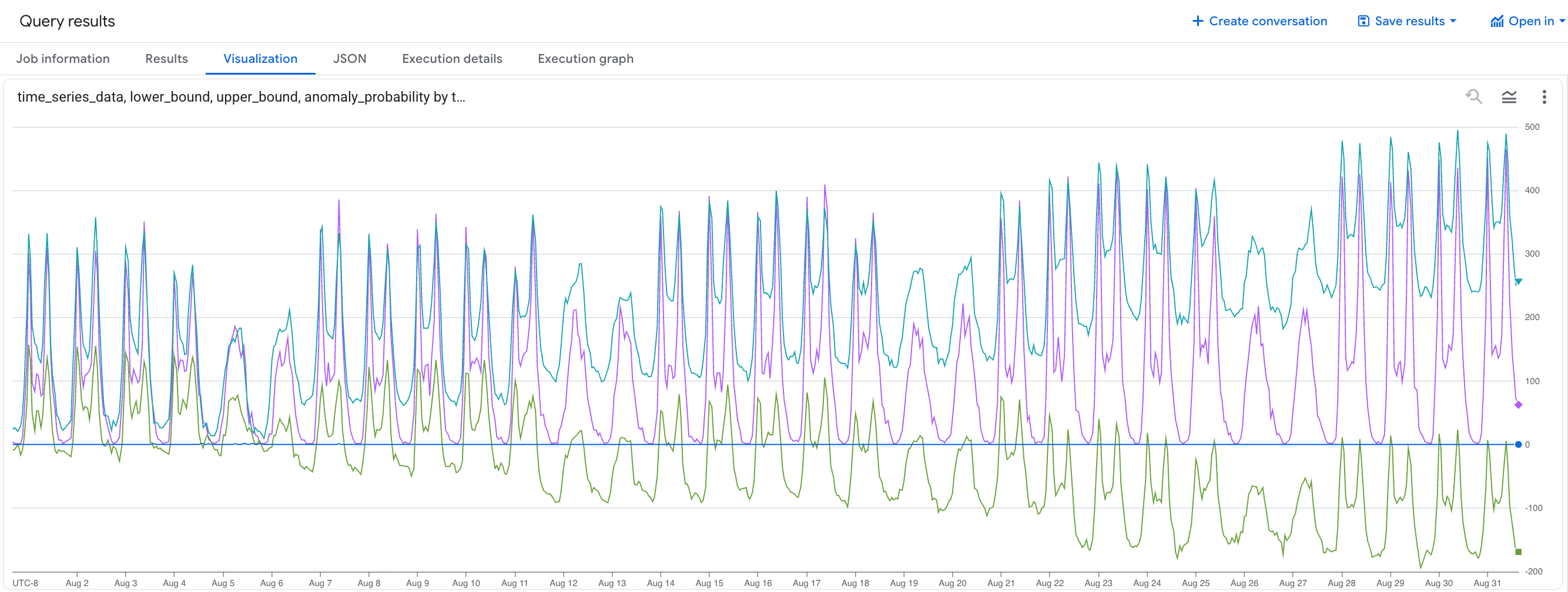
您可以识别
time_series_data值超出lower_bound和upper_bound范围的异常情况。
检测多个共享单车行程时序中的异常值
以下查询根据上个月的历史数据,检测 2017 年 8 月每种订阅方类型每小时的共享单车行程数是否存在异常。
请按照以下步骤使用 TimesFM 模型检测异常值:
在 Google Cloud 控制台中,前往 BigQuery 页面。
在查询编辑器中,粘贴以下查询,然后点击运行:
WITH
  bike_share_trips AS (
    SELECT
      TIMESTAMP_TRUNC(start_date, HOUR) AS trip_hour, COUNT(*) AS num_trips, subscriber_type
    FROM `bigquery-public-data.san_francisco_bikeshare.bikeshare_trips`
    GROUP BY TIMESTAMP_TRUNC(start_date, HOUR), subscriber_type
  )
SELECT *
FROM
  AI.DETECT_ANOMALIES(
    (
      SELECT *
      FROM bike_share_trips
      WHERE trip_hour >= TIMESTAMP('2017-07-01') AND trip_hour < TIMESTAMP('2017-08-01')
    ),
    (
      SELECT *
      FROM bike_share_trips
      WHERE trip_hour >= TIMESTAMP('2017-08-01') AND trip_hour < TIMESTAMP('2017-09-01')
    ),
    anomaly_prob_threshold => 0.95,
    timestamp_col => 'trip_hour',
    data_col => 'num_trips',
    id_cols => ['subscriber_type']);
结果类似于以下内容:
+-----------------+-------------------------+------------------+------------+--------------------+---------------------+---------------------+---------------------------+
| subscriber_type | time_series_timestamp   | time_series_data | is_anomaly | lower_bound        | upper_bound         | anomaly_probability | ai_detect_anomalies_status|
+-----------------+-------------------------+------------------+------------+--------------------+---------------------+---------------------+---------------------------+
| Customer        | 2017-08-01 00:00:00 UTC | 13.0             | false      | -1.97939332204...  | 27.604928623830...  | 0.38048622012138... |                           |
+-----------------+-------------------------+------------------+------------+--------------------+---------------------+---------------------+---------------------------+
| Customer        | 2017-08-01 01:00:00 UTC | 3.0              | false      | -5.12345678901...  | 10.123456789012...  | 0.12345678901234... |                           |
+-----------------+-------------------------+------------------+------------+--------------------+---------------------+---------------------+---------------------------+
| ...             | ...                     | ...              | ...        | ...                | ...                 | ...                 | ...                       |
+-----------------+-------------------------+------------------+------------+--------------------+---------------------+---------------------+---------------------------+
| Subscriber      | 2017-08-01 00:00:00 UTC | 13.0             | false      | -1.97939332204...  | 27.604928623830...  | 0.38048622012138... |                           |
+-----------------+-------------------------+------------------+------------+--------------------+---------------------+---------------------+---------------------------+
| Subscriber      | 2017-08-01 01:00:00 UTC | 3.0              | false      | -5.12345678901...  | 10.123456789012...  | 0.12345678901234... |                           |
+-----------------+-------------------------+------------------+------------+--------------------+---------------------+---------------------+---------------------------+
| ...             | ...                     | ...              | ...        | ...                | ...                 | ...                 | ...                       |
+-----------------+-------------------------+------------------+------------+--------------------+---------------------+---------------------+---------------------------+
清理
为避免因本教程中使用的资源导致您的 Google Cloud 账号产生费用,请删除包含这些资源的项目,或者保留项目但删除各个资源。
删除项目
如需删除项目,请执行以下操作:
- 在 Google Cloud 控制台中,前往管理资源页面。
- 在项目列表中,选择要删除的项目,然后点击删除。
- 在对话框中输入项目 ID,然后点击关闭以删除项目。
后续步骤
- 如需大致了解 BigQuery ML,请参阅 BigQuery 中的 AI 和机器学习简介。