# Scheduling queries
BigQuery scheduled queries let you automate recurring
[GoogleSQL](https://docs.cloud.google.com/bigquery/docs/reference/standard-sql/query-syntax.md.txt)
workloads, including
[data definition language (DDL)](https://docs.cloud.google.com/bigquery/docs/reference/standard-sql/data-definition-language.md.txt)
and
[data manipulation language (DML)](https://docs.cloud.google.com/bigquery/docs/data-manipulation-language.md.txt)
statements. To organize results by date and time, you can parameterize both
your query string and the destination table. When you create or update a
schedule, BigQuery converts the scheduled time from your local
time to UTC, which isn't affected by daylight saving time.
## Before you begin
- Scheduled queries use features of [BigQuery Data Transfer Service](https://docs.cloud.google.com/bigquery/docs/dts-introduction.md.txt). Verify that you have completed all actions required in [Enabling BigQuery Data Transfer Service](https://docs.cloud.google.com/bigquery/docs/enable-transfer-service.md.txt).
- Grant Identity and Access Management (IAM) roles that give users the necessary permissions to perform each task in this document.
- If you plan on specifying a customer-managed encryption key (CMEK), ensure that your [service account has permissions to encrypt and decrypt](https://docs.cloud.google.com/bigquery/docs/customer-managed-encryption.md.txt#grant_permission), and that you have the [Cloud KMS key resource ID](https://docs.cloud.google.com/bigquery/docs/customer-managed-encryption.md.txt#key_resource_id) required to use CMEK. For information about how CMEK works with the BigQuery Data Transfer Service, see [Specify encryption key with scheduled queries](https://docs.cloud.google.com/bigquery/docs/scheduling-queries.md.txt#CMEK).
## Limitations
- Scheduled queries running exactly on the hour (for example, 09:00) might trigger multiple times, which can cause unintended results like data duplication from `INSERT` operations. To prevent such unintended results, use an off-the-hour schedule (for example, 08:58 or 09:03).
### Required permissions
To schedule a query, you need the following IAM
permissions:
- To create the transfer, you must either have the `bigquery.transfers.update`
and `bigquery.datasets.get` permissions, or the `bigquery.jobs.create`,
`bigquery.transfers.get`, and `bigquery.datasets.get`
permissions.
> [!NOTE]
> **Note:** If you are using the Google Cloud console or the bq command-line tool to schedule a query, you must have the `bigquery.transfers.get` permission.
- To run a scheduled query, you must have:
- `bigquery.datasets.get` permission on the target dataset.
- `bigquery.jobs.create` permission on the project.
To modify or delete a scheduled query, you must have one of the following:
- The `bigquery.transfers.update` permission on the project.
- If you're running a scheduled query using user credentials, the user needs ownership of the scheduled query, and you need the `bigquery.jobs.create` permission on the project.
- If you're running a scheduled query as a service account, the user that calls the scheduled query must have the `bigquery.transfers.update` permission on the project. Granting the [IAM Service Account
User](https://docs.cloud.google.com/iam/docs/roles-permissions/iam#iam.serviceAccountUser) (`iam.serviceAccountUser`) role lets a user run jobs as the service account, but it does not grant management permissions over the scheduled query configuration.
The predefined
[BigQuery Admin (`roles/bigquery.admin`)](https://docs.cloud.google.com/bigquery/docs/access-control.md.txt#bigquery.admin)
IAM role includes the permissions that you need in order to
schedule or modify a query.
For more information about IAM roles in BigQuery,
see [Predefined roles and permissions](https://docs.cloud.google.com/bigquery/docs/access-control.md.txt).
To create or update scheduled queries run by a service account, you must have
access to that service account. For more information on granting users the
service account role, see
[Service Account user role](https://docs.cloud.google.com/iam/docs/service-account-permissions.md.txt#user-role).
To select a service account in the scheduled query UI of the
Google Cloud console, you need the following IAM permissions:
- `iam.serviceAccounts.list` to list your service accounts.
- `iam.serviceAccountUser` to assign a service account to a scheduled query.
> [!NOTE]
> **Note:** If you are using the bq command-line tool, use the `--service_account_name` flag instead of authenticating as a service account.
## Configuration options
The following sections describe the configuration options.
### Query string
The query string must be valid and written in [GoogleSQL](https://docs.cloud.google.com/bigquery/docs/reference/standard-sql/query-syntax.md.txt).
Each run of a scheduled query can receive the following [query parameters](https://docs.cloud.google.com/bigquery/docs/parameterized-queries.md.txt#parameterized-timestamps).
To manually test a query string with `@run_time` and `@run_date` parameters
before scheduling a query, use the [bq command-line tool](https://docs.cloud.google.com/bigquery/docs/reference/bq-cli-reference.md.txt).
#### Available parameters
| Parameter | GoogleSQL Type | Value |
|---|---|---|
| `@run_time` | [`TIMESTAMP`](https://docs.cloud.google.com/bigquery/docs/reference/standard-sql/data-types.md.txt#timestamp_type) | Represented in UTC time. For regularly scheduled queries, `run_time` represents the intended time of execution. For example, if the scheduled query is set to "every 24 hours", the `run_time` difference between two consecutive queries is exactly 24 hours, even though the actual execution time might slightly vary. |
| `@run_date` | [`DATE`](https://docs.cloud.google.com/bigquery/docs/reference/standard-sql/data-types.md.txt#date_type) | Represents a logical calendar date. |
#### Example
The `@run_time` parameter is part of the query string in this example, which
queries a public dataset named [`hacker_news.stories`](https://console.cloud.google.com/bigquery?p=bigquery-public-data&d=hacker_news&page=dataset).
```googlesql
SELECT @run_time AS time,
title,
author,
text
FROM `bigquery-public-data.hacker_news.stories`
LIMIT
1000
```
### Destination table
If the destination table for your results doesn't exist when you set up the
scheduled query, BigQuery attempts to create the table for you.
If you are using a DDL or DML query, then in the Google Cloud console, choose
the **Processing location** or region. Processing location is required for DDL
or DML queries that create the destination table.
If the destination table does exist and you are using the `WRITE_APPEND`
[write preference](https://docs.cloud.google.com/bigquery/docs/scheduling-queries.md.txt#write_preference), BigQuery appends data to
the destination table and tries to map the schema.
BigQuery automatically allows field additions and reordering, and
accommodates missing optional fields. If the table schema changes so much
between runs that BigQuery can't process the changes
automatically, the scheduled query fails.
Queries can reference tables from different projects and different datasets.
When configuring your scheduled query, you don't need to include the destination
dataset in the table name. You specify the destination dataset separately.
The destination dataset and table for a scheduled query must be in the same
project as the scheduled query.
#### Write preference
The write preference you select determines how your query results are written
to an existing destination table.
- `WRITE_TRUNCATE`: If the table exists, BigQuery overwrites the table data.
- `WRITE_APPEND`: If the table exists, BigQuery appends the data to the table.
If you're using a DDL or DML query, you can't use the write preference option.
Creating, truncating, or appending a destination table only happens if
BigQuery is able to successfully complete the query. Creation,
truncation, or append actions occur as one atomic update upon job completion.
#### Clustering
Scheduled queries can create clustering on new tables only, when the table is
made with a DDL `CREATE TABLE AS SELECT` statement. See
[Creating a clustered table from a query result](https://docs.cloud.google.com/bigquery/docs/reference/standard-sql/data-definition-language.md.txt#creating_a_clustered_table_from_the_result_of_a_query)
on the [Using data definition language statements](https://docs.cloud.google.com/bigquery/docs/reference/standard-sql/data-definition-language.md.txt)
page.
#### Partitioning options
Scheduled queries can create partitioned or non-partitioned destination tables.
Partitioning is available in the Google Cloud console, bq command-line tool, and API
setup methods. If you're using a DDL or DML query with partitioning, leave the
**Destination table partitioning field** blank.
You can use the following types of table partitioning in
BigQuery:
- [Integer range partitioning](https://docs.cloud.google.com/bigquery/docs/partitioned-tables.md.txt#integer_range): Tables partitioned based on ranges of values in a specific `INTEGER` column.
- [Time-unit column partitioning](https://docs.cloud.google.com/bigquery/docs/partitioned-tables.md.txt#date_timestamp_partitioned_tables): Tables partitioned based on a [`TIMESTAMP`](https://docs.cloud.google.com/bigquery/docs/reference/standard-sql/data-types.md.txt#timestamp_type), [`DATE`](https://docs.cloud.google.com/bigquery/docs/reference/standard-sql/data-types.md.txt#date_type), or [`DATETIME`](https://docs.cloud.google.com/bigquery/docs/reference/standard-sql/data-types.md.txt#datetime_type) column.
- [Ingestion time partitioning](https://docs.cloud.google.com/bigquery/docs/partitioned-tables.md.txt#ingestion_time): Tables partitioned by ingestion time. BigQuery automatically assigns rows to partitions based on the time when BigQuery ingests the data.
To create a partitioned table by using a scheduled query in the
Google Cloud console, use the following options:
- To use integer range partitioning, leave the **Destination table
partitioning field** blank.
- To use time-unit column partitioning, specify the
column name in the **Destination table partitioning field** when you
[set up a scheduled query](https://docs.cloud.google.com/bigquery/docs/scheduling-queries.md.txt#set_up_scheduled_queries).
- To use ingestion time partitioning, leave the
**Destination table partitioning field** blank and indicate the date
partitioning in the destination table's name. For example,
`mytable${run_date}`. For more information, see
[Parameter templating syntax](https://docs.cloud.google.com/bigquery/docs/scheduling-queries.md.txt#param-templating-syntax).
#### Available parameters
When setting up the scheduled query, you can specify how you want to partition
the destination table with runtime parameters.
| Parameter | Template Type | Value |
|---|---|---|
| `run_time` | Formatted timestamp | In UTC time, per the schedule. For regularly scheduled queries, `run_time` represents the intended time of execution. For example, if the scheduled query is set to "every 24 hours", the `run_time` difference between two consecutive queries is exactly 24 hours, even though the actual execution time may vary slightly. See [`TransferRun.runTime`](https://docs.cloud.google.com/bigquery/docs/reference/datatransfer/rest/v1/projects.locations.transferConfigs.runs.md.txt). |
| `run_date` | Date string | The date of the `run_time` parameter in the following format: `%Y-%m-%d`; for example, `2018-01-01`. This format is compatible with ingestion-time partitioned tables. |
#### Templating system
Scheduled queries support runtime parameters in the destination table name with
a templating syntax.
#### Parameter templating syntax
The templating syntax supports basic string templating and time offsetting. Parameters are
referenced in the following formats:
- `{run_date}`
- `{run_time[+\-offset]|"time_format"}`
| **Parameter** | **Purpose** |
|---|---|
| `run_date` | This parameter is replaced by the date in format `YYYYMMDD`. |
| `run_time` | This parameter supports the following properties:
`offset` Time offset expressed in hours (h), minutes (m), and seconds (s) in that order. Days (d) are not supported. Decimals are allowed, for example: `1.5h`. `time_format` A formatting string. The most common formatting parameters are years (%Y), months (%m), and days (%d). For partitioned tables, YYYYMMDD is the required suffix - this is equivalent to "%Y%m%d".
Read more about [formatting datetime elements](https://docs.cloud.google.com/bigquery/docs/reference/standard-sql/functions-and-operators#supported-format-elements-for-datetime). |
**Usage notes:**
- No whitespace is allowed between run_time, offset, and time format.
- To include literal curly braces in the string, you can escape them as `'\{' and '\}'`.
- To include literal quotes or a vertical bar in the time_format, such as `"YYYY|MM|DD"`, you can escape them in the format string as: `'\"'` or `'\|'`.
#### Parameter templating examples
These examples demonstrate specifying destination table names with different time formats, and offsetting the run time.
| **run_time (UTC)** | **Templated parameter** | **Output destination table name** |
|---|---|---|
| 2018-02-15 00:01:00 | `mytable` | `mytable` |
| 2018-02-15 00:01:00 | `mytable_{run_time|"%Y%m%d"}` | `mytable_20180215` |
| 2018-02-15 00:01:00 | `mytable_{run_time+25h|"%Y%m%d"}` | `mytable_20180216` |
| 2018-02-15 00:01:00 | `mytable_{run_time-1h|"%Y%m%d"}` | `mytable_20180214` |
| 2018-02-15 00:01:00 | `mytable_{run_time+1.5h|"%Y%m%d%H"}` or `mytable_{run_time+90m|"%Y%m%d%H"}` | `mytable_2018021501` |
| 2018-02-15 00:01:00 | `{run_time+97s|"%Y%m%d"}_mytable_{run_time+97s|"%H%M%S"}` | `20180215_mytable_000237` |
> [!NOTE]
> **Note:** When you use date or time parameters to create tables with names ending in a date format such as `YYYYMMDD`, BigQuery [groups these tables together](https://docs.cloud.google.com/bigquery/docs/querying-wildcard-tables.md.txt). In the Google Cloud console, these grouped tables might be displayed with a name like `mytable_(1)`, which represents the collection of sharded tables.
### Using a service account
You can set up a scheduled query to authenticate as a service account. A
service account is a special account associated with your Google Cloud project. The
service account can run jobs, such as scheduled queries or batch processing
pipelines, with its own service credentials rather than an end user's
credentials.
Read more about authenticating with service accounts in
[Introduction to authentication](https://docs.cloud.google.com/bigquery/docs/authentication.md.txt#sa-impersonation).
- You can [set up the scheduled query](https://docs.cloud.google.com/bigquery/docs/scheduling-queries.md.txt#set_up_scheduled_queries) with a service
account. If you signed in with a [federated identity](https://docs.cloud.google.com/iam/docs/workforce-identity-federation.md.txt),
then a service account is required to create a transfer. If you signed
in with a [Google Account](https://docs.cloud.google.com/iam/docs/principals-overview.md.txt#google-account), then a
service account for the transfer is optional.
- You can update an existing scheduled query with the credentials of a service
account with the bq command-line tool or Google Cloud console. For more information, see
[Update scheduled query credentials](https://docs.cloud.google.com/bigquery/docs/scheduling-queries.md.txt#update_scheduled_query_credentials).
### Specify encryption key with scheduled queries
You can specify [customer-managed encryption keys (CMEKs)](https://docs.cloud.google.com/kms/docs/cmek.md.txt) to encrypt data for a transfer run. You can use a CMEK to support transfers from [scheduled queries](https://docs.cloud.google.com/bigquery/docs/scheduling-queries.md.txt).
When you specify a CMEK with a transfer, the BigQuery Data Transfer Service applies the
CMEK to any intermediate on-disk cache of ingested data so that the entire
data transfer workflow is CMEK compliant.
You cannot update an existing transfer to add a CMEK if the transfer was not
originally created with a CMEK. For example, you cannot change a destination
table that was originally default encrypted to now be encrypted with CMEK.
Conversely, you also cannot change a CMEK-encrypted destination table
to have a different type of encryption.
You can update a CMEK for a transfer if the transfer configuration was
originally created with a CMEK encryption. When you update a CMEK for a transfer
configuration, the BigQuery Data Transfer Service propagates the CMEK to the destination
tables at the next run of the transfer, where the BigQuery Data Transfer Service
replaces any outdated CMEKs with the new CMEK during the transfer run.
For more information, see [Update a transfer](https://docs.cloud.google.com/bigquery/docs/working-with-transfers.md.txt#update_a_transfer).
You can also use [project default keys](https://docs.cloud.google.com/bigquery/docs/customer-managed-encryption.md.txt#project_default_key).
When you specify a project default key with a transfer, the BigQuery Data Transfer Service
uses the project default key as the default key for any new transfer
configurations.
## Set up scheduled queries
> [!TIP]
> **Tip:** You can also use the [**Pipelines \& Connections** page](https://docs.cloud.google.com/bigquery/docs/pipeline-connection-page.md.txt) to set up a scheduled query. This feature is in [preview](https://cloud.google.com/products/#product-launch-stages).
To schedule a query, select one of the following options.
For a description of the schedule syntax, see
[Formatting the schedule](https://docs.cloud.google.com/appengine/docs/flexible/python/scheduling-jobs-with-cron-yaml#formatting_the_schedule).
For details about schedule syntax, see [Resource: `TransferConfig`](https://docs.cloud.google.com/bigquery/docs/reference/datatransfer/rest/v1/projects.locations.transferConfigs.md.txt#TransferConfig). Alternatively, you can
[use Gemini Cloud Assist to schedule a query](https://docs.cloud.google.com/bigquery/docs/use-cloud-assist.md.txt#schedule_a_query)
by providing the scheduling details in your prompt.
### Console
1. Open the BigQuery page in the Google Cloud console.
[Go to BigQuery](https://console.cloud.google.com/bigquery)
2. Run the query that you're interested in. When you are satisfied with your
results, click **File** \> **Schedule**.
3. The scheduled query options open in the **New scheduled query** pane.
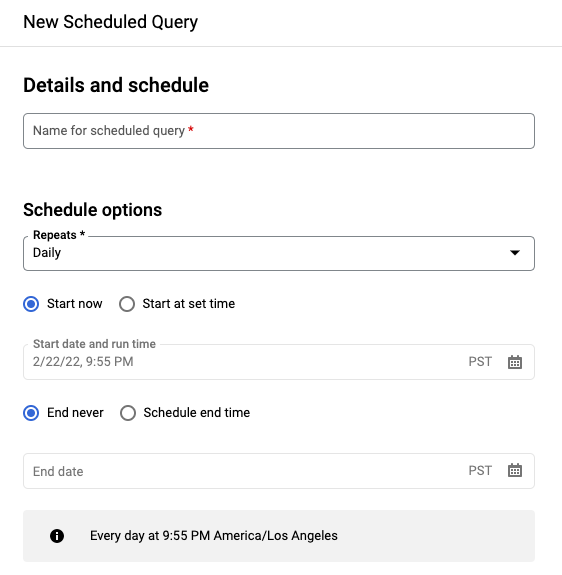
4. On the **New scheduled query** pane:
- For **Name for the scheduled query** , enter a name such as `My scheduled query`. The scheduled query name can be any value that you can identify later if you need to modify the query.
- Optional: By default, the query is scheduled to run **Daily** . You can change the
default schedule by selecting an option from the **Repeats** drop-down menu:
- To specify a custom frequency, select **Custom** , then enter a
Cron-like time specification in the **Custom schedule** field---
for example, `every mon 23:30`, `every 6 hours`, or `every hour on mon,tue,wed,thu,fri`.
For details about valid schedules including custom intervals, see
the `schedule` field under [Resource: `TransferConfig`](https://docs.cloud.google.com/bigquery/docs/reference/datatransfer/rest/v1/projects.locations.transferConfigs.md.txt#TransferConfig).

> [!NOTE]
> **Note:** The minimum duration between scheduled queries is 5 minutes.
- To change the start time, select the **Start at set time** option,
enter the selected start date and time.
> [!NOTE]
> **Note:** If the specified start time is later than the time in the schedule, then the first run of the query will be in the next iteration of the cycle. For example, a query created at `2022-06-05 23:50` with schedule `daily 00:00` and start time `2022-06-06 10:00` won't run until `2022-06-07 00:00`.
- To specify an end time,
select the **Schedule end time** option, enter the selected end date
and time.
- To save the query without a schedule, so you can run it on demand
later, select **On-demand** in the **Repeats** menu.
5. For a GoogleSQL `SELECT` query, select the **Set a destination table
for query results** option and provide the following information about the
destination dataset.
- For **Dataset name**, choose the appropriate destination dataset.
- For **Table name**, enter the name of your destination table.
- For **Destination table write preference** , choose either
**Append to table** to append data to the table or
**Overwrite table** to overwrite the destination table.
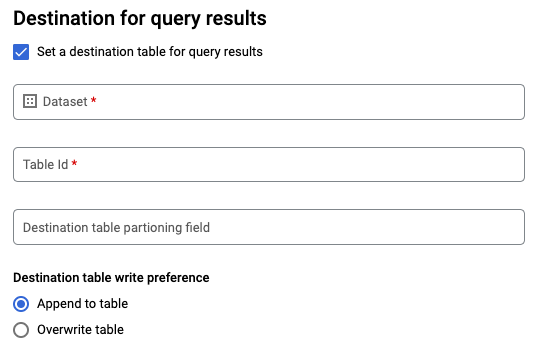
6. Choose the **Location Type**.
- If you have enabled the destination table for query results, you can
select **Automatic location selection** to automatically select the
location where the destination table resides.
- Otherwise, choose the location where the data being queried is located.
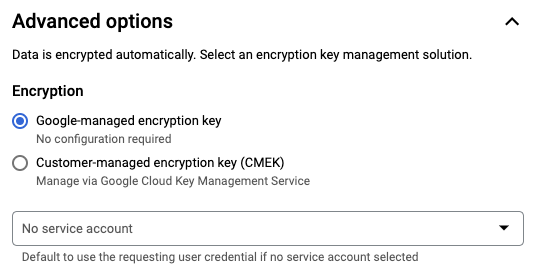
7. **Advanced options**:
- Optional: CMEK
If you use
[customer-managed encryption keys](https://docs.cloud.google.com/bigquery/docs/customer-managed-encryption.md.txt),
you can select **Customer-managed key** under **Advanced options** .
A list of your available CMEKs appears for you to choose from. For
information about how customer-managed encryption keys (CMEKs)
work with the BigQuery Data Transfer Service, see [Specify encryption key with scheduled queries](https://docs.cloud.google.com/bigquery/docs/scheduling-queries.md.txt#CMEK).
- Authenticate as a service account
If you have one or more service accounts associated with your Google Cloud project,
you can associate a service account with your scheduled query
instead of using your user credentials. Under **Scheduled query
credential**, click the menu to see a list of your available service
accounts. A service account is required if you are signed in as a
federated identity.
8. Additional configurations:
- Optional: Check
[**Send email notifications**](https://docs.cloud.google.com/bigquery/docs/transfer-run-notifications.md.txt)
to allow email notifications of transfer run failures.
- Optional: For **Pub/Sub topic** , enter your Pub/Sub
[topic](https://docs.cloud.google.com/pubsub/docs/overview.md.txt#types) name, for example:
`projects/myproject/topics/mytopic`.

9. Click **Save**.
### bq
> [!IMPORTANT]
> There are two ways to schedule a query by using the bq command-line tool. **Option 2** lets you schedule the query with more options.
**Option 1:** Use the **`bq query`** command.
To create a scheduled query, add the options `destination_table` (or
`target_dataset`), `--schedule`, and `--display_name` to your
`bq query` command.
```bash
bq query \
--display_name=name \
--destination_table=table \
--schedule=interval
```
Replace the following:
- `name`. The display name for the scheduled query. The display name can be any value that you can identify later if you need to modify the query.
- `table`. The destination table for the query results.
- `--target_dataset` is an alternative way to name the target dataset for the query results, when used with DDL and DML queries.
- Use either `--destination_table` or `--target_dataset`, but not both.
- `interval`. When used with `bq query`, makes a query a recurring scheduled query. A schedule for how often the query should run is required. For details about valid schedules including custom intervals, see the `schedule` field under [Resource: `TransferConfig`](https://docs.cloud.google.com/bigquery/docs/reference/datatransfer/rest/v1/projects.locations.transferConfigs.md.txt#TransferConfig). Examples:
- `--schedule='every 24 hours'`
- `--schedule='every 3 hours'`
- `--schedule='every monday 09:00'`
- `--schedule='1st sunday of sep,oct,nov 00:00'`
Optional flags:
- `--project_id` is your project ID. If `--project_id` isn't specified,
the default project is used.
- `--replace` overwrites the destination table with the query results after
every run of the scheduled query. Any existing data is erased. For
non-partitioned tables, the schema is also erased.
- `--append_table` appends results to the destination table.
- For DDL and DML queries, you can also supply the `--location` flag to
specify a particular region for processing. If `--location` isn't
specified, the nearest Google Cloud location is used.
> [!CAUTION]
> If both \`--replace\` and \`--append_table\` aren't specified when scheduling the query, no write preference is set. Depending on the query, an error in subsequent scheduled runs might result.
For example, the following command creates a scheduled query named
`My Scheduled Query` using the query `SELECT 1 from mydataset.test`.
The destination table is `mytable` in the dataset `mydataset`. The scheduled
query is created in the default project:
bq query \
--use_legacy_sql=false \
--destination_table=mydataset.mytable \
--display_name='My Scheduled Query' \
--schedule='every 24 hours' \
--replace=true \
'SELECT
1
FROM
mydataset.test'
**Option 2:** Use the **`bq mk`** command.
Scheduled queries are a kind of transfer. To schedule a query, you can use
the bq command-line tool to make a transfer configuration.
Queries must be in StandardSQL dialect to be scheduled.
Enter the `bq mk` command and supply the following required flags:
- `--transfer_config`
- `--data_source`
- `--target_dataset` (optional for DDL and DML queries)
- `--display_name`
- `--params`
Optional flags:
- `--project_id` is your project ID. If `--project_id` isn't specified,
the default project is used.
- `--schedule` is how often you want the query to run. If `--schedule` isn't
specified, the default is 'every 24 hours' based on creation time.
- For DDL and DML queries, you can also supply the `--location` flag to
specify a particular region for processing. If `--location` isn't
specified, the nearest Google Cloud location is used.
- `--service_account_name` is for authenticating your scheduled query with
a service account instead of your individual user account.
- `--destination_kms_key` specifies the [key resource ID](https://docs.cloud.google.com/bigquery/docs/customer-managed-encryption.md.txt#key_resource_id)
for the key if you use a customer-managed encryption key (CMEK)
for this transfer. For information about how CMEK works with
the BigQuery Data Transfer Service, see [Specify encryption key with scheduled queries](https://docs.cloud.google.com/bigquery/docs/scheduling-queries.md.txt#CMEK).
```bash
bq mk \
--transfer_config \
--target_dataset=dataset \
--display_name=name \
--params='parameters' \
--data_source=data_source
```
Replace the following:
- `dataset`. The target dataset for the transfer configuration.
- This parameter is optional for DDL and DML queries. It is required for all other queries.
- `name`. The display name for the transfer configuration. The display name can be any value that you can identify later if you need to modify the query.
- `parameters`. Contains the parameters for the created transfer configuration in JSON format. For example: `--params='{"param":"param_value"}'`.
- For a scheduled query, you must supply the `query` parameter.
- The `destination_table_name_template` parameter is the name of your destination table.
- This parameter is optional for DDL and DML queries. It is required for all other queries.
- For the `write_disposition` parameter, you can choose `WRITE_TRUNCATE` to truncate (overwrite) the destination table or `WRITE_APPEND` to append the query results to the destination table.
- This parameter is optional for DDL and DML queries. It is required for all other queries.
- `data_source`. The data source: `scheduled_query`.
- Optional: The `--service_account_name` flag is for authenticating with a service account instead of an individual user account.
- Optional: The `--destination_kms_key` specifies the [key resource ID](https://docs.cloud.google.com/bigquery/docs/customer-managed-encryption.md.txt#key_resource_id) for the Cloud KMS key---for example, `projects/project_name/locations/us/keyRings/key_ring_name/cryptoKeys/key_name`.
> [!NOTE]
> **Note:** To write results to an ingestion-time partitioned table, see the instructions in [Destination table](https://docs.cloud.google.com/bigquery/docs/scheduling-queries.md.txt#destination_table). A scheduled query fails if you create a transfer configuration with the `destination_table_name_template` parameter set to an ingestion-time partitioned table while also supplying an error if setting to an ingestion-time partitioned the `partitioning_field` parameter.
> [!NOTE]
> **Note:** You cannot configure notifications using the command-line tool.
For example, the following command creates a scheduled query transfer
configuration named `My Scheduled Query` using the query `SELECT 1
from mydataset.test`. The destination table `mytable` is truncated for every
write, and the target dataset is `mydataset`. The scheduled query is created
in the default project, and authenticates as a service account:
bq mk \
--transfer_config \
--target_dataset=mydataset \
--display_name='My Scheduled Query' \
--params='{"query":"SELECT 1 from mydataset.test","destination_table_name_template":"mytable","write_disposition":"WRITE_TRUNCATE"}' \
--data_source=scheduled_query \
--service_account_name=abcdef-test-sa@abcdef-test.iam.gserviceaccount.com
The first time you run the command, you receive a message like the
following:
`[URL omitted] Please copy and paste the above URL into your web browser and
follow the instructions to retrieve an authentication code.`
Follow the instructions in the message and paste the authentication code on
the command line.
### API
Use the [`projects.locations.transferConfigs.create`](https://docs.cloud.google.com/bigquery/docs/reference/datatransfer/rest/v1/projects.locations.transferConfigs/create.md.txt)
method and supply an instance of the
[`TransferConfig`](https://docs.cloud.google.com/bigquery/docs/reference/datatransfer/rest/v1/projects.locations.transferConfigs.md.txt#TransferConfig)
resource.
### Java
Before trying this sample, follow the Java setup instructions in the
[BigQuery quickstart using
client libraries](https://docs.cloud.google.com/bigquery/docs/quickstarts/quickstart-client-libraries).
For more information, see the
[BigQuery Java API
reference documentation](https://docs.cloud.google.com/java/docs/reference/google-cloud-bigquery/latest/overview).
To authenticate to BigQuery, set up Application Default Credentials.
For more information, see
[Set up authentication for client libraries](https://docs.cloud.google.com/bigquery/docs/authentication.md.txt#client-libs).
```java
import com.google.api.gax.rpc.ApiException;
import com.google.cloud.bigquery.datatransfer.v1.CreateTransferConfigRequest;
import com.google.cloud.bigquery.datatransfer.v1.DataTransferServiceClient;
import com.google.cloud.bigquery.datatransfer.v1.ProjectName;
import com.google.cloud.bigquery.datatransfer.v1.TransferConfig;
import com.google.protobuf.Struct;
import com.google.protobuf.Value;
import java.io.IOException;
import java.util.HashMap;
import java.util.Map;
// Sample to create a scheduled query
public class CreateScheduledQuery {
public static void main(String[] args) throws IOException {
// TODO(developer): Replace these variables before running the sample.
final String projectId = "MY_PROJECT_ID";
final String datasetId = "MY_DATASET_ID";
final String query =
"SELECT CURRENT_TIMESTAMP() as current_time, @run_time as intended_run_time, "
+ "@run_date as intended_run_date, 17 as some_integer";
Map params = new HashMap<>();
params.put("query", Value.newBuilder().setStringValue(query).build());
params.put(
"destination_table_name_template",
Value.newBuilder().setStringValue("my_destination_table_{run_date}").build());
params.put("write_disposition", Value.newBuilder().setStringValue("WRITE_TRUNCATE").build());
params.put("partitioning_field", Value.newBuilder().build());
TransferConfig transferConfig =
TransferConfig.newBuilder()
.setDestinationDatasetId(datasetId)
.setDisplayName("Your Scheduled Query Name")
.setDataSourceId("scheduled_query")
.setParams(Struct.newBuilder().putAllFields(params).build())
.setSchedule("every 24 hours")
.build();
createScheduledQuery(projectId, transferConfig);
}
public static void createScheduledQuery(String projectId, TransferConfig transferConfig)
throws IOException {
try (DataTransferServiceClient dataTransferServiceClient = DataTransferServiceClient.create()) {
ProjectName parent = ProjectName.of(projectId);
CreateTransferConfigRequest request =
CreateTransferConfigRequest.newBuilder()
.setParent(parent.toString())
.setTransferConfig(transferConfig)
.build();
TransferConfig config = dataTransferServiceClient.createTransferConfig(request);
System.out.println("\nScheduled query created successfully :" + config.getName());
} catch (ApiException ex) {
System.out.print("\nScheduled query was not created." + ex.toString());
}
}
}
```
### Python
Before trying this sample, follow the Python setup instructions in the
[BigQuery quickstart using
client libraries](https://docs.cloud.google.com/bigquery/docs/quickstarts/quickstart-client-libraries).
For more information, see the
[BigQuery Python API
reference documentation](https://docs.cloud.google.com/python/docs/reference/bigquery/latest).
To authenticate to BigQuery, set up Application Default Credentials.
For more information, see
[Set up authentication for client libraries](https://docs.cloud.google.com/bigquery/docs/authentication.md.txt#client-libs).
```python
from google.cloud import bigquery_datatransfer
transfer_client = bigquery_datatransfer.DataTransferServiceClient()
# The project where the query job runs is the same as the project
# containing the destination dataset.
project_id = "your-project-id"
dataset_id = "your_dataset_id"
# This service account will be used to execute the scheduled queries. Omit
# this request parameter to run the query as the user with the credentials
# associated with this client.
service_account_name = "abcdef-test-sa@abcdef-test.iam.gserviceaccount.com"
# Use standard SQL syntax for the query.
query_string = """
SELECT
CURRENT_TIMESTAMP() as current_time,
@run_time as intended_run_time,
@run_date as intended_run_date,
17 as some_integer
"""
parent = transfer_client.common_project_path(project_id)
transfer_config = bigquery_datatransfer.TransferConfig(
destination_dataset_id=dataset_id,
display_name="Your Scheduled Query Name",
data_source_id="scheduled_query",
params={
"query": query_string,
"destination_table_name_template": "your_table_{run_date}",
"write_disposition": "WRITE_TRUNCATE",
"partitioning_field": "",
},
schedule="every 24 hours",
)
transfer_config = transfer_client.create_transfer_config(
bigquery_datatransfer.CreateTransferConfigRequest(
parent=parent,
transfer_config=transfer_config,
service_account_name=service_account_name,
)
)
print("Created scheduled query '{}'".format(transfer_config.name))
```
## Set up scheduled queries with a service account
### Java
Before trying this sample, follow the Java setup instructions in the
[BigQuery quickstart using
client libraries](https://docs.cloud.google.com/bigquery/docs/quickstarts/quickstart-client-libraries).
For more information, see the
[BigQuery Java API
reference documentation](https://docs.cloud.google.com/java/docs/reference/google-cloud-bigquery/latest/overview).
To authenticate to BigQuery, set up Application Default Credentials.
For more information, see
[Set up authentication for client libraries](https://docs.cloud.google.com/bigquery/docs/authentication.md.txt#client-libs).
```java
import com.google.api.gax.rpc.ApiException;
import com.google.cloud.bigquery.datatransfer.v1.CreateTransferConfigRequest;
import com.google.cloud.bigquery.datatransfer.v1.DataTransferServiceClient;
import com.google.cloud.bigquery.datatransfer.v1.ProjectName;
import com.google.cloud.bigquery.datatransfer.v1.TransferConfig;
import com.google.protobuf.Struct;
import com.google.protobuf.Value;
import java.io.IOException;
import java.util.HashMap;
import java.util.Map;
// Sample to create a scheduled query with service account
public class CreateScheduledQueryWithServiceAccount {
public static void main(String[] args) throws IOException {
// TODO(developer): Replace these variables before running the sample.
final String projectId = "MY_PROJECT_ID";
final String datasetId = "MY_DATASET_ID";
final String serviceAccount = "MY_SERVICE_ACCOUNT";
final String query =
"SELECT CURRENT_TIMESTAMP() as current_time, @run_time as intended_run_time, "
+ "@run_date as intended_run_date, 17 as some_integer";
Map params = new HashMap<>();
params.put("query", Value.newBuilder().setStringValue(query).build());
params.put(
"destination_table_name_template",
Value.newBuilder().setStringValue("my_destination_table_{run_date}").build());
params.put("write_disposition", Value.newBuilder().setStringValue("WRITE_TRUNCATE").build());
params.put("partitioning_field", Value.newBuilder().build());
TransferConfig transferConfig =
TransferConfig.newBuilder()
.setDestinationDatasetId(datasetId)
.setDisplayName("Your Scheduled Query Name")
.setDataSourceId("scheduled_query")
.setParams(Struct.newBuilder().putAllFields(params).build())
.setSchedule("every 24 hours")
.build();
createScheduledQueryWithServiceAccount(projectId, transferConfig, serviceAccount);
}
public static void createScheduledQueryWithServiceAccount(
String projectId, TransferConfig transferConfig, String serviceAccount) throws IOException {
try (DataTransferServiceClient dataTransferServiceClient = DataTransferServiceClient.create()) {
ProjectName parent = ProjectName.of(projectId);
CreateTransferConfigRequest request =
CreateTransferConfigRequest.newBuilder()
.setParent(parent.toString())
.setTransferConfig(transferConfig)
.setServiceAccountName(serviceAccount)
.build();
TransferConfig config = dataTransferServiceClient.createTransferConfig(request);
System.out.println(
"\nScheduled query with service account created successfully :" + config.getName());
} catch (ApiException ex) {
System.out.print("\nScheduled query with service account was not created." + ex.toString());
}
}
}
```
### Python
Before trying this sample, follow the Python setup instructions in the
[BigQuery quickstart using
client libraries](https://docs.cloud.google.com/bigquery/docs/quickstarts/quickstart-client-libraries).
For more information, see the
[BigQuery Python API
reference documentation](https://docs.cloud.google.com/python/docs/reference/bigquery/latest).
To authenticate to BigQuery, set up Application Default Credentials.
For more information, see
[Set up authentication for client libraries](https://docs.cloud.google.com/bigquery/docs/authentication.md.txt#client-libs).
```python
from google.cloud import bigquery_datatransfer
transfer_client = bigquery_datatransfer.DataTransferServiceClient()
# The project where the query job runs is the same as the project
# containing the destination dataset.
project_id = "your-project-id"
dataset_id = "your_dataset_id"
# This service account will be used to execute the scheduled queries. Omit
# this request parameter to run the query as the user with the credentials
# associated with this client.
service_account_name = "abcdef-test-sa@abcdef-test.iam.gserviceaccount.com"
# Use standard SQL syntax for the query.
query_string = """
SELECT
CURRENT_TIMESTAMP() as current_time,
@run_time as intended_run_time,
@run_date as intended_run_date,
17 as some_integer
"""
parent = transfer_client.common_project_path(project_id)
transfer_config = bigquery_datatransfer.TransferConfig(
destination_dataset_id=dataset_id,
display_name="Your Scheduled Query Name",
data_source_id="scheduled_query",
params={
"query": query_string,
"destination_table_name_template": "your_table_{run_date}",
"write_disposition": "WRITE_TRUNCATE",
"partitioning_field": "",
},
schedule="every 24 hours",
)
transfer_config = transfer_client.create_transfer_config(
bigquery_datatransfer.CreateTransferConfigRequest(
parent=parent,
transfer_config=transfer_config,
service_account_name=service_account_name,
)
)
print("Created scheduled query '{}'".format(transfer_config.name))
```
## View scheduled query status
### Console
To view the status of your scheduled queries, in the navigation menu, click
**Scheduling** and filter for **Scheduled Query**. Click a scheduled query
to get more details about it.
### bq
Scheduled queries are a kind of transfer. To show the details of a
scheduled query, you can first use the bq command-line tool to list your transfer
configurations.
Enter the `bq ls` command and supply the transfer flag
`--transfer_config`. The following flags are also required:
- `--transfer_location`
For example:
bq ls \
--transfer_config \
--transfer_location=us
To show the details of a single scheduled query, enter the `bq show`
command and supply the `transfer_path` for that
scheduled query or transfer config.
For example:
bq show \
--transfer_config \
projects/862514376110/locations/us/transferConfigs/5dd12f26-0000-262f-bc38-089e0820fe38
### API
Use the [`projects.locations.transferConfigs.list`](https://docs.cloud.google.com/bigquery/docs/reference/datatransfer/rest/v1/projects.locations.transferConfigs/list.md.txt)
method and supply an instance of the
[`TransferConfig`](https://docs.cloud.google.com/bigquery/docs/reference/datatransfer/rest/v1/projects.locations.transferConfigs.md.txt#TransferConfig)
resource.
### Java
Before trying this sample, follow the Java setup instructions in the
[BigQuery quickstart using
client libraries](https://docs.cloud.google.com/bigquery/docs/quickstarts/quickstart-client-libraries).
For more information, see the
[BigQuery Java API
reference documentation](https://docs.cloud.google.com/java/docs/reference/google-cloud-bigquery/latest/overview).
To authenticate to BigQuery, set up Application Default Credentials.
For more information, see
[Set up authentication for client libraries](https://docs.cloud.google.com/bigquery/docs/authentication.md.txt#client-libs).
```java
import com.google.api.gax.rpc.ApiException;
import com.google.cloud.bigquery.datatransfer.v1.DataTransferServiceClient;
import com.google.cloud.bigquery.datatransfer.v1.ListTransferConfigsRequest;
import com.google.cloud.bigquery.datatransfer.v1.ProjectName;
import java.io.IOException;
// Sample to get list of transfer config
public class ListTransferConfigs {
public static void main(String[] args) throws IOException {
// TODO(developer): Replace these variables before running the sample.
final String projectId = "MY_PROJECT_ID";
listTransferConfigs(projectId);
}
public static void listTransferConfigs(String projectId) throws IOException {
try (DataTransferServiceClient dataTransferServiceClient = DataTransferServiceClient.create()) {
ProjectName parent = ProjectName.of(projectId);
ListTransferConfigsRequest request =
ListTransferConfigsRequest.newBuilder().setParent(parent.toString()).build();
dataTransferServiceClient
.listTransferConfigs(request)
.iterateAll()
.forEach(config -> System.out.print("Success! Config ID :" + config.getName() + "\n"));
} catch (ApiException ex) {
System.out.println("Config list not found due to error." + ex.toString());
}
}
}
```
### Python
Before trying this sample, follow the Python setup instructions in the
[BigQuery quickstart using
client libraries](https://docs.cloud.google.com/bigquery/docs/quickstarts/quickstart-client-libraries).
For more information, see the
[BigQuery Python API
reference documentation](https://docs.cloud.google.com/python/docs/reference/bigquery/latest).
To authenticate to BigQuery, set up Application Default Credentials.
For more information, see
[Set up authentication for client libraries](https://docs.cloud.google.com/bigquery/docs/authentication.md.txt#client-libs).
```python
import google.api_core.exceptions
from google.cloud import bigquery_datatransfer_v1
client = bigquery_datatransfer_v1.DataTransferServiceClient()
def list_transfer_configs(project_id: str, location: str) -> None:
"""Lists transfer configurations in a given project.
This sample demonstrates how to list all transfer configurations in a project.
Args:
project_id: The Google Cloud project ID.
location: The geographic location of the transfer config, for example "us-central1"
"""
parent = client.common_location_path(project_id, location)
try:
for config in client.list_transfer_configs(parent=parent):
print(f"Name: {config.name}")
print(f"Display Name: {config.display_name}")
print(f"Data source: {config.data_source_id}")
print(f"Destination dataset: {config.destination_dataset_id}")
if "time_based_schedule" in config.schedule_options_v2:
print(
f"Schedule: {config.schedule_options_v2.time_based_schedule.schedule}"
)
else:
print("Schedule: None")
print("---")
except google.api_core.exceptions.NotFound:
print(
f"Error: Project '{project_id}' not found or contains no transfer configs."
)
except google.api_core.exceptions.PermissionDenied:
print(
f"Error: Permission denied for project '{project_id}'. Please ensure you have the correct permissions."
)
```
## Update scheduled queries
### Console
To update a scheduled query, follow these steps:
1. In the navigation menu, click **Pipelines \& Connections** and select the **Pipelines** tab. If your navigation menu doesn't have this option, click **Scheduled queries**.
2. In the list of scheduled queries, click the name of the query that you want to change.
3. On the **Scheduled query details** page that opens, click **Edit** . 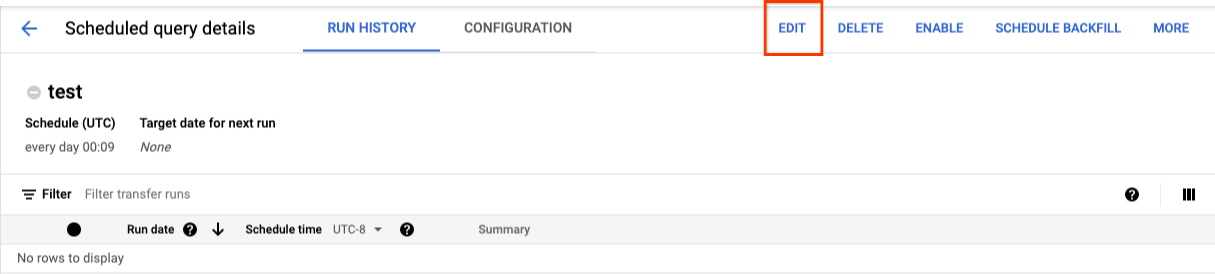
4. Optional: Change the query text in the query editing pane.
5. Click **File \> Schedule \>
Update scheduled query**.
6. Optional: Change any other scheduling options for the query.
7. Click **Save**.
### bq
Scheduled queries are a kind of transfer. To update scheduled query, you can use
the bq command-line tool to make a transfer configuration.
Enter the `bq update` command with the required `--transfer_config`
flag.
Optional flags:
- `--project_id` is your project ID. If `--project_id` isn't specified,
the default project is used.
- `--schedule` is how often you want the query to run. If `--schedule` isn't
specified, the default is 'every 24 hours' based on creation time.
- `--service_account_name` only takes effect if `--update_credentials` is
also set. For more information, see
[Update scheduled query credentials](https://docs.cloud.google.com/bigquery/docs/scheduling-queries.md.txt#update_scheduled_query_credentials).
- `--target_dataset` (optional for DDL and DML queries) is an alternative
way to name the target dataset for the query results, when used with DDL
and DML queries.
- `--display_name` is the name for the scheduled query.
- `--params` the parameters for the created transfer configuration in JSON
format. For example: --params='{"param":"param_value"}'.
- `--destination_kms_key` specifies the [key resource ID](https://docs.cloud.google.com/bigquery/docs/customer-managed-encryption.md.txt#key_resource_id)
for the Cloud KMS key if you use a customer-managed encryption key (CMEK)
for this transfer. For information about how customer-managed encryption
keys (CMEK) works with the BigQuery Data Transfer Service, see [Specify encryption key with scheduled queries](https://docs.cloud.google.com/bigquery/docs/scheduling-queries.md.txt#CMEK).
```bash
bq update \
--target_dataset=dataset \
--display_name=name \
--params='parameters'
--transfer_config \
RESOURCE_NAME
```
Replace the following:
- `dataset`. The target dataset for the transfer configuration. This parameter is optional for DDL and DML queries. It is required for all other queries.
- `name`. The display name for the transfer configuration. The display name can be any value that you can identify later if you need to modify the query.
- `parameters`. Contains the parameters for the created transfer configuration in JSON format. For example: `--params='{"param":"param_value"}'`.
- For a scheduled query, you must supply the `query` parameter.
- The `destination_table_name_template` parameter is the name of your destination table. This parameter is optional for DDL and DML queries. It is required for all other queries.
- For the `write_disposition` parameter, you can choose `WRITE_TRUNCATE` to truncate (overwrite) the destination table or `WRITE_APPEND` to append the query results to the destination table. This parameter is optional for DDL and DML queries. It is required for all other queries.
- Optional: The `--destination_kms_key` specifies the [key resource ID](https://docs.cloud.google.com/bigquery/docs/customer-managed-encryption.md.txt#key_resource_id) for the Cloud KMS key---for example, `projects/project_name/locations/us/keyRings/key_ring_name/cryptoKeys/key_name`.
- `RESOURCE_NAME`: The transfer's resource name (also referred to as the transfer configuration). If you don't know the transfer's resource name, find the resource name with: [`bq ls --transfer_config --transfer_location=location`](https://docs.cloud.google.com/bigquery/docs/working-with-transfers.md.txt#list_transfer_configurations).
> [!NOTE]
> **Note:** To write results to an ingestion-time partitioned table, see the instructions in [Destination table](https://docs.cloud.google.com/bigquery/docs/scheduling-queries.md.txt#destination_table). A scheduled query fails if you create a transfer configuration with the `destination_table_name_template` parameter set to an ingestion-time partitioned table while also supplying an error if setting to an ingestion-time partitioned the `partitioning_field` parameter.
> [!NOTE]
> **Note:** You cannot configure notifications using the command-line tool.
For example, the following command updates a scheduled query transfer
configuration named `My Scheduled Query` using the query `SELECT 1
from mydataset.test`. The destination table `mytable` is truncated for every
write, and the target dataset is `mydataset`:
bq update \
--target_dataset=mydataset \
--display_name='My Scheduled Query' \
--params='{"query":"SELECT 1 from mydataset.test","destination_table_name_template":"mytable","write_disposition":"WRITE_TRUNCATE"}'
--transfer_config \
projects/myproject/locations/us/transferConfigs/1234a123-1234-1a23-1be9-12ab3c456de7
### API
Use the [`projects.transferConfigs.patch`](https://docs.cloud.google.com/bigquery/docs/reference/datatransfer/rest/v1/projects.transferConfigs/patch.md.txt)
method and supply the transfer's Resource Name using the
`transferConfig.name` parameter. If you don't know the transfer's Resource
Name, use the
[`bq ls --transfer_config --transfer_location=location`](https://docs.cloud.google.com/bigquery/docs/scheduling-queries.md.txt#viewing_a_scheduled_query)
command to list all transfers or call the
[`projects.locations.transferConfigs.list`](https://docs.cloud.google.com/bigquery/docs/reference/datatransfer/rest/v1/projects.locations.transferConfigs/list.md.txt)
method and supply the project ID using the `parent` parameter.
### Java
Before trying this sample, follow the Java setup instructions in the
[BigQuery quickstart using
client libraries](https://docs.cloud.google.com/bigquery/docs/quickstarts/quickstart-client-libraries).
For more information, see the
[BigQuery Java API
reference documentation](https://docs.cloud.google.com/java/docs/reference/google-cloud-bigquery/latest/overview).
To authenticate to BigQuery, set up Application Default Credentials.
For more information, see
[Set up authentication for client libraries](https://docs.cloud.google.com/bigquery/docs/authentication.md.txt#client-libs).
```java
import com.google.api.gax.rpc.ApiException;
import com.google.cloud.bigquery.datatransfer.v1.DataTransferServiceClient;
import com.google.cloud.bigquery.datatransfer.v1.TransferConfig;
import com.google.cloud.bigquery.datatransfer.v1.UpdateTransferConfigRequest;
import com.google.protobuf.FieldMask;
import com.google.protobuf.util.FieldMaskUtil;
import java.io.IOException;
// Sample to update transfer config.
public class UpdateTransferConfig {
public static void main(String[] args) throws IOException {
// TODO(developer): Replace these variables before running the sample.
String configId = "MY_CONFIG_ID";
TransferConfig transferConfig =
TransferConfig.newBuilder()
.setName(configId)
.setDisplayName("UPDATED_DISPLAY_NAME")
.build();
FieldMask updateMask = FieldMaskUtil.fromString("display_name");
updateTransferConfig(transferConfig, updateMask);
}
public static void updateTransferConfig(TransferConfig transferConfig, FieldMask updateMask)
throws IOException {
try (DataTransferServiceClient dataTransferServiceClient = DataTransferServiceClient.create()) {
UpdateTransferConfigRequest request =
UpdateTransferConfigRequest.newBuilder()
.setTransferConfig(transferConfig)
.setUpdateMask(updateMask)
.build();
TransferConfig updateConfig = dataTransferServiceClient.updateTransferConfig(request);
System.out.println("Transfer config updated successfully :" + updateConfig.getDisplayName());
} catch (ApiException ex) {
System.out.print("Transfer config was not updated." + ex.toString());
}
}
}
```
### Python
Before trying this sample, follow the Python setup instructions in the
[BigQuery quickstart using
client libraries](https://docs.cloud.google.com/bigquery/docs/quickstarts/quickstart-client-libraries).
For more information, see the
[BigQuery Python API
reference documentation](https://docs.cloud.google.com/python/docs/reference/bigquery/latest).
To authenticate to BigQuery, set up Application Default Credentials.
For more information, see
[Set up authentication for client libraries](https://docs.cloud.google.com/bigquery/docs/authentication.md.txt#client-libs).
```python
import google.api_core.exceptions
from google.cloud import bigquery_datatransfer_v1
from google.protobuf import field_mask_pb2
client = bigquery_datatransfer_v1.DataTransferServiceClient()
def update_transfer_config(
project_id: str,
location: str,
transfer_config_id: str,
) -> None:
"""Updates a data transfer configuration.
This sample shows how to update the display name for a transfer
configuration.
Args:
project_id: The Google Cloud project ID.
location: The geographic location of the transfer config, for example "us-central1"
transfer_config_id: The transfer configuration ID
"""
transfer_config_name = client.transfer_config_path(
project=f"{project_id}/locations/{location}",
transfer_config=transfer_config_id,
)
transfer_config = bigquery_datatransfer_v1.types.TransferConfig(
name=transfer_config_name,
display_name="My New Transfer Config display name",
)
update_mask = field_mask_pb2.FieldMask(paths=["display_name"])
try:
response = client.update_transfer_config(
transfer_config=transfer_config,
update_mask=update_mask,
)
print(f"Updated transfer config: {response.name}")
print(f"New display name: {response.display_name}")
except google.api_core.exceptions.NotFound:
print(f"Error: Transfer config '{transfer_config_name}' not found.")
```
> [!NOTE]
> **Note:** You can't update the location of a scheduled query. If you move a source or destination dataset used in a scheduled query, then you need to create a new scheduled query in the new location.
### Update scheduled queries with ownership restrictions
If you try to update a scheduled query you don't own, the update might fail with
the following error message:
`Cannot modify restricted parameters without taking ownership of the transfer configuration.`
The owner of a scheduled query is the identity whose credentials are used to run
it:
- **User credentials:** If the query runs as a user, that user is the owner.
- **Service account credentials:** If the query runs as a service account, the service account is the owner.
> [!IMPORTANT]
> **Important:** If the scheduled query is configured to run as a service account, the service account owns the query, but it cannot manage the scheduled query's configuration. To manage or delete the scheduled query, you must be granted the `bigquery.transfers.update` permission on the project.
The associated user can be seen in the configuration details of the
scheduled query. For information on how to update the scheduled query to take
ownership, see
[Update scheduled query credentials](https://docs.cloud.google.com/bigquery/docs/scheduling-queries.md.txt#update_scheduled_query_credentials). To
grant users access to a service account, you must have the
[Service Account user role](https://docs.cloud.google.com/iam/docs/service-account-permissions.md.txt#user-role).
The owner restricted parameters for scheduled queries are:
- The query text
- The destination dataset
- The destination table name template
## Update scheduled query credentials
If you're scheduling an existing query, you might need to update the user
credentials on the query. Credentials are automatically up to date for new
scheduled queries.
> [!CAUTION]
> **Caution:** Updating credentials runs the query with your identity and permissions. Verify the query has not been modified by others to access resources only you can view, which could result in unauthorized access to sensitive data.
Some other situations that could require updating credentials include the
following:
- You want to [query Google Drive data](https://docs.cloud.google.com/bigquery/docs/external-data-drive.md.txt) in a scheduled query.
- You receive an **INVALID_USER** error when you attempt to schedule the query:
`Error code 5 : Authentication failure: User Id not found. Error code: INVALID_USERID`
- You receive the following restricted parameters error when you attempt to
update the query:
`Cannot modify restricted parameters without taking ownership of the transfer configuration.`
> [!NOTE]
> **Note:** If you're not the owner of the scheduled query, you must have the `bigquery.transfers.update` permission on your Google Cloud project to update the scheduled query credentials. For more information, see [Required permissions](https://docs.cloud.google.com/bigquery/docs/scheduling-queries.md.txt#required_permissions).
### Console
To *refresh the existing credentials* on a scheduled query:
1. Find and
[view the status of a scheduled query](https://docs.cloud.google.com/bigquery/docs/scheduling-queries.md.txt#viewing_a_scheduled_query).
2. Click the **MORE** button and select **Update credentials**.
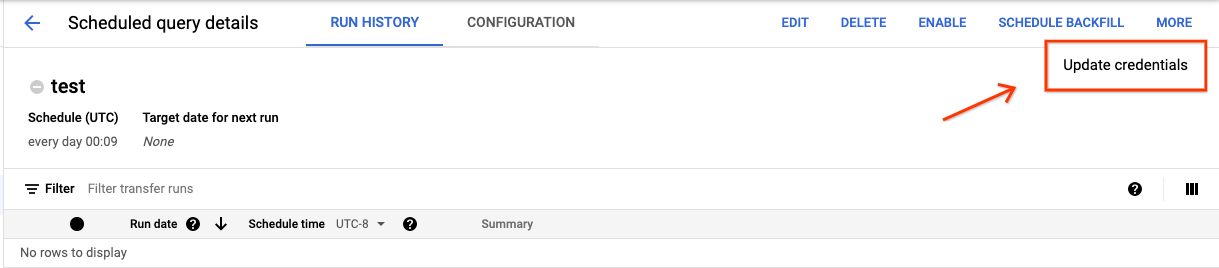
3. Allow 10 to 20 minutes for the change to take effect. You might need to
clear your browser's cache.
> [!CAUTION]
> **Caution:** Changing the credentials used in a scheduled query to a service account is not supported in the Google Cloud console.
### bq
Scheduled queries are a kind of transfer. To update the credentials of a
scheduled query, you can use the bq command-line tool to
update the transfer configuration.
Enter the `bq update` command and supply the transfer flag
`--transfer_config`. The following flags are also required:
- `--update_credentials`
Optional flag:
- `--service_account_name` is for authenticating your scheduled query with a service account instead of your individual user account.
For example, the following command updates a scheduled query transfer
configuration to authenticate as a service account:
bq update \
--update_credentials \
--service_account_name=abcdef-test-sa@abcdef-test.iam.gserviceaccount.com \
--transfer_config \
projects/myproject/locations/us/transferConfigs/1234a123-1234-1a23-1be9-12ab3c456de7
### Java
Before trying this sample, follow the Java setup instructions in the
[BigQuery quickstart using
client libraries](https://docs.cloud.google.com/bigquery/docs/quickstarts/quickstart-client-libraries).
For more information, see the
[BigQuery Java API
reference documentation](https://docs.cloud.google.com/java/docs/reference/google-cloud-bigquery/latest/overview).
To authenticate to BigQuery, set up Application Default Credentials.
For more information, see
[Set up authentication for client libraries](https://docs.cloud.google.com/bigquery/docs/authentication.md.txt#client-libs).
```java
import com.google.api.gax.rpc.ApiException;
import com.google.cloud.bigquery.datatransfer.v1.DataTransferServiceClient;
import com.google.cloud.bigquery.datatransfer.v1.TransferConfig;
import com.google.cloud.bigquery.datatransfer.v1.UpdateTransferConfigRequest;
import com.google.protobuf.FieldMask;
import com.google.protobuf.util.FieldMaskUtil;
import java.io.IOException;
// Sample to update credentials in transfer config.
public class UpdateCredentials {
public static void main(String[] args) throws IOException {
// TODO(developer): Replace these variables before running the sample.
String configId = "MY_CONFIG_ID";
String serviceAccount = "MY_SERVICE_ACCOUNT";
TransferConfig transferConfig = TransferConfig.newBuilder().setName(configId).build();
FieldMask updateMask = FieldMaskUtil.fromString("service_account_name");
updateCredentials(transferConfig, serviceAccount, updateMask);
}
public static void updateCredentials(
TransferConfig transferConfig, String serviceAccount, FieldMask updateMask)
throws IOException {
try (DataTransferServiceClient dataTransferServiceClient = DataTransferServiceClient.create()) {
UpdateTransferConfigRequest request =
UpdateTransferConfigRequest.newBuilder()
.setTransferConfig(transferConfig)
.setUpdateMask(updateMask)
.setServiceAccountName(serviceAccount)
.build();
dataTransferServiceClient.updateTransferConfig(request);
System.out.println("Credentials updated successfully");
} catch (ApiException ex) {
System.out.print("Credentials was not updated." + ex.toString());
}
}
}
```
### Python
Before trying this sample, follow the Python setup instructions in the
[BigQuery quickstart using
client libraries](https://docs.cloud.google.com/bigquery/docs/quickstarts/quickstart-client-libraries).
For more information, see the
[BigQuery Python API
reference documentation](https://docs.cloud.google.com/python/docs/reference/bigquery/latest).
To authenticate to BigQuery, set up Application Default Credentials.
For more information, see
[Set up authentication for client libraries](https://docs.cloud.google.com/bigquery/docs/authentication.md.txt#client-libs).
```python
from google.cloud import bigquery_datatransfer
from google.protobuf import field_mask_pb2
transfer_client = bigquery_datatransfer.DataTransferServiceClient()
service_account_name = "abcdef-test-sa@abcdef-test.iam.gserviceaccount.com"
transfer_config_name = "projects/1234/locations/us/transferConfigs/abcd"
transfer_config = bigquery_datatransfer.TransferConfig(name=transfer_config_name)
transfer_config = transfer_client.update_transfer_config(
{
"transfer_config": transfer_config,
"update_mask": field_mask_pb2.FieldMask(paths=["service_account_name"]),
"service_account_name": service_account_name,
}
)
print("Updated config: '{}'".format(transfer_config.name))
```
## Set up a manual run on historical dates
In addition to scheduling a query to run in the future, you can also trigger
immediate runs manually. Triggering an immediate run would be necessary if your
query uses the `run_date` parameter, and there were issues during a prior run.
For example, every day at 09:00 you query a source table for rows that match
the current date. However, you find that data wasn't added to the source table
for the last three days. In this situation, you can set the query to run on
historical data within a date range that you specify. Your query runs using
combinations of `run_date` and `run_time` parameters that correspond to the dates you
configured in your scheduled query.
After [setting up a scheduled query](https://docs.cloud.google.com/bigquery/docs/scheduling-queries.md.txt#set_up_scheduled_queries), here's how
you can run the query by using a historical date range:
### Console
To view the list of scheduled queries after clicking **Save** ,
go to the main navigation menu for BigQuery,
click **Pipelines \& Connections** and select the **Pipelines** tab.
If your menu doesn't have this option, click **Scheduled queries** .
Click any display name to see the query details of the scheduled
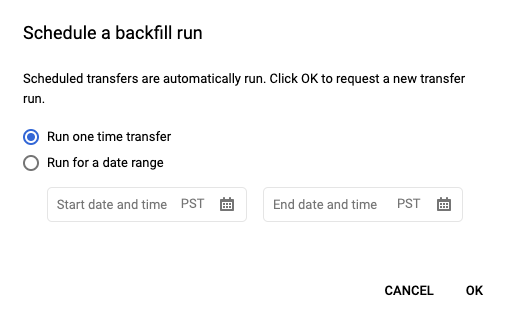
query. At the top of the page, click **Schedule backfill** to
specify a historical date range.

The chosen runtimes are all within your selected range, including the first
date and excluding the last date.
> [!WARNING]
> **Warning:** The date ranges you provide are in UTC, but your query's schedule is displayed in your local time zone (see **Example 2** to work around this issue).
**Example 1**
Your scheduled query is set to run `every day 09:00` Pacific Time. You're
missing data from January 1, January 2, and January 3. Choose the following historic
date range:
`Start Time = 1/1/19`
`End Time = 1/4/19`
Your query runs using `run_date` and `run_time` parameters that correspond
to the following times:
- 1/1/19 09:00 Pacific Time
- 1/2/19 09:00 Pacific Time
- 1/3/19 09:00 Pacific Time
**Example 2**
Your scheduled query is set to run `every day 23:00` Pacific Time. You're
missing data from January 1, January 2, and January 3. Choose the following historic
date ranges (later dates are chosen because UTC has a different date at
23:00 Pacific Time):
`Start Time = 1/2/19`
`End Time = 1/5/19`
Your query runs using `run_date` and `run_time` parameters that correspond
to the following times:
- 1/2/19 06:00 UTC, or 1/1/2019 23:00 Pacific Time
- 1/3/19 06:00 UTC, or 1/2/2019 23:00 Pacific Time
- 1/4/19 06:00 UTC, or 1/3/2019 23:00 Pacific Time
After setting up manual runs, refresh the page to see them in the list of
runs.
### bq
To manually run the query on a historical date range:
Enter the `bq mk` command and supply the transfer run flag
`--transfer_run`. The following flags are also required:
- `--start_time`
- `--end_time`
```bash
bq mk \
--transfer_run \
--start_time='start_time' \
--end_time='end_time' \
resource_name
```
Replace the following:
- `start_time` and `end_time`. Timestamps that end in Z or contain a valid time zone offset. Examples:
- 2017-08-19T12:11:35.00Z
- 2017-05-25T00:00:00+00:00
- `resource_name`. The scheduled query's (or transfer's) Resource Name. The Resource Name is also known as the transfer configuration.
For example, the following command schedules a backfill for scheduled query
resource (or transfer configuration):
`projects/myproject/locations/us/transferConfigs/1234a123-1234-1a23-1be9-12ab3c456de7`.
bq mk \
--transfer_run \
--start_time 2017-05-25T00:00:00Z \
--end_time 2017-05-25T00:00:00Z \
projects/myproject/locations/us/transferConfigs/1234a123-1234-1a23-1be9-12ab3c456de7
For more information, see [`bq mk --transfer_run`](https://docs.cloud.google.com/bigquery/docs/reference/bq-cli-reference.md.txt#mk-transfer-run).
### API
Use the [projects.locations.transferConfigs.scheduleRun](https://docs.cloud.google.com/bigquery/docs/reference/datatransfer/rest/v1/projects.locations.transferConfigs/scheduleRuns.md.txt)
method and supply a path of the [TransferConfig](https://docs.cloud.google.com/bigquery/docs/reference/datatransfer/rest/v1/projects.locations.transferConfigs.md.txt#TransferConfig)
resource.
### Java
Before trying this sample, follow the Java setup instructions in the
[BigQuery quickstart using
client libraries](https://docs.cloud.google.com/bigquery/docs/quickstarts/quickstart-client-libraries).
For more information, see the
[BigQuery Java API
reference documentation](https://docs.cloud.google.com/java/docs/reference/google-cloud-bigquery/latest/overview).
To authenticate to BigQuery, set up Application Default Credentials.
For more information, see
[Set up authentication for client libraries](https://docs.cloud.google.com/bigquery/docs/authentication.md.txt#client-libs).
```java
import com.google.api.gax.rpc.ApiException;
import com.google.cloud.bigquery.datatransfer.v1.DataTransferServiceClient;
import com.google.cloud.bigquery.datatransfer.v1.ScheduleTransferRunsRequest;
import com.google.cloud.bigquery.datatransfer.v1.ScheduleTransferRunsResponse;
import com.google.protobuf.Timestamp;
import java.io.IOException;
import org.threeten.bp.Clock;
import org.threeten.bp.Instant;
import org.threeten.bp.temporal.ChronoUnit;
// Sample to run schedule back fill for transfer config
public class ScheduleBackFill {
public static void main(String[] args) throws IOException {
// TODO(developer): Replace these variables before running the sample.
String configId = "MY_CONFIG_ID";
Clock clock = Clock.systemDefaultZone();
Instant instant = clock.instant();
Timestamp startTime =
Timestamp.newBuilder()
.setSeconds(instant.minus(5, ChronoUnit.DAYS).getEpochSecond())
.setNanos(instant.minus(5, ChronoUnit.DAYS).getNano())
.build();
Timestamp endTime =
Timestamp.newBuilder()
.setSeconds(instant.minus(2, ChronoUnit.DAYS).getEpochSecond())
.setNanos(instant.minus(2, ChronoUnit.DAYS).getNano())
.build();
scheduleBackFill(configId, startTime, endTime);
}
public static void scheduleBackFill(String configId, Timestamp startTime, Timestamp endTime)
throws IOException {
try (DataTransferServiceClient client = DataTransferServiceClient.create()) {
ScheduleTransferRunsRequest request =
ScheduleTransferRunsRequest.newBuilder()
.setParent(configId)
.setStartTime(startTime)
.setEndTime(endTime)
.build();
ScheduleTransferRunsResponse response = client.scheduleTransferRuns(request);
System.out.println("Schedule backfill run successfully :" + response.getRunsCount());
} catch (ApiException ex) {
System.out.print("Schedule backfill was not run." + ex.toString());
}
}
}
```
### Python
Before trying this sample, follow the Python setup instructions in the
[BigQuery quickstart using
client libraries](https://docs.cloud.google.com/bigquery/docs/quickstarts/quickstart-client-libraries).
For more information, see the
[BigQuery Python API
reference documentation](https://docs.cloud.google.com/python/docs/reference/bigquery/latest).
To authenticate to BigQuery, set up Application Default Credentials.
For more information, see
[Set up authentication for client libraries](https://docs.cloud.google.com/bigquery/docs/authentication.md.txt#client-libs).
```python
import datetime
from google.cloud.bigquery_datatransfer_v1 import (
DataTransferServiceClient,
StartManualTransferRunsRequest,
)
# Create a client object
client = DataTransferServiceClient()
# Replace with your transfer configuration name
transfer_config_name = "projects/1234/locations/us/transferConfigs/abcd"
now = datetime.datetime.now(datetime.timezone.utc)
start_time = now - datetime.timedelta(days=5)
end_time = now - datetime.timedelta(days=2)
# Some data sources, such as scheduled_query only support daily run.
# Truncate start_time and end_time to midnight time (00:00AM UTC).
start_time = datetime.datetime(
start_time.year, start_time.month, start_time.day, tzinfo=datetime.timezone.utc
)
end_time = datetime.datetime(
end_time.year, end_time.month, end_time.day, tzinfo=datetime.timezone.utc
)
requested_time_range = StartManualTransferRunsRequest.TimeRange(
start_time=start_time,
end_time=end_time,
)
# Initialize request argument(s)
request = StartManualTransferRunsRequest(
parent=transfer_config_name,
requested_time_range=requested_time_range,
)
# Make the request
response = client.start_manual_transfer_runs(request=request)
# Handle the response
print("Started manual transfer runs:")
for run in response.runs:
print(f"backfill: {run.run_time} run: {run.name}")
```
## Set up alerts for scheduled queries
You can configure alert policies for scheduled queries based on row count
metrics. For more information, see [Set up alerts with scheduled queries](https://docs.cloud.google.com/bigquery/docs/create-alert-scheduled-query.md.txt).
## Delete scheduled queries
### Console
To delete a scheduled query on the **Scheduled queries** page of the Google Cloud console, do the following:
1. In the navigation menu, click **Scheduled queries**.
2. In the list of scheduled queries, click the name of the scheduled query that you want to delete.
3. On the **Scheduled query details** page, click **Delete**.

Alternatively, you can delete a scheduled query on the **Scheduling** page of
the Google Cloud console:
1. In the navigation menu, click **Scheduling**.
2. In the list of scheduled queries, click the **Actions** menu for the scheduled query that you want to delete.
3. Select **Delete**.

### Java
Before trying this sample, follow the Java setup instructions in the
[BigQuery quickstart using
client libraries](https://docs.cloud.google.com/bigquery/docs/quickstarts/quickstart-client-libraries).
For more information, see the
[BigQuery Java API
reference documentation](https://docs.cloud.google.com/java/docs/reference/google-cloud-bigquery/latest/overview).
To authenticate to BigQuery, set up Application Default Credentials.
For more information, see
[Set up authentication for client libraries](https://docs.cloud.google.com/bigquery/docs/authentication.md.txt#client-libs).
```java
import com.google.api.gax.rpc.ApiException;
import com.google.cloud.bigquery.datatransfer.v1.DataTransferServiceClient;
import com.google.cloud.bigquery.datatransfer.v1.DeleteTransferConfigRequest;
import java.io.IOException;
// Sample to delete a transfer config
public class DeleteTransferConfig {
public static void main(String[] args) throws IOException {
// TODO(developer): Replace these variables before running the sample.
// i.e projects/{project_id}/transferConfigs/{config_id}` or
// `projects/{project_id}/locations/{location_id}/transferConfigs/{config_id}`
String configId = "MY_CONFIG_ID";
deleteTransferConfig(configId);
}
public static void deleteTransferConfig(String configId) throws IOException {
try (DataTransferServiceClient dataTransferServiceClient = DataTransferServiceClient.create()) {
DeleteTransferConfigRequest request =
DeleteTransferConfigRequest.newBuilder().setName(configId).build();
dataTransferServiceClient.deleteTransferConfig(request);
System.out.println("Transfer config deleted successfully");
} catch (ApiException ex) {
System.out.println("Transfer config was not deleted." + ex.toString());
}
}
}
```
### Python
Before trying this sample, follow the Python setup instructions in the
[BigQuery quickstart using
client libraries](https://docs.cloud.google.com/bigquery/docs/quickstarts/quickstart-client-libraries).
For more information, see the
[BigQuery Python API
reference documentation](https://docs.cloud.google.com/python/docs/reference/bigquery/latest).
To authenticate to BigQuery, set up Application Default Credentials.
For more information, see
[Set up authentication for client libraries](https://docs.cloud.google.com/bigquery/docs/authentication.md.txt#client-libs).
```python
import google.api_core.exceptions
from google.cloud import bigquery_datatransfer_v1
client = bigquery_datatransfer_v1.DataTransferServiceClient()
def delete_transfer_config(
project_id: str, location: str, transfer_config_id: str
) -> None:
"""Deletes a data transfer configuration, including any associated transfer runs and logs.
Args:
project_id: The Google Cloud project ID.
location: The geographic location of the transfer configuration, for example, "us-central1".
transfer_config_id: The transfer configuration ID, for example, "1234a-5678-90b1-2c3d-4e5f67890g12".
"""
name = client.transfer_config_path(
project=f"{project_id}/locations/{location}",
transfer_config=transfer_config_id,
)
request = bigquery_datatransfer_v1.DeleteTransferConfigRequest(name=name)
try:
client.delete_transfer_config(request=request)
print(f"Deleted transfer config {name}")
except google.api_core.exceptions.NotFound:
print(f"Error: Transfer config '{name}' not found.")
```
## Disable or enable scheduled queries
To pause the scheduled runs of a selected query without deleting the schedule,
you can disable the schedule.
To disable a schedule for a selected query, follow these steps:
1. In the navigation menu of the Google Cloud console, click **Scheduling**.
2. In the list of scheduled queries, click the **Actions** menu for the scheduled query that you want to disable.
3. Select **Disable**.

To enable a disabled scheduled query, click the
**Actions** menu for the scheduled query that you want to enable and select
**Enable**.
## Quotas
Scheduled queries are always run as
[batch query jobs](https://docs.cloud.google.com/bigquery/docs/running-queries.md.txt) and are subject to the same BigQuery [quotas and limits](https://docs.cloud.google.com/bigquery/quotas.md.txt) as
manual queries.
Although scheduled queries use features of
[BigQuery Data Transfer Service](https://docs.cloud.google.com/bigquery/docs/dts-introduction.md.txt), they are not transfers
and are not subject to the load jobs quota.
The identity used to execute the query determines which quotas are applied. This
depends on the scheduled query's configuration:
- **Creator's Credentials (Default)**: If you don't specify a service account, the
scheduled query runs using the credentials of the user who created it. The query
job is billed to the creator's project and is subject to that user's and project's
quotas.
- **Service Account Credentials**: If you configure the scheduled query to use a
service account, it runs using the service account's credentials. In this case,
the job is still billed to the project containing the scheduled query, but the
execution is subject to the quotas of the specified service account.
## Pricing
Scheduled queries are priced the same as manual
[BigQuery queries](https://cloud.google.com/bigquery/pricing#analysis_pricing_models).
## Supported regions
> [!CAUTION]
> **Caution:** Cross-region queries are not supported. The destination table for your scheduled query must be in the same region as the data being queried. The selected location for your scheduled query must also be the same region as the data being queried.
Scheduled queries are supported in the following locations.
### Regions
The following table lists the regions in the Americas where BigQuery is available.
| **Region description** | **Region name** | **Details** |
|---|---|---|
| Columbus, Ohio | `us-east5` | |
| Dallas | `us-south1` |  [Low CO~2~](https://cloud.google.com/sustainability/region-carbon#region-picker) |
| Iowa | `us-central1` |  [Low CO~2~](https://cloud.google.com/sustainability/region-carbon#region-picker) |
| Los Angeles | `us-west2` | |
| Las Vegas | `us-west4` | |
| Mexico | `northamerica-south1` | |
| Montréal | `northamerica-northeast1` |  [Low CO~2~](https://cloud.google.com/sustainability/region-carbon#region-picker) |
| Northern Virginia | `us-east4` | |
| Oklahoma | `us-central2` |  [Low CO~2~](https://cloud.google.com/sustainability/region-carbon#region-picker) |
| Oregon | `us-west1` |  [Low CO~2~](https://cloud.google.com/sustainability/region-carbon#region-picker) |
| Salt Lake City | `us-west3` | |
| São Paulo | `southamerica-east1` |  [Low CO~2~](https://cloud.google.com/sustainability/region-carbon#region-picker) |
| Santiago | `southamerica-west1` |  [Low CO~2~](https://cloud.google.com/sustainability/region-carbon#region-picker) |
| South Carolina | `us-east1` | |
| Toronto | `northamerica-northeast2` |  [Low CO~2~](https://cloud.google.com/sustainability/region-carbon#region-picker) |
The following table lists the regions in Asia Pacific where BigQuery is available.
| **Region description** | **Region name** | **Details** |
|---|---|---|
| Bangkok | `asia-southeast3` | |
| Delhi | `asia-south2` | |
| Hong Kong | `asia-east2` | |
| Jakarta | `asia-southeast2` | |
| Melbourne | `australia-southeast2` | |
| Mumbai | `asia-south1` | |
| Osaka | `asia-northeast2` | |
| Seoul | `asia-northeast3` | |
| Singapore | `asia-southeast1` | |
| Sydney | `australia-southeast1` | |
| Taiwan | `asia-east1` | |
| Tokyo | `asia-northeast1` | |
The following table lists the regions in Europe where BigQuery is available.
| **Region description** | **Region name** | **Details** |
|---|---|---|
| Belgium | `europe-west1` |  [Low CO~2~](https://cloud.google.com/sustainability/region-carbon#region-picker) |
| Berlin | `europe-west10` | |
| Finland | `europe-north1` |  [Low CO~2~](https://cloud.google.com/sustainability/region-carbon#region-picker) |
| Frankfurt | `europe-west3` | |
| London | `europe-west2` |  [Low CO~2~](https://cloud.google.com/sustainability/region-carbon#region-picker) |
| Madrid | `europe-southwest1` |  [Low CO~2~](https://cloud.google.com/sustainability/region-carbon#region-picker) |
| Milan | `europe-west8` | |
| Netherlands | `europe-west4` |  [Low CO~2~](https://cloud.google.com/sustainability/region-carbon#region-picker) |
| Paris | `europe-west9` |  [Low CO~2~](https://cloud.google.com/sustainability/region-carbon#region-picker) |
| Stockholm | `europe-north2` |  [Low CO~2~](https://cloud.google.com/sustainability/region-carbon#region-picker) |
| Turin | `europe-west12` |  [Low CO~2~](https://cloud.google.com/sustainability/region-carbon#region-picker) |
| Warsaw | `europe-central2` |  [Low CO~2~](https://cloud.google.com/sustainability/region-carbon#region-picker) |
| Zürich | `europe-west6` |  [Low CO~2~](https://cloud.google.com/sustainability/region-carbon#region-picker) |
The following table lists the regions in the Middle East where BigQuery is available.
| **Region description** | **Region name** | **Details** |
|---|---|---|
| Dammam | `me-central2` | |
| Doha | `me-central1` | |
| Tel Aviv | `me-west1` | |
The following table lists the regions in Africa where BigQuery is available.
| **Region description** | **Region name** | **Details** |
|---|---|---|
| Johannesburg | `africa-south1` | |
### Multi-regions
> [!NOTE]
> **Note:** Later this year, BigQuery will stop using the term *multi-region*. Instead, the `US` and `EU` region names will be included in the list of single regions and will colocate with the `us-central1` and `europe-west4` regions respectively. There is no change to existing data residency.
The following table lists the multi-regions where BigQuery is available. When you select a multi-region, you let BigQuery select a single region within the multi-region where your data is stored and processed.
| **Multi-region description** | **Multi-region name** |
|---|---|
| Data centers within [member states](https://europa.eu/european-union/about-eu/countries_en) of the European Union^1^ | `EU` |
| Data centers in the United States^2^ | `US` |
> [!NOTE]
> **Note:** Selecting a multi-region location does not provide cross-region replication or regional redundancy, so there is no increase in dataset availability in the event of a regional outage. Data is stored in a single region within the geographic location.
^1^ Data located in the `EU` multi-region is only
stored in one of the following locations: `europe-west1` (Belgium) or `europe-west4` (Netherlands).
The exact location in which the data is stored and processed is determined automatically by BigQuery.
^2^ Data located in the `US` multi-region is only
stored in one of the following locations: `us-central1` (Iowa),
`us-west1` (Oregon), or `us-central2` (Oklahoma). The exact
location in which the data is stored and processed is determined
automatically by BigQuery.
## What's next
- For an example of a scheduled query that uses a service account and includes the `@run_date` and `@run_time` parameters, see [Creating table snapshots with a scheduled query](https://docs.cloud.google.com/bigquery/docs/table-snapshots-scheduled.md.txt).