# The CREATE MODEL statement for
self-deployed open models
This document describes the `CREATE MODEL` statement for creating remote models
in BigQuery over open text embedding and text
generation models deployed to [Gemini Enterprise Agent Platform](https://docs.cloud.google.com/gemini-enterprise-agent-platform/overview). When you
self-deploy a model, the model runs within your project and VPC network, giving
you full control over the deployment environment. We
recommend using self-deployed models when your application requires custom
control over model weights, hardware configurations, compliance, or location.
For more information, see the
[Overview of self-deployed models](https://docs.cloud.google.com/vertex-ai/generative-ai/docs/model-garden/self-deployed-models)
and read about
[when to use self-deployed models](https://docs.cloud.google.com/vertex-ai/generative-ai/docs/open-models/choose-serving-option#self-deploy-model-garden).
After you create a remote
model, you can use it with the
[`AI.GENERATE_EMBEDDING`](https://docs.cloud.google.com/bigquery/docs/reference/standard-sql/bigqueryml-syntax-ai-generate-embedding)
or
[`AI.GENERATE_TEXT`](https://docs.cloud.google.com/bigquery/docs/reference/standard-sql/bigqueryml-syntax-ai-generate-text)
function, depending on the model type.
## `CREATE MODEL` syntax
You can automatically deploy the open model at the same time that
you create the remote model, or you can manually deploy the open model first,
and then use the deployed open model with the remote model. BigQuery
manages the Agent Platform resources for automatically deployed open
models. You must manage the Agent Platform resources for manually
deployed open models. For more information, see
[Deploy open models](https://docs.cloud.google.com/bigquery/docs/reference/standard-sql/bigqueryml-syntax-create-remote-model-open#deploy_open_models).
### Automatically deployed
```sql
{CREATE MODEL | CREATE MODEL IF NOT EXISTS | CREATE OR REPLACE MODEL}
`project_id.dataset.model_name`
REMOTE WITH CONNECTION {DEFAULT | `project_id.region.connection_id`}
OPTIONS (
{ HUGGING_FACE_MODEL_ID = 'hugging_face_model_id' |
MODEL_GARDEN_MODEL_NAME = 'model_garden_model_name'}
[, optional_model_option_list ]
);
optional_model_option_list:
[, https://docs.cloud.google.com/bigquery/docs/reference/standard-sql/bigqueryml-syntax-create-remote-model-open#hugging-face-token = 'hugging_face_token' ]
[, https://docs.cloud.google.com/bigquery/docs/reference/standard-sql/bigqueryml-syntax-create-remote-model-open#machine-type = 'machine_type' ]
[, https://docs.cloud.google.com/bigquery/docs/reference/standard-sql/bigqueryml-syntax-create-remote-model-open#min-replica-count = min_replica_count ]
[, https://docs.cloud.google.com/bigquery/docs/reference/standard-sql/bigqueryml-syntax-create-remote-model-open#max-replica-count = max_replica_count ]
[, https://docs.cloud.google.com/bigquery/docs/reference/standard-sql/bigqueryml-syntax-create-remote-model-open#reservation-affinity-type = {'NO_RESERVATION' | 'ANY_RESERVATION' | 'SPECIFIC_RESERVATION'} ]
[, https://docs.cloud.google.com/bigquery/docs/reference/standard-sql/bigqueryml-syntax-create-remote-model-open#reservation-affinity-key = 'compute.googleapis.com/reservation-name' ]
[, https://docs.cloud.google.com/bigquery/docs/reference/standard-sql/bigqueryml-syntax-create-remote-model-open#reservation-affinity-values = reservation_affinity_values ]
[, https://docs.cloud.google.com/bigquery/docs/reference/standard-sql/bigqueryml-syntax-create-remote-model-open#endpoint-idle-ttl = endpoint_idle_ttl ]
```
### `CREATE MODEL`
Creates and trains a new model in the specified dataset. If the model name
exists, `CREATE MODEL` returns an error.
### `CREATE MODEL IF NOT EXISTS`
Creates and trains a new model only if the model doesn't exist in the
specified dataset.
### `CREATE OR REPLACE MODEL`
Creates and trains a model and replaces an existing model with the same name in
the specified dataset.
### `model_name`
The name of the model you're creating or replacing. The model
name must be unique in the dataset: no other model or table can have the same
name. The model name must follow the same naming rules as a
BigQuery table. A model name can:
- Contain up to 1,024 characters
- Contain letters (upper or lower case), numbers, and underscores
`model_name` is case-sensitive.
If you don't have a default project configured, then you must prepend the
project ID to the model name in the following format, including backticks:
\`\[PROJECT_ID\].\[DATASET\].\[MODEL\]\`
For example, \`myproject.mydataset.mymodel\`.
### `REMOTE WITH CONNECTION`
**Syntax**
`[PROJECT_ID].[LOCATION].[CONNECTION_ID]`
BigQuery uses a
[Cloud resource connection](https://docs.cloud.google.com/bigquery/docs/create-cloud-resource-connection)
to interact with the Gemini Enterprise Agent Platform endpoint.
The connection elements are as follows:
- `PROJECT_ID`: the project ID of the project that contains the connection.
- `LOCATION`: the [location](https://docs.cloud.google.com/bigquery/docs/locations) used by the connection. The connection must be in the same location as the dataset that contains the model.
- `CONNECTION_ID`: the connection ID---for example, `myconnection`.
To find your connection ID,
[view the connection details](https://docs.cloud.google.com/bigquery/docs/working-with-connections#view-connections)
in the Google Cloud console. The connection ID is the value in the last
section of the fully qualified connection ID that is shown in
**Connection ID** ---for example
`projects/myproject/locations/connection_location/connections/*myconnection*`.
To use a [default
connection](https://docs.cloud.google.com/bigquery/docs/default-connections), specify `DEFAULT` instead of the connection string
containing PROJECT_ID.LOCATION.CONNECTION_ID.
You must grant the
[Agent Platform User role](https://docs.cloud.google.com/iam/docs/roles-permissions/aiplatform#aiplatform.user)
to the connection's service account in the project where you create the
model. For more information, see
[Grant or revoke a single IAM role](https://docs.cloud.google.com/iam/docs/granting-changing-revoking-access#single-role).
**Example**
`myproject.us.my_connection`
### `HUGGING_FACE_MODEL_ID`
**Syntax**
```
HUGGING_FACE_MODEL_ID = 'hugging_face_model_id'
```
**Description**
The model ID for a
[supported Hugging Face model](https://docs.cloud.google.com/bigquery/docs/reference/standard-sql/bigqueryml-syntax-create-remote-model-open#hugging-face-models),
in the format `provider_name`/`model_name`.
For example, `deepseek-ai/DeepSeek-R1`. You can get the model ID by
clicking the model name in the Hugging Face Model Hub and then copying the
model ID from the top of the model card.
**Arguments**
A `STRING` value that specifies the model ID.
### `MODEL_GARDEN_MODEL_NAME`
```
MODEL_GARDEN_MODEL_NAME = 'model_garden_model_name'
```
**Description**
The model ID and model version of a
[supported Agent Platform Model Garden model](https://docs.cloud.google.com/bigquery/docs/reference/standard-sql/bigqueryml-syntax-create-remote-model-open#model-garden-models),
in the format `publishers/publisher`/models/`model_name`@`model_version`.
For example, `publishers/openai/models/gpt-oss@gpt-oss-120b`.
You can get the model ID by
clicking the model card in the Agent Platform Model Garden and then copying the
model ID from the **Model ID** field. You can get the default model
version by copying it from the **Version** field on the model card. To
see other model versions that you can use, click **Deploy model** and then click
the **Resource ID** field.
**Arguments**
A `STRING` value that specifies the model ID and model version.
### `HUGGING_FACE_TOKEN`
```
HUGGING_FACE_TOKEN = 'hugging_face_token'
```
**Description**
The Hugging Face
[User Access Token](https://huggingface.co/docs/hub/en/security-tokens)
to use. You can only specify a value for this option if you also
specify a value for the `HUGGING_FACE_MODEL_ID` option.
The token must have the `read` role scope or broader. This option is
required when the model identified by the
`HUGGING_FACE_MODEL_ID` value is a Hugging Face
[gated](https://huggingface.co/docs/hub/en/models-gated) or private
model.
Some gated models require explicit agreement to their terms of
service before access is granted. To agree to these terms, follow
these steps:
1. Navigate to the model's page on the Hugging Face website.
2. Locate and review the model's terms of service. A link to the service agreement is typically found on the model card.
3. Accept the terms as prompted on the page.
**Arguments**
A `STRING` value that specifies the Hugging Face User Access Token.
### `MACHINE_TYPE`
```
MACHINE_TYPE = 'machine_type'
```
**Description**
The machine type to use when deploying the model to
Agent Platform. For information about supported machine
types, see [Machine types](https://docs.cloud.google.com/vertex-ai/docs/predictions/configure-compute#machine-types).
**Arguments**
A `STRING` value that specifies the machine type. If you don't specify a value
for the `MACHINE_TYPE` option, the Agent Platform
Model Garden default machine type for the model is used.
### `MIN_REPLICA_COUNT`
```
MIN_REPLICA_COUNT = min_replica_count
```
**Description**
The minimum number of machine replicas used when deploying
the model on an Agent Platform endpoint. The service
increases or decreases the replica count as required by the inference
load on the endpoint. The number of replicas used is never
lower than the `MIN_REPLICA_COUNT` value and never higher than
the `MAX_REPLICA_COUNT` value.
**Arguments**
An `INT64` value that specifies the minimum replica count. The
`MIN_REPLICA_COUNT` value must be in the range `[1, 4096]`. The default value is
`1`.
### `MAX_REPLICA_COUNT`
```
MAX_REPLICA_COUNT = max_replica_count
```
**Description**
The maximum number of machine replicas used when deploying
the model on an Agent Platform endpoint. The service
increases or decreases the replica count as required by the inference
load on the endpoint. The number of replicas used is never
lower than the `MIN_REPLICA_COUNT` value and never higher than
the `MAX_REPLICA_COUNT` value.
**Arguments**
An `INT64` value that specifies the maximum replica count. The
`MAX_REPLICA_COUNT` value must be in the range `[1, 4096]`. The default value is
the `MIN_REPLICA_COUNT` value.
### `RESERVATION_AFFINITY_TYPE`
```
RESERVATION_AFFINITY_TYPE = {'NO_RESERVATION' | 'ANY_RESERVATION' | 'SPECIFIC_RESERVATION'}
```
**Description**
Determines whether the deployed model uses
[Compute Engine reservations](https://docs.cloud.google.com/compute/docs/instances/reservations-overview)
to provide assured virtual machine (VM) availability when serving
predictions, and specifies whether the model uses VMs from all
available reservations or just one specific reservation. For more
information, see
[Compute Engine reservation affinity](https://docs.cloud.google.com/bigquery/docs/reference/standard-sql/bigqueryml-syntax-create-remote-model-open#reservation-affinity).
You can only use Compute Engine reservations that are shared
with Agent Platform. For more information, see
[Allow a reservation to be consumed](https://docs.cloud.google.com/vertex-ai/docs/predictions/use-reservations#allow-consumption).
**Arguments**
This option accepts the following values:
- `NO_RESERVATION`: no reservation is consumed when your model is deployed to an Agent Platform endpoint. Specifying `NO_RESERVATION` has the same effect as not specifying a reservation affinity.
- `ANY_RESERVATION`: the Agent Platform model
deployment consumes virtual machines (VMs) from
Compute Engine reservations that are in the current project
or that are
[shared with the project](https://docs.cloud.google.com/compute/docs/instances/reservations-overview#how-shared-reservations-work),
and that are
[configured for automatic consumption](https://docs.cloud.google.com/compute/docs/instances/reservations-consume#consuming_instances_from_any_matching_reservation).
Only VMs that meet the following qualifications are used:
- They use the machine type specified by the `MACHINE_TYPE` value.
- If the BigQuery dataset in which you are creating the remote model is a single region, the reservation must be in the same region. If the dataset is in the `US` multiregion, the reservation must be in the `us-central1` region. If the dataset is in the `EU` multiregion, the reservation must be in the `europe-west4` region.
If there isn't enough capacity in the available reservations, or if no
suitable reservations are found, the system provisions on-demand
Compute Engine VMs to meet the resource requirements.
- `SPECIFIC_RESERVATION`: the Agent Platform
model deployment consumes VMs only from the reservation that you specify in
the `RESERVATION_AFFINITY_VALUES` value. This reservation must be
[configured for specifically targeted consumption](https://docs.cloud.google.com/compute/docs/instances/reservations-consume#consuming_instances_from_a_specific_reservation).
Deployment fails if the specified reservation doesn't have sufficient capacity.
### `RESERVATION_AFFINITY_KEY`
```
RESERVATION_AFFINITY_KEY = 'compute.googleapis.com/reservation-name'
```
**Description**
The key for a Compute Engine reservation. You must specify this option
when the `RESERVATION_AFFINITY_TYPE` value is `SPECIFIC_RESERVATION`.
**Arguments**
The string `compute.googleapis.com/reservation-name`.
### `RESERVATION_AFFINITY_VALUES`
```
RESERVATION_AFFINITY_VALUES = reservation_affinity_values
```
**Description**
The full resource name of the Compute Engine reservation,
in the following format:
`projects/myproject/zones/reservation_zone/reservations/reservation_name`
You can get the reservation name and zone from the **Reservations** page of the
Google Cloud console. For more information, see
[View reservations](https://docs.cloud.google.com/compute/docs/instances/reservations-view#view-reservations).
You must specify this option when the `RESERVATION_AFFINITY_TYPE` value
is `SPECIFIC_RESERVATION`.
**Arguments**
An `ARRAY` value that specifies the resource name. For example,
`RESERVATION_AFFINITY_values = ['projects/myProject/zones/us-central1-a/reservations/myReservationName']`.
### `ENDPOINT_IDLE_TTL`
```
ENDPOINT_IDLE_TTL = endpoint_idle_ttl
```
**Description**
The duration of inactivity after which the open model is
automatically undeployed from the Agent Platform endpoint.
Model inactivity is defined as the amount of time that has passed
since the any of the following operations were performed on the model:
- Running the [`CREATE MODEL` statement](https://docs.cloud.google.com/bigquery/docs/reference/standard-sql/bigqueryml-syntax-create-remote-model-open).
- Running the [`ALTER MODEL` statement](https://docs.cloud.google.com/bigquery/docs/reference/standard-sql/bigqueryml-syntax-alter-model#deploy_model) with the `DEPLOY_MODEL` argument set to `TRUE`.
- Sending an inference request to the model endpoint. For example, by running the [`AI.GENERATE_EMBEDDING`](https://docs.cloud.google.com/bigquery/docs/reference/standard-sql/bigqueryml-syntax-ai-generate-embedding) or [`AI.GENERATE_TEXT`](https://docs.cloud.google.com/bigquery/docs/reference/standard-sql/bigqueryml-syntax-ai-generate-text) function.
Each of these operations resets the inactivity timer to zero. The reset is
triggered at the start of the BigQuery job that performs the
operation.
After the model is undeployed, inference requests sent to the model return
an error. The BigQuery model object remains unchanged,
including model metadata. To use the model for inference again, you must
redeploy it by running the `ALTER MODEL` statement on the model and
setting the `DEPLOY_MODEL` option to `TRUE`.
**Arguments**
An `INTERVAL` value. Specify an
[interval literal](https://docs.cloud.google.com/bigquery/docs/reference/standard-sql/lexical#interval_literals)
value between 390 minutes (6.5 hours) and 7 days. For example,
specify `INTERVAL 8 HOUR` to have the model undeployed after 8 hours of
idleness. The default value is 390 minutes (6.5 hours).
To modify this option after the model has been created,
use the [`ALTER MODEL` statement](https://docs.cloud.google.com/bigquery/docs/reference/standard-sql/bigqueryml-syntax-alter-model#endpoint_idle_ttl).
### Manually deployed
```sql
{CREATE MODEL | CREATE MODEL IF NOT EXISTS | CREATE OR REPLACE MODEL}
`project_id.dataset.model_name`
REMOTE WITH CONNECTION {DEFAULT | `project_id.region.connection_id`}
OPTIONS (
ENDPOINT = 'vertex_ai_endpoint'
);
```
### `CREATE MODEL`
Creates and trains a new model in the specified dataset. If the model name
exists, `CREATE MODEL` returns an error.
### `CREATE MODEL IF NOT EXISTS`
Creates and trains a new model only if the model doesn't exist in the
specified dataset.
### `CREATE OR REPLACE MODEL`
Creates and trains a model and replaces an existing model with the same name in
the specified dataset.
### `model_name`
The name of the model you're creating or replacing. The model
name must be unique in the dataset: no other model or table can have the same
name. The model name must follow the same naming rules as a
BigQuery table. A model name can:
- Contain up to 1,024 characters
- Contain letters (upper or lower case), numbers, and underscores
`model_name` is case-sensitive.
If you don't have a default project configured, then you must prepend the
project ID to the model name in the following format, including backticks:
\`\[PROJECT_ID\].\[DATASET\].\[MODEL\]\`
For example, \`myproject.mydataset.mymodel\`.
### `REMOTE WITH CONNECTION`
**Syntax**
`[PROJECT_ID].[LOCATION].[CONNECTION_ID]`
BigQuery uses a
[Cloud resource connection](https://docs.cloud.google.com/bigquery/docs/create-cloud-resource-connection)
to interact with the Gemini Enterprise Agent Platform endpoint.
The connection elements are as follows:
- `PROJECT_ID`: the project ID of the project that contains the connection.
- `LOCATION`: the [location](https://docs.cloud.google.com/bigquery/docs/locations) used by the connection. The connection must be in the same location as the dataset that contains the model.
- `CONNECTION_ID`: the connection ID---for example, `myconnection`.
To find your connection ID,
[view the connection details](https://docs.cloud.google.com/bigquery/docs/working-with-connections#view-connections)
in the Google Cloud console. The connection ID is the value in the last
section of the fully qualified connection ID that is shown in
**Connection ID** ---for example
`projects/myproject/locations/connection_location/connections/*myconnection*`.
To use a [default
connection](https://docs.cloud.google.com/bigquery/docs/default-connections), specify `DEFAULT` instead of the connection string
containing PROJECT_ID.LOCATION.CONNECTION_ID.
You must grant the
[Agent Platform User role](https://docs.cloud.google.com/iam/docs/roles-permissions/aiplatform#aiplatform.user)
to the connection's service account in the project where you create the
model. For more information, see
[Grant or revoke a single IAM role](https://docs.cloud.google.com/iam/docs/granting-changing-revoking-access#single-role).
**Example**
`myproject.us.my_connection`
### `ENDPOINT`
**Syntax**
```
ENDPOINT = 'vertex_ai_endpoint'
```
**Description**
The Agent Platform endpoint of the deployed open model. The
endpoint must be a
[shared public endpoint](https://docs.cloud.google.com/vertex-ai/docs/predictions/choose-endpoint-type).
Dedicated public endpoints, Private Service Connect endpoints, and
private endpoints aren't supported.
**Arguments**
A `STRING` value that specifies the
[shared public endpoint](https://docs.cloud.google.com/vertex-ai/docs/predictions/choose-endpoint-type)
of a model deployed to Agent Platform, in the format
`https://location-aiplatform.googleapis.com/v1/projects/project/locations/location/endpoints/endpoint_id`.
The following code shows an example endpoint:
ENDPOINT = 'https://us-central1-aiplatform.googleapis.com/v1/projects/myproject/locations/us-central1/endpoints/1234'
## Supported open models
You can create a remote model over a deployed open model from either the
[Agent Platform Model Garden](https://docs.cloud.google.com/vertex-ai/generative-ai/docs/model-garden/explore-models)
or
[Hugging Face](https://huggingface.co/).
### Supported Agent Platform Model Garden models
The following open text generation models in the Agent Platform
Model Garden are supported:
- [Gemma 3n](https://console.cloud.google.com/vertex-ai/publishers/google/model-garden/gemma3n)
- [Gemma 3](https://console.cloud.google.com/vertex-ai/publishers/google/model-garden/gemma3)
- [Gemma 2](https://console.cloud.google.com/vertex-ai/publishers/google/model-garden/gemma2)
- [CodeGemma](https://console.cloud.google.com/vertex-ai/publishers/google/model-garden/codegemma)
- [MedGemma](https://console.cloud.google.com/vertex-ai/publishers/google/model-garden/medgemma)
- [TxGemma](https://console.cloud.google.com/vertex-ai/publishers/google/model-garden/txgemma)
- [DeepSeek R1](https://console.cloud.google.com/vertex-ai/publishers/deepseek-ai/model-garden/deepseek-r1)
- [DeepSeek V3](https://console.cloud.google.com/vertex-ai/publishers/deepseek-ai/model-garden/deepseek-v3)
- [GPT OSS](https://console.cloud.google.com/vertex-ai/publishers/openai/model-garden/gpt-oss)
- [Kimi-K2.5](https://console.cloud.google.com/vertex-ai/publishers/moonshotai/model-garden/kimi-k2-5)
- [Llama 4](https://console.cloud.google.com/vertex-ai/publishers/meta/model-garden/llama4)
- [Llama 3.3](https://console.cloud.google.com/vertex-ai/publishers/meta/model-garden/llama3-3)
- [Llama 3.2](https://console.cloud.google.com/vertex-ai/publishers/meta/model-garden/llama3-2)
- [Llama 3.1](https://console.cloud.google.com/vertex-ai/publishers/meta/model-garden/llama3_1)
- [Llama Guard](https://console.cloud.google.com/vertex-ai/publishers/meta/model-garden/llama-guard)
- [Llama 3](https://console.cloud.google.com/vertex-ai/publishers/meta/model-garden/llama3)
- [Llama 2](https://console.cloud.google.com/vertex-ai/publishers/meta/model-garden/llama2)
- [Llama 2 (Quantized)](https://console.cloud.google.com/vertex-ai/publishers/meta/model-garden/llama-2-quantized)
- [Code Llama](https://console.cloud.google.com/vertex-ai/publishers/meta/model-garden/codellama-7b-hf)
- [MiniMax-M2.5](https://console.cloud.google.com/vertex-ai/publishers/minimaxai/model-garden/minimax-m2)
- [Mistral Self-host (7B \& Nemo)](https://console.cloud.google.com/vertex-ai/publishers/mistral-ai/model-garden/mistral)
- [Mixtral](https://console.cloud.google.com/vertex-ai/publishers/mistral-ai/model-garden/mixtral)
- [Falcon-instruct (PEFT)](https://console.cloud.google.com/vertex-ai/publishers/tiiuae/model-garden/falcon-instruct-7b-peft)
- [Phi-4](https://console.cloud.google.com/vertex-ai/publishers/microsoft/model-garden/phi4)
- [Phi-3](https://console.cloud.google.com/vertex-ai/publishers/microsoft/model-garden/phi3)
- [QwQ](https://console.cloud.google.com/vertex-ai/publishers/qwen/model-garden/qwq)
- [Qwen3.5](https://console.cloud.google.com/vertex-ai/publishers/qwen/model-garden/qwen3-5)
- [Qwen3-Next](https://console.cloud.google.com/vertex-ai/publishers/qwen/model-garden/qwen3-next)
- [Qwen2](https://console.cloud.google.com/vertex-ai/publishers/qwen/model-garden/qwen2)
- [Vicuna](https://console.cloud.google.com/vertex-ai/publishers/lmsys/model-garden/lmsys-vicuna-7b)
The following open embedding generation models in the Agent Platform
Model Garden are supported:
- [E5 Text Embedding](https://console.cloud.google.com/vertex-ai/publishers/intfloat/model-garden/e5)
- [Qwen3 Embedding](https://console.cloud.google.com/vertex-ai/publishers/qwen/model-garden/qwen3-embedding)
- [EmbeddingGemma](https://console.cloud.google.com/vertex-ai/publishers/google/model-garden/embeddinggemma)
### Supported Hugging Face models
BigQuery ML supports Hugging Face models that use the
[Text Embeddings Inference API](https://huggingface.github.io/text-embeddings-inference/)
or the
[Text Generation Inference API](https://huggingface.github.io/text-generation-inference/)
and can be deployed to Agent Platform.
If you use the Vertex AI API to
[deploy the open model](https://docs.cloud.google.com/vertex-ai/generative-ai/docs/model-garden/use-models#deploy_an_open_model)
as an Agent Platform endpoint, you don't have to check whether the
model has been verified by Agent Platform. Otherwise, you must
verify that the model is supported before deploying it.
To find supported Hugging Face models, do the following:
1. On Hugging Face, open the list of [Text Embeddings Inference](https://huggingface.co/models?other=text-embeddings-inference) or [Text Generation Inference](https://huggingface.co/models?other=text-generation-inference) models, depending on the type of model that you want to create.
2. Locate a model that you are interested in and copy the model ID.
3. Open the [Agent Platform Model Garden](https://console.cloud.google.com/vertex-ai/model-garden).
4. Click **Deploy from Hugging Face**.
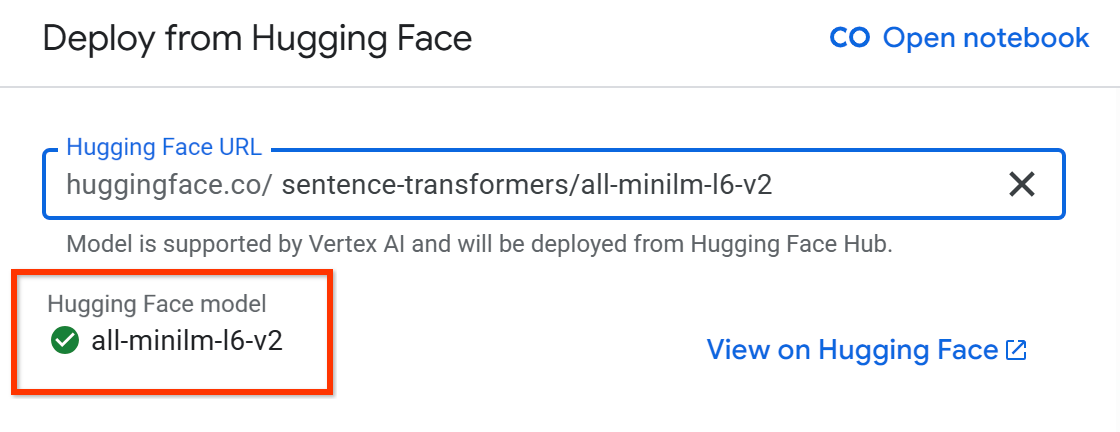
5. On the **Deploy from Hugging Face** pane, paste the model ID into the **Hugging Face URL** field.
6. Press `Enter`.
A green check circle is shown if the model can be deployed in
Agent Platform Model Garden:
## Deploy open models
If you are creating a remote model over a
[supported open model](https://docs.cloud.google.com/bigquery/docs/reference/standard-sql/bigqueryml-syntax-create-remote-model-open#supported_open_models),
you can automatically deploy the open model at the same time that
you create the remote model by specifying the Agent Platform
Model Garden or Hugging Face model ID in the `CREATE MODEL` statement.
Alternatively, you can manually deploy the open model first, and then use that
open model with the remote model by specifying the model
endpoint in the `CREATE MODEL` statement.
### Automatically deployed models
If you choose to automatically deploy the open model, the service uses the
credentials of the connection that you specify in the `CREATE MODEL` statement
to deploy the open model to a Vertex AI
[shared public endpoint](https://docs.cloud.google.com/vertex-ai/docs/predictions/create-public-endpoint#create_a_shared_public_endpoint).
The Vertex AI endpoint is created in the same project
in which you create the remote model. The Vertex AI resource IDs
for the BigQuery-managed model and endpoint begin with
`bq-managed-`. The location of the endpoint is determined as follows:
- If the BigQuery dataset in which you are creating the remote model is in a single region, the endpoint is created in the same region.
- If the dataset is in the `US` multiregion, the endpoint is created in the `us-central1` region.
- If the dataset is in the `EU` multiregion, the endpoint is created in the `europe-west4` region.
Automatically deployed models offer the following benefits:
- [Automatic Agent Platform resource management](https://docs.cloud.google.com/bigquery/docs/reference/standard-sql/bigqueryml-syntax-create-remote-model-open#managed-resources)
- Reserve open model resources by [using Compute Engine reservations](https://docs.cloud.google.com/bigquery/docs/reference/standard-sql/bigqueryml-syntax-create-remote-model-open#reservation-affinity)
- [Automatic or immediate open model undeployment](https://docs.cloud.google.com/bigquery/docs/reference/standard-sql/bigqueryml-syntax-create-remote-model-open#managed-model-undeployment) to save costs
#### Automatic Agent Platform resource management
When you automatically deploy an open model, BigQuery
manages the open model's Agent Platform resources for you. If
you alter or delete the remote model in BigQuery, the
related open model in Agent Platform is altered or deleted as well.
#### Compute Engine reservation affinity
You can use
[Compute Engine reservations](https://docs.cloud.google.com/compute/docs/instances/reservations-overview)
with open models that you automatically deploy to Agent Platform.
Compute Engine reservations provide assured virtual machine (VM)
availability for the open model when serving predictions. For more information,
see
[Use reservations with inference](https://docs.cloud.google.com/gemini-enterprise-agent-platform/machine-learning/predictions/use-reservations).
Use the [`RESERVATION_AFFINITY_TYPE`](https://docs.cloud.google.com/bigquery/docs/reference/standard-sql/bigqueryml-syntax-create-remote-model-open#reservation-affinity-type),
[`RESERVATION_AFFINITY_KEY`](https://docs.cloud.google.com/bigquery/docs/reference/standard-sql/bigqueryml-syntax-create-remote-model-open#reservation-affinity-key), and
[`RESERVATION_AFFINITY_VALUES`](https://docs.cloud.google.com/bigquery/docs/reference/standard-sql/bigqueryml-syntax-create-remote-model-open#reservation-affinity-values) options to
specify Compute Engine reservation affinity configurations for
the open model.
#### Automatic or immediate open model undeployment
By default, BigQuery automatically undeploys the model after a
specified period of idleness. You can specify how long the model can remain idle
before undeployment by setting
the [`ENDPOINT_IDLE_TTL` option](https://docs.cloud.google.com/bigquery/docs/reference/standard-sql/bigqueryml-syntax-create-remote-model-open#endpoint-idle-ttl) in the `CREATE MODEL` or
[`ALTER MODEL` statement](https://docs.cloud.google.com/bigquery/docs/reference/standard-sql/bigqueryml-syntax-alter-model).
This helps you save costs by undeploying the model it isn't being used.
Alternatively, you can use the `ALTER MODEL` statement to manually undeploy an
open model from an Agent Platform endpoint in order to immediately stop
billing. To manually undeploy an open model, set the `DEPLOY_MODEL` argument of
the `ALTER MODEL` statement to `FALSE`.
After the model is undeployed, inference requests sent to the model return
an error. The BigQuery model object remains unchanged,
including model metadata. To use the model for inference again, you must
redeploy it by running the `ALTER MODEL` statement on the model and
setting the `DEPLOY_MODEL` option to `TRUE`.
### Manually deploy Agent Platform Model Garden models
To deploy an open model from the Model Garden, do the following:
1. Go to Model Garden.
[Go to Model Garden](https://console.cloud.google.com/vertex-ai/model-garden)
2. Locate the model's model card in the Model Garden and click it.
3. Use one of the deployment options on the model card. All models have a
**Deploy** option for deploying directly, and an **Open Notebook** option
for deploying the model by using a Colab Enterprise notebook.
Some models also offer a **Fine-Tune** option for deploying a fine-tuned
version of the model.
4. Follow the workflow of the deployment option that you have chosen. You must
select **Public (shared endpoint)** as the value for the **Endpoint access**
field in the deployment workflow. For more information, see
[Use models in Model Garden](https://docs.cloud.google.com/vertex-ai/generative-ai/docs/model-garden/use-models).
### Manually deploy Hugging Face models
To deploy a Hugging Face text embedding
([Preview](https://cloud.google.com/products#product-launch-stages)) or text generation model,
do the following:
### UI
1. On Hugging Face, open the list of [Text Embeddings Inference](https://huggingface.co/models?other=text-embeddings-inference)([Preview](https://cloud.google.com/products#product-launch-stages)) or [Text Generation Inference](https://huggingface.co/models?other=text-generation-inference) models, depending on the type of model that you want to create.
2. Locate a model that you are interested in and copy the model ID.
3. Open the [Agent Platform Model Garden](https://console.cloud.google.com/vertex-ai/model-garden).
4. Click **Deploy from Hugging Face**.
5. On the **Deploy from Hugging Face** pane, paste the model ID into the **Hugging Face URL** field.
6. Press `Enter`.
7. Select region and machine specifications appropriate to your use case.
8. For **Endpoint access** , select **Public (Shared endpoint)**.
9. Click **Deploy**.
### Notebook
1. On Hugging Face, open the list of [Text Embeddings Inference](https://huggingface.co/models?other=text-embeddings-inference) ([Preview](https://cloud.google.com/products#product-launch-stages)) or [Text Generation Inference](https://huggingface.co/models?other=text-generation-inference) models, depending on the type of model that you want to create.
2. Locate a model that you are interested in and copy the model ID.
3. Open the [Agent Platform Model Garden](https://console.cloud.google.com/vertex-ai/model-garden).
4. Click **Deploy from Hugging Face**.
5. On the **Deploy from Hugging Face** pane, paste the model ID into the **Hugging Face URL** field.
6. Press `Enter`.
7. Select **Open Notebook**:

1. Click the name of the notebook that you want to use.
To stop billing for a model,
[undeploy the model](https://docs.cloud.google.com/gemini-enterprise-agent-platform/machine-learning/predictions/undeploy-model).
As an alternative to using the UI or a notebook, you can also use the
Vertex AI API to
[deploy the open model](https://docs.cloud.google.com/vertex-ai/generative-ai/docs/model-garden/use-models#deploy_an_open_model)
as an Agent Platform endpoint.
## Locations
For information about supported locations, see
[Locations for remote models](https://docs.cloud.google.com/bigquery/docs/locations#locations-for-remote-models).
## Limitations
- You can only use open models to process text data. Multimodal data isn't supported.
- Canceling a model creation or update job that includes open model deployment doesn't cause the allocated Agent Platform resources to be cleaned up, because Agent Platform doesn't support canceling in-progress model deployments. Instead of canceling the job, wait for it to complete, and then replace, alter, or delete the BigQuery ML model to release Agent Platform resources.
- Don't directly modify the Agent Platform resources for an open model that BigQuery manages in Agent Platform. Doing so can lead to unexpected behavior. For example, manually undeploying a model while it is processing an inference job can lead to the whole inference query failing.
- [Time travel](https://docs.cloud.google.com/bigquery/docs/time-travel) isn't supported for automatically deployed open models. The Agent Platform resources associated with the model aren't recovered.
- If you want to delete a BigQuery dataset that contains a BigQuery ML model with BigQuery-managed resources in Agent Platform, you must delete the BigQuery ML model from the dataset first. Otherwise, the Agent Platform resources remain active, and you must go to Agent Platform to manually delete them.
## Examples
The following examples show how to create a remote model over an open model.
### Create a remote model over a deployed open model
The following example creates a BigQuery ML remote model
over a model deployed to an Agent Platform endpoint:
```
CREATE MODEL `project_id.mydataset.mymodel`
REMOTE WITH CONNECTION `myproject.us.test_connection`
OPTIONS(ENDPOINT = 'https://us-central1-aiplatform.googleapis.com/v1/projects/myproject/locations/us-central1/endpoints/1234')
```
### Create an Agent Platform Model Garden model and run text generation
The following example creates a BigQuery-managed
Agent Platform model over the `gpt-oss@gpt-oss-20b` model from
Agent Platform Model Garden:
```
CREATE MODEL `project_id.mydataset.my_model_garden_model`
REMOTE WITH CONNECTION DEFAULT
OPTIONS (model_garden_model_name = 'publishers/openai/models/gpt-oss@gpt-oss-20b');
```
```
SELECT *
FROM
AI.GENERATE_TEXT(
MODEL `project_id.mydataset.my_model_garden_model`,
(SELECT 'What is the purpose of dreams?' AS prompt));
```
### Create a Hugging Face model and run embedding generation
The following example creates a BigQuery-managed
Agent Platform model over the `intfloat/multilingual-e5-small` model
from Hugging Face with ten machine replicas, and uses it for large-scale
embedding generation:
```
CREATE MODEL `project_id.mydataset.my_hugging_face_model`
REMOTE WITH CONNECTION DEFAULT
OPTIONS (hugging_face_model_id = 'intfloat/multilingual-e5-small', max_replica_count = 10);
```
```
SELECT *
FROM
AI.GENERATE_EMBEDDING(
MODEL `project_id.mydataset.my_hugging_face_model`,
TABLE `project_id.mydataset.customer_feedback`
);
```
### Agent Platform resource management
The following example creates a BigQuery-managed
Agent Platform model over the `gemma3@gemma-3-1b-it` model
from Agent Platform Model Garden, and configures it to
automatically undeploy after being idle for 8 hours:
```
CREATE MODEL `project_id.mydataset.my_model_garden_model`
REMOTE WITH CONNECTION DEFAULT
OPTIONS (
model_garden_model_name = 'publishers/google/models/gemma3@gemma-3-1b-it',
endpoint_idle_ttl = INTERVAL 8 HOUR
);
```
The following example updates the `endpoint_idle_ttl` option to automatically
undeploy the model after 1 day of inactivity:
```
ALTER MODEL `project_id.mydataset.my_model_garden_model`
SET OPTIONS (endpoint_idle_ttl = INTERVAL 1 DAY);
```
The following example manually undeploys the model to immediately stop costs
after the inference job is complete:
```
SELECT *
FROM
AI.GENERATE_TEXT(
MODEL `project_id.mydataset.my_model_garden_model`,
(SELECT 'What is the purpose of dreams?' AS prompt));
ALTER MODEL `project_id.mydataset.my_model_garden_model`
SET OPTIONS (deploy_model = FALSE);
```
## What's next
- Try [generating text using your data](https://docs.cloud.google.com/bigquery/docs/generate-text).
- Try [generating text embeddings using your data](https://docs.cloud.google.com/bigquery/docs/generate-text-embedding).
- Try [generating text with Gemma](https://docs.cloud.google.com/bigquery/docs/generate-text-tutorial-gemma).
- Try [generating text embeddings with an open model](https://docs.cloud.google.com/bigquery/docs/generate-text-embedding-tutorial-open-models).
- Try [generating video embeddings using your data](https://docs.cloud.google.com/bigquery/docs/generate-video-embedding).
- For more information about the supported SQL statements and functions for remote models that use HTTPS endpoints, see [End-to-end user journey for each model](https://docs.cloud.google.com/bigquery/docs/e2e-journey).