# Use query queues
BigQuery automatically determines the number of queries that can
run concurrently, called the *dynamic concurrency*. Additional queries are
queued until processing resources become available. This document explains how
to control the maximum concurrency target, and set the queue timeout for
interactive and batch queries.
## Overview
BigQuery dynamically determines the number of queries that can
run concurrently based on available compute
resources. The number of queries that can run concurrently is calculated per
on-demand project or per
[reservation](https://docs.cloud.google.com/bigquery/docs/reservations-intro). Additional queries are placed
in a queue until there is enough capacity available to begin execution.
The queue length is limited to 1,000 interactive queries and 20,000 batch
queries per project per region, regardless of whether the project is on-demand
or using a reservation.
The following example shows the behavior for an on-demand project when the
computed query concurrency is 202:
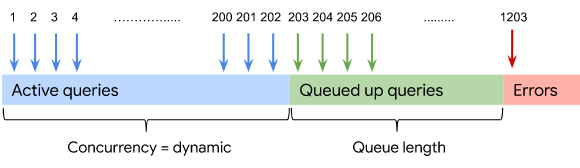
For reservations, you have the option to
[set the maximum concurrency target](https://docs.cloud.google.com/bigquery/docs/query-queues#set_the_maximum_concurrency_target), an
upper bound on the number of queries that can run concurrently in a reservation,
to ensure that each query is
allocated some minimum number of slots. You can't specify a maximum concurrency
target for an on-demand project; it is always dynamically computed.
## Queuing behavior
BigQuery enforces
[fair scheduling](https://docs.cloud.google.com/bigquery/docs/slots#fair_scheduling_in_bigquery) to ensure
that no single project can consume all of the slots in a reservation.
Queries from projects that have the smallest share of concurrency are dequeued
first. During
execution, slots are distributed fairly among projects before being distributed
across jobs within a project.
For example, suppose you have a reservation that is assigned to two projects:
A and B. BigQuery
computes 5 for the concurrency of the reservation. Project A has four
concurrently
running queries, project B has one running query, and other queries are queued.
A query from project B would be
dequeued first even if it was submitted after the query from project A. After
a query begins execution, it receives a fair share of slots in the shared
reservation.
In addition to the total number of concurrent queries, BigQuery
dynamically determines the maximum number of
concurrent batch queries to run per on-demand project or reservation.
If the number of concurrently running batch queries reaches this maximum, then
interactive queries are prioritized even if they were submitted later.
When you delete a reservation, all queued queries time out. When a project
assigned to a reservation is reassigned to
another reservation, all requests that are queued or running continue to do so
in the old reservation, while all new requests go to the new reservation.
When a project assigned to a reservation is removed from the
reservation, running queries continue in the reservation while
new and queued requests execute using the on-demand model. You can optionally
[cancel](https://docs.cloud.google.com/bigquery/docs/managing-jobs#cancel_jobs) individual running or
queued query jobs.
## Control queue timeout
To control the queue timeout for interactive or batch queries, use the
[`ALTER PROJECT SET OPTIONS` statement](https://docs.cloud.google.com/bigquery/docs/reference/standard-sql/data-definition-language#alter_project_set_options_statement)
or the
[`ALTER ORGANIZATION SET OPTIONS` statement](https://docs.cloud.google.com/bigquery/docs/reference/standard-sql/data-definition-language#alter_organization_set_options_statement)
to set the `default_interactive_query_queue_timeout_ms` or
`default_batch_query_queue_timeout_ms` fields in your project's or
organization's [default configuration](https://docs.cloud.google.com/bigquery/docs/default-configuration).
To view the queue timeout for interactive or batch queries in your project,
query the
[`INFORMATION_SCHEMA.EFFECTIVE_PROJECT_OPTIONS` view](https://docs.cloud.google.com/bigquery/docs/information-schema-effective-project-options).
To turn off queuing, set the queue timeout to -1. If you reach your maximum
query concurrency, then additional queries fail with an `ADMISSION_DENIED`
error.
## Set the maximum concurrency target
You can manually set the maximum concurrency target when you create a
reservation. By default, the maximum concurrency target
is zero, which means that BigQuery
dynamically determines the concurrency based on available resources.
Otherwise, if you set a nonzero target, the maximum concurrency target
specifies an upper bound on the number of queries
that run concurrently in a reservation, which guarantees a minimum amount of
slot capacity available for each query that runs.
Increasing the maximum concurrency target doesn't guarantee that more queries
execute simultaneously. The actual concurrency depends on the available compute
resources, which can be increased by adding more slots to your reservation.
### Required roles
To get the permission that
you need to set the concurrency in a new reservation,
ask your administrator to grant you the
[BigQuery Resource Editor](https://docs.cloud.google.com/iam/docs/roles-permissions/bigquery#bigquery.resourceEditor) (`roles/bigquery.resourceEditor`) IAM role on the
[administration project](https://docs.cloud.google.com/bigquery/docs/reservations-workload-management#admin-project)
that maintains ownership of the commitments.
For more information about granting roles, see [Manage access to projects, folders, and organizations](https://docs.cloud.google.com/iam/docs/granting-changing-revoking-access).
This predefined role contains the
`bigquery.reservations.create`
permission,
which is required to
set the concurrency in a new reservation.
You might also be able to get
this permission
with [custom roles](https://docs.cloud.google.com/iam/docs/creating-custom-roles) or
other [predefined roles](https://docs.cloud.google.com/iam/docs/roles-overview#predefined).
For more information about IAM roles in BigQuery,
see [Predefined roles and permissions](https://docs.cloud.google.com/bigquery/docs/access-control).
### Set the maximum concurrency target for a reservation
Select one of the following options:
### Console
1. In the Google Cloud console, go to the **BigQuery** page.
[Go to BigQuery](https://console.cloud.google.com/bigquery)
2. In the navigation menu, click **Workload management**.
3. Click **Create reservation**.
4. Select your [reservation settings](https://docs.cloud.google.com/bigquery/docs/reservations-tasks#create_a_reservation_with_dedicated_slots).
5. To expand the **Advanced settings** section, click the
expander arrow.
6. To set the target job concurrency, click the **Override
automatic target job concurrency** toggle to on and enter the **Target
Job Concurrency**.
7. Click **Save**.
### SQL
To set the maximum concurrency target for a new reservation, use the
[`CREATE RESERVATION` DDL statement](https://docs.cloud.google.com/bigquery/docs/reference/standard-sql/data-definition-language#create_reservation_statement)
and set the
[`target_job_concurrency` field](https://docs.cloud.google.com/bigquery/docs/reference/standard-sql/data-definition-language#reservation_option_list).
1. In the Google Cloud console, go to the **BigQuery** page.
[Go to BigQuery](https://console.cloud.google.com/bigquery)
2. In the query editor, enter the following statement:
```googlesql
CREATE RESERVATION `ADMIN_PROJECT_ID.LOCATION.RESERVATION_NAME`
OPTIONS (
target_job_concurrency = CONCURRENCY);
```
Replace the following:
- `ADMIN_PROJECT_ID`: the project that owns the reservation
- `LOCATION`: the location of the reservation, such as `region-us`
- `RESERVATION_NAME`: the name of the reservation
- `CONCURRENCY`: the maximum concurrency target
3. Click **Run**.
For more information about how to run queries, see [Run an interactive query](https://docs.cloud.google.com/bigquery/docs/running-queries#queries).
### bq
To set the maximum concurrency target for a new reservation, run the
[`bq mk` command](https://docs.cloud.google.com/bigquery/docs/reference/bq-cli-reference#bq_mk):
```
bq mk \
--project_id=ADMIN_PROJECT_ID \
--location=LOCATION \
--target_job_concurrency=CONCURRENCY \
--reservation \
RESERVATION_NAME
```
Replace the following:
- `ADMIN_PROJECT_ID`: the project that owns the reservation
- `LOCATION`: the location of the reservation
- `CONCURRENCY`: the maximum concurrency target
- `RESERVATION_NAME`: the name of the reservation
### API
To set the maximum concurrency target in the
[BigQuery Reservation API](https://docs.cloud.google.com/bigquery/docs/reference/reservations/rpc),
set the `concurrency` field in the
[reservation resource](https://docs.cloud.google.com/bigquery/docs/reference/reservations/rpc/google.cloud.bigquery.reservation.v1#reservation)
and call the
[`CreateReservationRequest` method](https://docs.cloud.google.com/bigquery/docs/reference/reservations/rpc/google.cloud.bigquery.reservation.v1#createreservationrequest).
## Update the maximum concurrency target
You can update the maximum concurrency target for a reservation at any time.
However, increasing the target doesn't guarantee that more queries
execute simultaneously. The actual concurrency depends on the available compute
resources. If you reduce the maximum concurrency target, then actively running
queries are not impacted and queued queries aren't run until the number of
concurrent queries falls below the new target.
If you set the maximum concurrency target to 0, BigQuery
dynamically determines the concurrency based on available resources
(the default behavior).
### Required roles
To get the permission that
you need to update the maximum concurrency target for a reservation,
ask your administrator to grant you the
[BigQuery Resource Editor](https://docs.cloud.google.com/iam/docs/roles-permissions/bigquery#bigquery.resourceEditor) (`roles/bigquery.resourceEditor`) IAM role on the
[administration project](https://docs.cloud.google.com/bigquery/docs/reservations-workload-management#admin-project)
that maintains ownership of the commitments.
For more information about granting roles, see [Manage access to projects, folders, and organizations](https://docs.cloud.google.com/iam/docs/granting-changing-revoking-access).
This predefined role contains the
`bigquery.reservations.update`
permission,
which is required to
update the maximum concurrency target for a reservation.
You might also be able to get
this permission
with [custom roles](https://docs.cloud.google.com/iam/docs/creating-custom-roles) or
other [predefined roles](https://docs.cloud.google.com/iam/docs/roles-overview#predefined).
For more information about IAM roles in BigQuery,
see [Predefined roles and permissions](https://docs.cloud.google.com/bigquery/docs/access-control).
### Update the maximum concurrency target for a reservation
Select one of the following options:
### Console
1. In the Google Cloud console, go to the **BigQuery** page.
[Go to BigQuery](https://console.cloud.google.com/bigquery)
2. In the navigation menu, click **Workload management**.
3. Click the **Slot reservations** tab.
4. Find the reservation you want to update.
5. Expand the
**Actions** option.
6. Click **Edit**.
7. To expand the **Advanced settings** section, click the
expander arrow.
8. To set the target job concurrency, click the **Override
automatic target job concurrency** toggle to on and enter the **Target
Job Concurrency**.
9. Click **Save**.
### SQL
To update the maximum concurrency target for an existing reservation, use the
[`ALTER RESERVATION` DDL statement](https://docs.cloud.google.com/bigquery/docs/reference/standard-sql/data-definition-language#alter_reservation_set_options_statement)
and set the
[`target_job_concurrency` field](https://docs.cloud.google.com/bigquery/docs/reference/standard-sql/data-definition-language#alter_reservation_option_list).
1. In the Google Cloud console, go to the **BigQuery** page.
[Go to BigQuery](https://console.cloud.google.com/bigquery)
2. In the query editor, enter the following statement:
```googlesql
ALTER RESERVATION `ADMIN_PROJECT_ID.LOCATION.RESERVATION_NAME`
SET OPTIONS (
target_job_concurrency = CONCURRENCY);
```
Replace the following:
- `ADMIN_PROJECT_ID`: the project that owns the reservation
- `LOCATION`: the location of the reservation, such as `region-us`
- `RESERVATION_NAME`: the name of the reservation
- `CONCURRENCY`: the maximum concurrency target
3. Click **Run**.
For more information about how to run queries, see [Run an interactive query](https://docs.cloud.google.com/bigquery/docs/running-queries#queries).
### bq
To update the maximum concurrency target for an existing reservation, run the
[`bq update` command](https://docs.cloud.google.com/bigquery/docs/reference/bq-cli-reference#bq_update):
```
bq update \
--project_id=ADMIN_PROJECT_ID \
--location=LOCATION \
--target_job_concurrency=CONCURRENCY \
--reservation \
RESERVATION_NAME
```
Replace the following:
- `ADMIN_PROJECT_ID`: the project that owns the reservation
- `LOCATION`: the location of the reservation
- `CONCURRENCY`: the maximum concurrency target
- `RESERVATION_NAME`: the name of the reservation
### API
To update the maximum concurrency target in the
[BigQuery Reservation API](https://docs.cloud.google.com/bigquery/docs/reference/reservations/rpc),
set the `concurrency` field in the
[reservation resource](https://docs.cloud.google.com/bigquery/docs/reference/reservations/rpc/google.cloud.bigquery.reservation.v1#reservation)
and call the
[`UpdateReservationRequest` method](https://docs.cloud.google.com/bigquery/docs/reference/reservations/rpc/google.cloud.bigquery.reservation.v1#updatereservationrequest).
## Monitoring
To find out which queries are running and which are queued, look at the
[`INFORMATION_SCHEMA.JOBS_BY_*`](https://docs.cloud.google.com/bigquery/docs/information-schema-jobs) and
[`INFORMATION_SCHEMA.JOBS_TIMELINE_BY_*`](https://docs.cloud.google.com/bigquery/docs/information-schema-jobs-timeline)
views. The `state` field is set to `RUNNING` for actively running queries and to
`PENDING` for queued queries.
To view how many concurrent queries ran when the dynamic concurrency threshold was reached for each second over the last day, run the following query:
```googlesql
SELECT
t1.period_start,
t1.job_count AS dynamic_concurrency_threshold
FROM (
SELECT
period_start,
state,
COUNT(DISTINCT job_id) AS job_count
FROM
`PROJECT_ID.REGION_ID`.INFORMATION_SCHEMA.JOBS_TIMELINE
WHERE
period_start BETWEEN TIMESTAMP_SUB(CURRENT_TIMESTAMP(), INTERVAL 1 DAY)
AND CURRENT_TIMESTAMP()
AND reservation_id = "RESERVATION_ID"
GROUP BY
period_start,
state) AS t1
JOIN (
SELECT
period_start,
state,
COUNT(DISTINCT job_id) AS job_count
FROM
`PROJECT_ID.REGION_ID`.INFORMATION_SCHEMA.JOBS_TIMELINE
WHERE
state = "PENDING"
AND period_start BETWEEN TIMESTAMP_SUB(CURRENT_TIMESTAMP(), INTERVAL 1 DAY)
AND CURRENT_TIMESTAMP()
AND reservation_id = "RESERVATION_ID"
GROUP BY
period_start,
state
HAVING
COUNT(DISTINCT job_id) > 0 ) AS t2
ON
t1.period_start = t2.period_start
WHERE
t1.state = "RUNNING";
```
Replace the following:
- `PROJECT_ID`: the name of the project in which you ran the queries
- `REGION_ID`: the location where the queries were processed
- `RESERVATION_ID`: the name of the reservation the queries are running in
> [!NOTE]
> **Note:** To view the dynamic concurrency for on-demand projects, remove the reservation filtering.
You can monitor the query queue length for your reservation by using
[BigQuery administrative resource charts](https://docs.cloud.google.com/bigquery/docs/admin-resource-charts#view-resource-utilization)
and selecting the **Job Concurrency** chart with the metric **Pending**.
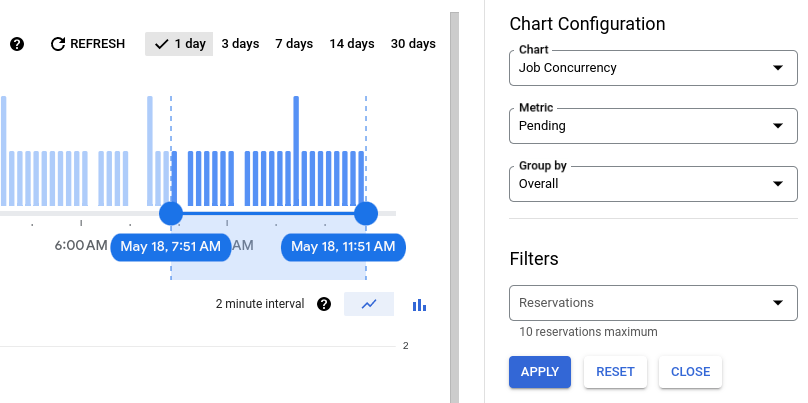
You can also monitor the queue
length in Cloud Monitoring by viewing the
[job count](https://docs.cloud.google.com/monitoring/api/metrics_gcp_a_b#gcp-bigquery) metric and filtering by
the number of jobs in a **pending** state.

## Troubleshooting long queue times
A query job might appear slow because it spends a significant amount of time
waiting in a queue before execution starts. This duration is the *queue time* .
Queued jobs show a `PENDING` state.
### Identify long queue times
You can identify long queue times using the following methods:
- **`INFORMATION_SCHEMA`** : The [`INFORMATION_SCHEMA.JOBS*` views](https://docs.cloud.google.com/bigquery/docs/information-schema-jobs) can provide insights into query queue times. For example, you can calculate the queue time for specific jobs by subtracting `creation_time` from `start_time`, or identify jobs that have `state="PENDING"` for an extended duration. The [sample query](https://docs.cloud.google.com/bigquery/docs/query-queues#monitoring) can serve as a starting point to observe your query load and identify when the dynamic concurrency threshold is reached.
- **Monitoring** : Use the [`bigquery.googleapis.com/job/num_in_flight`](https://docs.cloud.google.com/monitoring/api/metrics_gcp_a_b#bigquery/job/num_in_flight) metric in Monitoring, filtered by `state=pending`, to monitor the queue length over time.
- You can also use [BigQuery administrative resource charts](https://docs.cloud.google.com/bigquery/docs/admin-resource-charts), as described in the [Monitoring](https://docs.cloud.google.com/bigquery/docs/query-queues#monitoring) section.
### Common causes
The following list describes several common causes of long queue times:
- **Concurrency limits** : The project or reservation has reached the maximum number of allowed concurrent queries, which is either dynamically determined or [manually configured](https://docs.cloud.google.com/bigquery/docs/query-queues#set_the_maximum_concurrency_target). Once this limit is reached, new queries are forced to wait.
- **Slot contention**: There are insufficient slots available to handle the workload. This causes actively running queries to execute more slowly, occupying their concurrent query slots for longer periods and increasing the queue times for other queries.
- **Workload spikes**: There is a sudden increase in the number of submitted queries.
- **Inefficient queries**: Individual queries are not optimized. Even when the query volume is low, these inefficient queries can continue consuming excessive slots for extended periods, reducing the turnover rate of active queries. This prevents new queries from starting and forces them to wait in the queue.
### Resolve long queue times
To resolve long queue times, consider the following actions:
- **Assess your workload**: Determine if your query volume or complexity has increased recently.
- **Check reservation utilization** : Use [administrative resource charts](https://docs.cloud.google.com/bigquery/docs/admin-resource-charts) to verify if the reservation is frequently at peak slot usage.
- **Review concurrency**: Compare the number of running queries to the number of pending queries.
- **Optimize and adjust** :
- Use [batch query priority](https://docs.cloud.google.com/bigquery/docs/running-queries#batch) for less time-sensitive workloads, which have a higher queue limit.
- [Optimize long-running queries](https://docs.cloud.google.com/bigquery/docs/best-practices-performance-overview).
- [Increase reservation slots](https://docs.cloud.google.com/bigquery/docs/reservations-tasks#update_reservations) if you are consistently hitting capacity.
- Smooth out query submission spikes.
- Adjust the [maximum concurrency target](https://docs.cloud.google.com/bigquery/docs/query-queues#set_the_maximum_concurrency_target) for your reservation, if applicable.
## Limitations
- Each on-demand project can queue up to 1,000 interactive queries and 20,000 batch queries at one time. Queries that exceed this limit return a quota error. You cannot request an increase in these limits.
- Within a reservation, each project assigned to that reservation can queue up to 1,000 interactive queries and 20,000 batch queries at one time. Queries that exceed this limit return a quota error. You cannot request an increase in these limits.
- By default, query jobs that haven't started execution time out after 6 hours for interactive queries and 24 hours for batch queries.
- You cannot set the maximum concurrency target for queries running in an on-demand project.
- You cannot set the maximum concurrency target for queries running with a Standard edition reservation. For more information about editions, see [Introduction to BigQuery
editions](https://docs.cloud.google.com/bigquery/docs/editions-intro).
## What's next
- Learn more about diagnosing and resolving [query queue limit errors](https://docs.cloud.google.com/bigquery/docs/troubleshoot-quotas#ts-query-queue-limit).