# Connect to Blob Storage
An Azure [connection](https://docs.cloud.google.com/bigquery/docs/connections-api-intro) in BigQuery
lets users [query data stored in
Azure Blob Storage](https://docs.cloud.google.com/bigquery/docs/omni-azure-create-external-table) and
[export query results to
Blob Storage](https://docs.cloud.google.com/bigquery/docs/omni-azure-export-results-to-azure-storage).
You can create a connection so that
[BigQuery Omni](https://docs.cloud.google.com/bigquery/docs/omni-introduction) can securely access
your Blob Storage data.
BigQuery Omni supports [Azure workload identity
federation](https://docs.microsoft.com/en-us/azure/active-directory/develop/workload-identity-federation),
which lets you grant access for an Azure application in your tenant to a Google
service account without managing application client secrets.
## Before you begin
- Ensure that you have created the following resources:
- A [Google Cloud project](https://docs.cloud.google.com/docs/overview#projects) with
[BigQuery Connection API](https://console.cloud.google.com/apis/library/bigqueryconnection.googleapis.com)
enabled.
- If you are on the capacity-based pricing model, then ensure that you have enabled
[BigQuery Reservation API](https://console.cloud.google.com/apis/library/bigqueryreservation.googleapis.com) for your project. For
information about pricing, see [BigQuery Omni pricing](https://cloud.google.com/bigquery/pricing#bqomni).
- An Azure tenant with an Azure subscription.
- An Azure Storage account that meets the following specifications:
- It's a general-purpose V2 account or a Blob Storage account.
- It uses a hierarchical namespace. For more information, see [Create a
storage account to use with Azure Data Lake Storage Gen2](https://docs.microsoft.com/en-us/azure/storage/blobs/create-data-lake-storage-account).
- Data is populated in one of the [supported formats](https://docs.cloud.google.com/bigquery/external-table-definition#table-definition).
- Data is in the `azure-eastus2` region.
## Required roles
-
To get the permissions that
you need to create a connection to access Azure Blob Storage data,
ask your administrator to grant you the
[BigQuery Connection Admin](https://docs.cloud.google.com/iam/docs/roles-permissions/bigquery#bigquery.connectionAdmin) (`roles/bigquery.connectionAdmin`) IAM role on the project.
For more information about granting roles, see [Manage access to projects, folders, and organizations](https://docs.cloud.google.com/iam/docs/granting-changing-revoking-access).
You might also be able to get
the required permissions through [custom
roles](https://docs.cloud.google.com/iam/docs/creating-custom-roles) or other [predefined
roles](https://docs.cloud.google.com/iam/docs/roles-overview#predefined).
- Ensure that you have the following Azure IAM permissions on your tenant:
- `Application.ReadWrite.All`
- `AppRoleAssignment.ReadWrite.All`
## Quotas
For more information about quotas, see [BigQuery Connection API](https://docs.cloud.google.com/bigquery/quotas#connection_api).
## Create an Azure connection
To create an Azure connection, follow these steps:
1. [Create an application in your Azure tenant](https://docs.cloud.google.com/bigquery/docs/omni-azure-create-connection#create-azure-tenant).
2. [Create the BigQuery Azure connection](https://docs.cloud.google.com/bigquery/docs/omni-azure-create-connection#create-azure-connection).
3. [Add a federated credential](https://docs.cloud.google.com/bigquery/docs/omni-azure-create-connection#add-a-federated-credential).
4. [Assign a role to BigQuery Azure AD applications](https://docs.cloud.google.com/bigquery/docs/omni-azure-create-connection#assigning-a-role).
For more information about using federated identity credentials to access data
in Azure, see [Workload identity federation](https://docs.microsoft.com/en-us/azure/active-directory/develop/workload-identity-federation).
### Create an application in your Azure tenant
To create an application in your Azure tenant, follow these steps:
### Azure Portal
1. In the Azure portal, go to **App registrations** , and then click **New
registration**.
2. For **Name**, enter a name for your application.
3. For **Supported account types** , select **Accounts in this organizational
directory only**.
4. To register the new application, click **Register**.
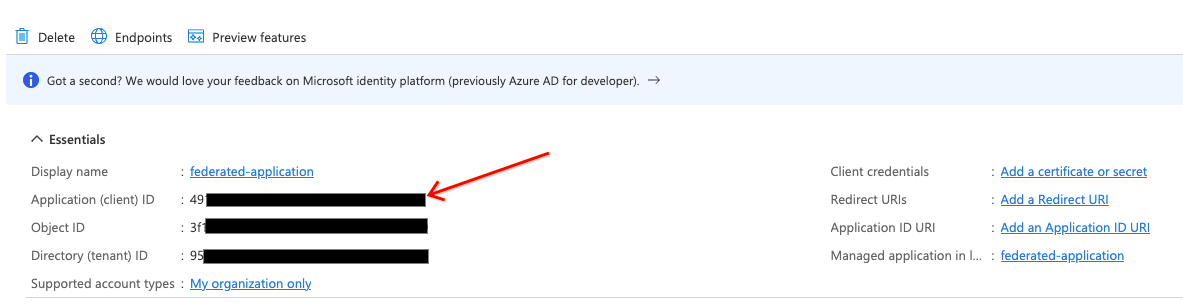
5. Make a note of the **Application (client) ID** . You need to provide this ID
when you [create the connection](https://docs.cloud.google.com/bigquery/docs/omni-azure-create-connection#create-azure-connection).
### Terraform
Add the following to your Terraform configuration file:
```terraform
data "azuread_client_config" "current" {}
resource "azuread_application" "example" {
display_name = "bigquery-omni-connector"
owners = [data.azuread_client_config.current.object_id]
}
resource "azuread_service_principal" "example" {
client_id = azuread_application.example.client_id
app_role_assignment_required = false
owners = [data.azuread_client_config.current.object_id]
}
```
For more information, see how to [register an application](https://docs.microsoft.com/en-us/azure/active-directory/develop/quickstart-register-app#register-an-application) in Azure.
### Create a connection
### Console
1. In the Google Cloud console, go to the **BigQuery** page.
[Go to BigQuery](https://console.cloud.google.com/bigquery)
2. In the **Data** pane, click **Add data**.
The **Add data** dialog opens.
3. In the **Filter By** pane, in the **Data Source Type** section, select **Databases**.
Alternatively, in the **Search for data sources** field, you can enter
`Azure`.
4. In the **Featured data sources** section, click **Azure Blob Storage**.
5. Click the **Azure Blob Storage Omni: BigQuery Federation** solution
card.
6. In the **Create table** dialog, in the **Connection ID** field, select
**Create a new ABS connection**.
7. In the **External data source** pane, enter the following information:
- For **Connection type** , select **BigLake on Azure (via BigQuery Omni)**.
- For **Connection ID**, enter an identifier for the connection resource. You can use letters, numbers, dashes, and underscores.
- Select the location where you want to create the connection.
- Optional: For **Friendly name** , enter a user-friendly name for the connection, such as `My connection resource`. The friendly name can be any value that helps you identify the connection resource if you need to modify it later.
- Optional: For **Description**, enter a description for the connection resource.
- For **Azure tenant id**, enter the Azure tenant ID, which is also referred to as the Directory (tenant) ID.
- Enable the **Use federated identity** checkbox and then enter the
Azure federated application (client) ID.
To learn how to get Azure IDs, see [Create an application in your
Azure tenant](https://docs.cloud.google.com/bigquery/docs/omni-azure-create-connection#create-azure-tenant).
8. Click **Create connection**.
9. Click **Go to connection**.
10. In the **Connection info** section, note
the value of **BigQuery Google identity** , which is the service account ID. This ID is
for the
Google Cloud service account that
[you authorize to access your application](https://docs.cloud.google.com/bigquery/docs/omni-azure-create-connection#assigning-a-role).
### Terraform
```terraform
resource "google_bigquery_connection" "connection" {
connection_id = "omni-azure-connection"
location = "azure-eastus2"
description = "created by terraform"
azure {
customer_tenant_id = "TENANT_ID"
federated_application_client_id = azuread_application.example.client_id
}
}
```
Replace `TENANT_ID` with the tenant ID of the Azure
directory that contains the Blob Storage account.
### bq
Use the [`bq mk` command](https://docs.cloud.google.com/bigquery/docs/reference/bq-cli-reference#bq_mk). To
get the output in JSON format, use the `--format=json` parameter.
```bash
bq mk --connection --connection_type='Azure' \
--tenant_id=TENANT_ID \
--location=AZURE_LOCATION \
--federated_azure=true \
--federated_app_client_id=APP_ID \
CONNECTION_ID
```
Replace the following:
- `TENANT_ID`: the tenant ID of the Azure directory that contains the Azure Storage account.
- `AZURE_LOCATION`: the Azure region where your Azure Storage data is located. BigQuery Omni supports the `azure-eastus2` region.
- `APP_ID`: the Azure Application (client) ID. To learn how to get this ID, see [Create application in Azure tenant](https://docs.cloud.google.com/bigquery/docs/omni-azure-create-connection#create-azure-tenant).
- `CONNECTION_ID`: the name of the connection.
The output is similar to the following:
```bash
Connection CONNECTION_ID successfully created
Please add the following identity to your Azure application APP_ID
Identity: SUBJECT_ID
```
This output includes the following values:
- `APP_ID`: the ID of the application that you
created.
- `SUBJECT_ID`: the ID of the Google Cloud
service account that the user authorizes to access their application.
This value is required when you create a federated credential in Azure.
Note the `APP_ID` and the `SUBJECT_ID`
values for use in the next steps.
> [!NOTE]
> **Note:** To override the default project, use the `--project_id=PROJECT_ID` parameter. Replace `PROJECT_ID` with the ID of your Google Cloud project.
Next, add a federated credential for your application.
### Add a federated credential
To create a federated credential, follow these steps:
### Azure Portal
1. In the Azure portal, go to **App registrations**, and then click your
application.
2. Select **Certificates \& secrets \> Federated credentials
\> Add credentials**. Then, do the following:
1. From the **Federated credential scenario** list, select **Other issuer**.
2. For **Issuer** , enter `https://accounts.google.com`.
3. For **Subject identifier** , enter the **BigQuery Google identity** of
the Google Cloud service account that you got when you [created the connection](https://docs.cloud.google.com/bigquery/docs/omni-azure-create-connection#create-azure-connection).
4. For **Name**, enter a name for the credential.
5. Click **Add**.
### Terraform
Add the following to your Terraform configuration file:
```terraform
resource "azuread_application_federated_identity_credential" "example" {
application_id = azuread_application.example.id
display_name = "omni-federated-credential"
description = "BigQuery Omni federated credential"
audiences = ["api://AzureADTokenExchange"]
issuer = "https://accounts.google.com"
subject = google_bigquery_connection.connection.azure[0].identity
}
```
For more information, see [Configure an app to trust an external identity provider](https://docs.microsoft.com/en-us/azure/active-directory/develop/workload-identity-federation-create-trust?tabs=azure-portal).
### Assign a role to BigQuery's Azure applications
To assign a role to BigQuery's Azure application, use the
Azure Portal, the Azure PowerShell, or the Microsoft Management REST API:
### Azure Portal
You can perform role assignments in the Azure Portal by logging in as a user
with the `Microsoft.Authorization/roleAssignments/write` permission. The role
assignment lets the BigQuery Azure connection access the
Azure Storage data as specified in the roles policy.
To add role assignments using the Azure Portal, follow these steps:
1. From your Azure Storage account, enter `IAM` in the search bar.
2. Click **Access Control (IAM)**.
3. Click **Add** and select **Add role assignments**.
4. To provide read-only access, select the **Storage Blob Data Reader** role.
To provide read-write access, select the **Storage Blob Data
Contributor** role.
5. Set **Assign access to** to **User, group, or service principal**.
6. Click **Select members**.
7. In the **Select** field, enter the Azure application name that
you gave when you [created the application in the Azure tenant](https://docs.cloud.google.com/bigquery/docs/omni-azure-create-connection#create-azure-tenant).
8. Click **Save**.
For more information, see [Assign Azure roles using the Azure
portal](https://docs.microsoft.com/en-us/azure/role-based-access-control/role-assignments-portal).
### Terraform
Add the following to your Terraform configuration file:
```terraform
resource "azurerm_role_assignment" "data_role" {
scope = data.azurerm_storage_account.example.id
# Read permission for Omni on the storage account
role_definition_name = "Storage Blob Data Reader"
principal_id = azuread_service_principal.example.id
}
```
### Azure PowerShell
To add a role assignment for a service principal at a resource scope, you can
use the [`New-AzRoleAssignment` command](https://docs.microsoft.com/en-us/powershell/module/az.resources/new-azroleassignment?view=azps-7.5.0):
```bash
New-AzRoleAssignment`
-SignInName APP_NAME`
-RoleDefinitionName ROLE_NAME`
-ResourceName RESOURCE_NAME`
-ResourceType RESOURCE_TYPE`
-ParentResource PARENT_RESOURCE`
-ResourceGroupName RESOURCE_GROUP_NAME
```
Replace the following:
- `APP_NAME`: the application name.
- `ROLE_NAME`: the role name you want to assign.
- `RESOURCE_NAME`: the resource name.
- `RESOURCE_TYPE`: the resource type.
- `PARENT_RESOURCE`: the parent resource.
- `RESOURCE_GROUP_NAME`: the resource group name.
For more information about using Azure PowerShell to add a new service
principal, see the [Assign Azure roles using Azure PowerShell](https://docs.microsoft.com/azure/role-based-access-control/role-assignments-powershell#add-a-role-assignment).
### Azure CLI
To add a role assignment for a service principal at a resource scope, you can
use the Azure command-line tool. You must have the
`Microsoft.Authorization/roleAssignments/write` permission for the storage
account to grant roles.
To assign a role, such as the **Storage Blob Data Reader** role, to the
service principal, run the [`az role assignment create` command](https://docs.microsoft.com/en-us/cli/azure/role/assignment?view=azure-cli-latest#az-role-assignment-create):
```bash
az role assignment create --role "Storage Blob Data Reader" \
--assignee-object-id ${SP_ID} \
--assignee-principal-type ServicePrincipal \
--scope subscriptions/SUBSCRIPTION_ID/resourcegroups/RESOURCE_GROUP_NAME/providers/Microsoft.Storage/storageAccounts/STORAGE_ACCOUNT_NAME
```
Replace the following:
- `SP_ID`: the service principal ID. This service principal is for [the application that you created](https://docs.cloud.google.com/bigquery/docs/omni-azure-create-connection#create-azure-tenant). To get the service principal for a federated connection, see [Service principal
object](https://docs.microsoft.com/en-us/azure/active-directory/develop/app-objects-and-service-principals#service-principal-object).
- `STORAGE_ACCOUNT_NAME`: the storage account name.
- `RESOURCE_GROUP_NAME`: the resource group name.
- `SUBSCRIPTION_ID`: the subscription ID.
For more information, see [Assign Azure roles using Azure CLI](https://docs.microsoft.com/en-us/azure/role-based-access-control/role-assignments-cli).
### Microsoft REST API
To add role assignments for a service principal, you can send an HTTP
request to Microsoft Management.
To call the Microsoft Graph REST API,
retrieve an OAuth token for an application. For more information, see [Get
access without a user](https://docs.microsoft.com/graph/auth-v2-service).
The application that called the Microsoft Graph REST API must have
the `Application.ReadWrite.All` application permission.
To generate an OAuth token, run the following command:
```bash
export TOKEN=$(curl -X POST \
https://login.microsoftonline.com/TENANT_ID/oauth2/token \
-H 'cache-control: no-cache' \
-H 'content-type: application/x-www-form-urlencoded' \
--data-urlencode "grant_type=client_credentials" \
--data-urlencode "resource=https://graph.microsoft.com/" \
--data-urlencode "client_id=CLIENT_ID" \
--data-urlencode "client_secret=CLIENT_SECRET" \
| jq --raw-output '.access_token')
```
Replace the following:
- `TENANT_ID`: the tenant ID matching the ID of the Azure directory that contains the Azure Storage account.
- `CLIENT_ID`: the Azure client ID.
- `CLIENT_SECRET`: the Azure client secret.
Get the ID of the [Azure built-in roles](https://docs.microsoft.com/azure/role-based-access-control/built-in-roles) that you want to assign to the service principal.
These are some common roles:
- [Storage Blob Data Contributor](https://docs.microsoft.com/azure/role-based-access-control/built-in-roles#storage-blob-data-contributor): `ba92f5b4-2d11-453d-a403-e96b0029c9fe`
- [Storage Blob Data Reader](https://docs.microsoft.com/azure/role-based-access-control/built-in-roles#storage-blob-data-reader): `2a2b9908-6ea1-4ae2-8e65-a410df84e7d1`
To assign a role to the service principal, call the Microsoft Graph REST API
to the Azure Resource Management REST API:
```bash
export ROLE_ASSIGNMENT_ID=$(uuidgen)
curl -X PUT \
'https://management.azure.com/subscriptions/SUBSCRIPTION_ID/resourcegroups/RESOURCE_GROUP_NAME/providers/Microsoft.Storage/storageAccounts/STORAGE_ACCOUNT_NAME/providers/Microsoft.Authorization/roleAssignments/ROLE_ASSIGNMENT_ID?api-version=2018-01-01-preview' \
-H "authorization: Bearer ${TOKEN?}" \
-H 'cache-control: no-cache' \
-H 'content-type: application/json' \
-d '{
"properties": {
"roleDefinitionId": "subscriptions/SUBSCRIPTION_ID/resourcegroups/RESOURCE_GROUP_NAME/providers/Microsoft.Storage/storageAccounts/STORAGE_ACCOUNT_NAME/providers/Microsoft.Authorization/roleDefinitions/ROLE_ID",
"principalId": "SP_ID"
}
}'
```
Replace the following:
- `ROLE_ASSIGNMENT_ID`: the role ID.
- `SP_ID`: the service principal ID. This service principal is for [the application that you created](https://docs.cloud.google.com/bigquery/docs/omni-azure-create-connection#create-azure-tenant). To get the service principal for a federated connection, see [Service
principal object](https://docs.microsoft.com/en-us/azure/active-directory/develop/app-objects-and-service-principals#service-principal-object).
- `SUBSCRIPTION_ID`: the subscription ID.
- `RESOURCE_GROUP_NAME`: the resource group name.
- `STORAGE_ACCOUNT_NAME`: the storage account name.
- `SUBSCRIPTION_ID`: the subscription ID.
The connection is now ready to use. However, there might be a propagation delay
for a role assignment in Azure. If you are not able to use the connection due to
permission issues, then retry after some time.
> [!CAUTION]
> **Caution:** When you delete the connection, the Google identity used to access the Azure application is deleted. The application in the Azure tenant is not deleted.
## Share connections with users
You can grant the following roles to let users query data and manage connections:
- `roles/bigquery.connectionUser`: enables users to use connections to connect
with external data sources and run queries on them.
- `roles/bigquery.connectionAdmin`: enables users to manage connections.
For more information about IAM roles and permissions in
BigQuery, see [Predefined roles and permissions](https://docs.cloud.google.com/bigquery/access-control).
Select one of the following options:
### Console
1. Go to the **BigQuery** page.
[Go to BigQuery](https://console.cloud.google.com/bigquery)
Connections are listed in your project, in a group called **Connections**.
2. In the left pane, click **Explorer**:

If you don't see the left pane, click **Expand left pane** to open the pane.
3. Click your project, click **Connections**, and then select a connection.
4. In the **Details** pane, click **Share** to share a connection.
Then do the following:
1. In the **Connection permissions** dialog, share the
connection with other principals by adding or editing
principals.
2. Click **Save**.
### bq
You cannot share a connection with the bq command-line tool.
To share a connection, use the Google Cloud console or
the BigQuery Connections API method to share a connection.
### API
Use the
[`projects.locations.connections.setIAM` method](https://docs.cloud.google.com/bigquery/docs/reference/bigqueryconnection/rest/v1/projects.locations.connections#methods)
in the BigQuery Connections REST API reference section, and
supply an instance of the `policy` resource.
### Java
Before trying this sample, follow the Java setup instructions in the
[BigQuery quickstart using
client libraries](https://docs.cloud.google.com/bigquery/docs/quickstarts/quickstart-client-libraries).
For more information, see the
[BigQuery Java API
reference documentation](https://docs.cloud.google.com/java/docs/reference/google-cloud-bigquery/latest/overview).
To authenticate to BigQuery, set up Application Default Credentials.
For more information, see
[Set up authentication for client libraries](https://docs.cloud.google.com/bigquery/docs/authentication#client-libs).
import com.google.api.resourcenames.https://docs.cloud.google.com/java/docs/reference/api-common/latest/com.google.api.resourcenames.ResourceName.html;
import com.google.cloud.bigquery.connection.v1.https://docs.cloud.google.com/java/docs/reference/google-cloud-bigqueryconnection/latest/com.google.cloud.bigquery.connection.v1.ConnectionName.html;
import com.google.cloud.bigqueryconnection.v1.https://docs.cloud.google.com/java/docs/reference/google-cloud-bigqueryconnection/latest/com.google.cloud.bigqueryconnection.v1.ConnectionServiceClient.html;
import com.google.iam.v1.https://docs.cloud.google.com/java/docs/reference/proto-google-iam-v1/latest/com.google.iam.v1.Binding.html;
import com.google.iam.v1.https://docs.cloud.google.com/java/docs/reference/proto-google-iam-v1/latest/com.google.iam.v1.Policy.html;
import com.google.iam.v1.https://docs.cloud.google.com/java/docs/reference/proto-google-iam-v1/latest/com.google.iam.v1.SetIamPolicyRequest.html;
import java.io.IOException;
// Sample to share connections
public class ShareConnection {
public static void main(String[] args) throws IOException {
// TODO(developer): Replace these variables before running the sample.
String projectId = "MY_PROJECT_ID";
String location = "MY_LOCATION";
String connectionId = "MY_CONNECTION_ID";
shareConnection(projectId, location, connectionId);
}
static void shareConnection(String projectId, String location, String connectionId)
throws IOException {
try (https://docs.cloud.google.com/java/docs/reference/google-cloud-bigqueryconnection/latest/com.google.cloud.bigqueryconnection.v1.ConnectionServiceClient.html client = https://docs.cloud.google.com/java/docs/reference/google-cloud-bigqueryconnection/latest/com.google.cloud.bigqueryconnection.v1.ConnectionServiceClient.html.create()) {
https://docs.cloud.google.com/java/docs/reference/api-common/latest/com.google.api.resourcenames.ResourceName.html resource = https://docs.cloud.google.com/java/docs/reference/google-cloud-bigqueryconnection/latest/com.google.cloud.bigquery.connection.v1.ConnectionName.html.of(projectId, location, connectionId);
https://docs.cloud.google.com/java/docs/reference/proto-google-iam-v1/latest/com.google.iam.v1.Binding.html binding =
https://docs.cloud.google.com/java/docs/reference/proto-google-iam-v1/latest/com.google.iam.v1.Binding.html.newBuilder()
.https://docs.cloud.google.com/java/docs/reference/proto-google-iam-v1/latest/com.google.iam.v1.Binding.Builder.html#com_google_iam_v1_Binding_Builder_addMembers_java_lang_String_("group:example-analyst-group@google.com")
.setRole("roles/bigquery.connectionUser")
.build();
https://docs.cloud.google.com/java/docs/reference/proto-google-iam-v1/latest/com.google.iam.v1.Policy.html policy = https://docs.cloud.google.com/java/docs/reference/proto-google-iam-v1/latest/com.google.iam.v1.Policy.html.newBuilder().https://docs.cloud.google.com/java/docs/reference/proto-google-iam-v1/latest/com.google.iam.v1.Policy.Builder.html#com_google_iam_v1_Policy_Builder_addBindings_com_google_iam_v1_Binding_(binding).build();
https://docs.cloud.google.com/java/docs/reference/proto-google-iam-v1/latest/com.google.iam.v1.SetIamPolicyRequest.html request =
https://docs.cloud.google.com/java/docs/reference/proto-google-iam-v1/latest/com.google.iam.v1.SetIamPolicyRequest.html.newBuilder()
.setResource(resource.toString())
.https://docs.cloud.google.com/java/docs/reference/proto-google-iam-v1/latest/com.google.iam.v1.SetIamPolicyRequest.Builder.html#com_google_iam_v1_SetIamPolicyRequest_Builder_setPolicy_com_google_iam_v1_Policy_(policy)
.build();
client.setIamPolicy(request);
System.out.println("Connection shared successfully");
}
}
}
## What's next
- Learn about different [connection types](https://docs.cloud.google.com/bigquery/docs/connections-api-intro).
- Learn about [managing connections](https://docs.cloud.google.com/bigquery/docs/working-with-connections).
- Learn more about [BigQuery Omni](https://docs.cloud.google.com/bigquery/docs/omni-introduction).
- Learn about [BigLake tables](https://docs.cloud.google.com/bigquery/docs/biglake-intro).
- Learn how to [query Blob Storage data](https://docs.cloud.google.com/bigquery/docs/omni-azure-create-external-table).
- Learn how to [export query results to Blob Storage](https://docs.cloud.google.com/bigquery/docs/omni-azure-export-results-to-azure-storage).