# Connect to Amazon S3
An Amazon Simple Storage Service (Amazon S3) [connection](https://docs.cloud.google.com/bigquery/docs/connections-api-intro) in
BigQuery lets data analysts [query data stored in Amazon S3
buckets](https://docs.cloud.google.com/bigquery/docs/omni-aws-create-external-table) and [export query
results from BigQuery to
Amazon S3](https://docs.cloud.google.com/bigquery/docs/omni-aws-export-results-to-s3). You can
create a connection so that
[BigQuery Omni](https://docs.cloud.google.com/bigquery/docs/omni-introduction) can securely access
your Amazon S3 data.
Each connection has a unique Amazon Web Services (AWS) Identity and Access Management (IAM) user. You
grant permissions to that user through AWS IAM
roles, whose policies determine what data BigQuery can access
for each connection.
## Before you begin
Ensure that you've created the following resources:
- A [Google Cloud project](https://docs.cloud.google.com/docs/overview#projects) with [BigQuery Connection API](https://console.cloud.google.com/apis/library/bigqueryconnection.googleapis.com) enabled.
- If you are on the capacity-based pricing model, then ensure that you have enabled [BigQuery Reservation API](https://console.cloud.google.com/apis/library/bigqueryreservation.googleapis.com) for your project. For information about pricing, see [BigQuery Omni pricing](https://cloud.google.com/bigquery/pricing#bqomni).
- An [AWS account](https://aws.amazon.com/premiumsupport/knowledge-center/create-and-activate-aws-account/) with permissions to modify IAM policies in AWS.
## Required roles
To get the permissions that
you need to create a connection to access Amazon S3 data,
ask your administrator to grant you the
[BigQuery Connection Admin](https://docs.cloud.google.com/iam/docs/roles-permissions/bigquery#bigquery.connectionAdmin) (`roles/bigquery.connectionAdmin`) IAM role on the project.
For more information about granting roles, see [Manage access to projects, folders, and organizations](https://docs.cloud.google.com/iam/docs/granting-changing-revoking-access).
You might also be able to get
the required permissions through [custom
roles](https://docs.cloud.google.com/iam/docs/creating-custom-roles) or other [predefined
roles](https://docs.cloud.google.com/iam/docs/roles-overview#predefined).
## Create an AWS IAM policy for BigQuery
Ensure that you follow
[security best practices for Amazon S3](https://docs.aws.amazon.com/AmazonS3/latest/dev/security-best-practices.html).
We recommend that you do the following:
- Set up an AWS policy that prevents access to your Amazon S3 bucket through HTTP.
- Set up an AWS policy that prevents public access to your Amazon S3 bucket.
- Use Amazon S3 server-side encryption.
- Limit permissions granted to the Google Account to the required minimum.
- Set up CloudTrail and enable Amazon S3 data events.
To create an AWS IAM policy, use the
AWS console or Terraform:
### AWS console
1. Go to the AWS IAM console.
Ensure that you're in the account that owns the Amazon S3 bucket
that you want to access.
[Go to the AWS IAM console](https://console.aws.amazon.com/iam/home)
2. Select **Policies \> Create policy** (opens in a new tab).
3. Click **JSON** and paste the following into the editor:
```json
{
"Version": "2012-10-17",
"Statement": [
{
"Effect": "Allow",
"Action": [
"s3:ListBucket"
],
"Resource": [
"arn:aws:s3:::BUCKET_NAME"
]
},
{
"Effect": "Allow",
"Action": [
"s3:GetObject",
EXPORT_PERM
],
"Resource": [
"arn:aws:s3:::BUCKET_NAME",
"arn:aws:s3:::BUCKET_NAME/*"
]
}
]
}
```
Replace the following:
- `BUCKET_NAME`: the Amazon S3 bucket that you want BigQuery to access.
- `EXPORT_PERM` (optional): additional permission if you want to [export data to an Amazon S3 bucket](https://docs.cloud.google.com/bigquery/docs/omni-aws-export-results-to-s3). Replace with `"s3:PutObject"`
- To separate export access control, we recommend that you create another connection with a separate AWS IAM role and grant the role write-only access. For more granular access control, you can also limit a role's access to a specific path of the bucket.
> [!NOTE]
> **Note:** If you get an error after pasting the JSON into the editor, format the JSON text using a JSON editor.
4. In the **Name** field, enter a policy name, such as `bq_omni_read_only`.
5. Click **Create policy**.
Your policy is created with an Amazon Resource Name (ARN) in the following
format:
```bash
arn:aws:iam::AWS_ACCOUNT_ID:policy/POLICY_NAME
```
Replace the following:
- `AWS_ACCOUNT_ID`: the ID number of the connection's AWS IAM user.
- `POLICY_NAME`: the policy name you chose.
### AWS CLI
To create an AWS IAM policy, use the
[`aws iam create-policy` command](https://docs.aws.amazon.com/cli/latest/reference/iam/create-policy.html):
```bash
aws iam create-policy \
--policy-name POLICY_NAME \
--policy-document '{
"Version": "2012-10-17",
"Statement": [
{
"Effect": "Allow",
"Action": [
"s3:ListBucket"
],
"Resource": [
"arn:aws:s3:::BUCKET_NAME"
]
},
{
"Effect": "Allow",
"Action": [
"s3:GetObject",
EXPORT_PERM
],
"Resource": [
"arn:aws:s3:::BUCKET_NAME",
"arn:aws:s3:::BUCKET_NAME/*"
]
}
]
}'
```
Replace the following:
- `POLICY_NAME`: the name of the policy you are creating.
- `BUCKET_NAME`: the Amazon S3 bucket that you want BigQuery to access.
- `EXPORT_PERM` (optional): additional permission if you want to [export data to an Amazon S3 bucket](https://docs.cloud.google.com/bigquery/docs/omni-aws-export-results-to-s3). Replace with `"s3:PutObject"`
- To separate export access control, we recommend that you create another connection with a separate AWS IAM role and grant the role write-only access. For more granular access control, you can also limit a role's access to a specific path of the bucket.
Your policy is created with an Amazon Resource Name (ARN) in the following
format:
```bash
arn:aws:iam::AWS_ACCOUNT_ID:policy/POLICY_NAME
```
Replace the following:
- `AWS_ACCOUNT_ID`: the ID number of the connection's AWS IAM user.
- `POLICY_NAME`: the policy name you chose.
### Terraform
Add the following to your Terraform config to attach a policy to an
Amazon S3 bucket resource:
```json
resource "aws_iam_policy" "bigquery-omni-connection-policy" {
name = "bigquery-omni-connection-policy"
policy = <<-EOF
{
"Version": "2012-10-17",
"Statement": [
{
"Sid": "BucketLevelAccess",
"Effect": "Allow",
"Action": ["s3:ListBucket"],
"Resource": ["arn:aws:s3:::BUCKET_NAME"]
},
{
"Sid": "ObjectLevelAccess",
"Effect": "Allow",
"Action": ["s3:GetObject",EXPORT_PERM],
"Resource": [
"arn:aws:s3:::BUCKET_NAME",
"arn:aws:s3:::BUCKET_NAME/*"
]
}
]
}
EOF
}
```
Replace the following:
- `BUCKET_NAME`: the Amazon S3 bucket that you want BigQuery to access.
- `EXPORT_PERM` (optional): additional permission if you want to [export data to an Amazon S3 bucket](https://docs.cloud.google.com/bigquery/docs/omni-aws-export-results-to-s3). Replace with `"s3:PutObject"`
- To separate export access control, we recommend that you create another connection with a separate AWS IAM role and grant the role write-only access. For more granular access control, you can also limit a role's access to a specific path of the bucket.
## Create an AWS IAM role for BigQuery
Next, create a role that allows access to the Amazon S3 bucket from
within BigQuery. This role uses the policy that you created in
the previous section.
To create an AWS IAM role, use the
AWS console or Terraform:
### AWS console
1. Go to the AWS IAM console.
Ensure that you're in the account that owns the Amazon S3 bucket
that you want to access.
[Go to the AWS IAM console](https://console.aws.amazon.com/iam/home)
2. Select **Roles \> Create role**.
3. For **Select type of trusted entity** , select **Web Identity**.
4. For **Identity Provider** , select **Google**.
5. For **Audience** , enter `00000` as a placeholder value.
You'll replace the value later.
6. Click **Next: Permissions**.
7. To grant the role access to your Amazon S3 data, attach an
IAM policy to the role. Search for the policy that you
created in the previous section, and click the toggle.
8. Click **Next: Tags**.
9. Click **Next: Review** . Enter a name for the role, such as
`BQ_Read_Only`.
10. Click **Create role**.
### AWS CLI
Use the following command to create an IAM role and assign
the policy to the role created:
```bash
aws iam create-role \
--role-name bigquery-omni-connection \
--max-session-duration 43200 \
--assume-role-policy-document '{
"Version": "2012-10-17",
"Statement": [
{
"Effect": "Allow",
"Principal": {
"Federated": "accounts.google.com"
},
"Action": "sts:AssumeRoleWithWebIdentity",
"Condition": {
"StringEquals": {
"accounts.google.com:sub": "00000"
}
}
}
]
}'
```
### Terraform
Add the following to your Terraform config to create an IAM
role and assign the policy to the role created:
```terraform
resource "aws_iam_role" "bigquery-omni-connection-role" {
name = "bigquery-omni-connection"
max_session_duration = 43200
assume_role_policy = <<-EOF
{
"Version": "2012-10-17",
"Statement": [
{
"Effect": "Allow",
"Principal": {
"Federated": "accounts.google.com"
},
"Action": "sts:AssumeRoleWithWebIdentity",
"Condition": {
"StringEquals": {
"accounts.google.com:sub": "00000"
}
}
}
]
}
EOF
}
resource "aws_iam_role_policy_attachment" "bigquery-omni-connection-role-attach" {
role = aws_iam_role.bigquery-omni-connection-role.name
policy_arn = aws_iam_policy.bigquery-omni-connection-policy.arn
}
output "bigquery_omni_role" {
value = aws_iam_role.bigquery-omni-connection-role.arn
}
```
Then, attach the policy to the role:
```bash
aws iam attach-role-policy \
--role-name bigquery-omni-connection \
--policy-arn arn:aws:iam::AWS_ACCOUNT_ID:policy/POLICY_NAME
```
Replace the following:
- `AWS_ACCOUNT_ID`: the ID number of the connection's AWS IAM user.
- `POLICY_NAME`: the policy name you chose.
## Create connections
To connect to your Amazon S3 bucket, use the
Google Cloud console, the bq command-line tool, or the client library:
### Console
> [!IMPORTANT]
> **Key Point:** Create your connection in the Google Cloud project that contains the Amazon S3 instance that you want to query.
1. Go to the **BigQuery** page.
[Go to BigQuery](https://console.cloud.google.com/bigquery)
2. In the **Data** pane, click **Add data**.
The **Add data** dialog opens.
3. In the **Filter By** pane, in the **Data Source Type** section, select **Storage/Data Lakes**.
Alternatively, in the **Search for data sources** field, you can enter
`aws` or `Amazon S3`.
4. In the **Featured data sources** section, click **Amazon S3**.
5. Click the **Amazon S3 Omni: BigQuery Federation** solution
card.
6. In the **External data source** pane, enter the following information:
- For **Connection type** , select **BigLake on AWS (via BigQuery Omni)**.
- For **Connection ID**, enter an identifier for the connection resource. You can use letters, numbers, dashes, and underscores.
- For **Region**, select the location where you want to create the connection.
- Optional: For **Friendly name** , enter a user-friendly name for the connection, such as `My connection resource`. The friendly name can be any value that helps you identify the connection resource if you need to modify it later.
- Optional: For **Description**, enter a description for this connection resource.
- For **AWS role id** , enter the full IAM role ID that you created in this format:
```bash
arn:aws:iam::AWS_ACCOUNT_ID:role/ROLE_NAME
```
7. Click **Create connection**.
8. Click **Go to connection**.
9. In the **Connection info** pane, copy the **BigQuery Google identity**.
This is a Google principal that is
specific to each connection. Example:
```
BigQuery Google identity: IDENTITY_ID
```
### Terraform
```terraform
resource "google_bigquery_connection" "connection" {
connection_id = "bigquery-omni-aws-connection"
friendly_name = "bigquery-omni-aws-connection"
description = "Created by Terraform"
location = "AWS_LOCATION"
aws {
access_role {
# This must be constructed as a string instead of referencing the
# AWS resources directly to avoid a resource dependency cycle
# in Terraform.
iam_role_id = "arn:aws:iam::AWS_ACCOUNT:role/IAM_ROLE_NAME"
}
}
}
```
Replace the following:
- `AWS_LOCATION`: an [Amazon S3 location](https://docs.cloud.google.com/bigquery/docs/omni-introduction#locations) in Google Cloud
- `AWS_ACCOUNT`: your AWS account ID.
- `IAM_ROLE_NAME`: the role that allows access to the Amazon S3 bucket from BigQuery. Use the value of the `name` argument from the `aws_iam_role` resource in [Create an AWS IAM role for BigQuery](https://docs.cloud.google.com/bigquery/docs/omni-aws-create-connection#creating-aws-iam-role).
### bq
```bash
bq mk --connection --connection_type='AWS' \
--iam_role_id=arn:aws:iam::AWS_ACCOUNT_ID:role/ROLE_NAME \
--location=AWS_LOCATION \
CONNECTION_ID
```
Replace the following:
- `AWS_ACCOUNT_ID`: the ID number of the connection's AWS IAM user
- `ROLE_NAME`: the role policy name you chose
- `AWS_LOCATION`: an [Amazon S3 location](https://docs.cloud.google.com/bigquery/docs/omni-introduction#locations) in Google Cloud
- `CONNECTION_ID`: the ID that you give this connection resource.
The command line shows the following output:
```
Identity: IDENTITY_ID
```
The output contains the following:
- `IDENTITY_ID`: a Google principal that Google Cloud controls that is specific to each connection.
Take note of the `IDENTITY_ID` value.
> [!NOTE]
> **Note:** To override the default project, use the `--project_id=PROJECT_ID` parameter. Replace `PROJECT_ID` with the ID of your Google Cloud project.
### Java
Before trying this sample, follow the Java setup instructions in the
[BigQuery quickstart using
client libraries](https://docs.cloud.google.com/bigquery/docs/quickstarts/quickstart-client-libraries).
For more information, see the
[BigQuery Java API
reference documentation](https://docs.cloud.google.com/java/docs/reference/google-cloud-bigquery/latest/overview).
To authenticate to BigQuery, set up Application Default Credentials.
For more information, see
[Set up authentication for client libraries](https://docs.cloud.google.com/bigquery/docs/authentication#client-libs).
import com.google.cloud.bigquery.connection.v1.https://docs.cloud.google.com/java/docs/reference/google-cloud-bigqueryconnection/latest/com.google.cloud.bigquery.connection.v1.AwsAccessRole.html;
import com.google.cloud.bigquery.connection.v1.https://docs.cloud.google.com/java/docs/reference/google-cloud-bigqueryconnection/latest/com.google.cloud.bigquery.connection.v1.AwsProperties.html;
import com.google.cloud.bigquery.connection.v1.https://docs.cloud.google.com/java/docs/reference/google-cloud-bigqueryconnection/latest/com.google.cloud.bigquery.connection.v1.Connection.html;
import com.google.cloud.bigquery.connection.v1.https://docs.cloud.google.com/java/docs/reference/google-cloud-bigqueryconnection/latest/com.google.cloud.bigquery.connection.v1.CreateConnectionRequest.html;
import com.google.cloud.bigquery.connection.v1.https://docs.cloud.google.com/java/docs/reference/google-cloud-bigqueryconnection/latest/com.google.cloud.bigquery.connection.v1.LocationName.html;
import com.google.cloud.bigqueryconnection.v1.https://docs.cloud.google.com/java/docs/reference/google-cloud-bigqueryconnection/latest/com.google.cloud.bigqueryconnection.v1.ConnectionServiceClient.html;
import java.io.IOException;
// Sample to create aws connection
public class CreateAwsConnection {
public static void main(String[] args) throws IOException {
// TODO(developer): Replace these variables before running the sample.
String projectId = "MY_PROJECT_ID";
// Example of location: aws-us-east-1
String location = "MY_LOCATION";
String connectionId = "MY_CONNECTION_ID";
// Example of role id: arn:aws:iam::accountId:role/myrole
String iamRoleId = "MY_AWS_ROLE_ID";
https://docs.cloud.google.com/java/docs/reference/google-cloud-bigqueryconnection/latest/com.google.cloud.bigquery.connection.v1.AwsAccessRole.html role = https://docs.cloud.google.com/java/docs/reference/google-cloud-bigqueryconnection/latest/com.google.cloud.bigquery.connection.v1.AwsAccessRole.html.newBuilder().setIamRoleId(iamRoleId).build();
https://docs.cloud.google.com/java/docs/reference/google-cloud-bigqueryconnection/latest/com.google.cloud.bigquery.connection.v1.AwsProperties.html awsProperties = https://docs.cloud.google.com/java/docs/reference/google-cloud-bigqueryconnection/latest/com.google.cloud.bigquery.connection.v1.AwsProperties.html.newBuilder().https://docs.cloud.google.com/java/docs/reference/google-cloud-bigqueryconnection/latest/com.google.cloud.bigquery.connection.v1.AwsProperties.Builder.html#com_google_cloud_bigquery_connection_v1_AwsProperties_Builder_setAccessRole_com_google_cloud_bigquery_connection_v1_AwsAccessRole_(role).build();
https://docs.cloud.google.com/java/docs/reference/google-cloud-bigqueryconnection/latest/com.google.cloud.bigquery.connection.v1.Connection.html connection = https://docs.cloud.google.com/java/docs/reference/google-cloud-bigqueryconnection/latest/com.google.cloud.bigquery.connection.v1.Connection.html.newBuilder().https://docs.cloud.google.com/java/docs/reference/google-cloud-bigqueryconnection/latest/com.google.cloud.bigquery.connection.v1.Connection.Builder.html#com_google_cloud_bigquery_connection_v1_Connection_Builder_setAws_com_google_cloud_bigquery_connection_v1_AwsProperties_(awsProperties).build();
createAwsConnection(projectId, location, connectionId, connection);
}
static void createAwsConnection(
String projectId, String location, String connectionId, https://docs.cloud.google.com/java/docs/reference/google-cloud-bigqueryconnection/latest/com.google.cloud.bigquery.connection.v1.Connection.html connection)
throws IOException {
try (https://docs.cloud.google.com/java/docs/reference/google-cloud-bigqueryconnection/latest/com.google.cloud.bigqueryconnection.v1.ConnectionServiceClient.html client = https://docs.cloud.google.com/java/docs/reference/google-cloud-bigqueryconnection/latest/com.google.cloud.bigqueryconnection.v1.ConnectionServiceClient.html.create()) {
https://docs.cloud.google.com/java/docs/reference/google-cloud-bigqueryconnection/latest/com.google.cloud.bigquery.connection.v1.LocationName.html parent = https://docs.cloud.google.com/java/docs/reference/google-cloud-bigqueryconnection/latest/com.google.cloud.bigquery.connection.v1.LocationName.html.of(projectId, location);
https://docs.cloud.google.com/java/docs/reference/google-cloud-bigqueryconnection/latest/com.google.cloud.bigquery.connection.v1.CreateConnectionRequest.html request =
https://docs.cloud.google.com/java/docs/reference/google-cloud-bigqueryconnection/latest/com.google.cloud.bigquery.connection.v1.CreateConnectionRequest.html.newBuilder()
.setParent(parent.https://docs.cloud.google.com/java/docs/reference/google-cloud-bigqueryconnection/latest/com.google.cloud.bigquery.connection.v1.LocationName.html#com_google_cloud_bigquery_connection_v1_LocationName_toString__())
.setConnection(connection)
.https://docs.cloud.google.com/java/docs/reference/google-cloud-bigqueryconnection/latest/com.google.cloud.bigquery.connection.v1.CreateConnectionRequest.Builder.html#com_google_cloud_bigquery_connection_v1_CreateConnectionRequest_Builder_setConnectionId_java_lang_String_(connectionId)
.build();
https://docs.cloud.google.com/java/docs/reference/google-cloud-bigqueryconnection/latest/com.google.cloud.bigquery.connection.v1.Connection.html response = client.createConnection(request);
https://docs.cloud.google.com/java/docs/reference/google-cloud-bigqueryconnection/latest/com.google.cloud.bigquery.connection.v1.AwsAccessRole.html role = response.https://docs.cloud.google.com/java/docs/reference/google-cloud-bigqueryconnection/latest/com.google.cloud.bigquery.connection.v1.Connection.html#com_google_cloud_bigquery_connection_v1_Connection_getAws__().getAccessRole();
System.out.println(
"Aws connection created successfully : Aws userId :"
+ role.https://docs.cloud.google.com/java/docs/reference/google-cloud-bigqueryconnection/latest/com.google.cloud.bigquery.connection.v1.AwsAccessRole.html#com_google_cloud_bigquery_connection_v1_AwsAccessRole_getIamRoleId__()
+ " Aws externalId :"
+ role.https://docs.cloud.google.com/java/docs/reference/google-cloud-bigqueryconnection/latest/com.google.cloud.bigquery.connection.v1.AwsAccessRole.html#com_google_cloud_bigquery_connection_v1_AwsAccessRole_getIdentity__());
}
}
}
## Add a trust relationship to the AWS role
BigQuery Omni provides two methods for securely accessing data
from Amazon S3.
You can either grant the Google Cloud service account access to your
AWS role, or if your AWS account has a
[custom identity provider](https://docs.aws.amazon.com/IAM/latest/UserGuide/id_roles_providers_create_oidc.html)
for `accounts.google.com`, then you must add the Google Cloud service
account as an audience to the provider:
- [Add the trust policy to the AWS role](https://docs.cloud.google.com/bigquery/docs/omni-aws-create-connection#add-trust-policy).
- [Configure a custom AWS identity provider](https://docs.cloud.google.com/bigquery/docs/omni-aws-create-connection#configuring-custom-idp).
### Add a trust policy to the AWS role
The trust relationship lets the connection assume
the role and access the Amazon S3 data as specified in the role's policy.
To add a trust relationship, use the AWS console or Terraform:
### AWS console
1. Go to the AWS IAM console.
Ensure that you're in the account that owns the Amazon S3 bucket
that you want to access.
[Go to the AWS IAM console](https://console.aws.amazon.com/iam/home)
2. Select **Roles**.
3. Select the `ROLE_NAME` that you created.
4. Click **Edit** and then do the following:
1. Set **Maximum session duration** to **12 hours** . As each
query can run for up to six hours, this duration allows for one
additional retry. Increasing the session duration beyond 12 hours
won't allow for additional retries.
For more information, see the
[query/multi-statement query execution-time limit](https://docs.cloud.google.com/bigquery/quotas#query_script_execution_time_limit).
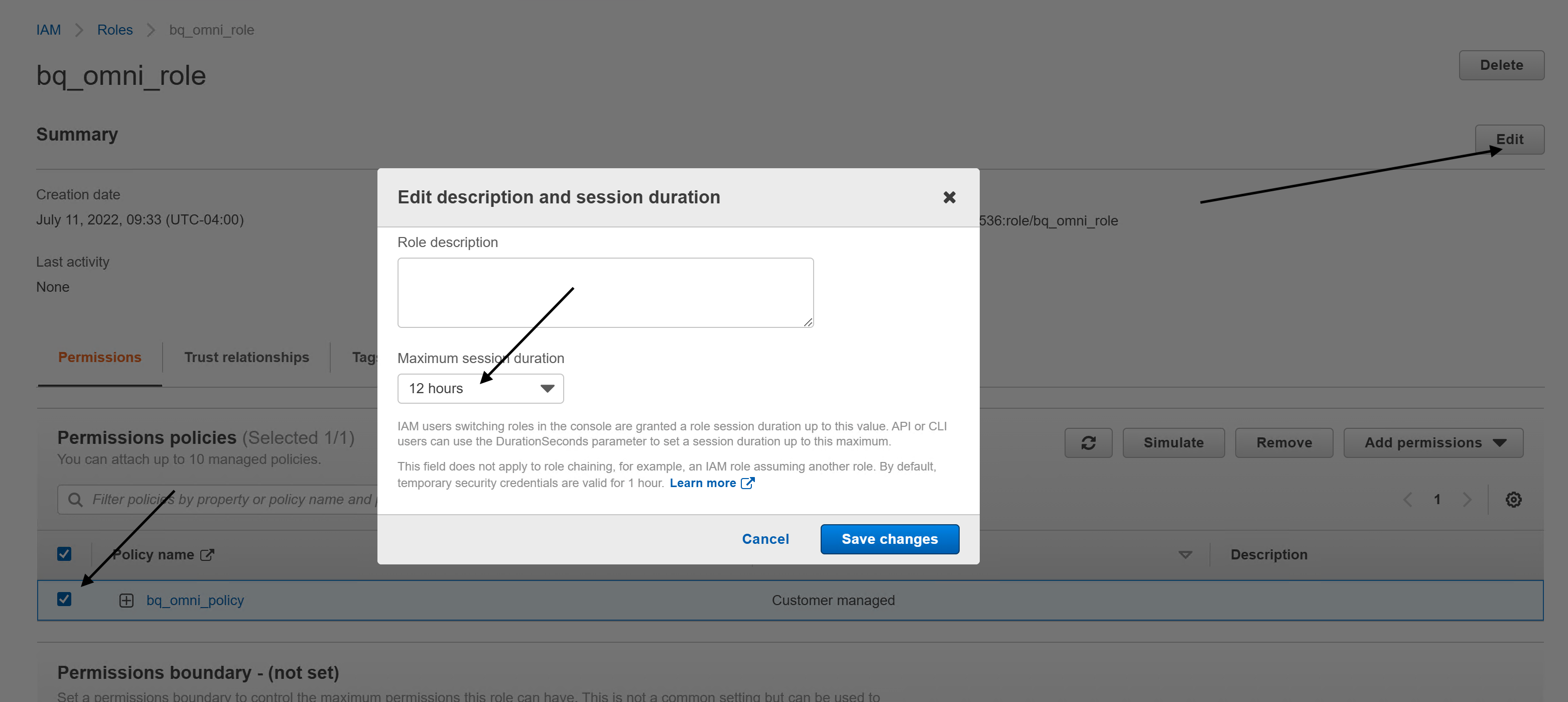
2. Click **Save changes**.
5. Select **Trust Relationships** and click **Edit trust relationship**.
Replace the policy content with the following:
```json
{
"Version": "2012-10-17",
"Statement": [
{
"Effect": "Allow",
"Principal": {
"Federated": "accounts.google.com"
},
"Action": "sts:AssumeRoleWithWebIdentity",
"Condition": {
"StringEquals": {
"accounts.google.com:sub": "IDENTITY_ID"
}
}
}
]
}
```
Replace `IDENTITY_ID` with the **BigQuery Google
identity** value, which you can find on the Google Cloud console
for the
[connection you created](https://docs.cloud.google.com/bigquery/docs/omni-aws-create-connection#creating-aws-connection).
6. Click **Update Trust Policy**.
### AWS CLI
To create a trust relationship with the BigQuery connection,
use the
[`aws iam update-assume-role-policy` command](https://docs.aws.amazon.com/cli/latest/reference/iam/update-assume-role-policy.html):
```bash
aws iam update-assume-role-policy \
--role-name bigquery-omni-connection \
--policy-document '{
"Version": "2012-10-17",
"Statement": [
{
"Effect": "Allow",
"Principal": {
"Federated": "accounts.google.com"
},
"Action": "sts:AssumeRoleWithWebIdentity",
"Condition": {
"StringEquals": {
"accounts.google.com:sub": "IDENTITY_ID"
}
}
}
]
}'
```
Replace the following:
- `IDENTITY_ID`: the **BigQuery Google
identity** value, which you can find on the Google Cloud console for the [connection you created](https://docs.cloud.google.com/bigquery/docs/omni-aws-create-connection#creating-aws-connection).
### Terraform
Update the `aws_iam_role` resource in the Terraform configuration to add a
trust relationship:
```terraform
resource "aws_iam_role" "bigquery-omni-connection-role" {
name = "bigquery-omni-connection"
max_session_duration = 43200
assume_role_policy = <<-EOF
{
"Version": "2012-10-17",
"Statement": [
{
"Effect": "Allow",
"Principal": {
"Federated": "accounts.google.com"
},
"Action": "sts:AssumeRoleWithWebIdentity",
"Condition": {
"StringEquals": {
"accounts.google.com:sub": "${google_bigquery_connection.connection.aws[0].access_role[0].identity}"
}
}`
}
]
}
EOF
}
```
> [!NOTE]
> **Note:** There may be a propagation delay for role assignment in AWS. If you receive an error of this type when using a new connection, waiting and trying again later may resolve the issue.
The connection is now ready to use.
### Configure a custom AWS identity provider
If your AWS account has a
[custom identity provider](https://docs.aws.amazon.com/IAM/latest/UserGuide/id_roles_providers_create_oidc.html)
for `accounts.google.com`, you will need to add the IDENTITY_ID
as an audience to the provider. You can accomplish this by:
1. Go to the AWS IAM console.
Ensure that you're in the account that owns the Amazon S3 bucket
that you want to access.
[Go to the AWS IAM console](https://console.aws.amazon.com/iam/home)
2. Navigate to the **IAM** \> **Identity Providers**.
3. Select the identity provider for *accounts.google.com*.
4. Click **Add Audience** and add the IDENTITY_ID as the
audience.
The connection is now ready to use.
## Share connections with users
You can grant the following roles to let users query data and manage connections:
- `roles/bigquery.connectionUser`: enables users to use connections to connect
with external data sources and run queries on them.
- `roles/bigquery.connectionAdmin`: enables users to manage connections.
For more information about IAM roles and permissions in
BigQuery, see [Predefined roles and permissions](https://docs.cloud.google.com/bigquery/access-control).
Select one of the following options:
### Console
1. Go to the **BigQuery** page.
[Go to BigQuery](https://console.cloud.google.com/bigquery)
Connections are listed in your project, in a group called **Connections**.
2. In the left pane, click **Explorer**:

If you don't see the left pane, click **Expand left pane** to open the pane.
3. Click your project, click **Connections**, and then select a connection.
4. In the **Details** pane, click **Share** to share a connection.
Then do the following:
1. In the **Connection permissions** dialog, share the
connection with other principals by adding or editing
principals.
2. Click **Save**.
### bq
You cannot share a connection with the bq command-line tool.
To share a connection, use the Google Cloud console or
the BigQuery Connections API method to share a connection.
### API
Use the
[`projects.locations.connections.setIAM` method](https://docs.cloud.google.com/bigquery/docs/reference/bigqueryconnection/rest/v1/projects.locations.connections#methods)
in the BigQuery Connections REST API reference section, and
supply an instance of the `policy` resource.
### Java
Before trying this sample, follow the Java setup instructions in the
[BigQuery quickstart using
client libraries](https://docs.cloud.google.com/bigquery/docs/quickstarts/quickstart-client-libraries).
For more information, see the
[BigQuery Java API
reference documentation](https://docs.cloud.google.com/java/docs/reference/google-cloud-bigquery/latest/overview).
To authenticate to BigQuery, set up Application Default Credentials.
For more information, see
[Set up authentication for client libraries](https://docs.cloud.google.com/bigquery/docs/authentication#client-libs).
import com.google.api.resourcenames.https://docs.cloud.google.com/java/docs/reference/api-common/latest/com.google.api.resourcenames.ResourceName.html;
import com.google.cloud.bigquery.connection.v1.https://docs.cloud.google.com/java/docs/reference/google-cloud-bigqueryconnection/latest/com.google.cloud.bigquery.connection.v1.ConnectionName.html;
import com.google.cloud.bigqueryconnection.v1.https://docs.cloud.google.com/java/docs/reference/google-cloud-bigqueryconnection/latest/com.google.cloud.bigqueryconnection.v1.ConnectionServiceClient.html;
import com.google.iam.v1.https://docs.cloud.google.com/java/docs/reference/proto-google-iam-v1/latest/com.google.iam.v1.Binding.html;
import com.google.iam.v1.https://docs.cloud.google.com/java/docs/reference/proto-google-iam-v1/latest/com.google.iam.v1.Policy.html;
import com.google.iam.v1.https://docs.cloud.google.com/java/docs/reference/proto-google-iam-v1/latest/com.google.iam.v1.SetIamPolicyRequest.html;
import java.io.IOException;
// Sample to share connections
public class ShareConnection {
public static void main(String[] args) throws IOException {
// TODO(developer): Replace these variables before running the sample.
String projectId = "MY_PROJECT_ID";
String location = "MY_LOCATION";
String connectionId = "MY_CONNECTION_ID";
shareConnection(projectId, location, connectionId);
}
static void shareConnection(String projectId, String location, String connectionId)
throws IOException {
try (https://docs.cloud.google.com/java/docs/reference/google-cloud-bigqueryconnection/latest/com.google.cloud.bigqueryconnection.v1.ConnectionServiceClient.html client = https://docs.cloud.google.com/java/docs/reference/google-cloud-bigqueryconnection/latest/com.google.cloud.bigqueryconnection.v1.ConnectionServiceClient.html.create()) {
https://docs.cloud.google.com/java/docs/reference/api-common/latest/com.google.api.resourcenames.ResourceName.html resource = https://docs.cloud.google.com/java/docs/reference/google-cloud-bigqueryconnection/latest/com.google.cloud.bigquery.connection.v1.ConnectionName.html.of(projectId, location, connectionId);
https://docs.cloud.google.com/java/docs/reference/proto-google-iam-v1/latest/com.google.iam.v1.Binding.html binding =
https://docs.cloud.google.com/java/docs/reference/proto-google-iam-v1/latest/com.google.iam.v1.Binding.html.newBuilder()
.https://docs.cloud.google.com/java/docs/reference/proto-google-iam-v1/latest/com.google.iam.v1.Binding.Builder.html#com_google_iam_v1_Binding_Builder_addMembers_java_lang_String_("group:example-analyst-group@google.com")
.setRole("roles/bigquery.connectionUser")
.build();
https://docs.cloud.google.com/java/docs/reference/proto-google-iam-v1/latest/com.google.iam.v1.Policy.html policy = https://docs.cloud.google.com/java/docs/reference/proto-google-iam-v1/latest/com.google.iam.v1.Policy.html.newBuilder().https://docs.cloud.google.com/java/docs/reference/proto-google-iam-v1/latest/com.google.iam.v1.Policy.Builder.html#com_google_iam_v1_Policy_Builder_addBindings_com_google_iam_v1_Binding_(binding).build();
https://docs.cloud.google.com/java/docs/reference/proto-google-iam-v1/latest/com.google.iam.v1.SetIamPolicyRequest.html request =
https://docs.cloud.google.com/java/docs/reference/proto-google-iam-v1/latest/com.google.iam.v1.SetIamPolicyRequest.html.newBuilder()
.setResource(resource.toString())
.https://docs.cloud.google.com/java/docs/reference/proto-google-iam-v1/latest/com.google.iam.v1.SetIamPolicyRequest.Builder.html#com_google_iam_v1_SetIamPolicyRequest_Builder_setPolicy_com_google_iam_v1_Policy_(policy)
.build();
client.setIamPolicy(request);
System.out.println("Connection shared successfully");
}
}
}
## What's next
- Learn about different [connection types](https://docs.cloud.google.com/bigquery/docs/connections-api-intro).
- Learn about [managing connections](https://docs.cloud.google.com/bigquery/docs/working-with-connections).
- Learn about [BigQuery Omni](https://docs.cloud.google.com/bigquery/docs/omni-introduction).
- Use the [BigQuery Omni with AWS lab](https://www.cloudskillsboost.google/catalog_lab/5345).
- Learn about [BigLake tables](https://docs.cloud.google.com/bigquery/docs/biglake-intro).
- Learn how to [query Amazon S3 data](https://docs.cloud.google.com/bigquery/docs/omni-aws-create-external-table).
- Learn how to [export query results to an Amazon S3 bucket](https://docs.cloud.google.com/bigquery/docs/omni-aws-export-results-to-s3).