# Managed disaster recovery
To protect your data and maintain business continuity during regional outages,
you can configure and use BigQuery-managed disaster recovery for your
BigQuery data and workloads.
## Overview
BigQuery supports disaster recovery scenarios in the case of a
total region outage. BigQuery disaster recovery relies on
[cross-region dataset replication](https://docs.cloud.google.com/bigquery/docs/data-replication.md.txt) to manage
storage failover. After creating a dataset replica in a secondary region, you
can control failover behavior for compute and storage to maintain business
continuity during an outage. After a failover, you can access compute capacity
(slots) and replicated datasets in the promoted region. Disaster recovery is
only supported with the [Enterprise Plus
edition](https://docs.cloud.google.com/bigquery/docs/editions-intro).
Managed disaster recovery offers two failover options: hard failover and
soft failover. A hard failover immediately promotes the secondary region's
reservation and dataset replicas to become the primary. This action proceeds
even if the current primary region is offline and does not wait for the
replication of any unreplicated data. Because of this, data loss can occur
during hard failover.
Any jobs that committed data in the source region after the replica's value of
[`replication_time`](https://docs.cloud.google.com/bigquery/docs/information-schema-schemata-replicas.md.txt#schema)
may need to be rerun in the destination region after a hard failover.
During a hard failover, dataset access controls (ACLs)---including authorized
views and user access grants---that have not yet replicated might also be lost. To
prevent downstream disruption, include ACL recreation steps (for example, by
using `terraform apply`) in your failover playbooks.
In contrast to a hard failover, a soft failover waits until all reservation
and dataset changes committed in the primary region are replicated to the
secondary region before completing the failover process. A soft failover
requires both the primary and secondary region to be available.
Initiating a soft failover sets the [`softFailoverStartTime`](https://docs.cloud.google.com/bigquery/docs/reference/reservations/rest/v1/projects.locations.reservations.md.txt#replicationstatus)
for the reservation. The [`softFailoverStartTime`](https://docs.cloud.google.com/bigquery/docs/reference/reservations/rest/v1/projects.locations.reservations.md.txt#replicationstatus)
is cleared on soft failover completion.
To enable disaster recovery, you are required to create an
Enterprise Plus edition reservation in the primary region, which is the
region the dataset is in before failover. Standby compute capacity in the paired
region is included in the Enterprise Plus reservation. You then attach
a dataset to this reservation to enable failover for that dataset. You can only
attach a dataset to a reservation if the dataset is backfilled and has the same
paired primary and secondary locations as the reservation. After a dataset is
attached to a failover reservation, only Enterprise Plus reservations
can write to those datasets and you can't perform a [cross-region
replication](https://docs.cloud.google.com/bigquery/docs/data-replication) promotion on the dataset. You can
read from datasets attached to a failover reservation with any capacity model.
For more information about reservations, see [Introduction to workload
management](https://docs.cloud.google.com/bigquery/docs/reservations-intro).
The compute capacity of your primary region is available in the secondary region
promptly after a failover. This availability applies to your
reservation baseline, whether it is used or not.
You must actively choose to fail over as part of testing or in response to a
real disaster. You shouldn't fail over more than once in a 10-minute window. In
data replication scenarios, backfill refers to the process of populating a
replica of a dataset with historical data that existed before the replica was
created or became active. Datasets must complete their backfill before you can
fail over to the dataset.
The following diagram shows the architecture of managed disaster recovery:
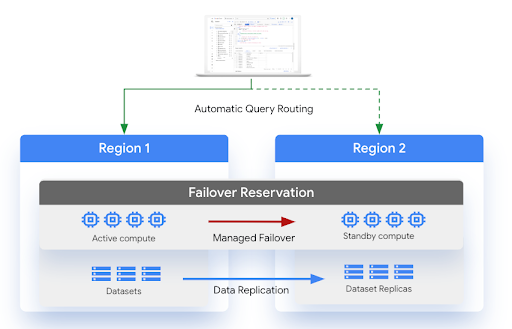
## Limitations
The following limitations apply to BigQuery disaster recovery:
- BigQuery disaster recovery is subject to the same
limitations as
[cross-region dataset replication](https://docs.cloud.google.com/bigquery/docs/data-replication.md.txt#limitations).
- A failover reservation can have a maximum of 1,000 attached datasets.
- You can't convert an existing reservation to a failover reservation if the
reservation has more than 1,000
[reservation assignments](https://docs.cloud.google.com/bigquery/docs/reservations-workload-management.md.txt#assignments).
- If queries reference datasets attached to multiple failover reservations
within the same administration project, all of those reservations must use the
same secondary location.
- Once a dataset is attached to a failover reservation, only
Enterprise Plus reservations can write to that dataset. You can read
from attached datasets using any capacity model.
- For datasets using disaster recovery, load and extract jobs can't use the free
shared slot pool. You must create a `PIPELINE` type reservation assignment
because only the Enterprise Plus edition supports writing to disaster
recovery-configured datasets.
- After a failover, autoscaling depends on compute capacity availability in the
secondary region. Only the reservation baseline is available in the secondary
region.
- If replication fails during the initial creation of resources, the
reservation isn't created in the secondary region, and neither hard nor soft
failover is available.
- Soft failover requires both the primary and secondary regions to be
available.
- You can't initiate a soft failover if reservation configuration changes have
not replicated to the secondary region. Any replication errors, such as
insufficient slot quota in the secondary region or transient issues, prevent
soft failover from starting.
- During an active soft failover, you can't update the reservation or attached
datasets, but you can still read from them.
- Jobs running on a failover reservation during an active soft failover might
not use reservation slots due to transient routing changes during the failover
operation. These jobs use reservation slots before the soft failover starts
and once it completes.
- After a failover, [scheduled queries](https://docs.cloud.google.com/bigquery/docs/scheduling-queries.md.txt)
don't automatically redirect to the new primary location because they are
bound to the location specified during creation. To resume scheduled queries,
you must recreate them in the new primary location.
- The [`INFORMATION_SCHEMA.RESERVATIONS`
view](https://docs.cloud.google.com/bigquery/docs/information-schema-reservations) doesn't include failover
details. To list failover events for reservations, query the
[`INFORMATION_SCHEMA.FAILOVER_HISTORY`
view](https://docs.cloud.google.com/bigquery/docs/information-schema-failover-history).
- The [`INFORMATION_SCHEMA.JOBS` view](https://docs.cloud.google.com/bigquery/docs/information-schema-jobs.md.txt)
contains job history only for the region where jobs executed. Primary region
job history isn't replicated to the secondary region. After a failover, job
history from the primary region isn't visible in the secondary region.
## Locations
The following regions are available when creating a failover reservation:
| Location code | Region Name | Region Description |
|---|---|---|
| `AU` | | |
| | `AUSTRALIA-SOUTHEAST1` | Sydney |
| | `AUSTRALIA-SOUTHEAST2` | Melbourne |
| `CA` | | |
| | `NORTHAMERICA-NORTHEAST1` | Montréal |
| | `NORTHAMERICA-NORTHEAST2` | Toronto |
| `DE` | | |
| | `EUROPE-WEST3` | Frankfurt |
| | `EUROPE-WEST10` | Berlin |
| `EU` | | |
| | `EU` | EU multi-region |
| | `EUROPE-CENTRAL2` | Warsaw |
| | `EUROPE-NORTH1` | Finland |
| | `EUROPE-SOUTHWEST1` | Madrid |
| | `EUROPE-WEST1` | Belgium |
| | `EUROPE-WEST3` | Frankfurt |
| | `EUROPE-WEST4` | Netherlands |
| | `EUROPE-WEST8` | Milan |
| | `EUROPE-WEST9` | Paris |
| `EUR5` | | |
| | `EUROPE-WEST1` | Belgium |
| | `EUROPE-WEST2` | London |
| `EUR7` | | |
| | `EUROPE-WEST2` | London |
| | `EUROPE-WEST3` | Frankfurt |
| `IN` | | |
| | `ASIA-SOUTH1` | Mumbai |
| | `ASIA-SOUTH2` | Delhi |
| `US` | | |
| | `US` | US multi-region |
| | `US-CENTRAL1` | Iowa |
| | `US-EAST1` | South Carolina |
| | `US-EAST4` | Northern Virginia |
| | `US-EAST5` | Columbus |
| | `US-SOUTH1` | Dallas |
| | `US-WEST1` | Oregon |
| | `US-WEST2` | Los Angeles |
| | `US-WEST3` | Salt Lake City |
| | `US-WEST4` | Las Vegas |
Region pairs must be selected within `AU`, `CA`, `DE`, `EU`, `EUR5`, `EUR7`,
`IN`, or the `US`. For example, a region within the `US` cannot be paired with a
region within `EU`.
If your BigQuery dataset is in a multi-region location, you can't
use the following region pairs. This limitation is required to make sure that
your failover reservation and data are geographically separated after
replication. For more information about regions that are contained within
multi-regions, see
[Multi-regions](https://docs.cloud.google.com/bigquery/docs/locations.md.txt#multi-regions).
- `us-central1` - `us` multi-region
- `us-west1` - `us` multi-region
- `eu-west1` - `eu` multi-region
- `eu-west4` - `eu` multi-region
## Before you begin
1. Verify that you have the `bigquery.reservations.update` Identity and Access Management (IAM) permission to update reservations.
2. Verify that you have existing datasets that are configured for replication. For more information, see [Replicate a dataset](https://docs.cloud.google.com/bigquery/docs/data-replication.md.txt#replicate_a_dataset).
## Turbo replication
Disaster recovery uses [Turbo replication](https://docs.cloud.google.com/storage/docs/availability-durability.md.txt#turbo-replication)
for faster data replication across regions, which
[reduces the risk of data loss exposure](https://docs.cloud.google.com/architecture/disaster-recovery.md.txt#step_1_gather_existing_requirements),
minimize service downtime, and
[helps support uninterrupted service](https://docs.cloud.google.com/bigquery/docs/reliability-intro.md.txt#disaster_planning)
following a regional outage.
Turbo replication doesn't apply to the initial backfill operation. After the
initial backfill operation is completed, turbo replication aims to replicate
datasets to a single failover region pair with a secondary replica within 15
minutes, as long as the [bandwidth quota](https://docs.cloud.google.com/bigquery/quotas.md.txt#bandwidth_limits)
isn't exceeded and there are no user errors.
### Recovery time objective
A recovery time objective (RTO) is the target time allowed for recovery in
BigQuery in the event of a disaster. For more information on RTO,
see [Basics of DR planning](https://docs.cloud.google.com/architecture/dr-scenarios-planning-guide.md.txt).Managed
disaster recovery has a five-minute RTO after you initiate a failover. Because
of the RTO, capacity is available in the secondary region within five minutes of
starting the failover process.
### Recovery point objective
A recovery point objective (RPO) is the most recent point in time from which
data must be able to be restored. For more information on RPO, see [Basics of DR
planning](https://docs.cloud.google.com/architecture/dr-scenarios-planning-guide). Managed disaster recovery
has a RPO that is defined per dataset. The RPO aims to keep the secondary
replica within 15 minutes of the primary. To meet this RPO, you can't exceed the
[bandwidth quota](https://docs.cloud.google.com/bigquery/quotas.md.txt#bandwidth_limits) and there can't be any user
errors.
## Quota
You must have your chosen compute capacity in the secondary region before
configuring a failover reservation. If there is not available quota in the
secondary region, you can't configure or update the reservation.
For more information, see [Quotas and limits](https://docs.cloud.google.com/bigquery/quotas.md.txt#reservations).
### Quota considerations for failover reservations
When you configure managed disaster recovery, the baseline slots for a failover
reservation are allocated slots in the secondary region. These allocated slots
appear as "used" in the **Quotas \& System Limits** page of the secondary
region, even if the reservation is idle and no failover has been initiated.
Ensure that your administration project has sufficient slot quota in the
secondary region to accommodate the failover reservation's baseline capacity.
For more information about allocated slots and quota usage, see
[Understand slot metrics](https://docs.cloud.google.com/bigquery/docs/reservations-monitoring.md.txt#understand_slot_metrics).
Turbo replication bandwidth has quota. For more information, see [Quotas and
limits](https://docs.cloud.google.com/bigquery/quotas#bandwidth_limits).
## Pricing
Configuring managed disaster recovery requires the following pricing plans:
- Compute capacity: You must purchase the [Enterprise Plus edition](https://cloud.google.com/bigquery/pricing#capacity_compute_analysis_pricing).
- Turbo replication: Disaster recovery relies on turbo replication during
replication. You are charged based on physical bytes and on a per physical
GiB replicated basis. For more information, see [Data replication data transfer
pricing for Turbo replication](https://cloud.google.com/bigquery/pricing#data_replication).
- Storage: Storage bytes in the secondary region are billed at the same price as
storage bytes in the primary region. For more information, see [Storage
pricing](https://cloud.google.com/bigquery/pricing#storage).
Customers are only required to pay for compute capacity in the primary region.
Secondary compute capacity (based on the reservation baseline) is available in
the secondary region at no additional cost. [Idle
slots](https://docs.cloud.google.com/bigquery/docs/slots#idle_slots) can't use the secondary compute capacity
unless the reservation has failed over.
If you need to perform stale reads in the secondary region, you must
[purchase](https://cloud.google.com/bigquery/pricing#overview_of_pricing)
additional compute capacity.
Managed disaster recovery supports
[BigQuery fluid scaling](https://docs.cloud.google.com/bigquery/docs/slots.md.txt#fluid-scaling). To ensure
per-second billing with no minimum duration after a failover, you must enable
BigQuery fluid scaling in both the primary and secondary regions.
## Create or alter an Enterprise Plus reservation
> [!CAUTION]
> **Caution:** Before creating a failover reservation, verify that no reservation with the same name already exists in the secondary region. Similarly, make sure a new assignment to a failover reservation does not reassign the same resource with the same job type in the secondary location. Such conflicts can cause replication failures, which results in an inconsistency between the primary and secondary locations. That can in turn prevent a successful failover operation later.
Before attaching a dataset to a reservation, you must create an
Enterprise Plus reservation or alter an existing reservation and
configure it for disaster recovery.
### Create a reservation
Select one of the following:
### Console
1. In the Google Cloud console, go to the **BigQuery** page.
[Go to BigQuery](https://console.cloud.google.com/bigquery)
2. In the navigation menu, click **Workload management**.
3. Click **Create
reservation**.
4. In the **Reservation name** field, enter a name for the reservation.
5. In the **Location** list, select the location.
6. In the **Edition** list, select the Enterprise Plus edition.
7. In the **Max reservation size selector** list, select the maximum reservation size.
8. Optional: In the **Baseline slots** field, enter the number of baseline
slots for the reservation.
The number of available autoscaling slots is determined by
subtracting the **Baseline slots** value from the **Max reservation
size** value. For example, if you create a reservation with 100 baseline
slots and a max reservation size of 400, your reservation has 300
autoscaling slots. For more information about baseline slots, see
[Using reservations with baseline and autoscaling
slots](https://docs.cloud.google.com/bigquery/docs/slots-autoscaling-intro#using_reservations_with_baseline_and_autoscaling_slots).
9. In the **Secondary location** list, select the secondary location.
10. To disable [idle slot sharing](https://docs.cloud.google.com/bigquery/docs/slots.md.txt#idle_slots)
and use only the specified slot capacity, click the **Ignore idle slots**
toggle.
11. To expand the **Advanced settings** section, click the
expander arrow.
12. Optional: To set the target job concurrency, click the **Override
automatic target job concurrency** toggle to on, and then enter a value
for **Target Job Concurrency**.
The breakdown of slots is displayed in the **Cost estimate** table. A
summary of the reservation is displayed in the **Capacity summary**
table.
13. Click **Save**.
The new reservation is visible in the **Slot reservations** tab.
### SQL
To create a reservation, use the
[`CREATE RESERVATION` data definition language (DDL) statement](https://docs.cloud.google.com/bigquery/docs/reference/standard-sql/data-definition-language.md.txt#create_reservation_statement).
1. In the Google Cloud console, go to the **BigQuery** page.
[Go to BigQuery](https://console.cloud.google.com/bigquery)
2. In the query editor, enter the following statement:
```googlesql
CREATE RESERVATION
`ADMIN_PROJECT_ID.region-LOCATION.RESERVATION_NAME`
OPTIONS (
slot_capacity = NUMBER_OF_BASELINE_SLOTS,
edition = ENTERPRISE_PLUS,
secondary_location = SECONDARY_LOCATION);
```
Replace the following:
- `ADMIN_PROJECT_ID`: the project ID of the [administration project](https://docs.cloud.google.com/bigquery/docs/reservations-workload-management.md.txt#admin-project) that owns the reservation resource.
- `LOCATION`: the [location](https://docs.cloud.google.com/bigquery/docs/locations.md.txt) of the reservation. If you select a [BigQuery Omni
location](https://docs.cloud.google.com/bigquery/docs/omni-introduction#locations), your edition option is limited to the Enterprise edition.
- `RESERVATION_NAME`: the name of the reservation.
The name must start and end with a lowercase letter or a number
and contain only lowercase letters, numbers, and dashes.
- `NUMBER_OF_BASELINE_SLOTS`: the number of baseline slots to allocate to the reservation. You cannot set the `slot_capacity` option and the `edition` option in the same reservation.
- `SECONDARY_LOCATION`: the secondary [location](https://docs.cloud.google.com/bigquery/docs/locations.md.txt) of the reservation. In the case of an outage, any datasets attached to this reservation will fail over to this location.
3. Click **Run**.
For more information about how to run queries, see [Run an interactive query](https://docs.cloud.google.com/bigquery/docs/running-queries.md.txt#queries).
### Alter an existing reservation
Select one of the following:
### Console
1. In the Google Cloud console, go to the **BigQuery** page.
[Go to BigQuery](https://console.cloud.google.com/bigquery)
2. In the navigation menu, click **Workload management**.
3. Click the **Slot reservations** tab.
4. Find the reservation that you want to update.
5. Click
**Reservations actions** , and then click **Edit**.
6. In the **Secondary location** field, enter the secondary location.
7. Click **Save**.
### SQL
To add or change a secondary location to a reservation, use the
[`ALTER RESERVATION SET OPTIONS` DDL statement](https://docs.cloud.google.com/bigquery/docs/reference/standard-sql/data-definition-language.md.txt#alter_reservation_set_options_statement).
1. In the Google Cloud console, go to the **BigQuery** page.
[Go to BigQuery](https://console.cloud.google.com/bigquery)
2. In the query editor, enter the following statement:
```googlesql
ALTER RESERVATION
`ADMIN_PROJECT_ID.region-LOCATION.RESERVATION_NAME`
SET OPTIONS (
secondary_location = SECONDARY_LOCATION);
```
Replace the following:
- `ADMIN_PROJECT_ID`: the project ID of the [administration project](https://docs.cloud.google.com/bigquery/docs/reservations-workload-management.md.txt#admin-project) that owns the reservation resource.
- `LOCATION`: the [location](https://docs.cloud.google.com/bigquery/docs/locations.md.txt) of the reservation, for example `europe-west9`.
- `RESERVATION_NAME`: the name of the reservation. The name must start and end with a lowercase letter or a number and contain only lowercase letters, numbers, and dashes.
- `SECONDARY_LOCATION`: the secondary [location](https://docs.cloud.google.com/bigquery/docs/locations.md.txt) of the reservation. In the case of an outage, any datasets attached to this reservation will fail over to this location.
3. Click **Run**.
For more information about how to run queries, see [Run an interactive query](https://docs.cloud.google.com/bigquery/docs/running-queries.md.txt#queries).
## Attach a dataset to a reservation
To enable disaster recovery for the previously created reservation, complete the
following steps. The dataset must already be configured for replication in the
same primary and secondary regions as the reservation. For more information, see
[Cross-region dataset replication](https://docs.cloud.google.com/bigquery/docs/data-replication.md.txt#replicate_a_dataset).
> [!CAUTION]
> **Caution:** After a dataset is attached to a failover reservation, only Enterprise Plus reservations can write to that dataset. You can read from datasets attached to a failover reservation with any capacity model. For more information, see [Limitations](https://docs.cloud.google.com/bigquery/docs/managed-disaster-recovery.md.txt#limitations).
### Console
1. In the Google Cloud console, go to the **BigQuery** page.
[Go to BigQuery](https://console.cloud.google.com/bigquery)
2. In the navigation menu, click **Workload management**.
3. Click the **Slot reservations** tab.
4. Click the reservation that you want to attach a dataset to.
5. Click the **Connected failover datasets** tab.
6. Click **Connect failover dataset**.
7. Enter the name of the dataset you want to associate with the reservation.
8. Click **Add**.
### SQL
To attach a dataset to a reservation, use the
[`ALTER SCHEMA SET OPTIONS` DDL statement](https://docs.cloud.google.com/bigquery/docs/reference/standard-sql/data-definition-language.md.txt#alter_schema_set_options_statement).
1. In the Google Cloud console, go to the **BigQuery** page.
[Go to BigQuery](https://console.cloud.google.com/bigquery)
2. In the query editor, enter the following statement:
```googlesql
ALTER SCHEMA
`DATASET_NAME`
SET OPTIONS (
failover_reservation = ADMIN_PROJECT_ID.RESERVATION_NAME);
```
Replace the following:
- `DATASET_NAME`: the name of the dataset.
- `ADMIN_PROJECT_ID.RESERVATION_NAME`: the name of the reservation you want to associate the dataset to.
3. Click **Run**.
For more information about how to run queries, see [Run an interactive query](https://docs.cloud.google.com/bigquery/docs/running-queries.md.txt#queries).
## Detach a dataset from a reservation
To stop managing the failover behavior of a dataset through a reservation,
detach the dataset from the reservation.
This doesn't change the current primary replica for the dataset nor
does it remove any existing dataset replicas. For more information about
removing dataset replicas after detaching a dataset, see
[Remove a dataset replica](https://docs.cloud.google.com/bigquery/docs/data-replication.md.txt#remove_a_dataset_replica).
### Console
1. In the Google Cloud console, go to the **BigQuery** page.
[Go to BigQuery](https://console.cloud.google.com/bigquery)
2. In the navigation menu, click **Workload management** , and then
click the **Slot reservations** tab.
3. Click the reservation that you want to detach a dataset from.
4. Click the **Connected failover datasets** tab.
5. In the row for the primary replica of the dataset, click
**Disconnect**.
6. In the **Remove failover dataset association?** dialog, click
**Confirm**.
### SQL
To detach a dataset from a reservation, use the
[`ALTER SCHEMA SET OPTIONS` DDL statement](https://docs.cloud.google.com/bigquery/docs/reference/standard-sql/data-definition-language.md.txt#alter_schema_set_options_statement).
1. In the Google Cloud console, go to the **BigQuery** page.
[Go to BigQuery](https://console.cloud.google.com/bigquery)
2. In the query editor, enter the following statement:
```googlesql
ALTER SCHEMA
`DATASET_NAME`
SET OPTIONS (
failover_reservation = NULL);
```
Replace the following:
- `DATASET_NAME`: the name of the dataset.
3. Click **Run**.
For more information about how to run queries, see [Run an interactive query](https://docs.cloud.google.com/bigquery/docs/running-queries.md.txt#queries).
## Initiate a failover
In the event of a regional outage, you must manually failover your reservation
to the location used by the replica. Failing over the reservation also includes
any associated datasets. To manually fail over a reservation, do the following:
### Console
1. In the Google Cloud console, go to the **BigQuery** page.
[Go to BigQuery](https://console.cloud.google.com/bigquery)
2. In the navigation menu, click **Disaster recovery**.
3. Click the name of the reservation that you want to fail over to.
4. Click **Failover**.
5. In the **Failover reservation?** dialog, select either **Soft failover
mode (default)** or **Hard failover mode** , enter `confirm`, and then
click **Confirm**.
### SQL
To add or change a secondary location to a reservation, use the
[`ALTER RESERVATION SET OPTIONS` DDL statement](https://docs.cloud.google.com/bigquery/docs/reference/standard-sql/data-definition-language.md.txt#alter_reservation_set_options_statement) and set
`is_primary` to `TRUE`.
1. In the Google Cloud console, go to the **BigQuery** page.
[Go to BigQuery](https://console.cloud.google.com/bigquery)
2. In the query editor, enter the following statement:
```googlesql
ALTER RESERVATION
`ADMIN_PROJECT_ID.region-LOCATION.RESERVATION_NAME`
SET OPTIONS (
is_primary = TRUE, failover_mode=FAILOVER_MODE);
```
Replace the following:
- `ADMIN_PROJECT_ID`: the project ID of the [administration project](https://docs.cloud.google.com/bigquery/docs/reservations-workload-management.md.txt#admin-project) that owns the reservation resource.
- `LOCATION`: the new primary [location](https://docs.cloud.google.com/bigquery/docs/locations.md.txt) of the reservation, that is the current secondary location before the failover - for example, `europe-west9`.
- `RESERVATION_NAME`: the name of the reservation. The name must start and end with a lowercase letter or a number and contain only lowercase letters, numbers, and dashes.
- `PRIMARY_STATUS`: a boolean status that declares whether the reservation is the primary replica.
- `FAILOVER_MODE`: an optional parameter used to describe the failover mode. This can be set to either `HARD` or `SOFT`. If this parameter is not specified, `HARD` is used by default.
3. Click **Run**.
For more information about how to run queries, see [Run an interactive query](https://docs.cloud.google.com/bigquery/docs/running-queries.md.txt#queries).
## Monitor replication
You can monitor the status of your dataset replicas through
BigQuery, Cloud Monitoring, or `INFORMATION_SCHEMA` views.
For information about creating alerts on these metrics, see
[Create dashboards, charts, and alerts](https://docs.cloud.google.com/bigquery/docs/monitoring-dashboard.md.txt).
### View replication status with BigQuery
To view the replication status and latency for a dataset in the
Google Cloud console, do the following:
1. In the Google Cloud console, go to the **BigQuery** page.
[Go to BigQuery](https://console.cloud.google.com/bigquery)
2. In the **Explorer** pane, expand your project.
3. Click **Datasets**.
4. Click the dataset that you want to monitor. You can also use the search and
filter options to find your dataset.
5. On the dataset page, click the **Details** tab.
6. In the **Replicas** section, view **Replication latency** and **Status** . To
view more details, including a replication latency chart, click **View
details**.
### View replication status with Cloud Monitoring
BigQuery provides the following metrics in
Monitoring to help you monitor replication status:
- **Replication latency**: The staleness of data in the secondary region replicated as part of cross-region replication or managed disaster recovery. This metric serves as a proxy for your recovery point objective (RPO).
- **Network egress bytes**: The billed volume of data (in bytes) replicated from the primary region to the secondary region. This metric helps you monitor bandwidth quota utilization.
To view these metrics in Monitoring, do the following:
1. In the Google Cloud console, go to the **Monitoring** page.
[Go to Monitoring](https://console.cloud.google.com/monitoring)
2. Click **Metrics explorer**.
3. In the **Select a metric** field, search for and select **BigQuery Dataset**.
4. Select **Replication latency** (`bigquery.googleapis.com/storage/replication/dataset_staleness`)
or **Network egress bytes** (`bigquery.googleapis.com/storage/replication/network_egress_bytes_count`).
5. Click **Apply**.
6. In the **Aggregation** section, select an aggregation method. For the
replication latency metric, we recommend selecting **99th percentile**. This
aggregation better shows the worst-case performance compared to the average
or other aggregations.
7. Optional: To view metrics for a specific dataset or secondary region, click
**Add filter** , select the **dataset_id** or **location** option, and then
enter a value. If you replicate data to multiple secondary regions, you can
group by location to view metrics for each region.
### View replication status with `INFORMATION_SCHEMA`
To determine the state of your replicas, query the
[`INFORMATION_SCHEMA.SCHEMATA_REPLICAS` view](https://docs.cloud.google.com/bigquery/docs/information-schema-schemata-replicas.md.txt).
For example:
```googlesql
SELECT
schema_name,
replica_name,
creation_complete,
replica_primary_assigned,
replica_primary_assignment_complete
FROM
`region-LOCATION`.INFORMATION_SCHEMA.SCHEMATA_REPLICAS
WHERE
schema_name="my_dataset"
```
The following query returns the jobs from the last seven days that would fail if
their datasets were failover datasets. To query jobs across an organization,
replace `INFORMATION_SCHEMA.JOBS` with
[`INFORMATION_SCHEMA.JOBS_BY_ORGANIZATION`](https://docs.cloud.google.com/bigquery/docs/information-schema-jobs-by-organization.md.txt)
and omit `jobs.query` because the `INFORMATION_SCHEMA.JOBS_BY_ORGANIZATION`
view doesn't include query text:
```googlesql
SELECT
jobs.project_id AS job_project_id,
jobs.job_id,
jobs.job_type,
jobs.statement_type,
jobs.reservation_id,
jobs.edition,
jobs.destination_table.project_id AS dataset_project_id,
jobs.destination_table.dataset_id,
jobs.destination_table.table_id,
jobs.query
FROM
`PROJECT_ID.region-LOCATION`.INFORMATION_SCHEMA.JOBS AS jobs
WHERE
jobs.creation_time
BETWEEN TIMESTAMP_SUB(CURRENT_TIMESTAMP(), INTERVAL 7 DAY)
AND CURRENT_TIMESTAMP()
AND jobs.destination_table.project_id = 'DATASET_PROJECT_ID'
AND jobs.destination_table.dataset_id = 'DATASET_ID'
AND (jobs.edition IS NULL OR jobs.edition != 'ENTERPRISE_PLUS');
```
Replace the following:
- `PROJECT_ID`: the project ID where the jobs were executed.
- `LOCATION`: the [location](https://docs.cloud.google.com/bigquery/docs/locations.md.txt).
- `DATASET_PROJECT_ID`: the project ID where the destination dataset resides.
- `DATASET_ID`: the dataset ID that you plan to attach to a failover reservation.
## What's next
- Query [`INFORMATION_SCHEMA.FAILOVER_HISTORY`](https://docs.cloud.google.com/bigquery/docs/information-schema-failover-history.md.txt)
to view failover events for your reservations.
- Learn more about [cross-region dataset replication](https://docs.cloud.google.com/bigquery/docs/data-replication.md.txt).
- Learn more about [reliability](https://docs.cloud.google.com/bigquery/docs/reliability-intro.md.txt).