# Manage partition and cluster recommendations
This document describes how the partition and cluster recommender works, how
to view your recommendations and insights, and how to apply partition and
cluster recommendations.
## How the recommender works
The BigQuery partitioning and clustering recommender generates
[partition](https://docs.cloud.google.com/bigquery/docs/partitioned-tables) or [cluster](https://docs.cloud.google.com/bigquery/docs/clustered-tables)
recommendations to optimize your BigQuery tables. The recommender
analyzes workflows on your BigQuery tables and offers
recommendations to better optimize your workflows and query costs using either
table partitioning or table clustering.
For more information about the Recommender service, see the
[Recommender overview](https://docs.cloud.google.com/recommender/docs/overview).
The partitioning and clustering recommender
uses your organization's workload execution data from up to 30 days in the past
to analyze each
BigQuery table for suboptimal partitioning and clustering
configurations. The recommender also uses machine learning to predict how much
the workload execution could be optimized with different partitioning or
clustering configurations. If the recommender finds that partitioning or
clustering a table yields significant savings, the recommender generates a
recommendation. The partitioning and clustering recommender
generates the following types of recommendations:
| Existing table type | Recommendation subtype | Recommendation example |
|---|---|---|
| Non-partitioned, non-clustered | Partition | "Save about 64 slot hours per month by partitioning on column_C by DAY" |
| Non-partitioned, non-clustered | Cluster | "Save about 64 slot hours per month by clustering on column_C" |
| Partitioned, non-clustered | Cluster | "Save about 64 slot hours per month by clustering on column_C" |
Each recommendation consists of three parts:
- Guidance to either partition or cluster a specific table
- The specific column in a table to partition or cluster
- Estimated monthly savings for applying the recommendation
To calculate potential workload savings, the recommender assumes that the historical execution workload data from the past 30 days represents the future workload.
> [!NOTE]
> **Note:** In some cases, the estimated savings might be overestimated. For more information, see [Overestimation of savings](https://docs.cloud.google.com/bigquery/docs/manage-partition-cluster-recommendations#overestimation).
The recommender API also returns table workload information in the form of
*insights* .
[Insights](https://docs.cloud.google.com/recommender/docs/insights/using-insights) are findings that help you
understand your project's workload, providing more context on how a partition or
cluster recommendation might improve workload costs.
## Limitations
- The partitioning and clustering recommender does not support
BigQuery tables with legacy SQL. When generating a
recommendation, the recommender excludes any legacy SQL queries in its
analysis. Additionally, applying partition recommendations on
BigQuery tables with legacy SQL breaks any legacy SQL
workflows in that table.
Before you apply partition recommendations, [migrate your legacy SQL workflows into GoogleSQL](https://docs.cloud.google.com/bigquery/docs/reference/standard-sql/migrating-from-legacy-sql).
- BigQuery does not support changing the partitioning scheme
of a table in place. You can only change the partitioning of a table on a copy
of the table. For more information, see [Apply partition recommendations](https://docs.cloud.google.com/bigquery/docs/manage-partition-cluster-recommendations#apply_partition_recommendations).
- The partitioning and clustering recommender runs daily. However, if the
run takes longer than 24 hours to complete, the following day's run is skipped.
## Locations
The partitioning and clustering recommender is available in the following
processing locations:
| | **Region description** | **Region name** | **Details** |
|---|---|---|---|
| **Asia Pacific** ||||
| | Delhi | `asia-south2` | |
| | Hong Kong | `asia-east2` | |
| | Jakarta | `asia-southeast2` | |
| | Mumbai | `asia-south1` | |
| | Osaka | `asia-northeast2` | |
| | Seoul | `asia-northeast3` | |
| | Singapore | `asia-southeast1` | |
| | Sydney | `australia-southeast1` | |
| | Taiwan | `asia-east1` | |
| | Tokyo | `asia-northeast1` | |
| **Europe** ||||
| | Belgium | `europe-west1` |  [Low CO~2~](https://cloud.google.com/sustainability/region-carbon#region-picker) |
| | Berlin | `europe-west10` | |
| | EU multi-region | `eu` |
| | Frankfurt | `europe-west3` | |
| | London | `europe-west2` |  [Low CO~2~](https://cloud.google.com/sustainability/region-carbon#region-picker) |
| | Netherlands | `europe-west4` |  [Low CO~2~](https://cloud.google.com/sustainability/region-carbon#region-picker) |
| | Zürich | `europe-west6` |  [Low CO~2~](https://cloud.google.com/sustainability/region-carbon#region-picker) |
| **Americas** ||||
| | Iowa | `us-central1` |  [Low CO~2~](https://cloud.google.com/sustainability/region-carbon#region-picker) |
| | Las Vegas | `us-west4` | |
| | Los Angeles | `us-west2` | |
| | Montréal | `northamerica-northeast1` |  [Low CO~2~](https://cloud.google.com/sustainability/region-carbon#region-picker) |
| | Northern Virginia | `us-east4` | |
| | Oregon | `us-west1` |  [Low CO~2~](https://cloud.google.com/sustainability/region-carbon#region-picker) |
| | Salt Lake City | `us-west3` | |
| | São Paulo | `southamerica-east1` |  [Low CO~2~](https://cloud.google.com/sustainability/region-carbon#region-picker) |
| | Toronto | `northamerica-northeast2` |  [Low CO~2~](https://cloud.google.com/sustainability/region-carbon#region-picker) |
| | US multi-region | `us` |
## Before you begin
- [Enable the Recommender API](https://docs.cloud.google.com/recommender/docs/enable-api).
### Required permissions
To get the permissions that
you need to access partition and cluster recommendations,
ask your administrator to grant you the
[BigQuery Partitioning Clustering Recommender Viewer](https://docs.cloud.google.com/iam/docs/roles-permissions/recommender#recommender.bigqueryPartitionClusterViewer) (`roles/recommender.bigqueryPartitionClusterViewer`) IAM role.
For more information about granting roles, see [Manage access to projects, folders, and organizations](https://docs.cloud.google.com/iam/docs/granting-changing-revoking-access).
This predefined role contains
the permissions required to access partition and cluster recommendations. To see the exact permissions that are
required, expand the **Required permissions** section:
#### Required permissions
The following permissions are required to access partition and cluster recommendations:
- `recommender.bigqueryPartitionClusterRecommendations.get`
- `recommender.bigqueryPartitionClusterRecommendations.list`
You might also be able to get
these permissions
with [custom roles](https://docs.cloud.google.com/iam/docs/creating-custom-roles) or
other [predefined roles](https://docs.cloud.google.com/iam/docs/roles-overview#predefined).
For more information about IAM roles and permissions in
BigQuery, see
[Introduction to IAM](https://docs.cloud.google.com/bigquery/docs/access-control).
## View recommendations
This section describes how to view partition and cluster recommendations and
insights using the Google Cloud console, the Google Cloud CLI, or the Recommender API.
> [!NOTE]
> **Note:** You can also export recommendations to BigQuery using the BigQuery Data Transfer Service. For more information, see [Export recommendations to BigQuery](https://docs.cloud.google.com/recommender/docs/bq-export/export-recommendations-to-bq).
Select one of the following options:
### Console
1. In the Google Cloud console, go to the **BigQuery** page.
[Go to BigQuery](https://console.cloud.google.com/bigquery)
2. In the navigation menu, click **Recommendations**.
The recommendations tab lists all recommendations available to your
project.
3. In the **Optimize BigQuery workload cost** panel, click **View all**.
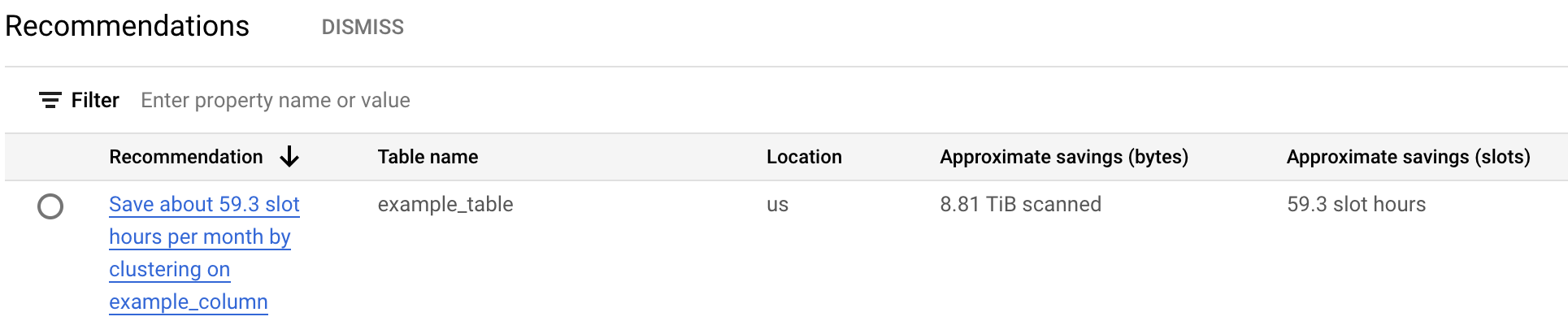
The cost recommendation table lists all recommendations generated for
the current project. For example, the following screenshot shows that
the recommender analyzed the `example_table` table, and then recommended
clustering the `example_column` column to save an approximate amount of
bytes and slots.
4. To see more information about the table insight and recommendation,
click a recommendation.
### gcloud
To view partition or cluster recommendations for a specific project, use
the [`gcloud recommender recommendations list` command](https://docs.cloud.google.com/sdk/gcloud/reference/recommender/recommendations/list):
```
gcloud recommender recommendations list \
--project=PROJECT_NAME \
--location=REGION_NAME \
--recommender=google.bigquery.table.PartitionClusterRecommender \
--format=FORMAT_TYPE \
```
Replace the following:
- `PROJECT_NAME`: the name of the project that contains your BigQuery table
- `REGION_NAME`: the region that your project is in
- `FORMAT_TYPE`: a supported [gcloud CLI output format](https://docs.cloud.google.com/sdk/gcloud/reference#--format)---for example, JSON
The following table describes the important fields from the recommender API response:
| Property | Relevant for subtype | Description |
|---|---|---|
| `recommenderSubtype` | Partition or cluster | Indicates the type of recommendation. |
| `content.overview.partitionColumn` | Partition | Recommended partitioning column name. |
| `content.overview.partitionTimeUnit` | Partition | Recommended partitioning time unit. For example, `DAY` means the recommendation is to have daily partitions on the recommended column. |
| `content.overview.clusterColumns` | Cluster | Recommended clustering column names. |
- For more information about other fields in the recommender response, see [REST Resource: `projects.locations.recommendersrecommendation`](https://docs.cloud.google.com/recommender/docs/reference/rest/v1/projects.locations.recommenders.recommendations#resource:-recommendation).
- For more information about using the Recommender API, see [Using the API - Recommendations](https://docs.cloud.google.com/recommender/docs/using-api).
To view table insights using the gcloud CLI, use the
[`gcloud recommender insights list` command](https://docs.cloud.google.com/sdk/gcloud/reference/recommender/insights/list):
```
gcloud recommender insights list \
--project=PROJECT_NAME \
--location=REGION_NAME \
--insight-type=google.bigquery.table.StatsInsight \
--format=FORMAT_TYPE \
```
Replace the following:
- `PROJECT_NAME`: the name of the project that contains your BigQuery table
- `REGION_NAME`: the region that your project is in
- `FORMAT_TYPE`: a supported [gcloud CLI output format](https://docs.cloud.google.com/sdk/gcloud/reference#--format)---for example, JSON
The following table describes the important fields from the insights API response:
| Property | Relevant for subtype | Description |
|---|---|---|
| `content.existingPartitionColumn` | Cluster | Existing partitioning column, if any |
| `content.tableSizeTb` | All | Size of the table in terabytes |
| `content.bytesReadMonthly` | All | Monthly bytes read from the table |
| `content.slotMsConsumedMonthly` | All | Monthly slot milliseconds consumed by the workload running on the table |
| `content.queryJobsCountMonthly` | All | Monthly count of jobs running on the table |
- For more information about other fields in the insights response, see [REST Resource: `projects.locations.insightTypes.insights`](https://docs.cloud.google.com/recommender/docs/reference/rest/v1/projects.locations.insightTypes.insights#resource:-insight).
- For more information about using insights, see [Using the API - Insights](https://docs.cloud.google.com/recommender/docs/insights/using-api).
### REST API
To view partition or cluster recommendations for a specific project,
use the REST API. With each command, you must provide an authentication
token, which you can get using the gcloud CLI. For more
information about getting an authentication token, see
[Methods for getting an ID token](https://docs.cloud.google.com/docs/authentication/get-id-token).
You can use the `curl list` request to view all recommendations for a
specific project:
```
curl
-H "Authorization: Bearer $GCLOUD_AUTH_TOKEN"
-H "x-goog-user-project: PROJECT_NAME" https://recommender.googleapis.com/v1/projects/my-project/locations/us/recommenders/google.bigquery.table.PartitionClusterRecommender/recommendations
```
Replace the following:
- `GCLOUD_AUTH_TOKEN`: the name of a valid gcloud CLI access token
- `PROJECT_NAME`: the name of the project containing your BigQuery table
The following table describes the important fields from the recommender API response:
| Property | Relevant for subtype | Description |
|---|---|---|
| `recommenderSubtype` | Partition or cluster | Indicates the type of recommendation. |
| `content.overview.partitionColumn` | Partition | Recommended partitioning column name. |
| `content.overview.partitionTimeUnit` | Partition | Recommended partitioning time unit. For example, `DAY` means the recommendation is to have daily partitions on the recommended column. |
| `content.overview.clusterColumns` | Cluster | Recommended clustering column names. |
- For more information about other fields in the recommender response, see [REST Resource: `projects.locations.recommendersrecommendation`](https://docs.cloud.google.com/recommender/docs/reference/rest/v1/projects.locations.recommenders.recommendations#resource:-recommendation).
- For more information about using the Recommender API, see [Using the API - Recommendations](https://docs.cloud.google.com/recommender/docs/using-api).
To view table insights using the REST API, run the following
command:
```
curl
-H "Authorization: Bearer $GCLOUD_AUTH_TOKEN"
-H "x-goog-user-project: PROJECT_NAME" https://recommender.googleapis.com/v1/projects/my-project/locations/us/insightTypes/google.bigquery.table.StatsInsight/insights
```
Replace the following:
- `GCLOUD_AUTH_TOKEN`: the name of a valid gcloud CLI access token
- `PROJECT_NAME`: the name of the project containing your BigQuery table
The following table describes the important fields from the insights API response:
| Property | Relevant for subtype | Description |
|---|---|---|
| `content.existingPartitionColumn` | Cluster | Existing partitioning column, if any |
| `content.tableSizeTb` | All | Size of the table in terabytes |
| `content.bytesReadMonthly` | All | Monthly bytes read from the table |
| `content.slotMsConsumedMonthly` | All | Monthly slot milliseconds consumed by the workload running on the table |
| `content.queryJobsCountMonthly` | All | Monthly count of jobs running on the table |
- For more information about other fields in the insights response, see [REST Resource: `projects.locations.insightTypes.insights`](https://docs.cloud.google.com/recommender/docs/reference/rest/v1/projects.locations.insightTypes.insights#resource:-insight).
- For more information about using insights, see [Using the API - Insights](https://docs.cloud.google.com/recommender/docs/insights/using-api).
### View recommendations with `INFORMATION_SCHEMA`
> [!WARNING]
>
> **Preview**
>
>
> This feature is
>
> subject to the "Pre-GA Offerings Terms" in the General Service Terms section of the
> [Service Specific
> Terms](https://docs.cloud.google.com/terms/service-terms#1).
>
> Pre-GA features are available "as is" and might have limited support.
>
> For more information, see the
> [launch stage descriptions](https://cloud.google.com/products/#product-launch-stages).
You can also view your recommendations and insights using `INFORMATION_SCHEMA`
views. For example, you can use the `INFORMATION_SCHEMA.RECOMMENDATIONS` view to
view your top three recommendations based on slots savings, as seen in the
following example:
SELECT
recommender,
target_resources,
LAX_INT64(additional_details.overview.bytesSavedMonthly) / POW(1024, 3) as est_gb_saved_monthly,
LAX_INT64(additional_details.overview.slotMsSavedMonthly) / (1000 * 3600) as slot_hours_saved_monthly,
last_updated_time
FROM
`region-us`.INFORMATION_SCHEMA.RECOMMENDATIONS
WHERE
primary_impact.category = 'COST'
AND
state = 'ACTIVE'
ORDER by
slot_hours_saved_monthly DESC
LIMIT 3;
> [!NOTE]
> **Note:** `INFORMATION_SCHEMA` view names are case sensitive.
The result is similar to the following:
```
+---+---+
| recommender | target_resources | est_gb_saved_monthly | slot_hours_saved_monthly | last_updated_time
+---+---+
| google.bigquery.materializedview.Recommender | ["project_resource"] | 140805.38289248943 | 9613.139166666666 | 2024-07-01 13:00:00
| google.bigquery.table.PartitionClusterRecommender | ["table_resource_1"] | 4393.7416711859405 | 56.61476777777777 | 2024-07-01 13:00:00
| google.bigquery.table.PartitionClusterRecommender | ["table_resource_2"] | 3934.07264107652 | 10.499466666666667 | 2024-07-01 13:00:00
+---+---+
```
For more information, see the following resources:
- [`INFORMATION_SCHEMA.RECOMMENDATIONS` view](https://docs.cloud.google.com/bigquery/docs/information-schema-recommendations)
- [`INFORMATION_SCHEMA.RECOMMENDATIONS_BY_ORGANIZATION` view](https://docs.cloud.google.com/bigquery/docs/information-schema-recommendations-by-org)
- [`INFORMATION_SCHEMA.INSIGHTS` view](https://docs.cloud.google.com/bigquery/docs/information-schema-insights)
## Apply cluster recommendations
To apply cluster recommendations, do one of the following:
- [Apply clusters directly to the original table](https://docs.cloud.google.com/bigquery/docs/manage-partition-cluster-recommendations#apply_clusters_directly_to_the_original_table)
- [Apply clusters to a copied table](https://docs.cloud.google.com/bigquery/docs/manage-partition-cluster-recommendations#apply_clusters_to_a_copied_table)
- [Apply clusters in a materialized view](https://docs.cloud.google.com/bigquery/docs/manage-partition-cluster-recommendations#apply_clusters_in_a_materialized_view)
### Apply clusters directly to the original table
You can apply cluster recommendations directly to an existing BigQuery
table. This method is quicker than [applying recommendations to a copied table](https://docs.cloud.google.com/bigquery/docs/manage-partition-cluster-recommendations#apply_clusters_to_a_copied_table),
but it does not preserve a backup table.
Follow these steps to apply a new clustering specification to unpartitioned or
partitioned tables.
1. In the bq tool, update the clustering specification of your
table to match the new clustering:
```
bq update --clustering_fields=CLUSTER_COLUMN DATASET.ORIGINAL_TABLE
```
Replace the following:
- `CLUSTER_COLUMN`: the column you are clustering on---for example, `mycolumn`
- `DATASET`: the name of the dataset containing the table---for example, `mydataset`
- `ORIGINAL_TABLE`: the name of your original table---for example, `mytable`
You can also call the `tables.update` or `tables.patch` API method to [modify the clustering specification](https://docs.cloud.google.com/bigquery/docs/manage-clustered-tables#modifying-cluster-spec).
2. To cluster all rows according to the new clustering specification,
run the following `UPDATE` statement:
```googlesql
UPDATE DATASET.ORIGINAL_TABLE SET CLUSTER_COLUMN=CLUSTER_COLUMN WHERE true
```
> [!NOTE]
> **Note:** If a new clustering specification is applied to a table that is in long-term storage, then the table reverts to active storage pricing. For more information, see [Storage pricing](https://cloud.google.com/bigquery/pricing#storage).
### Apply clusters to a copied table
When you apply cluster recommendations to a BigQuery table, you
can first copy the original table and then apply the recommendation to the
copied table. This method ensures that your original data is preserved if you
need to roll back the change to the clustering configuration.
You can use this method to apply cluster recommendations to both
unpartitioned and partitioned tables.
1. In the Google Cloud console, go to the BigQuery page.
[Go to BigQuery](https://console.cloud.google.com/bigquery)
2. In the query editor, create an empty table with the same metadata (including
the clustering specifications) of the original table by using the `LIKE` operator:
```googlesql
CREATE TABLE DATASET.COPIED_TABLE
LIKE DATASET.ORIGINAL_TABLE
```
Replace the following:
- `DATASET`: the name of the dataset containing the table---for example, `mydataset`
- `COPIED_TABLE`: a name for your copied table---for example, `copy_mytable`
- `ORIGINAL_TABLE`: the name of your original table---for example, `mytable`
3. In the Google Cloud console, open the Cloud Shell Editor.
[Activate Cloud Shell](https://console.cloud.google.com/bigquery?cloudshell=true)
4. In the Cloud Shell Editor, update the clustering specification of
the copied table to match the recommended clustering by using the `bq update`
command:
```
bq update --clustering_fields=CLUSTER_COLUMN DATASET.COPIED_TABLE
```
Replace `CLUSTER_COLUMN` with the column you are clustering on---for example, `mycolumn`.
You can also call the `tables.update` or `tables.patch` API method to [modify the clustering specification](https://docs.cloud.google.com/bigquery/docs/manage-clustered-tables#modifying-cluster-spec).
5. In the query editor, retrieve the table schema with the partitioning and
clustering configuration of the original table, if any partitioning or
clustering exists. You can retrieve the schema by viewing the
`INFORMATION_SCHEMA.TABLES` view of the original table:
```googlesql
SELECT
ddl
FROM
DATASET.INFORMATION_SCHEMA.TABLES
WHERE
table_name = 'ORIGINAL_TABLE'
```
The output is the full data definition language (DDL) statement of ORIGINAL_TABLE,
including the `PARTITION BY` clause. For more information about the arguments
in your DDL output, see [`CREATE TABLE` statement](https://docs.cloud.google.com/bigquery/docs/reference/standard-sql/data-definition-language#create_table_statement).
The DDL output indicates the type of partitioning in the original table:
| Partitioning type | Output example |
|---|---|
| Not partitioned | The `PARTITION BY` clause is absent. |
| Partitioned by table column | `PARTITION BY c0` |
| Partitioned by table column | `PARTITION BY DATE(c0)` |
| Partitioned by table column | `PARTITION BY DATETIME_TRUNC(c0, MONTH)` |
| Partitioned by ingestion time | `PARTITION BY _PARTITIONDATE` |
| Partitioned by ingestion time | `PARTITION BY DATETIME_TRUNC(_PARTITIONTIME, MONTH)` |
6. Ingest data into the copied table. The process that you use is based on
the partition type.
- If the original table is non-partitioned or partitioned by a table column, ingest the data from the original table to the copied table:
```googlesql
INSERT INTO DATASET.COPIED_TABLE
SELECT * FROM DATASET.ORIGINAL_TABLE
```
- If the original table is partitioned by ingestion time, follow these steps:
1. Retrieve the list of columns to form the data ingestion expression by
using the `INFORMATION_SCHEMA.COLUMNS` view:
```googlesql
SELECT
ARRAY_TO_STRING((
SELECT
ARRAY(
SELECT
column_name
FROM
DATASET.INFORMATION_SCHEMA.COLUMNS
WHERE
table_name = 'ORIGINAL_TABLE')), ", ")
```
The output is a comma-separated list of column names.
2. Ingest the data from the original table to the copied table:
```googlesql
INSERT DATASET.COPIED_TABLE (COLUMN_NAMES, _PARTITIONTIME)
SELECT *, _PARTITIONTIME FROM DATASET.ORIGINAL_TABLE
```
Replace `COLUMN_NAMES` with the list of columns
that was the output in the preceding step, separated by commas---for example, `col1, col2, col3`.
You now have a clustered copied table with the same data as the original table.
In the next steps, you replace your original table with a newly clustered table.
7. Rename the original table to a backup table:
```googlesql
ALTER TABLE DATASET.ORIGINAL_TABLE
RENAME TO BACKUP_TABLE
```
Replace `BACKUP_TABLE` with a name for your backup table---for example, `backup_mytable`.
8. Rename the copied table to the original table:
```googlesql
ALTER TABLE DATASET.COPIED_TABLE
RENAME TO ORIGINAL_TABLE
```
Your original table is now clustered according to the cluster recommendation.
We recommend that you review the clustered table to ensure that all table functions work as intended. Many table functions are likely tied to the table ID and not the table name, so it is best to review the following table functions before proceeding:
- Access and permissions, such as [IAM permissions](https://docs.cloud.google.com/bigquery/docs/access-control#bq-permissions), [row-level access,](https://docs.cloud.google.com/bigquery/docs/row-level-security-intro) or [column-level access](https://docs.cloud.google.com/bigquery/docs/column-level-security-intro).
- Table artifacts such as [table clones](https://docs.cloud.google.com/bigquery/docs/table-clones-intro), [table snapshots](https://docs.cloud.google.com/bigquery/docs/table-snapshots-intro), or [search indexes](https://docs.cloud.google.com/bigquery/docs/search-index).
- The status of any ongoing table processes, such as any [materialized views](https://docs.cloud.google.com/bigquery/docs/materialized-views-intro) or any jobs that ran when you copied the table.
- The ability to access historical table data using [time travel](https://docs.cloud.google.com/bigquery/docs/time-travel).
- Any metadata associated with the original table---for example, `table_option_list` or `column_option_list`. For more information, see [Data definition language statements](https://docs.cloud.google.com/bigquery/docs/reference/standard-sql/data-definition-language).
If any issues arise, you must manually migrate the affected artifacts to the new table.
After reviewing the clustered table, you can optionally delete the backup table with the following command:
```googlesql
DROP TABLE DATASET.BACKUP_TABLE
```
### Apply clusters in a materialized view
You can create a materialized view of the table to store data from the original table with the recommendation applied. Using materialized views to apply recommendations ensures that the clustered data is kept up to date using [automatic refreshes](https://docs.cloud.google.com/bigquery/docs/materialized-views-manage#automatic-refresh). There are [pricing considerations](https://docs.cloud.google.com/bigquery/docs/materialized-views-intro#materialized_views_pricing) when you query, maintain, and store materialized views. To learn how to create a clustered materialized view, see [Clustered materialized views](https://docs.cloud.google.com/bigquery/docs/materialized-views-create#cluster_materialized_views).
## Apply partition recommendations
To apply partition recommendations, you must apply it to a copy of the original
table. BigQuery does not support the changing of a partitioning
scheme of a table in place, such as changing an unpartitioned table to a
partitioned table, changing the partitioning scheme of a table, or creating a
materialized view with a different partitioning scheme from the base table. You
can only change the partitioning of a table on a copy of the table.
> [!CAUTION]
> **Caution:** Migrate your legacy SQL workflows to GoogleSQL before applying partition recommendations. For more information, see [Limitations](https://docs.cloud.google.com/bigquery/docs/manage-partition-cluster-recommendations#limitations).
### Apply partition recommendations to a copied table
When you apply partition recommendations to a BigQuery table, you
must first copy the original table and then apply the recommendation to the
copied table. This approach ensures that your original data is preserved if you
need to roll back a partition.
The following procedure uses an example recommendation to partition a table by
the partition time unit `DAY`.
1. Create a copied table using the partition recommendations:
```googlesql
CREATE TABLE DATASET.COPIED_TABLE
PARTITION BY DATE_TRUNC(PARTITION_COLUMN, DAY)
AS SELECT * FROM DATASET.ORIGINAL_TABLE
```
Replace the following:
- `DATASET`: the name of the dataset containing the table---for example, `mydataset`
- `COPIED_TABLE`: a name for your copied table---for example, `copy_mytable`
- `PARTITION_COLUMN`: the column you are partitioning on---for example, `mycolumn`
For more information about creating partitioned tables, see [Creating partitioned tables](https://docs.cloud.google.com/bigquery/docs/creating-partitioned-tables).
2. Rename the original table to a backup table:
```googlesql
ALTER TABLE DATASET.ORIGINAL_TABLE
RENAME TO BACKUP_TABLE
```
Replace `BACKUP_TABLE` with a name for your backup table---for example, `backup_mytable`.
3. Rename the copied table to the original table:
```googlesql
ALTER TABLE DATASET.COPIED_TABLE
RENAME TO ORIGINAL_TABLE
```
Your original table is now partitioned according to the partition
recommendation.
We recommend that you review the partitioned table to ensure that all table functions work as intended. Many table functions are likely tied to the table ID and not the table name, so it is best to review the following table functions before proceeding:
- Access and permissions, such as [IAM permissions](https://docs.cloud.google.com/bigquery/docs/access-control#bq-permissions), [row-level access,](https://docs.cloud.google.com/bigquery/docs/row-level-security-intro) or [column-level access](https://docs.cloud.google.com/bigquery/docs/column-level-security-intro).
- Table artifacts such as [table clones](https://docs.cloud.google.com/bigquery/docs/table-clones-intro), [table snapshots](https://docs.cloud.google.com/bigquery/docs/table-snapshots-intro), or [search indexes](https://docs.cloud.google.com/bigquery/docs/search-index).
- The status of any ongoing table processes, such as any [materialized views](https://docs.cloud.google.com/bigquery/docs/materialized-views-intro) or any jobs that ran when you copied the table.
- The ability to access historical table data using [time travel](https://docs.cloud.google.com/bigquery/docs/time-travel).
- Any metadata associated with the original table---for example, `table_option_list` or `column_option_list`. For more information, see [Data definition language statements](https://docs.cloud.google.com/bigquery/docs/reference/standard-sql/data-definition-language).
- Ability to use legacy SQL to write query results into partitioned tables. The use of legacy SQL is [not fully supported in partitioned tables](https://docs.cloud.google.com/bigquery/docs/partitioned-tables#limitations). One solution is to [migrate your legacy SQL
workflows into GoogleSQL](https://docs.cloud.google.com/bigquery/docs/partitioned-tables#limitations) before applying a partition recommendation.
If any issues arise, you must manually migrate the affected artifacts to the new table.
After reviewing the partitioned table, you can optionally delete the backup table with the following command:
```googlesql
DROP TABLE DATASET.BACKUP_TABLE
```
## Overestimation of savings
In some cases, the BigQuery clustering recommender might provide
estimated savings that appear disproportionately large---for example,
exceeding your total monthly billed bytes for that specific table. This is
typically caused by a pattern known as *subquery summation*.
### What triggers this overestimation
The overestimation is most common for workloads involving complex
GoogleSQL queries that reference the same table multiple times.
Examples include the following:
- Queries with many self-joins on a single large table.
- Queries with multiple common table expressions or subqueries that all scan the same underlying table.
### Why overestimation happens
BigQuery execution plans often break complex queries into
multiple distinct *stages*. The clustering recommender calculates and
sums the potential savings for every individual stage independently.
If a single job consists of many stages that each read from the same table, the
recommender might count the potential savings for each stage in that single
job, rather than de-duplicating the savings at the job level. This can lead to
overestimated recommendations for tables with complex query patterns.
### Verify if your workload is affected
If you have a specific clustering recommendation that you want to verify, you
can run the following query in the Google Cloud console to identify jobs
that might be triggering this overestimation.
This query searches your job history for instances where a single job scans the
same table across more than 10 distinct execution stages.
```googlesql
SELECT
job_id,
project_id,
user_email,
table_name,
scan_count,
total_billed_gb,
creation_time
FROM (
SELECT
job_id,
project_id,
user_email,
creation_time,
total_bytes_billed / (1024*1024*1024) as total_billed_gb,
-- Extract the table name from the 'READ' substeps
REGEXP_EXTRACT(substep, r'FROM ([^ ]+)') as table_name,
COUNT(DISTINCT stage.id) as scan_count
FROM `region-REGION_NAME`.INFORMATION_SCHEMA.JOBS,
UNNEST(job_stages) as stage,
UNNEST(stage.steps) as step,
UNNEST(step.substeps) as substep
WHERE creation_time > TIMESTAMP_SUB(CURRENT_TIMESTAMP(), INTERVAL 14 DAY)
AND step.kind = 'READ'
AND substep LIKE 'FROM %'
-- Exclude internal intermediate stages
AND NOT REGEXP_CONTAINS(substep, r'FROM __stage')
GROUP BY 1, 2, 3, 4, 5, 6
)
WHERE scan_count > 10 -- Adjust this threshold to find more complex query patterns
ORDER BY scan_count DESC
LIMIT 100;
```
Replace `REGION_NAME` with the region that your project is in.
If you find jobs with a high `scan_count` (for example, greater than 20) for the
table in your recommendation, it is likely that the estimated savings for that
table are inflated. While clustering might still provide a performance benefit,
the actual savings won't reach the level suggested by the recommendation.
## Pricing
When you apply a recommendation to a table, you can incur the following
costs:
- **Processing costs.** When you apply a recommendation, you execute a data definition language (DDL) or data manipulation language (DML) query to your BigQuery project.
- **Storage costs.** If you use the method of copying a table, you use extra storage for the copied (or backup) table.
Standard processing and storage charges apply depending on the billing account
that's associated with the project. For more information, see
[BigQuery pricing](https://cloud.google.com/bigquery/pricing).
## Troubleshooting
**Issue:** No recommendations appear for a specific table.
Partition recommendations might not appear for tables that meet these criteria:
- The table is less than 100GB.
- The table is already partitioned or clustered.
Cluster recommendations might not appear for tables that meet these criteria:
- The table is less than 10GB.
- The table is already clustered.
Both partition and cluster recommendations might be suppressed when:
- The table has a high write cost from [data manipulation language (DML)
operations](https://docs.cloud.google.com/bigquery/docs/data-manipulation-language).
- The table was not read in the past 30 days.
- The estimated monthly savings is too insignificant (less than 1 slot hour of savings).
**Issue:** The estimated savings appear disproportionately large.
Estimated monthly savings might be overestimated if your workload involves
complex queries that reference the same table multiple times across many
distinct execution stages. For more information, see
[Overestimation of savings](https://docs.cloud.google.com/bigquery/docs/manage-partition-cluster-recommendations#overestimation).