# Load Facebook Ads data into BigQuery
To schedule recurring data transfers from Facebook Ads to
BigQuery, create a transfer configuration to specify what data
objects to transfer, and how often to schedule the data transfer. You can create
a transfer configuration using either the Google Cloud console, the `bq`
command-line tool, or the BigQuery Data Transfer Service API. Once you have set up the
transfer configuration,
[BigQuery Data Transfer Service](https://docs.cloud.google.com/bigquery/docs/dts-introduction.md.txt)
transfers the latest data into a BigQuery table on the specified
schedule.
To learn about how a Facebook Ads transfer works, see
[Introduction to Facebook Ads data transfers](https://docs.cloud.google.com/bigquery/docs/facebook-ads-transfer-intro.md.txt).
## Limitations
Facebook Ads data transfers are subject to the following limitations:
- Starting July 06, 2026, support for the `AdInsightsMMM` report is temporarily disabled. For more information, see [July 06,
2026](https://docs.cloud.google.com/bigquery/docs/transfer-changes#Jul06-fb-ads).
- The minimum interval time between recurring Facebook Ads data transfers is 24 hours. The default interval for a recurring data transfer is 24 hours.
- The BigQuery Data Transfer Service for Facebook Ads only supports a fixed set of tables. Custom reports aren't supported.
- Facebook Ads data transfers have a maximum duration of six hours. A transfer fails if it takes longer than this maximum duration.
- Incremental transfers aren't supported for `AdInsights`, `AdInsightsActions`, `Ads`, `Campaigns`, and `AdSets` tables. When you create a data transfer that includes `AdInsights`, `AdInsightsActions`, `Ads`, `Campaigns`, and `AdSets` tables, and you specified a date in **Schedule options**, all data that is available for that date is transferred.
- The BigQuery Data Transfer Service supports a refresh window of up to 30 days to the `AdInsights`, `AdInsightsActions`, `Ads`, `Campaigns`, and `AdSets` tables. The refresh window refers to the number of days that a data transfer will retrieve source data from. When you run a data transfer for the first time, the data transfer retrieves all source data available within the refresh window.
- The long-lived user access token that is required for Facebook Ads
transfers expires after 60 days.
If your long-lived user access token is expired,
you can obtain the new one by navigating to your data transfer details and
clicking **Edit** . In the edit transfer page, follow the same steps in
[Facebook Ads prerequisites](https://docs.cloud.google.com/bigquery/docs/facebook-ads-transfer.md.txt#fb_ads_prereqs) to generate
a new long-lived user access token.
- To use a network attachment with this data transfer, you must first [create a
network attachment by defining a static IP
address](https://docs.cloud.google.com/bigquery/docs/connect-to-sap-datasphere#create-network-attachment).
- If your network attachment was created in a Google Cloud project that is different from the Google Cloud project of the data transfer, you must grant the `compute.networkAttachments.get` and `compute.networkAttachments.update` permissions to the [service agent](https://docs.cloud.google.com/bigquery/docs/enable-transfer-service.md.txt#service_agent) that belongs to the Google Cloud project where the data transfer was created.
-
If your configured network attachment and virtual machine (VM) instance are
located in different regions, there might be cross-region data movement when
you transfer data from Facebook Ads.
## Before you begin
The following sections describe the steps that you need to take before you
create a Facebook Ads data transfer.
### Facebook Ads prerequisites
Ensure that you have the following Facebook Ads information when
creating a Facebook Ads data transfer.
| Facebook Ads parameters | Description |
|---|---|
| `clientID` | The app ID name for the OAuth 2.0 client. |
| `clientSecret` | The app secret for the OAuth 2.0 client. |
| `refreshToken` | The long-lived user access token, also known as a *refresh* token. |
To obtain a `clientID` and `clientSecret`, perform the
following steps:
1. [Create a Facebook developer app](https://developers.facebook.com/docs/development/create-an-app/other-app-types) with the app type `Business`.
2. In the [Facebook App dashboard](https://developers.facebook.com/apps), click **App Settings** \> **Basic** and find the app ID and app secret that correspond to the app.
To obtain a long-lived user access token, also known as a *refresh* token,
perform the following steps:
1. In the Google Cloud console, proceed with the steps to [create a Facebook Ads transfer](https://docs.cloud.google.com/bigquery/docs/facebook-ads-transfer.md.txt#fb_ads_transfer_setup).
2. In the **Data Source Details** section, copy the redirect URI listed after
the **Refresh Token** field.
3. Click the [Facebook App dashboard](https://developers.facebook.com/apps),
then click **Set up** in the **Facebook login for Business** section.
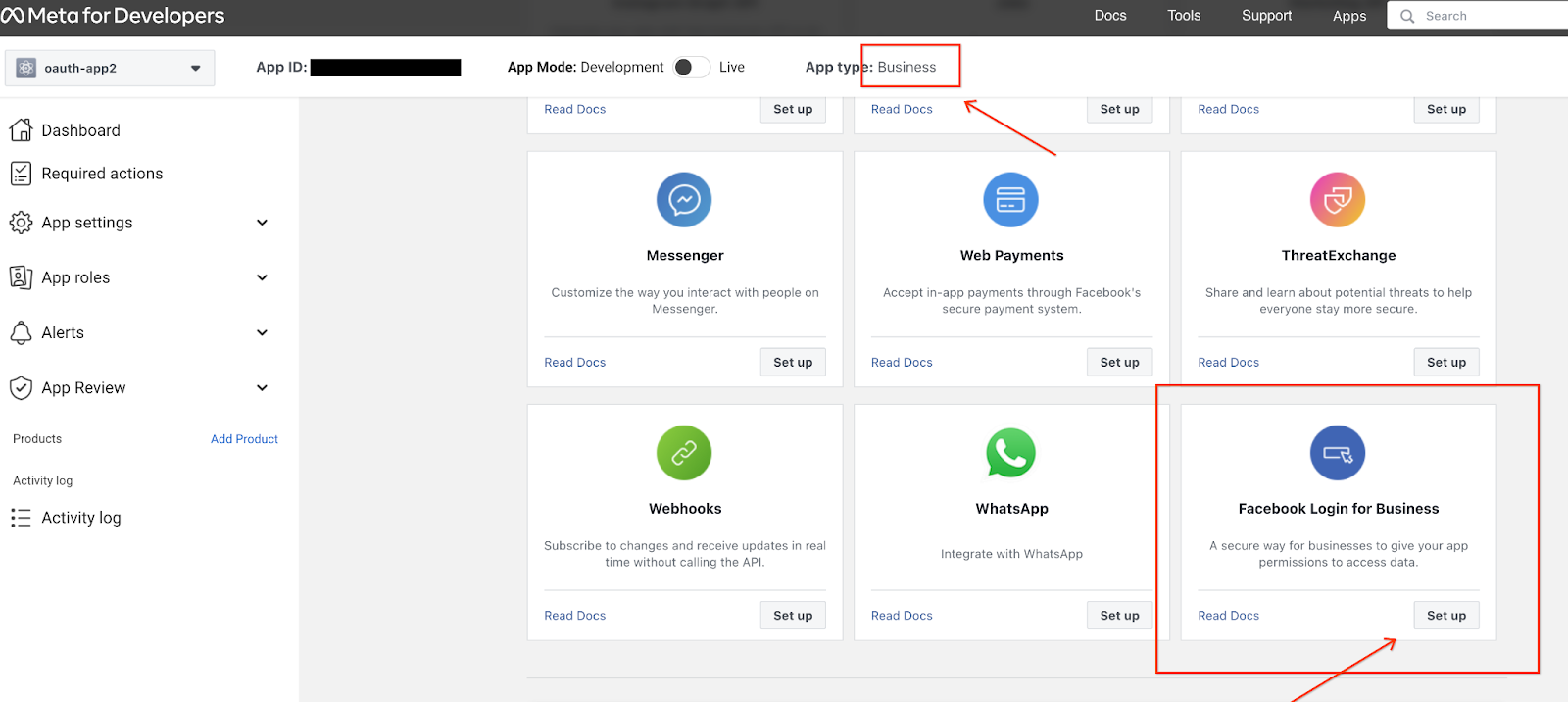
4. In the **Settings** page, enter the redirect URL in the **Valid OAuth Redirect URIs** field and click **Save**.
5. Return to the Google Cloud console. In the **Data Source Details** section,
click **Authorize**. You will be redirected to a Facebook authentication page.
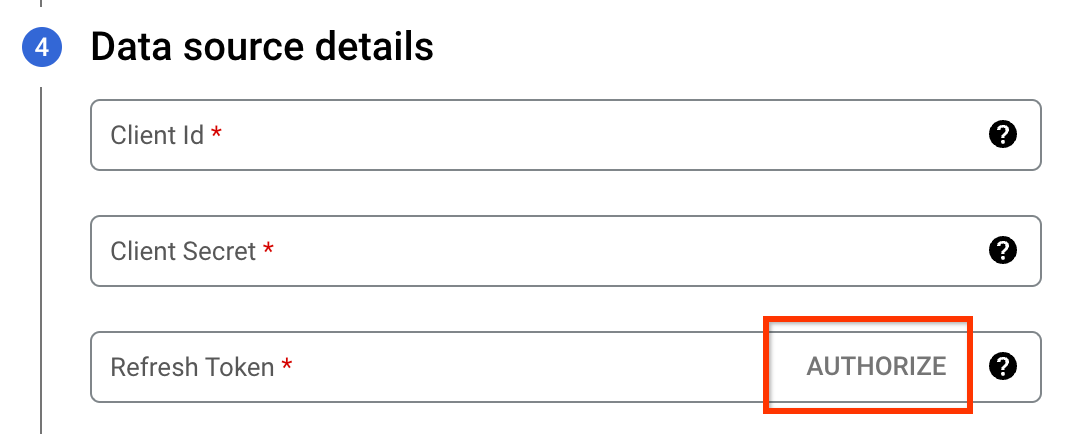
6. Select the Facebook developer app to authorize the account that connects with the BigQuery Data Transfer Service.
7. Once complete, click **Got it** to return to the Google Cloud console. The
long-lived user access token is now populated in the transfer configuration.
Long-lived user access tokens expire after 60 days. For information on how to
obtain a new long-lived user access token, see [Limitations](https://docs.cloud.google.com/bigquery/docs/facebook-ads-transfer.md.txt#limitations).
#### Refresh token alternatives
Alternatively, you can provide a refresh token when you [create a data transfer](https://docs.cloud.google.com/bigquery/docs/facebook-ads-transfer.md.txt#fb_ads_transfer_setup)
if you have obtained one using one of the following methods:
- [Generate a long-lived user access token using the Graph API](https://developers.facebook.com/docs/facebook-login/guides/access-tokens/get-long-lived). The `ads_management`, `ads_read`, and `business_management` permissions are required for a valid token for the data transfer.
- [Generate a system user token](https://developers.facebook.com/docs/facebook-login/guides/access-tokens). A system user token lets you manually add assets, such as ad accounts, to be included in the data transfer. If a system user token is expired, you must manually update the transfer configuration with new credentials. You also have the option to create a token that doesn't expire when you create a system user token. For more information, see [Supported access tokens](https://developers.facebook.com/docs/facebook-login/facebook-login-for-business#supported-access-tokens).
### BigQuery prerequisites
- Verify that you have completed all actions required to [enable the BigQuery Data Transfer Service](https://docs.cloud.google.com/bigquery/docs/enable-transfer-service.md.txt).
- [Create a BigQuery dataset](https://docs.cloud.google.com/bigquery/docs/datasets.md.txt) to store your data.
- If you intend to set up transfer run notifications for Pub/Sub, ensure that you have the `pubsub.topics.setIamPolicy` Identity and Access Management (IAM) permission. If you only set up email notifications, Pub/Sub permissions aren't required. For more information, see [BigQuery Data Transfer Service run notifications](https://docs.cloud.google.com/bigquery/docs/transfer-run-notifications.md.txt).
### Required BigQuery roles
To get the permissions that
you need to create a BigQuery Data Transfer Service data transfer,
ask your administrator to grant you the
[BigQuery Admin](https://docs.cloud.google.com/iam/docs/roles-permissions/bigquery.md.txt#bigquery.admin) (`roles/bigquery.admin`) IAM role on your project.
For more information about granting roles, see [Manage access to projects, folders, and organizations](https://docs.cloud.google.com/iam/docs/granting-changing-revoking-access.md.txt).
This predefined role contains
the permissions required to create a BigQuery Data Transfer Service data transfer. To see the exact permissions that are
required, expand the **Required permissions** section:
#### Required permissions
The following permissions are required to create a BigQuery Data Transfer Service data transfer:
- BigQuery Data Transfer Service permissions:
- `bigquery.transfers.update`
- `bigquery.transfers.get`
- BigQuery permissions:
- `bigquery.datasets.get`
- `bigquery.datasets.getIamPolicy`
- `bigquery.datasets.update`
- `bigquery.datasets.setIamPolicy`
- `bigquery.jobs.create`
You might also be able to get
these permissions
with [custom roles](https://docs.cloud.google.com/iam/docs/creating-custom-roles.md.txt) or
other [predefined roles](https://docs.cloud.google.com/iam/docs/roles-overview.md.txt#predefined).
For more information, see [Grant `bigquery.admin` access](https://docs.cloud.google.com/bigquery/docs/enable-transfer-service.md.txt#grant_bigqueryadmin_access).
## Create a Facebook Ads data transfer
Select one of the following options:
### Console
1. Go to the Data transfers page in the Google Cloud console.
[Go to Data transfers](https://console.cloud.google.com/bigquery/transfers)
2. Click **Create transfer**.
3. In the **Source type** section, for **Source** , select **Facebook Ads**.
4. In the **Data source details** section, do the following:
- For **Network attachment** , select a network attachment from the menu. Before you can use a network attachment with this data transfer, you must [create a network attachment by defining a static IP address](https://docs.cloud.google.com/bigquery/docs/connect-to-sap-datasphere.md.txt#create-network-attachment).
- For **Client ID**, enter the app ID.
- For **Client secret**, enter the app secret.
- For **Refresh token** , enter the long-lived user access token ID by clicking **Authorize** . Alternatively, if you [already have a refresh token or a system user token](https://docs.cloud.google.com/bigquery/docs/facebook-ads-transfer.md.txt#refresh_token_alternatives), you can enter the refresh token directly in this field. For information about retrieving a long-lived user access token, see [Facebook Ads prerequisites](https://docs.cloud.google.com/bigquery/docs/facebook-ads-transfer.md.txt#fb_ads_prereqs).
- For **Facebook Ads objects to transfer**: specify Facebook Ads reports or objects to include in this transfer.
- Select **Fetch Data for Authorized Ad Accounts Only** to fetch data only from advertising accounts that are authorized to your Facebook App. You can find your authorized advertising accounts under **App Settings** \> **Advanced** , and in the **Advertising
accounts** section.
- For **ActionsCollections** , specify one or more [action collections](https://docs.cloud.google.com/bigquery/docs/facebook-ads-transfer.md.txt#action_collections).
- For **Generic Breakdowns** , select the generic breakdowns for your insights data. These breakdowns determine how your transferred data is organized in the `AdInsights` and `AdInsightsActions` tables. Facebook Ads only permits certain combinations of breakdowns. For more information about permitted breakdown combinations, see [Combining breakdowns](https://docs.cloud.google.com/bigquery/docs/facebook-ads-transfer.md.txt#combining_breakdowns)
- For **Action Breakdowns** , select the action breakdowns for your insights data. These breakdowns determine how your transferred data is organized in the `AdInsightsActions` table. For information about combining breakdowns, see [Combining breakdowns](https://docs.cloud.google.com/bigquery/docs/facebook-ads-transfer.md.txt#combining_breakdowns).
- For **Refresh window** , specify a [refresh window](https://docs.cloud.google.com/bigquery/docs/facebook-ads-transfer-intro.md.txt#refresh) duration.
5. In the **Destination settings** section, for **Dataset**, select the
dataset that you created to store your data.
6. In the **Transfer config name** section, for **Display name**, enter a
name for the data transfer.
7. In the **Schedule options** section, do the following:
- In the **Repeat frequency** list, select an option to specify how often this data transfer runs. To specify a custom repeat frequency, select **Custom** . If you select **On-demand** , then this transfer runs when you [manually trigger the transfer](https://docs.cloud.google.com/bigquery/docs/working-with-transfers.md.txt#manually_trigger_a_transfer).
- If applicable, select either **Start now** or **Start at set time**, and provide a start date and run time.
8. Optional: In the **Notification options** section, do the following:
- To enable email notifications, click the **Email notification** toggle. When you enable this option, the transfer administrator receives an email notification when a transfer run fails.
- To enable [Pub/Sub transfer run notifications](https://docs.cloud.google.com/bigquery/docs/transfer-run-notifications.md.txt) for this data transfer, click the **Pub/Sub notifications** toggle. You can select your [topic](https://docs.cloud.google.com/pubsub/docs/publish-message-overview.md.txt#about-topics) name, or you can click **Create a topic** to create one.
9. Click **Save**.
When this data transfer runs, the BigQuery Data Transfer Service automatically populates the
following tables.
| Table Name | Description |
|---|---|
| `AdAccounts` | The ad accounts available for a user. |
| `AdInsights` | Ad insights report for all ad accounts. |
| `AdInsightsActions` | Ad insights actions report for all ad accounts. |
| `AdInsightsMMM` > [!NOTE] > **Note:** Support for this report is temporarily disabled. For more information, see [July 06, 2026](https://docs.cloud.google.com/bigquery/docs/transfer-changes.md.txt#Jul06-fb-ads) | Ad insights marketing mix modeling (MMM) report for all ad accounts. |
| `Ads` | Ad reports for all ad accounts. |
| `AdCreatives` | Ad creative reports for all ad accounts. |
| `AdSets` | Ad set reports for all ad accounts. |
| `Campaigns` | Campaign reports for all ad accounts. |
| `AdImages` | Ad images reports for all ad accounts. |
| `AdLabels` | Ad labels reports for all ad accounts. |
| `Businesses` | Meta business accounts associated with the user. |
| `CustomAudiences` | Custom audience reports for all ad accounts. |
### bq
Enter the [`bq mk` command](https://docs.cloud.google.com/bigquery/docs/reference/bq-cli-reference.md.txt#bq_mk)
and supply the transfer creation flag
`--transfer_config`:
```bash
bq mk
--transfer_config
--project_id=PROJECT_ID
--data_source=DATA_SOURCE
--display_name=DISPLAY_NAME
--target_dataset=DATASET
--params='PARAMETERS'
```
Where:
- PROJECT_ID (optional): your Google Cloud project ID. If `--project_id` isn't supplied to specify a particular project, the default project is used.
- DATA_SOURCE: the data source (for example, `facebook-ads`).
- DISPLAY_NAME: the display name for the data transfer configuration. The transfer name can be any value that lets you identify the transfer if you need to modify it later.
- DATASET: the target dataset for the data transfer configuration.
- PARAMETERS: the parameters for the created data transfer configuration in JSON format. For example: `--params='{"param":"param_value"}'`. The following are the parameters for a Facebook Ads transfer:
- `connector.authentication.oauth.clientId`: The app ID name for the OAuth 2.0 client.
- `connector.authentication.oauth.clientSecret`: The app secret for the OAuth 2.0 client.
- `connector.authentication.oauth.refreshToken`: The long-lived token ID.
- `connector.authorizedAdAccountsOnly`: If set to `true`, the connector only retrieves data from advertising accounts that are authorized to your Facebook App. You can find your authorized advertising accounts under **App Settings** \> **Advanced** , and in the **Advanced accounts** section.
- `connector.actionCollections`: Action collections are objects that specify the different types of actions people have taken in response to your ad. For a full list of `actionCollections` values, see [Action collections](https://docs.cloud.google.com/bigquery/docs/facebook-ads-transfer.md.txt#action_collections).
- For more information, see [Ad Insights](https://developers.facebook.com/docs/marketing-api/reference/adgroup/insights).
- `connector.genericBreakdowns`: Specify the generic breakdowns for your insights data. These breakdowns determine how your transferred data is organized in the `AdInsights` and `AdInsightsActions` tables. Facebook Ads only permits certain combinations of breakdowns. For more information about permitted breakdown combinations, see [Combining breakdowns](https://docs.cloud.google.com/bigquery/docs/facebook-ads-transfer.md.txt#combining_breakdowns).
- `actionBreakdowns`: Specify the action breakdowns for your insights data. These breakdowns determine how your transferred data is organized in the `AdInsights` and `AdInsightsActions` tables. For information about combining breakdowns, see [Combining breakdowns](https://docs.cloud.google.com/bigquery/docs/facebook-ads-transfer.md.txt#combining_breakdowns).
- `connector.insightsLevel`: Aggregation level for fetching insights data (e.g., Ad, Adset, Campaign, Account).
- `connector.insightsTimeIncrement`: Number of days over which to group aggregated insights data (between 1 and 7).
- **Note:** The chosen window range applies not only to the insights tables (`AdInsights` and `AdInsightsActions` ), but also filters the `Ads`, `Campaigns`, and `AdSets` tables using Facebook's `time_range` parameter.
For example, the following command creates a Facebook Ads data transfer in the
default project with all the required parameters:
```bash
bq mk
--transfer_config
--target_dataset=mydataset
--data_source=facebook_ads
--display_name='My Transfer'
--params='{"connector.authentication.oauth.clientId": "1650000000",
"connector.authentication.oauth.clientSecret":"TBA99550",
"connector.authentication.oauth.refreshToken":"abcdef",
"connector.authorizedAdAccountsOnly":true,
"connector.actionCollections":["Actions", "Conversions"],
"connector.genericBreakdowns":["PublisherPlatform", "PlatformPosition"],
"connector.actionBreakdowns":["ActionDevice", "ActionType"]}'
```
### API
Use the [`projects.locations.transferConfigs.create`](https://docs.cloud.google.com/bigquery/docs/reference/datatransfer/rest/v1/projects.locations.transferConfigs/create.md.txt)
method and supply an instance of the [`TransferConfig`](https://docs.cloud.google.com/bigquery/docs/reference/datatransfer/rest/v1/projects.locations.transferConfigs.md.txt#TransferConfig)
resource.
When you save the transfer configuration, the Facebook Ads connector automatically triggers a transfer run according to your schedule option. With every transfer run, the Facebook Ads connector transfers all available data from Facebook Ads into BigQuery.
To manually run a data transfer outside of your regular schedule, you can start
a [backfill run](https://docs.cloud.google.com/bigquery/docs/working-with-transfers.md.txt#manually_trigger_a_transfer).
For information on how your transferred data maps to Meta API fields, see [Facebook Ads report transformation](https://docs.cloud.google.com/bigquery/docs/facebook-ads-transformation.md.txt).
## Action collections
Action collections are objects that specify the different types of actions
people have taken in response to your ad. You can specify action collections
when you [set up your transfer configuration](https://docs.cloud.google.com/bigquery/docs/facebook-ads-transfer.md.txt#fb_ads_transfer_setup).
Action collections represent the fields of the
[`list` type](https://developers.facebook.com/docs/marketing-api/reference/ads-action-stats/)
that are present in the [`Ad Account, Insights` endpoint response](https://developers.facebook.com/docs/marketing-api/reference/ad-account/insights/).
When a transfer completes, these action collections are populated in the [`AdInsightsActions` table](https://docs.cloud.google.com/bigquery/docs/facebook-ads-transformation.md.txt#adinsightsactions_report).
> [!CAUTION]
> **Caution:** The more action collections that you specify for a transfer, the more likely you will [reach the rate limits imposed by Facebook Ads](https://developers.facebook.com/docs/marketing-api/overview/rate-limiting).
The following is a list of action collections supported in a Facebook Ads
data transfer:
- `ActionValues`
- `Actions`
- `AdClickActions`
- `AdImpressionActions`
- `CatalogSegmentActions`
- `CatalogSegmentValue`
- `CatalogSegmentValueMobilePurchaseRoas`
- `CatalogSegmentValueOmniPurchaseRoas`
- `CatalogSegmentValueWebsitePurchaseRoas`
- `ConversionValues`
- `Conversions`
- `ConvertedProductQuantity`
- `ConvertedProductValue`
- `CostPer15_secVideoView`
- `CostPer2SecContinuousVideoView`
- `CostPerActionType`
- `CostPerAdClick`
- `CostPerConversion`
- `CostPerOneThousandAdImpression`
- `CostPerOutboundClick`
- `CostPerThruplay`
- `CostPerUniqueActionType`
- `CostPerUniqueConversion`
- `CostPerUniqueOutboundClick`
- `InteractiveComponentTap`
- `MobileAppPurchaseRoas`
- `OutboundClicks`
- `OutboundClicksCtr`
- `PurchaseRoas`
- `UniqueActions`
- `UniqueConversions`
- `UniqueOutboundClicks`
- `UniqueOutboundClicksCtr`
- `UniqueVideoView15_sec`
- `Video15_secWatchedActions`
- `Video30_secWatchedActions`
- `VideoAvgTimeWatchedActions`
- `VideoContinuous2SecWatchedActions`
- `VideoP100_watchedActions`
- `VideoP25WatchedActions`
- `VideoP50WatchedActions`
- `VideoP75WatchedActions`
- `VideoP95WatchedActions`
- `VideoPlayActions`
- `VideoPlayCurveActions`
- `VideoPlayRetentionGraphActions`
- `VideoTimeWatchedActions`
- `WebsiteCtr`
- `WebsitePurchaseRoas`
## Combining breakdowns
Facebook Ads has restrictions on what columns can be selected
together. Using these restricted combinations will cause the data transfer to
fail.
For more information about what breakdowns can be combined, see
[Combining Breakdowns](https://developers.facebook.com/docs/marketing-api/insights/breakdowns/#combiningbreakdowns).
## Troubleshoot transfer configuration
If you are having issues setting up a Facebook Ads data transfer, try the
following troubleshooting steps:
- Check if your user access token has expired using the [Facebook Access Token Debugger](https://developers.facebook.com/tools/debug/accesstoken/). Long-lived user access tokens expire after 60 days. If your long-lived user access token has expired, navigate to your transfer details then click **Edit** to modify your transfer configuration. In the edit transfer page, follow the same steps in [Facebook Ads prerequisites](https://docs.cloud.google.com/bigquery/docs/facebook-ads-transfer.md.txt#fb_ads_prereqs) to generate a new one.
- Check that the long-lived user access token is generated with the required
permissions - `ads_management`, `ads_read`, and `business_management`. You can
check the permissions on your long-lived user access token by entering the
following link into your browser:
```
https://graph.facebook.com/me/permissions?access_token=TOKEN
```
Where TOKEN is the value of the long-lived user access token.
If you don't have the required permissions, generate a new long-lived user
access token by following the steps in
[Facebook Ads prerequisites](https://docs.cloud.google.com/bigquery/docs/facebook-ads-transfer.md.txt#fb_ads_prereqs).
- Check the **Required Actions** tab on the
[Facebook App dashboard](https://developers.facebook.com/apps) for any items
that require attention.
You might encounter the following error messages related to Meta API rate limit
errors:
Error: `There have been too many calls from this ad-account. Wait a bit and try again.`
: **Resolution** : Check that there are no parallel workflows using the same apps
or credentials. If these errors persist, try upgrading your permissions to **Advanced Access**
to get more rate limiting quota. For more information, see [Marketing API Rate Limiting](https://developers.facebook.com/docs/marketing-apis/rate-limiting/).
### Common monitoring metrics messages
You can also check the [BigQuery Data Transfer Service monitoring metrics](https://docs.cloud.google.com/bigquery/docs/dts-monitor.md.txt#monitor)
to determine the cause of a data transfer failure. The following table lists some
common `ERROR_CODE` messages for Facebook Ads data transfers.
| Error | Description |
|---|---|
| `INVALID_ARGUMENT` | The supplied configuration is invalid. You might also encounter this error with the message `This combination of action and generic breakdowns is not allowed.` For information about valid breakdown combinations, see [Combining breakdowns](https://docs.cloud.google.com/bigquery/docs/facebook-ads-transfer.md.txt#combining_breakdowns). |
| `PERMISSION_DENIED` | The credentials are invalid |
| `UNAUTHENTICATED` | Authentication is required |
| `SERVICE_UNAVAILABLE` | The service is temporarily unable to handle this data transfer |
| `DEADLINE_EXCEEDED` | The data transfer did not finish within the maximum duration of six hours |
| `NOT_FOUND` | A requested resource is not found |
| `INTERNAL` | Something else caused the connector to fail |
| `FAILED_PRECONDITION` | This error can appear with the message `There was an issue connecting to Facebook Ads API.` This error can occur when you include a network attachment with your transfer but have not configured your public network address translation (NAT) correctly. To resolve this error, follow the steps [to create your network attachment by defining a static IP address](https://docs.cloud.google.com/bigquery/docs/connections-with-network-attachment#create_a_network_attachment). This error can also appear due to rate limit throttling. In these cases, do the following: - Parallel workflows using the same Facebook Ads user or app credentials can lead to you reaching your rate limits more frequently. Ensure that you are using different user or app credentials outside of your transfer configuration. - Split up your data transfers to have less data in each transfer, and run each data transfer independently to have some time between transfers to allow rate limits to recover. - Verify that your data transfer don't include a costly breakdown compute, too many breakdowns, or too many action collections. |
| `RESOURCE_EXHAUSTED` | A data source quota or limit was exhausted |
## What's next
- Learn more about the [BigQuery Data Transfer Service](https://docs.cloud.google.com/bigquery/docs/dts-introduction.md.txt).
- Learn more about [working with transfers](https://docs.cloud.google.com/bigquery/docs/working-with-transfers.md.txt), such as viewing configurations and run history.
- Learn how to [load data with BigQuery Omni operations](https://docs.cloud.google.com/bigquery/docs/load-data-using-cross-cloud-transfer.md.txt).