# Load Campaign Manager data into BigQuery
You can load data from Campaign Manager to BigQuery using the
[BigQuery Data Transfer Service](https://docs.cloud.google.com/bigquery/docs/dts-introduction) for Campaign Manager connector. With the
BigQuery Data Transfer Service, you can schedule recurring transfer jobs that
add your latest data from your Campaign Manager to
BigQuery.
## Connector overview
The BigQuery Data Transfer Service for the Campaign Manager connector supports the following options for your data transfer.
For information on how Campaign Manager reports are transformed into BigQuery tables and views, see [Campaign Manager report transformations](https://docs.cloud.google.com/bigquery/docs/doubleclick-campaign-transformation).
| Data transfer options | Support |
|---|---|
| Supported reports | The Campaign Manager connector supports the transfer of data from the following reports: - [Data Transfer v2 (Campaign Manager DTv2) files](https://developers.google.com/doubleclick-advertisers/dtv2/reference/file-format) - [Data Transfer v2 (Campaign Manager DTv2) match tables](https://developers.google.com/doubleclick-advertisers/dtv2/reference/match-tables) |
| Repeat frequency | The Campaign Manager connector supports data transfer every 8 hours.
By default, Campaign Manager data transfers are scheduled at the time when the data transfer is created. |
| Refresh window | The Campaign Manager connector retrieves Campaign Manager data from up to 2 days at the time the data transfer is run. You cannot configure the refresh window for this connector.
For more information, see [Refresh windows](https://docs.cloud.google.com/bigquery/docs/doubleclick-campaign-transfer#refresh). |
| Backfill data availability | [Run a data backfill](https://docs.cloud.google.com/bigquery/docs/working-with-transfers#manually_trigger_a_transfer) to retrieve data outside of your scheduled data transfer. You can retrieve data as far back as the data retention policy on your data source allows.
For information about the data retention policy for Display \& Video 360, see [Data deletion and retention controls](https://support.google.com/campaignmanager/answer/10769131). |
## Data ingestion from Campaign Manager transfers
When you transfer data from Campaign Manager into BigQuery, the data is loaded into BigQuery tables that are partitioned by date. The table partition that the data is loaded into corresponds to the date from the data source. If you schedule multiple transfers for the same date, BigQuery Data Transfer Service overwrites the partition for that specific date with the latest data. Multiple transfers in the same day or running backfills don't result in duplicate data, and partitions for other dates are not affected.
### Refresh windows
A *refresh window* is the number of days that a data transfer retrieves data
when a data transfer occurs. For example, if the refresh window is three days
and a daily transfer occurs, the BigQuery Data Transfer Service retrieves all data from
your source table from the past three days. In this
example, when a daily transfer occurs, the BigQuery Data Transfer Service creates a new
BigQuery destination table partition with a copy of your source table data
from the current day, then automatically triggers backfill runs to update the
BigQuery destination table partitions with your source table data from the
past two days. The automatically triggered backfill runs will either overwrite
or incrementally update your BigQuery destination table,
depending on whether or not incremental updates are supported in the
BigQuery Data Transfer Service connector.
When you run a data transfer for the first time, the data transfer retrieves all
source data available within the refresh window. For example, if the refresh
window is three days and you run the data transfer for the first time, the
BigQuery Data Transfer Service retrieves all source data within three days.
To retrieve data outside the refresh window, such as historical data, or to recover data from any transfer outages or gaps, you can initiate or schedule a [backfill run](https://docs.cloud.google.com/bigquery/docs/working-with-transfers#manually_trigger_a_transfer).
## Before you begin
Before you create a Campaign Manager data transfer:
- Verify that you have completed all actions required to [enable the BigQuery Data Transfer Service](https://docs.cloud.google.com/bigquery/docs/enable-transfer-service).
- [Create a BigQuery dataset](https://docs.cloud.google.com/bigquery/docs/datasets) to store the Campaign Manager data.
- **Ensure that your organization has access to Campaign Manager Data Transfer**
**v2 (Campaign Manager DTv2) files.** These files are delivered
by the Campaign Manager team to a Cloud Storage bucket. To gain access
to Campaign Manager DTv2 files, your next step depends on if you have a direct
contract with Campaign Manager. In both cases, additional charges might apply.
- If you have a contract with Campaign Manager, contact [Campaign Manager support](https://support.google.com/campaignmanager/answer/9026876?&ref_topic=2834087&visit_id=1-636444821343154346-869320595&rd=2) to set up Campaign Manager DTv2 files.
- If you do **not** have a contract with Campaign Manager, your agency or Campaign Manager reseller may have access to Campaign Manager DTv2 files. Contact your agency or reseller for access to these files.
After completing this step, you will receive a Cloud Storage
bucket name similar to the following:
`dcdt_-dcm_account123456`
> [!NOTE]
> The Google Cloud team doesn't have the ability to generate or grant access to Campaign Manager DTv2 files on your behalf. Contact Campaign Manager [support](https://support.google.com/campaignmanager/answer/9026876?&ref_topic=2834087&visit_id=1-636444821343154346-869320595&rd=2), your agency, or your Campaign Manager reseller for access to Campaign Manager DTv2 files.
- If you intend to set up transfer run notifications for Pub/Sub, you
must have `pubsub.topics.setIamPolicy` permissions. For more information, see
[BigQuery Data Transfer Service run notifications](https://docs.cloud.google.com/bigquery/docs/transfer-run-notifications).
## Required permissions
Ensure that you have granted the following permissions.
### Required BigQuery roles
To get the permissions that
you need to create a BigQuery Data Transfer Service data transfer,
ask your administrator to grant you the
[BigQuery Admin](https://docs.cloud.google.com/iam/docs/roles-permissions/bigquery#bigquery.admin) (`roles/bigquery.admin`) IAM role on your project.
For more information about granting roles, see [Manage access to projects, folders, and organizations](https://docs.cloud.google.com/iam/docs/granting-changing-revoking-access).
This predefined role contains
the permissions required to create a BigQuery Data Transfer Service data transfer. To see the exact permissions that are
required, expand the **Required permissions** section:
#### Required permissions
The following permissions are required to create a BigQuery Data Transfer Service data transfer:
- BigQuery Data Transfer Service permissions:
- `bigquery.transfers.update`
- `bigquery.transfers.get`
- BigQuery permissions:
- `bigquery.datasets.get`
- `bigquery.datasets.getIamPolicy`
- `bigquery.datasets.update`
- `bigquery.datasets.setIamPolicy`
- `bigquery.jobs.create`
You might also be able to get
these permissions
with [custom roles](https://docs.cloud.google.com/iam/docs/creating-custom-roles) or
other [predefined roles](https://docs.cloud.google.com/iam/docs/roles-overview#predefined).
For more information, see [Grant `bigquery.admin` access](https://docs.cloud.google.com/bigquery/docs/enable-transfer-service#grant_bigqueryadmin_access).
### Required Campaign Manager roles
Grant read access to the Campaign Manager DTv2 files
stored in Cloud Storage. Access is managed by the entity from which
you received the Cloud Storage bucket.
## Set up a Campaign Manager transfer
Setting up a Campaign Manager data transfer requires a:
- **Cloud Storage bucket** : The Cloud Storage bucket URI for your
Campaign Manager DTv2 files as described in [Before you begin](https://docs.cloud.google.com/bigquery/docs/doubleclick-campaign-transfer#before_you_begin).
The bucket name should look like the following:
`dcdt_-dcm_account123456`
- **Campaign Manager ID**: Your Campaign Manager Network, Advertiser, or
Floodlight ID. Network ID is the parent in the hierarchy.
### Find your Campaign Manager ID
To retrieve your Campaign Manager ID, you can use the Cloud Storage
[console](https://console.cloud.google.com/storage) to examine the files in your
Campaign Manager Data Transfer Cloud Storage
bucket. The Campaign Manager ID is used to match files in the provided
Cloud Storage bucket. The ID is embedded in the **filename**, not the
Cloud Storage bucket name.
For example:
- In a file named `dcm_account123456_activity_*`, the ID is **123456**.
- In a file named `dcm_floodlight7890_activity_*`, the ID is **7890**.
- In a file named `dcm_advertiser567_activity_*`, the ID is **567**.
### Finding your filename prefix
In rare cases, the files in your Cloud Storage bucket may have custom,
nonstandard filenames that were set up for you by the Google Marketing Platform
services team.
For example:
- In a file named `dcm_account123456custom_activity_*`, the prefix is **dcm_account123456custom** --- everything before `_activity`.
Contact [Campaign Manager support](https://support.google.com/campaignmanager/answer/9026876?&ref_topic=2834087&visit_id=1-636444821343154346-869320595&rd=2)
if you need help.
### Create a data transfer for Campaign Manager
### Console
1. Go to the Data transfers page in the Google Cloud console.
[Go to Data transfers](https://console.cloud.google.com/bigquery/transfers)
2. Click **Create transfer**.
3. On the **Create Transfer** page:
- In the **Source type** section, for **Source** , choose
**Campaign Manager**.

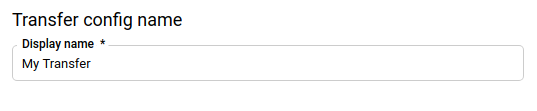
- In the **Transfer config name** section, for **Display name** , enter a
name for the data transfer such as `My Transfer`. The transfer name can
be any value that lets you identify the transfer if you need to modify
it later.
- In the **Schedule options** section, for **Schedule** , leave the
default value (**Start now** ) or click **Start at a set time**.
- For **Repeats** , choose an option for how often to run the transfer. If you choose an option other than **Daily** , additional options are available. For example, if you choose **Weekly**, an option appears for you to select the day of the week.
- For **Start date and run time** , enter the date and time to start the data transfer. If you choose **Start now**, this option is disabled.
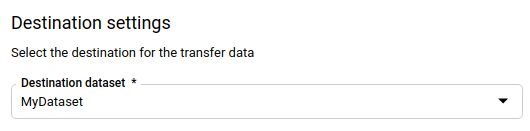
- In the **Destination settings** section, for **Destination dataset**,
choose the dataset you created to store your data.
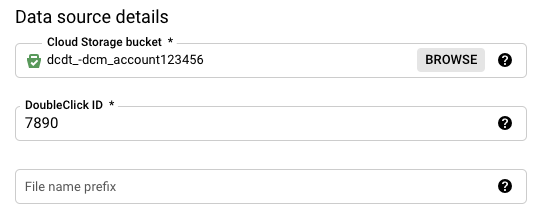
- In the **Data source details** section:
- For **Cloud Storage bucket** , enter or browse for the name of the Cloud Storage bucket that stores your Data Transfer V2.0 files. When you enter the bucket name, don't include `gs://`.
- For **DoubleClick ID**, enter the appropriate Campaign Manager ID.
- (Optional) If your files have [standard names like these examples](https://docs.cloud.google.com/bigquery/docs/doubleclick-campaign-transfer#find-id), leave the **File name prefix** field blank. Specify a [filename prefix](https://docs.cloud.google.com/bigquery/docs/doubleclick-campaign-transfer#filename-prefix) if the files in your Cloud Storage bucket have custom filenames.
- (Optional) In the **Notification options** section:
- Click the toggle to enable email notifications. When you enable this option, the transfer administrator receives an email notification when a transfer run fails.
- For **Select a Pub/Sub topic** , choose your [topic](https://docs.cloud.google.com/pubsub/docs/overview) name or click **Create a topic** . This option configures Pub/Sub run [notifications](https://docs.cloud.google.com/bigquery/docs/transfer-run-notifications) for your transfer.
4. Click **Save**.
### bq
Enter the `bq mk` command and supply the transfer creation flag ---
`--transfer_config`. The following flags are also required:
- `--data_source`
- `--target_dataset`
- `--display_name`
- `--params`
```bash
bq mk --transfer_config \
--project_id=project_id \
--target_dataset=dataset \
--display_name=name \
--params='parameters' \
--data_source=data_source
```
Where:
- project_id is your project ID.
- dataset is the target dataset for the data transfer configuration.
- name is the display name for the data transfer configuration. The transfer name can be any value that lets you identify the transfer if you need to modify it later.
- parameters contains the parameters for the created data transfer configuration in JSON format. For example: `--params='{"param":"param_value"}'`. For Campaign Manager, you must supply the `bucket` and `network_id` parameters. `bucket` is the Cloud Storage bucket that contains your Campaign Manager DTv2 files. `network_id` is your network, floodlight, or advertiser ID.
- data_source is the data source --- `dcm_dt` (Campaign Manager).
> [!CAUTION]
> **Caution:** You cannot configure notifications using the command-line tool.
You can also supply the `--project_id` flag to specify a particular
project. If `--project_id` isn't specified, the default project is used.
For example, the following command creates a Campaign Manager
data transfer named `My Transfer` using Campaign Manager ID `123456`,
Cloud Storage bucket `dcdt_-dcm_account123456`, and target dataset
`mydataset`. The parameter `file_name_prefix` is optional and used for rare,
custom filenames only.
The data transfer is created in the default project:
bq mk --transfer_config \
--target_dataset=mydataset \
--display_name='My Transfer' \
--params='{"bucket": "dcdt_-dcm_account123456","network_id": "123456","file_name_prefix":"YYY"}' \
--data_source=dcm_dt
After running the command, you receive a message like the following:
`[URL omitted] Please copy and paste the above URL into your web browser and
follow the instructions to retrieve an authentication code.`
Follow the instructions and paste the authentication code on the command
line.
> [!CAUTION]
> **Caution:** When you create a Campaign Manager data transfer using the command-line tool, the transfer configuration is set up using the default value for **Schedule** (every 8 hours).
### API
Use the [`projects.locations.transferConfigs.create`](https://docs.cloud.google.com/bigquery/docs/reference/datatransfer/rest/v1/projects.locations.transferConfigs/create)
method and supply an instance of the
[`TransferConfig`](https://docs.cloud.google.com/bigquery/docs/reference/datatransfer/rest/v1/projects.locations.transferConfigs#TransferConfig)
resource.
### Java
Before trying this sample, follow the Java setup instructions in the
[BigQuery quickstart using
client libraries](https://docs.cloud.google.com/bigquery/docs/quickstarts/quickstart-client-libraries).
For more information, see the
[BigQuery Java API
reference documentation](https://docs.cloud.google.com/java/docs/reference/google-cloud-bigquery/latest/overview).
To authenticate to BigQuery, set up Application Default Credentials.
For more information, see
[Set up authentication for client libraries](https://docs.cloud.google.com/bigquery/docs/authentication#client-libs).
import com.google.api.gax.rpc.https://docs.cloud.google.com/java/docs/reference/gax/latest/com.google.api.gax.rpc.ApiException.html;
import com.google.cloud.bigquery.datatransfer.v1.https://docs.cloud.google.com/java/docs/reference/google-cloud-bigquerydatatransfer/latest/com.google.cloud.bigquery.datatransfer.v1.CreateTransferConfigRequest.html;
import com.google.cloud.bigquery.datatransfer.v1.https://docs.cloud.google.com/java/docs/reference/google-cloud-bigquerydatatransfer/latest/com.google.cloud.bigquery.datatransfer.v1.DataTransferServiceClient.html;
import com.google.cloud.bigquery.datatransfer.v1.https://docs.cloud.google.com/java/docs/reference/google-cloud-bigquerydatatransfer/latest/com.google.cloud.bigquery.datatransfer.v1.ProjectName.html;
import com.google.cloud.bigquery.datatransfer.v1.https://docs.cloud.google.com/java/docs/reference/google-cloud-bigquerydatatransfer/latest/com.google.cloud.bigquery.datatransfer.v1.TransferConfig.html;
import com.google.protobuf.https://docs.cloud.google.com/java/docs/reference/protobuf/latest/com.google.protobuf.Struct.html;
import com.google.protobuf.https://docs.cloud.google.com/java/docs/reference/protobuf/latest/com.google.protobuf.Value.html;
import java.io.IOException;
import java.util.HashMap;
import java.util.Map;
// Sample to create campaign manager transfer config
public class CreateCampaignmanagerTransfer {
public static void main(String[] args) throws IOException {
// TODO(developer): Replace these variables before running the sample.
final String projectId = "MY_PROJECT_ID";
String datasetId = "MY_DATASET_ID";
String bucket = "gs://cloud-sample-data";
// the network_id only allows digits
String networkId = "7878";
String fileNamePrefix = "test_";
Map params = new HashMap<>();
params.put("bucket", https://docs.cloud.google.com/java/docs/reference/protobuf/latest/com.google.protobuf.Value.html.newBuilder().setStringValue(bucket).build());
params.put("network_id", https://docs.cloud.google.com/java/docs/reference/protobuf/latest/com.google.protobuf.Value.html.newBuilder().setStringValue(networkId).build());
params.put("file_name_prefix", https://docs.cloud.google.com/java/docs/reference/protobuf/latest/com.google.protobuf.Value.html.newBuilder().setStringValue(fileNamePrefix).build());
https://docs.cloud.google.com/java/docs/reference/google-cloud-bigquerydatatransfer/latest/com.google.cloud.bigquery.datatransfer.v1.TransferConfig.html transferConfig =
https://docs.cloud.google.com/java/docs/reference/google-cloud-bigquerydatatransfer/latest/com.google.cloud.bigquery.datatransfer.v1.TransferConfig.html.newBuilder()
.setDestinationDatasetId(datasetId)
.setDisplayName("Your Campaignmanager Config Name")
.setDataSourceId("dcm_dt")
.setParams(https://docs.cloud.google.com/java/docs/reference/protobuf/latest/com.google.protobuf.Struct.html.newBuilder().https://docs.cloud.google.com/java/docs/reference/protobuf/latest/com.google.protobuf.Struct.Builder.html#com_google_protobuf_Struct_Builder_putAllFields_java_util_Map_java_lang_String_com_google_protobuf_Value__(params).build())
.build();
createCampaignmanagerTransfer(projectId, transferConfig);
}
public static void createCampaignmanagerTransfer(String projectId, https://docs.cloud.google.com/java/docs/reference/google-cloud-bigquerydatatransfer/latest/com.google.cloud.bigquery.datatransfer.v1.TransferConfig.html transferConfig)
throws IOException {
try (https://docs.cloud.google.com/java/docs/reference/google-cloud-bigquerydatatransfer/latest/com.google.cloud.bigquery.datatransfer.v1.DataTransferServiceClient.html client = https://docs.cloud.google.com/java/docs/reference/google-cloud-bigquerydatatransfer/latest/com.google.cloud.bigquery.datatransfer.v1.DataTransferServiceClient.html.create()) {
https://docs.cloud.google.com/java/docs/reference/google-cloud-bigquerydatatransfer/latest/com.google.cloud.bigquery.datatransfer.v1.ProjectName.html parent = https://docs.cloud.google.com/java/docs/reference/google-cloud-bigquerydatatransfer/latest/com.google.cloud.bigquery.datatransfer.v1.ProjectName.html.of(projectId);
https://docs.cloud.google.com/java/docs/reference/google-cloud-bigquerydatatransfer/latest/com.google.cloud.bigquery.datatransfer.v1.CreateTransferConfigRequest.html request =
https://docs.cloud.google.com/java/docs/reference/google-cloud-bigquerydatatransfer/latest/com.google.cloud.bigquery.datatransfer.v1.CreateTransferConfigRequest.html.newBuilder()
.setParent(parent.https://docs.cloud.google.com/java/docs/reference/google-cloud-bigquerydatatransfer/latest/com.google.cloud.bigquery.datatransfer.v1.ProjectName.html#com_google_cloud_bigquery_datatransfer_v1_ProjectName_toString__())
.setTransferConfig(transferConfig)
.build();
https://docs.cloud.google.com/java/docs/reference/google-cloud-bigquerydatatransfer/latest/com.google.cloud.bigquery.datatransfer.v1.TransferConfig.html config = client.createTransferConfig(request);
System.out.println("Campaignmanager transfer created successfully :" + config.https://docs.cloud.google.com/java/docs/reference/google-cloud-bigquerydatatransfer/latest/com.google.cloud.bigquery.datatransfer.v1.TransferConfig.html#com_google_cloud_bigquery_datatransfer_v1_TransferConfig_getName__());
} catch (https://docs.cloud.google.com/java/docs/reference/gax/latest/com.google.api.gax.rpc.ApiException.html ex) {
System.out.print("Campaignmanager transfer was not created." + ex.toString());
}
}
}
> [!WARNING]
> **Warning:** If you change the schema of a report, all files on that day must have the same schema, or the data transfer for the entire day will fail.
## Troubleshoot Campaign Manager transfer setup
If you are having issues setting up your data transfer, see
[Campaign Manager transfer issues](https://docs.cloud.google.com/bigquery/docs/transfer-troubleshooting#campaign_manager_transfer_issues)
in [Troubleshooting transfer configurations](https://docs.cloud.google.com/bigquery/docs/transfer-troubleshooting).
## Query your data
When your data is transferred to BigQuery, the data is
written to ingestion-time partitioned tables. For more information, see
[Introduction to partitioned tables](https://docs.cloud.google.com/bigquery/docs/partitioned-tables).
If you query your tables directly instead of using the auto-generated views, you
must use the `_PARTITIONTIME` pseudocolumn in your query. For more information,
see [Querying partitioned tables](https://docs.cloud.google.com/bigquery/docs/querying-partitioned-tables).
## Campaign Manager sample queries
You can use the following Campaign Manager sample queries to
analyze your transferred data. You can also use the queries in a visualization
tool such as [Data Studio](https://www.google.com/analytics/data-studio/).
These queries are provided to help you get started on querying your
Campaign Manager data with BigQuery. For additional questions on
what you can do with these reports, contact your Campaign Manager
technical representative.
> [!NOTE]
> **Note:** If you query your tables directly instead of using the auto-generated views, you must use the `_PARTITIONTIME` pseudocolumn in your query. For more information, see [Querying partitioned tables](https://docs.cloud.google.com/bigquery/docs/querying-partitioned-tables).
In each of the following queries, replace the variables like dataset
with your values.
### Latest campaigns
The following SQL sample query retrieves the latest campaigns.
```googlesql
SELECT
Campaign,
Campaign_ID
FROM
`dataset.match_table_campaigns_campaign_manager_id`
WHERE
_DATA_DATE = _LATEST_DATE
```
### Impressions and distinct users by campaign
The following SQL sample query analyzes the number of impressions and
distinct users by campaign over the past 30 days.
```googlesql
# START_DATE = DATE_ADD(CURRENT_DATE(), INTERVAL -31 DAY)
# END_DATE = DATE_ADD(CURRENT_DATE(), INTERVAL -1 DAY)
SELECT
Campaign_ID,
_DATA_DATE AS Date,
COUNT(*) AS count,
COUNT(DISTINCT User_ID) AS du
FROM
`dataset.impression_campaign_manager_id`
WHERE
_DATA_DATE BETWEEN start_date
AND end_date
GROUP BY
Campaign_ID,
Date
```
### Latest campaigns ordered by campaign and date
The following SQL sample query analyzes the latest campaigns in the past 30
days, ordered by campaign and date.
```googlesql
# START_DATE = DATE_ADD(CURRENT_DATE(), INTERVAL -31 DAY)
# END_DATE = DATE_ADD(CURRENT_DATE(), INTERVAL -1 DAY)
SELECT
Campaign,
Campaign_ID,
Date
FROM (
SELECT
Campaign,
Campaign_ID
FROM
`dataset.match_table_campaigns_campaign_manager_id`
WHERE
_DATA_DATE = _LATEST_DATE ),
(
SELECT
date AS Date
FROM
`bigquery-public-data.utility_us.date_greg`
WHERE
Date BETWEEN start_date
AND end_date )
ORDER BY
Campaign_ID,
Date
```
### Impressions and distinct users by campaign within a date range
The following SQL sample query analyzes the number of impressions and distinct
users by campaign between start_date and end_date.
```googlesql
# START_DATE = DATE_ADD(CURRENT_DATE(), INTERVAL -31 DAY)
# END_DATE = DATE_ADD(CURRENT_DATE(), INTERVAL -1 DAY)
SELECT
base.*,
imp.count AS imp_count,
imp.du AS imp_du
FROM (
SELECT
*
FROM (
SELECT
Campaign,
Campaign_ID
FROM
`dataset.match_table_campaigns_campaign_manager_id`
WHERE
_DATA_DATE = _LATEST_DATE ),
(
SELECT
date AS Date
FROM
`bigquery-public-data.utility_us.date_greg`
WHERE
Date BETWEEN start_date
AND end_date ) ) AS base
LEFT JOIN (
SELECT
Campaign_ID,
_DATA_DATE AS Date,
COUNT(*) AS count,
COUNT(DISTINCT User_ID) AS du
FROM
`dataset.impression_campaign_manager_id`
WHERE
_DATA_DATE BETWEEN start_date
AND end_date
GROUP BY
Campaign_ID,
Date ) AS imp
ON
base.Campaign_ID = imp.Campaign_ID
AND base.Date = imp.Date
WHERE
base.Campaign_ID = imp.Campaign_ID
AND base.Date = imp.Date
ORDER BY
base.Campaign_ID,
base.Date
```
### Impressions, clicks, activities and distinct users by campaign
The following SQL sample query analyzes the number of impressions, clicks,
activities, and distinct users by campaign over the past 30 days. In
this query, replace the variables like campaign_list with your
values. For example, replace campaign_list with a comma-separated
list of all the Campaign Manager campaigns of interest within the scope of the
query.
```googlesql
# START_DATE = DATE_ADD(CURRENT_DATE(), INTERVAL -31 DAY)
# END_DATE = DATE_ADD(CURRENT_DATE(), INTERVAL -1 DAY)
SELECT
base.*,
imp.count AS imp_count,
imp.du AS imp_du,
click.count AS click_count,
click.du AS click_du,
activity.count AS activity_count,
activity.du AS activity_du
FROM (
SELECT
*
FROM (
SELECT
Campaign,
Campaign_ID
FROM
`dataset.match_table_campaigns_campaign_manager_id`
WHERE
_DATA_DATE = _LATEST_DATE ),
(
SELECT
date AS Date
FROM
`bigquery-public-data.utility_us.date_greg`
WHERE
Date BETWEEN DATE_ADD(CURRENT_DATE(), INTERVAL -31 DAY)
AND DATE_ADD(CURRENT_DATE(), INTERVAL -1 DAY) ) ) AS base
LEFT JOIN (
SELECT
Campaign_ID,
_DATA_DATE AS Date,
COUNT(*) AS count,
COUNT(DISTINCT User_ID) AS du
FROM
`dataset.impression_campaign_manager_id`
WHERE
_DATA_DATE BETWEEN DATE_ADD(CURRENT_DATE(), INTERVAL -31 DAY)
AND DATE_ADD(CURRENT_DATE(), INTERVAL -1 DAY)
GROUP BY
Campaign_ID,
Date ) AS imp
ON
base.Campaign_ID = imp.Campaign_ID
AND base.Date = imp.Date
LEFT JOIN (
SELECT
Campaign_ID,
_DATA_DATE AS Date,
COUNT(*) AS count,
COUNT(DISTINCT User_ID) AS du
FROM
`dataset.click_campaign_manager_id`
WHERE
_DATA_DATE BETWEEN DATE_ADD(CURRENT_DATE(), INTERVAL -31 DAY)
AND DATE_ADD(CURRENT_DATE(), INTERVAL -1 DAY)
GROUP BY
Campaign_ID,
Date ) AS click
ON
base.Campaign_ID = click.Campaign_ID
AND base.Date = click.Date
LEFT JOIN (
SELECT
Campaign_ID,
_DATA_DATE AS Date,
COUNT(*) AS count,
COUNT(DISTINCT User_ID) AS du
FROM
`dataset.activity_campaign_manager_id`
WHERE
_DATA_DATE BETWEEN DATE_ADD(CURRENT_DATE(), INTERVAL -31 DAY)
AND DATE_ADD(CURRENT_DATE(), INTERVAL -1 DAY)
GROUP BY
Campaign_ID,
Date ) AS activity
ON
base.Campaign_ID = activity.Campaign_ID
AND base.Date = activity.Date
WHERE
base.Campaign_ID IN campaign_list
AND (base.Date = imp.Date
OR base.Date = click.Date
OR base.Date = activity.Date)
ORDER BY
base.Campaign_ID,
base.Date
```
### Campaign activity
The following SQL sample query analyzes campaign activity over the past 30 days.
In this query, replace the variables like campaign_list with your
values. For example, replace campaign_list with a comma-separated
list of all the Campaign Manager campaigns of interest within the scope of the
query.
```googlesql
# START_DATE = DATE_ADD(CURRENT_DATE(), INTERVAL -31 DAY)
# END_DATE = DATE_ADD(CURRENT_DATE(), INTERVAL -1 DAY)
SELECT
base.*,
activity.count AS activity_count,
activity.du AS activity_du
FROM (
SELECT
*
FROM (
SELECT
Campaign,
Campaign_ID
FROM
`dataset.match_table_campaigns_campaign_manager_id`
WHERE
_DATA_DATE = _LATEST_DATE ),
(
SELECT
mt_at.Activity_Group,
mt_ac.Activity,
mt_ac.Activity_Type,
mt_ac.Activity_Sub_Type,
mt_ac.Activity_ID,
mt_ac.Activity_Group_ID
FROM
`dataset.match_table_activity_cats_campaign_manager_id` AS mt_ac
JOIN (
SELECT
Activity_Group,
Activity_Group_ID
FROM
`dataset.match_table_activity_types_campaign_manager_id`
WHERE
_DATA_DATE = _LATEST_DATE ) AS mt_at
ON
mt_at.Activity_Group_ID = mt_ac.Activity_Group_ID
WHERE
_DATA_DATE = _LATEST_DATE ),
(
SELECT
date AS Date
FROM
`bigquery-public-data.utility_us.date_greg`
WHERE
Date BETWEEN start_date
AND end_date ) ) AS base
LEFT JOIN (
SELECT
Campaign_ID,
Activity_ID,
_DATA_DATE AS Date,
COUNT(*) AS count,
COUNT(DISTINCT User_ID) AS du
FROM
`dataset.activity_campaign_manager_id`
WHERE
_DATA_DATE BETWEEN DATE_ADD(CURRENT_DATE(), INTERVAL -31 DAY)
AND DATE_ADD(CURRENT_DATE(), INTERVAL -1 DAY)
GROUP BY
Campaign_ID,
Activity_ID,
Date ) AS activity
ON
base.Campaign_ID = activity.Campaign_ID
AND base.Activity_ID = activity.Activity_ID
AND base.Date = activity.Date
WHERE
base.Campaign_ID IN campaign_list
AND base.Activity_ID = activity.Activity_ID
ORDER BY
base.Campaign_ID,
base.Activity_Group_ID,
base.Activity_ID,
base.Date
```