# Use BigQuery DataFrames in dbt
To execute modular Python data transformations directly within
BigQuery, integrate BigQuery DataFrames with the open-source
[data build tool (dbt)](https://www.getdbt.com/).
Using the [`dbt-bigquery` adapter](https://github.com/dbt-labs/dbt-adapters/tree/main/dbt-bigquery)
to run [Python models](https://docs.getdbt.com/docs/build/python-models) lets you
perform complex extract, load, and transform (ELT) transformations that are
inefficient to express in SQL, while still benefiting from dbt's robust
orchestration, dependency management, and testing features.
## dbt overview
[dbt](https://www.getdbt.com/) is an open-source command-line
framework engineered for data transformation within modern data warehouses. dbt
facilitates modular data transformations through the creation of reusable SQL-
and Python-based models. The tool orchestrates the execution of these
transformations within the target data warehouse, focusing on the transformation
step of the ELT pipeline. For more information, see the
[dbt documentation](https://docs.getdbt.com/).
In dbt, a Python model is a data transformation that is defined and executed
using Python code within your dbt project. Instead of writing SQL for the
transformation logic, you write Python scripts that dbt then orchestrates to run
within the data warehouse environment. A Python model lets you perform data
transformations that might be complex or inefficient to express in SQL.
This leverages the capabilities of Python while still benefiting from dbt's
project structure, orchestration, dependency management, testing, and
documentation features. For more information, see
[Python models](https://docs.getdbt.com/docs/build/python-models).
The [`dbt-bigquery` adapter](https://github.com/dbt-labs/dbt-adapters/tree/main/dbt-bigquery)
supports running Python code that's defined in
BigQuery DataFrames. This feature is available in
[dbt Cloud](https://www.getdbt.com/product/dbt-cloud) and
[dbt Core](https://docs.getdbt.com/docs/core/installation-overview).
## Before you begin
To use the `dbt-bigquery` adapter, enable the following APIs in your project:
- BigQuery API (`bigquery.googleapis.com`)
- Cloud Storage API (`storage.googleapis.com`)
- Compute Engine API (`compute.googleapis.com`)
- Dataform API (`dataform.googleapis.com`)
- Identity and Access Management API (`iam.googleapis.com`)
- Vertex AI API (`aiplatform.googleapis.com`)
**Roles required to enable APIs**
To enable APIs, you need the `serviceusage.services.enable` permission. If you
created the project, then you likely already have this permission through the
Owner role (`roles/owner`). Otherwise, you can get this permission through the
Service Usage Admin role (`roles/serviceusage.serviceUsageAdmin`).
[Learn how to grant roles](https://docs.cloud.google.com/iam/docs/granting-changing-revoking-access).
[Enable the APIs](https://console.cloud.google.com/apis/enableflow?apiid=bigquery.googleapis.com,storage.googleapis.com,compute.googleapis.com,dataform.googleapis.com,iam.googleapis.com,aiplatform.googleapis.com)
### Required roles
The `dbt-bigquery` adapter supports OAuth-based and service account-based
authentication. The following sections describe the required roles depending on
how you plan to authenticate.
#### OAuth
If you plan to authenticate to the `dbt-bigquery` adapter using OAuth, ask your
administrator to grant you the following roles:
- [BigQuery User role](https://docs.cloud.google.com/iam/docs/roles-permissions/bigquery#bigquery.user) (`roles/bigquery.user`) on the project
- [BigQuery Data Editor role](https://docs.cloud.google.com/iam/docs/roles-permissions/bigquery#bigquery.dataEditor) (`roles/bigquery.dataEditor`) on the project or the dataset where tables are saved
- [Colab Enterprise User role](https://docs.cloud.google.com/iam/docs/roles-permissions/aiplatform#aiplatform.colabEnterpriseUser) (`roles/colabEnterprise.user`) on the project
- [Storage Admin role](https://docs.cloud.google.com/iam/docs/roles-permissions/storage#storage.admin) (`roles/storage.admin`) on the staging Cloud Storage bucket for staging code and logs
#### Service account
If you plan to authenticate to the `dbt-bigquery` adapter using a service
account in your project, ask your administrator to grant the following roles to
the service account you plan to use:
- [BigQuery User role](https://docs.cloud.google.com/iam/docs/roles-permissions/bigquery#bigquery.user) (`roles/bigquery.user`)
- [BigQuery Data Editor role](https://docs.cloud.google.com/iam/docs/roles-permissions/bigquery#bigquery.dataEditor) (`roles/bigquery.dataEditor`)
- [Colab Enterprise User role](https://docs.cloud.google.com/iam/docs/roles-permissions/aiplatform#aiplatform.colabEnterpriseUser) (`roles/colabEnterprise.user`)
- [Storage Admin role](https://docs.cloud.google.com/iam/docs/roles-permissions/storage#storage.admin) (`roles/storage.admin`)
If you're authenticating using a service account, also ensure you have the
[Service Account User role](https://docs.cloud.google.com/iam/docs/roles-permissions/iam#iam.serviceAccountUser)
(`roles/iam.serviceAccountUser`) granted for the service account you plan to use.
#### Service account impersonation
If you plan to authenticate to the `dbt-bigquery` adapter using OAuth but want
the data processing and notebook execution to occur under the identity of a
service account in the same project in which the jobs are run, ask your
administrator to grant you the following roles:
- [Service Account Token Creator role](https://docs.cloud.google.com/iam/docs/roles-permissions/iam#iam.serviceAccountTokenCreator) (`roles/iam.serviceAccountTokenCreator`)
- [Service Account User](https://docs.cloud.google.com/iam/docs/roles-permissions/iam#iam.serviceAccountUser) (`roles/iam.serviceAccountUser`)
The impersonated service account must also have all [roles required for
authentication](https://docs.cloud.google.com/bigquery/docs/dataframes-dbt#service_account).
#### Cross-project service accounts
If you plan to authenticate to the `dbt-bigquery` adapter using a service
account in a different project, the *credential project* , from where the jobs
are executed, the *execution project*, ask your administrator
to do the following:
1. Disable the `constraints/iam.disableCrossProjectServiceAccountUsage` constraint in the credential project.
2. In addition to all
[roles required for service account authentication](https://docs.cloud.google.com/bigquery/docs/dataframes-dbt#service_account),
grant the following roles to the service account in the credential project:
- [Vertex AI Service Agent role](https://docs.cloud.google.com/iam/docs/roles-permissions/aiplatform#aiplatform.serviceAgent) (roles/aiplatform.serviceAgent) to `service-PROJECT_NUMBER@gcp-sa-aiplatform.iam.gserviceaccount.com`
- [Vertex AI Colab Service Agent role](https://docs.cloud.google.com/iam/docs/roles-permissions/aiplatform#aiplatform.colabServiceAgent) (roles/aiplatform.colabServiceAgent) to `service-PROJECT_NUMBER@gcp-sa-vertex-nb.iam.gserviceaccount.com`
- [Compute Engine Service Agent role](https://docs.cloud.google.com/iam/docs/roles-permissions/compute#compute.serviceAgent) (roles/compute.serviceAgent) to `service-PROJECT_NUMBER@compute-system.iam.gserviceaccount.com`
If you plan to authenticate to the `dbt-bigquery` adapter using OAuth but want
the data processing and notebook execution to occur under the identity of a
service account in a different project from which the jobs are run,
ask your administrator to do the following:
- Follow the steps previously described for [cross-project service accounts](https://docs.cloud.google.com/bigquery/docs/dataframes-dbt#cross-project_service_accounts) for the service account in another project.
- Grant you and the service account the [roles required for service account
impersonation](https://docs.cloud.google.com/bigquery/docs/dataframes-dbt#service_account_impersonation)
#### Shared VPC
If you're using Colab Enterprise in a Shared VPC environment,
ask your administrator to grant the following roles and permissions:
- [`compute.subnetworks.use` permission](https://docs.cloud.google.com/iam/docs/roles-permissions/compute#compute.subnetworks.use): Grant this permission to the
service account used by the Colab Enterprise runtime on the host
project or specific subnets. This permission is included in the
[Compute Network User role](https://docs.cloud.google.com/iam/docs/roles-permissions/compute#compute.networkUser)
(`roles/compute.networkUser`).
- [`compute.subnetworks.get` permission](https://docs.cloud.google.com/iam/docs/roles-permissions/compute#compute.subnetworks.get): Grant this permission to the
service account used by the Colab Enterprise runtime on the host project or specific subnets. This permission is included in the
[Compute Network Viewer role](https://docs.cloud.google.com/iam/docs/roles-permissions/compute#compute.networkViewer)
(`roles/compute.networkViewer`).
- [Compute Network User role](https://docs.cloud.google.com/iam/docs/roles-permissions/compute#compute.networkUser)
(`roles/compute.networkUser`): Grant this role to the Gemini Enterprise Agent Platform service
agent,
`service-PROJECT_NUMBER@gcp-sa-aiplatform.iam.gserviceaccount.com`,
on the Shared VPC host project.
- [Compute Network User role](https://docs.cloud.google.com/iam/docs/roles-permissions/compute#compute.networkUser)
(`roles/compute.networkUser`): If the notebook execution job feature is being
used, grant this role to the Colab Enterprise service agent,
`service-PROJECT_NUMBER@gcp-sa-vertex-nb.iam.gserviceaccount.com`,
on the Shared VPC host project.
> [!NOTE]
> **Note:** Replace PROJECT_NUMBER with the Google Cloud project number.
For more information about granting roles, see
[Manage access to projects, folders, and organizations](https://docs.cloud.google.com/iam/docs/granting-changing-revoking-access).
You might also be able to get the required permissions through
[custom roles](https://docs.cloud.google.com/iam/docs/creating-custom-roles)
or other
[predefined roles](https://docs.cloud.google.com/iam/docs/roles-overview#predefined).
## Python execution environment
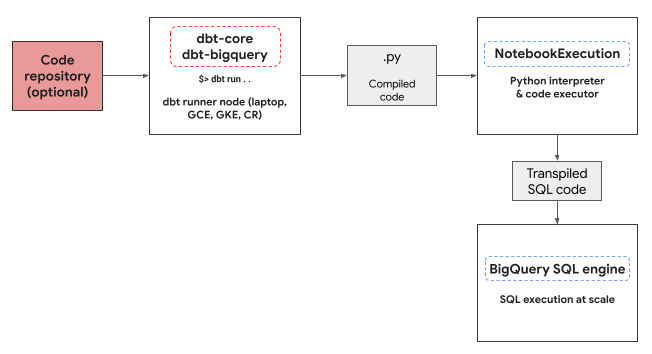
The `dbt-bigquery` adapter utilizes the
[Colab Enterprise notebook executor service](https://docs.cloud.google.com/gemini-enterprise-agent-platform/notebooks/colab/connect-to-runtime)
to run the BigQuery DataFrames Python code. A
Colab Enterprise notebook is automatically created and executed
by the `dbt-bigquery` adapter for every Python model. You can choose the
Google Cloud project to execute the notebook in. The notebook executes the Python
code from the model, which is converted into BigQuery SQL by the
BigQuery DataFrames library. The BigQuery SQL is then
executed in the configured project. The following diagram presents the control
flow:
If there isn't a notebook template already available in the project and the user
executing the code has the permissions to create the template, the `dbt-bigquery`
adapter automatically creates and uses the default notebook template. You can
also specify a different notebook template using a
[dbt configuration](https://docs.cloud.google.com/bigquery/docs/dataframes-dbt#configurations).
Notebook execution requires a staging Cloud Storage bucket to store the code
and logs. However, the `dbt-bigquery` adapter copies the logs out to the
[dbt logs](https://docs.getdbt.com/reference/events-logging), so you don't have
to look through the bucket.
## Supported features
The `dbt-bigquery` adapter supports the following capabilities for dbt Python
models running BigQuery DataFrames:
- Loading data from an existing BigQuery table with the `dbt.source()` macro.
- Loading data from other dbt models with the `dbt.ref()` macro to build dependencies and create directed acyclic graphs (DAGs) with Python models.
- Specifying and using Python packages from PyPi that can be used with Python code execution. For more information, see [Configurations](https://docs.cloud.google.com/bigquery/docs/dataframes-dbt#configurations).
- Specifying a custom notebook runtime template for your BigQuery DataFrames models.
The `dbt-bigquery` adapter supports the following [materialization strategies](https://docs.cloud.google.com/bigquery/docs/dataframes-dbt#materializing-tables):
- Table materialization, where data is rebuilt as a table on each run.
- Incremental materialization with a merge strategy, where new or updated data is added to an existing table, often using a merge strategy to handle changes.
## Setting up dbt to use BigQuery DataFrames
If you're using
[dbt Core](https://docs.getdbt.com/docs/core/installation-overview),
you need to use a `profiles.yml` file for usage with BigQuery DataFrames.
The following example uses the `oauth` method:
your_project_name:
outputs:
dev:
compute_region: us-central1
dataset: your_bq_dateset
gcs_bucket: your_gcs_bucket
job_execution_timeout_seconds: 300
job_retries: 1
location: US
method: oauth
priority: interactive
project: your_gcp_project
threads: 1
type: bigquery
target: dev
If you're using
[dbt Cloud](https://docs.getdbt.com/docs/cloud/about-cloud/dbt-cloud-features),
you can
[connect to your data platform](https://docs.getdbt.com/docs/cloud/connect-data-platform/about-connections)
directly in the dbt Cloud interface. In this scenario, you don't need a
`profiles.yml` file. For more information, see
[About profiles.yml](https://docs.getdbt.com/docs/core/connect-data-platform/profiles.yml)
This is an example of a project-level configuration for the `dbt_project.yml`
file:
# Name your project! Project names should contain only lowercase characters
# and underscores. A good package name should reflect your organization's
# name or the intended use of these models.
name: 'your_project_name'
version: '1.0.0'
# Configuring models
# Full documentation: https://docs.getdbt.com/docs/configuring-models
# In this example config, we tell dbt to build all models in the example/
# directory as views. These settings can be overridden in the individual model
# files using the config(...) macro.
models:
your_project_name:
submission_method: bigframes
notebook_template_id: 7018811640745295872
packages: ["scikit-learn", "mlflow"]
timeout: 3000
# Config indicated by + and applies to all files under models/example/
example:
+materialized: view
Some parameters can also be configured using the `dbt.config` method
within your Python code. If these settings conflict with your
`dbt_project.yml` file, the configurations with `dbt.config` will take
precedence.
For more information, see
[Model configurations](https://docs.getdbt.com/reference/model-configs) and
[dbt_project.yml](https://docs.getdbt.com/reference/dbt_project.yml).
## Configurations
You can set up the following configurations using the `dbt.config` method in
your Python model. These configurations override the project-level
configuration.
| Configuration | Required | Usage |
|---|---|---|
| `submission_method` | Yes | `submission_method=bigframes` |
| `notebook_template_id` | No | If not specified, then a default template is created and used. |
| `packages` | No | Specify the additional list of Python packages, if required. |
| `timeout` | No | Optional: Extend the job execution timeout. |
## Example Python models
The following sections present example scenarios and Python models.
### Loading data from a BigQuery table
To use data from an existing BigQuery table as a source in your
Python model, you first define this source in a YAML file. The following
example is defined in a `source.yml` file.
version: 2
sources:
- name: my_project_source # A custom name for this source group
database: bigframes-dev # Your Google Cloud project ID
schema: yyy_test_us # The BigQuery dataset containing the table
tables:
- name: dev_sql1 # The name of your BigQuery table
Then, you build your Python model, which can use the data sources configured in
this YAML file:
def model(dbt, session):
# Configure the model to use BigFrames for submission
dbt.config(submission_method="bigframes")
# Load data from the 'dev_sql1' table within 'my_project_source'
source_data = dbt.source('my_project_source', 'dev_sql1')
# Example transformation: Create a new column 'id_new'
source_data['id_new'] = source_data['id'] * 10
return source_data
### Referencing another model
You can build models that depend on the output of other dbt models, as shown in
the following example. This is useful for creating modular data pipelines.
def model(dbt, session):
# Configure the model to use BigFrames
dbt.config(submission_method="bigframes")
# Reference another dbt model named 'dev_sql1'.
# It assumes you have a model defined in 'dev_sql1.sql' or 'dev_sql1.py'.
df_from_sql = dbt.ref("dev_sql1")
# Example transformation on the data from the referenced model
df_from_sql['id'] = df_from_sql['id'] * 100
return df_from_sql
### Specifying a package dependency
If your Python model requires specific third-party libraries like
[MLflow](https://mlflow.org/) or
[Boto3](https://boto3.amazonaws.com/v1/documentation/api/latest/index.html),
you can declare the package in the model's configuration, as shown in the
following example. These packages are installed in the execution environment.
def model(dbt, session):
# Configure the model for BigFrames and specify required packages
dbt.config(
submission_method="bigframes",
packages=["mlflow", "boto3"] # List the packages your model needs
)
# Import the specified packages for use in your model
import mlflow
import boto3
# Example: Create a DataFrame showing the versions of the imported packages
data = {
"mlflow_version": [mlflow.__version__],
"boto3_version": [boto3.__version__],
"note": ["This demonstrates accessing package versions after import."]
}
bdf = bpd.DataFrame(data)
return bdf
### Specifying a non-default template
For more control over the execution environment or to use pre-configured
settings, you can specify a non-default notebook template for your
BigQuery DataFrames model, as shown in the following example.
def model(dbt, session):
dbt.config(
submission_method="bigframes",
# ID of your pre-created notebook template
notebook_template_id="857350349023451yyyy",
)
data = {"int": [1, 2, 3], "str": ['a', 'b', 'c']}
return bpd.DataFrame(data=data)
### Materializing the tables
When dbt runs your Python models, it needs to know how to save the results in
your data warehouse. This is called *materialization*.
For standard table materialization, dbt creates or fully replaces a table in
your warehouse with the output of your model each time it runs. This is done
by default, or by explicitly setting the `materialized='table'` property, as
shown in the following example.
def model(dbt, session):
dbt.config(
submission_method="bigframes",
# Instructs dbt to create/replace this model as a table
materialized='table',
)
data = {"int_column": [1, 2], "str_column": ['a', 'b']}
return bpd.DataFrame(data=data)
Incremental materialization with a merge strategy allows dbt to update your
table with only new or modified rows. This is useful for large datasets
because completely rebuilding a table every time can be inefficient. The merge
strategy is a common way to handle these updates.
This approach intelligently integrates changes by doing the following:
- Updating existing rows that have changed.
- Adding new rows.
- Optional, depending on the configuration: Deleting rows that are no longer present in the source.
To use the merge strategy, you need to specify a `unique_key` property that
dbt can use to identify the matching rows between your model's output and the
existing table, as shown in the following example.
def model(dbt, session):
dbt.config(
submission_method="bigframes",
materialized='incremental',
incremental_strategy='merge',
unique_key='int', # Specifies the column to identify unique rows
)
# In this example:
# - Row with 'int' value 1 remains unchanged.
# - Row with 'int' value 2 has been updated.
# - Row with 'int' value 4 is a new addition.
# The 'merge' strategy will ensure that only the updated row ('int 2')
# and the new row ('int 4') are processed and integrated into the table.
data = {"int": [1, 2, 4], "str": ['a', 'bbbb', 'd']}
return bpd.DataFrame(data=data)
## Troubleshooting
You can observe the Python execution in the dbt logs.
Additionally, you can view the code and the logs (including previous executions)
in the **Colab Enterprise Executions** page.
[Go to Colab Enterprise Executions](https://console.cloud.google.com/vertex-ai/colab/execution-jobs)
## Billing
When using the `dbt-bigquery` adapter with BigQuery DataFrames,
there are Google Cloud charges from the following:
- Notebook execution: You are charged for the notebook runtime
execution. For more information, see
[Notebook runtime pricing](https://cloud.google.com/bigquery/pricing#external_services).
- BigQuery query execution: In the notebook,
BigQuery DataFrames converts Python to SQL and executes the code in
BigQuery. You are charged according to your project
configuration and your query, as described for BigQuery DataFrames
[pricing](https://docs.cloud.google.com/bigquery/docs/bigquery-dataframes-introduction#pricing).
You can use the following billing label in the BigQuery billing
console to filter out the billing report for notebook execution and for the
BigQuery executions triggered by the `dbt-bigquery` adapter:
- BigQuery execution label: `bigframes-dbt-api`
## What's next
- To learn more about dbt and BigQuery DataFrames, see [Using BigQuery DataFrames with dbt Python models](https://docs.getdbt.com/guides/dbt-python-bigframes).
- To learn more about dbt Python models, see [Python models](https://docs.getdbt.com/docs/build/python-models) and [Python model configuration](https://docs.getdbt.com/reference/resource-configs/bigquery-configs#python-model-configuration).
- To learn more about Colab Enterprise notebooks, see [Create a Colab Enterprise notebook by using the Google Cloud console](https://docs.cloud.google.com/gemini-enterprise-agent-platform/notebooks/colab/create-console-quickstart).
- To learn more about Google Cloud partners, see [Google Cloud Ready - BigQuery Partners](https://docs.cloud.google.com/bigquery/docs/bigquery-ready-partners).