# BigQuery data preparation overview
You can significantly reduce the time and effort required for manual data tasks
by using AI-augmented data preparation in BigQuery. Data preparation
uses Gemini in BigQuery to analyze your data and provide
intelligent suggestions for cleaning, transforming, and enriching it.
Dataform schedules these data preparations.
## Benefits
- You can reduce the time spent on data pipeline development with context-aware, Gemini-generated transformation suggestions.
- You can validate the generated results in a preview and receive data quality cleanup and enrichment suggestions with automated schema mapping.
- [Dataform](https://docs.cloud.google.com/dataform/docs/overview) lets you use a continuous integration, continuous development (CI/CD) process, supporting cross-team collaboration for code reviews and source control.
## Data preparation entry points
You can create and manage data preparations in the **BigQuery Studio**
page (see [Start a data preparation session](https://docs.cloud.google.com/bigquery/docs/data-prep-get-suggestions#open-data-prep-editor)).
> [!TIP]
> **Tip:** You can also use the **Pipelines \& Connections** page to create a data preparation using a [streamlined, BigQuery-specific workflow](https://docs.cloud.google.com/bigquery/docs/pipeline-connection-page). This feature is in [preview](https://cloud.google.com/products/#product-launch-stages).
When you open a table in BigQuery data preparation, a
BigQuery job runs using your credentials. The run creates sample
rows from the chosen table and writes the results into a temporary table in the
same project. Gemini uses the sample data and schema to generate
data preparation suggestions shown in the data preparation editor.
## Views in the data preparation editor
Data preparations appear as tabs on the **BigQuery** page. Each
tab has a series of sub-tabs, or data preparation *views*, where you develop and
manage your data preparations.
### Data view
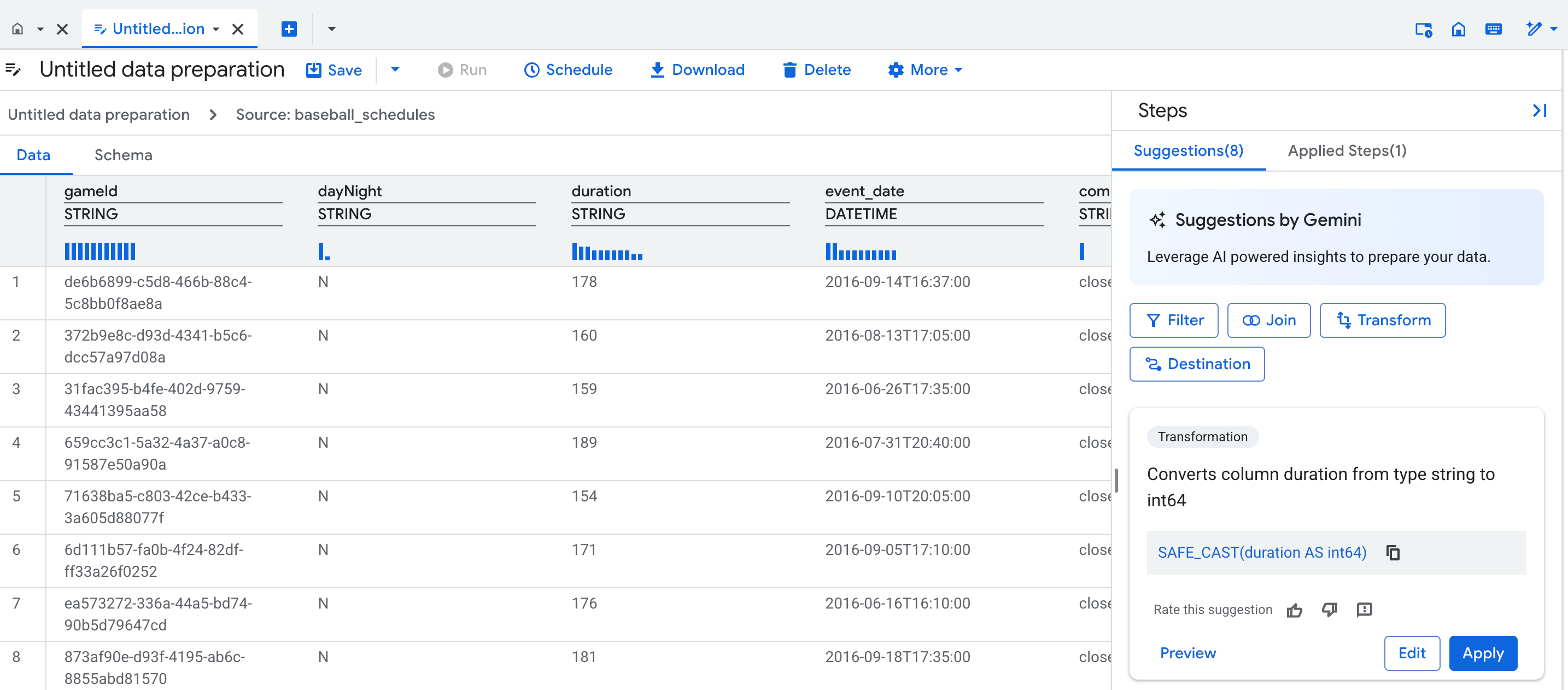
When you create a new data preparation, a data preparation editor tab opens,
displaying the data view, which contains a representative sample of the table.
For existing data preparations, you can navigate to the data view by clicking a
node in the graph view of your data preparation pipeline.
The data view lets you do the following:
- Interact with your data to form data preparation steps.
- Apply suggestions from Gemini.
- Improve the quality of the Gemini suggestions by entering example values in the cells.
Over each column in your table, a statistical profile (a histogram) shows the
count for each column's top values in the preview rows.
### Graph view
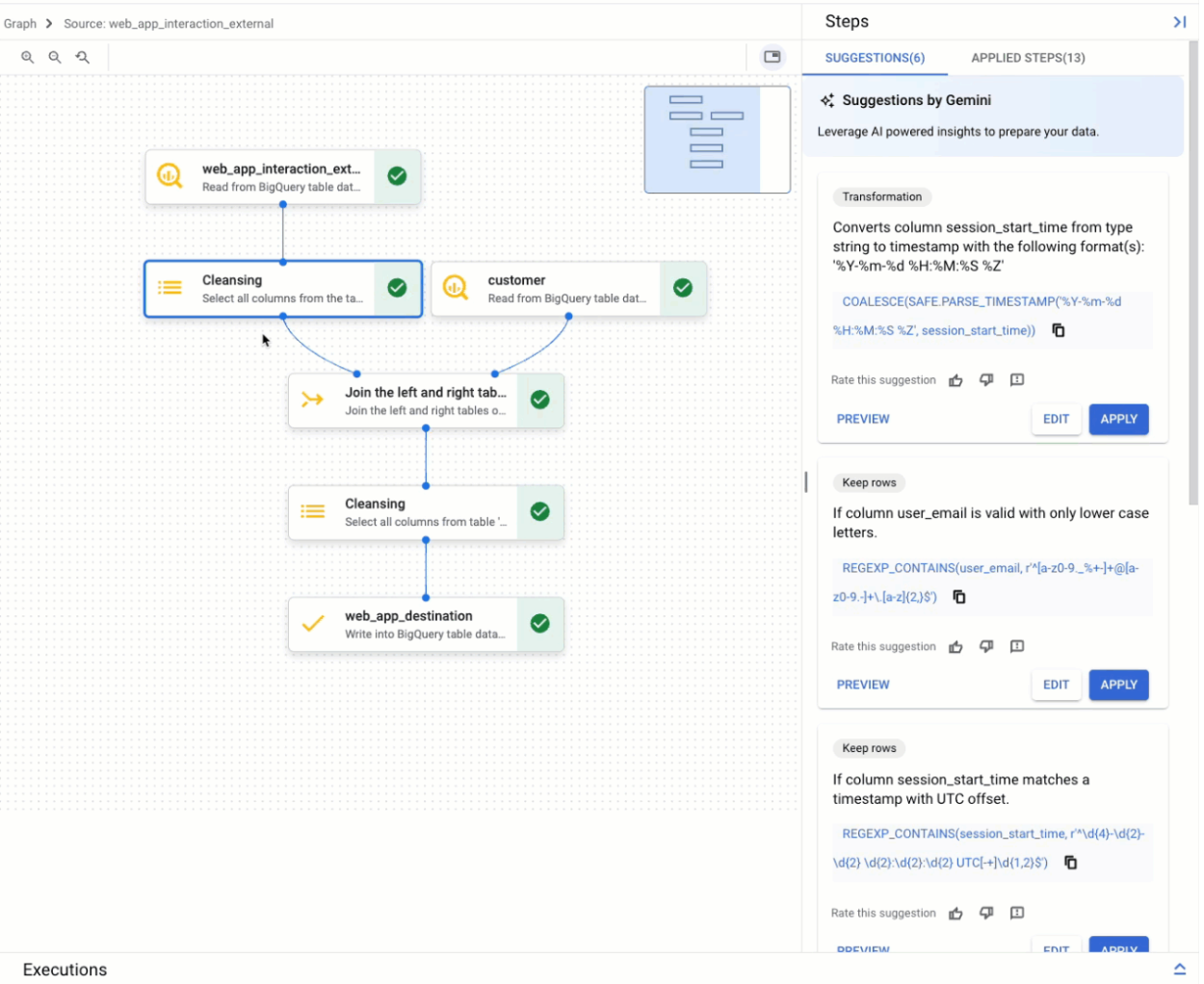
The graph view is a visual overview of your data preparation. It appears as a
tab on the **BigQuery** page in the console, when you open a
data preparation. The graph displays nodes for all steps in your data
preparation pipeline. You can select a node on the graph to configure the data
preparation steps it represents.
### Schema view
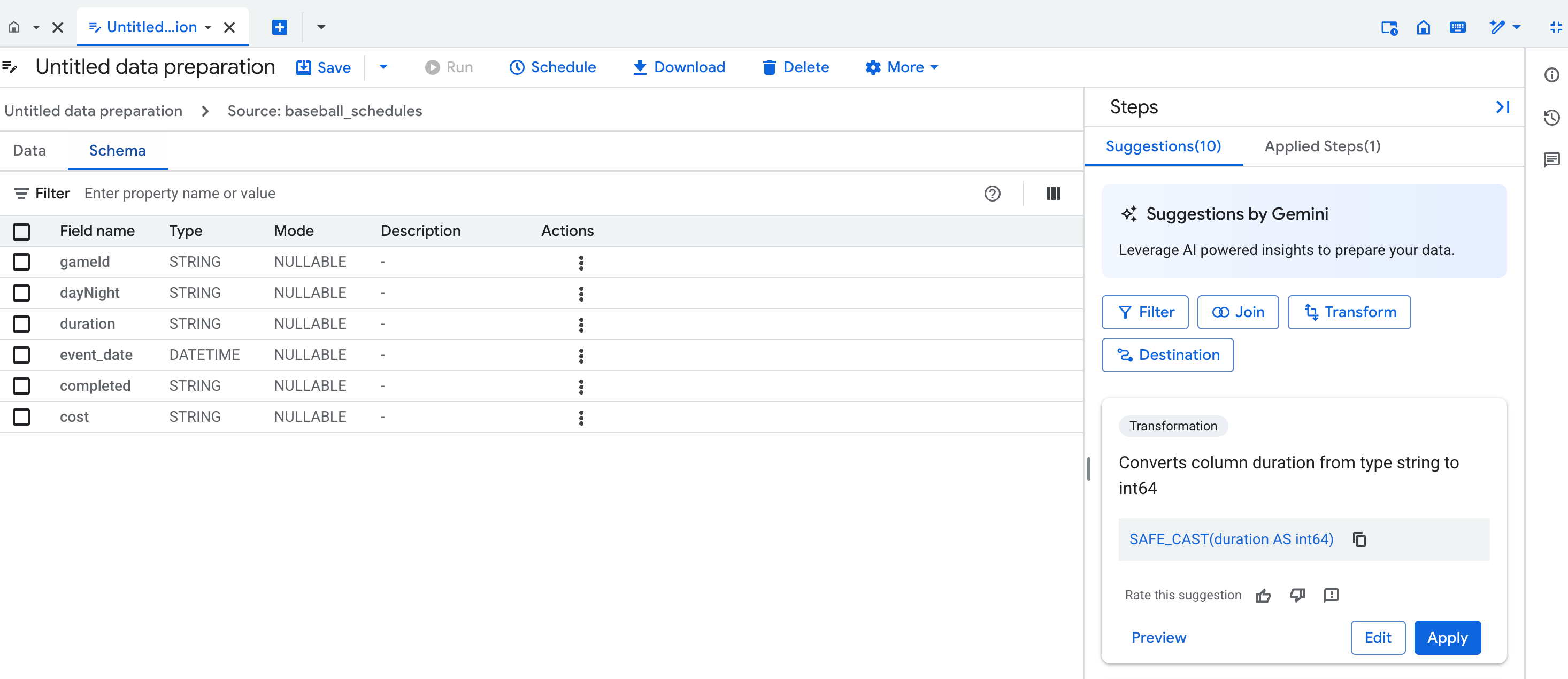
The data preparation schema view displays the current schema of the active data
preparation step. The schema shown matches the columns in the data view.
In the schema view, you can perform dedicated schema operations, such as
removing columns, which also creates steps in the **Applied steps** list.
## Suggestions by Gemini
Gemini provides context-aware suggestions to assist with the
following data preparation tasks:
- Applying transformations and data quality rules
- Standardizing and enriching data
- Automating schema mapping
Each suggestion appears in a card in the suggestions list of the data
preparation editor. The card contains the following information:
- The high-level category of the step, such as **Keep rows** or **Transformation**
- A description of the step, such as **Keep rows if `COLUMN_NAME` is not `NULL`**
- The corresponding SQL expression used to execute the step
You can preview, edit, or apply the suggestion card, or fine-tune the
suggestion. You can also add steps manually. For more information, see
[Prepare data with Gemini](https://docs.cloud.google.com/bigquery/docs/data-prep-get-suggestions).
To fine-tune the suggestions from Gemini, [give it an example](https://docs.cloud.google.com/bigquery/docs/data-prep-get-suggestions#apply-suggestions) of what to change in a column.
## Data sampling
BigQuery uses data sampling to provide a preview of your data
preparation. You can view the sample in the data view for each node.
When you add BigQuery standard tables as a source, the data is
prepared using a BigQuery
[`TABLESAMPLE`](https://docs.cloud.google.com/bigquery/docs/table-sampling) function. This function creates a 10k-record
sample.
When you add a view or an external table as a source, the system reads the first
1 million records. From these records, the system selects a representative
10k-record sample.
Data in the sample isn't automatically refreshed. Sample tables are stored as
[cached query results](https://docs.cloud.google.com/bigquery/docs/cached-results) and expire in approximately 24 hours. To
manually refresh the sample table, see [Refresh data preparation
samples](https://docs.cloud.google.com/bigquery/docs/data-prep-get-suggestions#refresh-data-prep-samples).
## Write mode
To optimize costs and processing time, you can change the write mode settings to
incrementally process new data from the source. For example, if you have a
table in BigQuery where records are inserted daily, and a
Looker dashboard that must reflect the changed data, you can schedule
the BigQuery data preparation to incrementally read the new
records from the source table and propagate them to the destination table.
To configure the way your data preparation is written into a destination table,
see [Optimize data preparation by incrementally processing data](https://docs.cloud.google.com/bigquery/docs/manage-data-preparations#optimize).
The following write modes are supported:
| Write mode option | Description |
|---|---|
| Full refresh | Performs the data preparation steps on all source data, and then rebuilds the destination table in full. The table is recreated, not truncated. Full refresh is the default mode when writing to a destination table. |
| Append | Inserts all the data from the data preparation as additional rows in the destination table. |
| Incremental | Inserts only the new or, depending on your incremental column choice, changed data in the destination table. Based on your incremental column choice, data preparation will select the optimal change record detection mechanism. It picks Maximum values for numeric and datetime data types and Unique for categorical data. Maximum inserts only records where the specified column value is greater than the max value for this same column in the destination table. Unique inserts only records where the specified column values aren't present in the existing values for the same column in the destination table. |
| Upsert | Merges rows using the specified merge keys. When an existing row in the destination table matches the specified merge keys for an input record, the values in this row are updated in the destination table. Otherwise, a new row is inserted into the destination table. |
## Supported data preparation steps
BigQuery supports the following types of data preparation steps:
| Step type | Description |
|---|---|
| Source | Adds a source when you select a BigQuery table to read from or when you add a join step. |
| Transformation | Cleans and transforms data using a SQL expression. You receive suggestion cards for the following expressions: - Typecasting functions, such as `CAST` - String functions, such as `SUBSTR`, `CONCAT`, `REPLACE`, `UPPER`, `LOWER`, and `TRIM` - Datetime functions, such as `PARSE_DATE`, `TIMESTAMP`, `EXTRACT`, and `DATE_ADD` - JSON functions, such as `JSON_VALUE` or `JSON_QUERY`
You can also use any valid BigQuery SQL expressions in manual transformation steps. For example: - Math with numbers, such as converting watt-hours to kilowatt-hours - Array functions, such as `ARRAY_AGG`, `ARRAY_CONCAT`, and `UNNEST` - Window functions, such as `ROW_NUMBER`, `LAG`, `LEAD`, `RANK`, and `NTILE`
For more information, see [Add a transformation](https://docs.cloud.google.com/bigquery/docs/data-prep-get-suggestions#add-transformation). |
| Filter | Removes rows through the `WHERE` clause syntax. When you add a filter step, you can choose to make it into a validation step.
For more information, see [Filter rows](https://docs.cloud.google.com/bigquery/docs/data-prep-get-suggestions#filter-rows). |
| Deduplicate | Removes duplicate rows from the data based on selected keys and ordering.
For more information, see [Deduplicate data](https://docs.cloud.google.com/bigquery/docs/data-prep-get-suggestions#deduplicate). |
| Validation | Sends rows that don't meet the validation rule criteria to an error table. If data fails the validation rule and no error table is configured, the data preparation fails during execution.
For more information, see [Configure the error table and add a validation rule](https://docs.cloud.google.com/bigquery/docs/data-prep-get-suggestions#configure-validation). |
| Join | Joins values from two sources. Tables must be in the same location. Join key columns must be of the same data type. Data preparations support the following join operations: - Inner joins - Left joins - Right joins - Full outer joins - Cross Joins (if no join key columns are selected, a cross join is used)
For more information, see [Add a join operation](https://docs.cloud.google.com/bigquery/docs/data-prep-get-suggestions#add-join). |
| Destination | Defines a destination for outputting data preparation steps. If you enter a destination table that doesn't exist, the data preparation creates a new table using the current schema information. For more information, see [Add or change a destination table](https://docs.cloud.google.com/bigquery/docs/data-prep-get-suggestions#add-or-change-destination). |
| Delete columns | Deletes columns from the schema. You perform this step from the schema view.
For more information, see [Delete a column](https://docs.cloud.google.com/bigquery/docs/data-prep-get-suggestions#delete-column). |
## Scheduling data preparation runs
To execute the data preparation steps and load the prepared data into the
destination table, create a schedule. You
can schedule data preparations from the data preparation editor, and manage them
from the BigQuery **Scheduling** page. For more information,
see [Schedule data preparations](https://docs.cloud.google.com/bigquery/docs/orchestrate-data-preparations).
## Building pipelines with data preparation tasks
You can build BigQuery pipelines composed of data preparation,
SQL query, and notebook tasks. You can then run these pipelines on a schedule.
For more information, see [Introduction to BigQuery
pipelines](https://docs.cloud.google.com/bigquery/docs/workflows-introduction).
## Controlling access
Control access to data preparations using Identity and Access Management (IAM) roles,
encryption with BigQuery and Dataform
Cloud KMS keys, and VPC Service Controls.
### IAM roles and permissions
Users who are preparing the data and the Dataform service
accounts that are running the jobs require IAM permissions. For
more information, see [Required roles](https://docs.cloud.google.com/bigquery/docs/manage-data-preparations#required-roles) and
[Set up Gemini for BigQuery](https://docs.cloud.google.com/bigquery/docs/gemini-set-up).
### Encryption with Cloud KMS keys
Encrypt data at the dataset- or project-level by using the default
customer-managed Cloud KMS keys in BigQuery. For more
information, see [Set a dataset default key](https://docs.cloud.google.com/bigquery/docs/customer-managed-encryption#dataset_default_key)
and [Set a project default key](https://docs.cloud.google.com/bigquery/docs/customer-managed-encryption#project_default_key).
You can encrypt pipeline code at the project-level by default using a
[Dataform Cloud KMS
key](https://docs.cloud.google.com/dataform/docs/cmek#set-default-key).
### VPC Service Controls perimeters
If you use VPC Service Controls, you must configure the perimeter to protect
Dataform and BigQuery. For more information, see
the VPC Service Controls limitations for
[BigQuery](https://docs.cloud.google.com/vpc-service-controls/docs/supported-products#table_bigquery)
and
[Dataform](https://docs.cloud.google.com/vpc-service-controls/docs/supported-products#dataform).
### Role granted when creating a data preparation
When you create a data preparation, BigQuery grants you the
[Dataform Admin role](https://docs.cloud.google.com/dataform/docs/access-control#dataform.admin)
(`roles/dataform.admin`) on that data preparation. All users with the
Dataform Admin role granted on the Google Cloud project have owner access to all
the data preparations created in the project. To override this behavior, see
[Grant a specific role upon resource creation](https://docs.cloud.google.com/dataform/docs/access-control#grant-specific-role).
## Limitations
Data preparation is available with the following limitations:
- All BigQuery data preparation source and destination datasets of a given data preparation must be in the same location. For more information, see [Locations](https://docs.cloud.google.com/bigquery/docs/data-prep-introduction#supported-locations).
- During pipeline editing, data and interactions are sent to a Gemini data center for processing. For more information, see [Locations](https://docs.cloud.google.com/bigquery/docs/data-prep-introduction#supported-locations).
- Gemini in BigQuery isn't supported by Assured Workloads.
- BigQuery data preparations don't support viewing, comparing, or restoring data preparation versions.
- Responses from Gemini are based on a sample of the dataset you provide when you develop your data preparation pipeline. For more information, see [how Gemini for Google Cloud uses your data](https://docs.cloud.google.com/gemini/docs/discover/data-governance) and the terms in the [Gemini for Google Cloud Trusted Tester Program](https://cloud.google.com/trusted-tester/gemini-for-google-cloud-preview).
- BigQuery data preparation doesn't have its own API. For necessary APIs, see [Set up Gemini in BigQuery](https://docs.cloud.google.com/bigquery/docs/gemini-set-up).
## Locations
Your data processing jobs are executed and stored in the location of your source
datasets. If a
[repository location](https://docs.cloud.google.com/dataform/docs/manage-repository#configure-workflow-settings)
is specified, then it must be the same as the source datasets location.
The data preparation code storage region can be different from the job execution region.
All new code assets in your Google Cloud project use a default region. After the
asset is created, you can't change its region.
> [!IMPORTANT]
> **Important:** If you change the region while creating a code asset, that region becomes the default for all subsequent code assets. Existing code assets are not affected.
To set the default region for new code assets, do the following:
1. Go to the **BigQuery** page.
[Go to BigQuery](https://console.cloud.google.com/bigquery)
2. In the left pane, click **Files**
to open the file browser:

3. Next to the project name, click
**View files panel actions** \> **Switch code region**.
4. Select the code region that you want to use as a default.
5. Click **Save**.
For a list of supported regions, see
[BigQuery Studio locations](https://docs.cloud.google.com/bigquery/docs/locations#bqstudio-loc).
BigQuery data processing during
development and execution time is always performed in the location of your
source datasets. To learn about where Gemini in
BigQuery processes your data, see [Where Gemini in
BigQuery processes your data](https://docs.cloud.google.com/bigquery/docs/gemini-locations).
## Pricing
Running data preparations and creating data preview samples use
BigQuery resources, which are charged at the rates shown in
[BigQuery pricing](https://cloud.google.com/bigquery/pricing).
Data preparation is included in the
[Gemini in BigQuery pricing](https://cloud.google.com/products/gemini/pricing#gemini-in-bigquery-pricing).
For more information, see
[Set up Gemini in BigQuery](https://docs.cloud.google.com/bigquery/docs/gemini-set-up).
## What's next
- Learn how to [prepare data with Gemini in BigQuery](https://docs.cloud.google.com/bigquery/docs/data-prep-get-suggestions).
- Learn how to [run data preparations manually or with a schedule](https://docs.cloud.google.com/bigquery/docs/orchestrate-data-preparations).