# Schedule a Comparison Shopping Service Center Transfer
> [!WARNING]
>
> **Preview**
>
>
> This product is
>
> subject to the "Pre-GA Offerings Terms" in the General Service Terms section of the
> [Service Specific
> Terms](https://docs.cloud.google.com/terms/service-terms#1).
>
> Pre-GA products are available "as is" and might have limited support.
>
> For more information, see the
> [launch stage descriptions](https://cloud.google.com/products/#product-launch-stages).
> [!NOTE]
> **Note:** To get support or provide feedback for Comparison Shopping Service (CSS) Center transfers with BigQuery Data Transfer Service, contact [gmc-transfer-preview@google.com](mailto:gmc-transfer-preview@google.com).
This document shows you how to schedule and manage recurring load jobs for
CSS Center reporting data using the [BigQuery Data Transfer Service](https://docs.cloud.google.com/bigquery/docs/dts-introduction.md.txt).
## Limitations
Some reports might have their own constraints, such as different windows of
support for historical backfills. The products and product issues report does
not support backfills.
Products and product issues data in BigQuery doesn't represent the
real-time view of Google Merchant Center accounts associated with your
CSS Center account. The products and product issues data in
BigQuery can have a latency of up to one hour.
Data exported for a CSS Center account will only contain information about
the merchants who have agreed to share their information with their
associated CSS. For more information, see
[How a CSS can access your Merchant Center account](https://support.google.com/merchants/answer/13438603).
### CSS Center data access and authorization
A user of a CSS Center can only access information from
Merchant Center accounts based on the level of access provided to
that user by the Merchant Center account. As a result, a
CSS Center transfer only includes merchant data that a user of the
CSS Center has access to. For more information, see
[How a CSS can access your Merchant Center account](https://support.google.com/merchants/answer/13438603).
You can configure the access rights of a CSS user by
[configuring the user's access in the CSS Center as a CSS admin](https://support.google.com/css-center/answer/9773473).
## Before you begin
Before you create a CSS Center data transfer:
- [Enable the BigQuery Data Transfer Service](https://docs.cloud.google.com/bigquery/docs/enable-transfer-service.md.txt).
- [Create a BigQuery dataset](https://docs.cloud.google.com/bigquery/docs/datasets.md.txt) to store the CSS Center data.
- For dataset region, we support using the default option, Multi-region, in either US or EU.
- If you want to create a dataset in a specific region, the CSS Center data transfer is only supported in the following regions:
- `us-east4 (Northern Virginia)`,
- `asia-northeast1 (Tokyo)`,
- `asia-southeast1 (Singapore)`,
- `australia-southeast1 (Sydney)`,
- `europe-north1 (Finland)`,
- `europe-west2 (London)`,
- `europe-west6 (Zurich)`.
- You must have your CSS domain ID in order to create a CSS Center data transfer.
- If you intend to set up transfer run notifications for Pub/Sub, you must have `pubsub.topics.setIamPolicy` permissions. Pub/Sub permissions are not required if you only set up email notifications. For more information, see [BigQuery Data Transfer Service Run Notifications](https://docs.cloud.google.com/bigquery/docs/transfer-run-notifications.md.txt).
## Required permissions
Ensure that you have granted the following permissions.
### Required BigQuery roles
To get the permissions that
you need to create a BigQuery Data Transfer Service data transfer,
ask your administrator to grant you the
[BigQuery Admin](https://docs.cloud.google.com/iam/docs/roles-permissions/bigquery.md.txt#bigquery.admin) (`roles/bigquery.admin`) IAM role on your project.
For more information about granting roles, see [Manage access to projects, folders, and organizations](https://docs.cloud.google.com/iam/docs/granting-changing-revoking-access.md.txt).
This predefined role contains
the permissions required to create a BigQuery Data Transfer Service data transfer. To see the exact permissions that are
required, expand the **Required permissions** section:
#### Required permissions
The following permissions are required to create a BigQuery Data Transfer Service data transfer:
- BigQuery Data Transfer Service permissions:
- `bigquery.transfers.update`
- `bigquery.transfers.get`
- BigQuery permissions:
- `bigquery.datasets.get`
- `bigquery.datasets.getIamPolicy`
- `bigquery.datasets.update`
- `bigquery.datasets.setIamPolicy`
- `bigquery.jobs.create`
You might also be able to get
these permissions
with [custom roles](https://docs.cloud.google.com/iam/docs/creating-custom-roles.md.txt) or
other [predefined roles](https://docs.cloud.google.com/iam/docs/roles-overview.md.txt#predefined).
For more information, see [Grant `bigquery.admin` access](https://docs.cloud.google.com/bigquery/docs/enable-transfer-service.md.txt#grant_bigqueryadmin_access).
### Required CSS Center roles
You must have access to the CSS Center account that is used in the transfer
configuration.
## Set up a CSS Center transfer
To create a data transfer for CSS Center reporting:
### Console
1. Go to the Data transfers page in the Google Cloud console.
[Go to Data transfers](https://console.cloud.google.com/bigquery/transfers)
2. Click **Create transfer**.
3. On the **Create Transfer** page:
- In the **Source type** section, for **Source** , choose **Google CSS Center**.
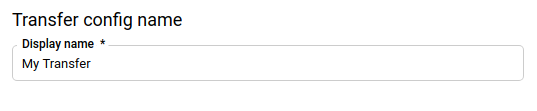
- In the **Transfer config name** section, for **Display name** , enter a
name for the data transfer such as `My Transfer`. The transfer name can
be any value that lets you identify the transfer if you need to modify
it later.
- The **Schedule options** section is not configurable. CSS Center
data transfers are scheduled to run once every 24 hours.
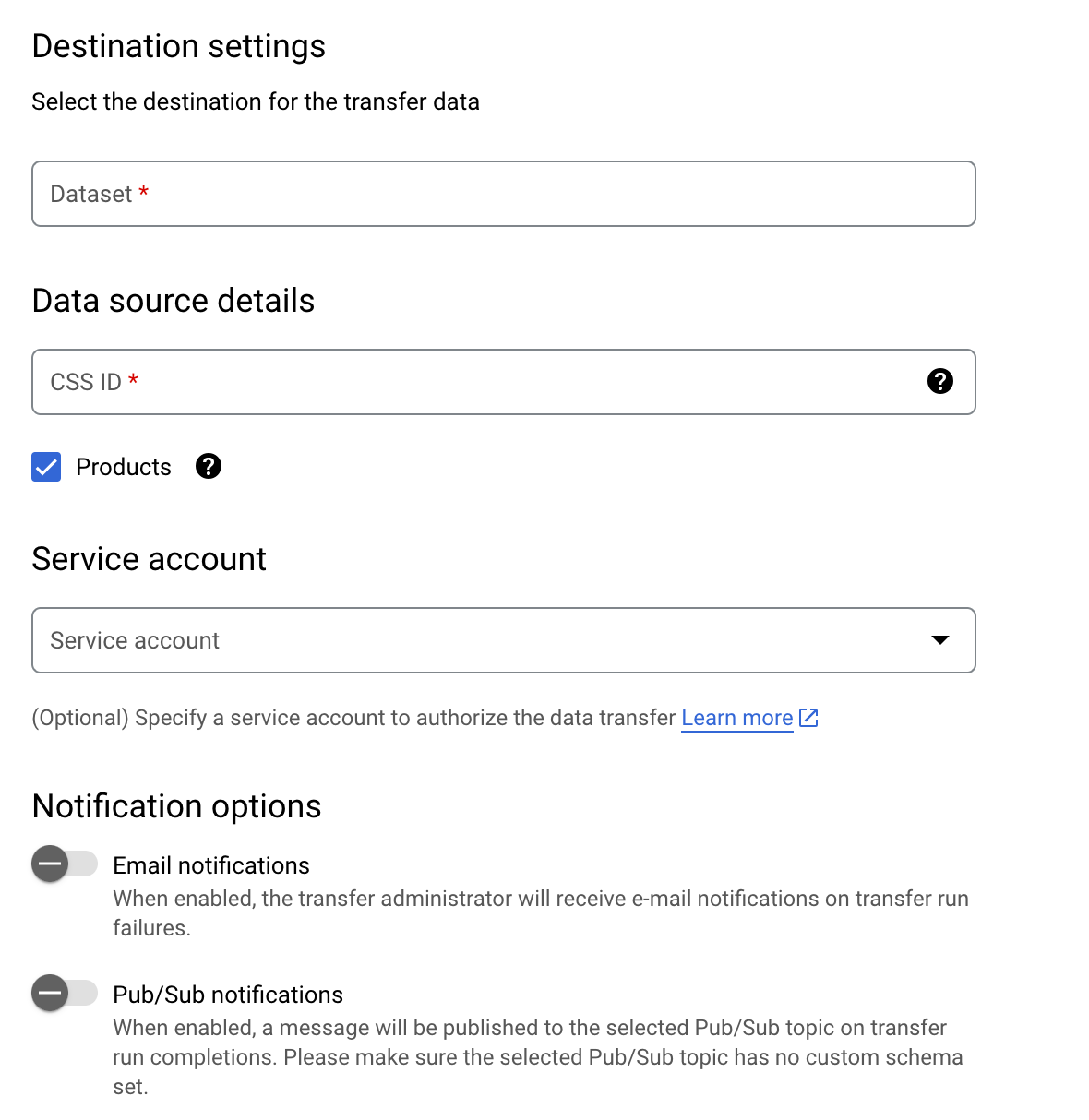
- In the **Destination settings** section, for **Destination dataset**,
choose the dataset that you created to store your data.
- In the **Data source details** section, for **CSS ID**, enter your CSS
domain ID.
- Select the report(s) that you would like to transfer. See
[Supported reports](https://docs.cloud.google.com/bigquery/docs/css-center-transfer.md.txt#supported_reports)
for more details.
- (Optional) In the **Notification options** section:
- Click the toggle to enable email notifications. When you enable this option, the transfer administrator receives an email notification when a transfer run fails.
- For **Select a Pub/Sub topic** , choose your [topic](https://docs.cloud.google.com/pubsub/docs/overview.md.txt#types) name or click **Create a topic** . This option configures Pub/Sub run [notifications](https://docs.cloud.google.com/bigquery/docs/transfer-run-notifications.md.txt) for your data transfer.
4. Click **Save**.
### bq
Enter the `bq mk` command and supply the transfer creation flag ---
`--transfer_config`. The following flags are also required:
- `--data_source`
- `--target_dataset`
- `--display_name`
- `--params`
You can also supply the `--project_id` flag to specify a particular
project. If `--project_id` isn't specified, the default project is used.
```bash
bq mk \
--transfer_config \
--project_id=project_id \
--target_dataset=dataset \
--display_name=name \
--params='parameters' \
--data_source=data_source
```
Where:
- project_id is your project ID.
- dataset is the target dataset for the data transfer configuration.
- name is the display name for the data transfer configuration. The transfer name can be any value that lets you identify the transfer if you need to modify it later.
- parameters contains the parameters for the created data transfer configuration in JSON format. For example: `--params='{"param":"param_value"}'`.
- `css_id`: the CSS domain ID.
- `export_products`: whether or not to transfer product and product issues data. This parameter is included by default, even if you don't specify the `export_products` parameter. We recommend that you include this parameter explicitly and set it to `true`.
- data_source is the data source --- `css_center`.
> [!CAUTION]
> **Caution:** You cannot configure notifications by using the command-line tool.
For example, the following command creates a CSS Center data transfer
named `My Transfer` using CSS domain ID `1234` and target dataset
`mydataset`. The data transfer is created in your default project.
```css
bq mk \
--transfer_config \
--target_dataset=mydataset \
--display_name='My Transfer' \
--params='{"css_id":"1234","export_products":"true","export_regional_inventories":"true","export_local_inventories":"true","export_price_benchmarks":"true","export_best_sellers":"true"}' \
--data_source=css_center
```
The first time you run the command, you receive a message like the
following:
`[URL omitted] Please copy and paste the above URL into your web browser and
follow the instructions to retrieve an authentication code.`
Follow the instructions in the message and paste the authentication code on
the command line.
### API
Use the [`projects.locations.transferConfigs.create`](https://docs.cloud.google.com/bigquery/docs/reference/datatransfer/rest/v1/projects.locations.transferConfigs/create.md.txt)
method and supply an instance of the [`TransferConfig`](https://docs.cloud.google.com/bigquery/docs/reference/datatransfer/rest/v1/projects.locations.transferConfigs.md.txt#TransferConfig)
resource.