In this tutorial, you create [an authorized view in
BigQuery](https://docs.cloud.google.com/bigquery/docs/authorized-views), which your data analysts
can use to analyze query results without needing access to the underlying source
data.
You do this by creating the authorized view from a SQL query that restricts the
columns that your data analysts can see in the query results.
## Objectives
- Create a dataset to contain your source data.
- Run a query to load data into a destination table in the source dataset.
- Create a dataset to contain your authorized view.
- Create an authorized view from a SQL query that restricts the columns that your data analysts can see in the query results.
- Grant your data analysts permission to run query jobs.
- Grant your data analysts access to the dataset that contains the authorized view.
- Grant the authorized view access to the source dataset.
## Costs
In this document, you use the following billable components of Google Cloud:
- [BigQuery](https://cloud.google.com/bigquery/pricing)
To generate a cost estimate based on your projected usage,
use the [pricing calculator](https://docs.cloud.google.com/products/calculator).
New Google Cloud users might be eligible for a [free trial](https://docs.cloud.google.com/free).
When you finish the tasks that are described in this document, you can avoid
continued billing by deleting the resources that you created. For more information, see
[Clean up](https://docs.cloud.google.com/bigquery/docs/create-authorized-views#clean-up).
## Before you begin
1.
[Verify that billing is enabled for your Google Cloud project](https://docs.cloud.google.com/billing/docs/how-to/verify-billing-enabled#confirm_billing_is_enabled_on_a_project).
2.
3.
Enable the BigQuery API, if it is not already enabled.
**Roles required to enable APIs**
To enable APIs, you need the `serviceusage.services.enable` permission. If you
created the project, then you likely already have this permission through the
Owner role (`roles/owner`). Otherwise, you can get this permission through the
Service Usage Admin role (`roles/serviceusage.serviceUsageAdmin`).
[Learn how to grant roles](https://docs.cloud.google.com/iam/docs/granting-changing-revoking-access).
[Enable the API](https://console.cloud.google.com/apis/enableflow?apiid=bigquery.googleapis.com)
4. Ensure that you have the [necessary permissions](https://docs.cloud.google.com/bigquery/docs/authorized-views#required_permissions) to perform the tasks in this document.
## Create a dataset to store your source data
You begin by creating a dataset to store your source data.
To create your source dataset, choose one of the following options:
### Console
1. Go to the **BigQuery** page.
[Go to BigQuery](https://console.cloud.google.com/bigquery)
2. In the left pane, click **Explorer**:

If you don't see the left pane, click **Expand left pane** to open the pane.
3. In the **Explorer** pane, beside the project where you want to create
the dataset, click
**View actions** \> **Create dataset**.
4. On the **Create dataset** page, do the following:
1. For **Dataset ID** , enter `github_source_data`.
2. For **Location type** , verify that **Multi-region** is selected.
3. For **Multi-region** , choose **US** or **EU**. All the resources you
create in this tutorial should be in the same multi-region location.
4. Click **Create dataset**.
### SQL
Use the [`CREATE SCHEMA` DDL statement](https://docs.cloud.google.com/bigquery/docs/reference/standard-sql/data-definition-language#create_schema_statement):
1. In the Google Cloud console, go to the **BigQuery** page.
[Go to BigQuery](https://console.cloud.google.com/bigquery)
2. In the query editor, enter the following statement:
```googlesql
CREATE SCHEMA github_source_data;
```
3. Click **Run**.
For more information about how to run queries, see [Run an interactive query](https://docs.cloud.google.com/bigquery/docs/running-queries#queries).
### Java
Before trying this sample, follow the Java setup instructions in the
[BigQuery quickstart using
client libraries](https://docs.cloud.google.com/bigquery/docs/quickstarts/quickstart-client-libraries).
For more information, see the
[BigQuery Java API
reference documentation](https://docs.cloud.google.com/java/docs/reference/google-cloud-bigquery/latest/overview).
To authenticate to BigQuery, set up Application Default Credentials.
For more information, see
[Set up authentication for client libraries](https://docs.cloud.google.com/bigquery/docs/authentication#client-libs).
// Create a source dataset to store your table.
Dataset sourceDataset = bigquery.create(DatasetInfo.of(sourceDatasetId));
### Python
Before trying this sample, follow the Python setup instructions in the
[BigQuery quickstart using
client libraries](https://docs.cloud.google.com/bigquery/docs/quickstarts/quickstart-client-libraries).
For more information, see the
[BigQuery Python API
reference documentation](https://docs.cloud.google.com/python/docs/reference/bigquery/latest).
To authenticate to BigQuery, set up Application Default Credentials.
For more information, see
[Set up authentication for client libraries](https://docs.cloud.google.com/bigquery/docs/authentication#client-libs).
from google.cloud import https://docs.cloud.google.com/python/docs/reference/bigquery/latest
from google.cloud.bigquery.enums import https://docs.cloud.google.com/python/docs/reference/bigquery/latest/google.cloud.bigquery.enums.EntityTypes.html
client = https://docs.cloud.google.com/python/docs/reference/bigquery/latest.https://docs.cloud.google.com/python/docs/reference/bigquery/latest/google.cloud.bigquery.client.Client.html()
source_dataset_id = "github_source_data"
source_dataset_id_full = "{}.{}".format(client.project, source_dataset_id)
source_dataset = https://docs.cloud.google.com/python/docs/reference/bigquery/latest.https://docs.cloud.google.com/python/docs/reference/bigquery/latest/google.cloud.bigquery.dataset.Dataset.html(source_dataset_id_full)
# Specify the geographic location where the dataset should reside.
source_dataset.location = "US"
source_dataset = client.https://docs.cloud.google.com/python/docs/reference/bigquery/latest/google.cloud.bigquery.client.Client.html#google_cloud_bigquery_client_Client_create_dataset(source_dataset) # API request
## Create a table and load your source data
After you create the source dataset, you populate a table in it by saving the
results of a SQL query to a destination table. The query retrieves data from the
[GitHub public dataset](https://console.cloud.google.com/bigquery?p=bigquery-public-data&d=github_repos&page=dataset).
### Console
1. Go to the **BigQuery** page.
[Go to BigQuery](https://console.cloud.google.com/bigquery)
2. In the query editor, enter the following query:
SELECT
commit,
author,
committer,
repo_name
FROM
`bigquery-public-data.github_repos.commits`
LIMIT
1000;
3. Click **Edit** \> **Query settings**.
4. For **Destination** , select **Set a destination table for query
results**.
5. For **Dataset** , enter `PROJECT_ID.github_source_data`.
Replace `PROJECT_ID` with your project ID.
6. For **Table Id** , enter `github_contributors`.
7. Click **Save**.
8. Click **Run**.
9. When the query completes, in the **Explorer** pane, click **Datasets** ,
and then click the **`github_source_data`** dataset.
10. Click **Overview \> Tables** , and then click the **`github_contributors`**
table.
11. To verify the data was written to the table, click the **Preview** tab.
### Java
Before trying this sample, follow the Java setup instructions in the
[BigQuery quickstart using
client libraries](https://docs.cloud.google.com/bigquery/docs/quickstarts/quickstart-client-libraries).
For more information, see the
[BigQuery Java API
reference documentation](https://docs.cloud.google.com/java/docs/reference/google-cloud-bigquery/latest/overview).
To authenticate to BigQuery, set up Application Default Credentials.
For more information, see
[Set up authentication for client libraries](https://docs.cloud.google.com/bigquery/docs/authentication#client-libs).
// Populate a source table
String tableQuery =
"SELECT commit, author, committer, repo_name"
+ " FROM `bigquery-public-data.github_repos.commits`"
+ " LIMIT 1000";
QueryJobConfiguration queryConfig =
QueryJobConfiguration.newBuilder(tableQuery)
.setDestinationTable(TableId.of(sourceDatasetId, sourceTableId))
.build();
bigquery.query(queryConfig);
### Python
Before trying this sample, follow the Python setup instructions in the
[BigQuery quickstart using
client libraries](https://docs.cloud.google.com/bigquery/docs/quickstarts/quickstart-client-libraries).
For more information, see the
[BigQuery Python API
reference documentation](https://docs.cloud.google.com/python/docs/reference/bigquery/latest).
To authenticate to BigQuery, set up Application Default Credentials.
For more information, see
[Set up authentication for client libraries](https://docs.cloud.google.com/bigquery/docs/authentication#client-libs).
source_table_id = "github_contributors"
job_config = bigquery.QueryJobConfig()
job_config.destination = source_dataset.table(source_table_id)
sql = """
SELECT commit, author, committer, repo_name
FROM `bigquery-public-data.github_repos.commits`
LIMIT 1000
"""
client.query_and_wait(
sql,
# Location must match that of the dataset(s) referenced in the query
# and of the destination table.
location="US",
job_config=job_config,
) # API request - starts the query and waits for query to finish
## Create a dataset to store your authorized view
After creating your source dataset, you create a new, separate dataset to
store the authorized view that you share with your data analysts. In a
later step, you grant the authorized view access to the data in the source
dataset. Your data analysts then have access to the authorized view, but not
direct access to the source data.
Authorized views should be created in a different dataset from the source data.
That way, data owners can give users access to the authorized view without
simultaneously granting access to the underlying data. The source data dataset
and authorized view dataset must be in the same regional [location](https://docs.cloud.google.com/bigquery/docs/locations).
To create a dataset to store your view, choose one of the following options:
### Console
1. Go to the **BigQuery** page.
[Go to BigQuery](https://console.cloud.google.com/bigquery)
2. In the left pane, click **Explorer**:

3. In the **Explorer** pane, select the project where you want to create
the dataset.
4. Expand the
**View actions** option and click **Create dataset**.
5. On the **Create dataset** page, do the following:
1. For **Dataset ID** , enter `shared_views`.
2. For **Location type** , verify that **Multi-region** is selected.
3. For **Multi-region** , choose **US** or **EU**. All the resources you
create in this tutorial should be in the same multi-region location.
4. Click **Create dataset**.
### SQL
Use the [`CREATE SCHEMA` DDL statement](https://docs.cloud.google.com/bigquery/docs/reference/standard-sql/data-definition-language#create_schema_statement):
1. In the Google Cloud console, go to the **BigQuery** page.
[Go to BigQuery](https://console.cloud.google.com/bigquery)
2. In the query editor, enter the following statement:
```googlesql
CREATE SCHEMA shared_views;
```
3. Click **Run**.
For more information about how to run queries, see [Run an interactive query](https://docs.cloud.google.com/bigquery/docs/running-queries#queries).
### Java
Before trying this sample, follow the Java setup instructions in the
[BigQuery quickstart using
client libraries](https://docs.cloud.google.com/bigquery/docs/quickstarts/quickstart-client-libraries).
For more information, see the
[BigQuery Java API
reference documentation](https://docs.cloud.google.com/java/docs/reference/google-cloud-bigquery/latest/overview).
To authenticate to BigQuery, set up Application Default Credentials.
For more information, see
[Set up authentication for client libraries](https://docs.cloud.google.com/bigquery/docs/authentication#client-libs).
// Create a separate dataset to store your view
Dataset sharedDataset = bigquery.create(DatasetInfo.of(sharedDatasetId));
### Python
Before trying this sample, follow the Python setup instructions in the
[BigQuery quickstart using
client libraries](https://docs.cloud.google.com/bigquery/docs/quickstarts/quickstart-client-libraries).
For more information, see the
[BigQuery Python API
reference documentation](https://docs.cloud.google.com/python/docs/reference/bigquery/latest).
To authenticate to BigQuery, set up Application Default Credentials.
For more information, see
[Set up authentication for client libraries](https://docs.cloud.google.com/bigquery/docs/authentication#client-libs).
shared_dataset_id = "shared_views"
shared_dataset_id_full = "{}.{}".format(client.project, shared_dataset_id)
shared_dataset = bigquery.Dataset(shared_dataset_id_full)
shared_dataset.location = "US"
shared_dataset = client.create_dataset(shared_dataset) # API request
## Create the authorized view in the new dataset
In the new dataset, you create the view you intend to authorize. This is the
view you share with your data analysts. This view is created using a SQL query
that excludes the columns you don't want the data analysts to see.
The `github_contributors` source table contains two fields of type [`RECORD`](https://docs.cloud.google.com/bigquery/docs/nested-repeated#define_nested_and_repeated_columns):
`author` and `committer`. For this tutorial, your authorized view excludes all
of the author data except for the author's name, and it excludes all of the
committer data except for the committer's name.
To create the view in the new dataset, choose one of the following options:
### Console
1. Go to the **BigQuery** page.
[Go to BigQuery](https://console.cloud.google.com/bigquery)
2. In the query editor, enter the following query.
```googlesql
SELECT
commit,
author.name AS author,
committer.name AS committer,
repo_name
FROM
`PROJECT_ID.github_source_data.github_contributors`;
```
Replace `PROJECT_ID` with your project ID.
3. Click **File** \> **Save** \> **Save view**.
4. In the **Save view** dialog, do the following:
1. For **Project**, verify your project is selected.
2. For **Dataset** , enter `shared_views`.
3. For **Table** , enter `github_analyst_view`.
4. Click **Save**.
### SQL
Use the [`CREATE VIEW` DDL statement](https://docs.cloud.google.com/bigquery/docs/reference/standard-sql/data-definition-language#create_view_statement):
1. In the Google Cloud console, go to the **BigQuery** page.
[Go to BigQuery](https://console.cloud.google.com/bigquery)
2. In the query editor, enter the following statement:
```googlesql
CREATE VIEW shared_views.github_analyst_view
AS (
SELECT
commit,
author.name AS author,
committer.name AS committer,
repo_name
FROM
`PROJECT_ID.github_source_data.github_contributors`
);
```
Replace `PROJECT_ID` with your project ID.
3. Click **Run**.
For more information about how to run queries, see [Run an interactive query](https://docs.cloud.google.com/bigquery/docs/running-queries#queries).
### Java
Before trying this sample, follow the Java setup instructions in the
[BigQuery quickstart using
client libraries](https://docs.cloud.google.com/bigquery/docs/quickstarts/quickstart-client-libraries).
For more information, see the
[BigQuery Java API
reference documentation](https://docs.cloud.google.com/java/docs/reference/google-cloud-bigquery/latest/overview).
To authenticate to BigQuery, set up Application Default Credentials.
For more information, see
[Set up authentication for client libraries](https://docs.cloud.google.com/bigquery/docs/authentication#client-libs).
// Create the view in the new dataset
String viewQuery =
String.format(
"SELECT commit, author.name as author, committer.name as committer, repo_name FROM %s.%s.%s",
projectId, sourceDatasetId, sourceTableId);
ViewDefinition viewDefinition = ViewDefinition.of(viewQuery);
Table view =
bigquery.create(TableInfo.of(TableId.of(sharedDatasetId, sharedViewId), viewDefinition));
### Python
Before trying this sample, follow the Python setup instructions in the
[BigQuery quickstart using
client libraries](https://docs.cloud.google.com/bigquery/docs/quickstarts/quickstart-client-libraries).
For more information, see the
[BigQuery Python API
reference documentation](https://docs.cloud.google.com/python/docs/reference/bigquery/latest).
To authenticate to BigQuery, set up Application Default Credentials.
For more information, see
[Set up authentication for client libraries](https://docs.cloud.google.com/bigquery/docs/authentication#client-libs).
shared_view_id = "github_analyst_view"
view = bigquery.Table(shared_dataset.table(shared_view_id))
sql_template = """
SELECT
commit, author.name as author,
committer.name as committer, repo_name
FROM
`{}.{}.{}`
"""
view.view_query = sql_template.format(
client.project, source_dataset_id, source_table_id
)
view = client.create_table(view) # API request
## Grant your data analysts permission to run query jobs
To query the view, your data analysts need the `bigquery.jobs.create` permission
so they can run query jobs. This permission is required only on the project
where the query job runs (the billing or execution project), which can be
different from the project that contains the view.
In this section, you grant the `bigquery.user` role to your data analysts on the
project they use to run their jobs. The `bigquery.user` role includes the
`bigquery.jobs.create` permission. In a later step, you grant your data analysts
permission to access the view.
To assign the data analysts group to the `bigquery.user` role on the project
they use to run their jobs, do the following:
1. In the Google Cloud console, go to the **IAM** page.
[Go to IAM](https://console.cloud.google.com/iam-admin/iam)
2. Ensure that the project your analysts use to run their jobs is selected
in the project selector.
3. Click
**Grant access**.
4. In the **Grant access to** dialog, do the following:
1. In the **New principals** field, enter the group that contains your
data analysts. For example, `data_analysts@example.com`.
2. In the **Select a role** field, search for the **BigQuery User**
role and select it.
3. Click **Save**.
## Grant your data analysts permission to query the authorized view
For your data analysts to query the view, they need to be granted the
`bigquery.dataViewer` role at either the dataset level or the view level.
Granting this role at the dataset level gives your analysts access to all tables
and views in the dataset. Because the dataset created in this tutorial contains
a single authorized view, you're granting access at the dataset level. If you
have a collection of authorized views that you need to grant access to, consider
using an [authorized dataset](https://docs.cloud.google.com/bigquery/docs/authorized-datasets) instead.
The `bigquery.user` role you granted to your data analysts previously
gives them the permissions required to create query jobs in the project where
the query jobs run. However, they cannot successfully query the view unless they
also have `bigquery.dataViewer` access to the authorized view or to the dataset
that contains the view.
To give your data analysts `bigquery.dataViewer` access to the dataset that
contains the authorized view, do the following:
### Console
1. Go to the **BigQuery** page.
[Go to BigQuery](https://console.cloud.google.com/bigquery)
2. In the left pane, click **Explorer**:

3. In the **Explorer** pane, click **Datasets** , and then select the
`shared_views` dataset to open the **Details** tab.
4. Click
**Sharing** \> **Permissions**.
5. In the **Share permissions** pane, click **Add principal**.
6. For **New principals** , enter the group that contains your data
analysts---for example, `data_analysts@example.com`.
7. Click **Select a role** and select **BigQuery** \>
**BigQuery Data Viewer**.
8. Click **Save**.
9. Click **Close**.
### Java
Before trying this sample, follow the Java setup instructions in the
[BigQuery quickstart using
client libraries](https://docs.cloud.google.com/bigquery/docs/quickstarts/quickstart-client-libraries).
For more information, see the
[BigQuery Java API
reference documentation](https://docs.cloud.google.com/java/docs/reference/google-cloud-bigquery/latest/overview).
To authenticate to BigQuery, set up Application Default Credentials.
For more information, see
[Set up authentication for client libraries](https://docs.cloud.google.com/bigquery/docs/authentication#client-libs).
// Assign access controls to the dataset containing the view
List viewAcl = new ArrayList<>(sharedDataset.getAcl());
viewAcl.add(Acl.of(new Acl.Group("example-analyst-group@google.com"), Acl.Role.READER));
sharedDataset.toBuilder().setAcl(viewAcl).build().update();
### Python
Before trying this sample, follow the Python setup instructions in the
[BigQuery quickstart using
client libraries](https://docs.cloud.google.com/bigquery/docs/quickstarts/quickstart-client-libraries).
For more information, see the
[BigQuery Python API
reference documentation](https://docs.cloud.google.com/python/docs/reference/bigquery/latest).
To authenticate to BigQuery, set up Application Default Credentials.
For more information, see
[Set up authentication for client libraries](https://docs.cloud.google.com/bigquery/docs/authentication#client-libs).
# analyst_group_email = 'data_analysts@example.com'
access_entries = shared_dataset.access_entries
access_entries.append(
bigquery.AccessEntry("READER", EntityTypes.GROUP_BY_EMAIL, analyst_group_email)
)
shared_dataset.access_entries = access_entries
shared_dataset = client.update_dataset(
shared_dataset, ["access_entries"]
) # API request
## Authorize the view to access the source dataset
After you create access controls for the dataset that contains the authorized
view, you grant the authorized view access to the source dataset. This
authorization gives the view, but not your data analysts group, access to the
source data.
To grant the authorized view access the source data, choose one of these
options:
### Console
1. Go to the **BigQuery** page.
[Go to BigQuery](https://console.cloud.google.com/bigquery)
2. In the left pane, click **Explorer**:

3. In the **Explorer** pane, click **Datasets** , and then select the
`github_source_data` dataset to open the **Details** tab.
4. Click **Sharing** \> **Authorize views**.
5. In the **Authorized views** pane, for **Authorized view** enter
`PROJECT_ID.shared_views.github_analyst_view`.
Replace PROJECT_ID with your project ID.
6. Click **Add authorization**.
### Java
Before trying this sample, follow the Java setup instructions in the
[BigQuery quickstart using
client libraries](https://docs.cloud.google.com/bigquery/docs/quickstarts/quickstart-client-libraries).
For more information, see the
[BigQuery Java API
reference documentation](https://docs.cloud.google.com/java/docs/reference/google-cloud-bigquery/latest/overview).
To authenticate to BigQuery, set up Application Default Credentials.
For more information, see
[Set up authentication for client libraries](https://docs.cloud.google.com/bigquery/docs/authentication#client-libs).
// Authorize the view to access the source dataset
List srcAcl = new ArrayList<>(sourceDataset.getAcl());
srcAcl.add(Acl.of(new Acl.View(view.getTableId())));
sourceDataset.toBuilder().setAcl(srcAcl).build().update();
### Python
Before trying this sample, follow the Python setup instructions in the
[BigQuery quickstart using
client libraries](https://docs.cloud.google.com/bigquery/docs/quickstarts/quickstart-client-libraries).
For more information, see the
[BigQuery Python API
reference documentation](https://docs.cloud.google.com/python/docs/reference/bigquery/latest).
To authenticate to BigQuery, set up Application Default Credentials.
For more information, see
[Set up authentication for client libraries](https://docs.cloud.google.com/bigquery/docs/authentication#client-libs).
access_entries = source_dataset.access_entries
access_entries.append(
bigquery.AccessEntry(None, EntityTypes.VIEW, view.reference.to_api_repr())
)
source_dataset.access_entries = access_entries
source_dataset = client.update_dataset(
source_dataset, ["access_entries"]
) # API request
## Verify the configuration
When your configuration is complete, a member of your data analysts group (for
example, `data_analysts`) can verify the configuration by querying the view.
To verify the configuration, a data analyst should run the following query:
1. Go to the **BigQuery** page.
[Go to BigQuery](https://console.cloud.google.com/bigquery)
2. In the query editor, enter the following statement:
SELECT
*
FROM
`PROJECT_ID.shared_views.github_analyst_view`;
Replace `PROJECT_ID` with your project ID.
3. Click **Run**.
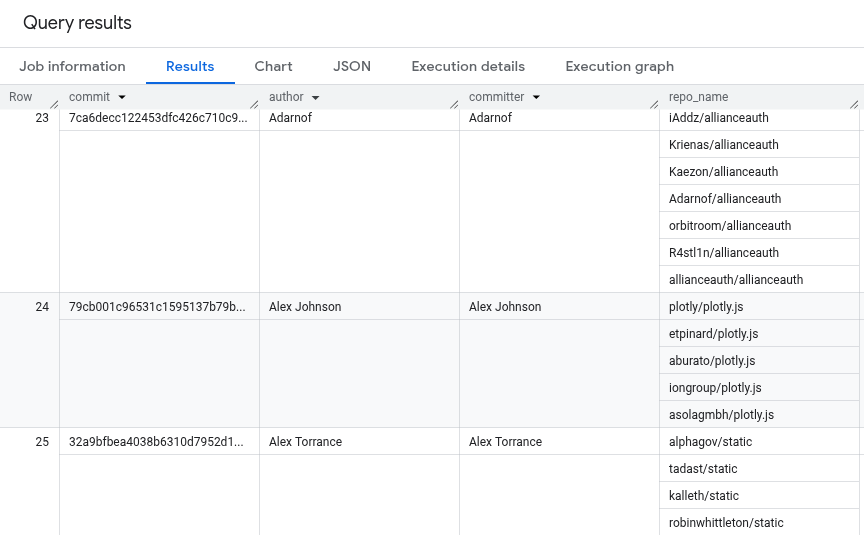
The query results are similar to the following. Only the author name and
committer name are visible in the results.
For more information about how to run queries, see [Run an interactive query](https://docs.cloud.google.com/bigquery/docs/running-queries#queries).
## Complete source code
Here is the complete source code for the tutorial for your reference.
### Java
Before trying this sample, follow the Java setup instructions in the
[BigQuery quickstart using
client libraries](https://docs.cloud.google.com/bigquery/docs/quickstarts/quickstart-client-libraries).
For more information, see the
[BigQuery Java API
reference documentation](https://docs.cloud.google.com/java/docs/reference/google-cloud-bigquery/latest/overview).
To authenticate to BigQuery, set up Application Default Credentials.
For more information, see
[Set up authentication for client libraries](https://docs.cloud.google.com/bigquery/docs/authentication#client-libs).
// Create a source dataset to store your table.
Dataset sourceDataset = bigquery.create(DatasetInfo.of(sourceDatasetId));
// Populate a source table
String tableQuery =
"SELECT commit, author, committer, repo_name"
+ " FROM `bigquery-public-data.github_repos.commits`"
+ " LIMIT 1000";
QueryJobConfiguration queryConfig =
QueryJobConfiguration.newBuilder(tableQuery)
.setDestinationTable(TableId.of(sourceDatasetId, sourceTableId))
.build();
bigquery.query(queryConfig);
// Create a separate dataset to store your view
Dataset sharedDataset = bigquery.create(DatasetInfo.of(sharedDatasetId));
// Create the view in the new dataset
String viewQuery =
String.format(
"SELECT commit, author.name as author, committer.name as committer, repo_name FROM %s.%s.%s",
projectId, sourceDatasetId, sourceTableId);
ViewDefinition viewDefinition = ViewDefinition.of(viewQuery);
Table view =
bigquery.create(TableInfo.of(TableId.of(sharedDatasetId, sharedViewId), viewDefinition));
// Assign access controls to the dataset containing the view
List viewAcl = new ArrayList<>(sharedDataset.getAcl());
viewAcl.add(Acl.of(new Acl.Group("example-analyst-group@google.com"), Acl.Role.READER));
sharedDataset.toBuilder().setAcl(viewAcl).build().update();
// Authorize the view to access the source dataset
List srcAcl = new ArrayList<>(sourceDataset.getAcl());
srcAcl.add(Acl.of(new Acl.View(view.getTableId())));
sourceDataset.toBuilder().setAcl(srcAcl).build().update();
### Python
Before trying this sample, follow the Python setup instructions in the
[BigQuery quickstart using
client libraries](https://docs.cloud.google.com/bigquery/docs/quickstarts/quickstart-client-libraries).
For more information, see the
[BigQuery Python API
reference documentation](https://docs.cloud.google.com/python/docs/reference/bigquery/latest).
To authenticate to BigQuery, set up Application Default Credentials.
For more information, see
[Set up authentication for client libraries](https://docs.cloud.google.com/bigquery/docs/authentication#client-libs).
# Create a source dataset
from google.cloud import https://docs.cloud.google.com/python/docs/reference/bigquery/latest
from google.cloud.bigquery.enums import https://docs.cloud.google.com/python/docs/reference/bigquery/latest/google.cloud.bigquery.enums.EntityTypes.html
client = https://docs.cloud.google.com/python/docs/reference/bigquery/latest.https://docs.cloud.google.com/python/docs/reference/bigquery/latest/google.cloud.bigquery.client.Client.html()
source_dataset_id = "github_source_data"
source_dataset_id_full = "{}.{}".format(client.project, source_dataset_id)
source_dataset = https://docs.cloud.google.com/python/docs/reference/bigquery/latest.https://docs.cloud.google.com/python/docs/reference/bigquery/latest/google.cloud.bigquery.dataset.Dataset.html(source_dataset_id_full)
# Specify the geographic location where the dataset should reside.
source_dataset.location = "US"
source_dataset = client.https://docs.cloud.google.com/python/docs/reference/bigquery/latest/google.cloud.bigquery.client.Client.html#google_cloud_bigquery_client_Client_create_dataset(source_dataset) # API request
# Populate a source table
source_table_id = "github_contributors"
job_config = https://docs.cloud.google.com/python/docs/reference/bigquery/latest.https://docs.cloud.google.com/python/docs/reference/bigquery/latest/google.cloud.bigquery.job.QueryJobConfig.html()
job_config.destination = source_dataset.https://docs.cloud.google.com/python/docs/reference/bigquery/latest/google.cloud.bigquery.dataset.Dataset.html#google_cloud_bigquery_dataset_Dataset_table(source_table_id)
sql = """
SELECT commit, author, committer, repo_name
FROM `bigquery-public-data.github_repos.commits`
LIMIT 1000
"""
client.https://docs.cloud.google.com/python/docs/reference/bigquery/latest/google.cloud.bigquery.client.Client.html#google_cloud_bigquery_client_Client_query_and_wait(
sql,
# Location must match that of the dataset(s) referenced in the query
# and of the destination table.
location="US",
job_config=job_config,
) # API request - starts the query and waits for query to finish
# Create a separate dataset to store your view
shared_dataset_id = "shared_views"
shared_dataset_id_full = "{}.{}".format(client.project, shared_dataset_id)
shared_dataset = https://docs.cloud.google.com/python/docs/reference/bigquery/latest.https://docs.cloud.google.com/python/docs/reference/bigquery/latest/google.cloud.bigquery.dataset.Dataset.html(shared_dataset_id_full)
shared_dataset.location = "US"
shared_dataset = client.https://docs.cloud.google.com/python/docs/reference/bigquery/latest/google.cloud.bigquery.client.Client.html#google_cloud_bigquery_client_Client_create_dataset(shared_dataset) # API request
# Create the view in the new dataset
shared_view_id = "github_analyst_view"
view = https://docs.cloud.google.com/python/docs/reference/bigquery/latest.https://docs.cloud.google.com/python/docs/reference/bigquery/latest/google.cloud.bigquery.table.Table.html(shared_dataset.https://docs.cloud.google.com/python/docs/reference/bigquery/latest/google.cloud.bigquery.dataset.Dataset.html#google_cloud_bigquery_dataset_Dataset_table(shared_view_id))
sql_template = """
SELECT
commit, author.name as author,
committer.name as committer, repo_name
FROM
`{}.{}.{}`
"""
https://docs.cloud.google.com/python/docs/reference/bigquery/latest/google.cloud.bigquery.dataset.AccessEntry.html#google_cloud_bigquery_dataset_AccessEntry_view.https://docs.cloud.google.com/python/docs/reference/bigquery/latest/google.cloud.bigquery.table.Table.html#google_cloud_bigquery_table_Table_view_query = sql_template.format(
client.project, source_dataset_id, source_table_id
)
view = client.https://docs.cloud.google.com/python/docs/reference/bigquery/latest/google.cloud.bigquery.client.Client.html#google_cloud_bigquery_client_Client_create_table(view) # API request
# Assign access controls to the dataset containing the view
# analyst_group_email = 'data_analysts@example.com'
access_entries = shared_dataset.https://docs.cloud.google.com/python/docs/reference/bigquery/latest/google.cloud.bigquery.dataset.Dataset.html#google_cloud_bigquery_dataset_Dataset_access_entries
https://docs.cloud.google.com/python/docs/reference/bigquery/latest/google.cloud.bigquery.dataset.Dataset.html#google_cloud_bigquery_dataset_Dataset_access_entries.append(
https://docs.cloud.google.com/python/docs/reference/bigquery/latest.https://docs.cloud.google.com/python/docs/reference/bigquery/latest/google.cloud.bigquery.dataset.AccessEntry.html("READER", https://docs.cloud.google.com/python/docs/reference/bigquery/latest/google.cloud.bigquery.enums.EntityTypes.html.GROUP_BY_EMAIL, analyst_group_email)
)
shared_dataset.https://docs.cloud.google.com/python/docs/reference/bigquery/latest/google.cloud.bigquery.dataset.Dataset.html#google_cloud_bigquery_dataset_Dataset_access_entries = access_entries
shared_dataset = client.https://docs.cloud.google.com/python/docs/reference/bigquery/latest/google.cloud.bigquery.client.Client.html#google_cloud_bigquery_client_Client_update_dataset(
shared_dataset, ["access_entries"]
) # API request
# Authorize the view to access the source dataset
access_entries = source_dataset.https://docs.cloud.google.com/python/docs/reference/bigquery/latest/google.cloud.bigquery.dataset.Dataset.html#google_cloud_bigquery_dataset_Dataset_access_entries
https://docs.cloud.google.com/python/docs/reference/bigquery/latest/google.cloud.bigquery.dataset.Dataset.html#google_cloud_bigquery_dataset_Dataset_access_entries.append(
https://docs.cloud.google.com/python/docs/reference/bigquery/latest.https://docs.cloud.google.com/python/docs/reference/bigquery/latest/google.cloud.bigquery.dataset.AccessEntry.html(None, https://docs.cloud.google.com/python/docs/reference/bigquery/latest/google.cloud.bigquery.enums.EntityTypes.html.VIEW, https://docs.cloud.google.com/python/docs/reference/bigquery/latest/google.cloud.bigquery.dataset.AccessEntry.html#google_cloud_bigquery_dataset_AccessEntry_view.reference.to_api_repr())
)
source_dataset.https://docs.cloud.google.com/python/docs/reference/bigquery/latest/google.cloud.bigquery.dataset.Dataset.html#google_cloud_bigquery_dataset_Dataset_access_entries = access_entries
source_dataset = client.https://docs.cloud.google.com/python/docs/reference/bigquery/latest/google.cloud.bigquery.client.Client.html#google_cloud_bigquery_client_Client_update_dataset(
source_dataset, ["access_entries"]
) # API request
## Clean up
To avoid incurring charges to your Google Cloud account for the resources used in this
tutorial, either delete the project that contains the resources, or keep the project and
delete the individual resources.
### Delete the project
### Console
> [!CAUTION]
> **Caution** : Deleting a project has the following effects:
>
> - **Everything in the project is deleted.** If you used an existing project for the tasks in this document, when you delete it, you also delete any other work you've done in the project.
> - **Custom project IDs are lost.** When you created this project, you might have created a custom project ID that you want to use in the future. To preserve the URLs that use the project ID, such as an `appspot.com` URL, delete selected resources inside the project instead of deleting the whole project.
>
>
> If you plan to explore multiple architectures, tutorials, or quickstarts, reusing projects
> can help you avoid exceeding project quota limits.
1. In the Google Cloud console, go to the **Manage resources** page.
[Go to Manage resources](https://console.cloud.google.com/iam-admin/projects)
2. In the project list, select the project that you want to delete, and then click **Delete**.
3. In the dialog, type the project ID, and then click **Shut down** to delete the project.
### gcloud
> [!CAUTION]
> **Caution** : Deleting a project has the following effects:
>
> - **Everything in the project is deleted.** If you used an existing project for the tasks in this document, when you delete it, you also delete any other work you've done in the project.
> - **Custom project IDs are lost.** When you created this project, you might have created a custom project ID that you want to use in the future. To preserve the URLs that use the project ID, such as an `appspot.com` URL, delete selected resources inside the project instead of deleting the whole project.
>
>
> If you plan to explore multiple architectures, tutorials, or quickstarts, reusing projects
> can help you avoid exceeding project quota limits.
1. Delete a Google Cloud project:
```
gcloud projects delete PROJECT_ID
```
### Delete individual resources
Alternatively, to remove the individual resources used in this tutorial, do the
following:
1. [Delete the authorized view](https://docs.cloud.google.com/bigquery/docs/managing-views#delete_views).
2. [Delete the dataset](https://docs.cloud.google.com/bigquery/docs/managing-datasets#delete-datasets) that
contains the authorized view.
3. [Delete the table](https://docs.cloud.google.com/bigquery/docs/managing-tables#deleting_a_table) in the
source dataset.
4. [Delete the source dataset](https://docs.cloud.google.com/bigquery/docs/managing-datasets#delete-datasets).
Because you created the resources used in this tutorial, no additional
permissions are required to delete them.
## What's next
- To learn about access controls in BigQuery, see [BigQuery IAM roles and permissions](https://docs.cloud.google.com/bigquery/docs/access-control).
- To learn about BigQuery views, see [Introduction to logical views](https://docs.cloud.google.com/bigquery/docs/views-intro).
- To learn more about authorized views, see [Authorized views](https://docs.cloud.google.com/bigquery/docs/authorized-views).
- To learn the basic concepts about access control, see [IAM overview](https://docs.cloud.google.com/iam/docs/overview).
- To learn how to manage access control, see [Managing policies](https://docs.cloud.google.com/iam/docs/managing-policies).