# Control costs with token quotas
This document describes how you can define and manage daily limits on the number of input and output tokens consumed by generative AI functions.
BigQuery generative AI functions use large language models (LLMs)
to perform advanced analysis within your SQL queries. Because LLM usage is
typically billed based on the number of tokens processed,
BigQuery provides token quotas to help you manage and control the
costs associated with using these functions.
The token quotas apply to BigQuery SQL functions designed for
generative AI inference tasks that use Gemini LLMs, such as the
[`AI.CLASSIFY`](https://docs.cloud.google.com/bigquery/docs/reference/standard-sql/bigqueryml-syntax-ai-classify.md.txt)
and
[`AI.GENERATE_TEXT`](https://docs.cloud.google.com/bigquery/docs/reference/standard-sql/bigqueryml-syntax-ai-generate-text.md.txt)
functions. The token quotas don't apply to embedding generation and semantic
search functions, such as
[`AI.EMBED`](https://docs.cloud.google.com/bigquery/docs/reference/standard-sql/bigqueryml-syntax-ai-embed.md.txt),
which have different billing structures.
## Quota details
BigQuery provides the following daily quotas based on LLM
token usage. Token usage directly correlates with your Vertex AI
billing for BigQuery generative AI functions that use
Gemini models. These quotas are tracked globally across all
regions. Daily quotas are reset at midnight Pacific time.
These token quotas govern the number of input and output tokens processed by
the LLMs for generative AI functions:
- **Input tokens**: Tokens sent to the model for processing. This includes tokens in prompt text, cached tokens, and any other data provided to the model as input.
- **Output tokens**: Tokens generated by the model in its response. This includes tokens in generated text (candidate tokens) and tokens generated during internal reasoning steps (thought tokens).
| Quota | Metric and quota ID | Default | Notes |
|---|---|---|---|
| [AI input tokens per day](https://console.cloud.google.com/iam-admin/quotas?service=bigquery.googleapis.com&metric=bigquery.googleapis.com/quota/query/ai_input_tokens) | **Metric:** `bigquery.googleapis.com/quota/query/ai_input_tokens` **Quota ID:** `GenAiInputTokensPerDay` | 200,000,000,000 | Input tokens (including cached tokens) used by the LLM. Applies per day, per project. |
| [AI input tokens per day per user](https://console.cloud.google.com/iam-admin/quotas?service=bigquery.googleapis.com&metric=bigquery.googleapis.com/quota/query/ai_input_tokens) | **Metric:** `bigquery.googleapis.com/quota/query/ai_input_tokens` **Quota ID:** `GenAiInputTokensPerUserPerDay` | 150,000,000,000 | Input tokens (including cached tokens) used by the LLM. Applies per day, per project, per user. |
| [AI output tokens per day](https://console.cloud.google.com/iam-admin/quotas?service=bigquery.googleapis.com&metric=bigquery.googleapis.com/quota/query/ai_output_tokens) | **Metric:** `bigquery.googleapis.com/quota/query/ai_output_tokens` **Quota ID:** `GenAiOutputTokensPerDay` | 20,000,000,000 | Output and thought tokens used by the LLM. Applies per day, per project. |
| [AI output tokens per day per user](https://console.cloud.google.com/iam-admin/quotas?service=bigquery.googleapis.com&metric=bigquery.googleapis.com/quota/query/ai_output_tokens) | **Metric:** `bigquery.googleapis.com/quota/query/ai_output_tokens` **Quota ID:** `GenAiOutputTokensPerUserPerDay` | 15,000,000,000 | Output and thought tokens used by the LLM. Applies per day, per project, per user. |
These quotas are tracked in increments of millions of tokens. While you
can set precise limits, values smaller than a few million tokens might not be
reflected with perfect accuracy because of the nature of token reporting and
aggregation.
Cached tokens count toward the input token quotas.
## Before you begin
If you use the Google Cloud CLI, the Cloud Quotas API client libraries, or
Terraform to manage token quotas programmatically, enable the
Cloud Quotas API (`cloudquotas.googleapis.com`) on your Google Cloud
project:
```bash
gcloud services enable cloudquotas.googleapis.com --project=PROJECT_ID
```
Replace `PROJECT_ID` with your Google Cloud project
ID.
### Required roles
To get the permissions that
you need to view and update token quotas,
ask your administrator to grant you the
[Cloud Quotas Admin](https://docs.cloud.google.com/iam/docs/roles-permissions/cloudquotas.md.txt#cloudquotas.admin) (`roles/cloudquotas.admin`) IAM role on your project.
For more information about granting roles, see [Manage access to projects, folders, and organizations](https://docs.cloud.google.com/iam/docs/granting-changing-revoking-access.md.txt).
This predefined role contains
the permissions required to view and update token quotas. To see the exact permissions that are
required, expand the **Required permissions** section:
#### Required permissions
The following permissions are required to view and update token quotas:
- `cloudquotas.quotas.get`
- `cloudquotas.quotas.update`
You might also be able to get
these permissions
with [custom roles](https://docs.cloud.google.com/iam/docs/creating-custom-roles.md.txt) or
other [predefined roles](https://docs.cloud.google.com/iam/docs/roles-overview.md.txt#predefined).
## Manage quotas
Depending on your resource usage, you might want to view or adjust your token
quota values up or down:
- If your workloads require more capacity than the default limit provides, you can [request a quota increase](https://docs.cloud.google.com/docs/quotas/view-manage.md.txt#requesting_higher_quota).
- If you want to place a stricter limit on your usage to prevent budget overruns, you can [create a quota override](https://docs.cloud.google.com/docs/quotas/view-manage.md.txt#create_override) to cap your usage.
To view and update your daily token quotas, select one of the following
options:
### Console
1. In the Google Cloud console, go to the **IAM \& Admin \> Quotas \& System
Limits** page.
[Go to Quotas \& System Limits](https://console.cloud.google.com/iam-admin/quotas)
2. Filter the quotas by entering `Service: BigQuery API`.
3. Search for a specific quota from the list of quotas, such as **AI input
tokens per day** (`GenAiInputTokensPerDay`), or sort the **Name** column to
bring the AI token quotas to the top of the list.
4. Click more_vert
**More actions** \> **Edit quota**.
5. To increase or decrease the quota, in the **Quota changes** pane, enter a
new value in the **New value** field, and then click **Done**. Lowering a
quota takes effect immediately without requiring approval.
6. Click **Submit request**.
### gcloud
When you manage token quotas with the gcloud CLI, specify
`bigquery.googleapis.com` as the service name and use the following
case-sensitive quota IDs:
- **AI input tokens per day** : `GenAiInputTokensPerDay`
- **AI input tokens per day per user** : `GenAiInputTokensPerUserPerDay`
- **AI output tokens per day** : `GenAiOutputTokensPerDay`
- **AI output tokens per day per user** : `GenAiOutputTokensPerUserPerDay`
1. Optional: To list the BigQuery generative AI token quotas
and their current values, use
[`gcloud quotas info list`](https://docs.cloud.google.com/sdk/gcloud/reference/quotas/info/list):
```bash
gcloud quotas info list \
--service=bigquery.googleapis.com \
--project=PROJECT_ID \
--filter="quotaId:GenAi*"
```
2. To create or update quota preferences for your daily token limits, use
[`gcloud quotas preferences update`](https://docs.cloud.google.com/sdk/gcloud/reference/quotas/preferences/update).
The following example checks whether a quota preference already exists for
each quota (for example, if it was previously modified in the
Google Cloud console) and updates or creates the preference:
```bash
PROJECT_ID="PROJECT_ID"
for ITEM in \
"GenAiInputTokensPerDay:INPUT_TOKEN_LIMIT" \
"GenAiOutputTokensPerDay:OUTPUT_TOKEN_LIMIT"; do
QUOTA_ID="${ITEM%:*}"
NEW_LIMIT="${ITEM#*:}"
PREF_ID=$(gcloud quotas preferences list \
--project="${PROJECT_ID}" \
--filter="quotaId:${QUOTA_ID}" \
--format="value(name.basename())")
PREF_ID="${PREF_ID:-custom-${QUOTA_ID}}"
gcloud quotas preferences update "${PREF_ID}" \
--project="${PROJECT_ID}" \
--service=bigquery.googleapis.com \
--quota-id="${QUOTA_ID}" \
--preferred-value="${NEW_LIMIT}" \
--allow-high-percentage-quota-decrease \
--allow-missing
done
```
Replace the following:
- `PROJECT_ID`: your Google Cloud project ID.
- `INPUT_TOKEN_LIMIT`: your target daily input token limit (for example, `754000000`).
- `OUTPUT_TOKEN_LIMIT`: your target daily output token limit (for example, `8000000`).
You can also include the following optional flags with
`gcloud quotas preferences update`:
- `--allow-quota-decrease-below-usage`: allows lowering a quota limit below your current usage for the day.
- `--email`: specifies a contact email address, which is required when requesting a quota increase above the default limit.
- `--justification`: provides a reason for the quota adjustment.
3. To verify the status of your quota preferences, use
[`gcloud quotas preferences list`](https://docs.cloud.google.com/sdk/gcloud/reference/quotas/preferences/list):
```bash
gcloud quotas preferences list \
--project=PROJECT_ID \
--filter="quotaId:GenAiInputTokensPerDay OR quotaId:GenAiOutputTokensPerDay"
```
When `reconciling` is `false`, the value in `grantedValue` is actively
enforced.
### Python
When you manage token quotas with the Cloud Quotas client library for
Python, specify `bigquery.googleapis.com` as the service name and use the
following case-sensitive quota IDs:
- **AI input tokens per day** : `GenAiInputTokensPerDay`
- **AI input tokens per day per user** : `GenAiInputTokensPerUserPerDay`
- **AI output tokens per day** : `GenAiOutputTokensPerDay`
- **AI output tokens per day per user** : `GenAiOutputTokensPerUserPerDay`
1. Install the Cloud Quotas client library for Python:
```bash
pip install --user google-cloud-quotas
```
2. To check for existing quota preference resources and create or update your
daily token limits, run the following Python script:
```python
from google.cloud import cloudquotas_v1
PROJECT_ID = "PROJECT_ID"
QUOTA_LIMITS = {
"GenAiInputTokensPerDay": INPUT_TOKEN_LIMIT,
"GenAiOutputTokensPerDay": OUTPUT_TOKEN_LIMIT,
}
# Initialize the client with quota_project_id (required by the Cloud Quotas API).
client = cloudquotas_v1.CloudQuotasClient(
client_options={"quota_project_id": PROJECT_ID}
)
parent = f"projects/{PROJECT_ID}/locations/global"
for quota_id, new_limit in QUOTA_LIMITS.items():
# Check for an existing preference ID, or fall back to a default name.
list_request = cloudquotas_v1.ListQuotaPreferencesRequest(
parent=parent,
filter=f"quotaId:{quota_id}",
)
prefs = list(client.list_quota_preferences(request=list_request))
pref_name = (
prefs[0].name
if prefs
else f"{parent}/quotaPreferences/custom-{quota_id}"
)
# Update the existing preference or create it if missing (allow_missing=True).
update_request = cloudquotas_v1.UpdateQuotaPreferenceRequest(
quota_preference=cloudquotas_v1.QuotaPreference(
name=pref_name,
service="bigquery.googleapis.com",
quota_id=quota_id,
quota_config=cloudquotas_v1.QuotaConfig(preferred_value=new_limit),
),
allow_missing=True,
ignore_safety_checks=[
cloudquotas_v1.QuotaSafetyCheck.QUOTA_DECREASE_PERCENTAGE_TOO_HIGH
],
)
response = client.update_quota_preference(request=update_request)
print(f"Quota ID: {quota_id}")
print(f"Preference Name: {response.name}")
print(f"Preferred Value: {response.quota_config.preferred_value}")
print(f"Granted Value: {response.quota_config.granted_value}")
print(f"Reconciling: {response.reconciling}\n")
```
Replace the following:
- `PROJECT_ID`: your Google Cloud project ID.
- `INPUT_TOKEN_LIMIT`: your target daily input token limit as an integer (for example, `754000000`).
- `OUTPUT_TOKEN_LIMIT`: your target daily output token limit as an integer (for example, `8000000`).
### Terraform
When you manage token quotas with Terraform, specify
`bigquery.googleapis.com` as the service name and use the following
case-sensitive quota IDs:
- **AI input tokens per day** : `GenAiInputTokensPerDay`
- **AI input tokens per day per user** : `GenAiInputTokensPerUserPerDay`
- **AI output tokens per day** : `GenAiOutputTokensPerDay`
- **AI output tokens per day per user** : `GenAiOutputTokensPerUserPerDay`
1. Check whether quota preferences already exist on your project.
Cloud Quotas allows only one preference resource per quota
on a project. If a quota was previously modified in the
Google Cloud console or another tool, you must use its existing
preference ID:
```bash
gcloud quotas preferences list \
--project=PROJECT_ID \
--filter="quotaId:GenAiInputTokensPerDay OR quotaId:GenAiOutputTokensPerDay" \
--format="table(quotaId, name.basename():label=PREFERENCE_ID, quotaConfig.preferredValue)"
```
2. To configure your daily token limits in your Terraform configuration (for
example, `main.tf`), use the
[`google_cloud_quotas_quota_preference`](https://registry.terraform.io/providers/hashicorp/google/latest/docs/resources/cloud_quotas_quota_preference)
resource:
```terraform
terraform {
required_providers {
google = {
source = "hashicorp/google"
version = ">= 5.30.0"
}
}
}
locals {
project_id = "PROJECT_ID"
# If you previously modified a quota in the console or another
# tool, replace `name` with the existing PREFERENCE_ID from
# `gcloud quotas preferences list` and uncomment the `import` block.
bq_genai_quotas = {
GenAiInputTokensPerDay = {
name = "custom-GenAiInputTokensPerDay"
preferred_value = "INPUT_TOKEN_LIMIT" # Default: 200,000,000,000
}
GenAiOutputTokensPerDay = {
name = "custom-GenAiOutputTokensPerDay"
preferred_value = "OUTPUT_TOKEN_LIMIT" # Default: 20,000,000,000
}
}
}
# If quota preferences already exist on your project, uncomment this `import`
# block so that Terraform imports the existing preferences instead of
# attempting to create duplicates.
#
# import {
# for_each = local.bq_genai_quotas
# to = google_cloud_quotas_quota_preference.bq_genai[each.key]
# id = "projects/${local.project_id}/locations/global/quotaPreferences/${each.value.name}"
# }
resource "google_cloud_quotas_quota_preference" "bq_genai" {
for_each = local.bq_genai_quotas
parent = "projects/${local.project_id}"
name = each.value.name
service = "bigquery.googleapis.com"
quota_id = each.key
justification = "Managing BigQuery GenAI daily token budget"
# Allows decreases greater than 10% when setting a stricter cost cap.
ignore_safety_checks = "QUOTA_DECREASE_PERCENTAGE_TOO_HIGH"
quota_config {
preferred_value = each.value.preferred_value
}
}
output "quota_status" {
value = {
for k, v in google_cloud_quotas_quota_preference.bq_genai : k => {
preferred_value = v.quota_config[0].preferred_value
granted_value = v.quota_config[0].granted_value
reconciling = v.reconciling
}
}
}
```
Replace the following:
- `PROJECT_ID`: your Google Cloud project ID.
- `INPUT_TOKEN_LIMIT`: your target daily input token limit (for example, `754000000`).
- `OUTPUT_TOKEN_LIMIT`: your target daily output token limit (for example, `8000000`).
3. Initialize and apply your Terraform configuration:
```bash
terraform init
terraform apply
```
## Monitor quotas
To prevent unexpected query failures, detect usage spikes, and manage costs,
monitor your token quota consumption in the Google Cloud console by doing the
following:
1. In the Google Cloud console, go to the **IAM \& Admin \> Quotas \& System
Limits** page.
[Go to Quotas \& System Limits](https://console.cloud.google.com/iam-admin/quotas)
2. Filter the quotas by entering `Service: BigQuery API`.
3. View the **Current usage percentage** and **Current usage** columns to check
your project's daily token consumption for the **AI input tokens per day**
(`GenAiInputTokensPerDay`) and **AI output tokens per day**
(`GenAiOutputTokensPerDay`) quotas.
4. To view historical token consumption over time, in the row for a
project-level token quota, click
monitoring **Show usage
chart**.
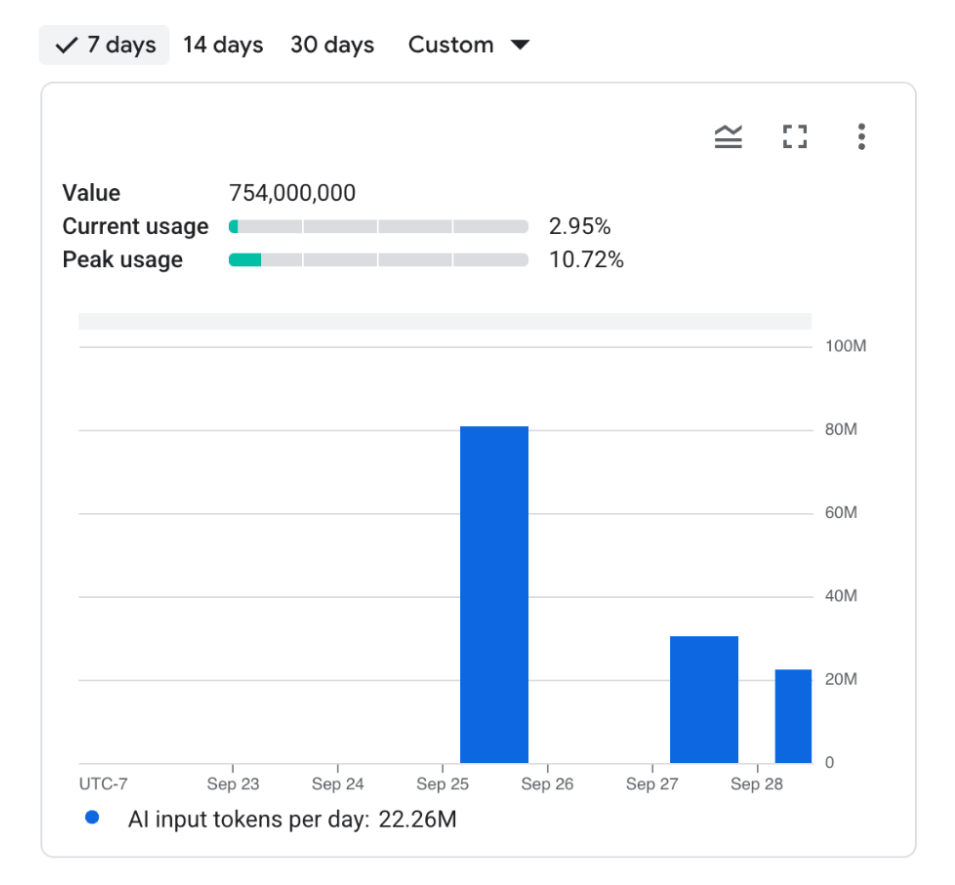
The usage card displays your configured limit, current usage percentage, and
peak usage percentage, along with a historical consumption chart for
selectable **7 days** , **14 days** , **30 days** , and **Custom** time ranges:
5. Optional:
[Set up basic quota usage alerts](https://docs.cloud.google.com/docs/quotas/set-up-quota-alerts.md.txt#basic)
to notify you by email, SMS, or Pub/Sub when token consumption
reaches a specified percentage of your daily limit.
6. Optional: [Create charts](https://docs.cloud.google.com/docs/quotas/set-up-quota-alerts.md.txt#charts) in
Cloud Monitoring to visualize token usage trends and build custom
dashboards. For more information about monitoring quotas and configuring
alerting policies, see
[Set up quota alerts and monitoring](https://docs.cloud.google.com/docs/quotas/set-up-quota-alerts.md.txt).
To estimate input token usage before you run a query, use the
[`AI.COUNT_TOKENS` function](https://docs.cloud.google.com/bigquery/docs/reference/standard-sql/bigqueryml-syntax-ai-count-tokens.md.txt).
You can also
[view the number of tokens processed by an individual query](https://docs.cloud.google.com/bigquery/docs/generative-ai-overview.md.txt#token_usage)
in the **Job information** tab of the **Query results** pane.
## Quota enforcement behavior
BigQuery monitors your token consumption at multiple stages of
query execution:
- **Pre-execution check:** BigQuery checks the available token quota before executing a query that contains generative AI functions. If the relevant quota (for example, project daily input tokens) is already exhausted, the query is rejected with a `QuotaExceeded` error.
- **During execution:** If a query is running and consumes tokens such that it exhausts any of the configured quotas (input or output, per project or per user), new LLM calls within that query are rejected.
- Any remaining rows that depend on LLM calls encounter a quota exhaustion error.
- The query's outcome depends on the `max_error_ratio` argument if used in functions like `AI.IF`. If the error ratio remains within the allowed limit, partial results might be returned. Otherwise, the entire query fails.
- Subsequent queries attempting to use generative AI functions will fail with a `QuotaExceeded` error until the daily quota resets.
## Important considerations
- **Global quotas:** The defined quotas are global. Token usage is aggregated across all regions where your project operates, providing a unified cost control mechanism. This prevents unexpected charges from usage in different regions.
- **Provisioned throughput:** If you are using Gemini Enterprise Agent Platform models with provisioned throughput, billing is not based on token usage. You should set these BigQuery token quotas to a high value to avoid unnecessarily blocking your queries.
- **Quota reduction safety check:** By default, the Cloud Quotas API blocks any programmatic update that reduces an effective quota limit by more than 10% at once. Because the default token limits are in the hundreds of billions, setting a stricter daily cap typically exceeds a 10% reduction and fails with a `QUOTA_DECREASE_PERCENTAGE_TOO_HIGH` error unless you override this safety check:
- **gcloud CLI** : include the `--allow-high-percentage-quota-decrease` flag.
- **Python client library** : pass `ignore_safety_checks=[cloudquotas_v1.QuotaSafetyCheck.QUOTA_DECREASE_PERCENTAGE_TOO_HIGH]`.
- **Terraform** : set `ignore_safety_checks = "QUOTA_DECREASE_PERCENTAGE_TOO_HIGH"`.
## What's next
- Learn more about [optimizing AI function costs](https://docs.cloud.google.com/bigquery/docs/optimize-ai-functions.md.txt).
- Read an [overview of generative AI in BigQuery](https://docs.cloud.google.com/bigquery/docs/generative-ai-overview.md.txt).
- Learn how to [set up quota alerts and monitoring](https://docs.cloud.google.com/docs/quotas/set-up-quota-alerts.md.txt).