This tutorial shows how to build a machine learning (ML) model by using natural
language prompts with the Colab Enterprise Data Science Agent.
In the tutorial, you build an ML model to forecast liquor sales by using the
[Iowa liquor retail sales public dataset](https://console.cloud.google.com/marketplace/product/iowa-department-of-commerce/iowa-liquor-sales).
The AI-powered agent lets you use natural language prompts to write, explain,
and troubleshoot code directly within a notebook to accelerate your data
science workflows.
This tutorial is intended for data practitioners.
## Objectives
In this tutorial, you learn how to use the Data Science Agent to perform the
following tasks:
- Perform exploratory data analysis (EDA) of the [Iowa liquor retail sales public dataset](https://console.cloud.google.com/marketplace/product/iowa-department-of-commerce/iowa-liquor-sales) to understand data distributions, check for missing values, and verify overall data quality.
- Find the stores that sold the most gallons of alcohol across all products.
- Build, train, and evaluate a model that forecasts liquor sales by using BigQuery ML.
- Generate and summarize key insights and model performance.
## Costs
In this document, you use the following billable components of Google Cloud:
- [BigQuery](https://cloud.google.com/bigquery/pricing)
- [Notebook runtime](https://cloud.google.com/bigquery/pricing#notebook-runtime-pricing)
- [BigQuery ML](https://cloud.google.com/bigquery/pricing#bigquery-ml-pricing)
- [BigQuery agents](https://cloud.google.com/bigquery/pricing#agent-pricing)
To generate a cost estimate based on your projected usage,
use the [pricing calculator](https://docs.cloud.google.com/products/calculator).
New Google Cloud users might be eligible for a [free trial](https://docs.cloud.google.com/free).
When you finish the tasks that are described in this document, you can avoid
continued billing by deleting the resources that you created. For more information, see
[Clean up](https://docs.cloud.google.com/bigquery/docs/colab-agent-tutorial#clean-up).
## Before you begin
1.
Enable the BigQuery, Gemini for Google Cloud, Dataform, and Compute Engine APIs, if any are not already enabled.
**Roles required to enable APIs**
To enable APIs, you need the `serviceusage.services.enable` permission. If you
created the project, then you likely already have this permission through the
Owner role (`roles/owner`). Otherwise, you can get this permission through the
Service Usage Admin role (`roles/serviceusage.serviceUsageAdmin`).
[Learn how to grant roles](https://docs.cloud.google.com/iam/docs/granting-changing-revoking-access).
[Enable the APIs](https://console.cloud.google.com/apis/enableflow?apiid=bigquery.googleapis.com,cloudaicompanion.googleapis.com,dataform.googleapis.com,compute.googleapis.com)
For new projects, the BigQuery API is
automatically enabled.
### Required roles
If you created a new project, you have all required permissions to complete
this tutorial. If you use an existing project, ask your administrator to
grant you the following roles.
#### Permissions to create and run notebooks
To get the permissions that
you need to create and run notebooks,
ask your administrator to grant you the
[BigQuery Studio User](https://docs.cloud.google.com/iam/docs/roles-permissions/bigquery#bigquery.studioUser) (`roles/bigquery.studioUser`) IAM role on the project.
For more information about granting roles, see [Manage access to projects, folders, and organizations](https://docs.cloud.google.com/iam/docs/granting-changing-revoking-access).
You might also be able to get
the required permissions through [custom
roles](https://docs.cloud.google.com/iam/docs/creating-custom-roles) or other [predefined
roles](https://docs.cloud.google.com/iam/docs/roles-overview#predefined).
To view the permissions that are required to create and run notebooks, see the
setup steps on the [Create notebooks](https://docs.cloud.google.com/bigquery/docs/create-notebooks#required_permissions)
page.
For more information about BigQuery Identity and Access Management (IAM),
see [Access control with IAM](https://docs.cloud.google.com/bigquery/docs/access-control).
## Create a Colab Enterprise notebook and connect to a runtime
Colab Enterprise notebooks are [BigQuery Studio](https://docs.cloud.google.com/bigquery/docs/query-overview#bigquery-studio)
code assets powered by [Dataform](https://docs.cloud.google.com/dataform/docs/overview). You can use
notebooks to complete analysis and ML workflows by using SQL,
Python, and other common packages and APIs.
To create a new notebook and connect it to the
[default runtime](https://docs.cloud.google.com/colab/docs/runtimes#default-runtime), follow these steps:
1. Go to the **BigQuery** page.
[Go to BigQuery](https://console.cloud.google.com/bigquery)
2. In the left pane, expand your project, and then click
**Notebooks**.
3. Click **New notebook \> Empty notebook**.
4. Click **Save**.
5. To see the new notebook, click the **Notebooks** tab. You might need to
click refresh **Refresh** .
6. For your untitled notebook, click more_vert
**Open actions** , and then choose **Rename**.
7. For **Notebook name** , enter `predict_liquor_sales`, and then click
**Rename**.
8. Click the **`predict_liquor_sales`** tab.
9. On the notebook toolbar, click **Connect** to connect your notebook to the
default runtime environment.
## Use Data Science Agent to analyze the data
The Data Science Agent is a Gemini-powered assistant that can write, explain,
and troubleshoot code directly within your notebook. It can help you with tasks
ranging from exploratory data analysis to generating machine learning
predictions and forecasts, including the following:
- **Generating plans.** Create a step-by-step plan to solve a data science problem.
- **Data exploration and cleaning.** Identify missing values, outliers, and visualize distributions.
- **Feature engineering.** Convert categorical features and create new ones.
- **Model training and evaluation.** Train models like Linear Regression or Random Forest and compare their performance.
In this tutorial, you use the Data Science Agent to analyze data in the
[Iowa liquor retail sales public dataset](https://console.cloud.google.com/marketplace/product/iowa-department-of-commerce/iowa-liquor-sales),
and to create a model that forecasts liquor sales.
> [!TIP]
> **Tip:** As you proceed through the steps of the generated plan, you might be prompted to retry certain steps based on what the agent does. If you're prompted to retry steps, review the generated code, and then click **Accept
> and run**.
To use Data Science Agent to analyze the data, follow these steps:
1. In your `predict_liquor_sales` notebook, if the Gemini chat
window isn't open, click spark
**Toggle Gemini in Colab** to open the chat dialog.
> [!NOTE]
> **Note:** You can toggle between displaying the chat dialog in a separate panel and displaying the chat dialog inside your notebook by clicking collapse_content **Move**.
2. In the chat interface, enter the following prompt:
Analyze the liquor sales data from
bigquery-public-data.iowa_liquor_sales.sales by performing exploratory data
analysis. Find the stores that sold the most gallons of alcohol across
all products. Then, create a model that predicts liquor sales by store by
using BigQuery ML. Visualize the results, evaluate the model,
summarize the model's performance, and provide any key insights.
3. Verify that the model is set to **Gemini 3.0 Flash**.
4. Click **Send**.
5. Review the plan generated by the agent. The plan looks similar to the
following.
> [!NOTE]
> **Note:** Because generative AI is non-deterministic, your plan may differ from the following example.
"I've analyzed the request for Iowa liquor sales data and created a
strategic plan. Since the data is stored in BigQuery and
you've specified using BigQuery ML, we'll start with data exploration,
identify top-performing stores, and then build a regression model to predict
sales. Here is the step-by-step plan:
- **Data Exploration and Profiling**: Perform an initial exploration of the 'bigquery-public-data.iowa_liquor_sales.sales' table to understand the data distribution, check for missing values, and verify data quality for key columns like store information, volume sold, and sales dollars.
- **Identify Top Stores by Volume**: Aggregate the total gallons of alcohol sold by each store across all products and identify the top-performing stores.
- **Data Preparation**: Prepare the training data by aggregating liquor sales by store and selecting relevant features for the prediction model.
- **Model Development**: Train a regression model using BigQuery ML to predict liquor sales for each store.
- **Model Evaluation**: Evaluate the trained model's performance using standard regression metrics.
- **Model Prediction**: Generate predictions for liquor sales using the trained model.
- **Visualization**: Create a scatter plot comparing the predicted liquor sales versus the actual values to visually assess the model's accuracy.
- **Finish task**: Summarize the model's performance, provide key insights into store sales, and conclude the analysis."
6. After you've reviewed the plan, click **Accept and run**. The agent
generates the first subtask: exploring and profiling the data. The agent
pauses until you review and accept the code. If the agent is waiting for
user input, the generated cells are rendered with a green background.
7. Review the generated code cell and the reasoning provided by the agent.
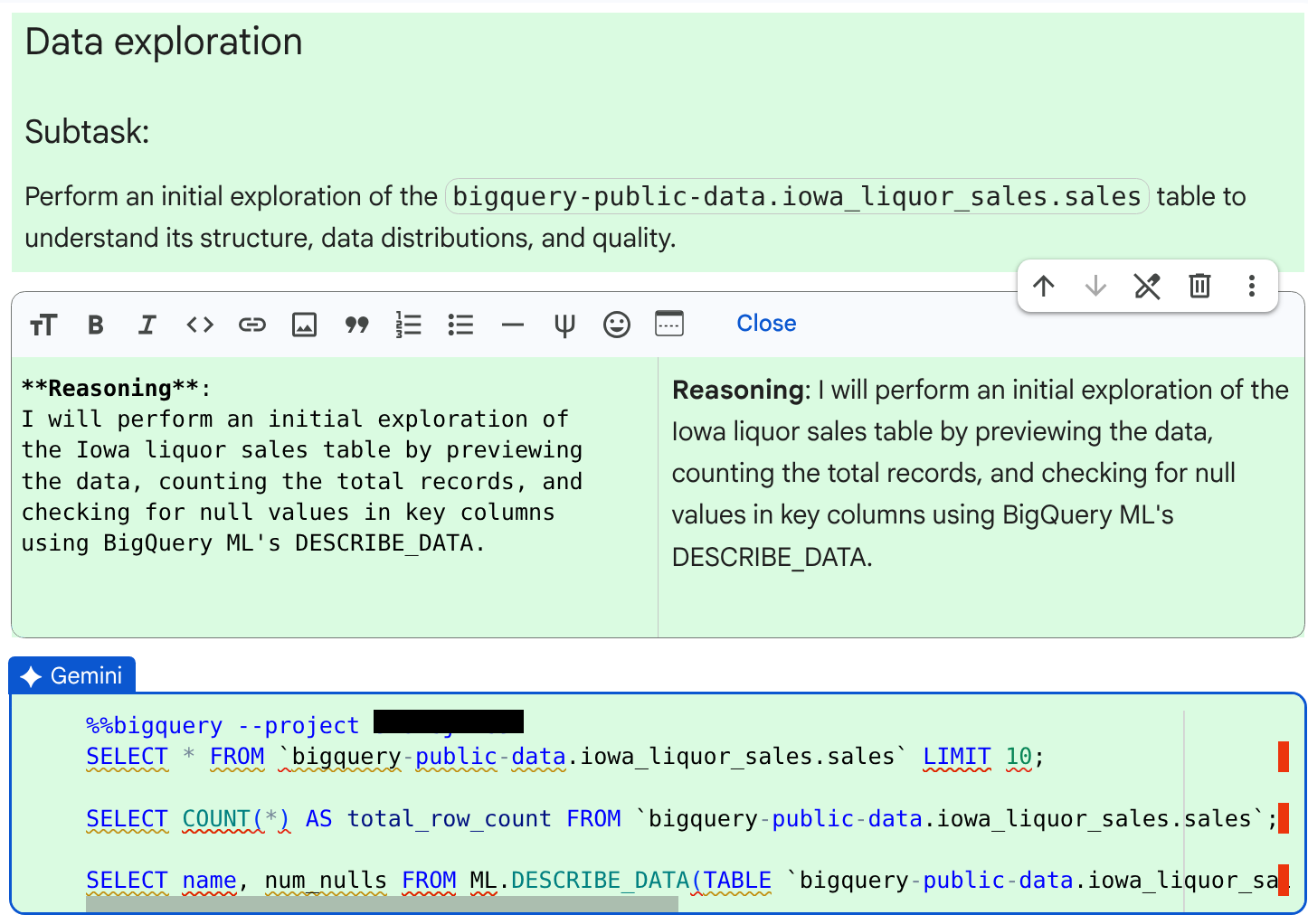
8. Click **Accept and run**. If the agent encounters issues with its approach,
it provides reasoning about how to correct the issue and prompts you to
accept the altered code.
9. Review the output in the code cell.
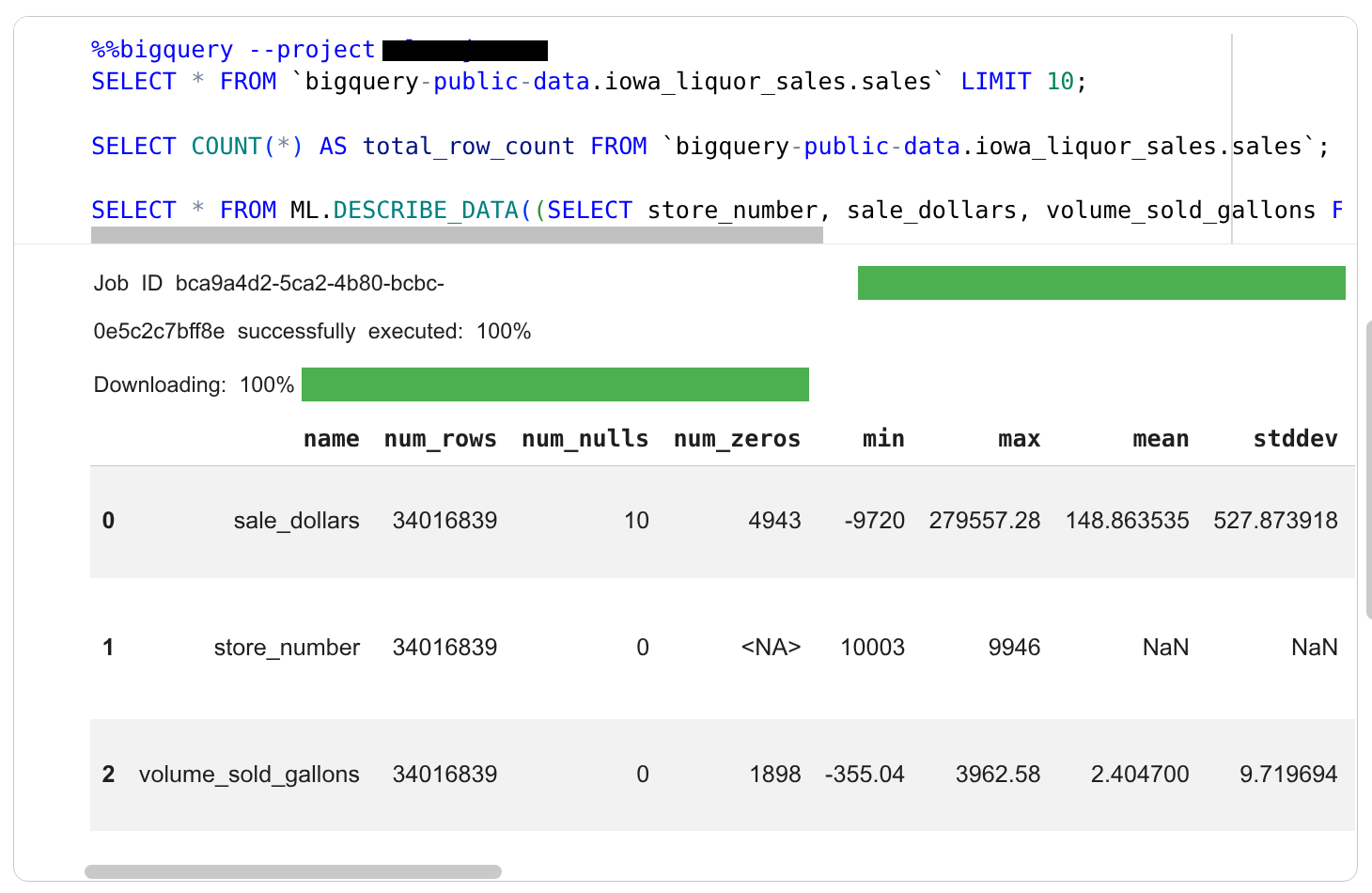
Below the results, the agent creates a new cell to complete the next
subtask: finding the stores with the highest liquor sales.
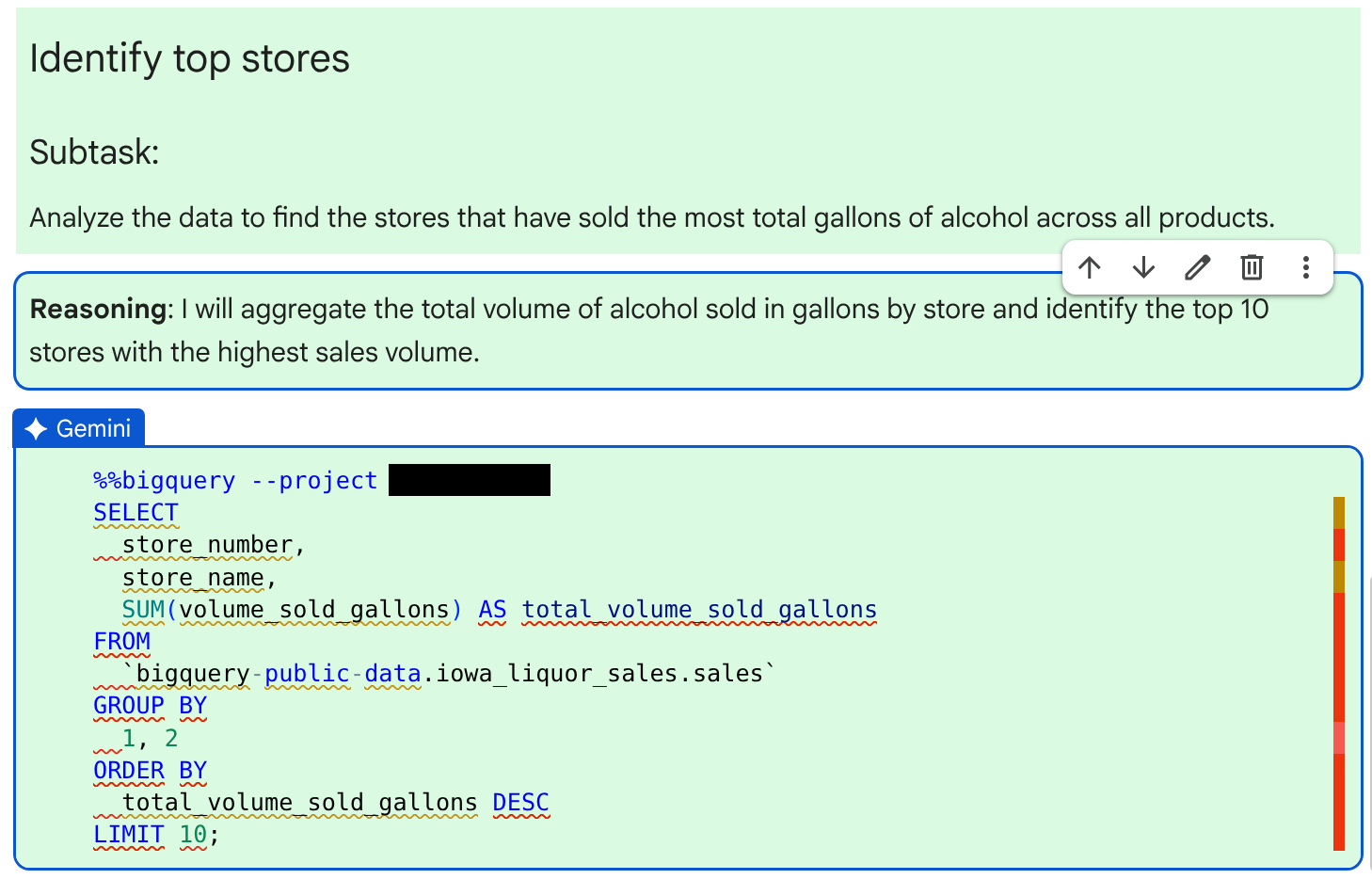
10. Review the generated SQL code that queries the data for the top stores by
gallons of alcohol sold. You can examine the agent's reasoning by
viewing the **Reasoning** text cell above the code. If you're satisfied that
the code is correct, click **Accept and run**.
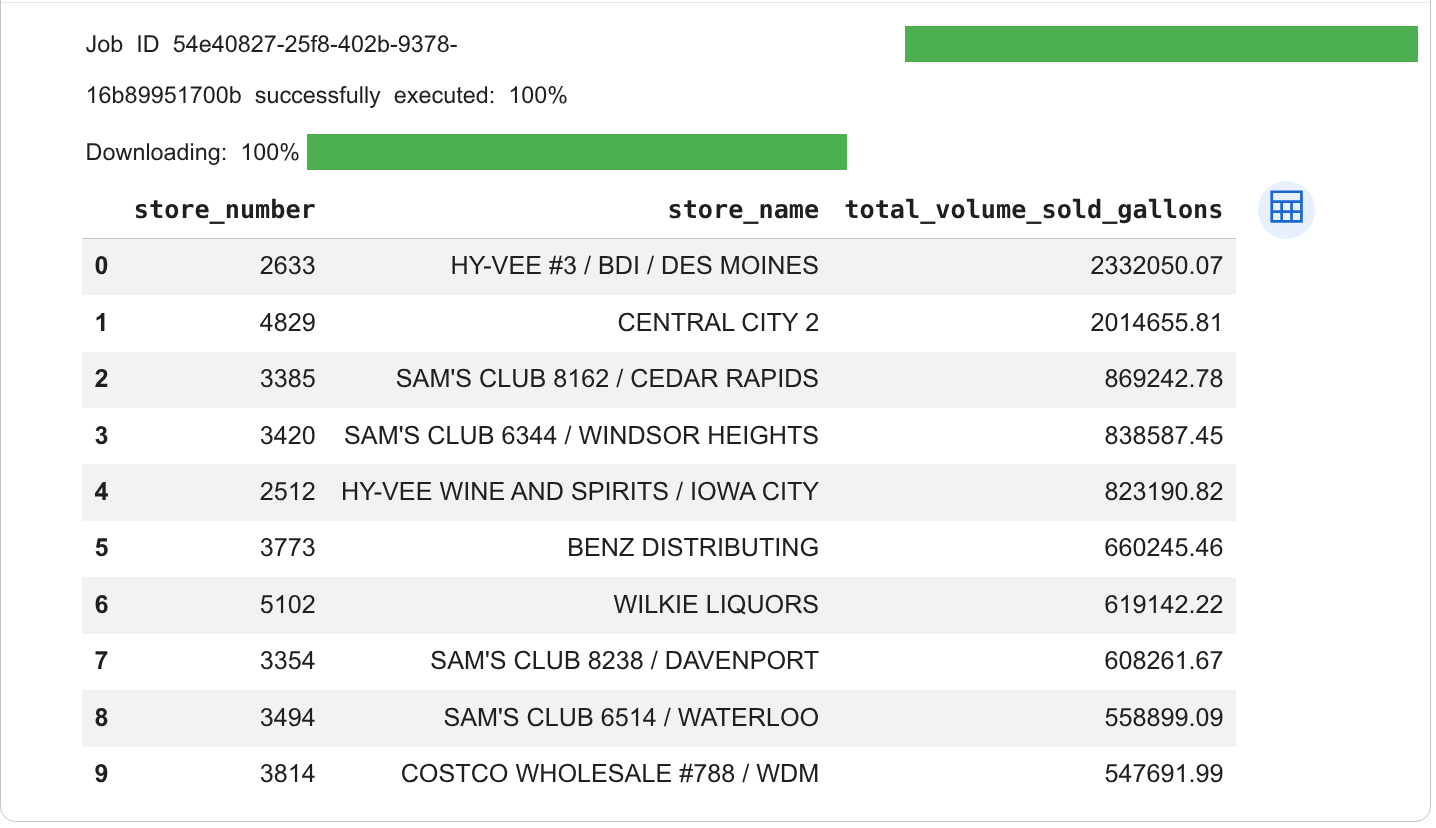
11. Examine the query results in the cell's output. The results are similar to
the following:
12. Review the code and reasoning generated by the agent for the next
subtask: preparing the data for model training.
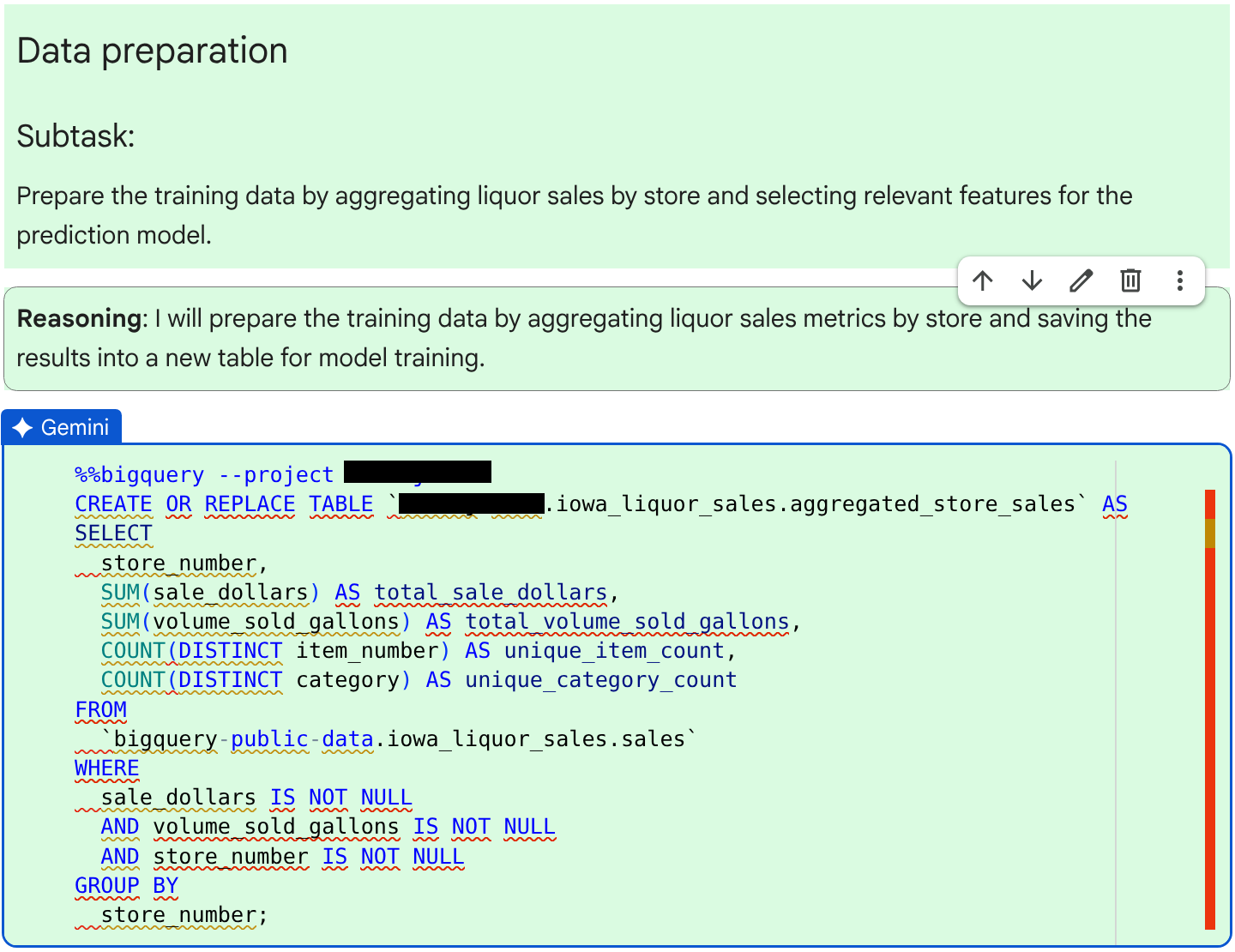
13. After you verify that the SQL code is correct, click **Accept and run**.
14. Review the output in the code cell. You see a message similar to
`JOB ID 123456 successfully executed.`
15. Review the code and reasoning generated by the agent for the next subtask:
training the regression model.
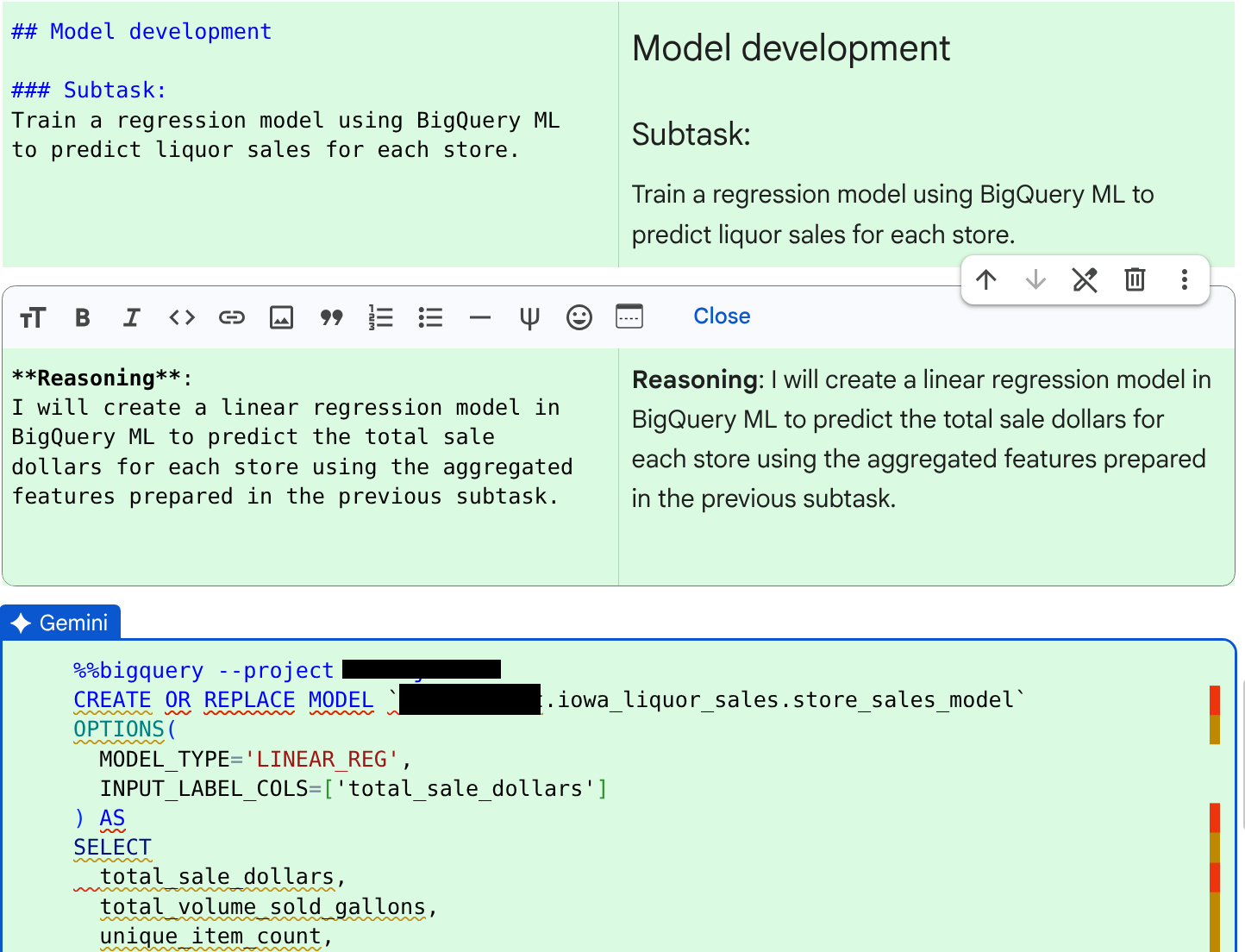
16. After you view the code and reasoning, click **Accept and run**.
17. Review the output in the code cell. You see a message similar to
`JOB ID 123456 successfully executed.`
18. Review the code and reasoning generated by the agent for the next subtask:
model evaluation.
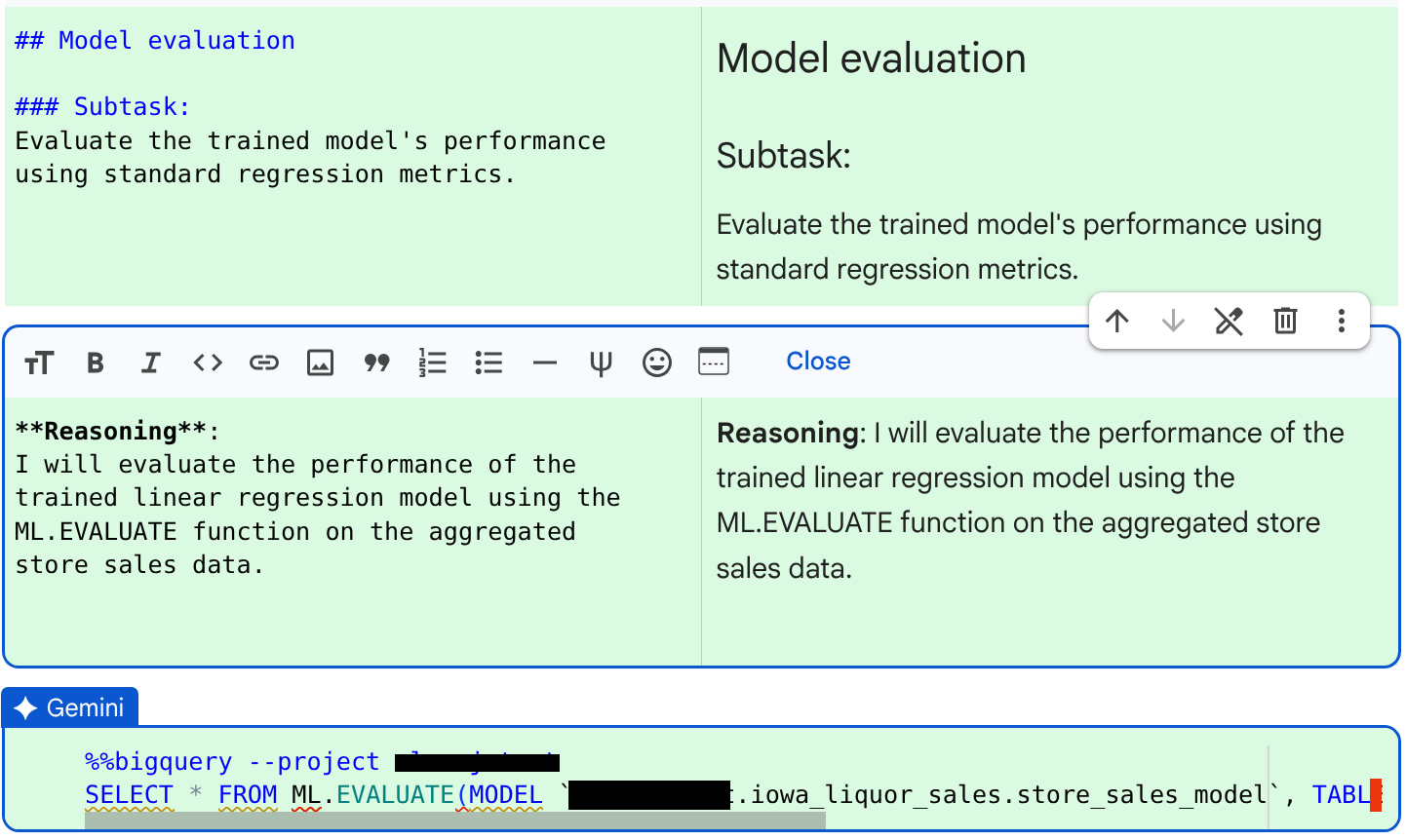
19. After you view the code and reasoning, click **Accept and run**.
20. Review the output in the code cell.
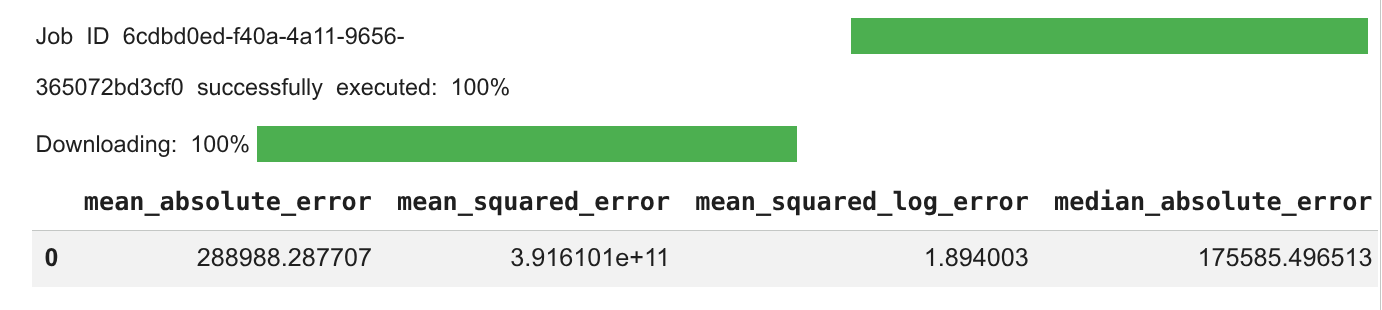
21. Review the code and reasoning generated by the agent for the next
subtask: generating predictions.
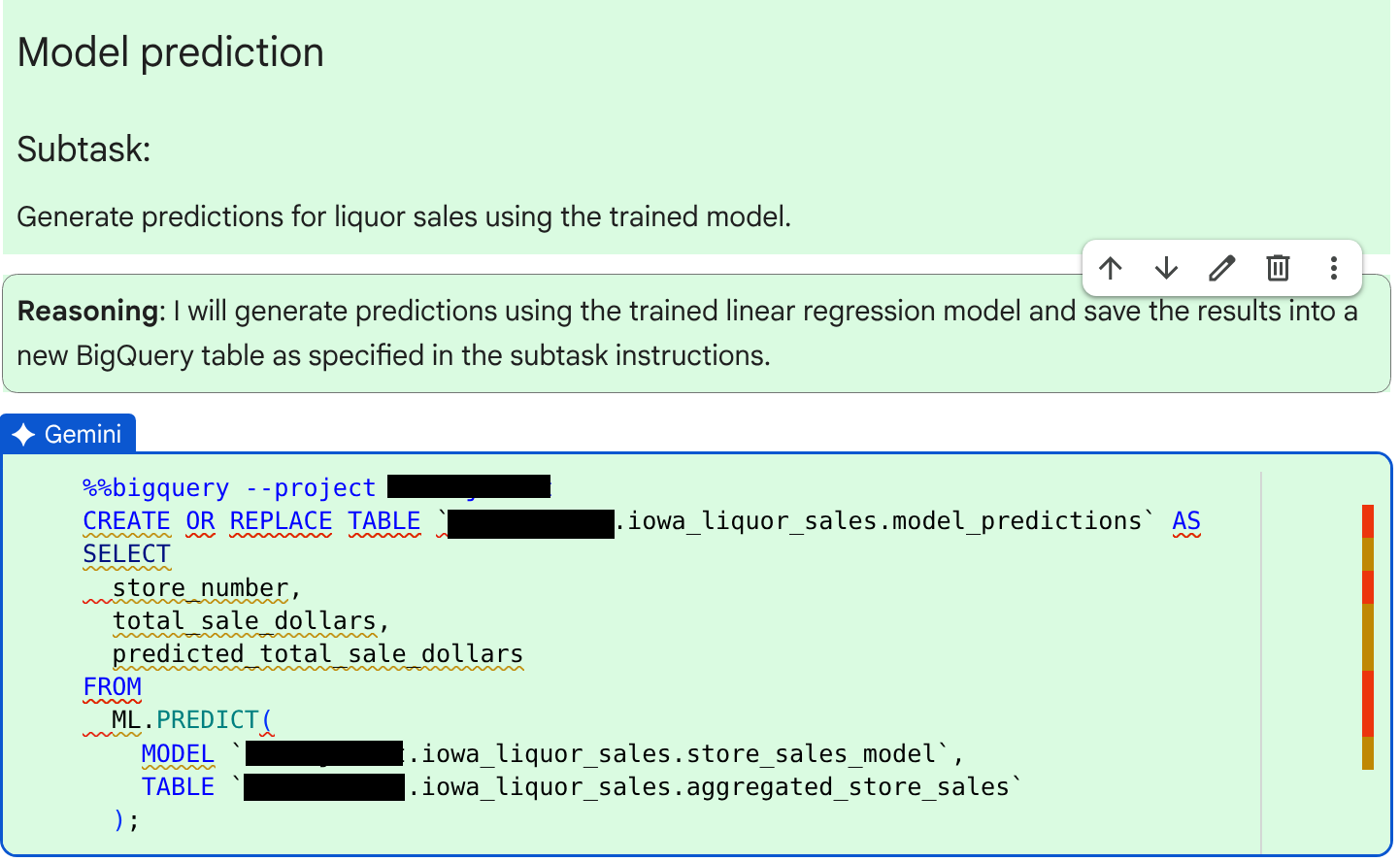
22. After you view the code and reasoning, click **Accept and run**.
23. Review the output in the code cell. You see a message similar to
`JOB ID 123456 successfully executed.`
After the query runs, the agent creates a code cell for the next
subtask: visualizing the data.
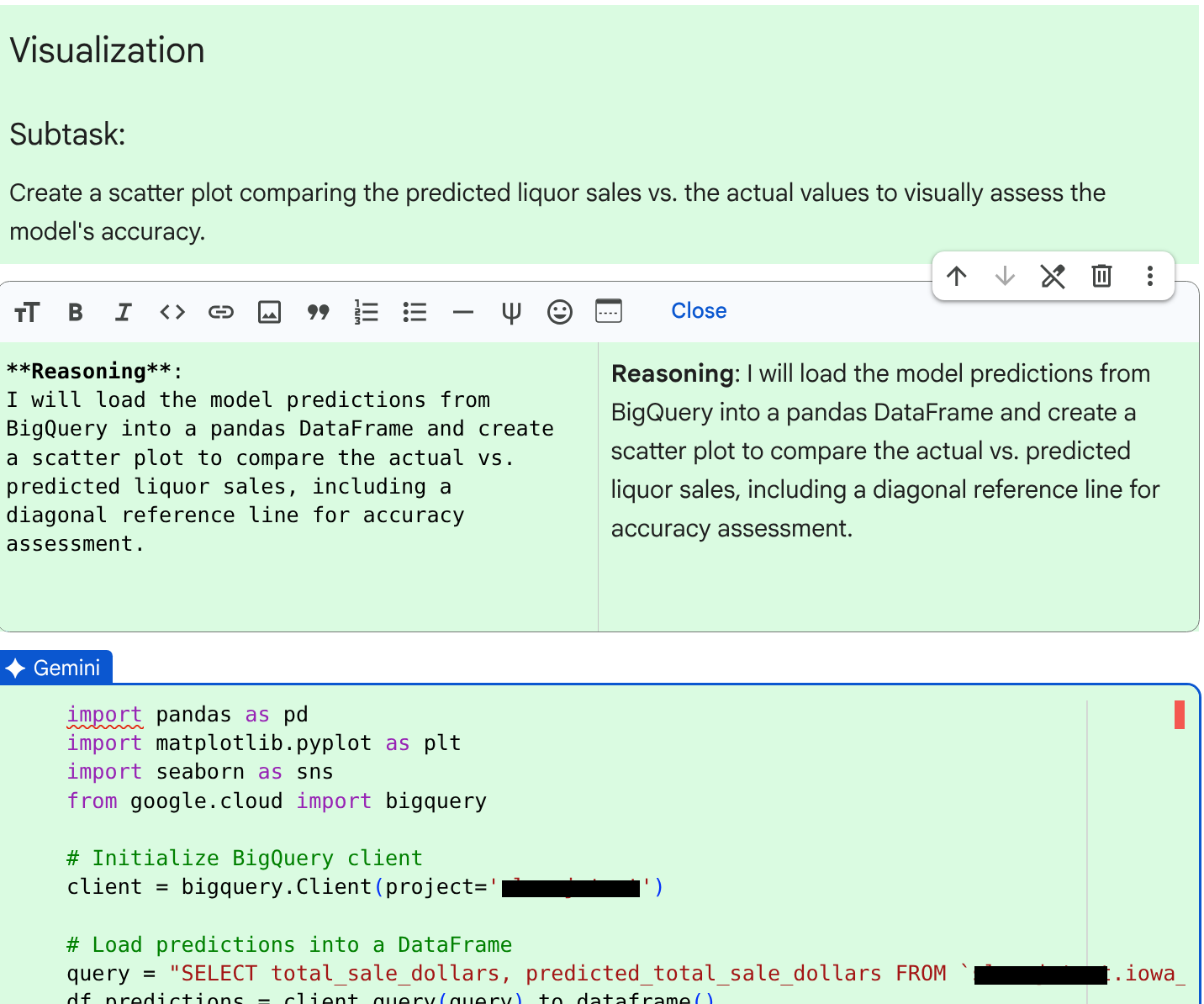
24. After you view the code and reasoning, click **Accept and run**.
25. Review the output in the code cell. You see a chart that plots actual
versus predicted liquor sales. The chart looks similar to the following:
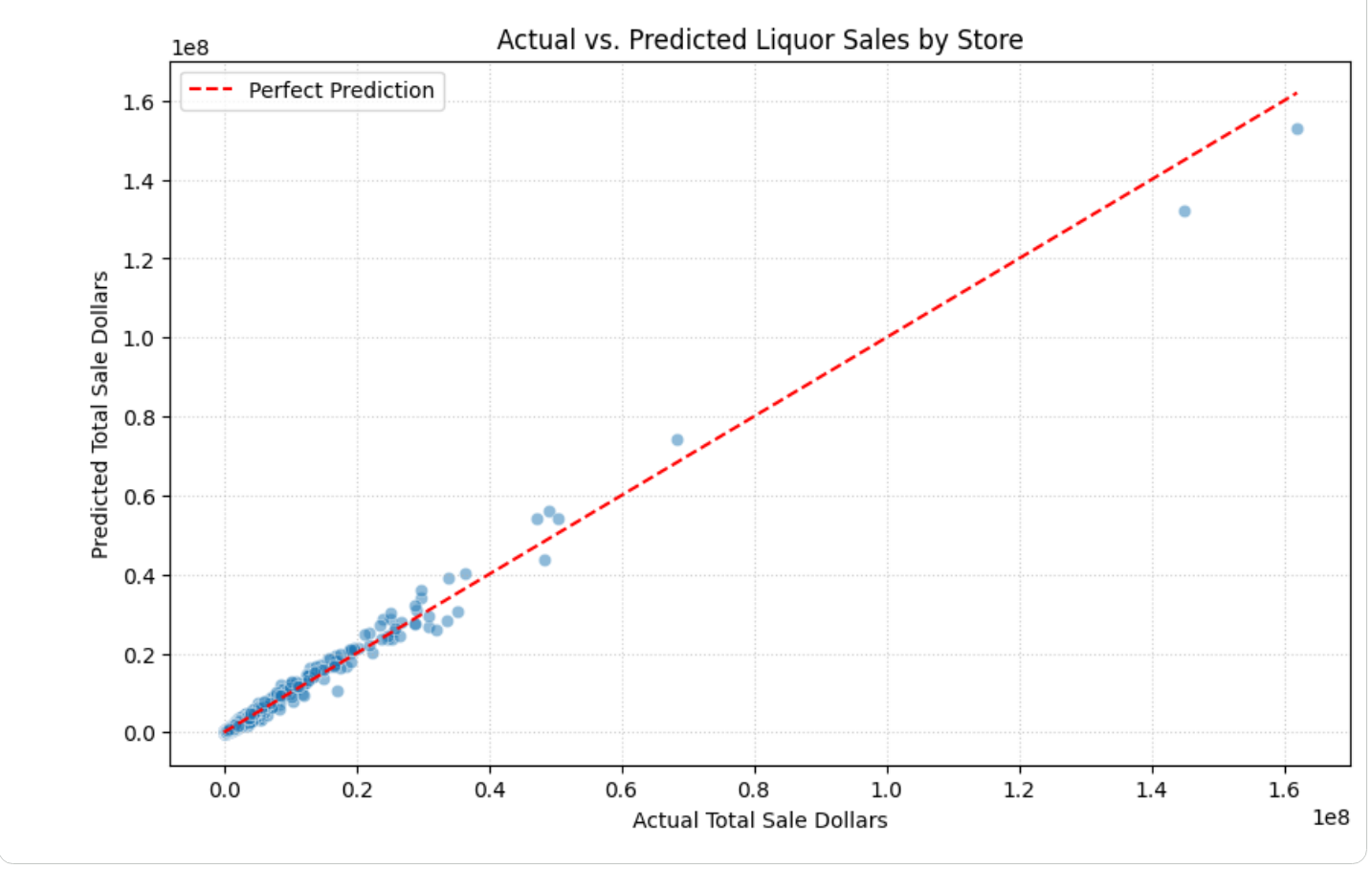
After the chart is generated, the agent generates a summary of the results
with key findings and insights.
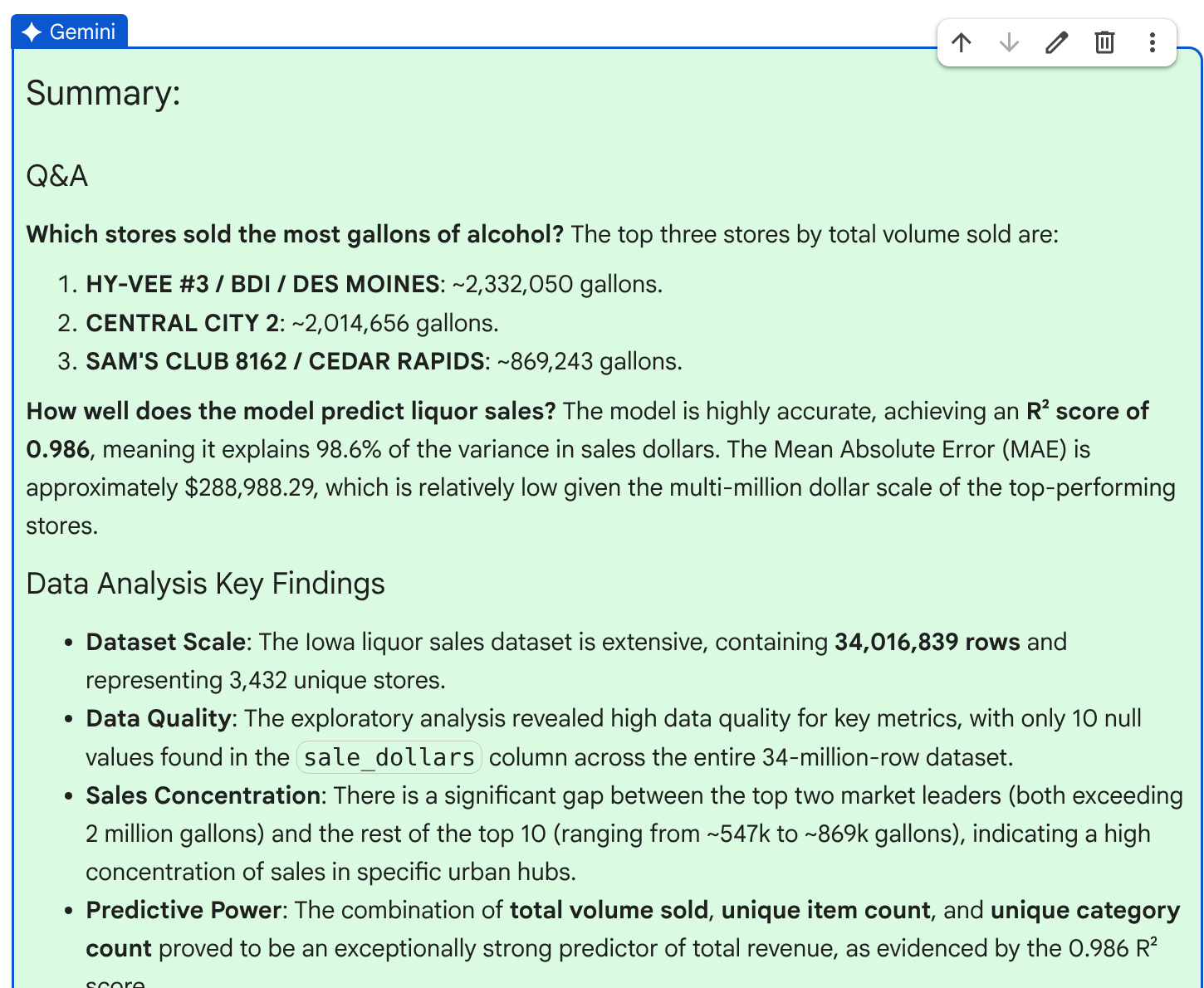
26. After you review the summary, click **Accept** to complete the plan.
## Clean up
To avoid incurring charges to your Google Cloud account for the resources used in this
tutorial, either delete the project that contains the resources, or keep the project and
delete the individual resources.
To avoid incurring charges to your Google Cloud account for the resources used in this tutorial, you can delete the notebook you created. To delete your notebook, follow these steps:
1. Go to the **BigQuery** page.
[Go to BigQuery](https://console.cloud.google.com/bigquery)
2. In the left pane, expand your project, and then click
**Notebooks**.
3. For your `predict_liquor_sales` notebook, click more_vert
**Open actions** , and then choose **Delete**.
4. Click **Delete** to remove the notebook.
## What's next
- Learn about the [capabilities of the Data Science Agent](https://docs.cloud.google.com/colab/docs/use-data-science-agent#capabilities).
- Read more about [Colab Enterprise notebooks in BigQuery](https://docs.cloud.google.com/bigquery/docs/programmatic-analysis).
- Read the documentation on [Gemini in BigQuery](https://docs.cloud.google.com/bigquery/docs/gemini-overview).