# Reserve BI Engine capacity
You purchase BI Engine capacity by creating a reservation.
BI Engine is only available for projects with a supported edition.
Reservations are measured in GiB of memory. The reservation is attached to a
project and region you identify
when the reservation is created. BI Engine uses this capacity to
cache data. For information about the maximum reservation size for
BI Engine, see [Quotas and limits](https://docs.cloud.google.com/bigquery/quotas#biengine-limits).
When you use BI Engine, your charges are based on the
BI Engine capacity you purchased for your project. BI Engine reservations
are charged per GiB/hour, priced per region, see [BI Engine
pricing](https://cloud.google.com/bigquery/pricing#bi_engine_pricing).
> [!IMPORTANT]
> **Reservation project:**BI Engine reservations are managed by the billing project's ID. When purchasing a reservation, ensure that you specify the billing project ID and the region that will be used to query the data. This is not necessarily the same project that contains the dataset.
## Required roles
To get the permissions that
you need to create and delete reservations,
ask your administrator to grant you the
[BigQuery Resource Admin](https://docs.cloud.google.com/iam/docs/roles-permissions/bigquery#bigquery.resourceAdmin) (`roles/bigquery.resourceAdmin`) IAM role on the project.
For more information about granting roles, see [Manage access to projects, folders, and organizations](https://docs.cloud.google.com/iam/docs/granting-changing-revoking-access).
You might also be able to get
the required permissions through [custom
roles](https://docs.cloud.google.com/iam/docs/creating-custom-roles) or other [predefined
roles](https://docs.cloud.google.com/iam/docs/roles-overview#predefined).
## Create a reservation
To reserve on-demand BI Engine capacity, follow these steps:
### Console
1. On the BigQuery page, in **Administration** , go to the
**BI Engine** page.
[Go to BI Engine](https://console.cloud.google.com/bigquery/admin/bi-engine)
> [!NOTE]
> **Note:** If prompted to enable **BigQuery Reservation API** , click **Enable**.
2. Click **Create reservation**.
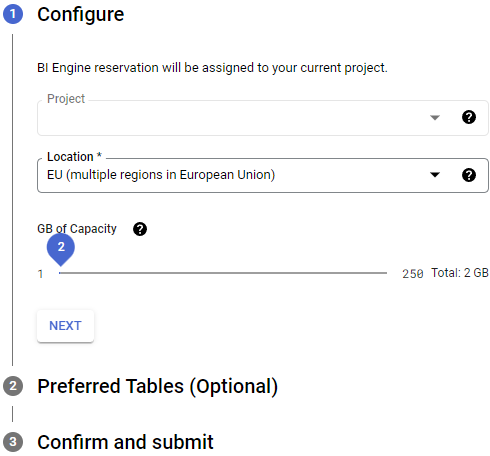
3. On the **Create reservation** page, for **Step 1**:
- Verify your project name.
- Choose your location. The location should match the [location of the datasets](https://docs.cloud.google.com/bigquery/docs/locations) you are querying.
- Adjust the slider to the amount of memory capacity you're reserving.
The following example sets the capacity to 2 GiB. The current maximum
is 250 GiB. You can [request an
increase](https://docs.google.com/forms/d/e/1FAIpQLSdkGV6kwVN_Wz34sjWF4wPofmGkTsPofRKGEth0M9JLpeZcUA/viewform)
of the maximum reservation capacity for your projects. Reservation
increases are available in most regions, and can take from 3 days to
one week to process.
4. Click **Next**.
5. **Preferred tables** (optional). [Preferred tables](https://docs.cloud.google.com/bigquery/docs/bi-engine-intro#preferred_tables)
let you limit BI Engine acceleration to a specified set of
tables. All other tables use regular BigQuery slots.
In the **Table Id** field, specify the table that
you want to accelerate using the pattern:
`PROJECT.DATASET.TABLE`.
Replace the following:
- `PROJECT`: your Google Cloud project ID
- `DATASET`: the dataset
- `TABLE`: the table that you want to accelerate
6. Click **Next**.
7. For **Step 3** , review your reservation details, and then click **Create**.
After you confirm your reservation, the details are displayed on the
**Reservations** page.
### SQL
Use the [`ALTER BI_CAPACITY SET OPTIONS` DDL statement](https://docs.cloud.google.com/bigquery/docs/reference/standard-sql/data-definition-language#alter_bi_capacity_set_options_statement) to
create or modify a BI Engine reservation.
1. In the Google Cloud console, go to the **BigQuery** page.
[Go to BigQuery](https://console.cloud.google.com/bigquery)
2. In the query editor, enter the following statement:
```googlesql
ALTER BI_CAPACITY `PROJECT_ID.LOCATION_ID.default`
SET OPTIONS (
size_gb = VALUE,
preferred_tables =
['TABLE_PROJECT_ID.DATASET.TABLE1',
'TABLE_PROJECT_ID.DATASET.TABLE2']);
```
Replace the following:
- `PROJECT_ID`: the optional ID of the project that will benefit from BI Engine acceleration. If omitted, the default project is used.
- `LOCATION_ID`: the [location](https://docs.cloud.google.com/bigquery/docs/locations#supported_locations) where data needs to be cached, prefixed with `region-`. Examples: `region-us`, `region-us-central1`.
- `VALUE`: the `INT64` size of the reservation for BI Engine capacity in gibibyte, 1 to 250 GiB. You can [request an increase](https://docs.google.com/forms/d/e/1FAIpQLSdkGV6kwVN_Wz34sjWF4wPofmGkTsPofRKGEth0M9JLpeZcUA/viewform) of the maximum reservation capacity for your projects. Reservation increases are available in most regions, and can take from 3 days to one week to process. Setting `VALUE` replaces the existing value if there is one. Setting to `NULL` clears the value for that option.
- `TABLE_PROJECT_ID.DATASET.TABLE`: the optional list of [preferred tables](https://docs.cloud.google.com/bigquery/docs/bi-engine-intro#preferred_tables) to which acceleration should be applied. Format: `TABLE_PROJECT_ID.DATASET.TABLE or
DATASET.TABLE`. If the project is omitted, then the default project is used.
3. Click **Run**.
For more information about how to run queries, see [Run an interactive query](https://docs.cloud.google.com/bigquery/docs/running-queries#queries).
### bq
Use the [`bq update`
command](https://docs.cloud.google.com/bigquery/docs/reference/bq-cli-reference#bq_update) and supply the
data definition language (DDL) statement as the query parameter:
```bash
bq --project_id=PROJECT_ID update \
--bi_reservation_size=SIZE \
--location=LOCATION \
--reservation
```
Replace the following:
- `PROJECT_ID`: the ID of your project
- `SIZE`: the reservation memory capacity in gibibyte, 1 to 250 GiB. You can [request an increase](https://docs.google.com/forms/d/e/1FAIpQLSdkGV6kwVN_Wz34sjWF4wPofmGkTsPofRKGEth0M9JLpeZcUA/viewform) of the maximum reservation capacity for your projects. Reservation increases are available in most regions, and can take from 3 days to one week to process.
- `LOCATION`: the location of the dataset you are querying
### Estimate and measure capacity
To estimate capacity requirements for a BI Engine reservation,
follow these steps:
1. View the [`TOTAL_LOGICAL_BYTES` view](https://docs.cloud.google.com/bigquery/docs/information-schema-table-storage)
to determine the logical size of the table, and use that for your
initial BI Engine reservation. For example:
```googlesql
SELECT
SUM(TOTAL_LOGICAL_BYTES) / 1024.0 / 1024.0 / 1024.0 AS logical_size_gb
FROM
`region-us.INFORMATION_SCHEMA.TABLE_STORAGE`
WHERE
TABLE_NAME IN UNNEST(["Table1", "Table2"]);
```
For example, for queries against a set of tables that contain a total of
200GiB of data, as a best practice you can start with a 200GiB
BI Engine reservation. More selective queries that only use a
subset of available fields or partitions could start with a smaller
reservation size.
2. Run all of the queries that need optimization and that were created in the
same project and region as the BI Engine reservation.
The goal is to approximate the workload that you need to optimize. The
increased load requires more memory to handle queries. Data is loaded
into BI Engine after the query is received.
3. Compare your BI Engine RAM reservation to the number of bytes
used, `reservation/used_bytes` in the
[Cloud Monitoring `bigquerybiengine` metrics](https://docs.cloud.google.com/monitoring/api/metrics_gcp_a_b#gcp-bigquerybiengine).
4. Adjust your reservation capacity based upon the results. In many use cases,
a smaller reservation can accelerate the majority of your queries,
conserving money and resources. For more information about
Monitoring for BI Engine, see
[BI Engine monitoring](https://docs.cloud.google.com/bigquery/docs/bi-engine-monitor).
The following factors affect BI Engine reservation size:
- BI Engine only caches the frequently accessed columns and rows that are required to process the query.
- When a reservation is fully used, BI Engine tries to offload the least recently used data to free up capacity for new queries.
- If multiple computationally intensive queries are using the same dataset, then BI Engine loads additional copies of the data to redistribute and optimize response times.
## Modify a reservation
To modify an existing reservation, complete the following steps:
### Console
To specify a set of tables for acceleration in an existing reservation, follow
these steps:
1. In the Google Cloud console, go to the **BigQuery** page.
[Go to BigQuery](https://console.cloud.google.com/bigquery)
2. In the BigQuery navigation menu, click **BI Engine**.
If your project is configured for preferred tables, a set of tables is
displayed in the **Preferred Tables** column.
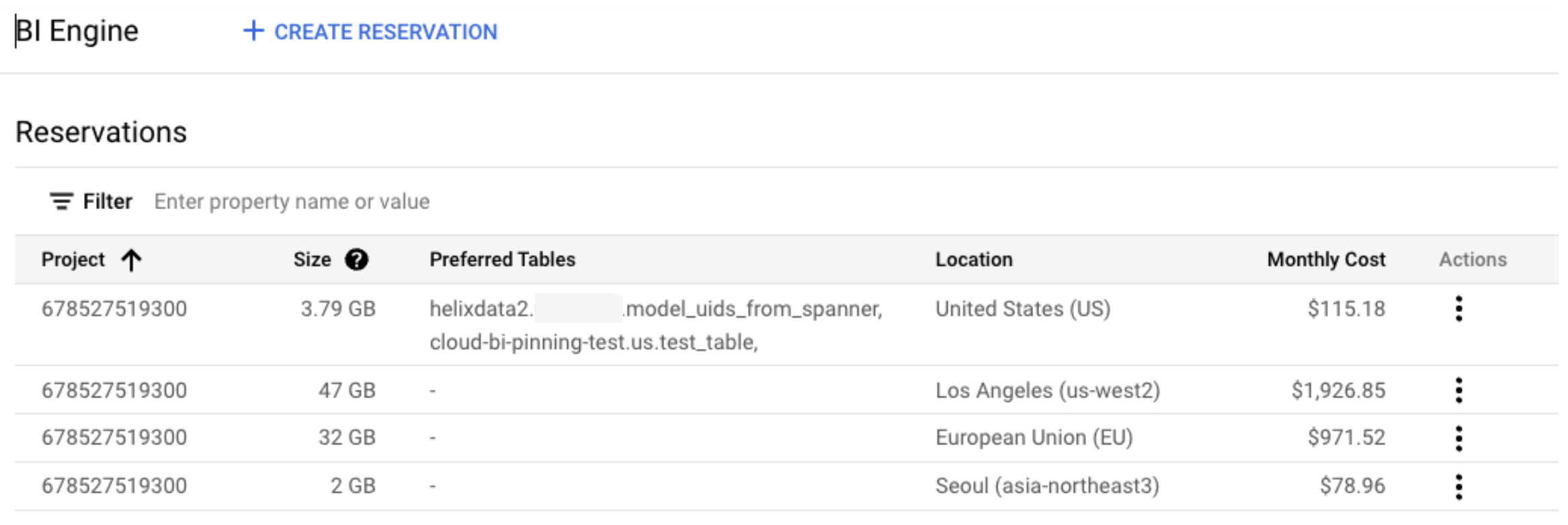
3. On the row for the reservation that you want to edit, click the icon in the
**Actions** column, and then select **Edit**.
4. Adjust the **GiB of Capacity** slider to the amount of memory capacity
you're reserving. Click **Next**.
5. Preferred tables: To specify a set of tables for acceleration in an
existing reservation, in the **Table Id** field, specify the table that
you want to accelerate using the pattern:
`PROJECT.DATASET.TABLE`.
Replace the following:
- `PROJECT`: your Google Cloud project ID
- `DATASET`: the dataset
- `TABLE`: the table that you want to accelerate
Changes can take up to ten seconds to take effect. Only tables in the
preferred tables list can use the BI Engine acceleration.
Click **Next**.
6. Confirm your modified reservation. If you agree, click **Update**.
### SQL
You can use the [`ALTER BI_CAPACITY SET OPTIONS` DDL statement](https://docs.cloud.google.com/bigquery/docs/reference/standard-sql/data-definition-language#alter_bi_capacity_set_options_statement)
to create or modify a BI Engine reservation.
1. In the Google Cloud console, go to the **BigQuery** page.
[Go to BigQuery](https://console.cloud.google.com/bigquery)
2. In the query editor, enter the following statement:
```googlesql
ALTER BI_CAPACITY `PROJECT_ID.LOCATION_ID.default`
SET OPTIONS (
size_gb = VALUE,
preferred_tables =
[`TABLE_PROJECT_ID.DATASET.TABLE1`,
`TABLE_PROJECT_ID.DATASET.TABLE2`]);
```
Replace the following:
- `PROJECT_ID`: optional ID of the project that will benefit from BI Engine acceleration. If omitted, the default project is used.
- `LOCATION_ID`: the [location](https://docs.cloud.google.com/bigquery/docs/locations#supported_locations) where data needs to be cached, prefixed with `region-`. Examples: `region-us`, `region-us-central1`.
- `VALUE`: the `INT64` size of the reservation for BI Engine capacity in gibibyte, 1 to 250 GiB. You can [request an increase](https://docs.google.com/forms/d/e/1FAIpQLSdkGV6kwVN_Wz34sjWF4wPofmGkTsPofRKGEth0M9JLpeZcUA/viewform) of the maximum reservation capacity for your projects. Reservation increases are available in most regions, and can take from 3 days to one week to process. Setting `VALUE` replaces the existing value if there is one. Setting to `NULL` clears the value for that option.
- `TABLE_PROJECT_ID.DATASET.TABLE`: optional list of [preferred tables](https://docs.cloud.google.com/bigquery/docs/bi-engine-intro#preferred_tables) to which acceleration should be applied. Format: `TABLE_PROJECT_ID.DATASET.TABLE or
DATASET.TABLE`. If the project is omitted, then the default project is used.
3. Click **Run**.
For more information about how to run queries, see [Run an interactive query](https://docs.cloud.google.com/bigquery/docs/running-queries#queries).
## Delete a reservation
To delete a capacity reservation, follow these steps:
### Console
1. On the BigQuery page, in **Administration** , go to the
**BI Engine** page.
[Go to BI Engine](https://console.cloud.google.com/bigquery/admin/bi-engine)
2. In the **Reservations** section, locate your reservation.
3. In the **Actions** column, click the icon to the right of your
reservation and choose **Delete**.
4. In the **Delete reservation?** dialog, enter **Delete** and then
click **DELETE**.
### SQL
Sets the options on BI Engine capacity.
1. In the Google Cloud console, go to the **BigQuery** page.
[Go to BigQuery](https://console.cloud.google.com/bigquery)
2. In the query editor, enter the following statement:
```googlesql
ALTER BI_CAPACITY `PROJECT_ID.LOCATION_ID.default`
SET OPTIONS (
size_gb = 0);
```
Replace the following:
- `PROJECT_ID`: optional ID of the project that will benefit from BI Engine acceleration. If omitted, the default project is used.
- `LOCATION_ID`: the [location](https://docs.cloud.google.com/bigquery/docs/locations#supported_locations) where data needs to be cached, prefixed with `region-`. Examples: `region-us`, `region-us-central1`.
When you delete all capacity reservations in a project,
BI Engine is disabled for that project.
3. Click **Run**.
For more information about how to run queries, see [Run an interactive query](https://docs.cloud.google.com/bigquery/docs/running-queries#queries).
### bq
Use the [`bq update` command](https://docs.cloud.google.com/bigquery/docs/reference/bq-cli-reference#bq_update)
and supply the DDL statement as the query parameter.
```bash
bq --project_id="PROJECT_ID" \
update --reservation
--bi_reservation_size=0 \
--location=LOCATION
```
Replace the following:
- `PROJECT_ID`: the ID of your project
- `LOCATION`: the location of the dataset you are querying
## Verify BI Engine information
You can get information about your BI Engine capacity by querying
the [`INFORMATION_SCHEMA` tables](https://docs.cloud.google.com/bigquery/docs/information-schema-intro).
### Verify reservation status
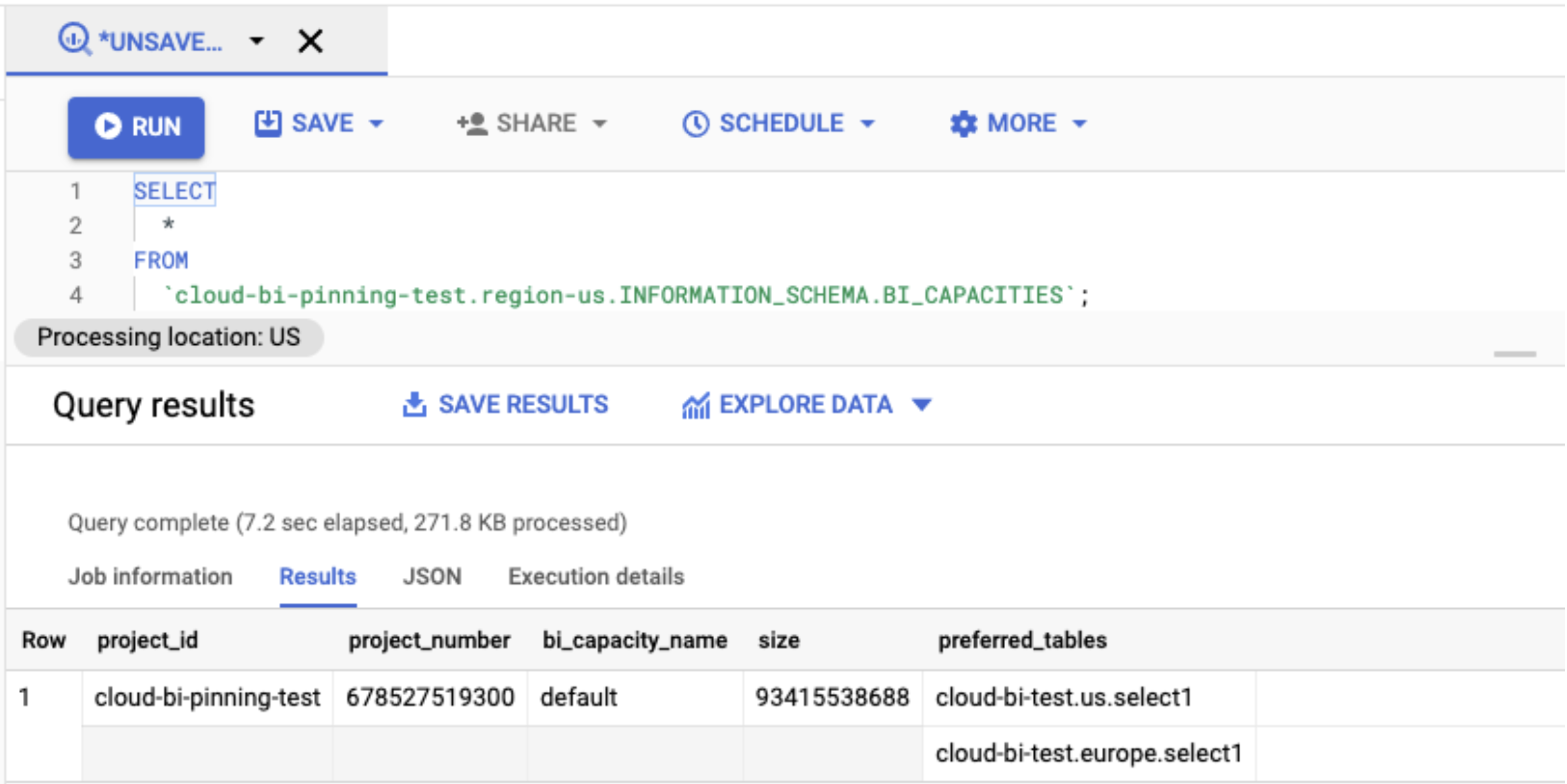
To verify the status of your reservation, including a set of preferred tables,
view the `INFORMATION_SCHEMA.BI_CAPACITIES` view using a SQL query. For
example:
```googlesql
SELECT
*
FROM
`.region-.INFORMATION_SCHEMA.BI_CAPACITIES`;
```
In the Google Cloud console, the result of this SQL query looks similar to the
following:
### View reservation changes
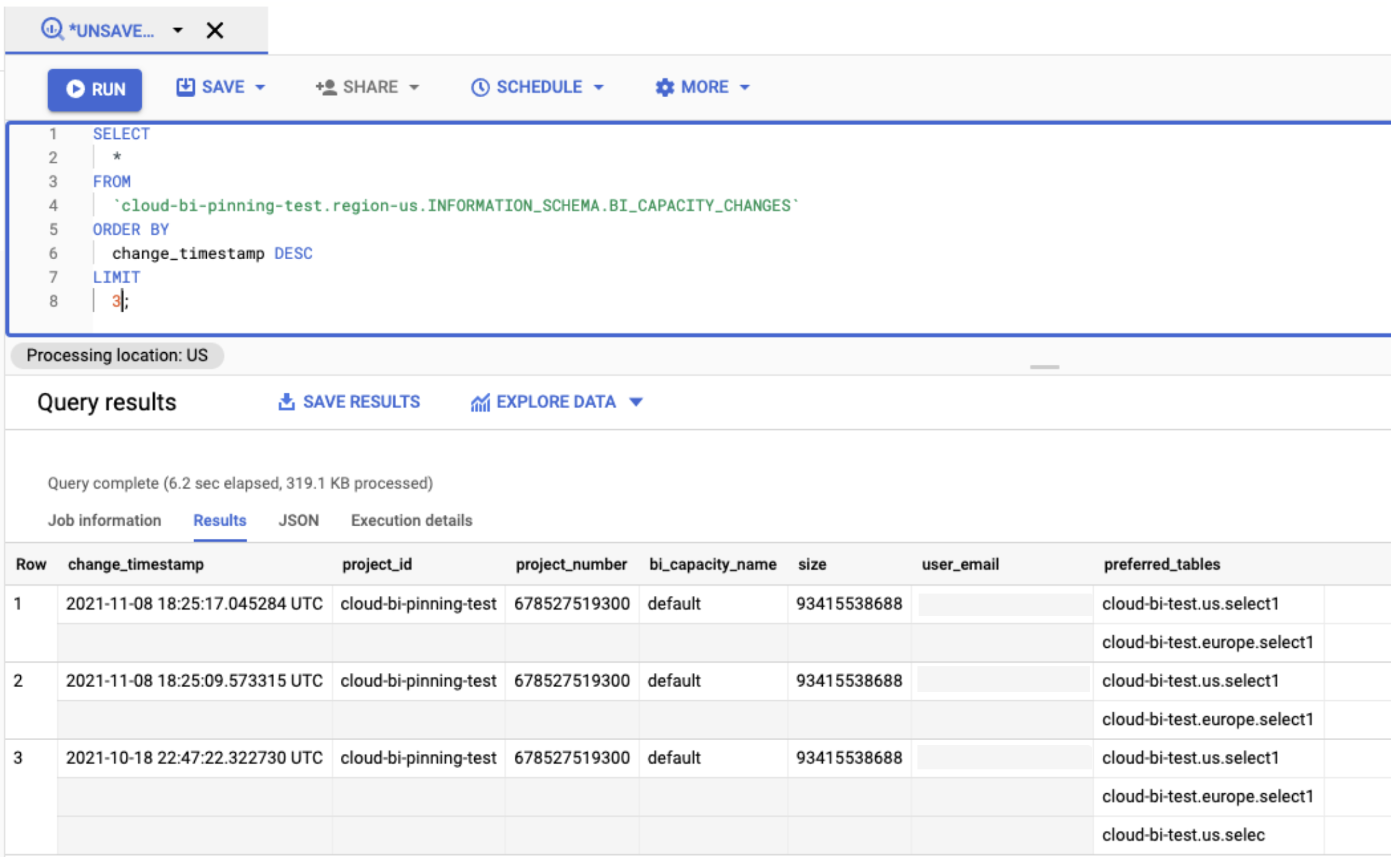
To view the history of changes for a particular reservation, use the
`INFORMATION_SCHEMA.BI_CAPACITY_CHANGES` view using a SQL query. For example:
```googlesql
SELECT
*
FROM
`.region-.INFORMATION_SCHEMA.BI_CAPACITY_CHANGES`
ORDER BY
change_timestamp DESC
LIMIT 3;
```
In the Google Cloud console, the result of this SQL query looks similar to the
following:
## What's next
- Learn more about [BI Engine](https://docs.cloud.google.com/bigquery/docs/bi-engine-intro).
- Learn about [BI Engine pricing](https://cloud.google.com/bi-engine/pricing).
- [Analyze data with Data Studio](https://docs.cloud.google.com/bigquery/docs/visualize-looker-studio).
- [Monitor BI Engine](https://docs.cloud.google.com/bigquery/docs/bi-engine-monitor)