# Approving Access Approval requests
This document explains how to approve an Access Approval request.
## Before you begin
- Make sure that you understand the concepts in the
[Overview](https://docs.cloud.google.com/assured-workloads/access-approval/docs/overview) page.
- Grant the Access Approval Approver (`roles/accessapproval.approver`)
IAM role on the project, folder, or
organization to the [principal](https://docs.cloud.google.com/iam/docs/overview#concepts_related_identity)
who you want to be able to perform approvals. You can grant the
Access Approval Approver IAM role to either an
[individual user](https://docs.cloud.google.com/iam/docs/overview#google_account), a [service account](https://docs.cloud.google.com/iam/docs/overview#service_account), or a
[Google group](https://docs.cloud.google.com/iam/docs/overview#google_group).
If you are using a custom signing key, you
must also grant the Cloud KMS CryptoKey Signer/Verifier
(`roles/cloudkms.signerVerifier`) IAM role to the
Access Approval service account for your resource. If you are using a
Google-managed signing key, you don't need to provide any other permissions.
For information about granting an IAM role, see [Grant
a single role](https://docs.cloud.google.com/iam/docs/granting-changing-revoking-access#grant-single-role).
## Configure settings to receive notifications
You have the following options for receiving Access Approval requests:
- Receive requests through email.
- Receive requests through Pub/Sub.
You can choose both of these options by following the instructions in
[Setting up email and Pub/Sub
notifications](https://docs.cloud.google.com/assured-workloads/access-approval/docs/review-approve-access-requests-google-keys#email-pubsub).
## Approve Access Approval requests
After you have enrolled some users as approvers, those users receive all
access requests.
### Console
To approve an Access Approval request using the
Google Cloud console, do the following:
1. To see all your pending approval requests, go to the
**Access Approval** page in the Google Cloud console.
[Go to Access Approval](https://console.cloud.google.com/security/access-approval)
If you have opted to receive Access Approval requests through
email, you can also go to this page by clicking the link in the email
sent to you with the approval request.
> [!NOTE]
> **Note:** You can only see the pending Access Approval requests for the hierarchy level you have selected. For example, if you have selected a folder, you can only see the Access Approval requests made for folder-level resources, not all projects within those folders.
2. To approve a request, click **Approve**.
You also have the option of dismissing the request. Dismissing the
request is optional because access continues to be denied even if you
don't dismiss the request.
If you don't approve the Google employee's access request
within 14 days or before the request expires, the request is
automatically dismissed.
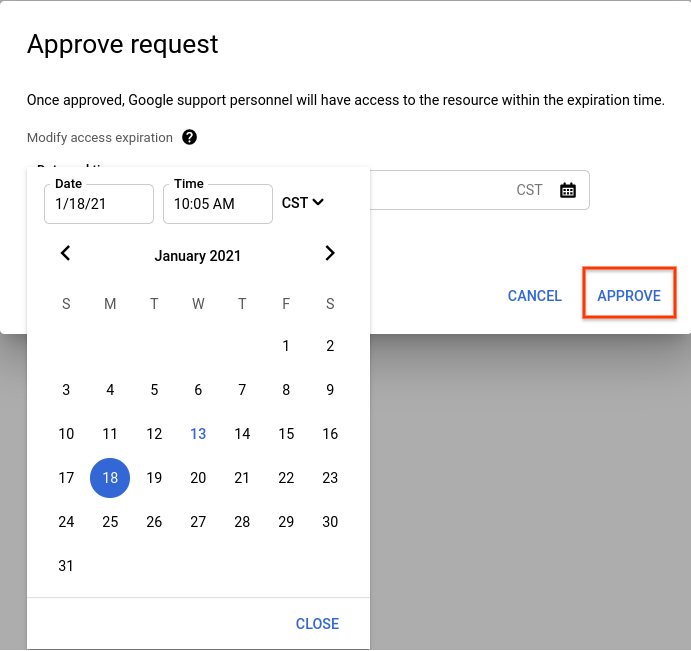
3. In the dialog box that opens, select the date and time when you want
the access to expire.
> [!NOTE]
> **Note:** Bulk approve option doesn't let you select the expiration date and time.
4. Select **Approve** to approve access till the set expiration date and
time.
5. Optional: To validate the signature on a request after approving it,
follow the steps given in
[Validate a request signature](https://docs.cloud.google.com/assured-workloads/access-approval/docs/validate-request-signature).
### cURL
To approve an Access Approval request using cURL, do the following:
1. Take the `approvalRequest` name from the Pub/Sub message.
2. Make an API call to approve or dismiss that `approvalRequest`.
# HTTP POST request with empty body (an effect of using -d '')
curl -H \
"Authorization: Bearer $(gcloud auth print-access-token)" \
-d '' \
https://accessapproval.googleapis.com/v1/projects/PROJECT_ID/approvalRequests/APPROVAL_REQUEST_ID:approve
> [!NOTE]
> **Note:** This preceding example is a sample request using cURL. You can approve an access request by appending `:approve` to a POST request to the mentioned URI that contains a unique `approvalRequestId`.
You can reply to a request with one of the following options:
| Action | Effect | Google access state |
|---|---|---|
| `:approve` | Approves the request. | Denied before approval, |
| approved after approval. | | |
| `:dismiss` | Dismisses the request for approval. We recommend | |
dismissing the access request instead of not taking any action.
Dismissing the access request prompts the Google employee
to follow up. \| Denied before dismissal, denied after dismissal. \|
\| No action \| Google employee access is still denied.
The employee needs to open a new request to access the resource
after the `requestedExpiration` time passes. \| Denied before no
action, denied after expiration time. \|
After you approve the request, the request status changes to `Approved`. Any
Google employee with characteristics matching the approval scope can
access the resource within the approved timeframe. These matching characteristics
include the same justification, location, or desk location.
Access Approval doesn't provide any IAM role or any
new permission to the Google employee who requested access.
If you don't approve the Google employee's access request, access is
denied to the employee. Dismissing the request only removes it from your list
of pending requests. If you fail to dismiss an approval request, access
continues to be denied.
After enabling,
[Access Transparency](https://docs.cloud.google.com/assured-workloads/access-transparency/docs/overview) logs all
accesses to Customer Data that you approve.
Access to Google personnel is allowed until the approval expires or
the justification for access is no longer valid. For example, access expires
if the support case for which Google personnel requested access is
closed.
## What's next
- Learn about the [actions by Google personnel that are excluded
from Access Approval notifications](https://docs.cloud.google.com/assured-workloads/access-approval/docs/overview#exclusions).
- Learn about the [fields in an Access Approval request](https://docs.cloud.google.com/assured-workloads/access-approval/docs/approval-request-details).