Migrating
container images from third-party registries to Artifact Registry lets you consolidate image management and avoid build or deployment disruptions from
external rate limits and outages. You can identify frequently pulled images and
copy them to Artifact Registry for deployments to Google Cloud environments
such as Google Kubernetes Engine or Cloud Run.
## Migration overview
Migration of your container images includes the following steps:
1. Set up [prerequisites](https://docs.cloud.google.com/artifact-registry/docs/docker/migrate-external-containers#prereq).
2. [Identify](https://docs.cloud.google.com/artifact-registry/docs/docker/migrate-external-containers#identify) images to migrate.
- Search your Dockerfile files and deployment manifests for references to third-party registries
- Determine pull frequency of images from third-party registries using Cloud Logging and BigQuery.
3. [Copy identified images](https://docs.cloud.google.com/artifact-registry/docs/docker/migrate-external-containers#copy) to Artifact Registry.
4. Verify that [permissions](https://docs.cloud.google.com/artifact-registry/docs/docker/migrate-external-containers#permissions) to the registry are correctly configured, particularly if Artifact Registry and your Google Cloud deployment environment are in different projects.
5. Update [manifests](https://docs.cloud.google.com/artifact-registry/docs/docker/migrate-external-containers#update) for your deployments.
6. [Re-deploy](https://docs.cloud.google.com/artifact-registry/docs/docker/migrate-external-containers#redeploy) your workloads.
Artifact Registry doesn't monitor upstream registries for updates to copied
images. If you want to incorporate a newer version of an image into your
pipeline, you must push it to Artifact Registry.
## Before you begin
1. If you don't have a Artifact Registry repository, then [create a repository](https://docs.cloud.google.com/artifact-registry/docs/repositories/create-repos) and [configure authentication](https://docs.cloud.google.com/artifact-registry/docs/authentication) for third-party clients that require access to the repository.
2. Verify your permissions. You must have the [Owner or Editor](https://docs.cloud.google.com/iam/docs/roles-overview#basic) IAM role on the projects where you are migrating images to Artifact Registry.
3. Export the following environment variables:
```bash
export PROJECT=$(gcloud config get-value project)
```
4. Verify that Go version 1.13 or newer is installed.
```bash
go version
```
If you need to install or update Go, see the Go [installation documentation](https://golang.org/doc/install).
## Costs
This guide uses the following billable components of Google Cloud:
- [GKE](https://cloud.google.com/kubernetes-engine/pricing)
- [Artifact Registry](https://cloud.google.com/artifact-registry/pricing)
- [BigQuery](https://docs.cloud.google.com/bigquery)
- [Logging](https://docs.cloud.google.com/logging)
## Identify images to migrate
Search the files you use to build and deploy your container images for
references to third-party registries, then check how often you pull the images.
### Identify references in Dockerfiles
Perform this step in a location where your Dockerfiles are stored. This might be where your code is locally checked out or in Cloud Shell if the files are available in a VM.
In the directory with your Dockerfiles, run the command:
grep -inr -H --include Dockerfile\* "FROM" . | grep -i -v -E 'docker.pkg.dev|gcr.io'
The output looks like the following example:
./code/build/baseimage/Dockerfile:1:FROM debian:stretch
./code/build/ubuntubase/Dockerfile:1:FROM ubuntu:latest
./code/build/pythonbase/Dockerfile:1:FROM python:3.5-buster
This command searches all the Dockerfiles in your directory and identifies the
**"FROM"** line. Adjust the command as needed to match the way you store your
Dockerfiles.
### Identify references in manifests
Perform these steps in a location where your GKE or Cloud Run manifests are stored. This might be where your code is locally checked out or in Cloud Shell if the files are available in a VM.
1. In the directory with your GKE or Cloud Run manifests run the following command:
```bash
grep -inr -H --include \*.yaml "image:" . | grep -i -v -E 'docker.pkg.dev|gcr.io'
```
The output resembles the following:
```
./code/deploy/k8s/ubuntu16-04.yaml:63: image: busybox:1.31.1-uclibc
./code/deploy/k8s/master.yaml:26: image: kubernetes/redis:v1
```
This command looks at all YAML files in your directory and identifies the **image:** line. Adjust the command as needed to work with how your manifests are stored
2. To list images running on a cluster run the following command:
```bash
kubectl get all --all-namespaces -o yaml | grep image: | grep -i -v -E 'docker.pkg.dev|gcr.io'
```
This command returns all objects running in the selected Kubernetes cluster and gets their image names. The output resembles the following:
```
- image: nginx
image: nginx:latest
- image: nginx
- image: nginx
```
Run the previous commands for all GKE clusters across all
Google Cloud projects for total coverage.
### Identify pull frequency from a third-party registry
In projects that pull from third-party registries, use information about image
pull frequency to determine if you usage is near or over any rate limits that
the third-party registry enforces.
#### Collect log data
Create a log sink to export data to BigQuery. A log sink includes
a destination and a query that selects the log entries to export. You can create
a sink by querying individual projects, or you can use a script to collect data
across projects.
To create a sink for a single project:
1. In the Google Cloud console, go to the
**Logs Explorer** page:
[Go to **Logs Explorer**](https://console.cloud.google.com/logs/query)
If you use the search bar to find this page, then select the result whose subheading is
**Logging**.
2. Choose a Google Cloud project.
3. On the **Query builder** tab, enter the following query:
resource.type="k8s_pod"
jsonPayload.reason="Pulling"
4. Change history filter from **Last 1 hour** to **Last 7 Days** .

5. Click **Run Query**.
6. After verifying that results show up correctly, click **Actions** \>
**Create Sink**.
7. In the **Sink details** dialog, complete the following:
1. In the **Sink Name** field, enter `image_pull_logs`.
2. In the **Sink description**, enter a description of the sink.
8. Click **Next**.
9. In the **Sink destination** dialog, select the following values:
1. In the **Select Sink service** field, select **BigQuery dataset**.
2. In the **Select BigQuery dataset** field, select **Create a new BigQuery dataset** and complete the required information in the dialog that opens. For more information on how to create a BigQuery dataset, see [Create datasets](https://docs.cloud.google.com/bigquery/docs/datasets#create-dataset).
3. Click **Create dataset**.
10. Click **Next**.
In the **Choose logs to include in sink** section, the query matches the
query you ran in the **Query builder** tab.
11. Click **Next**.
12. Optional: Choose logs to filter out of the sink. For more information on
how to query and filter Cloud Logging data, see
[Logging query language](https://docs.cloud.google.com/logging/docs/view/logging-query-language).
13. Click **Create Sink**.
Your log sink is created.
To create a sink for multiple projects:
1. [Open Cloud Shell](https://console.cloud.google.com/?cloudshell=true).
2. Run the following commands in Cloud Shell:
PROJECTS="PROJECT-LIST"
DESTINATION_PROJECT="DATASET-PROJECT"
DATASET="DATASET-NAME"
for source_project in $PROJECTS
do
gcloud logging --project="${source_project}" sinks create image_pull_logs bigquery.googleapis.com/projects/${DESTINATION_PROJECT}/datasets/${DATASET} --log-filter='resource.type="k8s_pod" jsonPayload.reason="Pulling"'
done
where
- PROJECT-LIST is a list of Google Cloud project IDs, separated with spaces. For example `project1 project2 project3`.
- DATASET-PROJECT is the project where you want to store your dataset.
- DATASET-NAME is the name for the dataset, for example `image_pull_logs`.
After you create a sink, it takes time for data to flow to
BigQuery tables, depending on how frequently images are pulled.
#### Query for pull frequency
Once you have a representative sample of image pulls that your builds make,
run a query for pull frequency.
1. [Go to the BigQuery console](https://console.cloud.google.com/bigquery).
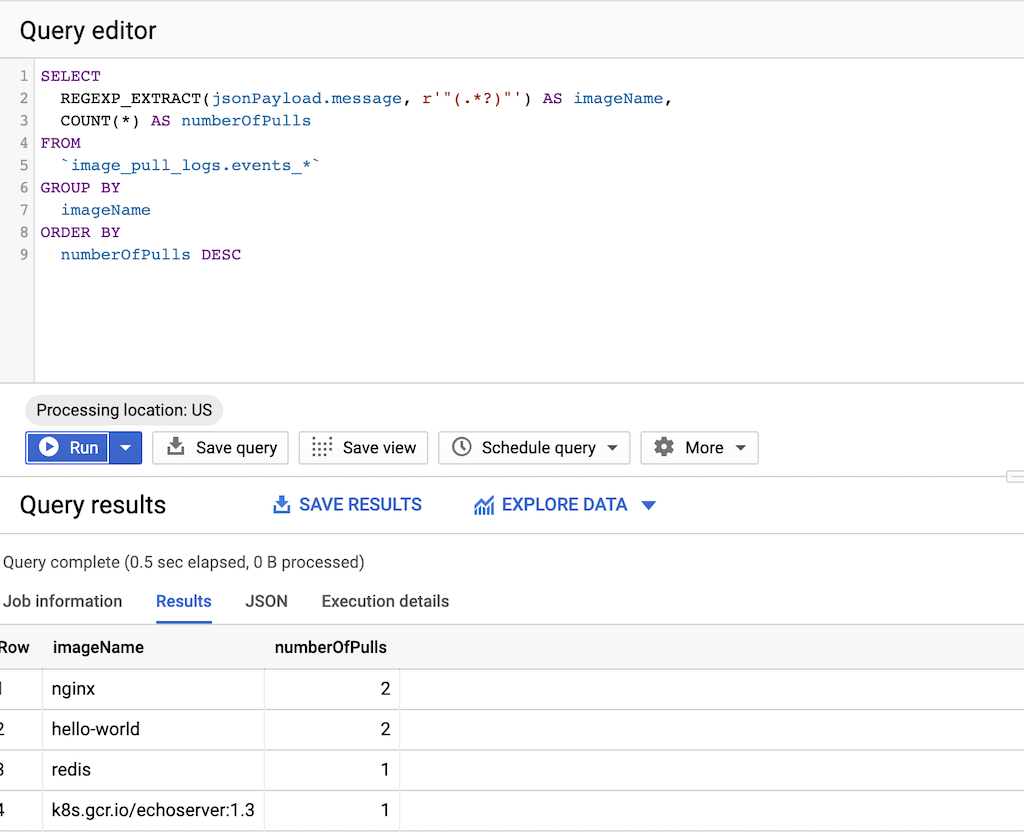
2. Run the following query:
SELECT
REGEXP_EXTRACT(jsonPayload.message, r'"(.*?)"') AS imageName,
COUNT(*) AS numberOfPulls
FROM
`DATASET-PROJECT.DATASET-NAME.events_*`
GROUP BY
imageName
ORDER BY
numberOfPulls DESC
where
- DATASET-PROJECT is the project that contains your dataset.
- DATASET-NAME is the name of the dataset.
The following example shows output from the query. In the **imageName** column, you can review the pull frequency for images that aren't stored in Artifact Registry.
## Copy images to Artifact Registry
After you have identified images from third-party registries, you are ready to
copy them to Artifact Registry. The [gcrane](https://github.com/google/go-containerregistry/blob/master/cmd/gcrane/README.md) tool helps you with
the copying process.
1. Create a text file `images.txt` with the names of the
images you identified. For example:
ubuntu:18.04
debian:buster
hello-world:latest
redis:buster
jupyter/tensorflow-notebook
2. Download [gcrane](https://github.com/google/go-containerregistry/blob/master/cmd/gcrane/README.md).
GO111MODULE=on go get github.com/google/go-containerregistry/cmd/gcrane
3. Create a script named `copy_images.sh` to copy your list of files.
#!/bin/bash
images=$(cat images.txt)
if [ -z "${AR_PROJECT}" ]
then
echo ERROR: AR_PROJECT must be set before running this
exit 1
fi
for img in ${images}
do
gcrane cp ${img} LOCATION-docker.pkg.dev/${AR_PROJECT}/${img}
done
Replace `LOCATION` with the regional or multi-regional
[location](https://docs.cloud.google.com/artifact-registry/docs/repo-locations) of the repository.
Make the script executable:
chmod +x copy_images.sh
4. Run the script to copy the files:
AR_PROJECT=${PROJECT}
./copy_images.sh
## Verify permissions
Make sure that permissions are configured correctly before you update and
re-deploy your workloads.
For more information, see the [access control](https://docs.cloud.google.com/artifact-registry/docs/access-control)
documentation.
## Update manifests to reference Artifact Registry
Update your Dockerfiles and your manifests to refer to Artifact Registry
instead of the third-party registry.
The following example shows manifest referencing a third-party registry:
apiVersion: apps/v1
kind: Deployment
metadata:
name: nginx-deployment
spec:
selector:
matchLabels:
app: nginx
replicas: 2
template:
metadata:
labels:
app: nginx
spec:
containers:
- name: nginx
image: nginx:1.14.2
ports:
- containerPort: 80
This updated version of the manifest points to an image on
`us-docker.pkg.dev`.
apiVersion: apps/v1
kind: Deployment
metadata:
name: nginx-deployment
spec:
selector:
matchLabels:
app: nginx
replicas: 2
template:
metadata:
labels:
app: nginx
spec:
containers:
- name: nginx
image: us-docker.pkg.dev//nginx:1.14.2
ports:
- containerPort: 80
For a large number of manifests, use [sed](https://www.gnu.org/software/sed/manual/sed.html)
or another tool that can handle updates across many text files.
## Re-deploy workloads
Re-deploy workloads with your updated manifests.
Keep track of new image pulls by running the following query in the
BigQuery console:
SELECT`
FORMAT_TIMESTAMP("%D %R", timestamp) as timeOfImagePull,
REGEXP_EXTRACT(jsonPayload.message, r'"(.*?)"') AS imageName,
COUNT(*) AS numberOfPulls
FROM
`image_pull_logs.events_*`
GROUP BY
timeOfImagePull,
imageName
ORDER BY
timeOfImagePull DESC,
numberOfPulls DESC
All new image pulls should be from Artifact Registry and contain the string
`docker.pkg.dev`.