This document explains how to enable the Container Scanning API, push an
image to Artifact Registry, and see the list of vulnerabilities found in the image.
Artifact Analysis stores vulnerability information as [notes](https://docs.cloud.google.com/artifact-analysis/docs/metadata-storage#note). An
[occurrence](https://docs.cloud.google.com/artifact-analysis/docs/metadata-storage#occurrence) is
created for each instance of a note associated with an image. See the
[overview](https://docs.cloud.google.com/artifact-analysis/docs/container-scanning-overview) and
[pricing](https://docs.cloud.google.com/artifact-analysis/pricing) documents for more information.
> [!NOTE]
> **Note:** Artifact Analysis only supports automatic scanning of Node.js (npm) packages in Docker containers uploaded to Artifact Registry. Container Registry is not supported.
## Before you begin
1. Create a Docker repository in Artifact Registry and push a container image with your npm code to the repository. If you are not familiar with Artifact Registry, see the [Docker quickstart](https://docs.cloud.google.com/artifact-registry/docs/docker/store-docker-container-images).
> [!IMPORTANT]
> **Important:** When you enable the Artifact Analysis API, Artifact Analysis automatically begins scanning each new image as they are pushed to Artifact Registry repositories in your project. However, scanning is disabled by default for packages pushed to Artifact Registry repositories. To enable scanning in a repository, see [Control scanning settings for an individual repository](https://docs.cloud.google.com/artifact-analysis/docs/enable-automatic-scanning#disable-repo).
### Required roles
To get the permissions that
you need to View package scan results,
ask your administrator to grant you the
following IAM roles on the project:
- [Container Scanner Service Agent](https://docs.cloud.google.com/iam/docs/roles-permissions/containerscanning#containerscanning.ServiceAgent) (`roles/containerscanning.ServiceAgent`)
- [Container Analysis Occurrences Viewer](https://docs.cloud.google.com/iam/docs/roles-permissions/containeranalysis#containeranalysis.occurrences.viewer) (`roles/containeranalysis.occurrences.viewer`)
- [Container Analysis Notes Viewer](https://docs.cloud.google.com/iam/docs/roles-permissions/containeranalysis#containeranalysis.notes.viewer) (`roles/containeranalysis.notes.viewer`)
- [Artifact Registry Reader](https://docs.cloud.google.com/iam/docs/roles-permissions/artifactregistry#artifactregistry.reader) (`roles/artifactregistry.reader`)
For more information about granting roles, see [Manage access to projects, folders, and organizations](https://docs.cloud.google.com/iam/docs/granting-changing-revoking-access).
You might also be able to get
the required permissions through [custom
roles](https://docs.cloud.google.com/iam/docs/creating-custom-roles) or other [predefined
roles](https://docs.cloud.google.com/iam/docs/roles-overview#predefined).
## View the image vulnerabilities
Artifact Analysis scans new images when they're uploaded to
Artifact Registry. This scan extracts information about the packages in
the container.
You can view vulnerability occurrences for your images in Artifact Registry
using the Google Cloud console, Google Cloud CLI, or the Container Analysis API. If
an image has vulnerabilities, you can then obtain the details.
Artifact Analysis continues to scan images and packages as long as they
have been pulled within the last 30 days. After 30 days, metadata for scanned
images and packages will no longer be updated, and the results will be stale.
Artifact Analysis archives metadata that has been stale for more than 90
days. This archived metadata can be evaluated only by using the API.
You can re-scan an image with stale or archived metadata by pulling that image.
Refreshing metadata can take up to 24 hours. Packages with stale or archived
metadata can't be rescanned.
### View occurrences in the Google Cloud console
To see the vulnerabilities in an image:
1. Get the list of repositories.
[Open the Repositories page](https://console.cloud.google.com/artifacts)
2. In the repositories list, click a repository.
3. In the images list, click an image name.
Vulnerability totals for each image digest are displayed in the
**Vulnerabilities** column.

4. To view the list of vulnerabilities for an image, click the link in the
**Vulnerabilities** column.
The **Scan results** section displays a summary of the package types
scanned, total vulnerabilities, vulnerabilities with fixes available,
vulnerabilities without fixes, and effective severity.

The table of vulnerabilities lists the Common Vulnerabilities and Exposures
(CVE) name for each vulnerability found, the
[effective severity](https://docs.cloud.google.com/artifact-analysis/docs/severity-levels),
Common Vulnerability Scoring System (CVSS) score, fixes (when available),
the name of the package that contains the vulnerability, and the package
type.
Google Cloud console displays up to 1200 vulnerabilities per page in this
table. You can filter and sort these files to check a specific file,
directory, layer, or type of file by file extension.
5. For details about a specific CVE, click the CVE name.
6. To view vulnerability occurrence details such as version number and affected
location, in the row with the name of the vulnerability, click **View** or
**View Fixed** . The link text is **View** for vulnerabilities without a fix,
and **View Fixed** for vulnerabilities where a fix has been applied.
#### View vulnerabilities in a specific layer
> [!WARNING]
>
> **Preview**
>
>
> This product or feature is
>
> subject to the "Pre-GA Offerings Terms" in the General Service Terms section
> of the [Service Specific
> Terms](https://docs.cloud.google.com/terms/service-terms#1).
>
> Pre-GA products and features are available "as is" and might have limited support.
>
> For more information, see the
> [launch stage descriptions](https://cloud.google.com/products/#product-launch-stages).
Artifact Analysis provides layer-specific metadata to help you identify which package contains vulnerabilities, and which Docker build command introduced that layer.
To view layer-based vulnerability metadata in the Google Cloud console:
1. In Artifact Registry, open your list of repositories.
[Open the Repositories page](https://console.cloud.google.com/artifacts)
2. In the **Repositories** page, click a repository.
3. In the **Repository Details** page, click an image.
4. In the image version list, click an image digest.
5. In the image digest details page, click the **Vulnerabilities** tab.
When layer-based metadata is available, Artifact Analysis shows
a selectable list of layers in the **Layer** bar:

6. To see the list of layers, click the layer drop-down menu.
A drop-down list opens, showing a numbered list of layers. Layer 0
represents the bottom layer, with each following layer building on the
previous layer. Only layers where vulnerabilities have been found are
shown.
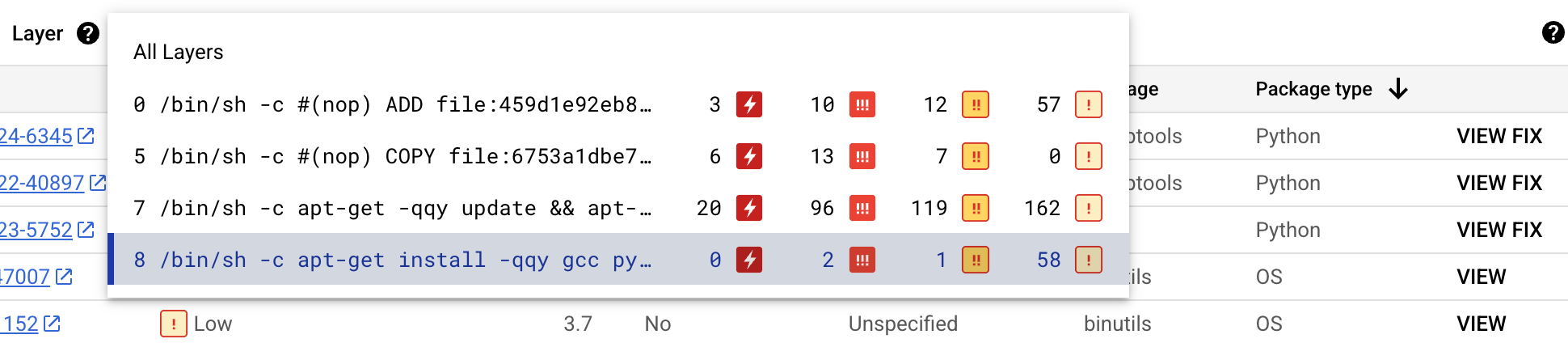
For each layer, Artifact Analysis shows the Docker
command used to build the layer and the number of vulnerabilities found
in that layer.
7. To learn more about the vulnerabilities in a specific layer, select a
layer from the layer list.
The table of vulnerabilities updates to show only the vulnerabilities found
in the selected layer. You can apply more filters or investigate specific
vulnerabilities.
8. Click **VIEW** or **VIEW FIX** beside a vulnerability to see more detailed
vulnerability information.
The **Vulnerability details** side panel shows file locations where
packages have vulnerabilities.
9. In the **File location(s)** table, hover over the question mark to open
additional layer metadata.
A dialog displays the layer index, layer build command, layer
digest, and base image where you can remediate the vulnerability.
### View occurrences using gcloud
To view occurrences for images in Artifact Registry, run the
[`gcloud artifacts docker images list`](https://docs.cloud.google.com/sdk/gcloud/reference/artifacts/docker/images/list)
command:
gcloud artifacts docker images list --show-occurrences \
LOCATION-docker.pkg.dev/PROJECT_ID/REPOSITORY/IMAGE_ID
Where:
- LOCATION is the regional or multi-regional [location](https://docs.cloud.google.com/artifact-registry/docs/repo-locations) of the repository.
- PROJECT_ID is your Google Cloud console [project ID](https://docs.cloud.google.com/resource-manager/docs/creating-managing-projects#identifying_projects).
- REPOSITORY is the name of the repository where the image is stored.
- IMAGE_ID is the name of the image in the repository. You cannot specify an image tag with this command.
By default, the command returns the 10 most recent results. To show a
different number of results, use the `--show-occurrences-from` flag.
For example, the following command returns the 25 most recent results:
gcloud artifacts docker images list --show-occurrences-from=25 \
us-central1-docker.pkg.dev/my-project/my-repo/my-image
The output looks similar to:
#### Sample image output
```
{
"name": "projects/my-project/locations/us-central1/occurrences/22d3edfb-34f2-4d3f-be08-fd90c549f010",
"resource": {
"uri": "https://us-central1-docker.pkg.dev/my-project/my-repo/golang-nginx@sha256:5b54ef20748417ccdb0b87afedf98c44e699e2f59bd6cv48cbdc1ca2e72c80e3"
},
"noteName": "projects/my-project/locations/us-central1/notes/CVE-2005-2541",
"kind": "VULNERABILITY",
"createTime": "2025-01-21T15:57:01.238832Z",
"updateTime": "2025-01-21T15:57:01.238832Z",
"vulnerability": {
"severity": "CRITICAL",
"cvssScore": 10,
"packageIssue": [
{
"affectedLocation": {
"cpeUri": "cpe:/o:debian:debian_linux:12",
"package": "tar",
"version": {
"name": "1.34+dfsg",
"revision": "1.2+deb12u1",
"kind": "NORMAL"
}
},
"fixedLocation": {
"cpeUri": "cpe:/o:debian:debian_linux:12",
"package": "tar",
"version": {
"kind": "MAXIMUM"
}
},
"packageType": "OS",
"effectiveSeverity": "LOW",
"file_location": [
{
"file_path": "/var/lib/dpkg/status",
"layerDetails": {
"index": 0,
"diffID": "sha256:123",
"buildCommand": "FROM golang:example_sha256",
"BaseImages": [
{
"name": "library/golang",
},
],
},
},
],
}
],
"shortDescription": "CVE-2005-2541",
"longDescription": "NIST vectors: AV:N/AC:L/Au:N/C:C/I:C/A:C",
"relatedUrls": [
{
"url": "https://security-tracker.debian.org/tracker/CVE-2005-2541",
"label": "More Info"
}
],
"effectiveSeverity": "LOW",
"cvssVersion": "CVSS_VERSION_2",
"cvssV2": {
"baseScore": 10,
"attackVector": "ATTACK_VECTOR_NETWORK",
"attackComplexity": "ATTACK_COMPLEXITY_LOW",
"authentication": "AUTHENTICATION_NONE",
"confidentialityImpact": "IMPACT_COMPLETE",
"integrityImpact": "IMPACT_COMPLETE",
"availabilityImpact": "IMPACT_COMPLETE"
}
}
}
```
#### Filter vulnerability occurrences
To filter vulnerability occurrences, use `--occurrence-filter` parameter:
gcloud artifacts docker images list --show-occurrences \
LOCATION-docker.pkg.dev/PROJECT_ID/REPOSITORY/IMAGE_ID \
--occurrence-filter=FILTER_EXPRESSION
Where:
- LOCATION is the regional or multi-regional [location](https://docs.cloud.google.com/artifact-registry/docs/repo-locations) of the repository.
- PROJECT_ID is your Google Cloud console [project ID](https://docs.cloud.google.com/resource-manager/docs/creating-managing-projects#identifying_projects).
- REPOSITORY is the name of the repository where the image is stored.
- IMAGE_ID is the name of the image in the repository.
- FILTER_EXPRESSION is a sample filter expression in the format explained in [Filtering vulnerability occurrences](https://docs.cloud.google.com/artifact-analysis/docs/scan-nodejs-automatically#filtering).
#### View vulnerabilities for a specific layer
> [!WARNING]
>
> **Preview**
>
>
> This product or feature is
>
> subject to the "Pre-GA Offerings Terms" in the General Service Terms section
> of the [Service Specific
> Terms](https://docs.cloud.google.com/terms/service-terms#1).
>
> Pre-GA products and features are available "as is" and might have limited support.
>
> For more information, see the
> [launch stage descriptions](https://cloud.google.com/products/#product-launch-stages).
You can use the `layerDetails` field to determine which specific layer introduced a vulnerable package, and to view additional information about that layer. For example, consider the following `layerDetails` output for an image:
"layerDetails": {
"index": 0,
"diffID": "sha256:123",
"buildCommand": "FROM golang:example_sha256",
"BaseImages": [
{
"name": "library/golang",
},
],
}
The output shows that the layer index is `0` in the image,
with a layer hash of `sha256:123`.
The Docker build command used to build this layer is
`FROM golang:example_sha256`, and the layer is also found in the
`library/golang` base image.
### View occurrences using the API
To get a list of occurrences in your project:
curl -X GET -H "Content-Type: application/json" -H \
"Authorization: Bearer $(gcloud auth print-access-token)" \
https://containeranalysis.googleapis.com/v1/projects/PROJECT_ID/occurrences
To get a summary of vulnerabilities in your project:
curl -X GET -H "Content-Type: application/json" -H \
"Authorization: Bearer $(gcloud auth print-access-token)" \
https://containeranalysis.googleapis.com/v1/projects/PROJECT_ID/occurrences:vulnerabilitySummary
To get details on a specific occurrence:
curl -X GET -H "Content-Type: application/json" -H \
"Authorization: Bearer $(gcloud auth print-access-token)" \
https://containeranalysis.googleapis.com/v1/projects/PROJECT_ID/occurrences/OCCURRENCE_ID
### View vulnerabilities in Cloud Build
If you're using Cloud Build, you can also view image vulnerabilities in
the **Security insights** side panel within the Google Cloud console.
The **Security insights** side panel provides a high-level overview of build
security information for artifacts stored in Artifact Registry. To learn more
about the side panel and how you can use Cloud Build to help protect
your software supply chain, see
[View build security insights](https://docs.cloud.google.com/build/docs/view-build-security-insights).
## Filter occurrences
You can use filter strings in the `gcloud` commands and the
Artifact Analysis API to filter occurrences before viewing them. The
following sections describe the supported search filters.
### View occurrences of a specific type
You can use the `kind` value to filter by occurrence type. See available
[kinds](https://docs.cloud.google.com/artifact-analysis/docs/reference/rest/v1/NoteKind).
The following examples demonstrate how to filter package vulnerability
occurrences:
### gcloud
In the gcloud CLI, run the following:
gcloud artifacts docker images list --show-occurrences \
--occurrence-filter='kind="PACKAGE_VULNERABILITY"' --format=json \
LOCATION-docker.pkg.dev/PROJECT_ID/REPOSITORY/IMAGE_ID
Where:
- `PACKAGE_VULNERABILITY` is the [kind](https://docs.cloud.google.com/artifact-analysis/docs/reference/rest/v1/NoteKind) of occurrence.
- LOCATION is the regional or multi-regional [location](https://docs.cloud.google.com/artifact-registry/docs/repo-locations) of the repository.
- PROJECT_ID is your Google Cloud console [project ID](https://docs.cloud.google.com/resource-manager/docs/creating-managing-projects#identifying_projects).
- REPOSITORY is the name of the repository where the image is stored.
- IMAGE_ID is the name of the image in the repository.
### API
In your API query, use the following filter expression:
```bash
kind="PACKAGE_VULNERABILITY" AND resourceUrl="RESOURCE_URL"
```
Where:
- `DEPLOYMENT` is the [kind](https://docs.cloud.google.com/artifact-analysis/docs/reference/rest/v1/NoteKind) of occurrence.
- RESOURCE_URL is the complete URL of the image in the format `https://LOCATION-docker.pkg.dev/PROJECT_ID/REPOSITORY_ID/IMAGE@sha256:HASH`:
- LOCATION is the regional or multi-regional [location](https://docs.cloud.google.com/artifact-registry/docs/repo-locations) of the repository.
- PROJECT_ID is your Google Cloud console [project ID](https://docs.cloud.google.com/resource-manager/docs/creating-managing-projects#identifying_projects).
- REPOSITORY is the name of the repository where the image is stored.
- IMAGE_ID is the name of the image in the repository. You can't specify an image tag with this command.
You can use the `hasPrefix` function to filter with a wider scope.
For example, the following filters to occurrences of a specific kind across
multiple versions of the same package:
```bash
kind="NOTE_KIND" AND has_prefix(resourceUrl, "RESOURCE_URL_PREFIX")
```
Where:
- RESOURCE_URL_PREFIX specifies a substring from a resource URL.
- To filter for all versions of an image, omit the image digest. Use the format: `https://LOCATION-docker.pkg.dev/PROJECT_ID/REPOSITORY/IMAGE_ID@`
- To filter for all images in a project, only specify the resource location and project. Use the format: `https://LOCATION-docker.pkg.dev/PROJECT_ID/`
### View vulnerability occurrences
You can view lists of vulnerability occurrences by using the
gcloud CLI or the Artifact Analysis API.
### gcloud
To retrieve a list of vulnerability occurrences for an image, you can filter
by the `VULNERABILITY` occurrence type:
gcloud artifacts docker images list \
--show-occurrences \
--occurrence-filter='kind="VULNERABILITY"' \
--format=json \
LOCATION-docker.pkg.dev/PROJECT_ID/REPOSITORY/IMAGE_ID
Where:
- `VULNERABILITY` is the [kind](https://docs.cloud.google.com/artifact-analysis/docs/reference/rest/v1/NoteKind) of occurrence.
- LOCATION is the regional or multi-regional [location](https://docs.cloud.google.com/artifact-registry/docs/repo-locations) of the repository.
- PROJECT_ID is your Google Cloud console [project ID](https://docs.cloud.google.com/resource-manager/docs/creating-managing-projects#identifying_projects).
- REPOSITORY is the name of the repository where the image is stored.
- IMAGE_ID is the name of the image in the repository.
### API
In your API query, use the following filter expression:
```
GET https://containeranalysis.googleapis.com/v1/projects/PROJECT_ID/occurrences?filter=kind%3D%22VULNERABILITY%22%20AND%20resourceUrl%3D%22ENCODED_RESOURCE_URL%22
```
Where:
- ENCODED_RESOURCE_URL is the encoded path to your image. To learn about encoding, see [URL encoding](https://en.wikipedia.org/wiki/URL_encoding).
For more information on using the API, see
[`projects.occurrences.get`](https://docs.cloud.google.com/artifact-analysis/docs/reference/rest/v1/projects.occurrences/get).
### Filter by package type
To limit vulnerability scanning results to one package type, run the following
gcloud CLI command:
gcloud artifacts docker images list /
--show-occurrences /
--occurrence-filter='kind="VULNERABILITY" AND packageType="PACKAGE_TYPE"' /
LOCATION-docker.pkg.dev/PROJECT_ID/REPOSITORY/IMAGE_ID
Where:
- `VULNERABILITY` is the [kind](https://docs.cloud.google.com/artifact-analysis/docs/reference/rest/v1/NoteKind) of occurrence.
- PACKAGE_TYPE is the application language package type. Available types are: `COMPOSER`, `GO`, `MAVEN`, `NPM`, `NUGET`, `PYTHON`, `RUBYGEMS`, and `RUST`.
- LOCATION is the regional or multi-regional [location](https://docs.cloud.google.com/artifact-registry/docs/repo-locations) of the repository.
- PROJECT_ID is your Google Cloud console [project ID](https://docs.cloud.google.com/resource-manager/docs/creating-managing-projects#identifying_projects).
- REPOSITORY is the name of the repository where the image is stored.
- IMAGE_ID is the name of the image in the repository. You cannot specify an image tag with this command.
### View images associated with a specific note
You can retrieve a list of resources that are associated with a specific *note
ID*. For example, you can list images with a specific CVE vulnerability.
To list all images within a project that are associated with a particular note,
use the following filter expression:
### gcloud
gcloud artifacts docker images list /
--show-occurrences /
--occurrence-filter='noteProjectId="goog-vulnz" AND noteId="NOTE_ID"' /
LOCATION-docker.pkg.dev/PROJECT_ID
Where:
- `goog-vulnz` is the `PROVIDER_PROJECT_ID` for Artifact Analysis vulnerability analysis. If you are using Artifact Analysis in a custom project, you can replace this value with your own provider project ID.
- LOCATION is the regional or multi-regional [location](https://docs.cloud.google.com/artifact-registry/docs/repo-locations) of the repository.
- PROJECT_ID is your Google Cloud console [project ID](https://docs.cloud.google.com/resource-manager/docs/creating-managing-projects#identifying_projects).
- NOTE_ID is the ID of the note. For example, when you see a vulnerability in Artifact Analysis scanning results, it will often use [CVE ID formatting](https://www.cve.org/ResourcesSupport/Glossary?activeTerm=glossaryRecord#) similar to `CVE-2019-12345`.
### API
```
GET https://containeranalysis.googleapis.com/v1/projects/PROJECT_ID/occurrences?filter=noteProjectId%3D%22goog-vulnz%22%20AND%20resourceUrl%3D%22ENCODED_RESOURCE_URL%22%20AND%20noteId%3D%22NOTE_ID%22
```
Where:
- `goog-vulnz` is the `PROVIDER_PROJECT_ID` for Artifact Analysis vulnerability analysis. If you are using Artifact Analysis in a custom project, you can replace this value with your own provider project ID.
- ENCODED_RESOURCE_URL is the encoded path to your image. To learn about encoding, see [URL encoding](https://en.wikipedia.org/wiki/URL_encoding).
- NOTE_ID is the ID of the note. For example, when you see a vulnerability in Artifact Analysis scanning results, it will often use [CVE ID formatting](https://www.cve.org/ResourcesSupport/Glossary?activeTerm=glossaryRecord#) similar to `CVE-2019-12345`.
To check a specific image for a specific note, use the following filter
expression:
### gcloud
gcloud artifacts docker images list /
--show-occurrences /
--occurrence-filter='noteProjectId="goog-vulnz" AND noteId="NOTE_ID"' /
LOCATION-docker.pkg.dev/PROJECT_ID/REPOSITORY/IMAGE_ID
Where
- LOCATION is the regional or multi-regional [location](https://docs.cloud.google.com/artifact-registry/docs/repo-locations) of the repository.
- PROJECT_ID is your Google Cloud console [project ID](https://docs.cloud.google.com/resource-manager/docs/creating-managing-projects#identifying_projects).
- REPOSITORY is the name of the repository where the image is stored.
- IMAGE_ID is the name of the image in the repository. You cannot specify an image tag with this command.
### API
In your API query, add the following filter expression:
```bash
resourceUrl="RESOURCE_URL" AND noteProjectId="goog-vulnz" \
AND noteId="NOTE_ID"
```
Where:
- RESOURCE_URL is the complete URL of the image in the format `http://LOCATION-docker.pkg.dev/PROJECT_ID/REPOSITORY_ID/IMAGE@sha256:HASH`.
- `goog-vulnz` is the `PROVIDER_PROJECT_ID` for Artifact Analysis vulnerability analysis.
- NOTE_ID is the ID of the note. Security related notes are often formatted as `CVE-2019-12345`.
## What's next
- [Use Pub/Sub notifications](https://docs.cloud.google.com/artifact-analysis/docs/pub-sub-notifications) to get
notifications about vulnerabilities and other metadata.
- Kritis Signer lets you create Binary Authorization attestations as part of your
build pipeline. This tool can create [Binary Authorization](https://docs.cloud.google.com/binary-authorization/docs/overview)
attestations based on vulnerability scanning results. For more information,
see [Creating attestations with Kritis Signer](https://github.com/grafeas/kritis).