By Mason Yan - Partner Solution Engineer, Wiz; Jimit Modi - ISV Partner Engineer,
Google
Wiz helps organizations secure their cloud environments. This document describes
how to identify and prioritize security risks in your cloud workloads with Wiz
Security Graph and Google Cloud. Security Command Center Premium, Google's built-in
CNAPP for Google Cloud, and Wiz's Cloud add-on capability are better
together, giving you contextual visibility across your cloud organization
with the ability to prioritize risk mitigation.
For more information about Wiz, see the
[Wiz website](https://www.wiz.io/partners/gcp)
and the
[Google Cloud case study](https://cloud.google.com/customers/wiz).
## Architecture
The following diagram shows how Wiz connects to your Google Cloud
infrastructure and how Wiz is integrated with built-in Google Cloud
tools.
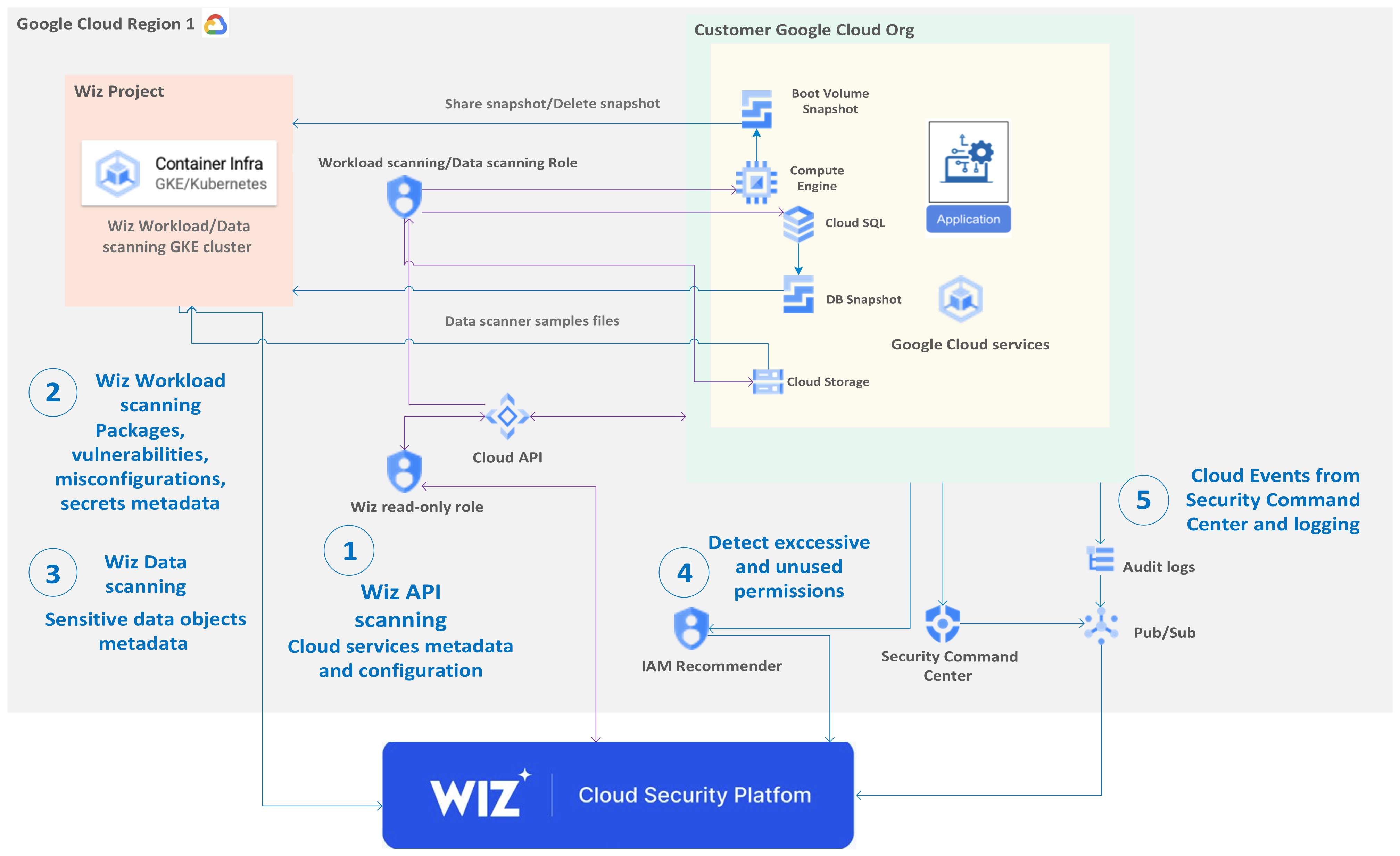
Wiz Cloud Security Platform is a software-as-a-service (SaaS)
solution. This architecture diagram demonstrates the following workflow:
1. Wiz API scanning collects Google Cloud services and their configuration metadata to build a complete inventory.
2. Wiz Workload scanning collects the metadata of operating systems, apps, packages, secrets, and container files to create a list of vulnerabilities and misconfigurations.
3. Wiz Data scanning scans [Cloud Storage](https://docs.cloud.google.com/storage), non-OS volumes, tables in [Cloud SQL](https://docs.cloud.google.com/sql), and collects metadata from sensitive data objects.
4. Wiz uses Identity and Access Management (IAM) [Recommender](https://docs.cloud.google.com/iam/docs/recommender-overview) to find excessive and unused permissions to create Wiz findings.
5. Wiz ingests [Admin Activity audit logs](https://docs.cloud.google.com/logging/docs/audit#admin-activity) and [Security Command Center findings](https://docs.cloud.google.com/security-command-center) to add threat events to create Wiz findings.
Wiz uses the information that it gathers to create a node-and-edge graph of
your assets and their interconnections. This graph, called the *Wiz Security
Graph*, lets Wiz identify the most toxic risk combinations. These
combinations are then flagged as Wiz Issues, which trigger alerts and automated
workflows for remediation.
## Connect the Wiz tenant to your Google Cloud infrastructure
Before you connect Wiz to your Google Cloud infrastructure, ensure that
you've met the following prerequisites. To deploy on the organization level, the
person who performs the connection must have sufficient permissions, either as a
Google Cloud owner or as a user with the following organization-level
roles:
- `roles/iam.serviceAccountAdmin`
- `roles/iam.organizationRoleAdmin`
- `roles/iam.securityAdmin`
> [!NOTE]
> **Note:** Wiz strongly recommends that you connect on the organization level. Doing so lets all Google Cloud projects, both existing and future, be detected and scanned automatically.
To deploy on the project level, the person who performs the connection must have
the rights of a Google Cloud project `roles/owner` role (or better).
Other prerequisites include the following:
- Knowledge of your organization or project ID.
- [Permissions](https://docs.cloud.google.com/endpoints/docs/openapi/control-api-callers) to enable [Google API services](https://docs.cloud.google.com/service-usage/docs/reference/rest/v1/services/enable).
- Access to Wiz as a Global Admin, Global Contributor, Settings Admin, or Connector Admin.
### Create a Google Cloud connector
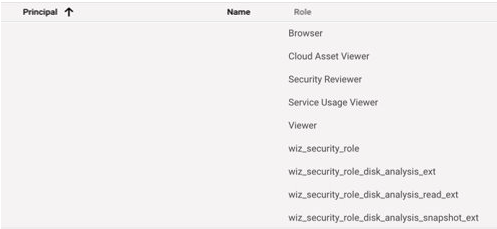
Wiz provides auto-generated scripts that you can run to create a service account
and all the roles that you need to use Wiz with Google Cloud.
The following screenshot shows a Wiz service account created by the scripts:
#### Use Cloud APIs to scan your organization
This section explains the interactions between Wiz and Google Cloud
components to help you understand the necessity of permissions and roles to be
granted.
Use
[IAM](https://docs.cloud.google.com/iam)
to grant Wiz with read-only roles to scan your Google Cloud organization
using
[Cloud APIs](https://docs.cloud.google.com/apis).
Wiz requires read-only roles to call
[Cloud APIs](https://docs.cloud.google.com/apis).
Wiz collects the metadata and configuration information from all the Google
services in your Google Cloud organization, including firewall rules and
access controls. Wiz then builds an inventory of all Google Cloud
services.
For more information, see
[Supported Cloud Services Google Cloud](https://docs.wiz.io/wiz-docs/docs/supported-cloud-services#google-cloud-platform-gcp).
#### Use Wiz Workload scanning
To create and delete a snapshot, Wiz requires
[proper IAM roles](https://docs.wiz.io/wiz-docs/docs/gcp-man-connector#create-the-wiz-roles-in-gcp).
After the API scan is complete, Wiz automatically
creates a Workload scanner in the same
[region](https://docs.cloud.google.com/docs/geography-and-regions#regions_and_zones)
where the Compute Engine instance resides.
The Wiz Workload scanner creates a snapshot of the boot volume of each
Compute Engine instance. It does so by mounting a read-only volume that
is backed by the snapshot. After the scan is complete, Wiz deletes the snapshot.
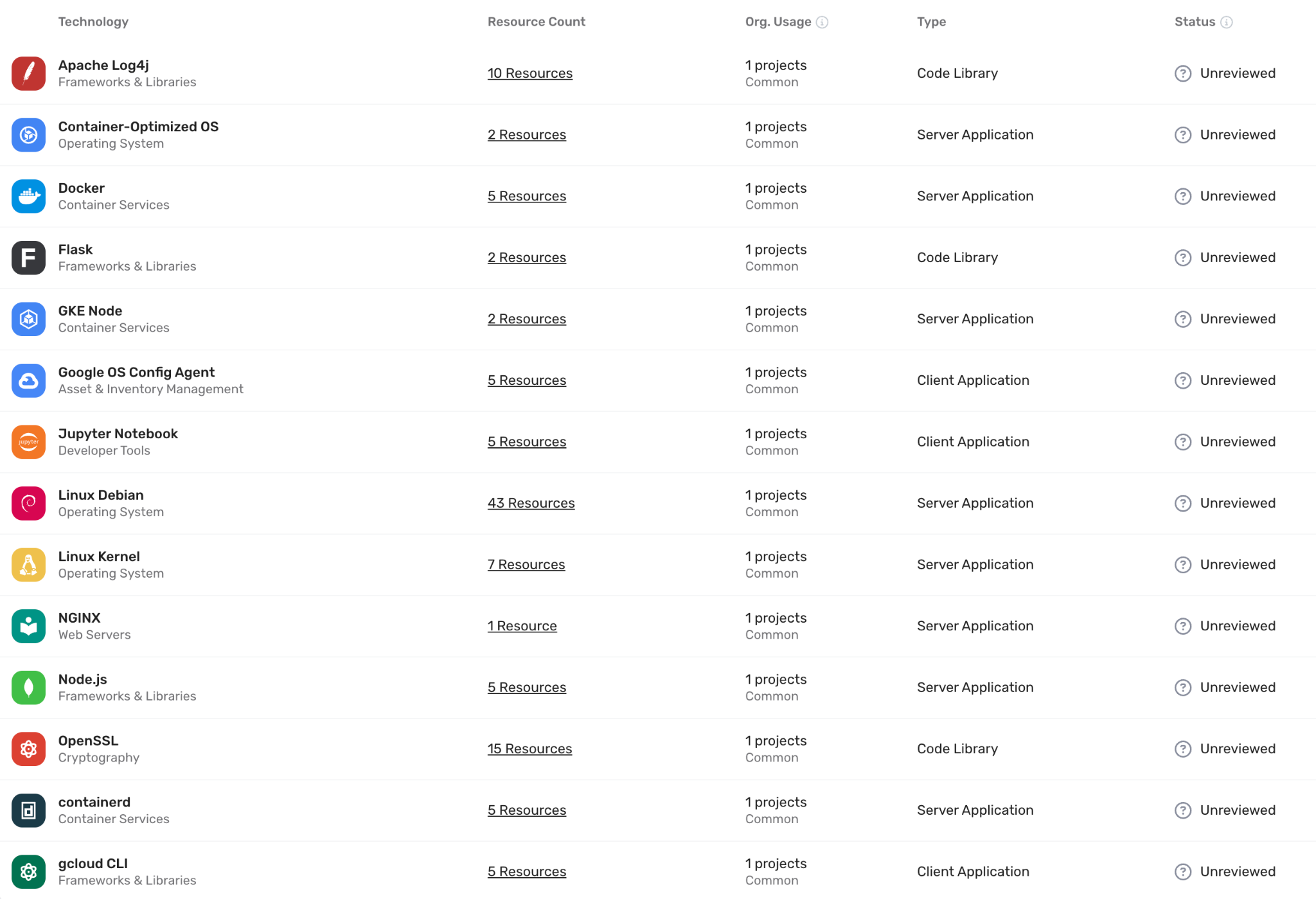
Workload scanning detects several coding languages or frameworks like Go,
Python, or React. It also detects operating systems or applications on a VM,
container, or serverless function--for example, Linux, NGINX, Docker, or Ansible.
Workload scanning collects metadata on packages, misconfigurations, and secrets,
including SSH keys, cloud keys, and container files from the boot volumes.
The following screenshot of the Wiz UI shows the results of a Wiz Workload scan:
#### Use Wiz Data scanning
Data scanning is an extension of
[Wiz Workload scanning](https://docs.wiz.io/wiz-docs/docs/system-architecture).
If you enable data discovery, the scanner performs a sampling scan of the files.
Files are scanned in the following locations:
- Buckets
- Hosted databases on non-OS disks (if [scanning non-OS disks is enabled](https://docs.wiz.io/wiz-docs/docs/disk-scanner-settings#enable-non-os-disk-scanning))
- Tables in SQL servers
Wiz searches files for the following sensitive data:
- Payment card industry data
- Personally identifiable information (PII)
- Protected health information (PHI)
When a match is detected with high confidence, metadata about these objects is
added to the Security Graph as a Data Finding. After an object is added to the
Security Graph, queries and Controls are used for risk analysis.
A [Control consists of a pre-defined Security Graph query](https://registry.terraform.io/providers/rhizo-co/wiz/latest/docs/resources/control)
and a Severity level. If a Control's query returns any results, an Issue is
generated for every result.
> [!NOTE]
> **Note:** As with all other Wiz assessments, Wiz doesn't store the data. Wiz only stores the metadata results. Wiz highlights only a partially redacted sample of the detected Data Finding so that you can identify, verify, and remediate the Data Finding. Wiz requires additional permissions to scan your private buckets and platform-as-a-service (PaaS) databases like Cloud SQL for protected data and secrets.
#### Ingest Event Threat Detection from Security Command Center
Wiz integrates Google Cloud's Event Threat Detection with Security Command Center
to add correlation and context to Security Command Center events and highlight the
critical risks on the security graph. For example, Wiz Security Graph visualizes
an exposed Compute Engine instance with a critical vulnerability and a
lateral movement finding on which Event Threat Detection has also detected potentially
suspicious events. This integration requires Security Command Center Premium,
because this is the tier that detects threats. The Google Cloud Security
Reviewer role that is attached to the Wiz service account grants the permissions
to list the Security Command Center findings.
The following diagram illustrates the attack path analysis of a hypothetical
critical issue in Security Graph:
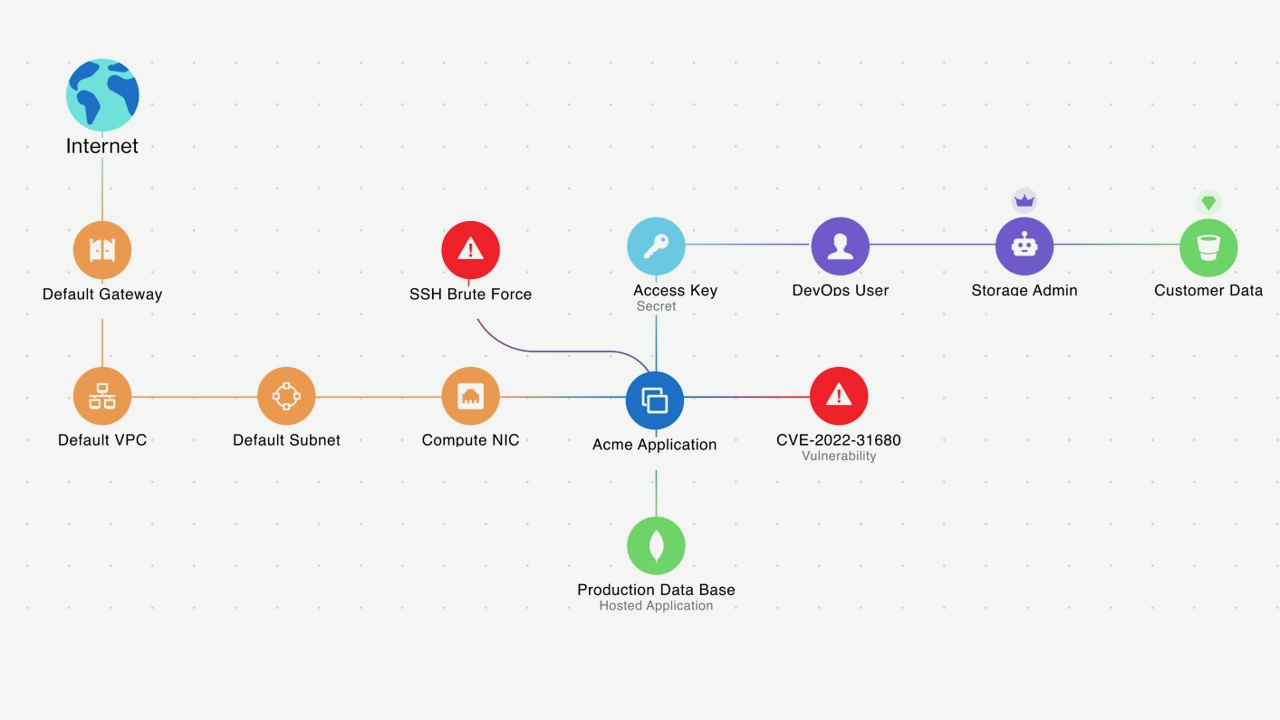
The diagram shows how Wiz ingests threat events from Event Threat Detection
and adds them to Security Graph. There is an SSH Brute Force finding associated
with a hypothetical Compute Engine instance. The hypothetical
Compute Engine instance has Common Vulnerabilities and Exposures (CVE)
and is exposed to the internet. The Compute Engine instance also has an
access key that leads to data access.
The combination of multiple risks represents a high probability for a malicious
actor to access this instance and exfiltrate any data it contains. The SSH Brute
Force alert on this hypothetical Compute Engine instance needs immediate
attention.
### Connect Cloud Audit Logs to Wiz Cloud Detection and Response
Wiz Cloud Detection and Response (CDR) detects, investigates, and responds to
cloud threats. Wiz CDR ingests cloud events from
[Cloud Audit Logs](https://docs.cloud.google.com/logging/docs/audit)
and
[Google Workspace audit logs](https://support.google.com/a/answer/9320190).
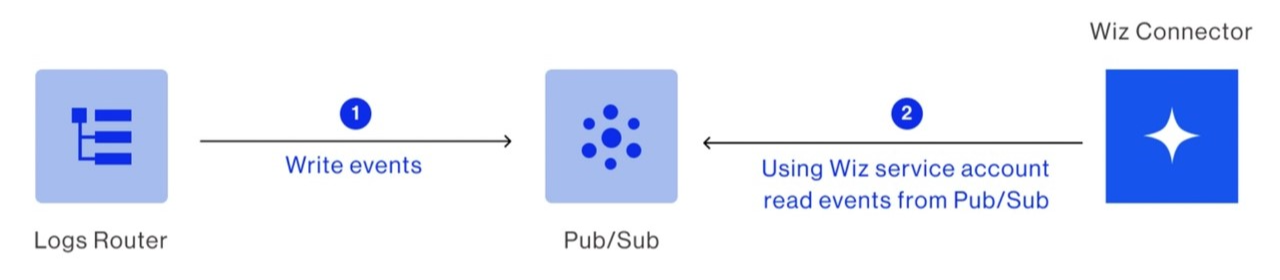
These logs are streamed to a Pub/Sub topic that you create.
Here are the deployment steps:
1. Create a Pub/Sub topic and subscription in a Google Cloud project.
2. Stream admin activity and data access audit logs to the created topic.
3. Stream audit logs from Google Cloud to Wiz.
4. Connect Wiz to the Pub/Sub topic.
The following diagram shows that Wiz connects to Pub/Sub to read
logs that are published by the connected projects or organization:
For more information about configuration details, see the
[Wiz documentation](https://docs.wiz.io/wiz-docs/docs/gcp-cloud-events).
## Deploy the Wiz Runtime Sensor to a GKE cluster
The following diagram shows how the Wiz Runtime Sensor in the Google Cloud
environment connects to the Wiz container registry and the Wiz cloud backend:
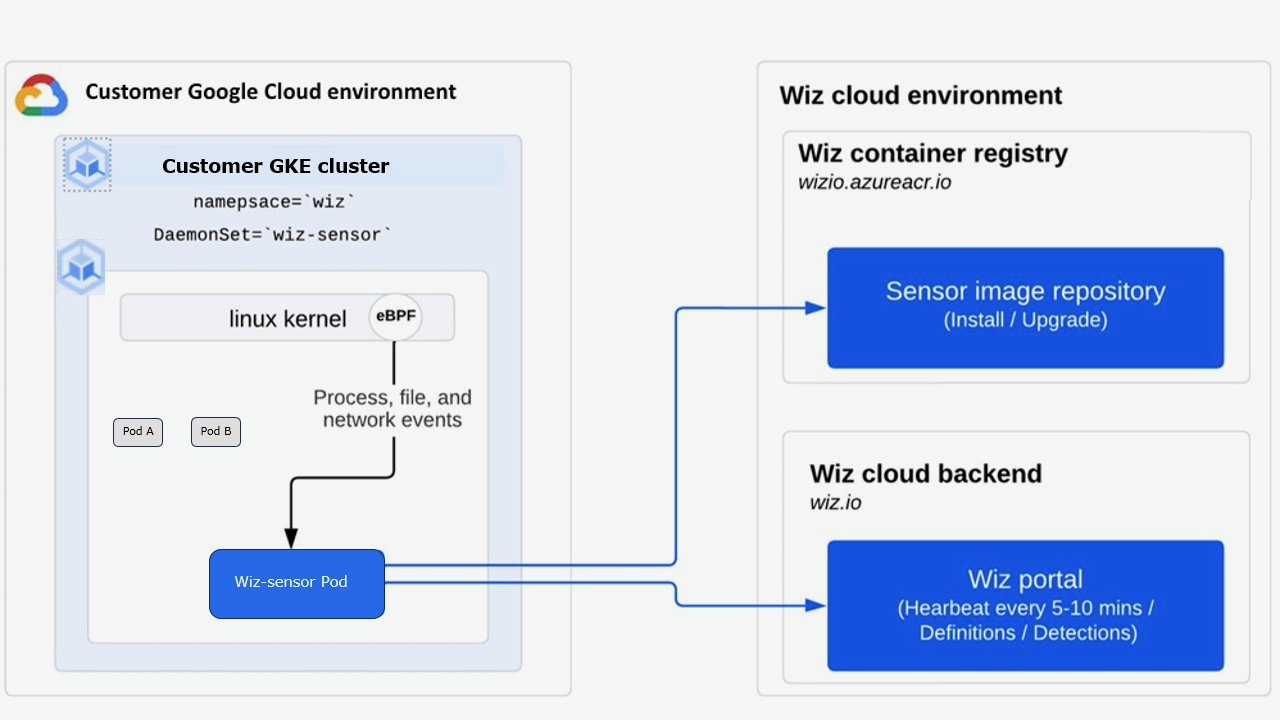
In the diagram, the Wiz Runtime Sensor is an eBPF-based executable designed to
offer real-time visibility into your Google Cloud and Kubernetes workloads.
The
[Container Security](https://docs.cloud.google.com/architecture/partners/id-prioritize-security-risks-with-wiz#container_security)
section provides additional detail.
### Prerequisites
To deploy the Wiz Runtime Sensor to a GKE cluster, you must meet
the following prerequisites:
- Google Cloud is connected to Wiz.
- GKE is running version 1.20.9-gke.1000 and later.
- The GKE cluster allows outbound HTTPS connectivity. For more information see, [Outbound Communication](https://docs.wiz.io/wiz-docs/docs/sensor-outbound-comm).
### Deployment
Here are the steps to use a Helm chart to deploy Wiz Runtime Sensor daemon set
to a GKE cluster:
1. Create a Service Account for the Runtime Sensor in Wiz.
2. Obtain the Runtime Sensor Helm chart.
3. Obtain the Runtime Sensor image pull key from Wiz.
4. Install the Runtime Sensor on a GKE cluster.
5. Perform a confidence check.
For more information about deployment details, see
[Install Runtime Sensor](https://docs.wiz.io/wiz-docs/docs/sensor-install).
## Security
As a customer, you own your Wiz tenant. Wiz doesn't have access to your tenant.
To list your cloud resources and interrogate the control plane for their
configuration, the cloud scanner connects using read-only permissions. The
read-only permissions grant access to your
cloud APIs (like AWS, Azure, Google Cloud, OCI, Kubernetes, and others).
By default, the read-only permissions that you created for the Wiz scanner grant
access to all the Google Cloud services that you use. The goal is complete
visibility into your environment. To exclude some of the services, you can
modify your Wiz role-creation scripts.
### VPC Service Controls
If your organization uses VPC Service Controls to restrict Google services
in projects that you want Wiz to scan, you need to add an access rule for
each perimeter. Users that have either the
`roles/accesscontextmanager.policyAdmin` role or the
`roles/accesscontextmanager.policyEditor` role can perform this operation.
Because Wiz initiates requests from outside of the VPC Service Controls
perimeters, you might need to add Wiz to your ingress rules. When you use an
Access Level while setting up your Ingress Policy, you might see the **FROM
attributes of the API client**. If your access level selection restricts source
IP addresses, you can add IP addresses for Wiz data centers.
#### Ingress policy
1. In the Google Cloud console, navigate to **Security \> VPC Service Controls**. Each perimeter protects one or more projects.
2. For each perimeter that restricts Google services in projects where you
want Wiz to scan, click **Edit \> Ingress Policy**.
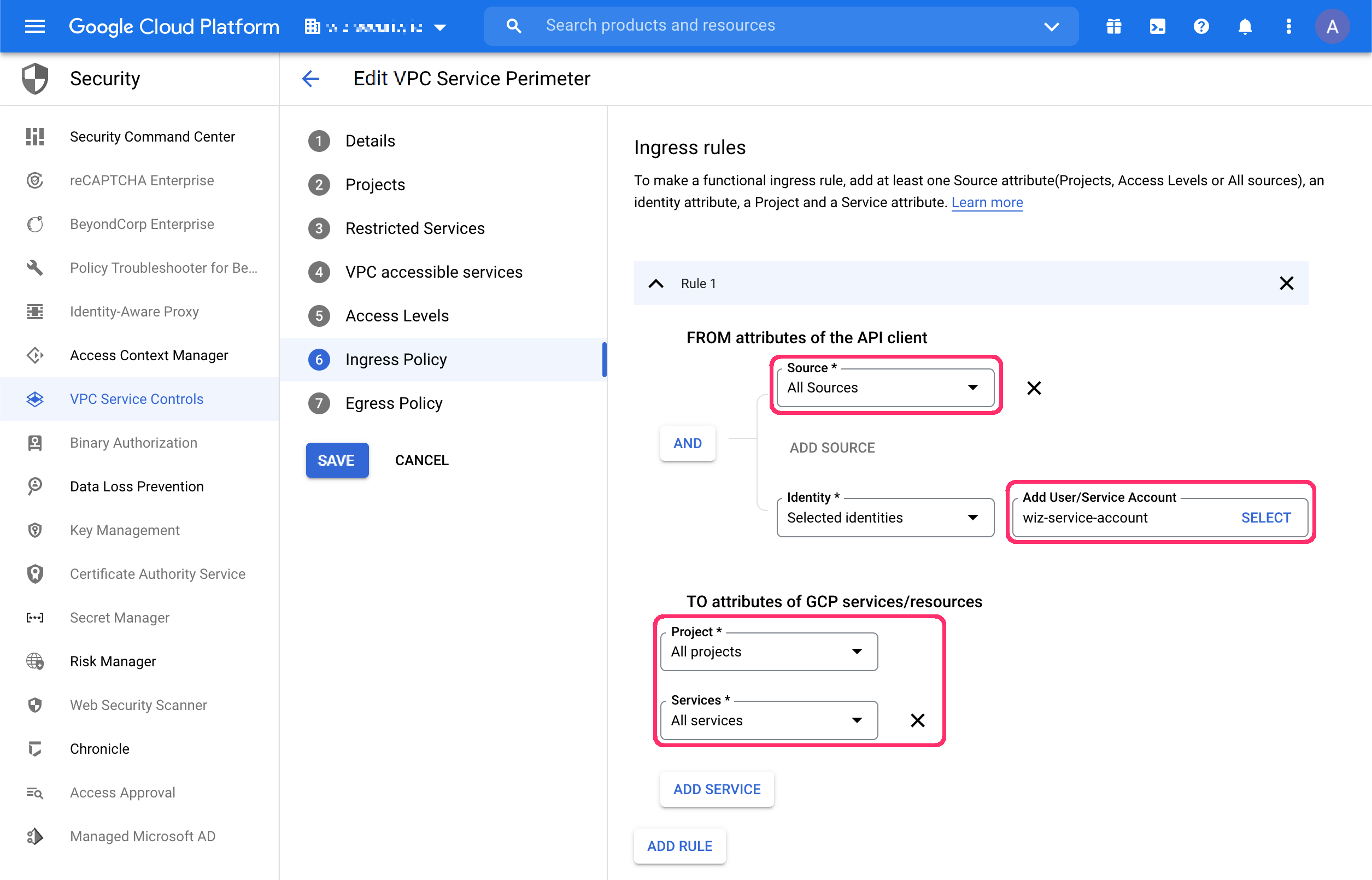
As shown in the preceding screenshot, leave the Source, Project, and
Services fields with their Default values.
3. Select the Wiz Service Account (default name: `wiz-service-account`),
then click **Add Rule**.
4. Click **Save**.
5. Navigate to **Access Level Manager** and add **Wiz Data Center Scan IP
addresses** to the Access Level.
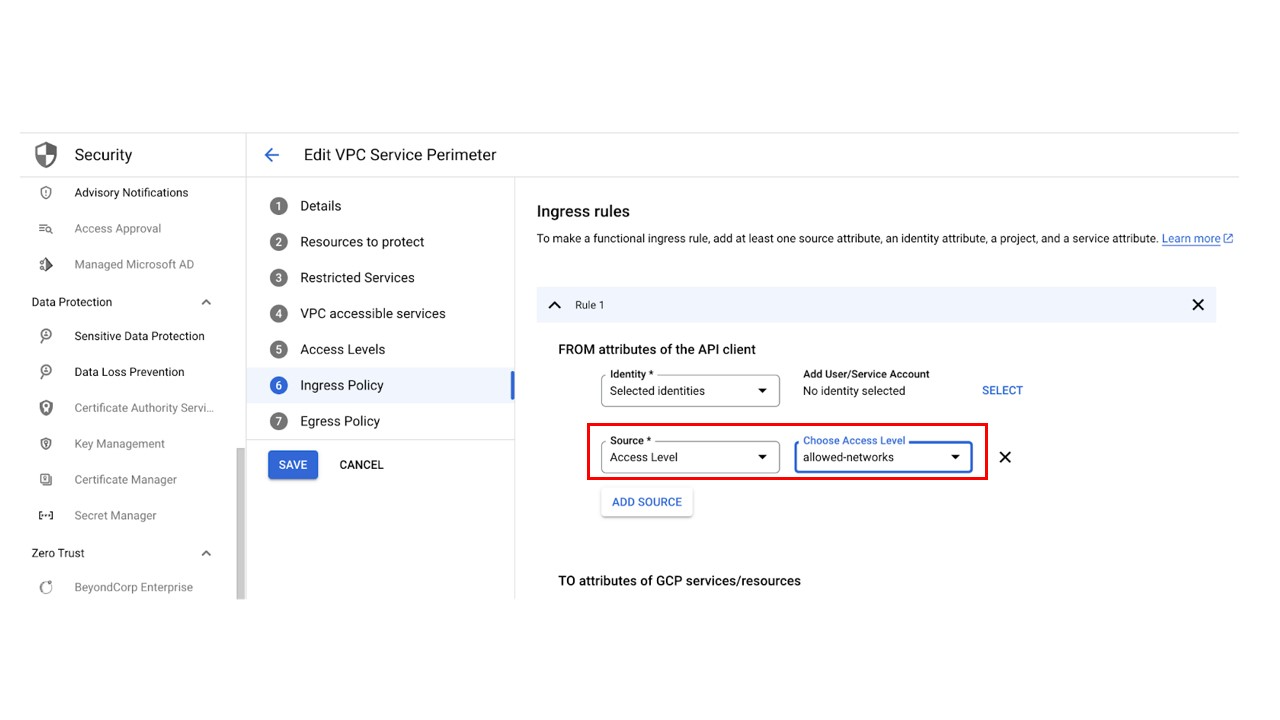
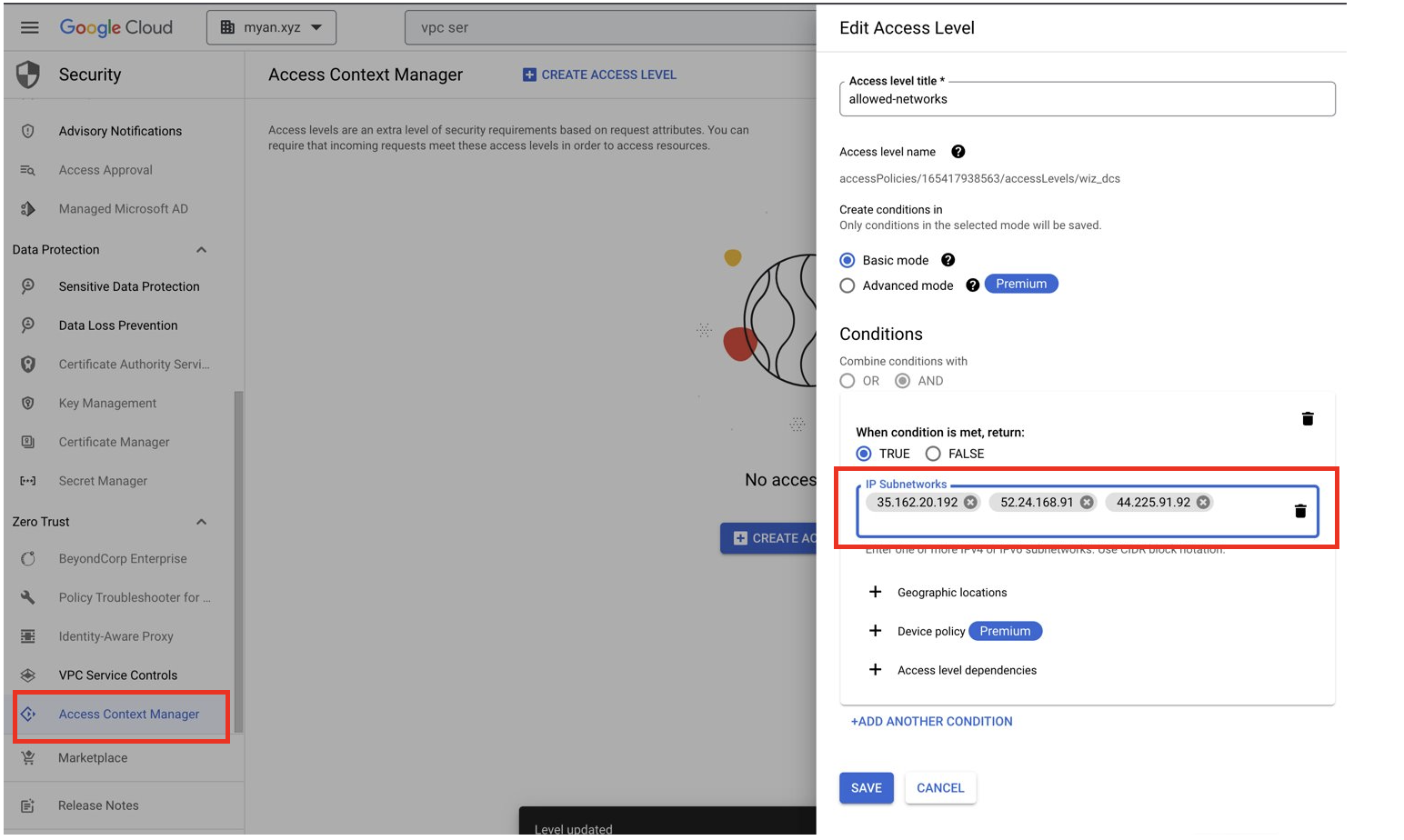
As shown in the preceding screenshots, you create an access level with a
custom name, and then you add the IP addresses of the data center where your
[Wiz tenant](https://docs.wiz.io/wiz-docs/docs/req-urls-ip-addr#data-center-ip-addresses)
is located.
6. In the **Conditions** section:
1. Add each Wiz data center IP address as an IP address subnetwork in this format: `3.132.145.19/24`.
2. Set **When condition is met, return** to **TRUE**.
7. Click **Save** to update the perimeter settings. Deployment can take up
to 20 minutes.
8. Repeat the previous three steps for every access level used by a
perimeter that affects a project that you want Wiz to scan.
### Use Wiz Outpost to keep data in your project
As shown in the following screenshot, Wiz Outpost is an alternative deployment
model to the standard SaaS deployment mode that's described in this document. It
lets you perform all Workload scanning in your own environment, using your own
infrastructure.
The following screenshot shows how to connect Outpost in the Wiz portal.
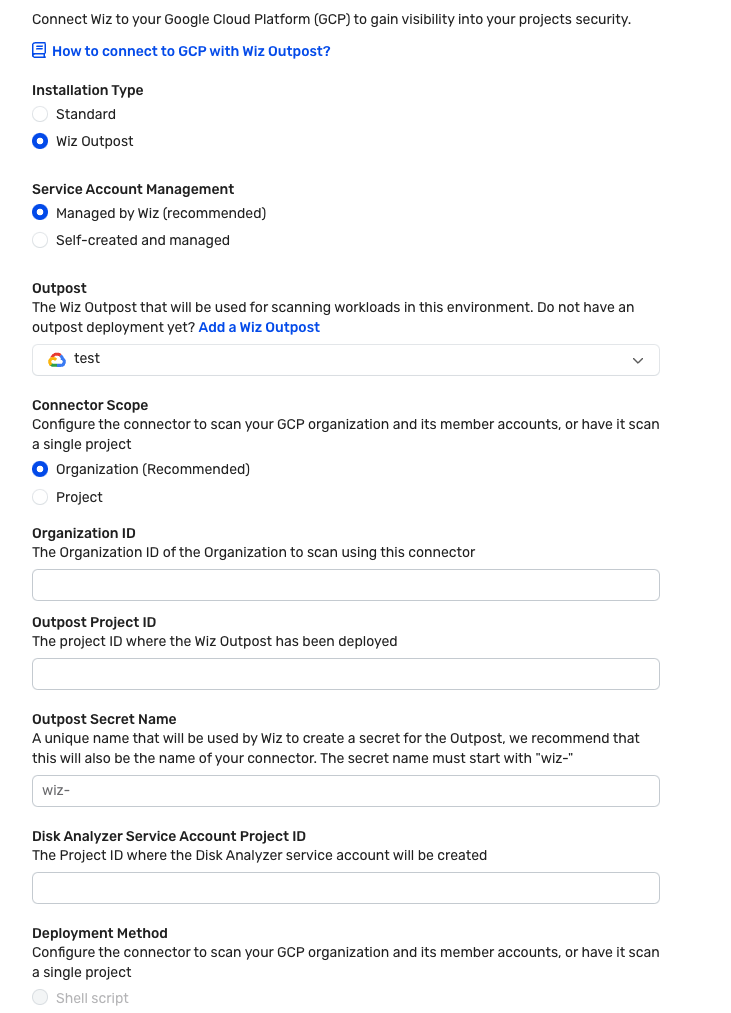
As shown in the preceding screenshot, you must provide the Google Cloud
organization ID you want to scan using this connector. You
must also provide the project ID of the project where the Wiz outpost was
deployed.
The following sample command creates a Wiz service account with a read-only
role to all the cloud services and a role to create snapshots and delete
snapshots.
For more information about the deployment details, see the Wiz documentation on
[Google Cloud connector](https://docs.wiz.io/wiz-docs/docs/gcp-connector).
After determining the correct deployment information for your use case, use
Cloud Shell to run the following command:
curl -fsSL https://SERVER_URL/deployment-v2/gcp/cli/wiz-gcp.sh | bash /dev/stdin managed-standard organization-deployment
--organization-id=ORGANIZATION_ID
--wiz-managed-id=WIZ_MANAGED_ID
Replace the following:
- SERVER_URL: The server URL that appears in the Wiz console.
- ORGANIZATION_ID: The Google Cloud organization ID.
- WIZ_MANAGED_ID: The account ID for the Wiz managed service account in Google Cloud.
Using the Wiz Outpost deployment model, all Workload scanner functionality is
pulled out of the Wiz backend and recreated in your own environment. This
process is shown in the
[Architecture section](https://docs.cloud.google.com/architecture/partners/id-prioritize-security-risks-with-wiz#Architecture)
diagram. The Wiz workload scan of the GKE cluster in **Wiz
project** should be deployed to a project in the **Customer Organization**.
Snapshots in the Outpost deployment model are still created, scanned, and
deleted in the same manner, but all analysis occurs in your environment. Only
the metadata results are sent to the Wiz backend. Examples of metadata results
include the following:
- Installed packages
- Exposed secrets
- Malware detection
## Use case: Agentless scanning provides full stack multi-cloud visibility in minutes
Wiz scans the entire cloud stack in read-only mode, including all VMs,
containers, serverless apps, data repositories, and PaaS services that use the
Cloud APIs. For example, customers use Wiz to search for resources
that are associated with Log4j vulnerabilities.
The Wiz cloud risk engine compiles multiple layers of configuration, network and
identity data, and cloud events from Cloud Audit Logs to surface effective
external exposure, unintentionally excessive permissions, exposed secrets, and
lateral movement paths.
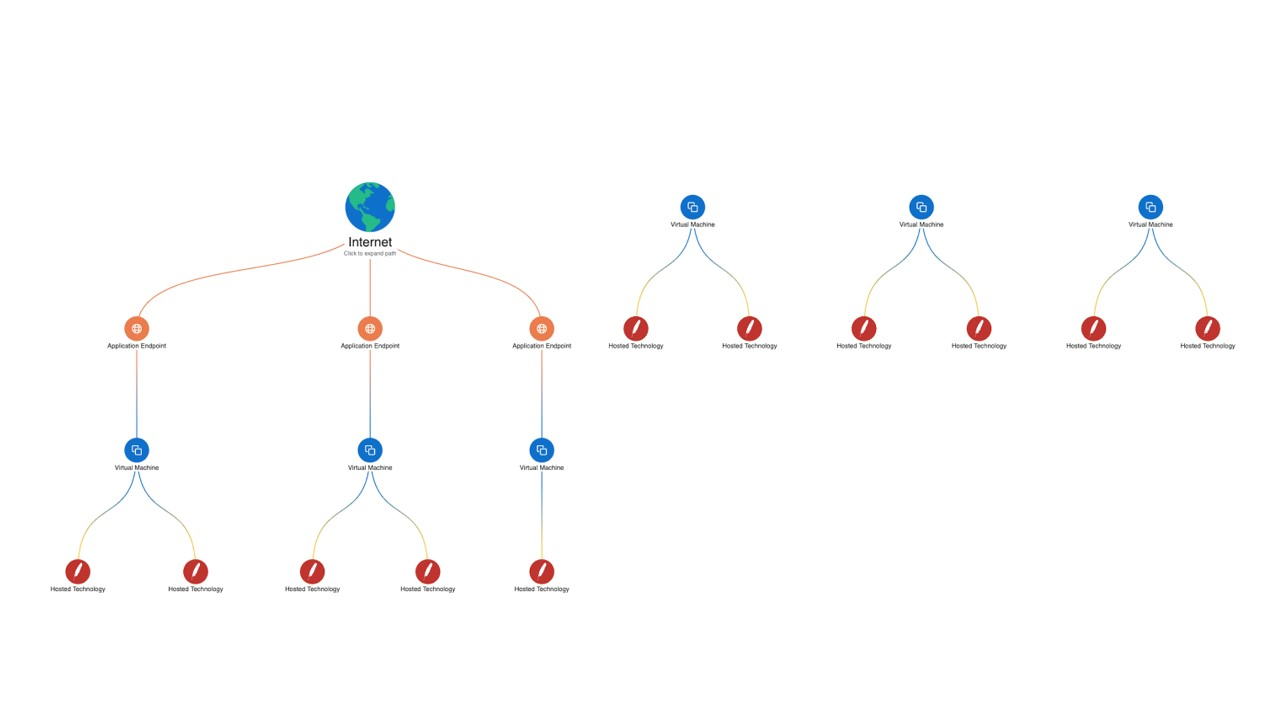
As shown in the following diagram, Wiz Security Graph shows the cloud resources
that are associated with Log4j vulnerabilities:
## Compliance
Wiz automatically assesses your compliance posture against more than 100
industry compliance frameworks or your custom frameworks. That assessment helps
eliminate the manual effort and complexity of achieving compliance in dynamic
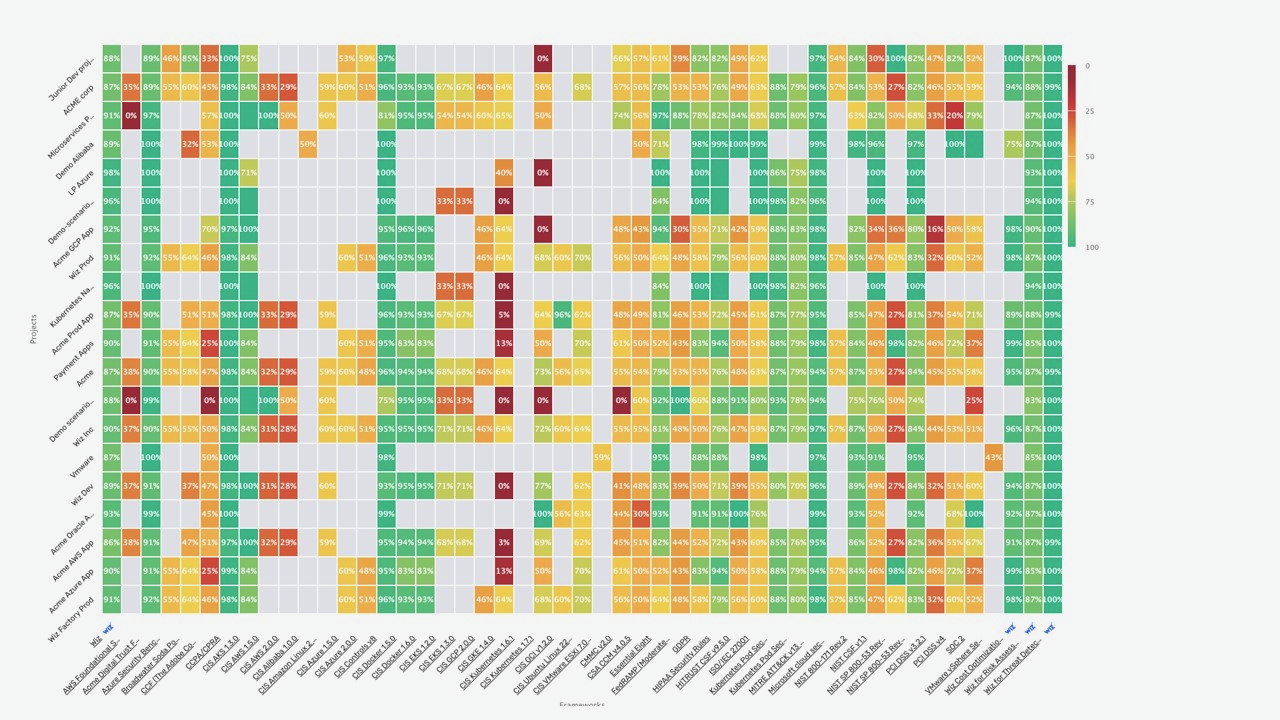
and multi-cloud environments. The following screenshot shows a compliance
heatmap, which lets you survey your Google Cloud environment across all
compliance frameworks--including CIS and NIST--at a high level and quickly
determine where your security teams should focus.
## Container security
Wiz assesses and correlates container security risk across container images,
identities, the Kubernetes network, and the cloud environment. Wiz also enables
comprehensive, end-to-end Kubernetes security posture management and compliance.
Wiz Guardrails enable organizations to enact a single policy framework that
spans the development lifecycle (CI/CD pipeline) to runtime. Wiz Runtime Sensor
is a lightweight eBPF-based agent that can be deployed within Kubernetes
clusters as a daemon set to provide real-time visibility and monitoring of
running processes, network connections, file activity, system calls--and more--to
detect malicious behavior affecting the workload.
The following diagram shows the Wiz Guardrails that are in place. These
guardrails span the development cycle to runtime.

## Deploy Wiz
Connectors let Wiz access your cloud environment to assume roles, create
snapshots, share snapshots with Wiz for analysis, and delete snapshots. You'll
need to create a Cloud Connector for your Google Cloud organization or
project. As mentioned previously, Wiz supports both shell script and Terraform.
The following is a sample script
for Cloud Shell that connects Wiz to an organization. It also
includes an ID test for standard deployment:
curl -fsSL https://SERVER_URL/deployment-v2/gcp/cli/wiz-gcp.sh | bash /dev/stdin managed-standard organization-deployment
--organization-id=test
--wiz-managed-id=WIZ_MANAGED_ID
Replace the following:
- SERVER_URL: The server URL that appears in the Wiz console.
- WIZ_MANAGED_ID: The account ID for the Wiz managed service account in Google Cloud.
The following is a sample Terraform script that connects Wiz to an organization.
It also includes an ID test for standard deployment:
module "wiz" { source = "https://SERVER_URL/deployment-v2/gcp/wiz-gcp-org-terraform-module.zip" org_id = "test" wiz_managed_identity_external_id = WIZ_MANAGED_ID data_scanning = false }
For more information, see the Wiz documentation on
[How to connect to Google Cloud](https://docs.wiz.io/docs/gcp).
## What's next
- Learn more about how to [See and secure your Google Cloud environment
with Wiz](https://www.datocms-assets.com/75231/1695407355-wiz-google-better-together-solution-guide-08_2023.pdf)
- Read the [Wiz Solution Briefing for Google Cloud](https://www.wiz.io/partners/gcp).
- Learn more about [Wiz and Google Cloud's Security Command Center: Modern threat detection and response rooted in risk prioritization](https://www.wiz.io/blog/wiz-and-google-cloud-security-command-center-modern-threat-detection-and-response).
- Learn how to [Accelerate your cloud Journey with Wiz and Google Cloud](https://www.datocms-assets.com/75231/1690558591-wiz_gcp_better_together_july2023.pdf).
- For more reference architectures, diagrams, and best practices, explore the [Cloud Architecture Center](https://docs.cloud.google.com/architecture).