This document describes how you deploy the reference architecture described in
[Import logs from Cloud Storage to Cloud Logging](https://docs.cloud.google.com/architecture/import-logs-from-storage-to-logging).
These instructions are intended for engineers and developers, including DevOps,
site reliability engineers (SREs), and security investigators, who want to
configure and run the log importing job. This document also assumes you are
familiar with running Cloud Run import jobs, and how to use
Cloud Storage and Cloud Logging.
## Architecture
The following diagram shows how Google Cloud services are used in this
reference architecture:
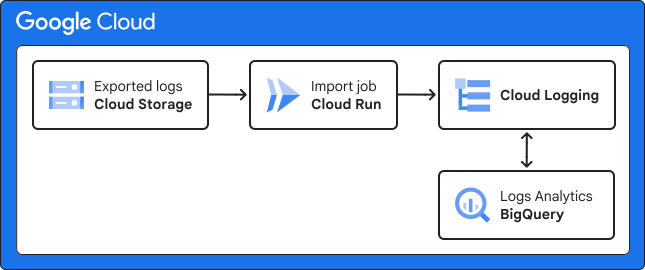
For details, see
[Import logs from Cloud Storage to Cloud Logging](https://docs.cloud.google.com/architecture/import-logs-from-storage-to-logging).
## Objectives
- Create and configure a Cloud Run import job
- Create a service account to run the job
## Costs
In this document, you use the following billable components of Google Cloud:
- [Cloud Logging](https://docs.cloud.google.com/logging)
- [Cloud Run](https://docs.cloud.google.com/run)
- [Cloud Storage](https://docs.cloud.google.com/storage)
To generate a cost estimate based on your projected usage,
use the [pricing calculator](https://docs.cloud.google.com/products/calculator).
New Google Cloud users might be eligible for a [free trial](https://docs.cloud.google.com/free).
## Before you begin
1. Ensure that the logs you intend to import were previously exported to
Cloud Storage, which means that they're already organized in the
expected
[export format](https://docs.cloud.google.com/logging/docs/export/storage#gcs-organization).
2.
In the Google Cloud console, activate Cloud Shell.
[Activate Cloud Shell](https://console.cloud.google.com/?cloudshell=true)
3.
[Create or select a Google Cloud project](https://cloud.google.com/resource-manager/docs/creating-managing-projects).
**Roles required to select or create a project**
- **Select a project**: Selecting a project doesn't require a specific IAM role---you can select any project that you've been granted a role on.
- **Create a project** : To create a project, you need the Project Creator role (`roles/resourcemanager.projectCreator`), which contains the `resourcemanager.projects.create` permission. [Learn how to grant
roles](https://docs.cloud.google.com/iam/docs/granting-changing-revoking-access).
- Create a Google Cloud project:
```
gcloud projects create PROJECT_ID
```
Replace `PROJECT_ID` with a name for the Google Cloud project you are creating.
- Select the Google Cloud project that you created:
```
gcloud config set project PROJECT_ID
```
Replace `PROJECT_ID` with your Google Cloud project name.
Replace PROJECT_ID with the destination project ID.
> [!NOTE]
> **Note:** We recommend that you create a new designated project for the imported logs. If you use an existing project, imported logs might get routed to unwanted destinations, which can cause extra charges or accidental export. To ensure logs don't route to unwanted destinations, review the filters on all the [sinks](https://docs.cloud.google.com/logging/docs/routing/overview#sinks), including `_Required` and `_Default`. Ensure that sinks are not inherited from [organizations or folders](https://docs.cloud.google.com/logging/docs/default-settings).
4. [Make sure that billing is enabled for your Google Cloud project](https://docs.cloud.google.com/billing/docs/how-to/verify-billing-enabled#gcloud).
5.
Enable the Cloud Run and Identity and Access Management (IAM) APIs, if any are not already enabled:
**Roles required to enable APIs**
To enable APIs, you need the `serviceusage.services.enable` permission. If you
created the project, then you likely already have this permission through the
Owner role (`roles/owner`). Otherwise, you can get this permission through the
Service Usage Admin role (`roles/serviceusage.serviceUsageAdmin`).
[Learn how to grant roles](https://docs.cloud.google.com/iam/docs/granting-changing-revoking-access).
```bash
gcloud services enable run.googleapis.com iam.googleapis.com
```
### Required roles
To get the permissions that
you need to deploy this solution,
ask your administrator to grant you the
following IAM roles:
- To grant the Logs Writer role on the log bucket: [Project IAM Admin](https://docs.cloud.google.com/iam/docs/roles-permissions/resourcemanager#resourcemanager.projectIamAdmin) (`roles/resourcemanager.projectIamAdmin`) on the destination project
- To grant the Storage Object Viewer role on the storage bucket: [Storage Admin](https://docs.cloud.google.com/iam/docs/roles-permissions/storage#storage.admin) (`roles/storage.admin`) on the project where the storage bucket is hosted
- To create a service account: [Create Service Accounts](https://docs.cloud.google.com/iam/docs/roles-permissions/iam#iam.serviceAccountCreator) (`roles/iam.serviceAccountCreator`) on the destination project
- To enable services on the project: [Service Usage Admin](https://docs.cloud.google.com/iam/docs/roles-permissions/serviceusage#serviceusage.serviceUsageAdmin) (`roles/serviceusage.serviceUsageAdmin`) on the destination project
- To upgrade the log bucket and delete imported logs: [Logging Admin](https://docs.cloud.google.com/iam/docs/roles-permissions/logging#logging.admin) (`roles/logging.admin`) on the destination project
- To create, run, and modify the import job: [Cloud Run Developer](https://docs.cloud.google.com/iam/docs/roles-permissions/run#run.developer) (`roles/run.developer`) on the destination project
For more information about granting roles, see [Manage access to projects, folders, and organizations](https://docs.cloud.google.com/iam/docs/granting-changing-revoking-access).
You might also be able to get
the required permissions through [custom
roles](https://docs.cloud.google.com/iam/docs/creating-custom-roles) or other [predefined
roles](https://docs.cloud.google.com/iam/docs/roles-overview#predefined).
### Upgrade the log bucket to use Observability Analytics
We recommend that you use the default log bucket, and upgrade it to use Log
Analytics.
However, in a production environment, you can use your own log bucket if the
default bucket doesn't meet your requirements. If you decide to use your own
bucket, you must route logs that are ingested to the destination project to this
log bucket. For more information, see
[Configure log buckets](https://docs.cloud.google.com/logging/docs/buckets#create_bucket)
and
[Create a sink](https://docs.cloud.google.com/logging/docs/export/configure_export_v2#creating_sink).
When you upgrade the bucket, you can use SQL to query and analyze your logs.
There's no additional cost to upgrade the bucket or use Observability Analytics.
> [!NOTE]
> **Note:** After you upgrade a bucket, it can't be downgraded. For details about settings and restrictions, see [Upgrade a bucket to use Observability Analytics](https://docs.cloud.google.com/logging/docs/buckets#upgrade-bucket).
To upgrade the default log bucket in the destination project, do the
following:
- Upgrade the default log bucket to use Observability Analytics:
gcloud logging buckets update BUCKET_ID --location=LOCATION --enable-analytics
Replace the following:
- BUCKET_ID: the name of the log bucket (for example, `_Default`)
- LOCATION: a supported region (for example, `global`)
## Create the Cloud Run import job
When you create the job, you can use the prebuilt container image that is
provided for this reference architecture. If you need to modify the
implementation to change the 30-day
[retention period](https://docs.cloud.google.com/architecture/import-logs-from-storage-to-logging#retention-period)
or if you have other requirements, you can
[build your own custom image](https://github.com/GoogleCloudPlatform/python-docs-samples/blob/main/logging/import-logs/README.md#build).
- In Cloud Shell, create the job with the configurations and
environment variables:
gcloud run jobs create JOB_NAME \
--image=IMAGE_URL \
--region=REGION \
--tasks=TASKS \
--max-retries=0 \
--task-timeout=60m \
--cpu=CPU \
--memory=MEMORY \
--set-env-vars=END_DATE=END_DATE,LOG_ID=LOG_ID,\
START_DATE=START_DATE,STORAGE_BUCKET_NAME=STORAGE_BUCKET_NAME,\
PROJECT_ID=PROJECT_ID
Replace the following:
- JOB_NAME: the name of your job.
- IMAGE_URL: the reference to the container image; use `us-docker.pkg.dev/cloud-devrel-public-resources/samples/import-logs-solution` or the URL of the custom image, if you built one by using the [instructions in GitHub](https://github.com/GoogleCloudPlatform/python-docs-samples/blob/main/logging/import-logs/README.md#build).
- REGION: the [region](https://docs.cloud.google.com/docs/geography-and-regions#regions_and_zones) where you want your job to be located; to avoid additional costs, we recommend keeping the job region the same or within the same multi-region as the Cloud Storage bucket region. For example, if your bucket is multi-region US, you can use us-central1. For details, see [Cost optimization](https://docs.cloud.google.com/architecture/import-logs-from-storage-to-logging#cost-optimization).
- TASKS: the number of tasks that the job must run. The default value is `1`. You can increase the number of tasks if timeouts occur.
- CPU: the CPU limit, which can be 1, 2, 4, 6, or 8 CPUs. The default value is `2`. You can increase the number if timeouts occur; for details, see [Configure CPU limits](https://docs.cloud.google.com/run/docs/configuring/services/cpu).
- MEMORY: the memory limit. The default value is `2Gi`. You can increase the number if timeouts occur; for details, see [Configure memory limits](https://docs.cloud.google.com/run/docs/configuring/services/memory-limits).
- END_DATE: the end of the date range in the format MM/DD/YYYY. Logs with timestamps earlier than or equal to this date are imported.
- LOG_ID: the log identifier of the logs you want to import. Log ID is a part of the [`logName` field](https://docs.cloud.google.com/logging/docs/reference/v2/rest/v2/LogEntry#FIELDS.log_name) of the log entry. For example, `cloudaudit.googleapis.com`.
- START_DATE: the start of the date range in the format MM/DD/YYYY. Logs with timestamps later than or equal to this date are imported.
- STORAGE_BUCKET_NAME: the name of the Cloud Storage bucket where logs are stored (without the `gs://` prefix).
The `max-retries` option is set to zero to prevent retries for failed
tasks, which can cause duplicate log entries.
If the Cloud Run job fails due to a timeout, an incomplete import
can result. To prevent incomplete imports due to timeouts, increase the `tasks`
value, as well as the [CPU](https://docs.cloud.google.com/run/docs/configuring/services/cpu) and [memory](https://docs.cloud.google.com/run/docs/configuring/services/memory-limits) resources.
Increasing these values might increase costs. For details about costs, see
[Cost optimization](https://docs.cloud.google.com/architecture/import-logs-from-storage-to-logging#cost-optimization).
## Create a service account to run your Cloud Run job
1. In Cloud Shell, create the user-managed service account:
gcloud iam service-accounts create SA_NAME
Replace SA_NAME with the name of the service account.
2. Grant the
[Storage Object Viewer](https://docs.cloud.google.com/iam/docs/roles-permissions/storage#storage.objectViewer)
role on the storage bucket:
gcloud storage buckets add-iam-policy-binding gs://STORAGE_BUCKET_NAME \
--member=serviceAccount:SA_NAME@PROJECT_ID.iam.gserviceaccount.com \
--role=roles/storage.objectViewer
Replace the following:
- STORAGE_BUCKET_NAME: the name of the storage bucket that you used in the import job configuration. For example, `my-bucket`.
- PROJECT_ID: the destination project ID.
3. Grant the
[Logs Writer](https://docs.cloud.google.com/iam/docs/roles-permissions/logging#logging.logWriter)
role on the log bucket:
gcloud projects add-iam-policy-binding PROJECT_ID \
--member=serviceAccount:SA_NAME@PROJECT_ID.iam.gserviceaccount.com \
--role=roles/logging.logWriter
4. Set the service account for the Cloud Run job:
gcloud run jobs update JOB_NAME \
--region=REGION \
--service-account SA_NAME@PROJECT_ID.iam.gserviceaccount.com
Replace REGION with the same region where you deployed the Cloud Run import job.
## Run the import job
- In Cloud Shell, execute the created job:
gcloud run jobs execute JOB_NAME \
--region=REGION
For more information, see
[Execute jobs](https://docs.cloud.google.com/run/docs/execute/jobs)
and
[Manage job executions](https://docs.cloud.google.com/run/docs/managing/job-executions).
If you need to rerun the job, delete the previously imported logs to avoid
creating duplicates. For details, see [Delete imported logs](https://docs.cloud.google.com/architecture/import-logs-from-storage-to-logging/deployment#delete_imported_logs)
later in this document.
When you query the imported logs, duplicates don't appear in the query results.
Cloud Logging removes duplicates (log entries from the same project, with the
same insertion ID and timestamp) from query results. For more information, see
the
[`insert_id` field](https://docs.cloud.google.com/logging/docs/reference/v2/rest/v2/LogEntry#FIELDS.insert_id)
in the Logging API reference.
## Verify results
To validate that the job has completed successfully, in Cloud Shell, you can query import
results:
gcloud logging read 'log_id("imported_logs") AND timestamp<=END_DATE'
The output shows the imported logs. If this project was used to run more than
one import job within the specified timeframe, the output shows imported logs
from those jobs as well.
For more options and details about querying log entries, see
[`gcloud logging read`](https://docs.cloud.google.com/sdk/gcloud/reference/logging/read).
## Delete imported logs
If you need to run the same job more than one time, delete the previously
imported logs to avoid duplicated entries and increased costs.
- To delete imported logs, in Cloud Shell, execute the logs delete:
gcloud logging logs delete imported_logs
Be aware that deleting imported logs purges *all* log entries that were
imported to the destination project and not only the results of the last import
job execution.
## What's Next
- Review the implementation code in the [GitHub repository](https://github.com/GoogleCloudPlatform/python-docs-samples/tree/main/logging/import-logs).
- Learn how to analyze imported logs by using [Observability Analytics and SQL](https://docs.cloud.google.com/logging/docs/analyze/query-and-view).
- For more reference architectures, diagrams, and best practices, explore the [Cloud Architecture Center](https://docs.cloud.google.com/architecture).
## Contributors
Author: [Leonid Yankulin](https://www.linkedin.com/in/minherz) \| Developer Relations Engineer
Other contributors:
- [Summit Tuladhar](https://www.linkedin.com/in/summitraj) \| Senior Staff Software Engineer
- [Wilton Wong](https://www.linkedin.com/in/wiltwong) \| Enterprise Architect
- [Xiang Shen](https://www.linkedin.com/in/xiangshen07) \| Solutions Architect