You can configure your Cloud Identity or Google Workspace account to use
single sign-on (SSO). When you enable SSO, users aren't prompted to enter a
password when they try to access Google services. Instead, they are redirected
to an
[external identity provider (IdP)](https://docs.cloud.google.com/architecture/identity/reference-architectures#using_an_external_idp)
to authenticate.
Using SSO can provide several advantages:
- You enable a better experience for users because they can use their existing credentials to authenticate and don't have to enter credentials as often.
- You ensure that your existing IdP remains the system of record for authenticating users.
- You don't have to synchronize passwords to Cloud Identity or Google Workspace.
To use SSO, a user must have a user account in Cloud Identity or Google Workspace and a
[corresponding identity](https://docs.cloud.google.com/architecture/identity/overview-google-authentication#external_identities)
in the external IdP. SSO is therefore commonly used in combination with an
[external authoritative source](https://docs.cloud.google.com/architecture/identity/overview-google-authentication#external_authoritative_source)
that automatically provisions users to Cloud Identity or Google Workspace.
> [!NOTE]
> **Note:** Users with super-admin privileges [can bypass single sign-on](https://support.google.com/a/answer/6341409). This ensures that super admins can access the account even if the SSO configuration is incorrect or the external IdP is unavailable.
## Single sign-on process
Cloud Identity and Google Workspace support Security Assertion Markup
Language (SAML) 2.0 for single sign-on. SAML is an open standard for exchanging
authentication and authorization data between a SAML IdP and SAML service
providers. When you use SSO for Cloud Identity or Google Workspace, your
external IdP is the SAML IdP and Google is the SAML service provider.
Google implements
[SAML 2.0 HTTP POST binding](https://docs.oasis-open.org/security/saml/v2.0/saml-bindings-2.0-os.pdf#page=15).
This binding specifies how authentication information is exchanged between the
SAML IdP and SAML service provider. The following diagram illustrates an example
of how this process works when you use SSO to access the Google Cloud console.
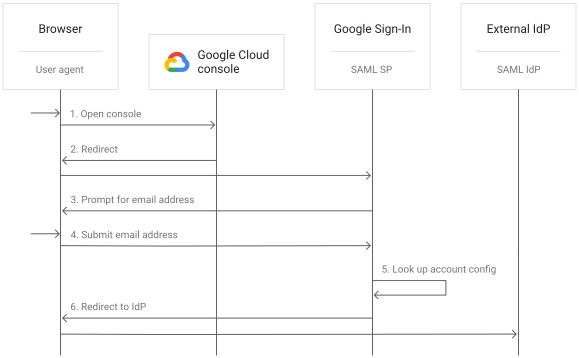
1. You point your browser to the Google Cloud console (or any other Google resource that requires authentication).
2. Because you are not yet authenticated, the Google Cloud console redirects your browser to Google Sign-In.
3. Google Sign-In returns a Sign-In page, prompting you to enter your email address.
4. You enter your email address and submit the form.
5. Google Sign-In looks up the Cloud Identity or Google Workspace account that is associated with your email address.
6. Because the associated Cloud Identity or Google Workspace
account has single sign-on enabled, Google Sign-In redirects the browser to
the URL of the configured external IdP. Before issuing the redirect, it
adds two parameters to the URL, `RelayState` and `SAMLRequest`.
- `RelayState` contains an identifier that the external IdP is expected to pass back later.
- `SAMLRequest` contains the *SAML authentication request* , an XML
document that has been
[deflated](https://wikipedia.org/wiki/DEFLATE),
base64-encoded, and URL-encoded. In decoded form, the SAML authentication
request looks similar to the following:
google.com
This example request instructs the external IdP to authenticate the
user, create a SAML assertion for the audience `google.com`, and post it to
the assertion consumer service (ACS) at
`https://www.google.com/a/example.com/acs`.
The domain that is embedded in the ACS URL (`example.com`) corresponds
to the primary domain of your Google Workspace or
Cloud Identity account.
If you use the domain-specific issuer feature when you configure SSO, the
issuer is `google.com/a/DOMAIN` instead of
`google.com`, where `DOMAIN` is the primary domain of
your Cloud Identity or Google Workspace account.
The steps taken by the external IdP to perform the authentication depend
on the IdP and its configuration---for example, it might display a login
dialog, or it might prompt for MFA or a fingerprint. When these steps have
been completed successfully, the SAML exchange continues:

7. The external IdP returns a specially crafted HTML page that causes your
browser to immediately send an HTTP POST request to the ACS URL. This
request contains two parameters:
- `RelayState`, which contains the value originally passed to the IdP in the SAML authentication request.
- `SAMLResponse`, which contains the base64-encoded *SAML assertion.* The
SAML assertion is an XML document that states that the IdP has
successfully authenticated the user. In decoded form, the SAML assertion
looks similar to the following:
...
https://idp.example.org/
...
bob@example.org
...
google.com
...
urn:oasis:names:tc:SAML:2.0:ac:classes:Password
This example assertion has been issued for the audience `google.com`
(matching the issuer of the SAML authentication request) and states that
the IdP `https://idp.example.org/` has authenticated the user
`bob@example.org`.
The SAML assertion also contains a digital signature. The IdP creates this
signature by using the private key of a signing certificate. The private
key is known only to the IdP. The corresponding public key is part of the
SSO configuration in Cloud Identity or Google Workspace and
shared with Google Sign-In.
The SAML assertion also contains a digital signature that enables the SAML
service provider to verify the assertion's authenticity.
8. The browser posts the SAML assertion to the Google ACS endpoint.
9. The ACS endpoint verifies the digital signature of the SAML assertion.
This check is done to ensure that the assertion originates from the trusted
external IdP and has not been tampered with. Assuming the signature is
valid, the ACS endpoint then analyzes the contents of the assertion,
which includes verifying its audience information and reading the
`NameID` attribute.
10. The ACS endpoint looks up your user account by matching the `NameID` of
the SAML assertion to the primary email address of the user. The
endpoint then starts a session.
11. Based on the information encoded in the `RelayState` parameter, the
endpoint determines the URL of the resource that you originally intended
to access, and you are redirected to the Google Cloud console.
## IdP-initiated Sign-in
The process outlined in the previous section is sometimes referred to as
*service provider--initiated sign-on* because the process starts at the service
provider, which in the preceding example is the Google Cloud console.
SAML also defines an alternative flow called *IdP-initiated sign-on*, which
starts at the IdP. Google does not support this flow, but you can
achieve similar results by using the following URL to initiate an service
provider--initiated sign-on:
```
https://www.google.com/a/DOMAIN/ServiceLogin?continue=https://console.cloud.google.com/
```
In this example, `DOMAIN` is the primary domain
of your Cloud Identity or Google Workspace account.
## Multi-factor authentication
To protect user accounts from unauthorized access, you can require users to
provide a second factor during authentication. There are two ways to implement
multi-factor authentication when using single sign-on:
1. If your external IdP supports multi-factor authentication, you can have it perform the multi-factor authentication as part of the SAML-based sign-on process. No additional configuration is required in Cloud Identity or Google Workspace in this case.
2. If your IdP does not support multi-factor authentication, you can configure your Cloud Identity or Google Workspace account to [perform two-step verification](https://support.google.com/a/answer/9464354?ref_topic=2759193) immediately after a user has authenticated with the external IdP.
> [!NOTE]
> **Note:** Because super admins can bypass SSO, any multi-factor authentication enforced by your external IdP does not apply to these users. To help ensure that super-admin users are protected, [enable two-step verification](https://support.google.com/accounts/answer/185839) for these users.
## Networking
In SAML 2.0 HTTP Redirect binding, the IdP and service provider don't
communicate directly. Instead, all communication is relayed through the user's
browser, as shown in the following diagram:

Given this architecture, it is not necessary for the IdP to be exposed over the
internet, or to even have internet access, as long as users are able to access
it from your corporate network.
## Configuration of the external IdP
Cloud Identity and Google Workspace let you configure single
sign-on by using the following features:
- **SAML profiles**: You can create a SAML profile for each IdP that you want to
integrate with. For each user, group, or organizational unit in your
Cloud Identity or Google Workspace account, you then
decide whether they must use SSO, and which SAML profile they
must use.
- **Legacy SAML profile** (formerly named *organizational SSO profile*):
You can use the legacy SAML profile to integrate with a single IdP.
For each user, group, or organizational
unit in your Cloud Identity or Google Workspace account, you then
decide whether they must use SSO or not.
The right way to configure your IdP depends on whether you use SAML profiles
or the legacy SAML profile. The following table summarizes the settings
that typically have to be configured in an external IdP to help ensure
compatibility.
| Configuration | Required setting for the legacy SAML profile | Required setting for SAML profiles | Remarks |
|---|---|---|---|
| Name ID | Primary email address of a the user | Primary email address of a the user | |
| Name ID format | `urn:oasis:names:tc:SAML:1.1:nameid-format:emailAddress` | `urn:oasis:names:tc:SAML:1.1:nameid-format:emailAddress` | |
| Entity ID | If the domain-specific issuer feature is enabled: `google.com/a/DOMAIN` If the domain-specific issuer feature is disabled (default): `google.com` Use the domain-specific issuer feature if you want to integrate multiple Google Workspace or Cloud Identity accounts with the same IdP. Otherwise leave it disabled. | Unique entity ID of your SAML profile. Depending on the creation date of your SAML profile, the entity ID uses one of the following formats: `https://accounts.google.com/samlrp/metadata?rpid=ID` `https://accounts.google.com/samlrp/ID` | |
| ACS URL pattern (or Redirect URL) | `https://www.google.com/a/*` | Unique ACS URL of your SAML profile. Depending on the creation date of your SAML profile, the URL uses one of the following formats: `https://accounts.google.com/samlrp/acs?rpid=ID` `https://accounts.google.com/samlrp/ID/acs` | |
| Request signing | Off | Off | SAML authentication requests issued by Google Sign-In are never signed |
| Assertion signing | On | On | SAML assertions must be signed to enable Google Sign-In to verify their authenticity. When you set up SSO in the Admin Console, you must upload the public key of the token signing key-pair. |
| Assertion encryption | Off | Off | |
| Signing algorithm | RSA-SHA256 | RSA-SHA256 | RSA-SHA256 is sometimes abbreviated as RS256 |
> [!NOTE]
> **Note:** Depending on the IdP you use, some settings might use different names or might not be configurable at all.
## What's next
- Review the [reference architectures for integrating with an external IdP](https://docs.cloud.google.com/architecture/identity/reference-architectures#using_an_external_idp).
- Learn how to set up account provisioning and SSO with [Microsoft Entra ID](https://docs.cloud.google.com/architecture/identity/federating-gcp-with-azure-active-directory) or [Active Directory](https://docs.cloud.google.com/architecture/identity/federating-gcp-with-active-directory-introduction).
- Read our [Best practices for federating Google Cloud with an external IdP](https://docs.cloud.google.com/architecture/identity/best-practices-for-federating).
## Contributors
Author: [Johannes Passing](https://www.linkedin.com/in/johannespassing) \| Cloud Solutions Architect