

This document provides an overview of Application-centric Google Cloud, a unified way to design, deploy, and manage your applications and resources across multiple Google Cloud projects.
When Google Cloud resources are spread across projects, tracking application health, performance, security, and cost can be complex. Instead of tracking resources individually, group and manage related resources as registered applications. This lets you:
- Deploy consistently: Use templates to design, deploy, and update applications.
- Strengthen governance: Set ownership and policies at the application level.
- Monitor health and cost: View performance, security posture, and cost in one place.
- Troubleshoot efficiently: Use resource dependencies to find issues and assess impact.
- Use AI assistance: Use Gemini Cloud Assist to design, cost optimize, and troubleshoot.
Application definition
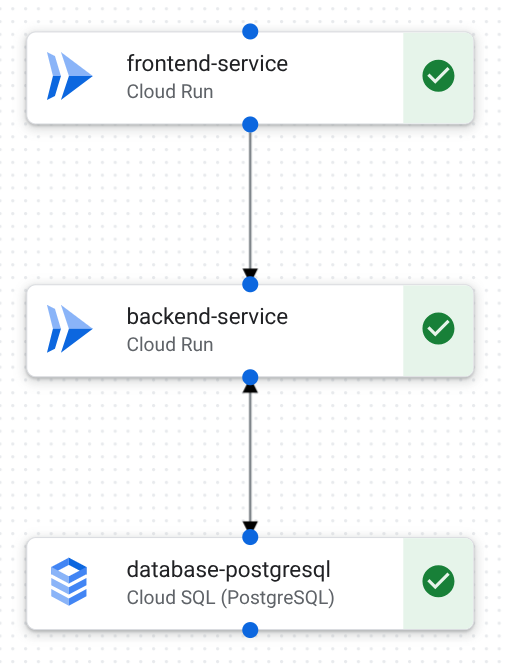
An application is a logical grouping of components, such as services and workloads, that work together to provide business functionality. For example, the following three-tier web application includes a Cloud Run frontend, a Cloud Run backend, and a Cloud SQL database:
Core features and integrations
The following diagram illustrates key features and products in Application-centric Google Cloud.
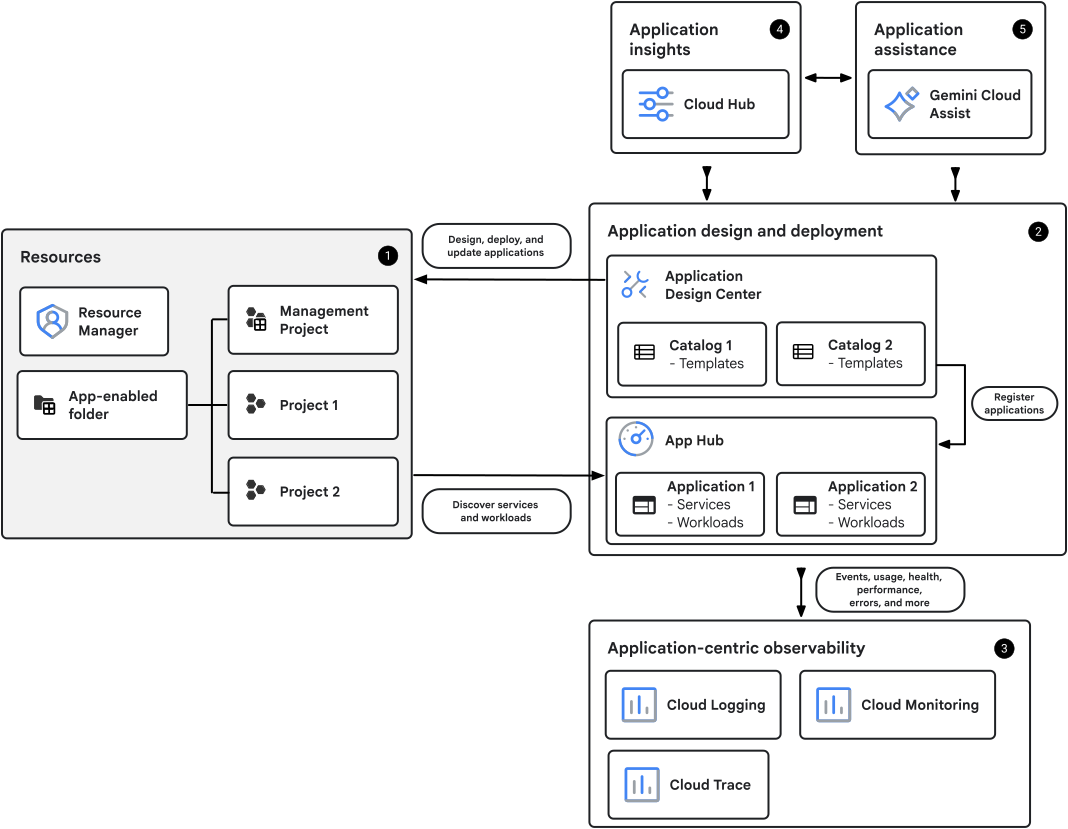
The numbers in the diagram reference the following descriptions:
Resources: Register your Google Cloud resources as logical groupings to manage them collectively.
Application design and deployment:
Use Application Design Center to design templates and deploy applications.
Use App Hub to organize existing resources into applications.
Observability: Use Google Cloud Observability to optimize and monitor applications, agents, and MCP servers:
- Monitor health and performance with metrics, logs, and traces.
- Set up alerts based on metrics and logs.
Cost optimization: Use App Optimize API to understand spending and resource usage.
- View cost trends and utilization changes in Cloud Hub and Cost Explorer.
- Use App Optimize API directly for trend analysis or to join cost data with other business data.
Security and compliance: Manage risk by tracking security posture findings in Security Command Center.
Insights:
- Get a centralized view of alerts, incidents, security findings, costs, maintenance activity, and configuration drift in Cloud Hub.
- Correlate observability, security, and deployment data using an interactive topology graph.
AI assistance: Use Gemini Cloud Assist to get context-aware help with the following:
- Design applications on the design canvas, as downloadable Terraform code, or in your own IDE.
- Troubleshoot issues and optimize cost with customized recommendations.
The application-centric management model
To manage resources, you configure a application management boundary with a management project that centralizes all application management tasks, metadata, and APIs. For example, you can define the boundary at the folder level by configuring an app-enabled folder.
Resource organization example
The following example organizes resources into distinct folder-level management boundaries.
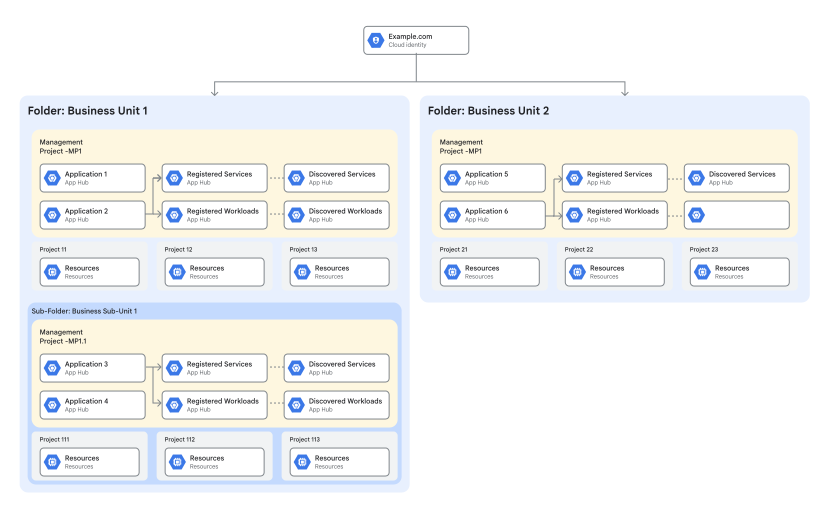
Organizing boundaries by business unit provides these benefits:
Each folder is an application management boundary with its own management project. This lets each business unit register applications using relevant resources.
Applications in Business Unit 1 can include resources in projects within the Business Sub-Unit 1 folder. This lets business units separate their work while sharing access to resources.
For more information about structuring your resources, see Best practices for application management.
Automatically enabled APIs
When you set up a management project, required APIs for application management are automatically enabled, including APIs for App Hub, Application Design Center, and Google Cloud Observability.
Application data stored in the management project
The management project stores the following data for your application management boundary:
- App Hub data: The logical model of your applications, services, and workloads, including metadata such as owners, environment, and business criticality.
- Application Design Center data: Application templates, catalogs, and spaces for designing and deploying applications.
To view aggregated telemetry data for application resources in an app-enabled folder, you configure the observability scope for the management project.
Impact of management project deletion
If you delete the management project for a folder boundary, all application model data is permanently lost. Underlying Google Cloud resources in other projects are unaffected, but their logical groupings and metadata in App Hub are deleted.
What's next
- Learn more about App Hub
- Choose your application setup model
- Learn more about Application Design Center
- Learn more about Cloud Hub
- Prepare for application management