> [!CAUTION]
> You are currently viewing version 1.7 of the Apigee hybrid documentation. **This version is end of life.** You should upgrade to a newer version. For more information, see [Supported versions](https://docs.cloud.google.com/apigee/docs/hybrid/supported-platforms.md.txt#supported-versions).
- Supported versions:
- [v1.17 (latest)](https://docs.cloud.google.com/apigee/docs/hybrid/v1.17/precog-gcpproject.html)
- [v1.16](https://docs.cloud.google.com/apigee/docs/hybrid/v1.16/precog-gcpproject.html)
- [v1.15](https://docs.cloud.google.com/apigee/docs/hybrid/v1.15/precog-gcpproject.html)
- [v1.14](https://docs.cloud.google.com/apigee/docs/hybrid/v1.14/precog-gcpproject.html)
- [List of supported versions](https://docs.cloud.google.com/apigee/docs/hybrid/supported-platforms.md.txt#supported-versions)
- Unsupported versions:
- [v1.13](https://docs.cloud.google.com/apigee/docs/hybrid/v1.13/precog-gcpproject.html)
- [v1.12](https://docs.cloud.google.com/apigee/docs/hybrid/v1.12/precog-gcpproject.html)
- [v1.11](https://docs.cloud.google.com/apigee/docs/hybrid/v1.11/precog-gcpproject.html)
- [v1.10](https://docs.cloud.google.com/apigee/docs/hybrid/v1.10/precog-gcpproject.html)
- [v1.9](https://docs.cloud.google.com/apigee/docs/hybrid/v1.9/precog-gcpproject.html)
- [v1.8](https://docs.cloud.google.com/apigee/docs/hybrid/v1.8/precog-gcpproject.html)
- [v1.7](https://docs.cloud.google.com/apigee/docs/hybrid/v1.7/precog-gcpproject.md.txt)
- [v1.6](https://docs.cloud.google.com/apigee/docs/hybrid/v1.6/precog-gcpproject.md.txt)
- [v1.5](https://docs.cloud.google.com/apigee/docs/hybrid/v1.5/precog-gcpproject.md.txt)
- [v1.4](https://docs.cloud.google.com/apigee/docs/hybrid/v1.4/precog-gcpproject.md.txt)
- [v1.3](https://docs.cloud.google.com/apigee/docs/hybrid/v1.3/precog-gcpproject.md.txt)
- [v1.2](https://docs.cloud.google.com/apigee/docs/hybrid/v1.2/precog-gcpproject.md.txt)
- [v1.1](https://docs.cloud.google.com/apigee/docs/hybrid/v1.1/precog-gcpproject.md.txt)
Apigee hybrid requires that you have a project, which you can create after you
create a Google Cloud account.
This section describes how to create a new Google Cloud project. If you want to use an existing Google Cloud
project (of which you are an owner) with hybrid, skip to [Step 3: Enable APIs](https://docs.cloud.google.com/apigee/docs/hybrid/v1.7/precog-enableapi.md.txt).
**To create a new Google Cloud project:**
1. Open the [Google Cloud console](https://console.cloud.google.com) and log in with the account you created in [Step 1: Create a Google Cloud account](https://docs.cloud.google.com/apigee/docs/hybrid/v1.7/precog-gcpaccount.md.txt).
2. Click the project selector **Select a project**:

The project selector dialog box displays:
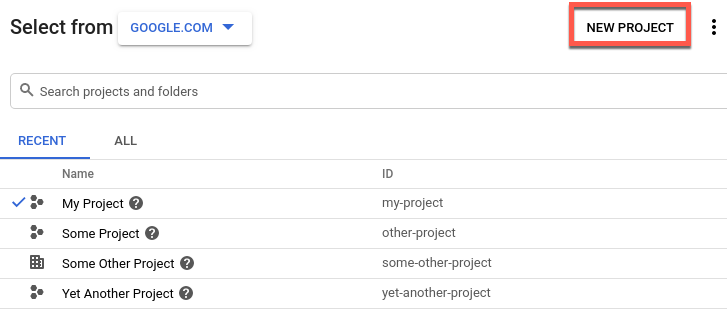
3. Click **New Project**.
The **New Project** view displays.
4. Enter a friendly name for your project in the **Project name** field.
The project name can contain only letters, numbers, single quotes, hyphens, spaces, or
exclamation points.
Google Cloud generates a corresponding project ID below the **Project name** field, as
the following example shows.
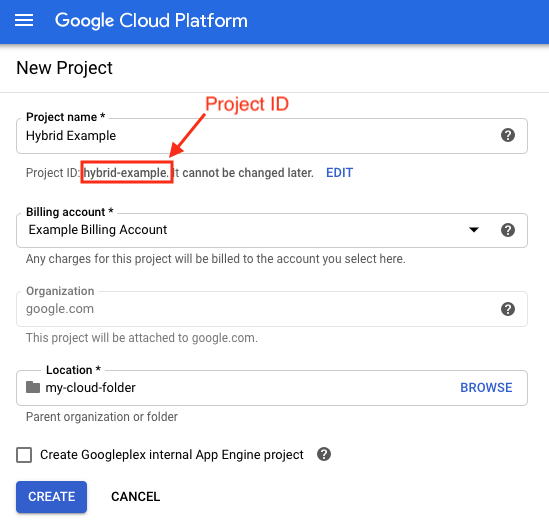
You can change the generated **Project ID** by clicking **Edit**, but the project
ID must be unique. The project ID can have lowercase letters, digits, or hyphens, and must start
with a lowercase letter.
Take note of the **Project ID**. You will use it later in this setup process.
> [!NOTE]
> **Note:** After you create the project, you *cannot* change the project ID.
5. In the **Billing account** field, select the Google Cloud billing account to use to pay for your project. If you do not yet have a Google Cloud billing account, see the following:
- To add a new billing account: [Cloud console billing
page](https://cloud.google.com/billing/docs/how-to/manage-billing-account)
- To learn about Google Cloud Billing accounts: [Create,
modify, or close your Cloud Billing account](https://cloud.google.com/billing/docs/how-to/manage-billing-account)
6. In the **Location** field, select a folder for your project. Folders are an optional part of the Google Cloud project resource tree.
7. Click **Create**.
Google Cloud creates your new project.
[1](https://docs.cloud.google.com/apigee/docs/hybrid/v1.7/precog-gcpaccount.md.txt) [2](https://docs.cloud.google.com/apigee/docs/hybrid/v1.7/precog-gcpproject.md.txt) [(NEXT) Step 3: Enable APIs](https://docs.cloud.google.com/apigee/docs/hybrid/v1.7/precog-enableapi.md.txt) [4](https://docs.cloud.google.com/apigee/docs/hybrid/v1.7/precog-provision.md.txt) [5](https://docs.cloud.google.com/apigee/docs/hybrid/v1.7/precog-add-environment.md.txt)
*[Google Cloud]: Google Cloud