> [!CAUTION]
> You are currently viewing version 1.7 of the Apigee hybrid documentation. **This version is end of life.** You should upgrade to a newer version. For more information, see [Supported versions](https://docs.cloud.google.com/apigee/docs/hybrid/supported-platforms.md.txt#supported-versions).
- Supported versions:
- [v1.17 (latest)](https://docs.cloud.google.com/apigee/docs/hybrid/v1.17/precog-enableapi.md.txt)
- [v1.16](https://docs.cloud.google.com/apigee/docs/hybrid/v1.16/precog-enableapi.md.txt)
- [v1.15](https://docs.cloud.google.com/apigee/docs/hybrid/v1.15/precog-enableapi.md.txt)
- [v1.14](https://docs.cloud.google.com/apigee/docs/hybrid/v1.14/precog-enableapi.md.txt)
- [List of supported versions](https://docs.cloud.google.com/apigee/docs/hybrid/supported-platforms.md.txt#supported-versions)
- Unsupported versions:
- [v1.13](https://docs.cloud.google.com/apigee/docs/hybrid/v1.13/precog-enableapi.md.txt)
- [v1.12](https://docs.cloud.google.com/apigee/docs/hybrid/v1.12/precog-enableapi.md.txt)
- [v1.11](https://docs.cloud.google.com/apigee/docs/hybrid/v1.11/precog-enableapi.md.txt)
- [v1.10](https://docs.cloud.google.com/apigee/docs/hybrid/v1.10/precog-enableapi.md.txt)
- [v1.9](https://docs.cloud.google.com/apigee/docs/hybrid/v1.9/precog-enableapi.md.txt)
- [v1.8](https://docs.cloud.google.com/apigee/docs/hybrid/v1.8/precog-enableapi.md.txt)
- [v1.7](https://docs.cloud.google.com/apigee/docs/hybrid/v1.7/precog-enableapi.md.txt)
- [v1.6](https://docs.cloud.google.com/apigee/docs/hybrid/v1.6/precog-enableapi.md.txt)
- [v1.5](https://docs.cloud.google.com/apigee/docs/hybrid/v1.5/precog-enableapi.md.txt)
- [v1.4](https://docs.cloud.google.com/apigee/docs/hybrid/v1.4/precog-enableapi.md.txt)
- [v1.3](https://docs.cloud.google.com/apigee/docs/hybrid/v1.3/precog-enableapi.md.txt)
- [v1.2](https://docs.cloud.google.com/apigee/docs/hybrid/v1.2/precog-enableapi.md.txt)
- [v1.1](https://docs.cloud.google.com/apigee/docs/hybrid/v1.1/precog-enableapi.md.txt)
To use Apigee hybrid, you must enable the following APIs for the project in the Google Cloud console:
- **Apigee API:** Provides communication between your project and other hybrid services and Google Cloud APIs.
- **Apigee Connect API:** Provides communication between the Apigee management plane and the MART service in the runtime plane.
- **Cloud Pub/Sub API:** Required for quota to operate.
- **Cloud Resource Manager API:** Used by hybrid to validate service accounts.
- **Compute Engine API:** Used for cluster management (GKE-based clusters only).
- **Kubernetes Engine API:** Enable if you plan to use Google Kubernetes Engine (GKE), or GKE on-prem (Anthos) on-prem for your hybrid runtime installation.
### Enable the required APIs for your Google Cloud project:
You can use the CLI or the Google Cloud console UI to enable the APIs.
### Google Cloud UI
To enable the APIs using the UI, perform the following steps:
1. Open the [Google Cloud console
API Library](https://console.cloud.google.com/apis/library) and log in with the account you created in [Step 1: Create a Google Cloud account](https://docs.cloud.google.com/apigee/docs/hybrid/v1.7/precog-gcpaccount.md.txt).
2. Select the project that you created in [Step 2: Create a Google Cloud project](https://docs.cloud.google.com/apigee/docs/hybrid/v1.7/precog-gcpproject.md.txt).
3. Enable the **Apigee API** as follows:
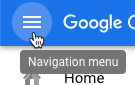
1. If you do not see the **API Library** page, select **APIs \& Services \>
Library** from the **Navigation menu** .
2. Make sure the correct project is selected. 
3. In the **API Library** view search for "Apigee".
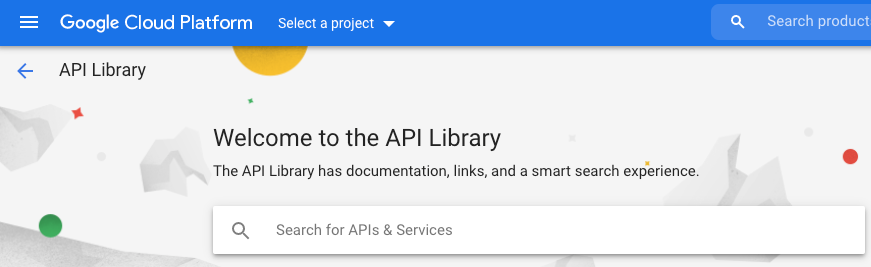
Google Cloud displays a list of APIs matching "Apigee"
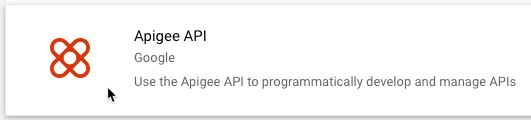
4. Locate the **Apigee API** service and click it.
5. 
6. In the Apigee API view click **Enable** .
Google Cloud enables the **Apigee API** for your Google Cloud project. Repeat these
steps to enable additional APIs.
4. Enable the **Apigee Connect API**.
5. Enable the **Cloud Pub/Sub API**.
6. Enable the **Cloud Resource Manager API**.
7. (**GKE-based clusters only** ) Enable the **Google Kubernetes Engine API**.
8. (**GKE-based and OpenShift-based clusters only** ) Enable the **Compute Engine API**.
9. (**OpenShift-based clusters only** ) Enable these APIs:
- **Google Cloud APIs**
- **Cloud DNS API**
- **Identity and Access Management (IAM) API**
- **IAM Service Account Credentials API**
- **Service Management API**
- **Service Usage API**
- **Google Cloud Storage JSON API**
- **Cloud Storage**
10. To confirm that you have enabled the APIs, select **APIs \& Services \>
Dashboard**. The APIs you just added are displayed in the list of enabled APIs.
### gcloud CLI
To enable the APIs using the CLI, perform the following steps:
1. Open a terminal window on the device you are using to manage Apigee.
2. Be sure you have `gcloud` installed in your local shell by running the following command. The `gcloud` tool provides the primary command-line interface for Cloud.
gcloud -h
If you do not have `gcloud` installed,
[install the Cloud SDK](https://cloud.google.com/sdk/install).
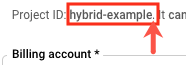
3. Make sure you have the `PROJECT_ID` variable defined with the ID of the project you created in [Step 2: Create a Google Cloud project](https://docs.cloud.google.com/apigee/docs/hybrid/v1.7/precog-gcpproject.md.txt):
```
echo $PROJECT_ID
```
If it is not, define the `PROJECT_ID` environment variable with the following
command:
```
export PROJECT_ID=your_project_id
```
> [!NOTE]
> **Note:** Do not include the period after the project ID.
4. Select the tab for your intended installation to see the command to enable the APIs:
### GKE
If you will be running your clusters in Google Cloud (GKE), enable the APIs with the
following command:
```
gcloud services enable \
apigee.googleapis.com \
apigeeconnect.googleapis.com \
cloudresourcemanager.googleapis.com \
compute.googleapis.com \
container.googleapis.com \
pubsub.googleapis.com --project $PROJECT_ID
```
### OpenShift
If you will be running your clusters on OpenShift, enable the APIs with the
following command:
```
gcloud services enable \
apigee.googleapis.com \
apigeeconnect.googleapis.com \
cloudapis.googleapis.com \
cloudresourcemanager.googleapis.com \
compute.googleapis.com \
dns.googleapis.com \
iam.googleapis.com \
iamcredentials.googleapis.com \
pubsub.googleapis.com --project $PROJECT_ID
servicemanagement.googleapis.com \
serviceusage.googleapis.com \
storage-api.googleapis.com \
storage-component.googleapis.com --project $PROJECT_ID
```
### Other Platforms
Enable the APIs with the following command if you will be running your clusters in
another Kubernetes platform,such as
- GKE on-prem
- Anthos on bare metal
- AKS
- GKE on AWS
- EKS
```
gcloud services enable \
apigee.googleapis.com \
apigeeconnect.googleapis.com \
cloudresourcemanager.googleapis.com \
pubsub.googleapis.com --project $PROJECT_ID
```
5. Verify that all APIs are enabled using the following command:
```
gcloud services list --project $PROJECT_ID
```
The output should include all the APIs you just enabled, as in this example:
```
NAME TITLE
apigee.googleapis.com Apigee API
apigeeconnect.googleapis.com Apigee Connect API
bigquery.googleapis.com BigQuery API
bigquery.googleapis.com BigQuery API
bigquerystorage.googleapis.com BigQuery Storage API
cloudapis.googleapis.com Google Cloud APIs
clouddebugger.googleapis.com Cloud Debugger API
cloudresourcemanager.googleapis.com Cloud Resource Manager API
cloudtrace.googleapis.com Cloud Trace API
compute.googleapis.com Compute Engine API
container.googleapis.com Kubernetes Engine API
containeranalysis.googleapis.com Container Analysis API
containerregistry.googleapis.com Container Registry API
datastore.googleapis.com Cloud Datastore API
iam.googleapis.com Identity and Access Management (IAM) API
iamcredentials.googleapis.com IAM Service Account Credentials API
logging.googleapis.com Cloud Logging API
monitoring.googleapis.com Cloud Monitoring API
oslogin.googleapis.com Cloud OS Login API
pubsub.googleapis.com Cloud Pub/Sub API
servicemanagement.googleapis.com Service Management API
serviceusage.googleapis.com Service Usage API
sql-component.googleapis.com Cloud SQL
storage-api.googleapis.com Google Cloud Storage JSON API
storage-component.googleapis.com Cloud Storage
```
For more information about enabling APIs in the Google Cloud console, see
[Enabling an API in your Google Cloud project](https://docs.cloud.google.com/endpoints/docs/openapi/enable-api.md.txt) in
the Cloud documentation.
[1](https://docs.cloud.google.com/apigee/docs/hybrid/v1.7/precog-gcpaccount.md.txt) [2](https://docs.cloud.google.com/apigee/docs/hybrid/v1.7/precog-gcpproject.md.txt) [3](https://docs.cloud.google.com/apigee/docs/hybrid/v1.7/precog-enableapi.md.txt) [(NEXT) Step 4: Create an organization](https://docs.cloud.google.com/apigee/docs/hybrid/v1.7/precog-provision.md.txt) [5](https://docs.cloud.google.com/apigee/docs/hybrid/v1.7/precog-add-environment.md.txt)