> [!CAUTION]
> You are currently viewing version 1.5 of the Apigee hybrid documentation. **This version is end of life.** You should upgrade to a newer version. For more information, see [Supported versions](https://docs.cloud.google.com/apigee/docs/hybrid/supported-platforms.md.txt#supported-versions).
- Supported versions:
- [v1.17 (latest)](https://docs.cloud.google.com/apigee/docs/hybrid/v1.17/precog-provision.md.txt)
- [v1.16](https://docs.cloud.google.com/apigee/docs/hybrid/v1.16/precog-provision.md.txt)
- [v1.15](https://docs.cloud.google.com/apigee/docs/hybrid/v1.15/precog-provision.md.txt)
- [v1.14](https://docs.cloud.google.com/apigee/docs/hybrid/v1.14/precog-provision.md.txt)
- [List of supported versions](https://docs.cloud.google.com/apigee/docs/hybrid/supported-platforms.md.txt#supported-versions)
- Unsupported versions:
- [v1.13](https://docs.cloud.google.com/apigee/docs/hybrid/v1.13/precog-provision.md.txt)
- [v1.12](https://docs.cloud.google.com/apigee/docs/hybrid/v1.12/precog-provision.md.txt)
- [v1.11](https://docs.cloud.google.com/apigee/docs/hybrid/v1.11/precog-provision.md.txt)
- [v1.10](https://docs.cloud.google.com/apigee/docs/hybrid/v1.10/precog-provision.md.txt)
- [v1.9](https://docs.cloud.google.com/apigee/docs/hybrid/v1.9/precog-provision.md.txt)
- [v1.8](https://docs.cloud.google.com/apigee/docs/hybrid/v1.8/precog-provision.md.txt)
- [v1.7](https://docs.cloud.google.com/apigee/docs/hybrid/v1.7/precog-provision.md.txt)
- [v1.6](https://docs.cloud.google.com/apigee/docs/hybrid/v1.6/precog-provision.md.txt)
- [v1.5](https://docs.cloud.google.com/apigee/docs/hybrid/v1.5/precog-provision.md.txt)
- [v1.4](https://docs.cloud.google.com/apigee/docs/hybrid/v1.4/precog-provision.md.txt)
- [v1.3](https://docs.cloud.google.com/apigee/docs/hybrid/v1.3/precog-provision.md.txt)
- [v1.2](https://docs.cloud.google.com/apigee/docs/hybrid/v1.2/precog-provision.md.txt)
- [v1.1](https://docs.cloud.google.com/apigee/docs/hybrid/v1.1/precog-provision.md.txt)
You've created a Google Cloud account and project and enabled the APIs. Now you can create your
organization.
> [!NOTE]
> **Note** : The name of your Apigee hybrid organization must match your Google Cloud Project ID you created in [Step 2: Create a Google Cloud project](https://docs.cloud.google.com/apigee/docs/hybrid/v1.5/precog-gcpproject.md.txt).
### Prerequisite
To create an organization, you must meet one of the following conditions:
- Have an evaluation account. Evaluation accounts expire after 60 days. At that time, the organization will be deleted.
- Have a paid account
If neither of these is true, then you must contact [Apigee Sales](https://cloud.google.com/contact?direct=true&pre_product=apigee) before you can continue.
### About org creation
> [!IMPORTANT]
> When you create an organization, you then bind it to your Google Cloud project. The process of binding an
> organization to a Google Cloud project is known as *provisioning* (which is just a fancy word for
> *set up*).
>
> When provisioning an organization, keep the following in mind:
>
> - **Brand New:** You cannot provision an *existing* Apigee organization. You must create a new, hybrid-only organization.
> - **Familiar:** A *hybrid-enabled organization* is similar to a traditional Apigee organization, except that it is bound to a Google Cloud project. (It is not the same as a *Google Cloud organization* or an *Apigee organization*.)
> - **Singular:** You can bind a single a Google Cloud project to a single Apigee organization only, and vice-versa.
>
> After you successfully bind a new organization, you can manage users and roles with the Google Cloud
> Console while you develop, deploy, and analyze your API proxies with either the hybrid APIs or the
> UI. For more information about organizations, see [Versioning and terminology](https://docs.cloud.google.com/apigee/docs/hybrid/v1.5/terminology).
**To create a new organization and provision it:**
> [!NOTE]
> **Note:**If you have an Apigee evaluation account, the organization you create will expire after 60 days. At that time, the organization will be deleted.
1. On the command line, get your `gcloud` authentication credentials, as the following example shows:
```
TOKEN=$(gcloud auth print-access-token)
```
To check that your token was populated, use `echo`, as the following example shows:
```
echo $TOKEN
```
This should display your token as an encoded string.
For more information, see
[gcloud command-line tool overview](https://cloud.google.com/sdk/gcloud/).
2. Create the following environment variables for the elements of the organization. You will use these in the command to create the org.
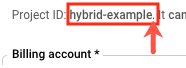
- **`PROJECT_ID`** **(Required)** is the Google Cloud project that you want bound to your new hybrid-enabled organization. This is the ID that Google generated for you in [Step 2: Create a Google Cloud project](https://docs.cloud.google.com/apigee/docs/hybrid/v1.5/precog-gcpproject.md.txt).
```
export PROJECT_ID=your_project_id
```
> [!NOTE]
> **Note:** Do not include the period after the project ID.
- **`ORG_NAME`** **(Required)** is the programmatic ID that you want for your hybrid-enabled organization.
> [!NOTE]
> **Note:** The organization name must match your Google Cloud project ID.
```
export ORG_NAME=$PROJECT_ID
```
- **`ORG_DISPLAY_NAME`** *(Optional)* is the user-friendly name for your organization. This value does not need to be unique, and can include spaces and special characters. For example, "My Hybrid Organization".
```
ORG_DISPLAY_NAME="friendly_name"
```
Variable name contents that contain spaces must be enclosed in double quotes. For example: "My Organization"
- **`ORGANIZATION_DESCRIPTION`** *(Optional)* is information about the organization that you'd like to use as a reminder of its purpose. For example, "My first organization".
```
ORGANIZATION_DESCRIPTION="description_text"
```
- **`ANALYTICS_REGION`** **(Required)** is the primary region for analytics data storage.
```
export ANALYTICS_REGION=analytics_region
```
Where analytics_region is one of the following:
|---|---|---|---|
| `asia-northeast1` | `asia-south1` | `asia-east1` | `asia-southeast1` |
| `australia-southeast1` | `us-central1` | `us-east1` | `us-west1` |
| `asia-southeast2` | `europe-west1` | `europe-west2` |
Choose a region that is geographically close or one that
satisfies your organization's storage requirements.
- **`RUNTIMETYPE`** **(Required)** is the runtime type of the Apigee organization, where HYBRID is user-managed Apigee hybrid runtime.
```
export RUNTIMETYPE=HYBRID
```
> [!NOTE]
> **Tip:** Use the `echo $variable-name` command to verify that the environment variables are properly set.
3. Send an authenticated `POST` request to the [Create organizations API](https://docs.cloud.google.com/apigee/docs/reference/apis/apigee/rest/v1/organizations/create.md.txt).
The following example shows the request structure that creates an organization:
```
curl -H "Authorization: Bearer $TOKEN" -X POST -H "content-type:application/json" \
-d '{
"name":"'"$ORG_NAME"'",
"displayName":"'"$ORG_DISPLAY_NAME"'",
"description":"'"$ORGANIZATION_DESCRIPTION"'",
"runtimeType":"'"$RUNTIMETYPE"'",
"analyticsRegion":"'"$ANALYTICS_REGION"'"
}' \
"https://apigee.googleapis.com/v1/organizations?parent=projects/$PROJECT_ID"
```
> [!TIP]
> **Tip:** The quotation mark structure (`"'"`) in the previous code sample is needed to pass the values of the environment variables within the JSON body.
On a successful creation request, the organizations API should respond with a message similar
to the following:
```
{
"name": "organizations/org_name/operations/long_running_operation_ID",
"metadata": {
"@type": "type.googleapis.com/google.cloud.apigee.v1.OperationMetadata",
"operationType": "INSERT",
"targetResourceName": "organizations/org_name",
"state": "IN_PROGRESS"
}
}
```
Where:
- long_running_operation_ID is the UUID of an asynchronous, long-running operation. You can use this ID to check the status of your organization creation request (described in step 5).
- org_name is the ID of your new organization that is currently being created.
As the `state` property in the response indicates, Apigee has started to create
the new organization, so
its state is `IN_PROGRESS`. This process can take several minutes.
If you get an error, see [Troubleshooting organization creation](https://docs.cloud.google.com/apigee/docs/hybrid/v1.5/precog-provision.md.txt#errors).
4. Save the long-running operation ID to an environment variable. It will be useful for future management tasks.
### Syntax
```
export LONG_RUNNING_OPERATION_ID=long_running_operation_ID
```
### Example
```
export LONG_RUNNING_OPERATION_ID=6abc8a72-46de-f9da-bcfe-70d9ab347e4f
```
5. You can check the status of the long-running operation whose ID Apigee returned on your initial creation request. To do this, use the operations API. For example:
```
curl -H "Authorization: Bearer $TOKEN" \
"https://apigee.googleapis.com/v1/organizations/$ORG_NAME/operations/$LONG_RUNNING_OPERATION_ID"
```
The following examples show possible responses to this request:
### IN_PROGRESS
If Apigee is still creating the organization, Apigee responds with a status of
`IN_PROGRESS`. For example:
```
{
"name": "organizations/org_name/operations/long_running_operation_ID",
"metadata": {
"@type": "type.googleapis.com/google.cloud.apigee.v1.OperationMetadata",
"operationType": "INSERT",
"targetResourceName": "organizations/org_name",
"state": "IN_PROGRESS"
}
}
```
You should wait a little longer before attempting to verify that the creation process
is complete.
### FINISHED
When the organization has been provisioned, the state of the long-running operation is
`FINISHED`. For example:
```
{
"name": "organizations/org_name/operations/long_running_operation_ID",
"metadata": {
"@type": "type.googleapis.com/google.cloud.apigee.v1.OperationMetadata",
"operationType": "INSERT",
"targetResourceName": "organizations/org_name",
"state": "FINISHED"
},
"done": true,
"response": {
"@type": "type.googleapis.com/google.cloud.apigee.v1.Organization",
"name": "org_name",
"displayName": "display_name",
"description": "description",
"createdAt": "1600817805771",
"lastModifiedAt": "1600817805771",
"properties": {
"property": [
{
"name": "features.hybrid.enabled",
"value": "true"
},
{
"name": "features.mart.connect.enabled",
"value": "true"
}
]
},
"analyticsRegion": "us-central1",
"runtimeType": "HYBRID",
"subscriptionType": "TRIAL"
}
}
```
If you did not enter a description, then that field does not appear in the response.
> [!NOTE]
> **Congratulations!**
>
>
> You have created a new organization and it is ready for you to use. Continue to
> [Step 5: Add a domain and reserve a static IP](https://docs.cloud.google.com/apigee/docs/hybrid/v1.5/precog-add-dns).
## View organization details
You can view the metadata details for the organization you created using an Apigee API. You can
also use an API to list all of the organizations to which your Google Cloud account has access.
To perform these actions, you use the [organizations API](https://docs.cloud.google.com/apigee/docs/reference/apis/apigee/rest/v1/organizations.md.txt).
Before trying the APIs, refresh your authorization token:
```
TOKEN=$(gcloud auth print-access-token)
```
### Get org details
**To get details about a single organization:**
Send a `GET` request (with no body) to the following [Get organizations API](https://docs.cloud.google.com/apigee/docs/reference/apis/apigee/rest/v1/organizations/get.md.txt)
endpoint:
```
https://apigee.googleapis.com/v1/organizations/org_name
```
The following example gets details about the `hybrid-example` organization:
```
curl -H "Authorization: Bearer $TOKEN" \
"https://apigee.googleapis.com/v1/organizations/hybrid-example"
```
The response to your request contains details about the specified organization in JSON
format.
The following example shows a response with details about the `hybrid-example` organization:
```
{
"name": "organizations/org_name/operations/long_running_operation_ID",
"metadata": {
"@type": "type.googleapis.com/google.cloud.apigee.v1.OperationMetadata",
"operationType": "INSERT",
"targetResourceName": "org_name",
"state": "FINISHED"
},
"done": true,
"response": {
"@type": "type.googleapis.com/google.cloud.apigee.v1.Organization",
"name": "org_name",
"displayName": "display_name",
"description": "description",
"createdAt": "1600817805771",
"lastModifiedAt": "1600817805771",
"properties": {
"property": [
{
"name": "features.hybrid.enabled",
"value": "true"
},
{
"name": "features.mart.connect.enabled",
"value": "true"
}
]
},
"analyticsRegion": "us-central1",
"runtimeType": "HYBRID",
"subscriptionType": "TRIAL"
}
}
```
### List orgs
**To get a list of all organizations to which your Google Cloud account has access:**
Send a `GET` request (with no body) to the following [List organizations API](https://docs.cloud.google.com/apigee/docs/reference/apis/apigee/rest/v1/organizations/list.md.txt)
endpoint:
```
https://apigee.googleapis.com/v1/organizations
```
For example:
```
curl -H "Authorization: Bearer $TOKEN" "https://apigee.googleapis.com/v1/organizations"
```
The response to your request contains an array of all hybrid-enabled organizations that
you have access to, in JSON format.
The following example shows a response with a single organization, `hybrid-example`:
```
{
"organizations": [
{
"organization": "hybrid-example",
"projectIds": [
"hybrid-example"
]
}
]
}
```
## Troubleshooting organization creation
When you create an organization with the [Create organizations API](https://docs.cloud.google.com/apigee/docs/reference/apis/apigee/rest/v1/organizations/create.md.txt), you might get an error
response. Responses look like the following:
```
{
"error": {
"code": HTTP_error_code,
"message": "short_error_message",
"status": "high_level_error_type",
"details": [
{
"@type": "specific_error_type",
"detail": "expanded_error_description"
}
]
}
}
```
The following example shows a response to a common error---the organization ID contains
illegal characters (uppercase characters are not allowed in organization IDs):
```
{
"error": {
"code": 400,
"message": "invalid Organization ID \"MY-ORG\": \"MY-ORG\" is an invalid Organization ID",
"status": "INVALID_ARGUMENT",
"details": [
{
"@type": "",
"detail": "[ORIGINAL ERROR] generic::invalid_argument: invalid Organization ID \"MY-ORG\":
\"My-ORG\" is an invalid Organization ID [google.rpc.error_details_ext]
{ message: \"invalid Organization ID \\\"MY-ORG\\\": \\\"MY-ORG\\\" is an invalid
Organization ID\" }"
}
]
}
}
```
In this case, you could rename the organization with lowercase letters and resend your
request.
The following table lists errors you might receive and potential resolutions when you try to create
a new organization:
| HTTP Error Code | HTTP Error | Description |
|---|---|---|
| `400` | `Invalid JSON payload received` | Either the structure of the data in your request contains a syntax error or the path to the endpoint is incorrect. |
| `400` | `Invalid organization ID` | The organization ID that you request cannot contain uppercase letters or any special characters other than hyphens. It must contain only lowercase letters, numbers, and/or hyphens. It can be up to a maximum of 32 characters long. |
| `400` | `Unsupported analytics region` | You either did not specify the value of the `analyticsRegion` in your request body, or the value you specified is not one of the valid options. |
| `400` | `Does not have an Apigee entitlement` | Your Google Cloud project (that you created in [Step 2: Create a Google Cloud project](https://docs.cloud.google.com/apigee/docs/hybrid/v1.5/precog-gcpproject.md.txt)) has not yet been hybrid enabled. This could indicate an issue with your billing or some other error related to your Google Cloud account. For more information, contact [Apigee Sales](https://cloud.google.com/contact?direct=true&pre_product=apigee). |
| `401` | `Request had invalid authentication credentials` | Your `gcloud` authentication token is either bad or outdated, or you did not include one in the request. Generate a new token and resend the address. |
| `403` | `Permission denied on resource project project_ID` | You might have sent a request that contained an incorrect project ID or path. |
| `403` | `Unable to retrieve project information` | The organization has not yet been created or provisioned. You can issue a request to the [Operations API](https://docs.cloud.google.com/apigee/docs/reference/apis/apigee/rest/v1/organizations.operations.md.txt) to check the status of the long-running operation, as described in the step 5. |
| `409` | `Organization already exists` | You tried to create more than one organization for the Google Cloud project. You can only create one organization per project. |
| `409` | `Org proposed_org_name already exists` | You tried to create an organization that has the same ID as one that already exists. Organization IDs must be unique across all hybrid customers. Resubmit with a new proposed organization ID; for example, append a numeric value to the end of the previous ID that you tried. |
[1](https://docs.cloud.google.com/apigee/docs/hybrid/v1.5/precog-gcpaccount.md.txt) [2](https://docs.cloud.google.com/apigee/docs/hybrid/v1.5/precog-gcpproject.md.txt) [3](https://docs.cloud.google.com/apigee/docs/hybrid/v1.5/precog-enableapi.md.txt) [4](https://docs.cloud.google.com/apigee/docs/hybrid/v1.5/precog-provision.md.txt) [(NEXT) Step 5: Create an environment group](https://docs.cloud.google.com/apigee/docs/hybrid/v1.5/precog-add-environment.md.txt)