> [!CAUTION]
> You are currently viewing version 1.4 of the Apigee hybrid documentation. **This version is end of life.** You should upgrade to a newer version. For more information, see [Supported versions](https://docs.cloud.google.com/apigee/docs/hybrid/supported-platforms.md.txt#supported-versions).
- Supported versions:
- [v1.17 (latest)](https://docs.cloud.google.com/apigee/docs/hybrid/v1.17/dns-quickstart.md.txt)
- [v1.16](https://docs.cloud.google.com/apigee/docs/hybrid/v1.16/dns-quickstart.md.txt)
- [v1.15](https://docs.cloud.google.com/apigee/docs/hybrid/v1.15/dns-quickstart.md.txt)
- [v1.14](https://docs.cloud.google.com/apigee/docs/hybrid/v1.14/dns-quickstart.md.txt)
- [List of supported versions](https://docs.cloud.google.com/apigee/docs/hybrid/supported-platforms.md.txt#supported-versions)
- Unsupported versions:
- [v1.13](https://docs.cloud.google.com/apigee/docs/hybrid/v1.13/dns-quickstart.md.txt)
- [v1.12](https://docs.cloud.google.com/apigee/docs/hybrid/v1.12/dns-quickstart.md.txt)
- [v1.11](https://docs.cloud.google.com/apigee/docs/hybrid/v1.11/dns-quickstart.md.txt)
- [v1.10](https://docs.cloud.google.com/apigee/docs/hybrid/v1.10/dns-quickstart.md.txt)
- [v1.9](https://docs.cloud.google.com/apigee/docs/hybrid/v1.9/dns-quickstart.md.txt)
- [v1.8](https://docs.cloud.google.com/apigee/docs/hybrid/v1.8/dns-quickstart.md.txt)
- [v1.7](https://docs.cloud.google.com/apigee/docs/hybrid/v1.7/dns-quickstart.md.txt)
- [v1.6](https://docs.cloud.google.com/apigee/docs/hybrid/v1.6/dns-quickstart.md.txt)
- [v1.5](https://docs.cloud.google.com/apigee/docs/hybrid/v1.5/dns-quickstart.md.txt)
- [v1.4](https://docs.cloud.google.com/apigee/docs/hybrid/v1.4/dns-quickstart.md.txt)
- [v1.3](https://docs.cloud.google.com/apigee/docs/hybrid/v1.3/dns-quickstart.md.txt)
- [v1.2](https://docs.cloud.google.com/apigee/docs/hybrid/v1.2/dns-quickstart.html)
- [v1.1](https://docs.cloud.google.com/apigee/docs/hybrid/v1.1/dns-quickstart.html)
This topic offers an example showing how to use [Google Cloud DNS](https://cloud.google.com/dns) to configure
a DNS zone with a record set that points to your Apigee hybrid ingress IP address (typically this address
will be a [static IP that you previously configured](https://docs.cloud.google.com/apigee/docs/hybrid/v1.4/precog-add-dns#reserve-a-static-ip) during the hybrid installation.)
> [!NOTE]
> **Note:** If you already have your own domain and DNS zone to use, you do not need to do these steps. You can simply configure your own zone with a new record set pointing to your ingress load balancer, as described in [Step 5: Configure your DNS](https://docs.cloud.google.com/apigee/docs/hybrid/v1.4/precog-add-dns).
## Get a registered domain
You can register a domain
name through [Google Domains](https://domains.google/) or another
domain registrar of your choice.
## Create a managed zone and record set
This section explains how to create a DNS zone and record set in Google Cloud DNS.
1. Create a managed zone and record set for your domain. This is the address you will use to make API proxy calls to hybrid.
1. Create a managed public zone. For instructions, see [Create a managed public zone](https://cloud.google.com/dns/docs/set-up-dns-records-domain-name#create_a_managed_public_zone).
2. Create a new record set with the following selections. For instructions, see [Create a new record](https://cloud.google.com/dns/docs/set-up-dns-records-domain-name#create_a_new_record).
- **DNS Name** : The name of the endpoint external API calls communicate with, like `
api-services` or `example-endpoint`
- **Resource Record Type** : **A**
- **TTL** and **TTL Unit**: Accept defaults
- **IP Address**: The static IP you created
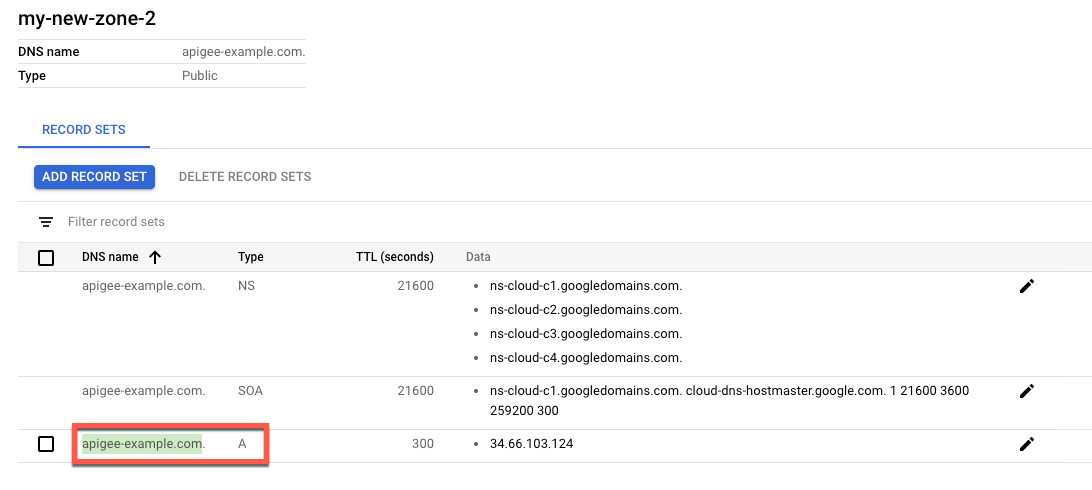
2. In the **Zone details** view, copy the DNS name of the **A** record you just created and save it to a **`DOMAIN`** environment variable. Be careful to not include the period at the end.
```
export DOMAIN=dns_name_of_record
```
## Add your DNS servers to Cloud DNS
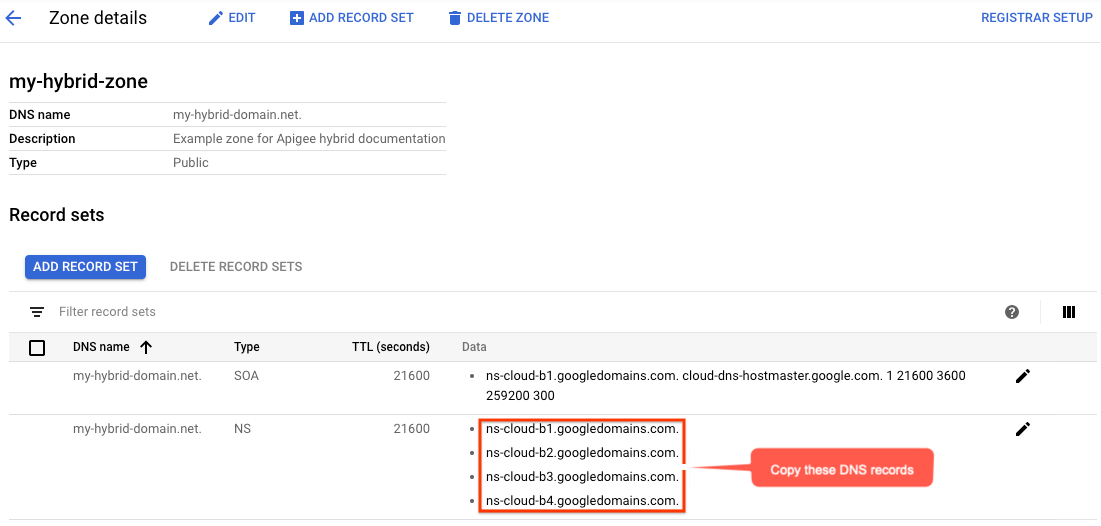
3. In this step, you copy the DNS servers from your domain to [Google Cloud DNS](https://cloud.google.com/dns/). Doing so allows Google Cloud to manage the DNS for your Google Cloud Project.
4. The **Zone details** view lists four DNS servers as the NS data for your new zone. Copy the DNS record data as shown in the following example:
## Configure your domain to use the Google Cloud name servers
Go to your domain registrar and edit your domain's DNS settings to use the Google Cloud Name servers.
The following screenshot shows an example of entering the Google Cloud name servers in [Google Domains](https://domains.google.com):

Google Cloud DNS now manages the DNS records for your domain.
[1](https://docs.cloud.google.com/apigee/docs/hybrid/v1.4/precog-gcpaccount.md.txt) [2](https://docs.cloud.google.com/apigee/docs/hybrid/v1.4/precog-gcpproject.md.txt) [3](https://docs.cloud.google.com/apigee/docs/hybrid/v1.4/precog-enableapi.md.txt) [4](https://docs.cloud.google.com/apigee/docs/hybrid/v1.4/precog-provision.md.txt) [5](https://docs.cloud.google.com/apigee/docs/hybrid/v1.4/precog-add-dns) [(NEXT) Step 6: Create an environment group](https://docs.cloud.google.com/apigee/docs/hybrid/v1.4/precog-add-environment.md.txt)