> [!CAUTION]
> You are currently viewing version 1.3 of the Apigee hybrid documentation. **This version is end of life.** You should upgrade to a newer version. For more information, see [Supported versions](https://docs.cloud.google.com/apigee/docs/hybrid/supported-platforms.md.txt#supported-versions).
- Supported versions:
- [v1.17 (latest)](https://docs.cloud.google.com/apigee/docs/hybrid/v1.17/sa-about.html.html)
- [v1.16](https://docs.cloud.google.com/apigee/docs/hybrid/v1.16/sa-about.html.html)
- [v1.15](https://docs.cloud.google.com/apigee/docs/hybrid/v1.15/sa-about.html.html)
- [v1.14](https://docs.cloud.google.com/apigee/docs/hybrid/v1.14/sa-about.html.html)
- [List of supported versions](https://docs.cloud.google.com/apigee/docs/hybrid/supported-platforms.md.txt#supported-versions)
- Unsupported versions:
- [v1.13](https://docs.cloud.google.com/apigee/docs/hybrid/v1.13/sa-about.html.html)
- [v1.12](https://docs.cloud.google.com/apigee/docs/hybrid/v1.12/sa-about.html.html)
- [v1.11](https://docs.cloud.google.com/apigee/docs/hybrid/v1.11/sa-about.html.html)
- [v1.10](https://docs.cloud.google.com/apigee/docs/hybrid/v1.10/sa-about.html.html)
- [v1.9](https://docs.cloud.google.com/apigee/docs/hybrid/v1.9/sa-about.html.html)
- [v1.8](https://docs.cloud.google.com/apigee/docs/hybrid/v1.8/sa-about.html.html)
- [v1.7](https://docs.cloud.google.com/apigee/docs/hybrid/v1.7/sa-about.html.html)
- [v1.6](https://docs.cloud.google.com/apigee/docs/hybrid/v1.6/sa-about.html.html)
- [v1.5](https://docs.cloud.google.com/apigee/docs/hybrid/v1.5/sa-about.html.html)
- [v1.4](https://docs.cloud.google.com/apigee/docs/hybrid/v1.4/sa-about.html.html)
- [v1.3](https://docs.cloud.google.com/apigee/docs/hybrid/v1.3/sa-about.html.html)
- [v1.2](https://docs.cloud.google.com/apigee/docs/hybrid/v1.2/sa-about.html.html)
- [v1.1](https://docs.cloud.google.com/apigee/docs/hybrid/v1.1/sa-about.html.html)
A *service account* is a special type of account in Google Cloud that enables components
and applications of a system to interact with each other and with other APIs. For more information
about Google Cloud, see [About Google Cloud services](https://docs.cloud.google.com/apigee/docs/hybrid/v1.3/what-is-hybrid.md.txt#about-gcp).
> [!IMPORTANT]
> **SA Factoid:** Google Cloud projects have a limit of 100 service accounts---including the default service accounts (if any).
Hybrid uses Google Cloud service accounts to perform a variety of tasks, including:
- Send log and metrics data
- Pull trace requests
- Connect to API gateway for administrative API requests
- Execute back ups
- Download proxy bundles
While one service account *could* perform all of these operations, Apigee recommends that
you create multiple service accounts, each assigned to a specific task and each with its own set
of permissions. This enhances security by compartmentalizing access and limiting each service
account's scope and access privileges. As with user accounts, these permissions are applied by
assigning one or more roles to the service account.
## Service accounts and roles used by hybrid components
To operate properly, Apigee hybrid requires you to create several service accounts. Each
service account requires a specific role or roles that enable it to perform its function.
The following table describes the service accounts for the hybrid components:
| Component^\*^ | Role | Required for basic install? | Description |
|---|---|---|---|
| `apigee-cassandra` | Storage Object Admin | Yes | Allows Cassandra backups to Cloud Storage, as described in [Backup and recovery](https://docs.cloud.google.com/apigee/docs/hybrid/v1.3/backup-recovery.md.txt). |
| `apigee-logger` | Logs Writer | No | Allows logging data collection, as described in [Logging](https://docs.cloud.google.com/apigee/docs/hybrid/v1.3/logging.md.txt). Only required for non-GKE cluster installations. |
| `apigee-mart` | *Apigee Connect Agent* | Yes | Allows MART service authentication. The Apigee Connect Agent role alows it to communicate securely with the Apigee Connect process, as described in [Using Apigee Connect](https://docs.cloud.google.com/apigee/docs/hybrid/v1.3/apigee-connect.md.txt). |
| `apigee-metrics` | Monitoring Metric Writer | No | Allows metrics data collection, as described in [Metrics collection overview](https://docs.cloud.google.com/apigee/docs/hybrid/v1.3/metrics-collection.md.txt). |
| `apigee-org-admin` | Apigee Organization Admin | Yes | Lets you call the [getSyncAuthorization API](https://docs.cloud.google.com/apigee/docs/reference/apis/apigee/rest/v1/organizations/getSyncAuthorization.md.txt) and [setSyncAuthorization API](https://docs.cloud.google.com/apigee/docs/reference/apis/apigee/rest/v1/organizations/setSyncAuthorization.md.txt). You cannot create this service account with the `create-service-account` tool. |
| `apigee-synchronizer` | Apigee Synchronizer Manager | Yes | Allows the synchronizer to download proxy bundles and environment configuration data. Also enables operation of the trace feature. |
| `apigee-udca` | Apigee Analytics Agent | Yes | Allows the transfer of trace, analytics and deployment status data to the management plane. |
| `apigee-watcher` | Apigee Runtime Agent | Yes | Apigee Watcher pulls virtual hosts related changes for an org from synchronizer and makes necessary changes to configure istio ingress. |
| ^\*^ This name is used in the downloaded service account key's filename. ||||
In addition to creating the service accounts listed in this table, you also download
their private keys. You later use these keys to generate access tokens so that you can access the
Apigee APIs.
## Create the service accounts
> [!WARNING]
> **Deleting and recreating service accounts:** Note that reusing the name of a deleted service account may result in unexpected behavior. If you create a service account and delete it, always recreate it with a unique name. For details, see [Deleting and recreating service accounts](https://cloud.google.com/iam/docs/service-account-overview#deleting-recreating).
There are several ways to create service accounts, including:
- (*Recommended* ) [`create-service-account` tool](https://docs.cloud.google.com/apigee/docs/hybrid/v1.3/sa-about.md.txt#tool)
- [Google Cloud console](https://docs.cloud.google.com/apigee/docs/hybrid/v1.3/sa-about.md.txt#gcp)
- [gcloud SDK](https://docs.cloud.google.com/apigee/docs/hybrid/v1.3/sa-about.md.txt#gcloud)
Each of these is described in the following sections.
### Use the service account creation tool
The `create-service-account` tool (available after you
[download and expand `apigeectl`](https://docs.cloud.google.com/apigee/docs/hybrid/v1.3/install-download-install.md.txt)) creates
hybrid component-specific service accounts and assigns the required roles for you. The
tool also automatically downloads the service account keys and stores them on your local machine in
the specified directory.
> [!NOTE]
> **NOTE:** The `create-service-account` tool cannot create the `apigee-org-admin` service account. To do that, you must use the Google Cloud or the gCloud APIs.
**To create service accounts with the `create-service-account` tool:**
1. Download and expand `apigeectl` (if you haven't done so already), as described in [download and install apigeectl](https://docs.cloud.google.com/apigee/docs/hybrid/v1.3/install-download-install.md.txt).
2. Create a directory to store your service account keys. For example:
```
mkdir ./service-accounts
```
3. Execute the following commands:
./tools/create-service-account apigee-metrics ./service-accounts
./tools/create-service-account apigee-synchronizer ./service-accounts
./tools/create-service-account apigee-udca ./service-accounts
./tools/create-service-account apigee-mart ./service-accounts
./tools/create-service-account apigee-cassandra ./service-accounts
./tools/create-service-account apigee-logger ./service-accounts
These commands create most of the required accounts and stores their keys in the
`./service-accounts` directory. These commands do not create the
`apigee-org-admin` service account.
If these commands fail, make sure you referenced an existing directory in which to store the
key files.
For more information on using `create-service-account`, see
[create-service-account reference](https://docs.cloud.google.com/apigee/docs/hybrid/v1.3/create-service-account.md.txt).
4. Create the `apigee-org-admin` service account. To do this, [use the
Google Cloud console](https://docs.cloud.google.com/apigee/docs/hybrid/v1.3/sa-about#Google Cloud).
### Use the Google Cloud console
You can create service accounts with the Google Cloud console.
> [!NOTE]
> **NOTE:** To create service accounts in the Google Cloud console, you must have the Google Cloud Service Account Admin role or greater.
**To create service accounts with the Google Cloud console:**
1. Open the [Google Cloud console](https://console.cloud.google.com) and log in with the user account you created in [Step 1: Create a Google Cloud account](https://docs.cloud.google.com/apigee/docs/hybrid/v1.3/precog-gcpaccount.md.txt).
2. Select the project that you created in [Step 2: Create a Google Cloud project](https://docs.cloud.google.com/apigee/docs/hybrid/v1.3/precog-gcpproject.md.txt).
3. Select **IAM \& admin \> Service accounts** .
The console displays the **Service accounts** view. This view displays a list of
the project's service accounts. (In most cases, there will be no accounts listed yet, although
there might be default service accounts in the list, depending on how you created your
project.)
4. To create a new service account, click **+Create Service Account** at the top of the view.
The **Service account details** view displays.
5. In the **Service account name** field, enter the name of the service account.
Apigee recommends that you use a name that reflects the service account's role; you
can set the name of the service acount to be the same name as the component that uses it. For
example, set the name of the Logs Writer service account `apigee-logger`.
For more information about the service accounts names and roles, see
[Service accounts and roles used by hybrid components](https://docs.cloud.google.com/apigee/docs/hybrid/v1.3/sa-about.md.txt#recommended-sas).
As you enter a name, Google Cloud generates a unique service account ID for you, which is
structured like an email address, as the following example shows:
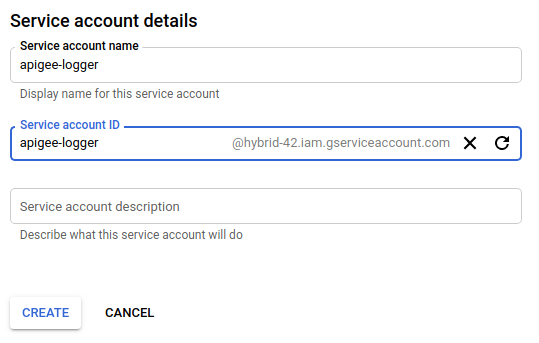
You can optionally add a description in the **Service account description**
field. Descriptions are helpful at reminding you what a particular service account is used
for.
6. Click **Create** .
Google Cloud creates a new service account and displays the **Service account
permissions** view, as the following example shows:

Use this view to assign a role to your new service account.
7. Click the **Select a role** drop-down list.
8. Select the role for the service account, as described in [Service accounts and roles used by hybrid components](https://docs.cloud.google.com/apigee/docs/hybrid/v1.3/sa-about.md.txt#recommended-sas). If the Apigee roles do not appear in the drop down list, refresh the page.
For example, for the logging component, select the Logs Writer role.
If necessary, enter text to filter the list of roles by name. For example, to list only the
Apigee roles, enter "Apigee" in the filter field, as the following example shows:
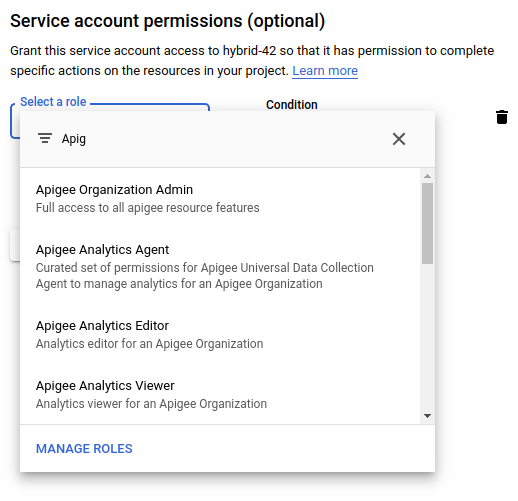
You can add more than one role to a service account, but Apigee recommends that
you only use one role for each of the recommended service accounts. To change the roles of a
service account after you have created it, use the **IAM \& admin** panel in the
Google Cloud.
> [!NOTE]
> **NOTE:** If you do not see the roles listed in [Recommended service accounts](https://docs.cloud.google.com/apigee/docs/hybrid/v1.3/sa-about.md.txt#recommended-sas), check with your Apigee account representative to be sure that your account was properly configured and that your organization was provisioned.
9. Click **Continue** .
Google Cloud displays the **Grant users access to this service account** view:
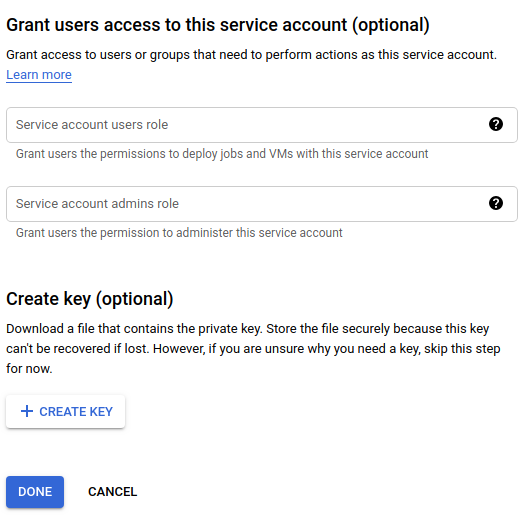
10. Under **Create key (optional)** , click **Create Key** .
Google Cloud gives you the option to download a JSON or P12 key:
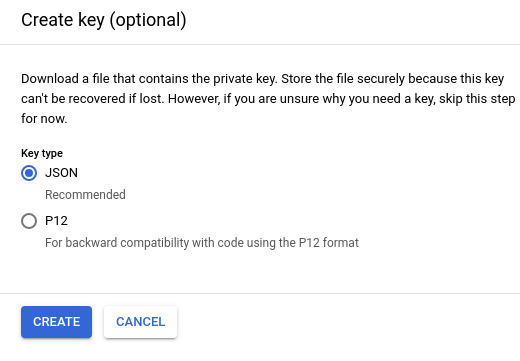
11. Select JSON (the default) and click **Create** .
Google Cloud saves the key file in JSON format to your local machine and displays a confirmation when
it is successful, as the following example shows:

You will later use some of the service account keys to configure hybrid runtime services.
For example, when you configure the hybrid runtime, you will specify the location of the service
account keys using the service_name`.serviceAccountPath` properties.
These keys are used by the service accounts to get access tokens, which the service account
then uses to make requests against the Apigee APIs on your behalf. (But that's not for a while
yet; for now, just remember where you saved it.)
12. Repeat steps 4 through 11 for each service account listed in [Service accounts and roles used by hybrid components](https://docs.cloud.google.com/apigee/docs/hybrid/v1.3/sa-about.md.txt#recommended-sas) (except the `apigee-mart` account---which has no role associated with it---so do not assign it a role).
When you're finished, you should have the following service accounts (in addition to the
defaults, if any):
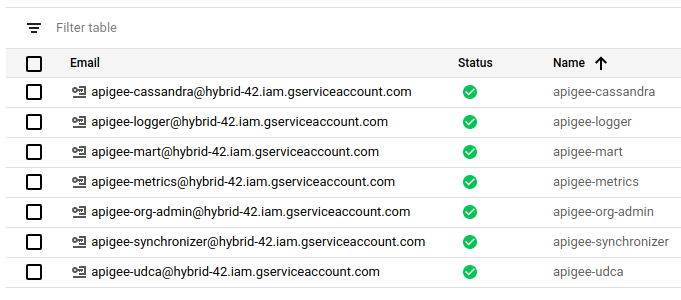
In the Google Cloud console, service accounts are indicated with a
 icon.
After you create a service account, if you want to add or remove a role to it, you must use
the **IAM \& Admin** view. You cannot manage roles for service accounts in the
**Service accounts** view.
> [!NOTE]
> **TIP:** Apigee hybrid includes a validator that checks your service accounts' key files and permissions when [apigeectl](https://docs.cloud.google.com/apigee/docs/hybrid/v1.3/cli-reference.md.txt) applies the Apigee hybrid runtime components to your cluster. This validation is enabled by default. For more information, see [Service account
> validation](https://docs.cloud.google.com/apigee/docs/hybrid/v1.3/sa-validation).
### Use the gcloud service account creation APIs
You can create and manage service accounts with the Cloud Identity and Access Management API.
For more information, see
[Creating
and managing service accounts](https://cloud.google.com/iam/docs/creating-managing-service-accounts).
## Troubleshooting
> [!WARNING]
> **Deleting and recreating service accounts:** Note that reusing the name of a deleted service account, may result in unexpected behavior. If you create a service account and delete it, always recreate it with a unique name. For details, see [Deleting and recreating service accounts](https://cloud.google.com/iam/docs/service-account-overview#deleting-recreating).