> [!CAUTION]
> You are currently viewing version 1.2 of the Apigee hybrid documentation. **This version is end of life.** You should upgrade to a newer version. For more information, see [Supported versions](https://docs.cloud.google.com/apigee/docs/hybrid/supported-platforms.md.txt#supported-versions).
- Supported versions:
- [v1.17 (latest)](https://docs.cloud.google.com/apigee/docs/hybrid/v1.17/precog-enableapi.md.txt)
- [v1.16](https://docs.cloud.google.com/apigee/docs/hybrid/v1.16/precog-enableapi.md.txt)
- [v1.15](https://docs.cloud.google.com/apigee/docs/hybrid/v1.15/precog-enableapi.md.txt)
- [v1.14](https://docs.cloud.google.com/apigee/docs/hybrid/v1.14/precog-enableapi.md.txt)
- [List of supported versions](https://docs.cloud.google.com/apigee/docs/hybrid/supported-platforms.md.txt#supported-versions)
- Unsupported versions:
- [v1.13](https://docs.cloud.google.com/apigee/docs/hybrid/v1.13/precog-enableapi.md.txt)
- [v1.12](https://docs.cloud.google.com/apigee/docs/hybrid/v1.12/precog-enableapi.md.txt)
- [v1.11](https://docs.cloud.google.com/apigee/docs/hybrid/v1.11/precog-enableapi.md.txt)
- [v1.10](https://docs.cloud.google.com/apigee/docs/hybrid/v1.10/precog-enableapi.md.txt)
- [v1.9](https://docs.cloud.google.com/apigee/docs/hybrid/v1.9/precog-enableapi.md.txt)
- [v1.8](https://docs.cloud.google.com/apigee/docs/hybrid/v1.8/precog-enableapi.md.txt)
- [v1.7](https://docs.cloud.google.com/apigee/docs/hybrid/v1.7/precog-enableapi.md.txt)
- [v1.6](https://docs.cloud.google.com/apigee/docs/hybrid/v1.6/precog-enableapi.md.txt)
- [v1.5](https://docs.cloud.google.com/apigee/docs/hybrid/v1.5/precog-enableapi.md.txt)
- [v1.4](https://docs.cloud.google.com/apigee/docs/hybrid/v1.4/precog-enableapi.md.txt)
- [v1.3](https://docs.cloud.google.com/apigee/docs/hybrid/v1.3/precog-enableapi.md.txt)
- [v1.2](https://docs.cloud.google.com/apigee/docs/hybrid/v1.2/precog-enableapi.md.txt)
- [v1.1](https://docs.cloud.google.com/apigee/docs/hybrid/v1.1/precog-enableapi.md.txt)
To use Apigee hybrid, you must enable the following APIs for the project in the Google Cloud console:
- **Apigee API:** Provides communications between your project and other hybrid services and Google Cloud Platform APIs
- **Apigee Connect API:** Provides communication between the Apigee management plane and the MART service in the runtime plane.
- **Cloud Pub/Sub API:** Required for quota to operate
- **Cloud Resource Manager API:** Used by hybrid to validate service accounts
- **Compute Engine API:** Used for cluster management (GKE-based clusters only)
- **Kubernetes Engine API:** Enable if you plan to use Google Kubernetes Engine (GKE) or GKE on-prem (GKE-based clusters only) for your hybrid runtime installation
You can use the CLI or the Google Cloud console UI to enable the APIs.
### Google Cloud UI
To enable the APIs using the UI, perform the following steps:
1. Open the [Google Cloud console](https://console.cloud.google.com) and log in with the account you created in [Step 1: Create a Google Cloud account](https://docs.cloud.google.com/apigee/docs/hybrid/v1.2/precog-gcpaccount.md.txt).
2. Select the project that you created in [Step 2: Create a Google Cloud project](https://docs.cloud.google.com/apigee/docs/hybrid/v1.2/precog-gcpproject.md.txt).
3. Enable the **Apigee API** :
1. From the Navigation menu in the upper left corner of the screen, select **APIs \& Services \> Library** .
The **API Library** view displays:
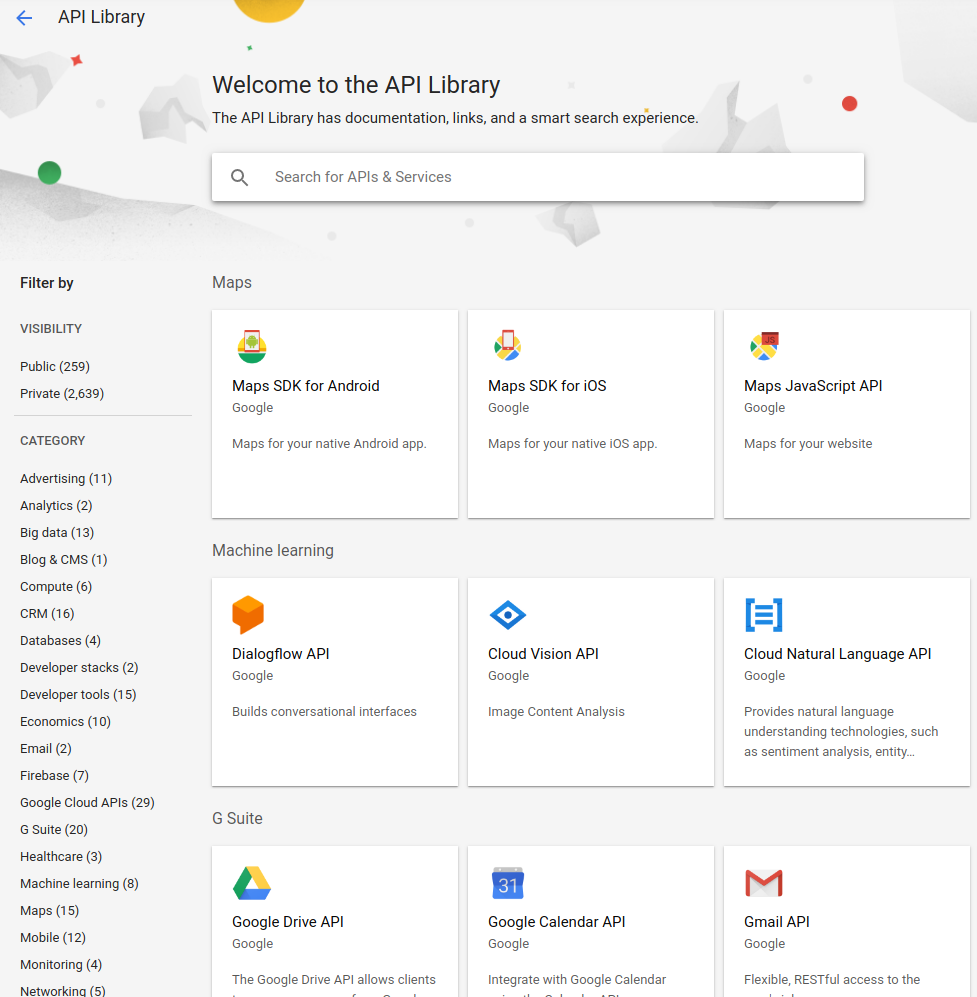
2. Search for "Apigee". Google Cloud Platform displays a list of APIs matching "Apigee"
3. Locate the **Apigee API** service and click on it:
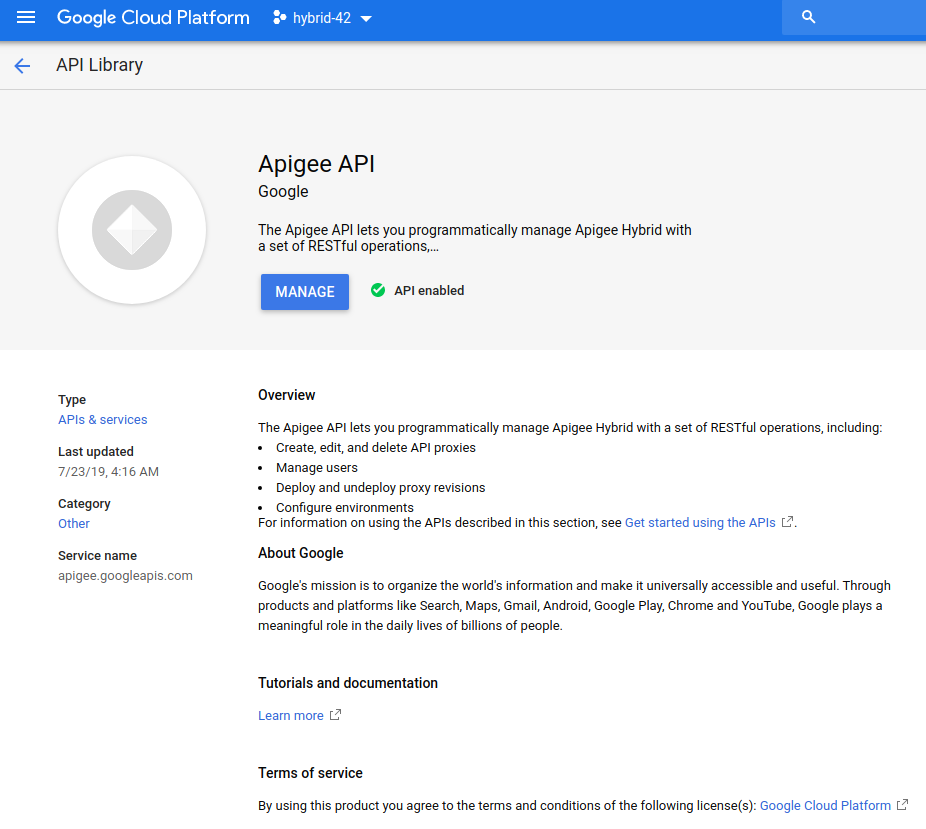
4. Click **Enable** .
Google Cloud Platform enables the **Apigee API** for your project.
5. From the Navigation menu in the upper left corner of the screen, select **APIs \& Services \> Library** to return to the API selection page.
4. Enable the **Apigee Connect API** :
1. In the **API Library** view, search for "Apigee Connect".
2. Locate the **Apigee Connect** service and click on it.
3. Click **Enable** .
Google Cloud Platform enables the **Apigee Connect API** for your project.
4. From the Navigation menu in the upper left corner of the screen, select **APIs \& Services \> Library** to return to the API selection page.
5. Enable the **Cloud Pub/Sub API** :
1. In the **API Library** view, search for "Cloud Pub/Sub API".
2. Locate the **Cloud Pub/Sub API** service and click on it.
3. Click **Enable** .
Google Cloud Platform enables the **Cloud Pub/Sub API** for your project.
6. Enable the **Cloud Resource Manager API** :
1. In the **API Library** view, search for "Cloud Resource Manager".
2. Locate the **Cloud Resource Manager** service and click on it.
3. Click **Enable** .
Google Cloud Platform enables the **Cloud Resource Manager API** for your project.
4. From the Navigation menu in the upper left corner of the screen, select **APIs \& Services \> Library** to return to the API selection page.
7. (GKE-based clusters only) Enable the **Compute Engine API** :
1. In the **API Library** view, search for "Compute Engine".
2. Locate the **Compute Engine API** service and click on it.
3. Click **Enable** .
Google Cloud Platform enables the **Compute Engine API** for your project.
4. From the Navigation menu in the upper left corner of the screen, select **APIs \& Services \> Library** to return to the API selection page.
8. (GKE-based clusters only) Enable the **Kubernetes Engine API** :
1. In the **API Library** view, search for "Kubernetes Engine".
2. Locate the **Kubernetes Engine API** service and click on it.
3. Click **Enable** .
Google Cloud Platform enables the **Kubernetes Engine API** for your project.
4. From the Navigation menu in the upper left corner of the screen, select **APIs \& Services \> Library** to return to the API selection page.
9. To confirm that you have enabled the APIs, select **APIs \& Services \>
Dashboard**.
### gcloud CLI
To enable the APIs using the CLI, perform the following steps:
1. Open a terminal window on the device you are using to manage Apigee.
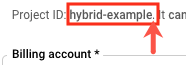
2. Define the `PROJECT_ID` environment variable from [Step 2: Create a Google Cloud project](https://docs.cloud.google.com/apigee/docs/hybrid/v1.2/precog-gcpproject.md.txt) with the following command:
```
export PROJECT_ID=your_project_id
```
> [!NOTE]
> **Note:** Do not include the period after the project ID.
3.
If you will be running your clusters in Google Cloud (GKE) as opposed to GKE on-prem
(Anthos) or AKS, enable the APIs with the following command:
```
gcloud services enable \
apigee.googleapis.com \
apigeeconnect.googleapis.com \
pubsub.googleapis.com \
cloudresourcemanager.googleapis.com \
compute.googleapis.com \
container.googleapis.com \ --project $PROJECT_ID
```
Or, enable the APIs with the following command:
```
gcloud services enable \
apigee.googleapis.com \
apigeeconnect.googleapis.com \
pubsub.googleapis.com \
cloudresourcemanager.googleapis.com --project $PROJECT_ID
```
4. Verify that all APIs are enabled using the following command:
```
gcloud services list
```
For more information about enabling APIs in Google Cloud console, see
[Enabling an
API in your Google Cloud Platform project](https://cloud.google.com/endpoints/docs/openapi/enable-api) in the Cloud documentation.
[1](https://docs.cloud.google.com/apigee/docs/hybrid/v1.2/precog-gcpaccount.md.txt) [2](https://docs.cloud.google.com/apigee/docs/hybrid/v1.2/precog-gcpproject.md.txt) [3](https://docs.cloud.google.com/apigee/docs/hybrid/v1.2/precog-enableapi.md.txt) [(NEXT) Step 4: Create an organization](https://docs.cloud.google.com/apigee/docs/hybrid/v1.2/precog-provision.md.txt) [5](https://docs.cloud.google.com/apigee/docs/hybrid/v1.2/precog-add-environment.md.txt)