> [!CAUTION]
> You are currently viewing version 1.2 of the Apigee hybrid documentation. **This version is end of life.** You should upgrade to a newer version. For more information, see [Supported versions](https://docs.cloud.google.com/apigee/docs/hybrid/supported-platforms.md.txt#supported-versions).
- Supported versions:
- [v1.17 (latest)](https://docs.cloud.google.com/apigee/docs/hybrid/v1.17/apigee-connect.md.txt)
- [v1.16](https://docs.cloud.google.com/apigee/docs/hybrid/v1.16/apigee-connect.md.txt)
- [v1.15](https://docs.cloud.google.com/apigee/docs/hybrid/v1.15/apigee-connect.md.txt)
- [v1.14](https://docs.cloud.google.com/apigee/docs/hybrid/v1.14/apigee-connect.md.txt)
- [List of supported versions](https://docs.cloud.google.com/apigee/docs/hybrid/supported-platforms.md.txt#supported-versions)
- Unsupported versions:
- [v1.13](https://docs.cloud.google.com/apigee/docs/hybrid/v1.13/apigee-connect.md.txt)
- [v1.12](https://docs.cloud.google.com/apigee/docs/hybrid/v1.12/apigee-connect.md.txt)
- [v1.11](https://docs.cloud.google.com/apigee/docs/hybrid/v1.11/apigee-connect.md.txt)
- [v1.10](https://docs.cloud.google.com/apigee/docs/hybrid/v1.10/apigee-connect.md.txt)
- [v1.9](https://docs.cloud.google.com/apigee/docs/hybrid/v1.9/apigee-connect.md.txt)
- [v1.8](https://docs.cloud.google.com/apigee/docs/hybrid/v1.8/apigee-connect.md.txt)
- [v1.7](https://docs.cloud.google.com/apigee/docs/hybrid/v1.7/apigee-connect.md.txt)
- [v1.6](https://docs.cloud.google.com/apigee/docs/hybrid/v1.6/apigee-connect.md.txt)
- [v1.5](https://docs.cloud.google.com/apigee/docs/hybrid/v1.5/apigee-connect.md.txt)
- [v1.4](https://docs.cloud.google.com/apigee/docs/hybrid/v1.4/apigee-connect.md.txt)
- [v1.3](https://docs.cloud.google.com/apigee/docs/hybrid/v1.3/apigee-connect.md.txt)
- [v1.2](https://docs.cloud.google.com/apigee/docs/hybrid/v1.2/apigee-connect.md.txt)
- [v1.1](https://docs.cloud.google.com/apigee/docs/hybrid/v1.1/apigee-connect.html)
This section describes using Apigee Connect (Beta) for communication between the hybrid management
plane and the MART service in the runtime plane.
## Introduction
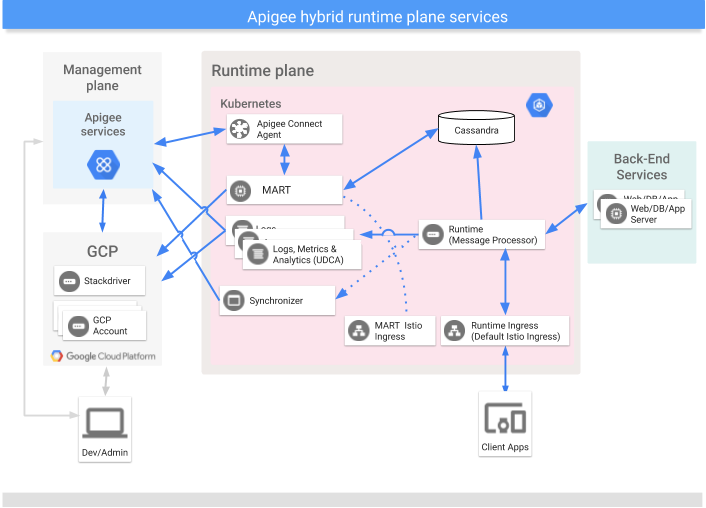
Apigee Connect allows the Apigee hybrid management plane to connect securely to the MART service in
the runtime plane without requiring you to expose the MART endpoint on the internet. If you use
Apigee Connect, you do not need to configure the MART ingress gateway with a host alias and an
authorized DNS certificate.
## Prerequisites
Apigee hybrid version1.2.0 or newer must be installed and configured before setting up Apigee
Connect.
- If you are installing Apigee hybrid for the first time, follow the installation instructions in the [Apigee hybrid documentation](https://docs.cloud.google.com/apigee/docs/hybrid/v1.2/big-picture.md.txt).
- If you are currently using Apigee hybrid version 1.1.x, you must upgrade your installation to version 1.2.0 before continuing. For the upgrade steps, see [Upgrading Apigee hybrid](https://docs.cloud.google.com/apigee/docs/hybrid/v1.2/upgrade.md.txt)
## Add Apigee Connect to the hybrid runtime
This section assumes you have installed or upgraded to and configured Apigee hybrid 1.2.0 or newer
When Apigee Connect is configured and enabled, the MART ingress is ignored: the management plane
only connects to MART using Apigee Connect. All MART traffic between the hybrid runtime plane passes
through the secure Apigee Connect connection.
Follow these steps to enable and use Apigee Connect with Apigee hybrid:
1. Enable the **Apigee Connect API** in the [Google Cloud API Library](https://docs.cloud.google.com/apigee/docs/hybrid/v1.2/cloud.google.com/endpoints/docs/openapi/enable-api). You can enable the API in the [Google Cloud (GCP) console](https://pantheon.corp.google.com/home/dashboard) or with `gcloud`. For instructions on enabling APIs in the Google Cloud console, see [Step 3: Enable APIs](https://docs.cloud.google.com/apigee/docs/hybrid/v1.2/precog-enableapi.md.txt). To use `gcloud` to enable the API:
```
$ gcloud config set project YOUR_GCP_PROJECT_ID
$ gcloud services enable apigeeconnect.googleapis.com
```
Where **`YOUR_GCP_PROJECT_ID`** is the same GCP project for which Apigee was enabled and an Apigee org was provisioned for you.
2. Add the **Apigee Connect Agent** role to the MART service account that you created in the [Create service accounts](https://docs.cloud.google.com/apigee/docs/hybrid/v1.2/install-download-install.md.txt#create-service-accounts) step in the Apigee hybrid installation instructions:
```
$ gcloud projects add-iam-policy-binding YOUR_GCP_PROJECT_ID
--member serviceAccount:YOUR_MART_SERVICE_ACCOUNT_EMAIL --role roles/apigeeconnect.Agent
```
Where **`YOUR_GCP_PROJECT_ID`** is the same GCP project for which Apigee was enabled and an Apigee org was provisioned for you, and **`YOUR_MART_SERVICE_ACCOUNT_EMAIL`** is the MART service account name. The name is in the form of an email address. For example: `apigee-mart@my-project.iam.gserviceaccount.com`.
The **Apigee Connect Agent** role is predefined and has the following permission assigned to it:
| Permission | Description |
|---|---|
| `apigeeconnect.endpoints.connect` | This is the permission to set up the Apigee Connect Agent. |
For details on assigning granting access permissions through either the GCP console or APIs, see:
- [Granting, changing,
and revoking access to resources](https://cloud.google.com/iam/docs/granting-changing-revoking-access)
- [Method:
roles.queryGrantableRoles](https://cloud.google.com/iam/reference/rest/v1/roles/queryGrantableRoles)
3. Be sure the MART service account's key file is in the `hybrid_files/service_accounts` directory, as explained in [Create service accounts](https://docs.cloud.google.com/apigee/docs/hybrid/v1.2/install-download-install.md.txt#create-service-accounts).
4. Open your overrides file and add the following stanzas. The configuration requires you to provide the path to the downloaded service account key. The key must be for a service account with the **Apigee Connect Agent** role.
```
# Apigee Connect Agent
connectAgent:
enabled: true
serviceAccountPath: ./service-accounts/connect_agent_sa_key.json
```
Add the stanza under the **k8sCluster** heading, for example:
```
k8sCluster:
name: your_cluster_name
region: your_cluster_region
# Apigee Connect Agent
connectAgent:
enabled: true
serviceAccountPath: ./service-accounts/connect_agent_sa_key.json
```
> [!NOTE]
> **Note:** By default, a `replicaCountMin` of 1 is used for the `connectAgent`. For other use cases, such as a production deployment, change the `replicaCountMin` to 3. For example:
```
# Apigee Connect Agent
connectAgent:
enabled: true
replicaCountMin: 3
serviceAccountPath: ./service-accounts/connect_agent_sa_key.json
```
5. Locate the service account key with the **Apigee Organization Admin** role that you downloaded when you originally installed Apigee hybrid as described in the section [Enable
synchronizer access](https://docs.cloud.google.com/apigee/docs/hybrid/v1.2/install-apply-hybrid#enable-synchronizer-access). You need this key to generate a token needed to make an API call as explained below.
6. Execute these two commands to get a token:
```
$ export GOOGLE_APPLICATION_CREDENTIALS=org-admin-service-account-file
$ export TOKEN=$(gcloud auth application-default print-access-token)
```
Where ***org-admin-service-account-file*** is the path on your system to the service account key you downloaded with the **Apigee Organization Admin** role.
7. Call the following Apigee API to enable Apigee Connect for your organization:
```
curl -v -X PUT \
https://apigee.googleapis.com/v1/organizations/your_org_name \
-H "Content-Type: application/json" \
-H "Authorization: Bearer $TOKEN" \
-d '{
"name" : "your_org_name",
"properties" : {
"property" : [ {
"name" : "features.hybrid.enabled",
"value" : "true"
}, {
"name" : "features.mart.connect.enabled",
"value" : "true"
} ]
}
}'
```
> [!NOTE]
> **Note:** The best practice is to leave your original MART endpoint property in the request body. Otherwise, your original MART configuration properties will be lost. Note that when Apigee Connect is enabled, the MART server endpoint configuration will be ignored: the management plane will connect with the MART server through Apigee Connect rather than the MART service endpoint.
> [!TIP]
> **Tip:** If you are upgrading an existing Apigee hybrid installation, you can preserve the ability to stop using Apigee Connect and revert to using the MART Istio Ingress endpoint directly. To do so, include a name value pair for the MART services endpoint as follows:
>
> ```
> $ curl -v -X PUT \
> https://apigee.googleapis.com/v1/organizations/your_org_name \
> -H "Content-Type: application/json" \
> -H "Authorization: Bearer $TOKEN" \
> -d '{
> "name" : "your_org_name",
> "properties" : {
> "property" : [ {
> "name" : "features.hybrid.enabled",
> "value" : "true"
> }, {
> "name" : "features.mart.server.endpoint",
> "value" : "https://HOST_ALIAS_DNS"
> }, {
> "name" : "features.mart.connect.enabled",
> "value" : "true"
> } ]
> }
> }'
> ```
8. Start the Apigee Connect Agent in the cluster:
```
$ $APIGEECTL_HOME/apigeectl apply -f your_overrides_file.yaml -c connect-agent
```
> [!NOTE]
> **NOTE:** With Apigee Connect enabled, the `mart` configuration stanza that you provided in the original installation, such as the example shown below, is ignored; however, the `mart` stanza must be present in the overrides file: do not remove it. The MART configuration must be present currently because the existing way of reaching MART will continue to be supported while Apigee Connect is in Beta.
```
mart:
hostAlias: "mart.apigee-hybrid-docs.net"
serviceAccountPath: ./service-accounts/example-project-apigee-mart.json
sslCertPath: ./certs/fullchain.pem
sslKeyPath: ./certs/privkey.key
```
9. Check the Apigee Connect Agent log. If there are no errors reported, the upgrade succeeded:
```
$ kubectl logs -n namespace apigee-connect-agent-pod-name
```
The Apigee Connect Agent reports the following log categories:
| Audit logs category | Operations |
|---|---|
| DATA_READ | `ConnectionService.ListConnections` |
| DATA_WRITE | `Tether.Egress` |
For help on viewing audit logs in Apigee hybrid see [Audit logging information](https://docs.cloud.google.com/apigee/docs/hybrid/v1.2/audit-logging-info).
10. With this upgrade, the hybrid runtime plane communicates with the management plane through Apigee Connect.
11. [Test the installation](https://docs.cloud.google.com/apigee/docs/hybrid/v1.2/apigee-connect.md.txt#testinstallation).
See also: [Removing Apigee Connect](https://docs.cloud.google.com/apigee/docs/hybrid/v1.2/apigee-connect.md.txt#removeapigeeconnect).
## Test the installation
1. Open the [Apigee hybrid UI](https://apigee.google.com/edge).
2. Verify that any Developers and Developer apps that you previously created are present in the UI. Because these entities are queried from the MART server, they will be present only if the communication between the management and runtime planes is correctly configured.
3. To be sure requests are going through Apigee Connect and not through the MART ingress, check the MART server's log. You should see entries for the Apigee Connect agent named `apigee-connect-agent-1.0`:
```
$ kubectl logs -n apigee apigee-mart-orgname-rc101-q72tl -c apigee-mart | grep connect
```
For example:
```
"2019-12-11 04:59:52,321 org: env: target: action: context-id: mode: pool-1-thread-1 INFO MART_AUDITLOG - MartAuditListener.eventOccurred() : Type:Audit edge-gaambo-controlplane@system.gserviceaccount.com 1576040392317 /v1/organizations/apigee-connect-hybrid-prod/developers/ count=100&expand=true&startKey=4ee9e8f7-12b2-4cde-bf10-32d991469876 200 GET apigee-connect-hybrid-prod 10.40.11.3 10.40.0.5 apigee-connect-agent-1.0 null"
```
4. In the hybrid UI, create an API product, a developer, and a developer app. Then, check the MART service log to be sure log entries confirm the entities were sent to the runtime plane. For example, the following log entry shows that API product called `foo-product` was received:
```
$ kubectl logs -n apigee apigee-mart-orgname-rc101-q72tl -c apigee-mart
```
```
2019-12-16 22:15:29,572 org: env: target: action: context-id: mode: pool-1-thread-1 INFO MART_AUDITLOG - MartAuditListener.eventOccurred() : Type:Audit edge-gaambo-controlplane@system.gserviceaccount.com 1576534529566 /v1/organizations/myorg/apiproducts/foo-product/ -NA- 201 CREATE myorg 10.16.1.61 10.16.1.64 apigee-connect-agent-1.0 null
2019-12-16 22:15:30,412 org: env: target: action: context-id: mode: pool-1-thread-1 INFO MART_AUDITLOG - MartAuditListener.eventOccurred() : Type:Audit edge-gaambo-controlplane@system.gserviceaccount.com 1576534530407 /v1/organizations/myorg/apps/ apiProduct=foo-product&expand=false 200 GET myorg 10.16.1.61 10.16.1.64 apigee-connect-agent-1.0 null
```
5. Try creating and deploying a new proxy, as explained in [Create and deploy a proxy](https://docs.cloud.google.com/apigee/docs/hybrid/v1.2/test-new-proxy.md.txt).
6. Configure your proxy with API key verification by following the steps in [Secure an API proxy by requiring API keys](https://docs.apigee.com/api-platform/tutorials/secure-calls-your-api-through-api-key-validation). The runtime obtains the data required to validate an API key from the management plane through Apigee Connect; therefore, if API key verification works, you know that the Apigee Connect is functioning properly. You can also check the Apigee Connect logs to see a report of the data transfers.
## Removing Apigee Connect
If you delete the Apigee Connect deployment, the pod status can remain in the "Terminating" state for
up to seven minutes. This amount of time is expected. Apigee Connect agents wait for the existing
connections to expire instead of stopping them suddenly. The delay ensures that inflight requests
are not lost.