> [!CAUTION]
> You are currently viewing version 1.12 of the Apigee hybrid documentation. **This version is end of life.** You should upgrade to a newer version. For more information, see [Supported versions](https://docs.cloud.google.com/apigee/docs/hybrid/supported-platforms.md.txt#supported-versions).
- Supported versions:
- [v1.17 (latest)](https://docs.cloud.google.com/apigee/docs/hybrid/v1.17/multi-region.md.txt)
- [v1.16](https://docs.cloud.google.com/apigee/docs/hybrid/v1.16/multi-region.md.txt)
- [v1.15](https://docs.cloud.google.com/apigee/docs/hybrid/v1.15/multi-region.md.txt)
- [v1.14](https://docs.cloud.google.com/apigee/docs/hybrid/v1.14/multi-region.md.txt)
- [List of supported versions](https://docs.cloud.google.com/apigee/docs/hybrid/supported-platforms.md.txt#supported-versions)
- Unsupported versions:
- [v1.13](https://docs.cloud.google.com/apigee/docs/hybrid/v1.13/multi-region.md.txt)
- [v1.12](https://docs.cloud.google.com/apigee/docs/hybrid/v1.12/multi-region.md.txt)
- [v1.11](https://docs.cloud.google.com/apigee/docs/hybrid/v1.11/multi-region.md.txt)
- [v1.10](https://docs.cloud.google.com/apigee/docs/hybrid/v1.10/multi-region.md.txt)
- [v1.9](https://docs.cloud.google.com/apigee/docs/hybrid/v1.9/multi-region.md.txt)
- [v1.8](https://docs.cloud.google.com/apigee/docs/hybrid/v1.8/multi-region.md.txt)
- [v1.7](https://docs.cloud.google.com/apigee/docs/hybrid/v1.7/multi-region.md.txt)
- [v1.6](https://docs.cloud.google.com/apigee/docs/hybrid/v1.6/multi-region.md.txt)
- [v1.5](https://docs.cloud.google.com/apigee/docs/hybrid/v1.5/multi-region.md.txt)
- [v1.4](https://docs.cloud.google.com/apigee/docs/hybrid/v1.4/multi-region.md.txt)
- [v1.3](https://docs.cloud.google.com/apigee/docs/hybrid/v1.3/multi-region.md.txt)
- [v1.2](https://docs.cloud.google.com/apigee/docs/hybrid/v1.2/multi-region.md.txt)
- [v1.1](https://docs.cloud.google.com/apigee/docs/hybrid/v1.1/multi-region.md.txt)
This topic describes a multi-region deployment for Apigee hybrid on GKE,
Anthos GKE deployed on-prem, Microsoft® Azure Kubernetes Service (AKS),
Amazon Elastic Kubernetes Service (EKS), and on RedHat OpenShift.
Select your platform in the prerequisites and procedures.
Topologies for multi-region deployment include the following:
- **Active-Active**: When you have applications deployed in multiple geographic locations and you require low latency API response for your deployments. You have the option to deploy hybrid in multiple geographic locations nearest to your clients. For example: US West Coast, US East Coast, Europe, APAC.
- **Active-Passive**: When you have a primary region and a failover or disaster recovery region.
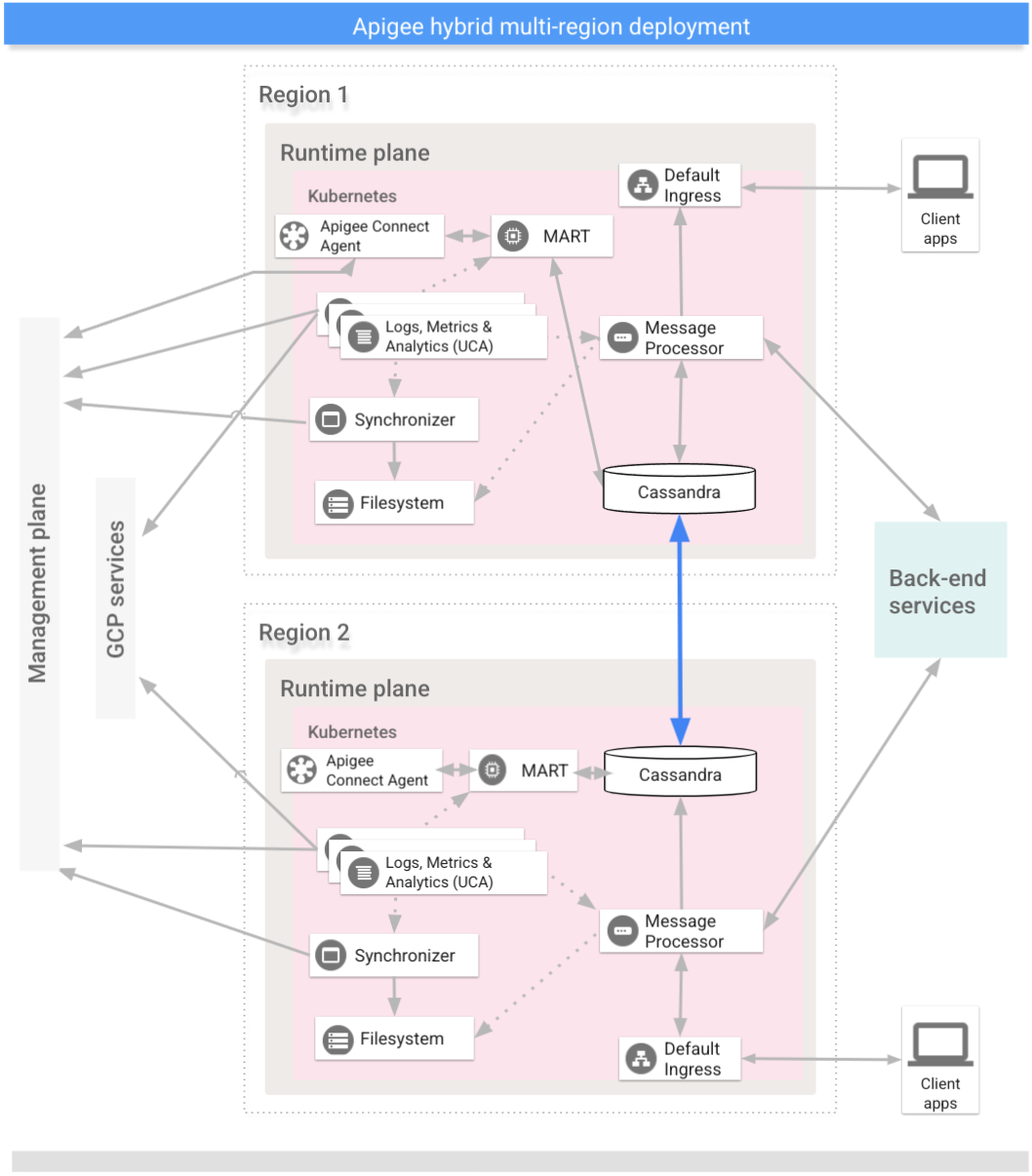
The regions in a multi-region hybrid deployment communicate via Cassandra, as the following image
shows:
## Prerequisites
Before configuring hybrid for multiple regions, you must complete the
following prerequisites:
### GKE
- When installing multi-region Apigee deployments between different networks (e.g. different cloud providers, different VPC networks, cloud and on-prem, etc), you must provide internal connectivity between these separate networks that Cassandra can use to communicate between nodes. This can be accomplished with VPNs or cloud-specific connectivity solutions.
- If you are using Workload Identity in one cluster to authenticate service accounts, we strongly recommend that you use Workload Identity for each cluster you expand to. See [Enabling Workload Identity on GKE](https://docs.cloud.google.com/apigee/docs/hybrid/v1.12/enable-workload-identity-gke.md.txt) or [Enabling Workload Identity Federation on AKS and EKS](https://docs.cloud.google.com/apigee/docs/hybrid/v1.12/enable-workload-identity-federated).
- Set up Kubernetes clusters in multiple regions with different blocks.
- Make sure [cert-manager](https://docs.cloud.google.com/apigee/docs/hybrid/v1.12/install-cert-manager.md.txt) is installed in each cluster.
- Set up cross-region communication.
- Make sure all Cassandra pods are able to resolve their own hostnames. If **hostNetwork** is set to **false** , then the hostname is the Cassandra pod name. If **hostNetwork** is set to **true** , then the hostname is the Kubernetes node hostname running the Cassandra pod.
> [!TIP]
> **Tip:** To check if hostname resolution is working, use these commands.
>
> If **hostNetwork** is set to **false** , use Command 1. If **hostNetwork** is set to **true** , use Command 2.
>
> If hostname resolution is working, the output will show an IP address. If hostname resolution is failing, the output will include "Host not found".
>
> Command 1:
>
> ```
> kubectl run -l app=alpine --image=alpine --restart=Never --rm -i -t alpine-linux -n apigee -- hostname -i
> ```
>
> Command 2:
>
> ```
> kubectl run -l app=alpine --image=alpine --restart=Never --rm -i -t alpine-linux -n apigee --overrides='{"kind":"Pod", "apiVersion":"v1", "spec": {"hostNetwork":true}}' -- hostname -i
> ```
- Cassandra Multi Region requirements:
- Make sure the pod network namespace has connectivity across the regions, including firewalls, vpn, vpc peering and vNet peering. This is the case for most GKE installations.
- If the pod network namespace does not have connectivity between clusters (the clusters are running in "island network mode"), enable the Kubernetes `hostNetwork` feature by setting `cassandra.hostNetwork: true` in the overrides file for all of the regions in your Apigee hybrid multi-regions installation.
For more information on the need for `hostNetwork`, see
[Island mode clusters and hostNetwork](https://docs.cloud.google.com/apigee/docs/hybrid/v1.12/multi-region.md.txt#island-mode-clusters-and-hostnetwork)
below.
- Enable `hostNetwork` on existing clusters before expanding your multi-region configuration to new regions.
- When `hostNetwork` is enabled, make sure worker nodes can perform forward DNS lookup of their hostnames. Apigee Cassandra uses forward DNS lookup to obtain the host IP while starting.
> [!TIP]
> **Tip:** If the DNS resolution is not working, try this workaround.
>
>
> Add a static host entry in `/etc/hosts` file of each cassandra worker node
> similar to the following:
>
> ```
> echo -e "\\n127.0.1.1 ${HOSTNAME}" >> "/etc/hosts"
> ```
>
>
> or
>
> ```
> "\\nWORKER-NODE-IP ${HOSTNAME}" >> "/etc/hosts"
> ```
- Open TCP port 7001 between Kubernetes clusters across all regions to enable worker nodes across regions and datacenters to communicate. See [Configure ports](https://docs.cloud.google.com/apigee/docs/hybrid/v1.12/ports.md.txt) for information about the Cassandra port numbers.
For detailed information, see [Kubernetes](https://kubernetes.io) documentation.
> [!NOTE]
> **Note:** Apigee recommends that you ensure that your servers' times are synchronized.
>
> Several features such as expiration and token revocation
> rely on accurate system times. If you host the runtime components in different datacenters,
> then be sure that the system times are synchronized.
>
> You can use a tool such as `ntpdate` to verify that server
> times are synchronized.
### GKE on-prem
- When installing multi-region Apigee deployments between different networks (e.g. different cloud providers, different VPC networks, cloud and on-prem, etc), you must provide internal connectivity between these separate networks that Cassandra can use to communicate between nodes. This can be accomplished with VPNs or cloud-specific connectivity solutions.
- Set up Kubernetes clusters in multiple regions with different blocks.
- Make sure [cert-manager](https://docs.cloud.google.com/apigee/docs/hybrid/v1.12/install-cert-manager.md.txt) is installed in each cluster.
- Set up cross-region communication.
- Make sure all Cassandra pods are able to resolve their own hostnames. If **hostNetwork** is set to **false** , then the hostname is the Cassandra pod name. If **hostNetwork** is set to **true** , then the hostname is the Kubernetes node hostname running the Cassandra pod.
> [!TIP]
> **Tip:** To check if hostname resolution is working, use these commands.
>
> If **hostNetwork** is set to **false** , use Command 1. If **hostNetwork** is set to **true** , use Command 2.
>
> If hostname resolution is working, the output will show an IP address. If hostname resolution is failing, the output will include "Host not found".
>
> Command 1:
>
> ```
> kubectl run -l app=alpine --image=alpine --restart=Never --rm -i -t alpine-linux -n apigee -- hostname -i
> ```
>
> Command 2:
>
> ```
> kubectl run -l app=alpine --image=alpine --restart=Never --rm -i -t alpine-linux -n apigee --overrides='{"kind":"Pod", "apiVersion":"v1", "spec": {"hostNetwork":true}}' -- hostname -i
> ```
- Cassandra Multi Region requirements:
- If the pod network namespace does not have connectivity between clusters (the clusters are running in "island network mode", the default case in GKE on-prem installations), enable the Kubernetes `hostNetwork` feature by setting `cassandra.hostNetwork: true` in the overrides file for all of the regions in your Apigee hybrid multi-regions installation.
For more information on the need for `hostNetwork`, see
[Island mode clusters and hostNetwork](https://docs.cloud.google.com/apigee/docs/hybrid/v1.12/multi-region.md.txt#island-mode-clusters-and-hostnetwork)
below.
- Enable `hostNetwork` on existing clusters before expanding your multi-region configuration to new regions.
- When `hostNetwork` is enabled, make sure worker nodes can perform forward DNS lookup of their hostnames. Apigee Cassandra uses forward DNS lookup to obtain the host IP while starting.
> [!TIP]
> **Tip:** If the DNS resolution is not working, try this workaround.
>
>
> Add a static host entry in `/etc/hosts` file of each cassandra worker node
> similar to the following:
>
> ```
> echo -e "\\n127.0.1.1 ${HOSTNAME}" >> "/etc/hosts"
> ```
>
>
> or
>
> ```
> "\\nWORKER-NODE-IP ${HOSTNAME}" >> "/etc/hosts"
> ```
- Open Cassandra ports between Kubernetes clusters across all regions to enable worker nodes across regions and datacenters to communicate. See [Configure ports](https://docs.cloud.google.com/apigee/docs/hybrid/v1.12/ports.md.txt) for the Cassandra port numbers.
For detailed information, see [Kubernetes](https://kubernetes.io) documentation.
> [!NOTE]
> **Note:** Apigee recommends that you ensure that your servers' times are synchronized.
>
> Several features such as expiration and token revocation
> rely on accurate system times. If you host the runtime components in different datacenters,
> then be sure to synchronize the system times.
>
> You can use a tool such as `ntpdate` to verify that server
> times are synchronized.
### AKS
- When installing multi-region Apigee deployments between different networks (e.g. different cloud providers, different VPC networks, cloud and on-prem, etc), you must provide internal connectivity between these separate networks that Cassandra can use to communicate between nodes. This can be accomplished with VPNs or cloud-specific connectivity solutions.
- Follow the [hybrid installation
guide](https://docs.cloud.google.com/apigee/docs/hybrid/v1.12/precog-overview) for any prerequisites like Google Cloud and org configuration before moving to cluster setup steps.
- Make sure [cert-manager](https://docs.cloud.google.com/apigee/docs/hybrid/v1.12/install-cert-manager.md.txt) is installed in each cluster.
- Make sure all Cassandra pods are able to resolve their own hostnames. If **hostNetwork** is set to **false** , then the hostname is the Cassandra pod name. If **hostNetwork** is set to **true** , then the hostname is the Kubernetes node hostname running the Cassandra pod.
> [!TIP]
> **Tip:** To check if hostname resolution is working, use these commands.
>
> If **hostNetwork** is set to **false** , use Command 1. If **hostNetwork** is set to **true** , use Command 2.
>
> If hostname resolution is working, the output will show an IP address. If hostname resolution is failing, the output will include "Host not found".
>
> Command 1:
>
> ```
> kubectl run -l app=alpine --image=alpine --restart=Never --rm -i -t alpine-linux -n apigee -- hostname -i
> ```
>
> Command 2:
>
> ```
> kubectl run -l app=alpine --image=alpine --restart=Never --rm -i -t alpine-linux -n apigee --overrides='{"kind":"Pod", "apiVersion":"v1", "spec": {"hostNetwork":true}}' -- hostname -i
> ```
- Cassandra Multi Region requirements:
- If the pod network namespace does not have connectivity between clusters (the clusters are running in "island network mode", the default case in AKS installations), enable the Kubernetes `hostNetwork` feature by setting `cassandra.hostNetwork: true` in the overrides file for all of the regions in your Apigee hybrid multi-regions installation.
For more information on the need for `hostNetwork`, see
[Island mode clusters and hostNetwork](https://docs.cloud.google.com/apigee/docs/hybrid/v1.12/multi-region.md.txt#island-mode-clusters-and-hostnetwork)
below.
- Enable `hostNetwork` on existing clusters before expanding your multi-region configuration to new regions.
- When `hostNetwork` is enabled, make sure worker nodes can perform forward DNS lookup of their hostnames. Apigee Cassandra uses forward DNS lookup to obtain the host IP while starting.
> [!TIP]
> **Tip:** If the DNS resolution is not working, try this workaround.
>
>
> Add a static host entry in `/etc/hosts` file of each cassandra worker node
> similar to the following:
>
> ```
> echo -e "\\n127.0.1.1 ${HOSTNAME}" >> "/etc/hosts"
> ```
>
>
> or
>
> ```
> "\\nWORKER-NODE-IP ${HOSTNAME}" >> "/etc/hosts"
> ```
- Open Cassandra ports between Kubernetes clusters across all regions to enable worker nodes across regions and datacenters to communicate. See [Configure ports](https://docs.cloud.google.com/apigee/docs/hybrid/v1.12/ports.md.txt) for the Cassandra port numbers.
For detailed information, see [Kubernetes](https://kubernetes.io) documentation.
> [!NOTE]
> **Note:** Apigee recommends that you ensure that your servers' times are synchronized.
>
> Several features such as expiration and token revocation
> rely on accurate system times. If you host the runtime components in different datacenters,
> then be sure that the system times are synchronized.
>
> You can use a tool such as `ntpdate` to verify that server
> times are synchronized.
### EKS
- When installing multi-region Apigee deployments between different networks (e.g. different cloud providers, different VPC networks, cloud and on-prem, etc), you must provide internal connectivity between these separate networks that Cassandra can use to communicate between nodes. This can be accomplished with VPNs or cloud-specific connectivity solutions.
- Follow the [hybrid installation
guide](https://docs.cloud.google.com/apigee/docs/hybrid/v1.12/precog-overview) for any prerequisites like Google Cloud and org configuration before moving to cluster setup steps.
- Make sure [cert-manager](https://docs.cloud.google.com/apigee/docs/hybrid/v1.12/install-cert-manager.md.txt) is installed in each cluster.
- Make sure all Cassandra pods are able to resolve their own hostnames. If **hostNetwork** is set to **false** , then the hostname is the Cassandra pod name. If **hostNetwork** is set to **true** , then the hostname is the Kubernetes node hostname running the Cassandra pod.
> [!TIP]
> **Tip:** To check if hostname resolution is working, use these commands.
>
> If **hostNetwork** is set to **false** , use Command 1. If **hostNetwork** is set to **true** , use Command 2.
>
> If hostname resolution is working, the output will show an IP address. If hostname resolution is failing, the output will include "Host not found".
>
> Command 1:
>
> ```
> kubectl run -l app=alpine --image=alpine --restart=Never --rm -i -t alpine-linux -n apigee -- hostname -i
> ```
>
> Command 2:
>
> ```
> kubectl run -l app=alpine --image=alpine --restart=Never --rm -i -t alpine-linux -n apigee --overrides='{"kind":"Pod", "apiVersion":"v1", "spec": {"hostNetwork":true}}' -- hostname -i
> ```
- Cassandra Multi Region requirements:
- If the pod network namespace does not have connectivity between clusters (the clusters are running in "island network mode"), enable the Kubernetes `hostNetwork` feature by setting `cassandra.hostNetwork: true` in the overrides file for all of the regions in your Apigee hybrid multi-regions installation. Amazon EKS uses the [fully integrated network model](https://docs.cloud.google.com/kubernetes-engine/docs/concepts/gke-compare-network-models.md.txt#fully-integrated-model) by default.
For more information on the need for `hostNetwork`, see
[Island mode clusters and hostNetwork](https://docs.cloud.google.com/apigee/docs/hybrid/v1.12/multi-region.md.txt#island-mode-clusters-and-hostnetwork)
below.
- Enable `hostNetwork` on existing clusters before expanding your multi-region configuration to new regions.
- When `hostNetwork` is enabled, make sure worker nodes can perform forward DNS lookup of their hostnames. Apigee Cassandra uses forward DNS lookup to obtain the host IP while starting.
> [!TIP]
> **Tip:** If the DNS resolution is not working, try this workaround.
>
>
> Add a static host entry in `/etc/hosts` file of each cassandra worker node
> similar to the following:
>
> ```
> echo -e "\\n127.0.1.1 ${HOSTNAME}" >> "/etc/hosts"
> ```
>
>
> or
>
> ```
> "\\nWORKER-NODE-IP ${HOSTNAME}" >> "/etc/hosts"
> ```
- Open Cassandra ports between Kubernetes clusters across all regions to enable worker nodes across regions and datacenters to communicate. See [Configure ports](https://docs.cloud.google.com/apigee/docs/hybrid/v1.12/ports.md.txt) for the Cassandra port numbers.
For detailed information, see [Kubernetes](https://kubernetes.io) documentation.
> [!NOTE]
> **Note:** Apigee recommends that you ensure that your servers' times are synchronized.
>
> Several features such as expiration and token revocation
> rely on accurate system times. If you host the runtime components in different datacenters,
> then be sure that the system times are synchronized.
>
> You can use a tool such as `ntpdate` to verify that server
> times are synchronized.
### OpenShift
- When installing multi-region Apigee deployments between different networks (e.g. different cloud providers, different VPC networks, cloud and on-prem, etc), you must provide internal connectivity between these separate networks that Cassandra can use to communicate between nodes. This can be accomplished with VPNs or cloud-specific connectivity solutions.
- Follow the [hybrid installation
guide](https://docs.cloud.google.com/apigee/docs/hybrid/v1.12/precog-overview) for any prerequisites like Google Cloud and org configuration before moving to cluster setup steps.
- Make sure [cert-manager](https://docs.cloud.google.com/apigee/docs/hybrid/v1.12/install-cert-manager.md.txt) is installed in each cluster.
- Make sure all Cassandra pods are able to resolve their own hostnames. If **hostNetwork** is set to **false** , then the hostname is the Cassandra pod name. If **hostNetwork** is set to **true** , then the hostname is the Kubernetes node hostname running the Cassandra pod.
> [!TIP]
> **Tip:** To check if hostname resolution is working, use these commands.
>
> If **hostNetwork** is set to **false** , use Command 1. If **hostNetwork** is set to **true** , use Command 2.
>
> If hostname resolution is working, the output will show an IP address. If hostname resolution is failing, the output will include "Host not found".
>
> Command 1:
>
> ```
> kubectl run -l app=alpine --image=alpine --restart=Never --rm -i -t alpine-linux -n apigee -- hostname -i
> ```
>
> Command 2:
>
> ```
> kubectl run -l app=alpine --image=alpine --restart=Never --rm -i -t alpine-linux -n apigee --overrides='{"kind":"Pod", "apiVersion":"v1", "spec": {"hostNetwork":true}}' -- hostname -i
> ```
- Cassandra Multi Region requirements:
- If the pod network namespace does not have connectivity between clusters (the clusters are running in "island network mode", the default case in OpenShift installations), enable the Kubernetes `hostNetwork` feature by setting `cassandra.hostNetwork: true` in the overrides file for all of the regions in your Apigee hybrid multi-regions installation.
For more information on the need for `hostNetwork`, see
[Island mode clusters and hostNetwork](https://docs.cloud.google.com/apigee/docs/hybrid/v1.12/multi-region.md.txt#island-mode-clusters-and-hostnetwork)
below.
- Enable `hostNetwork` on existing clusters before expanding your multi-region configuration to new regions.
- When `hostNetwork` is enabled, make sure worker nodes can perform forward DNS lookup of their hostnames. Apigee Cassandra uses forward DNS lookup to obtain the host IP while starting.
> [!TIP]
> **Tip:** If the DNS resolution is not working, try this workaround.
>
>
> Add a static host entry in `/etc/hosts` file of each cassandra worker node
> similar to the following:
>
> ```
> echo -e "\\n127.0.1.1 ${HOSTNAME}" >> "/etc/hosts"
> ```
>
>
> or
>
> ```
> "\\nWORKER-NODE-IP ${HOSTNAME}" >> "/etc/hosts"
> ```
- Open Cassandra ports between Kubernetes clusters across all regions to enable worker nodes across regions and datacenters to communicate. See [Configure ports](https://docs.cloud.google.com/apigee/docs/hybrid/v1.12/ports.md.txt) for the Cassandra port numbers.
For detailed information, see [Kubernetes](https://kubernetes.io) documentation.
> [!NOTE]
> **Note:** Apigee recommends that you ensure that your servers' times are synchronized.
>
> Several features such as expiration and token revocation
> rely on accurate system times. If you host the runtime components in different datacenters,
> then be sure that the system times are synchronized.
>
> You can use a tool such as `ntpdate` to verify that server
> times are synchronized.
## Island mode clusters and hostNetwork
There are two main network models for Kubernetes clusters: fully integrated (or flat) and
island mode. Apigee recommends using the flat network model where possible, as it makes
multi-region Cassandra connectivity simpler. When a Kubernetes cluster is configured in island
mode, the pod network is isolated. Pods can not communicate directly with pods running in
other clusters using the pod IP address. See
[Typical network model implementations](https://cloud.google.com/kubernetes-engine/docs/concepts/gke-compare-network-models#typical_network_model_implementations)
for further information about the differences between these two network models and examples of
each.
When Apigee Hybrid is running on two or more Kubernetes clusters using an island mode networking
model, it is required to enable the `hostNetwork` setting for Cassandra through the
[cassandra.hostNetwork](https://docs.cloud.google.com/apigee/docs/hybrid/v1.12/config-prop-ref.md.txt#cassandra-hostnetwork)
property. By default, Kubernetes pods are isolated into individual network namespaces that
prevents them from using the Kubernetes worker node IP. When `hostNetwork` is set to
`true`, the pod is not isolated within its own network namespace, and instead uses
the IP address and hostname of the Kubernetes worker node the pod is scheduled on. This allows
Cassandra to natively use the Kubernetes worker node IP as its IP, providing a means for
Cassandra to establish a full mesh between all Cassandra pods in multiple clusters running in
island mode.
### Cassandra hostname resolution
Though a Cassandra pod does not resolve other Cassandra pods by hostname, at startup Cassandra
checks that its own hostname is resolvable by DNS. As the pod hostname is the same as the
Kubernetes worker node hostname when `hostNetwork` is set to true, the worker node
hostname must be resolvable to an IP address via the cluster DNS service. If the Kubernetes
worker node hostname is not resolvable, the Cassandra pod will fail to fully start. Therefore,
it is important that Kubernetes worker node hostnames are resolvable from pods in the cluster
when setting `hostNetwork` to `true`.
## Configure Apigee hybrid for multi-region
This section describes how to configure Apigee hybrid for multi-region.
### GKE
> [!WARNING]
> **Important:** When expanding Apigee hybrid to a new regional datacenter, be sure to install the same version of hybrid as you have in your existing datacenter. Avoid running different versions of hybrid in multiple datacenters.
>
> **Warning:** If installation fails for a new region, do not continue with region installation. Instead, delete and recreate the hybrid installation on the failed region.
### Configure the multi-region seed host
This section describes how to expand the existing Cassandra cluster to a new region.
This setup allows the new region to bootstrap the cluster and join the existing
data center. Without this configuration, the multi-region Kubernetes clusters
would not know about each other.
1. For the first region created, get the pods in your apigee namespace:
```
kubectl get pods -o wide -n apigee
```
2. Identify the multi-region seed host address for Cassandra in this region, for example `10.0.0.11`.
3. Prepare the `overrides.yaml` file for the second region and add in the seed host IP address as follows:
```
cassandra:
multiRegionSeedHost: "SEED_HOST_IP_ADDRESS"
datacenter: "DATACENTER_NAME"
rack: "RACK_NAME"
hostNetwork: false
clusterName: CLUSTER_NAME
```
Replace the following:
- SEED_HOST_IP_ADDRESS with the seed host IP address, for example `10.0.0.11`.
- DATACENTER_NAME with the datacenter name, for example `dc-2`.
- RACK_NAME with the rack name, for example `ra-1`.
- CLUSTER_NAME with the name of your Cassandra cluster. By default the value is `apigeecluster`. If you use a different cluster name, you must specify a value for [cassandra.clusterName](https://docs.cloud.google.com/apigee/docs/hybrid/v1.12/config-prop-ref.md.txt#cassandra-clustername). You are free to choose your own value but it must be the same in all regions.
#### Configure the second region
To set up the new region:
1. Install [cert-manager](https://docs.cloud.google.com/apigee/docs/hybrid/v1.12/install-cert-manager.md.txt) in the second region.
2. Copy your certificate from the existing cluster to the new cluster. The new CA root is used by Cassandra and other hybrid components for mTLS. Therefore, it is essential to have consistent certificates across the cluster.
1. Set the context to the original namespace:
```
kubectl config use-context ORIGINAL_CLUSTER_NAME
```
2. Export the current namespace configuration to a file:
```
kubectl get namespace apigee -o yaml > apigee-namespace.yaml
```
3. Export the `apigee-ca` secret to a file:
```
kubectl -n cert-manager get secret apigee-ca -o yaml > apigee-ca.yaml
```
4. Set the context to the new region's cluster name:
```
kubectl config use-context NEW_CLUSTER_NAME
```
5. Import the namespace configuration to the new cluster. Be sure to
update the namespace in the file if you're using a different
namespace in the new region:
```
kubectl apply -f apigee-namespace.yaml
```
6. Import the secret to the new cluster:
```
kubectl -n cert-manager apply -f apigee-ca.yaml
```
3. Follow the steps to
[Install the Apigee hybrid CRDs](https://docs.cloud.google.com/apigee/docs/hybrid/v1.12/install-crds.md.txt)
into the new region.
4. Now use Helm charts to install Apigee hybrid in the new region with
the following Helm Chart commands (as done in region 1):
> [!NOTE]
> **Note:** You can use the same CRDs for consistency by using the same folder where you have the charts downloaded, you can also keep your overrides file unique between region 1 and 2 by naming your overrides something unique such as `overrides-region_name.yaml`, etc.
> [!CAUTION]
> **Important:** Omit the `‑‑atomic` flag for [migrated clusters](https://docs.cloud.google.com/apigee/docs/hybrid/preview/helm-migration.md.txt).
helm upgrade operator apigee-operator \
--install \
--create-namespace \
--namespace apigee-system \
--atomic \
-f overrides-DATACENTER_NAME.yaml
helm upgrade datastore apigee-datastore \
--install \
--namespace apigee \
--atomic \
-f overrides-DATACENTER_NAME.yaml
helm upgrade telemetry apigee-telemetry \
--install \
--namespace apigee \
--atomic \
-f overrides-DATACENTER_NAME.yaml
helm upgrade redis apigee-redis \
--install \
--namespace apigee \
--atomic \
-f overrides-DATACENTER_NAME.yaml
helm upgrade ingress-manager apigee-ingress-manager \
--install \
--namespace apigee \
--atomic \
-f overrides-DATACENTER_NAME.yaml
helm upgrade ORG_NAME apigee-org \
--install \
--namespace apigee \
--atomic \
-f overrides-DATACENTER_NAME.yaml
# repeat the below command for each env mentioned on the overrides
helm upgrade ENV_NAME apigee-env/ \
--install \
--namespace apigee \
--atomic \
--set env=ENV_NAME \
-f overrides-DATACENTER_NAME.yaml
# repeat the below command for each env group mentioned on the overrides
helm upgrade apigee-virtualhost-ENV_GROUP_NAME apigee-virtualhost/ \
--install \
--namespace apigee \
--atomic \
--set envgroup=ENV_GROUP_NAME \
-f overrides-DATACENTER_NAME.yaml
5. Verify the Cassandra cluster setup by running the following command. The output should show both the existing and new data centers.
> [!WARNING]
> **Warning:** If the output of this command does not show both the existing and new data centers, the setup failed. In this case, **do not proceed
> further** .
>
> To fix the problem, the hybrid installation on the new region must be
> deleted and recreated. See [Uninstall hybrid runtime](https://docs.cloud.google.com/apigee/docs/hybrid/v1.12/uninstall.md.txt). If
> the setup fails, do not attempt to proceed further or attempt to join the cluster.
```
kubectl exec apigee-cassandra-default-0 -n apigee \
-- nodetool -u APIGEE_JMX_USER -pw APIGEE_JMX_PASSWORD status
```
Example showing a successful setup:
```
Datacenter: dc-1
====================
Status=Up/Down
|/ State=Normal/Leaving/Joining/Moving
-- Address Load Tokens Owns Host ID Rack
UN 10.132.87.93 68.07 GiB 256 ? fb51465c-167a-42f7-98c9-b6eba1de34de c
UN 10.132.84.94 69.9 GiB 256 ? f621a5ac-e7ee-48a9-9a14-73d69477c642 b
UN 10.132.84.105 76.95 GiB 256 ? 0561086f-e95b-4232-ba6c-ad519ff30336 d
Datacenter: dc-2
====================
Status=Up/Down
|/ State=Normal/Leaving/Joining/Moving
-- Address Load Tokens Owns Host ID Rack
UN 10.132.0.8 71.61 GiB 256 ? 8894a98b-8406-45de-99e2-f404ab10b5d6 c
UN 10.132.9.204 75.1 GiB 256 ? afa0ffa3-630b-4f1e-b46f-fc3df988092e a
UN 10.132.3.133 68.08 GiB 256 ? 25ae39ab-b39e-4d4f-9cb7-de095ab873db b
```
6. Set up Cassandra on all the pods in the new data centers.
1. Get `apigeeorg` from the cluster with the following command:
```
kubectl get apigeeorg -n apigee -o json | jq ".items[].metadata.name"
```
For example:
```
Ex: kubectl get apigeeorg -n apigee -o json | jq ".items[].metadata.name"
"rg-hybrid-b7d3b9c"
```
2. Create a cassandra data replication custom resource (`YAML`) file. The file can have any name. In the following examples the file will have the name `datareplication.yaml`.
The file must contain the following:
```
apiVersion: apigee.cloud.google.com/v1alpha1
kind: CassandraDataReplication
metadata:
name: REGION_EXPANSION
namespace: NAMESPACE
spec:
organizationRef: APIGEEORG_VALUE
force: false
source:
region: SOURCE_REGION
```
Where:
- REGION_EXPANSION is the name you are giving this metadata. You can use any name.
- NAMESPACE is the same namespace that is provided in `overrides.yaml`. This is usually "`apigee`".
- APIGEEORG_VALUE is the value output from the `kubectl get apigeeorg -n apigee -o json | jq ".items[].metadata.name"` command in the previous step. For example, `rg-hybrid-b7d3b9c`
- SOURCE_REGION is the source region, datacenter value under cassandra section from source region overrides.yaml
For example:
```
apiVersion: apigee.cloud.google.com/v1alpha1
kind: CassandraDataReplication
metadata:
name: region-expansion
namespace: apigee
spec:
organizationRef: rg-hybrid-b7d3b9c
force: false
source:
region: "dc-1"
```
3. Apply the `CassandraDataReplication` with the following command:
```
kubectl apply -f datareplication.yaml
```
7. Verify the rebuild status using the following command.
> [!NOTE]
> **Note:**The rebuild operation can take up to several hours depending on the data size.
```
kubectl -n apigee get apigeeds -o json | jq ".items[].status.cassandraDataReplication"
```
The results should look something like:
```
{
"rebuildDetails": {
"apigee-cassandra-default-0": {
"state": "complete",
"updated": 1623105760
},
"apigee-cassandra-default-1": {
"state": "complete",
"updated": 1623105765
},
"apigee-cassandra-default-2": {
"state": "complete",
"updated": 1623105770
}
},
"state": "complete",
"updated": 1623105770
}
```
8. Once the data replication is complete and verified, update the seed hosts:
1. Remove `multiRegionSeedHost: 10.0.0.11` from `overrides-DATACENTER_NAME.yaml`.
2. Reapply the change to update the apigee datastore CR:
> [!CAUTION]
> **Important:** Omit the `‑‑atomic` flag for [migrated clusters](https://docs.cloud.google.com/apigee/docs/hybrid/preview/helm-migration.md.txt).
```
helm upgrade datastore apigee-datastore/ \
--install \
--namespace apigee \
--atomic \
-f overrides-DATACENTER_NAME.yaml
```
9. Verify the rebuild processes from the logs. Also, verify the data size using the `nodetool status` command.
> [!NOTE]
> **Note:**If the rebuild operation shows state complete and the rebuild processes logs contains "All sessions completed" all data has been successfully copied to the new region.
```
kubectl logs apigee-cassandra-default-0 -f -n apigee
```
```
kubectl exec apigee-cassandra-default-0 -n apigee -- nodetool -u APIGEE_JMX_USER -pw APIGEE_JMX_PASSWORD status
```
> [!TIP]
> **Tip:** `APIGEE_JMX_USER` and APIGEE_JMX_PASSWORD are usually defined in the environment variables `$APIGEE_JMX_USER` and $APIGEE_JMX_PASSWORD.
The following example shows example log entries:
```
INFO 01:42:24 rebuild from dc: dc-1, (All keyspaces), (All tokens)
INFO 01:42:24 [Stream #3a04e810-580d-11e9-a5aa-67071bf82889] Executing streaming plan for Rebuild
INFO 01:42:24 [Stream #3a04e810-580d-11e9-a5aa-67071bf82889] Starting streaming to /10.12.1.45
INFO 01:42:25 [Stream #3a04e810-580d-11e9-a5aa-67071bf82889, ID#0] Beginning stream session with /10.12.1.45
INFO 01:42:25 [Stream #3a04e810-580d-11e9-a5aa-67071bf82889] Starting streaming to /10.12.4.36
INFO 01:42:25 [Stream #3a04e810-580d-11e9-a5aa-67071bf82889 ID#0] Prepare completed. Receiving 1 files(0.432KiB), sending 0 files(0.000KiB)
INFO 01:42:25 [Stream #3a04e810-580d-11e9-a5aa-67071bf82889] Session with /10.12.1.45 is complete
INFO 01:42:25 [Stream #3a04e810-580d-11e9-a5aa-67071bf82889, ID#0] Beginning stream session with /10.12.4.36
INFO 01:42:25 [Stream #3a04e810-580d-11e9-a5aa-67071bf82889] Starting streaming to /10.12.5.22
INFO 01:42:26 [Stream #3a04e810-580d-11e9-a5aa-67071bf82889 ID#0] Prepare completed. Receiving 1 files(0.693KiB), sending 0 files(0.000KiB)
INFO 01:42:26 [Stream #3a04e810-580d-11e9-a5aa-67071bf82889] Session with /10.12.4.36 is complete
INFO 01:42:26 [Stream #3a04e810-580d-11e9-a5aa-67071bf82889, ID#0] Beginning stream session with /10.12.5.22
INFO 01:42:26 [Stream #3a04e810-580d-11e9-a5aa-67071bf82889 ID#0] Prepare completed. Receiving 3 files(0.720KiB), sending 0 files(0.000KiB)
INFO 01:42:26 [Stream #3a04e810-580d-11e9-a5aa-67071bf82889] Session with /10.12.5.22 is complete
INFO 01:42:26 [Stream #3a04e810-580d-11e9-a5aa-67071bf82889] All sessions completed
```
### Check the Cassandra cluster status
The following command is useful to see if the cluster setup is successful in two
data centers. The command checks the nodetool status for the two regions.
```
kubectl exec apigee-cassandra-default-0 -n apigee -- nodetool -u APIGEE_JMX_USER -pw APIGEE_JMX_PASSWORD status
Datacenter: dc-1
=======================
Status=Up/Down
|/ State=Normal/Leaving/Joining/Moving
-- Address Load Tokens Owns (effective) Host ID Rack
UN 10.12.1.45 112.09 KiB 256 100.0% 3c98c816-3f4d-48f0-9717-03d0c998637f ra-1
UN 10.12.4.36 95.27 KiB 256 100.0% 0a36383d-1d9e-41e2-924c-7b62be12d6cc ra-1
UN 10.12.5.22 88.7 KiB 256 100.0% 3561f4fa-af3d-4ea4-93b2-79ac7e938201 ra-1
Datacenter: us-west1
====================
Status=Up/Down
|/ State=Normal/Leaving/Joining/Moving
-- Address Load Tokens Owns (effective) Host ID Rack
UN 10.0.4.33 78.69 KiB 256 100.0% a200217d-260b-45cd-b83c-182b27ff4c99 ra-1
UN 10.0.0.21 78.68 KiB 256 100.0% 9f3364b9-a7a1-409c-9356-b7d1d312e52b ra-1
UN 10.0.1.26 15.46 KiB 256 100.0% 1666df0f-702e-4c5b-8b6e-086d0f2e47fa ra-1
```
### GKE on-prem
> [!WARNING]
> **Important:** When expanding Apigee hybrid to a new regional datacenter, be sure to install the same version of hybrid as you have in your existing datacenter. Avoid running different versions of hybrid in multiple datacenters.
>
> **Warning:** If installation fails for a new region, do not continue with region installation. Instead, delete and recreate the hybrid installation on the failed region.
### Configure the multi-region seed host
This section describes how to expand the existing Cassandra cluster to a new region.
This setup allows the new region to bootstrap the cluster and join the existing
data center. Without this configuration, the multi-region Kubernetes clusters
would not know about each other.
1. For the first region created, get the pods in your apigee namespace:
```
kubectl get pods -o wide -n apigee
```
2. Identify the multi-region seed host address for Cassandra in this region, for example `10.0.0.11`.
3. Prepare the `overrides.yaml` file for the second region and add in the seed host IP address as follows:
```
cassandra:
multiRegionSeedHost: "SEED_HOST_IP_ADDRESS"
datacenter: "DATACENTER_NAME"
rack: "RACK_NAME"
hostNetwork: false
clusterName: CLUSTER_NAME
```
Replace the following:
- SEED_HOST_IP_ADDRESS with the seed host IP address, for example `10.0.0.11`.
- DATACENTER_NAME with the datacenter name, for example `dc-2`.
- RACK_NAME with the rack name, for example `ra-1`.
- CLUSTER_NAME with the name of your Cassandra cluster. By default the value is `apigeecluster`. If you use a different cluster name, you must specify a value for [cassandra.clusterName](https://docs.cloud.google.com/apigee/docs/hybrid/v1.12/config-prop-ref.md.txt#cassandra-clustername). You are free to choose your own value but it must be the same in all regions.
#### Configure the second region
To set up the new region:
1. Install [cert-manager](https://docs.cloud.google.com/apigee/docs/hybrid/v1.12/install-cert-manager.md.txt) in the second region.
2. Copy your certificate from the existing cluster to the new cluster. The new CA root is used by Cassandra and other hybrid components for mTLS. Therefore, it is essential to have consistent certificates across the cluster.
1. Set the context to the original namespace:
```
kubectl config use-context ORIGINAL_CLUSTER_NAME
```
2. Export the current namespace configuration to a file:
```
kubectl get namespace apigee -o yaml > apigee-namespace.yaml
```
3. Export the `apigee-ca` secret to a file:
```
kubectl -n cert-manager get secret apigee-ca -o yaml > apigee-ca.yaml
```
4. Set the context to the new region's cluster name:
```
kubectl config use-context NEW_CLUSTER_NAME
```
5. Import the namespace configuration to the new cluster. Be sure to
update the namespace in the file if you're using a different
namespace in the new region:
```
kubectl apply -f apigee-namespace.yaml
```
6. Import the secret to the new cluster:
```
kubectl -n cert-manager apply -f apigee-ca.yaml
```
3. Follow the steps to
[Install the Apigee hybrid CRDs](https://docs.cloud.google.com/apigee/docs/hybrid/v1.12/install-crds.md.txt)
into the new region.
4. Now use Helm charts to install Apigee hybrid in the new region with
the following Helm Chart commands (as done in region 1):
> [!NOTE]
> **Note:** You can use the same CRDs for consistency by using the same folder where you have the charts downloaded, you can also keep your overrides file unique between region 1 and 2 by naming your overrides something unique such as `overrides-region_name.yaml`, etc.
> [!CAUTION]
> **Important:** Omit the `‑‑atomic` flag for [migrated clusters](https://docs.cloud.google.com/apigee/docs/hybrid/preview/helm-migration.md.txt).
helm upgrade operator apigee-operator \
--install \
--create-namespace \
--namespace apigee-system \
--atomic \
-f overrides-DATACENTER_NAME.yaml
helm upgrade datastore apigee-datastore \
--install \
--namespace apigee \
--atomic \
-f overrides-DATACENTER_NAME.yaml
helm upgrade telemetry apigee-telemetry \
--install \
--namespace apigee \
--atomic \
-f overrides-DATACENTER_NAME.yaml
helm upgrade redis apigee-redis \
--install \
--namespace apigee \
--atomic \
-f overrides-DATACENTER_NAME.yaml
helm upgrade ingress-manager apigee-ingress-manager \
--install \
--namespace apigee \
--atomic \
-f overrides-DATACENTER_NAME.yaml
helm upgrade ORG_NAME apigee-org \
--install \
--namespace apigee \
--atomic \
-f overrides-DATACENTER_NAME.yaml
# repeat the below command for each env mentioned on the overrides
helm upgrade ENV_NAME apigee-env/ \
--install \
--namespace apigee \
--atomic \
--set env=ENV_NAME \
-f overrides-DATACENTER_NAME.yaml
# repeat the below command for each env group mentioned on the overrides
helm upgrade apigee-virtualhost-ENV_GROUP_NAME apigee-virtualhost/ \
--install \
--namespace apigee \
--atomic \
--set envgroup=ENV_GROUP_NAME \
-f overrides-DATACENTER_NAME.yaml
5. Verify the Cassandra cluster setup by running the following command. The output should show both the existing and new data centers.
> [!WARNING]
> **Warning:** If the output of this command does not show both the existing and new data centers, the setup failed. In this case, **do not proceed
> further** .
>
> To fix the problem, the hybrid installation on the new region must be
> deleted and recreated. See [Uninstall hybrid runtime](https://docs.cloud.google.com/apigee/docs/hybrid/v1.12/uninstall.md.txt). If
> the setup fails, do not attempt to proceed further or attempt to join the cluster.
```
kubectl exec apigee-cassandra-default-0 -n apigee \
-- nodetool -u APIGEE_JMX_USER -pw APIGEE_JMX_PASSWORD status
```
Example showing a successful setup:
```
Datacenter: dc-1
====================
Status=Up/Down
|/ State=Normal/Leaving/Joining/Moving
-- Address Load Tokens Owns Host ID Rack
UN 10.132.87.93 68.07 GiB 256 ? fb51465c-167a-42f7-98c9-b6eba1de34de c
UN 10.132.84.94 69.9 GiB 256 ? f621a5ac-e7ee-48a9-9a14-73d69477c642 b
UN 10.132.84.105 76.95 GiB 256 ? 0561086f-e95b-4232-ba6c-ad519ff30336 d
Datacenter: dc-2
====================
Status=Up/Down
|/ State=Normal/Leaving/Joining/Moving
-- Address Load Tokens Owns Host ID Rack
UN 10.132.0.8 71.61 GiB 256 ? 8894a98b-8406-45de-99e2-f404ab10b5d6 c
UN 10.132.9.204 75.1 GiB 256 ? afa0ffa3-630b-4f1e-b46f-fc3df988092e a
UN 10.132.3.133 68.08 GiB 256 ? 25ae39ab-b39e-4d4f-9cb7-de095ab873db b
```
6. Set up Cassandra on all the pods in the new data centers.
1. Get `apigeeorg` from the cluster with the following command:
```
kubectl get apigeeorg -n apigee -o json | jq ".items[].metadata.name"
```
For example:
```
Ex: kubectl get apigeeorg -n apigee -o json | jq ".items[].metadata.name"
"rg-hybrid-b7d3b9c"
```
2. Create a cassandra data replication custom resource (`YAML`) file. The file can have any name. In the following examples the file will have the name `datareplication.yaml`.
The file must contain the following:
```
apiVersion: apigee.cloud.google.com/v1alpha1
kind: CassandraDataReplication
metadata:
name: REGION_EXPANSION
namespace: NAMESPACE
spec:
organizationRef: APIGEEORG_VALUE
force: false
source:
region: SOURCE_REGION
```
Where:
- REGION_EXPANSION is the name you are giving this metadata. You can use any name.
- NAMESPACE is the same namespace that is provided in `overrides.yaml`. This is usually "`apigee`".
- APIGEEORG_VALUE is the value output from the `kubectl get apigeeorg -n apigee -o json | jq ".items[].metadata.name"` command in the previous step. For example, `rg-hybrid-b7d3b9c`
- SOURCE_REGION is the source region, datacenter value under cassandra section from source region overrides.yaml
For example:
```
apiVersion: apigee.cloud.google.com/v1alpha1
kind: CassandraDataReplication
metadata:
name: region-expansion
namespace: apigee
spec:
organizationRef: rg-hybrid-b7d3b9c
force: false
source:
region: "dc-1"
```
3. Apply the `CassandraDataReplication` with the following command:
```
kubectl apply -f datareplication.yaml
```
7. Verify the rebuild status using the following command.
> [!NOTE]
> **Note:**The rebuild operation can take up to several hours depending on the data size.
```
kubectl -n apigee get apigeeds -o json | jq ".items[].status.cassandraDataReplication"
```
The results should look something like:
```
{
"rebuildDetails": {
"apigee-cassandra-default-0": {
"state": "complete",
"updated": 1623105760
},
"apigee-cassandra-default-1": {
"state": "complete",
"updated": 1623105765
},
"apigee-cassandra-default-2": {
"state": "complete",
"updated": 1623105770
}
},
"state": "complete",
"updated": 1623105770
}
```
8. Once the data replication is complete and verified, update the seed hosts:
1. Remove `multiRegionSeedHost: 10.0.0.11` from `overrides-DATACENTER_NAME.yaml`.
2. Reapply the change to update the apigee datastore CR:
> [!CAUTION]
> **Important:** Omit the `‑‑atomic` flag for [migrated clusters](https://docs.cloud.google.com/apigee/docs/hybrid/preview/helm-migration.md.txt).
```
helm upgrade datastore apigee-datastore/ \
--install \
--namespace apigee \
--atomic \
-f overrides-DATACENTER_NAME.yaml
```
9. Verify the rebuild processes from the logs. Also, verify the data size using the `nodetool status` command.
> [!NOTE]
> **Note:**If the rebuild operation shows state complete and the rebuild processes logs contains "All sessions completed" all data has been successfully copied to the new region.
```
kubectl logs apigee-cassandra-default-0 -f -n apigee
```
```
kubectl exec apigee-cassandra-default-0 -n apigee -- nodetool -u APIGEE_JMX_USER -pw APIGEE_JMX_PASSWORD status
```
> [!TIP]
> **Tip:** `APIGEE_JMX_USER` and APIGEE_JMX_PASSWORD are usually defined in the environment variables `$APIGEE_JMX_USER` and $APIGEE_JMX_PASSWORD.
The following example shows example log entries:
```
INFO 01:42:24 rebuild from dc: dc-1, (All keyspaces), (All tokens)
INFO 01:42:24 [Stream #3a04e810-580d-11e9-a5aa-67071bf82889] Executing streaming plan for Rebuild
INFO 01:42:24 [Stream #3a04e810-580d-11e9-a5aa-67071bf82889] Starting streaming to /10.12.1.45
INFO 01:42:25 [Stream #3a04e810-580d-11e9-a5aa-67071bf82889, ID#0] Beginning stream session with /10.12.1.45
INFO 01:42:25 [Stream #3a04e810-580d-11e9-a5aa-67071bf82889] Starting streaming to /10.12.4.36
INFO 01:42:25 [Stream #3a04e810-580d-11e9-a5aa-67071bf82889 ID#0] Prepare completed. Receiving 1 files(0.432KiB), sending 0 files(0.000KiB)
INFO 01:42:25 [Stream #3a04e810-580d-11e9-a5aa-67071bf82889] Session with /10.12.1.45 is complete
INFO 01:42:25 [Stream #3a04e810-580d-11e9-a5aa-67071bf82889, ID#0] Beginning stream session with /10.12.4.36
INFO 01:42:25 [Stream #3a04e810-580d-11e9-a5aa-67071bf82889] Starting streaming to /10.12.5.22
INFO 01:42:26 [Stream #3a04e810-580d-11e9-a5aa-67071bf82889 ID#0] Prepare completed. Receiving 1 files(0.693KiB), sending 0 files(0.000KiB)
INFO 01:42:26 [Stream #3a04e810-580d-11e9-a5aa-67071bf82889] Session with /10.12.4.36 is complete
INFO 01:42:26 [Stream #3a04e810-580d-11e9-a5aa-67071bf82889, ID#0] Beginning stream session with /10.12.5.22
INFO 01:42:26 [Stream #3a04e810-580d-11e9-a5aa-67071bf82889 ID#0] Prepare completed. Receiving 3 files(0.720KiB), sending 0 files(0.000KiB)
INFO 01:42:26 [Stream #3a04e810-580d-11e9-a5aa-67071bf82889] Session with /10.12.5.22 is complete
INFO 01:42:26 [Stream #3a04e810-580d-11e9-a5aa-67071bf82889] All sessions completed
```
### Check the Cassandra cluster status
The following command is useful to see if the cluster setup is successful in two
data centers. The command checks the nodetool status for the two regions.
```
kubectl exec apigee-cassandra-default-0 -n apigee -- nodetool -u APIGEE_JMX_USER -pw APIGEE_JMX_PASSWORD status
Datacenter: dc-1
=======================
Status=Up/Down
|/ State=Normal/Leaving/Joining/Moving
-- Address Load Tokens Owns (effective) Host ID Rack
UN 10.12.1.45 112.09 KiB 256 100.0% 3c98c816-3f4d-48f0-9717-03d0c998637f ra-1
UN 10.12.4.36 95.27 KiB 256 100.0% 0a36383d-1d9e-41e2-924c-7b62be12d6cc ra-1
UN 10.12.5.22 88.7 KiB 256 100.0% 3561f4fa-af3d-4ea4-93b2-79ac7e938201 ra-1
Datacenter: us-west1
====================
Status=Up/Down
|/ State=Normal/Leaving/Joining/Moving
-- Address Load Tokens Owns (effective) Host ID Rack
UN 10.0.4.33 78.69 KiB 256 100.0% a200217d-260b-45cd-b83c-182b27ff4c99 ra-1
UN 10.0.0.21 78.68 KiB 256 100.0% 9f3364b9-a7a1-409c-9356-b7d1d312e52b ra-1
UN 10.0.1.26 15.46 KiB 256 100.0% 1666df0f-702e-4c5b-8b6e-086d0f2e47fa ra-1
```
### AKS
> [!WARNING]
> **Important:** When expanding Apigee hybrid to a new regional datacenter, be sure to install the same version of hybrid as you have in your existing datacenter. Avoid running different versions of hybrid in multiple datacenters.
>
> **Warning:** If installation fails for a new region, do not continue with region installation. Instead, delete and recreate the hybrid installation on the failed region.
### Create a virtual network in each region
Follow the Azure recommendations for establishing cross-region communication here:
[VNet-to-VNet:
Connecting Virtual Networks in Azure across Different Regions](https://azure.microsoft.com/en-us/blog/vnet-to-vnet-connecting-virtual-networks-in-azure-across-different-regions/).
### Create multi-regional clusters
Set up Kubernetes clusters in multiple regions with different blocks. See
also [Step 1: Create a cluster](https://docs.cloud.google.com/apigee/docs/hybrid/v1.12/install-create-cluster.md.txt). Use the
locations and virtual network names you created previously.
Open Cassandra ports between Kubernetes clusters across all
regions to enable worker nodes across regions and datacenters to
communicate. See [Configure ports](https://docs.cloud.google.com/apigee/docs/hybrid/v1.12/ports.md.txt) for the
Cassandra port numbers.
### Configure the multi-region seed host
This section describes how to expand the existing Cassandra cluster to a new region.
This setup allows the new region to bootstrap the cluster and join the existing
data center. Without this configuration, the multi-region Kubernetes clusters
would not know about each other.
1. For the first region created, get the pods in your apigee namespace:
```
kubectl get pods -o wide -n apigee
```
2. Identify the multi-region seed host address for Cassandra in this region, for example `10.0.0.11`.
3. Prepare the `overrides.yaml` file for the second region and add in the seed host IP address as follows:
```
cassandra:
multiRegionSeedHost: "SEED_HOST_IP_ADDRESS"
datacenter: "DATACENTER_NAME"
rack: "RACK_NAME"
hostNetwork: false
clusterName: CLUSTER_NAME
```
Replace the following:
- SEED_HOST_IP_ADDRESS with the seed host IP address, for example `10.0.0.11`.
- DATACENTER_NAME with the datacenter name, for example `dc-2`.
- RACK_NAME with the rack name, for example `ra-1`.
- CLUSTER_NAME with the name of your Cassandra cluster. By default the value is `apigeecluster`. If you use a different cluster name, you must specify a value for [cassandra.clusterName](https://docs.cloud.google.com/apigee/docs/hybrid/v1.12/config-prop-ref.md.txt#cassandra-clustername). You are free to choose your own value but it must be the same in all regions.
#### Configure the second region
To set up the new region:
1. Install [cert-manager](https://docs.cloud.google.com/apigee/docs/hybrid/v1.12/install-cert-manager.md.txt) in the second region.
2. Copy your certificate from the existing cluster to the new cluster. The new CA root is used by Cassandra and other hybrid components for mTLS. Therefore, it is essential to have consistent certificates across the cluster.
1. Set the context to the original namespace:
```
kubectl config use-context ORIGINAL_CLUSTER_NAME
```
2. Export the current namespace configuration to a file:
```
kubectl get namespace apigee -o yaml > apigee-namespace.yaml
```
3. Export the `apigee-ca` secret to a file:
```
kubectl -n cert-manager get secret apigee-ca -o yaml > apigee-ca.yaml
```
4. Set the context to the new region's cluster name:
```
kubectl config use-context NEW_CLUSTER_NAME
```
5. Import the namespace configuration to the new cluster. Be sure to
update the namespace in the file if you're using a different
namespace in the new region:
```
kubectl apply -f apigee-namespace.yaml
```
6. Import the secret to the new cluster:
```
kubectl -n cert-manager apply -f apigee-ca.yaml
```
3. Follow the steps to
[Install the Apigee hybrid CRDs](https://docs.cloud.google.com/apigee/docs/hybrid/v1.12/install-crds.md.txt)
into the new region.
4. Now use Helm charts to install Apigee hybrid in the new region with
the following Helm Chart commands (as done in region 1):
> [!NOTE]
> **Note:** You can use the same CRDs for consistency by using the same folder where you have the charts downloaded, you can also keep your overrides file unique between region 1 and 2 by naming your overrides something unique such as `overrides-region_name.yaml`, etc.
> [!CAUTION]
> **Important:** Omit the `‑‑atomic` flag for [migrated clusters](https://docs.cloud.google.com/apigee/docs/hybrid/preview/helm-migration.md.txt).
helm upgrade operator apigee-operator \
--install \
--create-namespace \
--namespace apigee-system \
--atomic \
-f overrides-DATACENTER_NAME.yaml
helm upgrade datastore apigee-datastore \
--install \
--namespace apigee \
--atomic \
-f overrides-DATACENTER_NAME.yaml
helm upgrade telemetry apigee-telemetry \
--install \
--namespace apigee \
--atomic \
-f overrides-DATACENTER_NAME.yaml
helm upgrade redis apigee-redis \
--install \
--namespace apigee \
--atomic \
-f overrides-DATACENTER_NAME.yaml
helm upgrade ingress-manager apigee-ingress-manager \
--install \
--namespace apigee \
--atomic \
-f overrides-DATACENTER_NAME.yaml
helm upgrade ORG_NAME apigee-org \
--install \
--namespace apigee \
--atomic \
-f overrides-DATACENTER_NAME.yaml
# repeat the below command for each env mentioned on the overrides
helm upgrade ENV_NAME apigee-env/ \
--install \
--namespace apigee \
--atomic \
--set env=ENV_NAME \
-f overrides-DATACENTER_NAME.yaml
# repeat the below command for each env group mentioned on the overrides
helm upgrade apigee-virtualhost-ENV_GROUP_NAME apigee-virtualhost/ \
--install \
--namespace apigee \
--atomic \
--set envgroup=ENV_GROUP_NAME \
-f overrides-DATACENTER_NAME.yaml
5. Verify the Cassandra cluster setup by running the following command. The output should show both the existing and new data centers.
> [!WARNING]
> **Warning:** If the output of this command does not show both the existing and new data centers, the setup failed. In this case, **do not proceed
> further** .
>
> To fix the problem, the hybrid installation on the new region must be
> deleted and recreated. See [Uninstall hybrid runtime](https://docs.cloud.google.com/apigee/docs/hybrid/v1.12/uninstall.md.txt). If
> the setup fails, do not attempt to proceed further or attempt to join the cluster.
```
kubectl exec apigee-cassandra-default-0 -n apigee \
-- nodetool -u APIGEE_JMX_USER -pw APIGEE_JMX_PASSWORD status
```
Example showing a successful setup:
```
Datacenter: dc-1
====================
Status=Up/Down
|/ State=Normal/Leaving/Joining/Moving
-- Address Load Tokens Owns Host ID Rack
UN 10.132.87.93 68.07 GiB 256 ? fb51465c-167a-42f7-98c9-b6eba1de34de c
UN 10.132.84.94 69.9 GiB 256 ? f621a5ac-e7ee-48a9-9a14-73d69477c642 b
UN 10.132.84.105 76.95 GiB 256 ? 0561086f-e95b-4232-ba6c-ad519ff30336 d
Datacenter: dc-2
====================
Status=Up/Down
|/ State=Normal/Leaving/Joining/Moving
-- Address Load Tokens Owns Host ID Rack
UN 10.132.0.8 71.61 GiB 256 ? 8894a98b-8406-45de-99e2-f404ab10b5d6 c
UN 10.132.9.204 75.1 GiB 256 ? afa0ffa3-630b-4f1e-b46f-fc3df988092e a
UN 10.132.3.133 68.08 GiB 256 ? 25ae39ab-b39e-4d4f-9cb7-de095ab873db b
```
6. Set up Cassandra on all the pods in the new data centers.
1. Get `apigeeorg` from the cluster with the following command:
```
kubectl get apigeeorg -n apigee -o json | jq ".items[].metadata.name"
```
For example:
```
Ex: kubectl get apigeeorg -n apigee -o json | jq ".items[].metadata.name"
"rg-hybrid-b7d3b9c"
```
2. Create a cassandra data replication custom resource (`YAML`) file. The file can have any name. In the following examples the file will have the name `datareplication.yaml`.
The file must contain the following:
```
apiVersion: apigee.cloud.google.com/v1alpha1
kind: CassandraDataReplication
metadata:
name: REGION_EXPANSION
namespace: NAMESPACE
spec:
organizationRef: APIGEEORG_VALUE
force: false
source:
region: SOURCE_REGION
```
Where:
- REGION_EXPANSION is the name you are giving this metadata. You can use any name.
- NAMESPACE is the same namespace that is provided in `overrides.yaml`. This is usually "`apigee`".
- APIGEEORG_VALUE is the value output from the `kubectl get apigeeorg -n apigee -o json | jq ".items[].metadata.name"` command in the previous step. For example, `rg-hybrid-b7d3b9c`
- SOURCE_REGION is the source region, datacenter value under cassandra section from source region overrides.yaml
For example:
```
apiVersion: apigee.cloud.google.com/v1alpha1
kind: CassandraDataReplication
metadata:
name: region-expansion
namespace: apigee
spec:
organizationRef: rg-hybrid-b7d3b9c
force: false
source:
region: "dc-1"
```
3. Apply the `CassandraDataReplication` with the following command:
```
kubectl apply -f datareplication.yaml
```
7. Verify the rebuild status using the following command.
> [!NOTE]
> **Note:**The rebuild operation can take up to several hours depending on the data size.
```
kubectl -n apigee get apigeeds -o json | jq ".items[].status.cassandraDataReplication"
```
The results should look something like:
```
{
"rebuildDetails": {
"apigee-cassandra-default-0": {
"state": "complete",
"updated": 1623105760
},
"apigee-cassandra-default-1": {
"state": "complete",
"updated": 1623105765
},
"apigee-cassandra-default-2": {
"state": "complete",
"updated": 1623105770
}
},
"state": "complete",
"updated": 1623105770
}
```
8. Once the data replication is complete and verified, update the seed hosts:
1. Remove `multiRegionSeedHost: 10.0.0.11` from `overrides-DATACENTER_NAME.yaml`.
2. Reapply the change to update the apigee datastore CR:
> [!CAUTION]
> **Important:** Omit the `‑‑atomic` flag for [migrated clusters](https://docs.cloud.google.com/apigee/docs/hybrid/preview/helm-migration.md.txt).
```
helm upgrade datastore apigee-datastore/ \
--install \
--namespace apigee \
--atomic \
-f overrides-DATACENTER_NAME.yaml
```
9. Verify the rebuild processes from the logs. Also, verify the data size using the `nodetool status` command.
> [!NOTE]
> **Note:**If the rebuild operation shows state complete and the rebuild processes logs contains "All sessions completed" all data has been successfully copied to the new region.
```
kubectl logs apigee-cassandra-default-0 -f -n apigee
```
```
kubectl exec apigee-cassandra-default-0 -n apigee -- nodetool -u APIGEE_JMX_USER -pw APIGEE_JMX_PASSWORD status
```
> [!TIP]
> **Tip:** `APIGEE_JMX_USER` and APIGEE_JMX_PASSWORD are usually defined in the environment variables `$APIGEE_JMX_USER` and $APIGEE_JMX_PASSWORD.
The following example shows example log entries:
```
INFO 01:42:24 rebuild from dc: dc-1, (All keyspaces), (All tokens)
INFO 01:42:24 [Stream #3a04e810-580d-11e9-a5aa-67071bf82889] Executing streaming plan for Rebuild
INFO 01:42:24 [Stream #3a04e810-580d-11e9-a5aa-67071bf82889] Starting streaming to /10.12.1.45
INFO 01:42:25 [Stream #3a04e810-580d-11e9-a5aa-67071bf82889, ID#0] Beginning stream session with /10.12.1.45
INFO 01:42:25 [Stream #3a04e810-580d-11e9-a5aa-67071bf82889] Starting streaming to /10.12.4.36
INFO 01:42:25 [Stream #3a04e810-580d-11e9-a5aa-67071bf82889 ID#0] Prepare completed. Receiving 1 files(0.432KiB), sending 0 files(0.000KiB)
INFO 01:42:25 [Stream #3a04e810-580d-11e9-a5aa-67071bf82889] Session with /10.12.1.45 is complete
INFO 01:42:25 [Stream #3a04e810-580d-11e9-a5aa-67071bf82889, ID#0] Beginning stream session with /10.12.4.36
INFO 01:42:25 [Stream #3a04e810-580d-11e9-a5aa-67071bf82889] Starting streaming to /10.12.5.22
INFO 01:42:26 [Stream #3a04e810-580d-11e9-a5aa-67071bf82889 ID#0] Prepare completed. Receiving 1 files(0.693KiB), sending 0 files(0.000KiB)
INFO 01:42:26 [Stream #3a04e810-580d-11e9-a5aa-67071bf82889] Session with /10.12.4.36 is complete
INFO 01:42:26 [Stream #3a04e810-580d-11e9-a5aa-67071bf82889, ID#0] Beginning stream session with /10.12.5.22
INFO 01:42:26 [Stream #3a04e810-580d-11e9-a5aa-67071bf82889 ID#0] Prepare completed. Receiving 3 files(0.720KiB), sending 0 files(0.000KiB)
INFO 01:42:26 [Stream #3a04e810-580d-11e9-a5aa-67071bf82889] Session with /10.12.5.22 is complete
INFO 01:42:26 [Stream #3a04e810-580d-11e9-a5aa-67071bf82889] All sessions completed
```
### Check the Cassandra cluster status
The following command is useful to see if the cluster setup is successful in two
data centers. The command checks the nodetool status for the two regions.
```
kubectl exec apigee-cassandra-default-0 -n apigee -- nodetool -u APIGEE_JMX_USER -pw APIGEE_JMX_PASSWORD status
Datacenter: dc-1
=======================
Status=Up/Down
|/ State=Normal/Leaving/Joining/Moving
-- Address Load Tokens Owns (effective) Host ID Rack
UN 10.12.1.45 112.09 KiB 256 100.0% 3c98c816-3f4d-48f0-9717-03d0c998637f ra-1
UN 10.12.4.36 95.27 KiB 256 100.0% 0a36383d-1d9e-41e2-924c-7b62be12d6cc ra-1
UN 10.12.5.22 88.7 KiB 256 100.0% 3561f4fa-af3d-4ea4-93b2-79ac7e938201 ra-1
Datacenter: us-west1
====================
Status=Up/Down
|/ State=Normal/Leaving/Joining/Moving
-- Address Load Tokens Owns (effective) Host ID Rack
UN 10.0.4.33 78.69 KiB 256 100.0% a200217d-260b-45cd-b83c-182b27ff4c99 ra-1
UN 10.0.0.21 78.68 KiB 256 100.0% 9f3364b9-a7a1-409c-9356-b7d1d312e52b ra-1
UN 10.0.1.26 15.46 KiB 256 100.0% 1666df0f-702e-4c5b-8b6e-086d0f2e47fa ra-1
```
### EKS
> [!WARNING]
> **Important:** When expanding Apigee hybrid to a new regional datacenter, be sure to install the same version of hybrid as you have in your existing datacenter. Avoid running different versions of hybrid in multiple datacenters. This restriction does not apply when upgrading multiple data centers to a new version.
>
> **Warning:** If installation fails for a new region, do not continue with region installation. Instead, delete and recreate the hybrid installation on the failed region.
### Create a virtual network in each region
Follow the AWS recommendations for establishing cross-region communication
as described in:
[What is VPC peering?](https://docs.aws.amazon.com/vpc/latest/peering/what-is-vpc-peering.html). The AWS term for using different regions is
*inter-Region VPC peering*.
### Create multi-regional clusters
Set up Kubernetes clusters in multiple regions with different blocks. See
also [Step 1: Create a cluster](https://docs.cloud.google.com/apigee/docs/hybrid/v1.12/install-create-cluster.md.txt). Use the
locations and virtual network names you created previously.
Open Cassandra ports between Kubernetes clusters across all
regions to enable worker nodes across regions and datacenters to
communicate. See [Configure ports](https://docs.cloud.google.com/apigee/docs/hybrid/v1.12/ports.md.txt) for the
Cassandra port numbers.
### Configure the multi-region seed host
This section describes how to expand the existing Cassandra cluster to a new region.
This setup allows the new region to bootstrap the cluster and join the existing
data center. Without this configuration, the multi-region Kubernetes clusters
would not know about each other.
1. For the first region created, get the pods in your apigee namespace:
```
kubectl get pods -o wide -n apigee
```
2. Identify the multi-region seed host address for Cassandra in this region, for example `10.0.0.11`.
3. Prepare the `overrides.yaml` file for the second region and add in the seed host IP address as follows:
```
cassandra:
multiRegionSeedHost: "SEED_HOST_IP_ADDRESS"
datacenter: "DATACENTER_NAME"
rack: "RACK_NAME"
hostNetwork: false
clusterName: CLUSTER_NAME
```
Replace the following:
- SEED_HOST_IP_ADDRESS with the seed host IP address, for example `10.0.0.11`.
- DATACENTER_NAME with the datacenter name, for example `dc-2`.
- RACK_NAME with the rack name, for example `ra-1`.
- CLUSTER_NAME with the name of your Cassandra cluster. By default the value is `apigeecluster`. If you use a different cluster name, you must specify a value for [cassandra.clusterName](https://docs.cloud.google.com/apigee/docs/hybrid/v1.12/config-prop-ref.md.txt#cassandra-clustername). You are free to choose your own value but it must be the same in all regions.
#### Configure the second region
To set up the new region:
1. Install [cert-manager](https://docs.cloud.google.com/apigee/docs/hybrid/v1.12/install-cert-manager.md.txt) in the second region.
2. Copy your certificate from the existing cluster to the new cluster. The new CA root is used by Cassandra and other hybrid components for mTLS. Therefore, it is essential to have consistent certificates across the cluster.
1. Set the context to the original namespace:
```
kubectl config use-context ORIGINAL_CLUSTER_NAME
```
2. Export the current namespace configuration to a file:
```
kubectl get namespace apigee -o yaml > apigee-namespace.yaml
```
3. Export the `apigee-ca` secret to a file:
```
kubectl -n cert-manager get secret apigee-ca -o yaml > apigee-ca.yaml
```
4. Set the context to the new region's cluster name:
```
kubectl config use-context NEW_CLUSTER_NAME
```
5. Import the namespace configuration to the new cluster. Be sure to
update the namespace in the file if you're using a different
namespace in the new region:
```
kubectl apply -f apigee-namespace.yaml
```
6. Import the secret to the new cluster:
```
kubectl -n cert-manager apply -f apigee-ca.yaml
```
3. Follow the steps to
[Install the Apigee hybrid CRDs](https://docs.cloud.google.com/apigee/docs/hybrid/v1.12/install-crds.md.txt)
into the new region.
4. Now use Helm charts to install Apigee hybrid in the new region with
the following Helm Chart commands (as done in region 1):
> [!NOTE]
> **Note:** You can use the same CRDs for consistency by using the same folder where you have the charts downloaded, you can also keep your overrides file unique between region 1 and 2 by naming your overrides something unique such as `overrides-region_name.yaml`, etc.
> [!CAUTION]
> **Important:** Omit the `‑‑atomic` flag for [migrated clusters](https://docs.cloud.google.com/apigee/docs/hybrid/preview/helm-migration.md.txt).
helm upgrade operator apigee-operator \
--install \
--create-namespace \
--namespace apigee-system \
--atomic \
-f overrides-DATACENTER_NAME.yaml
helm upgrade datastore apigee-datastore \
--install \
--namespace apigee \
--atomic \
-f overrides-DATACENTER_NAME.yaml
helm upgrade telemetry apigee-telemetry \
--install \
--namespace apigee \
--atomic \
-f overrides-DATACENTER_NAME.yaml
helm upgrade redis apigee-redis \
--install \
--namespace apigee \
--atomic \
-f overrides-DATACENTER_NAME.yaml
helm upgrade ingress-manager apigee-ingress-manager \
--install \
--namespace apigee \
--atomic \
-f overrides-DATACENTER_NAME.yaml
helm upgrade ORG_NAME apigee-org \
--install \
--namespace apigee \
--atomic \
-f overrides-DATACENTER_NAME.yaml
# repeat the below command for each env mentioned on the overrides
helm upgrade ENV_NAME apigee-env/ \
--install \
--namespace apigee \
--atomic \
--set env=ENV_NAME \
-f overrides-DATACENTER_NAME.yaml
# repeat the below command for each env group mentioned on the overrides
helm upgrade apigee-virtualhost-ENV_GROUP_NAME apigee-virtualhost/ \
--install \
--namespace apigee \
--atomic \
--set envgroup=ENV_GROUP_NAME \
-f overrides-DATACENTER_NAME.yaml
5. Verify the Cassandra cluster setup by running the following command. The output should show both the existing and new data centers.
> [!WARNING]
> **Warning:** If the output of this command does not show both the existing and new data centers, the setup failed. In this case, **do not proceed
> further** .
>
> To fix the problem, the hybrid installation on the new region must be
> deleted and recreated. See [Uninstall hybrid runtime](https://docs.cloud.google.com/apigee/docs/hybrid/v1.12/uninstall.md.txt). If
> the setup fails, do not attempt to proceed further or attempt to join the cluster.
```
kubectl exec apigee-cassandra-default-0 -n apigee \
-- nodetool -u APIGEE_JMX_USER -pw APIGEE_JMX_PASSWORD status
```
Example showing a successful setup:
```
Datacenter: dc-1
====================
Status=Up/Down
|/ State=Normal/Leaving/Joining/Moving
-- Address Load Tokens Owns Host ID Rack
UN 10.132.87.93 68.07 GiB 256 ? fb51465c-167a-42f7-98c9-b6eba1de34de c
UN 10.132.84.94 69.9 GiB 256 ? f621a5ac-e7ee-48a9-9a14-73d69477c642 b
UN 10.132.84.105 76.95 GiB 256 ? 0561086f-e95b-4232-ba6c-ad519ff30336 d
Datacenter: dc-2
====================
Status=Up/Down
|/ State=Normal/Leaving/Joining/Moving
-- Address Load Tokens Owns Host ID Rack
UN 10.132.0.8 71.61 GiB 256 ? 8894a98b-8406-45de-99e2-f404ab10b5d6 c
UN 10.132.9.204 75.1 GiB 256 ? afa0ffa3-630b-4f1e-b46f-fc3df988092e a
UN 10.132.3.133 68.08 GiB 256 ? 25ae39ab-b39e-4d4f-9cb7-de095ab873db b
```
6. Set up Cassandra on all the pods in the new data centers.
1. Get `apigeeorg` from the cluster with the following command:
```
kubectl get apigeeorg -n apigee -o json | jq ".items[].metadata.name"
```
For example:
```
Ex: kubectl get apigeeorg -n apigee -o json | jq ".items[].metadata.name"
"rg-hybrid-b7d3b9c"
```
2. Create a cassandra data replication custom resource (`YAML`) file. The file can have any name. In the following examples the file will have the name `datareplication.yaml`.
The file must contain the following:
```
apiVersion: apigee.cloud.google.com/v1alpha1
kind: CassandraDataReplication
metadata:
name: REGION_EXPANSION
namespace: NAMESPACE
spec:
organizationRef: APIGEEORG_VALUE
force: false
source:
region: SOURCE_REGION
```
Where:
- REGION_EXPANSION is the name you are giving this metadata. You can use any name.
- NAMESPACE is the same namespace that is provided in `overrides.yaml`. This is usually "`apigee`".
- APIGEEORG_VALUE is the value output from the `kubectl get apigeeorg -n apigee -o json | jq ".items[].metadata.name"` command in the previous step. For example, `rg-hybrid-b7d3b9c`
- SOURCE_REGION is the source region, datacenter value under cassandra section from source region overrides.yaml
For example:
```
apiVersion: apigee.cloud.google.com/v1alpha1
kind: CassandraDataReplication
metadata:
name: region-expansion
namespace: apigee
spec:
organizationRef: rg-hybrid-b7d3b9c
force: false
source:
region: "dc-1"
```
3. Apply the `CassandraDataReplication` with the following command:
```
kubectl apply -f datareplication.yaml
```
7. Verify the rebuild status using the following command.
> [!NOTE]
> **Note:**The rebuild operation can take up to several hours depending on the data size.
```
kubectl -n apigee get apigeeds -o json | jq ".items[].status.cassandraDataReplication"
```
The results should look something like:
```
{
"rebuildDetails": {
"apigee-cassandra-default-0": {
"state": "complete",
"updated": 1623105760
},
"apigee-cassandra-default-1": {
"state": "complete",
"updated": 1623105765
},
"apigee-cassandra-default-2": {
"state": "complete",
"updated": 1623105770
}
},
"state": "complete",
"updated": 1623105770
}
```
8. Once the data replication is complete and verified, update the seed hosts:
1. Remove `multiRegionSeedHost: 10.0.0.11` from `overrides-DATACENTER_NAME.yaml`.
2. Reapply the change to update the apigee datastore CR:
> [!CAUTION]
> **Important:** Omit the `‑‑atomic` flag for [migrated clusters](https://docs.cloud.google.com/apigee/docs/hybrid/preview/helm-migration.md.txt).
```
helm upgrade datastore apigee-datastore/ \
--install \
--namespace apigee \
--atomic \
-f overrides-DATACENTER_NAME.yaml
```
9. Verify the rebuild processes from the logs. Also, verify the data size using the `nodetool status` command.
> [!NOTE]
> **Note:**If the rebuild operation shows state complete and the rebuild processes logs contains "All sessions completed" all data has been successfully copied to the new region.
```
kubectl logs apigee-cassandra-default-0 -f -n apigee
```
```
kubectl exec apigee-cassandra-default-0 -n apigee -- nodetool -u APIGEE_JMX_USER -pw APIGEE_JMX_PASSWORD status
```
> [!TIP]
> **Tip:** `APIGEE_JMX_USER` and APIGEE_JMX_PASSWORD are usually defined in the environment variables `$APIGEE_JMX_USER` and $APIGEE_JMX_PASSWORD.
The following example shows example log entries:
```
INFO 01:42:24 rebuild from dc: dc-1, (All keyspaces), (All tokens)
INFO 01:42:24 [Stream #3a04e810-580d-11e9-a5aa-67071bf82889] Executing streaming plan for Rebuild
INFO 01:42:24 [Stream #3a04e810-580d-11e9-a5aa-67071bf82889] Starting streaming to /10.12.1.45
INFO 01:42:25 [Stream #3a04e810-580d-11e9-a5aa-67071bf82889, ID#0] Beginning stream session with /10.12.1.45
INFO 01:42:25 [Stream #3a04e810-580d-11e9-a5aa-67071bf82889] Starting streaming to /10.12.4.36
INFO 01:42:25 [Stream #3a04e810-580d-11e9-a5aa-67071bf82889 ID#0] Prepare completed. Receiving 1 files(0.432KiB), sending 0 files(0.000KiB)
INFO 01:42:25 [Stream #3a04e810-580d-11e9-a5aa-67071bf82889] Session with /10.12.1.45 is complete
INFO 01:42:25 [Stream #3a04e810-580d-11e9-a5aa-67071bf82889, ID#0] Beginning stream session with /10.12.4.36
INFO 01:42:25 [Stream #3a04e810-580d-11e9-a5aa-67071bf82889] Starting streaming to /10.12.5.22
INFO 01:42:26 [Stream #3a04e810-580d-11e9-a5aa-67071bf82889 ID#0] Prepare completed. Receiving 1 files(0.693KiB), sending 0 files(0.000KiB)
INFO 01:42:26 [Stream #3a04e810-580d-11e9-a5aa-67071bf82889] Session with /10.12.4.36 is complete
INFO 01:42:26 [Stream #3a04e810-580d-11e9-a5aa-67071bf82889, ID#0] Beginning stream session with /10.12.5.22
INFO 01:42:26 [Stream #3a04e810-580d-11e9-a5aa-67071bf82889 ID#0] Prepare completed. Receiving 3 files(0.720KiB), sending 0 files(0.000KiB)
INFO 01:42:26 [Stream #3a04e810-580d-11e9-a5aa-67071bf82889] Session with /10.12.5.22 is complete
INFO 01:42:26 [Stream #3a04e810-580d-11e9-a5aa-67071bf82889] All sessions completed
```
### Check the Cassandra cluster status
The following command is useful to see if the cluster setup is successful in two
data centers. The command checks the nodetool status for the two regions.
```
kubectl exec apigee-cassandra-default-0 -n apigee -- nodetool -u APIGEE_JMX_USER -pw APIGEE_JMX_PASSWORD status
Datacenter: dc-1
=======================
Status=Up/Down
|/ State=Normal/Leaving/Joining/Moving
-- Address Load Tokens Owns (effective) Host ID Rack
UN 10.12.1.45 112.09 KiB 256 100.0% 3c98c816-3f4d-48f0-9717-03d0c998637f ra-1
UN 10.12.4.36 95.27 KiB 256 100.0% 0a36383d-1d9e-41e2-924c-7b62be12d6cc ra-1
UN 10.12.5.22 88.7 KiB 256 100.0% 3561f4fa-af3d-4ea4-93b2-79ac7e938201 ra-1
Datacenter: us-west1
====================
Status=Up/Down
|/ State=Normal/Leaving/Joining/Moving
-- Address Load Tokens Owns (effective) Host ID Rack
UN 10.0.4.33 78.69 KiB 256 100.0% a200217d-260b-45cd-b83c-182b27ff4c99 ra-1
UN 10.0.0.21 78.68 KiB 256 100.0% 9f3364b9-a7a1-409c-9356-b7d1d312e52b ra-1
UN 10.0.1.26 15.46 KiB 256 100.0% 1666df0f-702e-4c5b-8b6e-086d0f2e47fa ra-1
```
### OpenShift
> [!WARNING]
> **Important:** When expanding Apigee hybrid to a new regional datacenter, be sure to install the same version of hybrid as you have in your existing datacenter. Avoid running different versions of hybrid in multiple datacenters.
>
> **Warning:** If installation fails for a new region, do not continue with region installation. Instead, delete and recreate the hybrid installation on the failed region.
### Configure the multi-region seed host
This section describes how to expand the existing Cassandra cluster to a new region.
This setup allows the new region to bootstrap the cluster and join the existing
data center. Without this configuration, the multi-region Kubernetes clusters
would not know about each other.
1. For the first region created, get the pods in your apigee namespace:
```
kubectl get pods -o wide -n apigee
```
2. Identify the multi-region seed host address for Cassandra in this region, for example `10.0.0.11`.
3. Prepare the `overrides.yaml` file for the second region and add in the seed host IP address as follows:
```
cassandra:
multiRegionSeedHost: "SEED_HOST_IP_ADDRESS"
datacenter: "DATACENTER_NAME"
rack: "RACK_NAME"
hostNetwork: false
clusterName: CLUSTER_NAME
```
Replace the following:
- SEED_HOST_IP_ADDRESS with the seed host IP address, for example `10.0.0.11`.
- DATACENTER_NAME with the datacenter name, for example `dc-2`.
- RACK_NAME with the rack name, for example `ra-1`.
- CLUSTER_NAME with the name of your Cassandra cluster. By default the value is `apigeecluster`. If you use a different cluster name, you must specify a value for [cassandra.clusterName](https://docs.cloud.google.com/apigee/docs/hybrid/v1.12/config-prop-ref.md.txt#cassandra-clustername). You are free to choose your own value but it must be the same in all regions.
#### Configure the second region
To set up the new region:
1. Install [cert-manager](https://docs.cloud.google.com/apigee/docs/hybrid/v1.12/install-cert-manager.md.txt) in the second region.
2. Copy your certificate from the existing cluster to the new cluster. The new CA root is used by Cassandra and other hybrid components for mTLS. Therefore, it is essential to have consistent certificates across the cluster.
1. Set the context to the original namespace:
```
kubectl config use-context ORIGINAL_CLUSTER_NAME
```
2. Export the current namespace configuration to a file:
```
kubectl get namespace apigee -o yaml > apigee-namespace.yaml
```
3. Export the `apigee-ca` secret to a file:
```
kubectl -n cert-manager get secret apigee-ca -o yaml > apigee-ca.yaml
```
4. Set the context to the new region's cluster name:
```
kubectl config use-context NEW_CLUSTER_NAME
```
5. Import the namespace configuration to the new cluster. Be sure to
update the namespace in the file if you're using a different
namespace in the new region:
```
kubectl apply -f apigee-namespace.yaml
```
6. Import the secret to the new cluster:
```
kubectl -n cert-manager apply -f apigee-ca.yaml
```
3. Follow the steps to
[Install the Apigee hybrid CRDs](https://docs.cloud.google.com/apigee/docs/hybrid/v1.12/install-crds.md.txt)
into the new region.
4. Now use Helm charts to install Apigee hybrid in the new region with
the following Helm Chart commands (as done in region 1):
> [!NOTE]
> **Note:** You can use the same CRDs for consistency by using the same folder where you have the charts downloaded, you can also keep your overrides file unique between region 1 and 2 by naming your overrides something unique such as `overrides-region_name.yaml`, etc.
> [!CAUTION]
> **Important:** Omit the `‑‑atomic` flag for [migrated clusters](https://docs.cloud.google.com/apigee/docs/hybrid/preview/helm-migration.md.txt).
helm upgrade operator apigee-operator \
--install \
--create-namespace \
--namespace apigee-system \
--atomic \
-f overrides-DATACENTER_NAME.yaml
helm upgrade datastore apigee-datastore \
--install \
--namespace apigee \
--atomic \
-f overrides-DATACENTER_NAME.yaml
helm upgrade telemetry apigee-telemetry \
--install \
--namespace apigee \
--atomic \
-f overrides-DATACENTER_NAME.yaml
helm upgrade redis apigee-redis \
--install \
--namespace apigee \
--atomic \
-f overrides-DATACENTER_NAME.yaml
helm upgrade ingress-manager apigee-ingress-manager \
--install \
--namespace apigee \
--atomic \
-f overrides-DATACENTER_NAME.yaml
helm upgrade ORG_NAME apigee-org \
--install \
--namespace apigee \
--atomic \
-f overrides-DATACENTER_NAME.yaml
# repeat the below command for each env mentioned on the overrides
helm upgrade ENV_NAME apigee-env/ \
--install \
--namespace apigee \
--atomic \
--set env=ENV_NAME \
-f overrides-DATACENTER_NAME.yaml
# repeat the below command for each env group mentioned on the overrides
helm upgrade apigee-virtualhost-ENV_GROUP_NAME apigee-virtualhost/ \
--install \
--namespace apigee \
--atomic \
--set envgroup=ENV_GROUP_NAME \
-f overrides-DATACENTER_NAME.yaml
5. Verify the Cassandra cluster setup by running the following command. The output should show both the existing and new data centers.
> [!WARNING]
> **Warning:** If the output of this command does not show both the existing and new data centers, the setup failed. In this case, **do not proceed
> further** .
>
> To fix the problem, the hybrid installation on the new region must be
> deleted and recreated. See [Uninstall hybrid runtime](https://docs.cloud.google.com/apigee/docs/hybrid/v1.12/uninstall.md.txt). If
> the setup fails, do not attempt to proceed further or attempt to join the cluster.
```
kubectl exec apigee-cassandra-default-0 -n apigee \
-- nodetool -u APIGEE_JMX_USER -pw APIGEE_JMX_PASSWORD status
```
Example showing a successful setup:
```
Datacenter: dc-1
====================
Status=Up/Down
|/ State=Normal/Leaving/Joining/Moving
-- Address Load Tokens Owns Host ID Rack
UN 10.132.87.93 68.07 GiB 256 ? fb51465c-167a-42f7-98c9-b6eba1de34de c
UN 10.132.84.94 69.9 GiB 256 ? f621a5ac-e7ee-48a9-9a14-73d69477c642 b
UN 10.132.84.105 76.95 GiB 256 ? 0561086f-e95b-4232-ba6c-ad519ff30336 d
Datacenter: dc-2
====================
Status=Up/Down
|/ State=Normal/Leaving/Joining/Moving
-- Address Load Tokens Owns Host ID Rack
UN 10.132.0.8 71.61 GiB 256 ? 8894a98b-8406-45de-99e2-f404ab10b5d6 c
UN 10.132.9.204 75.1 GiB 256 ? afa0ffa3-630b-4f1e-b46f-fc3df988092e a
UN 10.132.3.133 68.08 GiB 256 ? 25ae39ab-b39e-4d4f-9cb7-de095ab873db b
```
6. Set up Cassandra on all the pods in the new data centers.
1. Get `apigeeorg` from the cluster with the following command:
```
kubectl get apigeeorg -n apigee -o json | jq ".items[].metadata.name"
```
For example:
```
Ex: kubectl get apigeeorg -n apigee -o json | jq ".items[].metadata.name"
"rg-hybrid-b7d3b9c"
```
2. Create a cassandra data replication custom resource (`YAML`) file. The file can have any name. In the following examples the file will have the name `datareplication.yaml`.
The file must contain the following:
```
apiVersion: apigee.cloud.google.com/v1alpha1
kind: CassandraDataReplication
metadata:
name: REGION_EXPANSION
namespace: NAMESPACE
spec:
organizationRef: APIGEEORG_VALUE
force: false
source:
region: SOURCE_REGION
```
Where:
- REGION_EXPANSION is the name you are giving this metadata. You can use any name.
- NAMESPACE is the same namespace that is provided in `overrides.yaml`. This is usually "`apigee`".
- APIGEEORG_VALUE is the value output from the `kubectl get apigeeorg -n apigee -o json | jq ".items[].metadata.name"` command in the previous step. For example, `rg-hybrid-b7d3b9c`
- SOURCE_REGION is the source region, datacenter value under cassandra section from source region overrides.yaml
For example:
```
apiVersion: apigee.cloud.google.com/v1alpha1
kind: CassandraDataReplication
metadata:
name: region-expansion
namespace: apigee
spec:
organizationRef: rg-hybrid-b7d3b9c
force: false
source:
region: "dc-1"
```
3. Apply the `CassandraDataReplication` with the following command:
```
kubectl apply -f datareplication.yaml
```
7. Verify the rebuild status using the following command.
> [!NOTE]
> **Note:**The rebuild operation can take up to several hours depending on the data size.
```
kubectl -n apigee get apigeeds -o json | jq ".items[].status.cassandraDataReplication"
```
The results should look something like:
```
{
"rebuildDetails": {
"apigee-cassandra-default-0": {
"state": "complete",
"updated": 1623105760
},
"apigee-cassandra-default-1": {
"state": "complete",
"updated": 1623105765
},
"apigee-cassandra-default-2": {
"state": "complete",
"updated": 1623105770
}
},
"state": "complete",
"updated": 1623105770
}
```
8. Once the data replication is complete and verified, update the seed hosts:
1. Remove `multiRegionSeedHost: 10.0.0.11` from `overrides-DATACENTER_NAME.yaml`.
2. Reapply the change to update the apigee datastore CR:
> [!CAUTION]
> **Important:** Omit the `‑‑atomic` flag for [migrated clusters](https://docs.cloud.google.com/apigee/docs/hybrid/preview/helm-migration.md.txt).
```
helm upgrade datastore apigee-datastore/ \
--install \
--namespace apigee \
--atomic \
-f overrides-DATACENTER_NAME.yaml
```
9. Verify the rebuild processes from the logs. Also, verify the data size using the `nodetool status` command.
> [!NOTE]
> **Note:**If the rebuild operation shows state complete and the rebuild processes logs contains "All sessions completed" all data has been successfully copied to the new region.
```
kubectl logs apigee-cassandra-default-0 -f -n apigee
```
```
kubectl exec apigee-cassandra-default-0 -n apigee -- nodetool -u APIGEE_JMX_USER -pw APIGEE_JMX_PASSWORD status
```
> [!TIP]
> **Tip:** `APIGEE_JMX_USER` and APIGEE_JMX_PASSWORD are usually defined in the environment variables `$APIGEE_JMX_USER` and $APIGEE_JMX_PASSWORD.
The following example shows example log entries:
```
INFO 01:42:24 rebuild from dc: dc-1, (All keyspaces), (All tokens)
INFO 01:42:24 [Stream #3a04e810-580d-11e9-a5aa-67071bf82889] Executing streaming plan for Rebuild
INFO 01:42:24 [Stream #3a04e810-580d-11e9-a5aa-67071bf82889] Starting streaming to /10.12.1.45
INFO 01:42:25 [Stream #3a04e810-580d-11e9-a5aa-67071bf82889, ID#0] Beginning stream session with /10.12.1.45
INFO 01:42:25 [Stream #3a04e810-580d-11e9-a5aa-67071bf82889] Starting streaming to /10.12.4.36
INFO 01:42:25 [Stream #3a04e810-580d-11e9-a5aa-67071bf82889 ID#0] Prepare completed. Receiving 1 files(0.432KiB), sending 0 files(0.000KiB)
INFO 01:42:25 [Stream #3a04e810-580d-11e9-a5aa-67071bf82889] Session with /10.12.1.45 is complete
INFO 01:42:25 [Stream #3a04e810-580d-11e9-a5aa-67071bf82889, ID#0] Beginning stream session with /10.12.4.36
INFO 01:42:25 [Stream #3a04e810-580d-11e9-a5aa-67071bf82889] Starting streaming to /10.12.5.22
INFO 01:42:26 [Stream #3a04e810-580d-11e9-a5aa-67071bf82889 ID#0] Prepare completed. Receiving 1 files(0.693KiB), sending 0 files(0.000KiB)
INFO 01:42:26 [Stream #3a04e810-580d-11e9-a5aa-67071bf82889] Session with /10.12.4.36 is complete
INFO 01:42:26 [Stream #3a04e810-580d-11e9-a5aa-67071bf82889, ID#0] Beginning stream session with /10.12.5.22
INFO 01:42:26 [Stream #3a04e810-580d-11e9-a5aa-67071bf82889 ID#0] Prepare completed. Receiving 3 files(0.720KiB), sending 0 files(0.000KiB)
INFO 01:42:26 [Stream #3a04e810-580d-11e9-a5aa-67071bf82889] Session with /10.12.5.22 is complete
INFO 01:42:26 [Stream #3a04e810-580d-11e9-a5aa-67071bf82889] All sessions completed
```
### Check the Cassandra cluster status
The following command is useful to see if the cluster setup is successful in two
data centers. The command checks the nodetool status for the two regions.
```
kubectl exec apigee-cassandra-default-0 -n apigee -- nodetool -u APIGEE_JMX_USER -pw APIGEE_JMX_PASSWORD status
Datacenter: dc-1
=======================
Status=Up/Down
|/ State=Normal/Leaving/Joining/Moving
-- Address Load Tokens Owns (effective) Host ID Rack
UN 10.12.1.45 112.09 KiB 256 100.0% 3c98c816-3f4d-48f0-9717-03d0c998637f ra-1
UN 10.12.4.36 95.27 KiB 256 100.0% 0a36383d-1d9e-41e2-924c-7b62be12d6cc ra-1
UN 10.12.5.22 88.7 KiB 256 100.0% 3561f4fa-af3d-4ea4-93b2-79ac7e938201 ra-1
Datacenter: us-west1
====================
Status=Up/Down
|/ State=Normal/Leaving/Joining/Moving
-- Address Load Tokens Owns (effective) Host ID Rack
UN 10.0.4.33 78.69 KiB 256 100.0% a200217d-260b-45cd-b83c-182b27ff4c99 ra-1
UN 10.0.0.21 78.68 KiB 256 100.0% 9f3364b9-a7a1-409c-9356-b7d1d312e52b ra-1
UN 10.0.1.26 15.46 KiB 256 100.0% 1666df0f-702e-4c5b-8b6e-086d0f2e47fa ra-1
```
## Troubleshooting
See [Cassandra data replication failure](https://docs.cloud.google.com/apigee/docs/api-platform/troubleshoot/playbooks/cassandra/cassandra-data-replication-failure.md.txt).
*[CIDR]: Classless Inter-Domain Routing