*This page
applies to **Apigee** and **Apigee hybrid**.*
*View [Apigee Edge](https://docs.apigee.com/api-platform/get-started/what-apigee-edge) documentation.*


**What you'll learn**
Through this tutorial, you'll learn to:
- Add a policy that affects the request and response.
- See the effects of the policy.
**What you'll need**
- An Apigee installation. See [Overview and prerequisites](https://docs.cloud.google.com/apigee/docs/api-platform/get-started/overview.md.txt).
- A working API proxy with at least one policy attached. See [Build your first API proxy overview](https://docs.cloud.google.com/apigee/docs/api-platform/get-started/get-started.md.txt).
- An HTTP API client installed on your machine to make API calls. The tutorial examples use [`curl`](https://curl.haxx.se/).
## Add the SpikeArrest policy
In this tutorial, you'll add and configure the [SpikeArrest policy](https://docs.cloud.google.com/apigee/docs/api-platform/reference/policies/spike-arrest-policy.md.txt) to guard the target
service against sudden traffic spikes that can be caused by an increase in usage, buggy clients,
or malicious attacks. When the number of requests exceeds the rate limit, the API returns an
HTTP `429` error.
To add the SpikeArrest policy to an API proxy:
1. In the Google Cloud console, go to the **Apigee \> Proxy development \> API Proxies** page.
[Go to API Proxies](https://console.cloud.google.com/apigee/proxies)
If you followed the Get Started tutorial, you can add it to the
API proxy you created in [Create an
API proxy](https://docs.cloud.google.com/apigee/docs/api-platform/get-started/create-proxy).
2. Click the **Develop** tab.
3. In the left-hand pane, click the **+** button in the **Policies** row.
4. In the **Create policy** dialog, click in the **Select policy type** field and
scroll down to **Traffic Management** and select **SpikeArrest**.
5. Optionally, you can change the **Name** and **Display name** of the policy.
By default, Apigee provides a short prefix for the policy name, in this case, **SA-** .
You can add a sequence of descriptive words, separated by dashes, after the prefix. See
[Naming conventions](https://docs.cloud.google.com/apigee/docs/api-platform/fundamentals/best-practices-api-proxy-design-and-development.md.txt#developmentstandards-namingconventions).
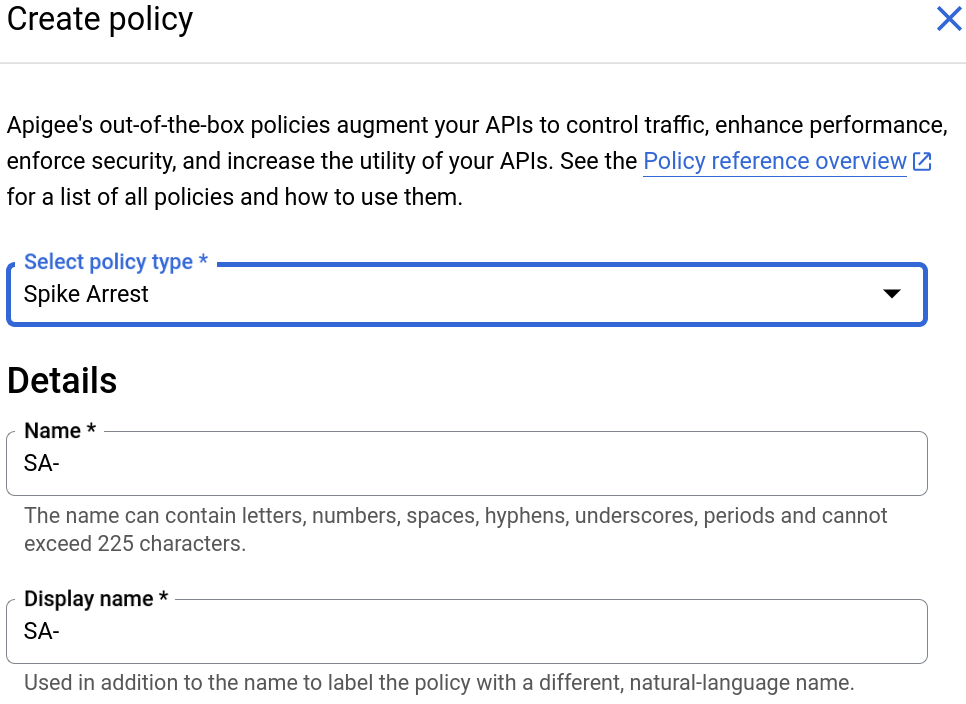
When you are done, click **Create** to create the policy.
Now that you have created the Spike Arrest policy, you can add it to a step in
the PreFlow.
1. Select **Proxy Endpoints \> default \> PreFlow** in the left-hand pane:

**Note:** You may need to expand the visual editor in the right-hand pane to see all the
elements.
To do so, click and drag the divider between the visual editor and the text editor
down a little.
2. Click the **+** button next to **PreFlow** in the **Response** pane at the bottom-right of the visual editor:

3. In the **Add policy step** dialog, select the **Spike Arrest** policy.
4. Click **Add** to attach the policy.
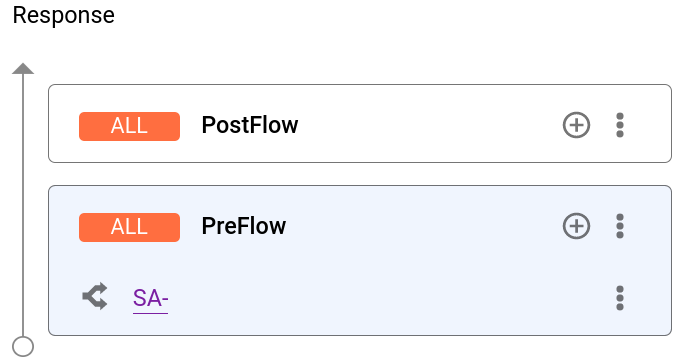
The **Spike Arrest** policy is now displayed in the **Response** pane:
> [!NOTE]
> **Note:** This example uses the default name, **SA-** , for the Spike Arrest policy. You can change the name in the **PolicyName** element in the XML for the policy, by adding a descriptive phrase after **SA-** . See [Change the policy name](https://docs.cloud.google.com/apigee/docs/api-platform/get-started/add-policy.md.txt#change-the-policy-name).
Now that you have attached the Spike Arrest policy to the PreFlow, you can try changing the code
for the policy:
1. In the **Response** pane, select **SA-**.

2. The text editor displays the XML code for the proxy, including the Spike Arrest policy step in the **Response** element of the PreFlow.
```
SA-
30ps
```
3. In the XML for the policy, change the value of the
`\` element to `1pm` (which
translates into roughly two requests allowed every 60 seconds in the cloud).
> [!NOTE]
> **Note:** The behavior of SpikeArrest involves a smoothing algorithm across multiple message processors, which affects the actual behavior you will see. If you want more details, see [SpikeArrest policy](https://docs.cloud.google.com/apigee/docs/api-platform/reference/policies/spike-arrest-policy.md.txt).
You can specify the rate as an integer value per minute (`pm`) or per
second (`ps`). This is a very low limit and is used only for this tutorial to
demonstrate the policy. Typically, you set it to a much higher limit.
Notice that the `Rate` value in the Property Inspector also changes to `1pm`.
Alternatively, you can change the **Rate** value in the **Property Inspector**
and it will be reflected in the XML view.
4. Click **Save** to save the current revision with your changes.