*This page
applies to **Apigee** and **Apigee hybrid**.*
*View [Apigee Edge](https://docs.apigee.com/api-platform/get-started/what-apigee-edge) documentation.*

## Symptom
This issue appears as "503 - Service Unavailable" errors in
[API Monitoring](https://docs.cloud.google.com/apigee/docs/api-monitoring/investigate.md.txt),
[Debug](https://docs.cloud.google.com/apigee/docs/api-platform/debug/trace.md.txt), or other
tools. The "TARGET_CONNECT_TIMEOUT" reason indicates a connection timeout
between the Apigee instance and the internet target or a target
reachable with VPC Peering.
The error should not be confused with other timeout errors, such as 504 Gateway Timeout.
## Error Message
This is the typical error in the Debug session or the response payload. Please note the reason:
`TARGET_CONNECT_TIMEOUT`.
```
{"fault":{"faultstring":"The Service is temporarily unavailable",
"detail":{"errorcode":"messaging.adaptors.http.flow.ServiceUnavailable",
"reason":"TARGET_CONNECT_TIMEOUT"}}}
```
## Possible Causes
Note that these causes are specific to internet targets or targets
reachable with VPC Peering. See
[Apigee networking options](https://docs.cloud.google.com/apigee/docs/api-platform/get-started/networking-options.md.txt). If the target is Private Service Connect (Endpoint
Attachment), see
[the Private Service Connect playbook](https://docs.cloud.google.com/apigee/docs/api-platform/troubleshoot/playbooks/network-configuration/connectivity-with-sb-psc-targets.md.txt#resolution) instead.
| Cause | Description |
|---|---|
| [Routes misconfiguration](https://docs.cloud.google.com/apigee/docs/api-platform/troubleshoot/playbooks/runtime/vpc-503-target-connect-timeout.md.txt#route-misconfiguration) | Target routes are not exported into the peering with Apigee instance. |
| [Connectivity issue at target](https://docs.cloud.google.com/apigee/docs/api-platform/troubleshoot/playbooks/runtime/vpc-503-target-connect-timeout.md.txt#connectivity-issue-target) | Target is not always able to accept a TCP connection. |
| [IP allow-listing at target with some or all Apigee NAT IPs not added](https://docs.cloud.google.com/apigee/docs/api-platform/troubleshoot/playbooks/runtime/vpc-503-target-connect-timeout.md.txt#ip-allow-listing-nat-ips) | Not all Apigee NAT IPs are allow-listed at target. |
| [NAT IP port exhaustion](https://docs.cloud.google.com/apigee/docs/api-platform/troubleshoot/playbooks/runtime/vpc-503-target-connect-timeout.md.txt#nat-ip-port-exhaustion) | Not enough NAT ports accommodated for the traffic. |
| [connect.timeout.millis value is set too low](https://docs.cloud.google.com/apigee/docs/api-platform/troubleshoot/playbooks/runtime/vpc-503-target-connect-timeout.md.txt#connect-timeout-mills-too-low) | Connection timeout setting is too low on the Apigee side. |
## Common Diagnosis Steps
[Debug](https://docs.cloud.google.com/apigee/docs/api-platform/debug/trace.md.txt) is an
essential tool to capture and evaluate the following details about the issue:
- Total duration of the request. Usually it takes three seconds (default [connect.timeout.millis](https://docs.cloud.google.com/apigee/docs/api-platform/reference/endpoint-properties-reference.md.txt#targetendpointtransportpropertyspecification)) until a connection timeout occurs. If you notice a lower duration, check the Target Endpoint configuration.
- Target hostname and the IP address. The wrong IP address showing might indicate a DNS-related issue. You might also notice a correlation between different target IPs and the issue.
- Frequency. Different approaches are needed depending on whether the issue is intermittent or persistent.
## Cause: Route misconfiguration
### Diagnosis
If the issue is persistent, even if it started recently, it might be caused by a route
misconfiguration.
This could affect both internal (routed within peered VPC) and external (internet) targets.
1. First, identify the IP address of the target resolved from the Apigee instance. One of the
methods is to use a [Debug](https://docs.cloud.google.com/apigee/docs/api-platform/debug/trace.md.txt)
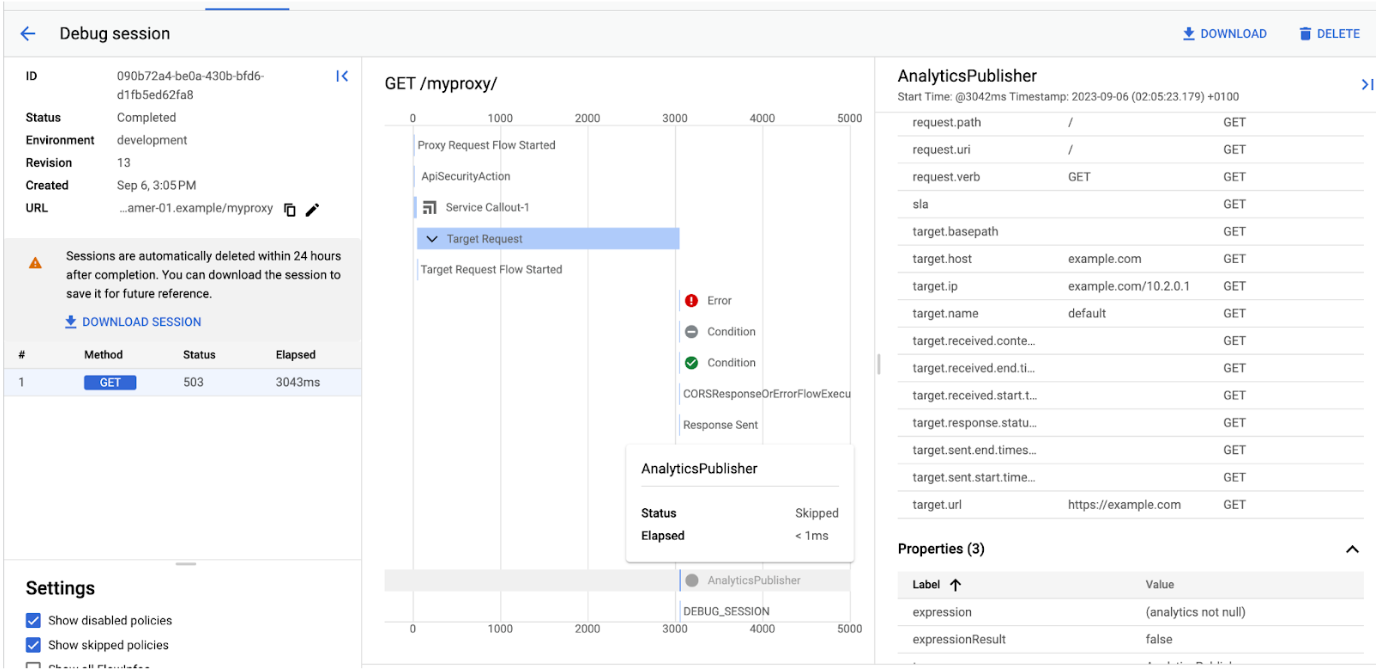
session. In Debug, navigate to **AnalyticsPublisher** (or **AX** in the Classic Debug):

Look for the **target.ip** value on the right side of the screen.
In this example, the IP is 10.2.0.1. Since this range is private, it requires certain
routing measures to be put in place to ensure Apigee can reach the target.
Please note that if the target is on the internet, you need to follow this step if
[VPC Service Controls](https://docs.cloud.google.com/apigee/docs/api-platform/security/vpc-sc.md.txt#impact-on-internet-connectivity)
are enabled for Apigee, since that prevents internet connectivity.
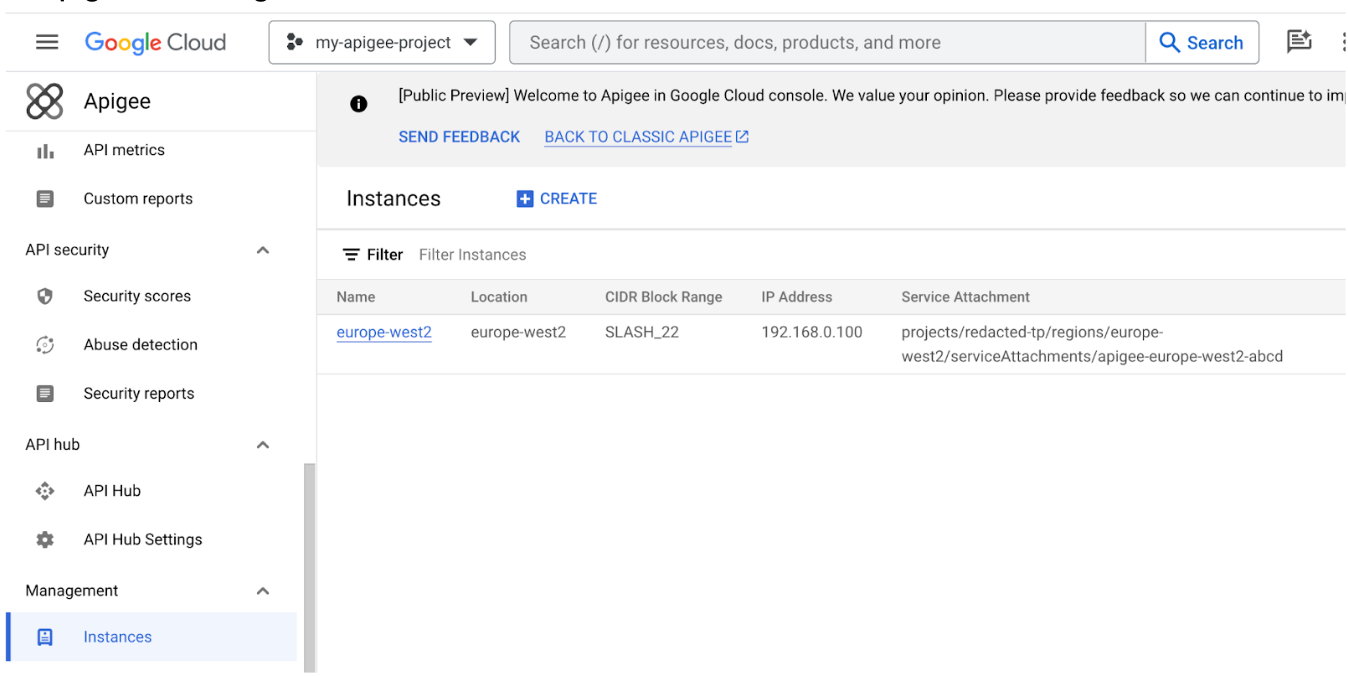
2. Note the region where the affected Apigee instance is deployed. In the [Apigee UI in Cloud console](https://console.cloud.google.com/apigee), click **Instances** . In the **Location** field, you can find the exact region of the instance.
3. In the project that is peered with Apigee, navigate to the **VPC Network** -\> **VPC
network peering** section in the UI. Please note, if you are using [Shared VPC](https://docs.cloud.google.com/apigee/docs/api-platform/system-administration/shared-vpcs.md.txt), then those steps need to be performed in the host project instead of the Apigee project.

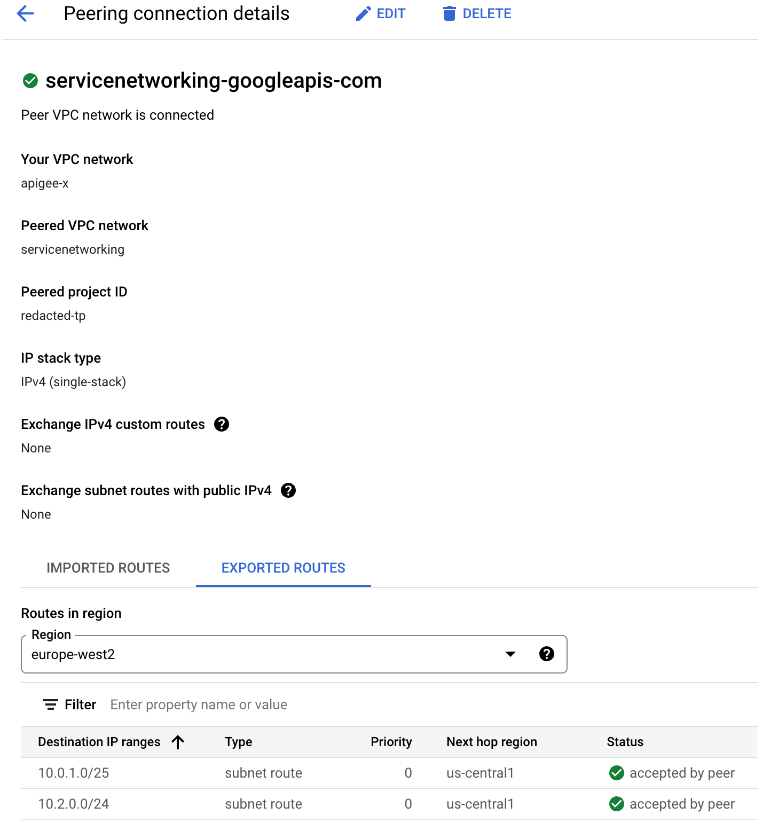
4. Click on **servicenetworking-googleapis-com** , select the **EXPORTED ROUTES** tab, and filter by the region obtained in Step 2.
This example shows the 10.2.0.0/24 route as exported and includes the 10.2.0.1 example target IP. If you don't see a route corresponding to your target, that is the cause of the issue.
> [!NOTE]
> **Note:** If the target is external, then routes are normally not present in the **Exported Routes** and Apigee requests are routed to the internet directly. This might not always be the case, so make sure to clarify the desired network topology. For example, if [VPC Service Controls](https://docs.cloud.google.com/apigee/docs/api-platform/security/vpc-sc.md.txt#impact-on-internet-connectivity) are enabled, then you also need to export default or other routes in order to reach external targets.
### Resolution
Review your network architecture, and ensure that routes are exported into the VPC peering with
Apigee. Most likely the missing route is either
[static or dynamic](https://cloud.google.com/vpc/docs/routes#types_of_routes). Lack
of necessary dynamic routes indicates a problem with the corresponding feature, for example,
Cloud Interconnect.
Please note, transitive peering is not supported. In other words, if
VPC network N1 is peered with N2 and N3, but N2 and N3 are not directly connected, VPC network
N2 cannot communicate with VPC network N3 over VPC Network Peering.
You can read
[Southbound networking patterns](https://docs.cloud.google.com/apigee/docs/api-platform/architecture/southbound-networking-patterns-endpoints.md.txt)
for more information.
## Cause: Connectivity issue at target
### Diagnosis
The target might not be reachable from the VPC or able to accept a connection. Two options are
available to diagnose the issue.
#### Connectivity Test (Private Target IP addresses)
If the target is in a private network, you can use the
[Connectivity Test](https://cloud.google.com/network-intelligence-center/docs/connectivity-tests/concepts/overview)
feature to diagnose common causes.
1. Identify the IP address of the target resolved from the Apigee instance. One of the methods is to use a [Debug](https://docs.cloud.google.com/apigee/docs/api-platform/debug/trace.md.txt) session.
In Debug, navigate to **AnalyticsPublisher** (or **AX** in the Classic Debug). Look for the **target.ip** value on the right side of the screen.
In this example, the IP is 10.2.0.1. This is a private IP address, which means we can use the Connectivity Test.
2. Note the IP address of the Apigee instance that is unable to connect to the target. In **Instances** in the Apigee Console, find the IP Address of Apigee instance in the **IP Address** field.

3. Go to [Connectivity Tests](https://console.cloud.google.com/net-intelligence/connectivity/) and click on **Create connectivity test** . Provide these details:
1. **Source IP Address:** Use the Apigee instance IP obtained in Step 2 above. Please note, this is not the exact source IP used by Apigee to send a request to the target, but it's sufficient for the test, as it's in the same subnet.
2. **This is an IP address used in Google Cloud:** Leave unchecked unless the address is in any of your Google Cloud projects. If checking this value, also provide the project and network.
3. Put the target address (Step 1) and the port as the **Destination IP Address** and **Destination Port** respectively.

4. Click **Create** and wait for the test to finish the first run.
5. In the list of connectivity tests, click **View** to see the results of the execution.
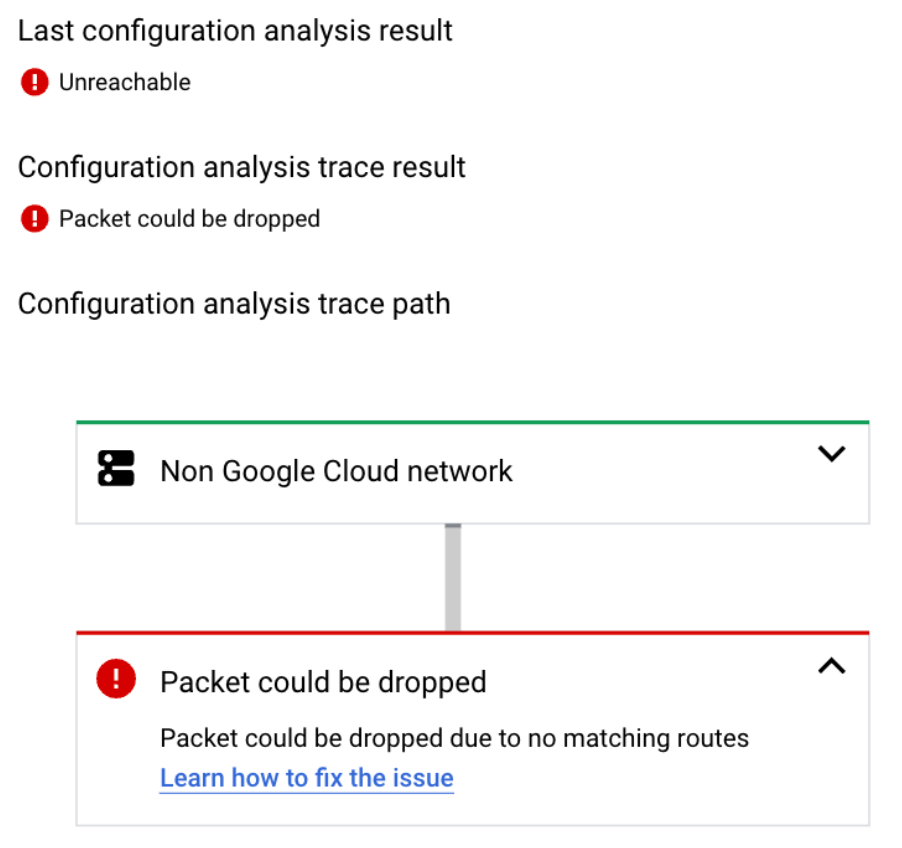
6. If the result is "Unreachable", that means that you have an issue with the configuration. The tool should direct you to the [Connectivity Tests States documentation](https://cloud.google.com/network-intelligence-center/docs/connectivity-tests/states/reasons-dropped-packets) to proceed further. If the status is "Reachable", that rules out many configuration issues. However, this is not a guarantee that the target is reachable. There hasn't been an actual attempt to establish a TCP connection with the target. Only the next diagnosis below will help to test that.
#### VM connectivity test (all targets)
1. In the same VPC that is peered with Apigee, [create a VM Instance](https://cloud.google.com/compute/docs/instances/create-start-instance) on Linux.
2. Perform connectivity tests from the VM, preferably at the moment when the issue is reproducible from Apigee. You can use telnet, curl and other utilities to establish a connection. This curl example runs in a loop with a three seconds timeout. If curl is unable to establish a TCP connection in three seconds, it fails.
```
for i in {1..100}; do curl -m 3 -v -i https://[TARGET_HOSTNAME] ; sleep 0.5 ; done
```
3. Check the full output and look for this error:
```
* Closing connection 0
curl: (28) Connection timed out after 3005 milliseconds
```
Presence of this error confirms that the issue is reproducible outside of Apigee.
Please note, if you see other errors, such as TLS-related errors, bad status codes, etc.,
they do not confirm connection timeout and are unrelated to this issue.
4. If the target requires IP allow-listing, you may not be able to test it from a VM unless you allow-list the source IP of the VM instance as well.
### Resolution
If you identified an issue based on the Connectivity Tests, proceed with the documented
resolution steps.
If the timeout is reproduced from a VM, then there is no definite guidance on how to resolve the
issue on the target side. Once the connect timeout is reproducible outside of Apigee,
pursue the issue further from the VPC. Try to test connectivity as close to the target as
possible.
If the target is behind a VPN connection, you might be able to also test it from the local
network.
If the target is on the internet, you might try to reproduce the issue outside of Google Cloud console.
If the issue happens at peak hours, the target might be overwhelmed with connections.
If you need to [raise a Google Cloud support case](https://docs.cloud.google.com/apigee/docs/api-platform/troubleshoot/playbooks/runtime/vpc-503-target-connect-timeout.md.txt#contact-support-for-further-assistance)
at that stage, you no longer need to select the Apigee component, since the issue is
now reproducible from the VPC directly.
## Cause: IP Allow-listing at target with some or all
Apigee NAT IPs not added
### Diagnosis
This concerns external targets (the internet) that have IP allow-listing enabled. Ensure
that all Apigee NAT IPs are added on the affected target side. If there is no
allow-listing at target, you can skip this section.
The issue is easier to spot if errors are intermittent, because in that case you might be able
to find a correlation between particular NAT IPs and the errors.
If the issue is persistent (all the calls are failing), please ensure that
[NAT IPs are enabled](https://docs.cloud.google.com/apigee/docs/api-platform/security/nat-provisioning.md.txt)
on Apigee and fetch them with these steps:
List the NAT IPs for an instance:
```
curl -H "Authorization: Bearer $TOKEN" \
"https://apigee.googleapis.com/v1/organizations/$ORG_ID/instances/$INSTANCE_NAME/natAddresses"
```
An example response:
```
{
"natAddresses": [
{
"name": "nat-1",
"ipAddress": "35.203.160.18",
"state": "ACTIVE"
},
{
"name": "nat-2",
"ipAddress": "35.230.14.174",
"state": "RESERVED"
}
]
}
```
If you receive no addresses in the output, then NAT IPs are not added on the Apigee side. If you get addresses but none of them are ACTIVE, then none of the addresses used allow access to the internet, which is also a problem.
If you have at least one ACTIVE address then it can be allow-listed at the target, therefore there is no misconfiguration on the Apigee side. In that case the address might be missing from the allow-list at target.
If the issue is intermittent, that might indicate that only a subset of NAT IPs has been
allow-listed at the target. To identify that:
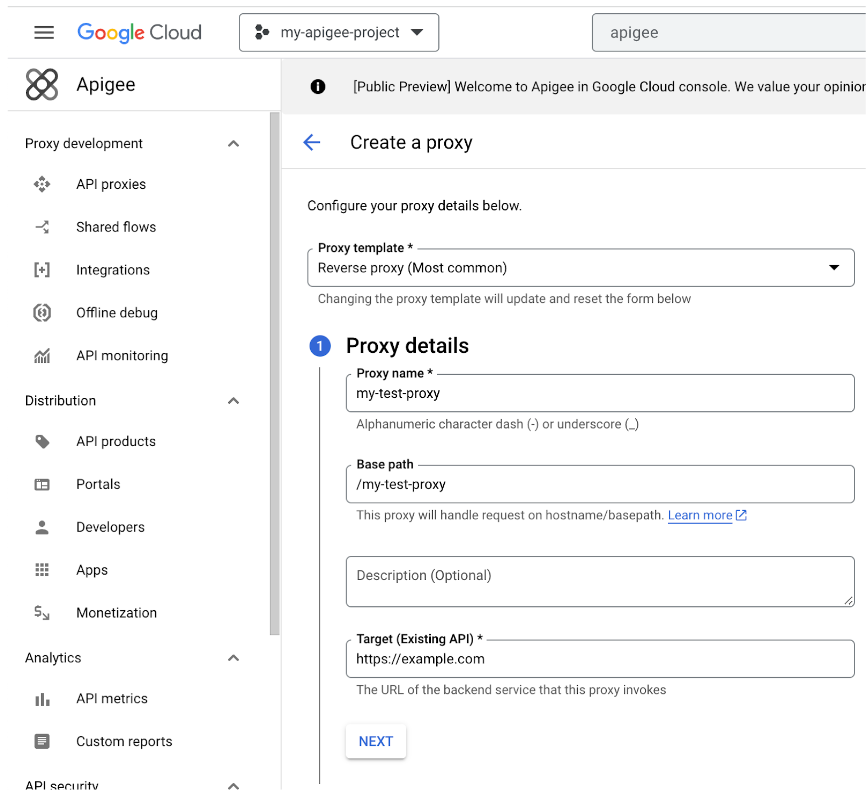
1. Create a new Reverse proxy where the affected target is specified in the TargetEndpoint. You can also reuse the existing proxy instead and move to the next step:
2. Add a ServiceCallout policy into the Request PreFlow. The ServiceCallout should call "https://icanhazip.com", "https://mocktarget.apigee.net/ip", or any other public endpoint that returns the caller IP address in the response. Store the response in the "response" variable so that the content is visible in Debug. This is an example ServiceCallout policy configuration:
```
Service Callout-1
false
response
https://icanhazip.com
```
You can also store the response in a custom variable, but you would need to read the
".content" of that variable with the AssignMessage policy to reveal it in the Debug tool.
Ensure that the target is configured in the same exact manner as in the affected proxy.
> [!NOTE]
> **Note:** The ServiceCallout request and the Target request should both happen in a single transaction. This is to ensure that the same server processes a request so that the NAT IP of the affected request matches the NAT IP obtained from the ServiceCallout.
3. Run a Debug session and click on the ServiceCallout step:
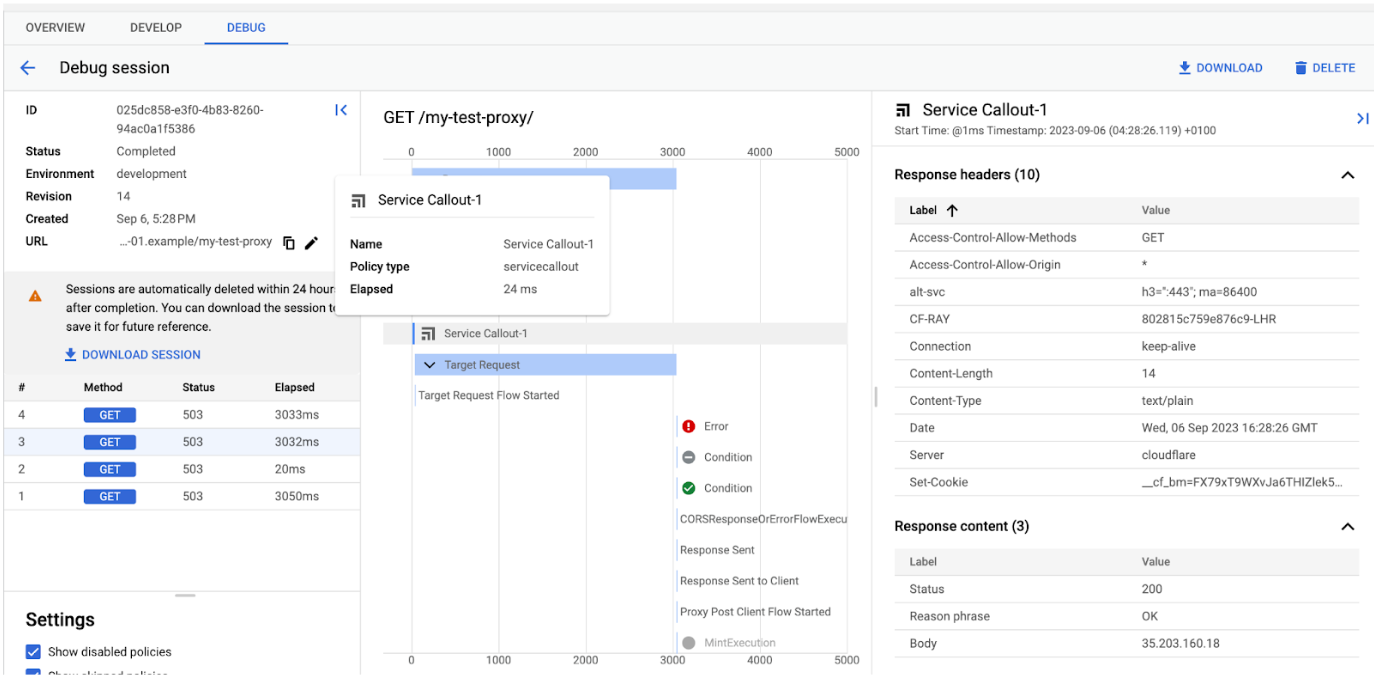
4. In the right bottom corner, you should see a **Response content** section that contains the NAT IP (in the Body) of the Apigee instance making the request. Alternatively, if you store the ServiceCallout response in a different place, you should see it there.
Please note, later in the flow, the proxy will call the target and the **Response
content** will be overwritten with the error or a response from the target.
5. Try to correlate the NAT IPs with the issue. If you notice that only particular IPs fail, this is a sign that some but not all IPs are allow-listed at the target.
6. If you don't see a correlation between NAT IPs and the errors, for example, if the same IP fails in one request but not in the other, then this is most likely not an allow-listing issue. This might be a NAT exhaustion. See [Cause: NAT IP port
exhaustion](https://docs.cloud.google.com/apigee/docs/api-platform/troubleshoot/playbooks/runtime/vpc-503-target-connect-timeout#nat-ip-port-exhaustion).
### Resolution
Ensure you have [NAT IPs provisioned
and activated](https://docs.cloud.google.com/apigee/docs/api-platform/security/nat-provisioning) and ensure that all of them are added on the target side.
## Cause: NAT IP port exhaustion
### Diagnosis
> [!NOTE]
> **Note:** This cause is not common and is relevant if the issue is not reproducible from your VPC or any other place outside of Apigee. If you haven't performed that test, please follow the [Connectivity issue at target](https://docs.cloud.google.com/apigee/docs/api-platform/troubleshoot/playbooks/runtime/vpc-503-target-connect-timeout.md.txt#connectivity-issue-target) section above for guidance. This section is also not relevant if you are not using [NAT IPs](https://docs.cloud.google.com/apigee/docs/api-platform/security/nat-provisioning.md.txt).
If the issue is only reproducible from Apigee and
[NAT IPs](https://docs.cloud.google.com/apigee/docs/api-platform/security/nat-provisioning.md.txt) are provisioned for
your organization, and you see it happening for different targets at the same time, you might be
running out of NAT source ports:
1. Note the time frame of the issue. For example: daily between 5:58 PM - 6:08 PM.
2. Confirm if any other target is affected by the issue in the same time frame. That other target must be accessible via the internet and must not be hosted in the same location as the original affected target.
3. Establish if errors only happen above a certain traffic volume in TPS. To do that, note the time frame of the issue, and navigate to the [Proxy Performance](https://docs.cloud.google.com/apigee/docs/api-platform/analytics/api-proxy-performance-dashboard.md.txt) dashboard.
4. Try to correlate the error time window with the rise in Average transactions per second (tps).
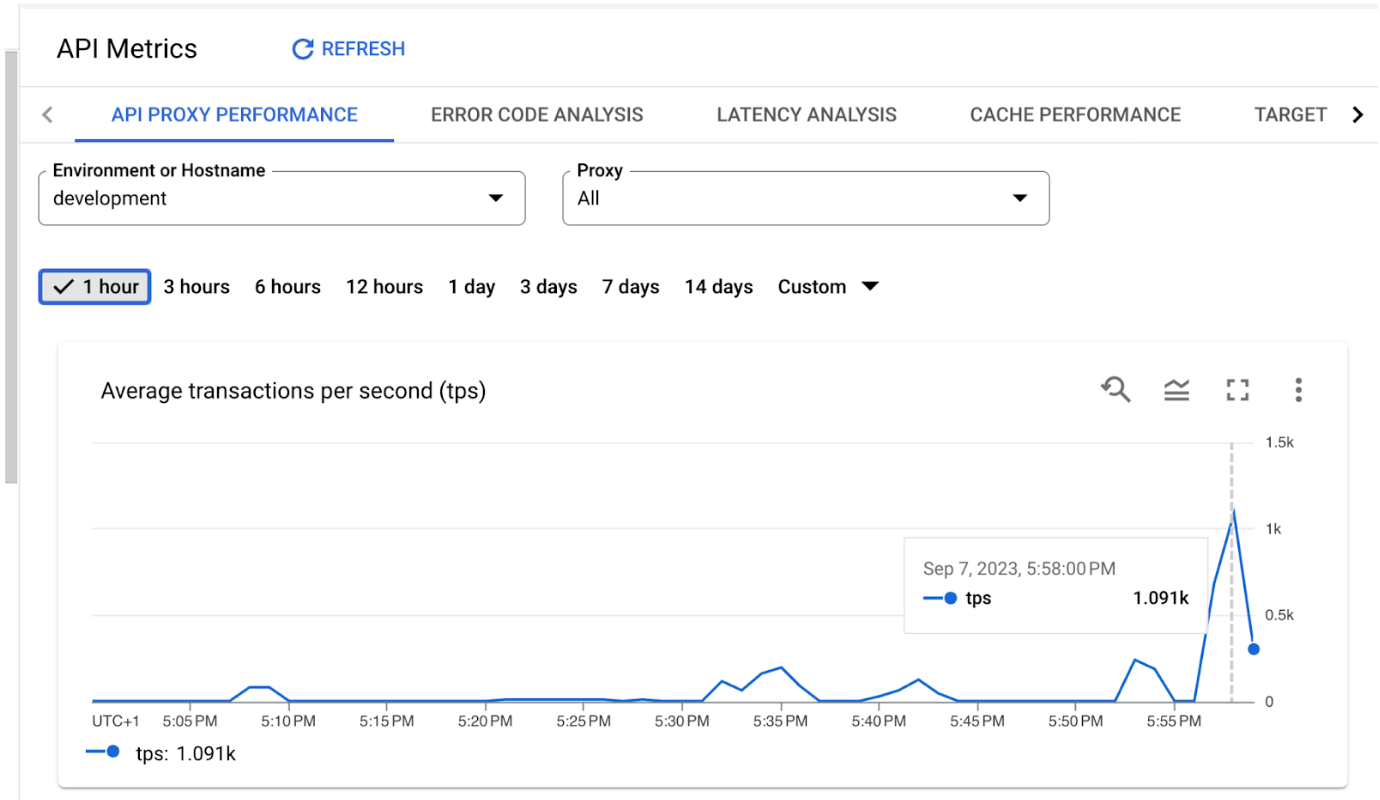
In this example, the tps grows to 1000 at 5:58 PM. Assuming that in this example, 5:58 PM is
exactly when the issue happens, and the issue affects two or more unrelated targets, that is a
signal of an issue with NAT exhaustion.
### Resolution
Re-calculate your NAT IP requirements using the instructions in
[Calculating static NAT IP requirements](https://docs.cloud.google.com/apigee/docs/api-platform/security/nat-calculation.md.txt).
You can also
[add more NAT IPs](https://docs.cloud.google.com/apigee/docs/api-platform/security/nat-provisioning.md.txt#set-up-apigee-nat-ip-provisioning)
and see if that resolves the issue. Please note, adding more IPs might require allow-listing
them at all targets first.
## Cause: connect.timeout.millis value is set too low
### Diagnosis
You might have an incorrectly configured the timeout value in the proxy.
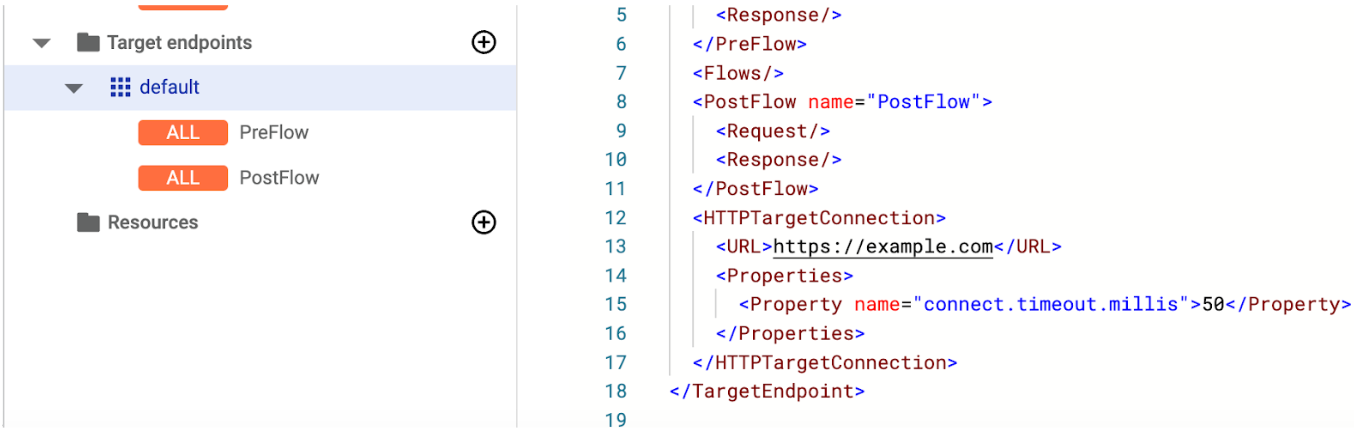
To check, navigate to the affected proxy and inspect the TargetEndpoint in question. Note the
"connect.timeout.millis" property and its value. In the example here the value is 50, which
is 50 milliseconds and is usually too low to guarantee establishing a TCP connection. If you
see a value below 1000, that's likely the cause of the issue. If you don't see such the
"connect.timeout.millis" property, then the default value is set and the cause is not confirmed.
### Resolution
Fix the connect.timeout.millis value, making sure to note that the time units are in
milliseconds. The default value is 3000, which is 3000 milliseconds. For more information, see
the [Endpoints properties reference](https://docs.cloud.google.com/apigee/docs/api-platform/reference/endpoint-properties-reference.md.txt#targetendpointtransportpropertyspecification).
## Contact Support for further assistance
If the problem persists after following the above instructions, please gather the following
diagnostic information for [Google Cloud Support](https://cloud.google.com/support-hub):
1. Project ID and the Apigee organization name
2. Proxy name(s) and the environment
3. Time frame of the issue
4. Frequency of the issue
5. Target hostname
6. [Debug session](https://docs.cloud.google.com/apigee/docs/api-platform/debug/trace.md.txt#download) with the issue
7. Outcome of the checks performed for the possible causes above. For example, the output of the `curl` command from a VM