*This page
applies to **Apigee** and **Apigee hybrid**.*
*View [Apigee Edge](https://docs.apigee.com/api-platform/get-started/what-apigee-edge) documentation.*

## Symptoms
API requests fail with `TARGET_CONNECT_HOST_NOT_REACHABLE` error.
## Error Messages
If this issue occurs, the API requests will fail with `HTTP 503`
response status code and the following error:
```
{"fault":{"faultstring":
"Unable to resolve host invalid-target-host","detail":
{"errorcode":"protocol.http.NoResolvedHost","reason":
"TARGET_CONNECT_HOST_NOT_REACHABLE"}}}
```
## Possible Causes
The following potential causes have been identified for the aforementioned
symptom:
|---|---|---|
| Cause | Description | Platform |
| [The target server host specified is incorrect or has invalid characters](https://docs.cloud.google.com/apigee/docs/api-platform/troubleshoot/playbooks/runtime/target-connect-host-not-reachable.md.txt#incorrect-target-host) | This issue could occur in the event that the designated target server host specified within the API proxy is either incorrect or contains invalid characters. | Apigee, Apigee hybrid |
| [DNS peering is not configured](https://docs.cloud.google.com/apigee/docs/api-platform/troubleshoot/playbooks/runtime/target-connect-host-not-reachable.md.txt#no-dns-peering) | This issue could occur when Apigee is not able to resolve the domain name if DNS peering is not configured in Apigee deployments. | Apigee |
### Cause: target server host specified is incorrect or has invalid characters
#### Diagnosis
1. Send an API request to the relevant API proxy:
```
curl -ik https://dev.example.com/dns-peering-example
HTTP/2 503
content-type: application/json
x-request-id: ***
content-length: 169
date: Thu, 02 Nov 2023 04:31:43 GMT
via: 1.1 google
alt-svc: h3=":443"; ma=2592000,h3-29=":443"; ma=2592000
```
and check the response message:
```
{"fault":{"faultstring":
"Unable to resolve host invalid-target-host","detail":
{"errorcode":"protocol.http.NoResolvedHost","reason":
"TARGET_CONNECT_HOST_NOT_REACHABLE"}}}
```
2. If the response contains the error reason `TARGET_CONNECT_HOST_NOT_REACHABLE` then, that is related to this reason.
#### Resolution
1. Check the API proxy definition and find the target hostname defined: 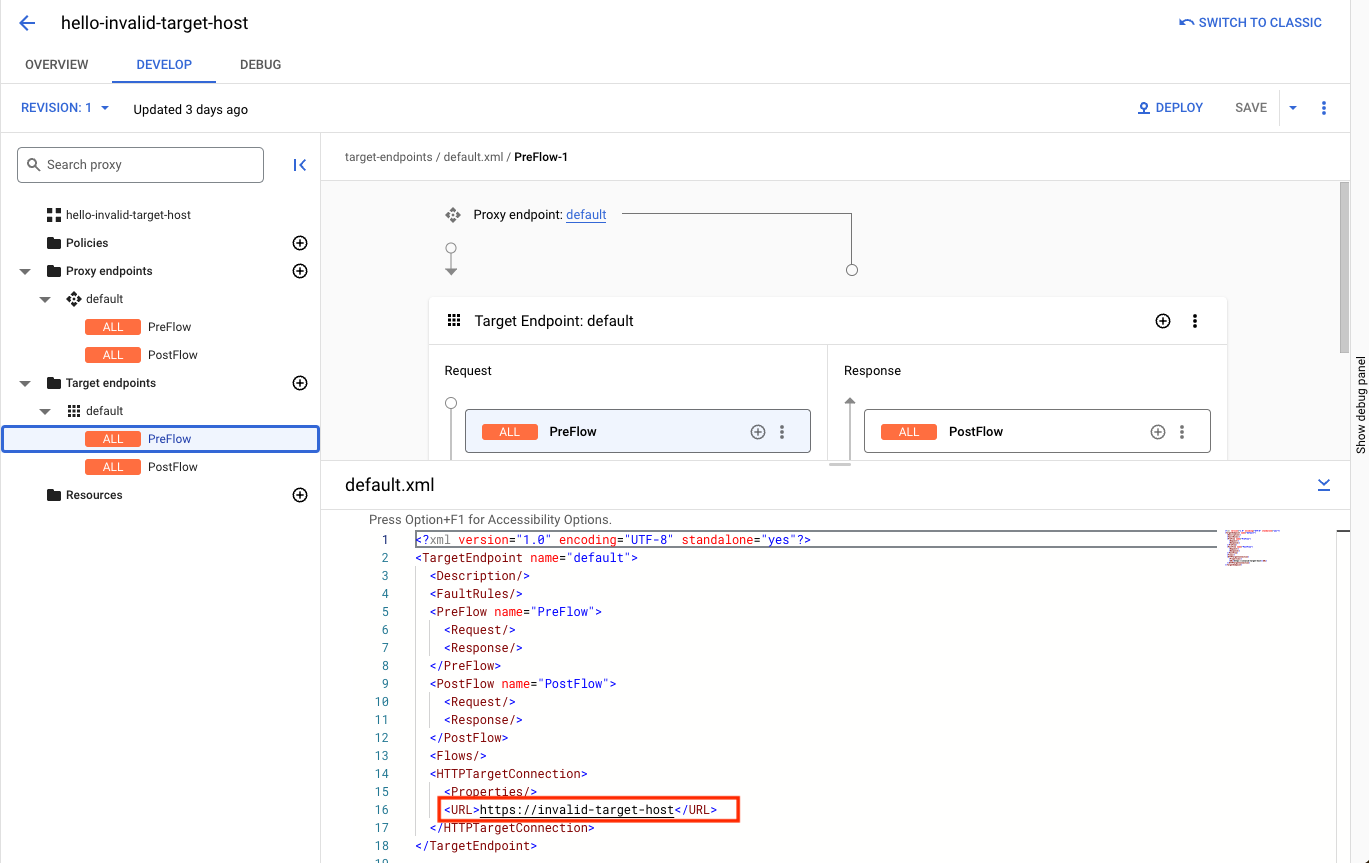 
2. If the target hostname given is invalid or has invalid characters, fix it accordingly, create a new revision of the proxy, and deploy the proxy.
### Cause: DNS peering is not configured
#### Diagnosis
1. Check whether the Apigee organization is peered with a VPC network by invoking the following Apigee API:
```
TOKEN=$(gcloud auth print-access-token)
```
```
curl -H "Authorization: Bearer $TOKEN" \
"https://apigee.googleapis.com/v1/organizations/$ORG" | jq .authorizedNetwork
```
For example, to determine if VPC peering is enabled, check to see if the response attribute
`authorizedNetwork` is present and set to a value. If it is not, then VPC peering
is not enabled:
```
TOKEN=$(gcloud auth print-access-token)
```
```
curl -H "Authorization: Bearer $TOKEN" \
"https://apigee.googleapis.com/v1/organizations/example-org/" | jq .authorizedNetwork
```
This example response indicates that VPC peering is enabled:
```
"projects/example-org/global/networks/shared-vpc1"
```
2. Verify with the API proxy developer from the customer side whether this target server domain name is internally configured. If not, this scenario does not apply.
3. Find the project ID and the network in which the target endpoint is hosted.
4. List DNS peerings created in the above network. Follow the steps below based on whether the Apigee organization is peered with a VPC network or not.
### VPC peering enabled
If your organization is VPC peering enabled, use the `
peered-dns-domains list` command:
```
gcloud services peered-dns-domains list --network=NETWORK --project=PROJECT-ID
```
The result could either be blank if no peered
DNS domains are available, or list the peered DNS domains. For example:
```
NAME DNS_SUFFIX
customer-service customer.service.internal.
accounts-service accounts.service.internal.
```
### VPC peering not enabled
If your organization is not VPC peering enabled, use the following Apigee API:
```
curl -X GET -H "Authorization: Bearer $(gcloud auth print-access-token)" -H "Content-Type:application/json" \
"https://apigee.googleapis.com/v1/organizations/ORGANIZATION/dnsZones"
```
Where: `ORGANIZATION` is the name of your Apigee organization.
Sample response, where the organization name is `dns-peering-int-4`:
```
{
"dnsZones": [
{
"name": "organizations/dns-peering-int-4/dnsZones/demo",
"description": "latest",
"domain": "demo.com",
"peeringConfig": {
"targetProjectId": "dns-peering-int-4",
"targetNetworkId": "default"
},
"state": "ACTIVE"
},
{
"name": "organizations/dns-peering-int-4/dnsZones/dns-peering-int-4",
"description": "latest",
"domain": "dns-peering-int-4.com",
"peeringConfig": {
"targetProjectId": "dns-peering-int-4",
"targetNetworkId": "default"
},
"state": "ACTIVE"
}
]
}
```
If the response does not include a DNS peering entry for the relevant
DNS suffix, then, that could be the reason for this issue. Follow
the instructions given in [Resolution](https://docs.cloud.google.com/apigee/docs/api-platform/troubleshoot/playbooks/runtime/target-connect-host-not-reachable.md.txt#resolution) to resolve
it.
#### Resolution
1. Make a note of the DNS suffix, project ID, and network in which the target endpoint is hosted.
2. Create a peered DNS domain for the DNS suffix.
### VPC peering enabled
If your organization is VPC peering enabled, use the `
peered-dns-domains create` gcloud command. Note that the
DNS suffix should contain a trailing dot at the end of the DNS suffix:
```
gcloud services peered-dns-domains create NAME --network=NETWORK --dns-suffix=DNS-SUFFIX. --project=PROJECT-ID
```
For example:
```
gcloud services peered-dns-domains create orders-service --network="shared-vpc1" --dns-suffix="orders.service.internal." --project=service-project
```
Response:
```
Operation "operations/cpdd.p25-1064980322781-fafa5fe4-b5fe-487e-830d-fff0f9a6200d" finished successfully.
```
### VPC peering not enabled
If your organization is not VPC peering enabled, create a DNS peering zone with the
private DNS zone in your project:
```
curl -X POST -H "Authorization: Bearer $(gcloud auth print-access-token)" -H "Content-Type:application/json" \
"https://apigee.googleapis.com/v1/organizations/ORGANIZATION/dnsZones?dnsZoneId=DNS_ZONE_ID" \
-d '{
"domain": "DOMAIN",
"description": "DESCRIPTION",
"peeringConfig": {
"targetProjectId": "PRODUCER_PROJECT_ID",
"targetNetworkId": "PRODUCER_VPC_NETWORK"
}
}'
```
Where:
- `ORGANIZATION` is the name of your Apigee organization.
- `DNS_ZONE_ID` is the name of the DNS zone you want to create.
- `DOMAIN` is the DNS name of this managed zone, for instance `example.com`.
- `DESCRIPTION` is a brief description of the DNS zone. Maximum characters: 1024
- `PRODUCER_PROJECT_ID` is the project that contains the producer VPC network.
- `PRODUCER_VPC_NETWORK` is the VPC network in the customer project.
> [!NOTE]
> **Note:** In a Shared VPC setup, the host project's network is shared with service projects. Therefore, if a service project's private DNS zone relies on this shared network, the `PRODUCER_PROJECT_ID` and the `PRODUCER_VPC_NETWORK` referenced in the DNS configuration will both correspond to the host project.
3. Now, send an API request to the API proxy endpoint and verify whether the API proxy could resolve the target server domain name and communicate with the target server.
## Must gather diagnostic information
If the problem persists even after following the above instructions,
gather the following diagnostic information, and then contact [Google Cloud Customer Care](https://cloud.google.com/support-hub/).
1. Google Cloud project ID
2. Apigee organization
3. API proxy and revision
4. Network in which the private domain is created
5. DNS suffix of the private domain
6. The complete output of the peered DNS domain creation command