*This page
applies to **Apigee** and **Apigee hybrid**.*
*View [Apigee Edge](https://docs.apigee.com/api-platform/get-started/what-apigee-edge) documentation.*

## Symptom
Network connectivity issues between Apigee and a southbound target service
connected by Private Service Connect.
## Error message
A network connection issue or a TCP timeout between Apigee and the target
service would show up as a `503` error response and would show an
error similar to below if you create a debug session.
```
{"fault":{"faultstring":"The Service is temporarily unavailable","detail":{"errorcode":"messaging.adaptors.http.flow.ServiceUnavailable","reason":"TARGET_CONNECT_TIMEOUT"}}}
```
## Possible Causes
|---|---|
| Cause | Description |
| [Different regions between service attachment and Apigee instance](https://docs.cloud.google.com/apigee/docs/api-platform/troubleshoot/playbooks/network-configuration/connectivity-with-sb-psc-targets.md.txt#different-regions) | The **Apigee instance** region and the **Service attachment** region are different. |
| [Missing ingress firewall rule for Private Service Connect subnet in target project](https://docs.cloud.google.com/apigee/docs/api-platform/troubleshoot/playbooks/network-configuration/connectivity-with-sb-psc-targets.md.txt#missing-fw-rule) | In the target project, ensure that an ingress firewall rule exists to allow the IP address and port of the Private Service Connect subnet range. |
| [Incorrect configuration of the service attachment in target project](https://docs.cloud.google.com/apigee/docs/api-platform/troubleshoot/playbooks/network-configuration/connectivity-with-sb-psc-targets.md.txt#incorrect-config) | Verify the **Service attachment** in the target project. |
| [Incorrect state of the endpoint attachment in Apigee](https://docs.cloud.google.com/apigee/docs/api-platform/troubleshoot/playbooks/network-configuration/connectivity-with-sb-psc-targets.md.txt#incorrect-state) | Verify the **Endpoint attachment** on Apigee. |
| [Mismatch in the port configured in TargetEndpoint and the ILB](https://docs.cloud.google.com/apigee/docs/api-platform/troubleshoot/playbooks/network-configuration/connectivity-with-sb-psc-targets.md.txt#mismatch-port) | Ensure that the TargetEndpoint in the API proxy is using the same port which is exposed by the internal load balancer (ILB) in the target project. |
## Cause: Different regions between Service attachment and Apigee instance
> [!NOTE]
> **Note:** By default, Apigee instances support global access on southbound Private Service Connect endpoints. However, the type of Producer load balancer used will determine *when* global access can be enabled. If you're using a **Regional internal Application Load Balancer** or a **Regional internal proxy Network Load Balancer** as a producer load balancer, global access must be enabled before you create Private Service Connect endpoints for your Apigee instance. If global access was not enabled prior to creating these endpoints, existing Private Service Connect endpoints must be deleted and recreated for the Apigee instance to enable global access.
> See [Private Service Connect Consumer Configuration](https://docs.cloud.google.com/vpc/docs/about-accessing-vpc-hosted-services-endpoints.md.txt#consumer-configuration-endpoints) for more details.
### Diagnosis
1. Check the Apigee instance region using one of the following methods:
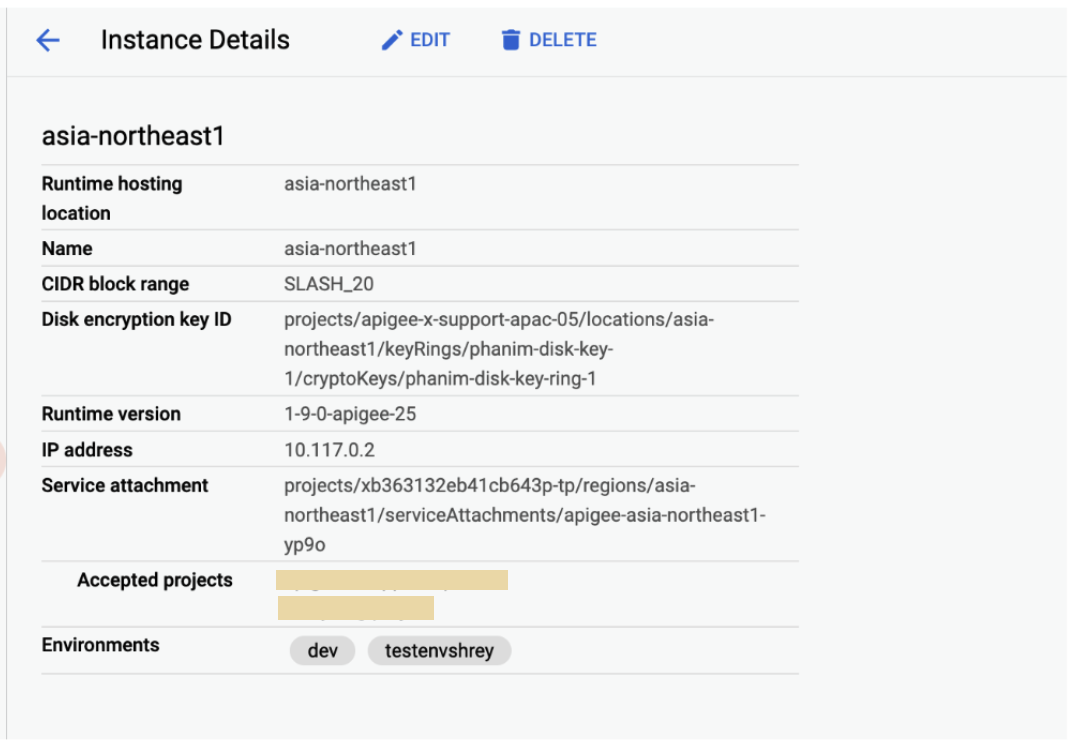
1. Using the classic Apigee UI:
1. Log in to the [Apigee UI](https://apigee.google.com).
2. Click **Admin \>** **Instances**.
3. Click an instance.
4. Check the **Runtime hosting location** on the **Instance details** pane.
2. Using the Apigee UI in Google Cloud console:
1. In the Google Cloud console, go to the **Apigee Instances** page.
[Go to Apigee Instances](https://console.cloud.google.com/apigee/instances)
2. Click an instance.
3. Check the **Runtime hosting location** on the **Instance details** pane.
3. Using an [API call](https://docs.cloud.google.com/apigee/docs/reference/apis/apigee/rest/v1/organizations/get.md.txt):
```
curl -H "Authorization: Bearer $(gcloud auth print-access-token)" "https://apigee.googleapis.com/v1/organizations/ORG_NAME/instances"
```
Where ORG_NAME is the name of the organization.
For example, `example-apigee-support`.
Something similar to the following is returned. The **Runtime hosting
location** is the value shown for `location` below.
For example, `asia-northeast1`.
```
"instances": [
{
"name": "asia-northeast1",
"location": "asia-northeast1",
"host": "10.117.0.2",
"port": "443",
"createdAt": "1628150049760",
"lastModifiedAt": "1682139265367",
"diskEncryptionKeyName": "projects/apigee-x-support-apac-05/locations/asia-northeast1/keyRings/phanim-disk-key-1/cryptoKeys/phanim-disk-key-ring-1",
"state": "ACTIVE",
"peeringCidrRange": "SLASH_20",
"runtimeVersion": "1-9-0-apigee-25",
"consumerAcceptList": [
"example-apigee-support",
"example-neg-project"
],
"serviceAttachment": "projects/xb363132eb41cb643p-tp/regions/asia-northeast1/serviceAttachments/apigee-asia-northeast1-yp9o"
}
```
2. Check the **Endpoint attachment** region using an [API call](https://docs.cloud.google.com/apigee/docs/reference/apis/apigee/rest/v1/organizations.endpointAttachments/get.md.txt):
```
curl -H "Authorization: Bearer $(gcloud auth print-access-token)" "https://apigee.googleapis.com/v1/organizations/ORG_NAME/endpointAttachments/ENDPOINT_ATTACHMENT_NAME"
```
Where:
- ORG_NAME is the name of the organization. For example, `example-apigee-support`.
- ENDPOINT_ATTACHMENT_NAME is the name of the endpoint attachment. For example, `example-ea`.
Something similar to the following is returned. The
**Endpoint attachment region** is the value shown for
`location` below. For example, `asia-northeast1`.
```
{
"name": "organizations/example-apigee-support/endpointAttachments/example-ea",
"location": "asia-northeast1",
"host": "7.0.4.2",
"state": "ACTIVE",
"connectionState": "ACCEPTED",
"serviceAttachment": "projects/target-project/regions/asia-northeast1/serviceAttachments/gkebackend"
}
```
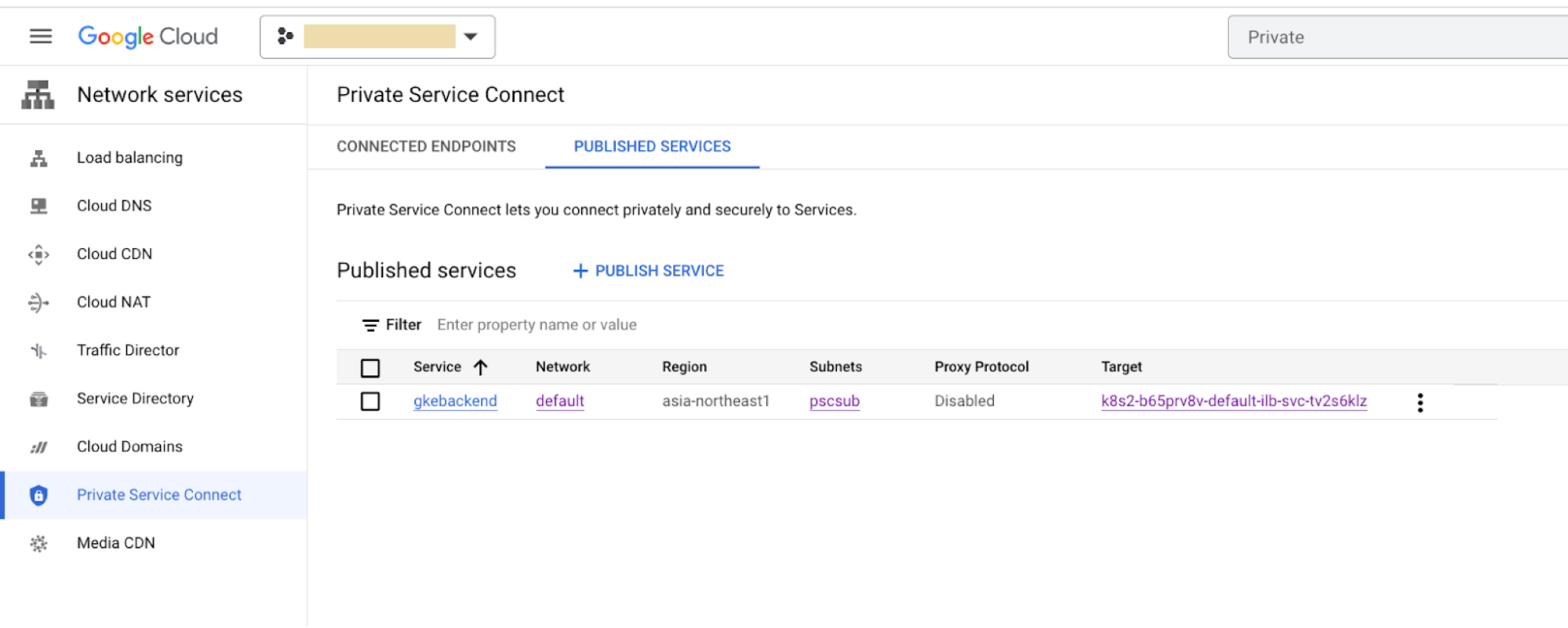
3. Check the **Service attachment** region using the Cloud console:
1. In the Google Cloud console, go to the **Private Service Connect** page.
[Go to Private Service Connect](https://console.cloud.google.com/net-services/psc/list/consumers)
2. Check the **Region**column for the location.
### Resolution
If the **Apigee instance** , **Endpoint attachment** , and
**Service attachment** regions are different, refer to the note regarding
global access at the start of this section. For some load balancer types,
global access must be enabled *before* creating Private Service Connect endpoints. If global access
was not enabled prior to creating Private Service Connect endpoints for your Apigee instance, you may need to
delete and recreate existing Private Service Connect endpoints to enable global access.
## Cause: Missing ingress firewall rule for Private Service Connect subnet in target project
### Diagnosis
Check for a firewall rule in the target project that allows the IP addres
of the Private Service Connect subnet range to connect to the target service:
1. In the Google Cloud console, go to the **Firewall** page.
[Go to Firewall](https://console.cloud.google.com/networking/firewalls/list)
2. In the **VPC firewall rules** pane, verify that a rule like the following example exists:
- **Direction:** Ingress
- **Action on match:** Allow
- **Source Filter:** IPv4/IPv6 ranges
- **IP Ranges:** IP address range of the Private Service Connect Subnet (`ipCidrRange`) which you can get with the following [gcloud command](https://docs.cloud.google.com/sdk/gcloud/reference/compute/networks/describe) to describe the Private Service Connect subnet:
```
gcloud compute networks subnets describe PSC_SUBNET_NAME --region=REGION
```
Where:
- PSC_SUBNET_NAME is the PCS subnet name. For example, `pscsub`.
- REGION is the location. For example, `asia-northeast1`.
Something similar to the following is returned:
```
creationTimestamp: '2023-04-19T03:33:29.371-07:00'
fingerprint: 1JPKY66teTg=
gatewayAddress: 10.10.0.1
id: '5645967773396008342'
ipCidrRange: 10.10.0.0/24
kind: compute#subnetwork
name: pscsub
network: https://www.googleapis.com/compute/v1/projects/target-project/global/networks/default
privateIpGoogleAccess: false
privateIpv6GoogleAccess: DISABLE_GOOGLE_ACCESS
purpose: PRIVATE_SERVICE_CONNECT
....
```
- **Protocols and ports:** These should be listed according to your target service configuration.
3. For example:

### Resolution
If the firewall rule is not in place, create a Private Service Connect subnet as described in
[Create a service attachment](https://docs.cloud.google.com/apigee/docs/api-platform/architecture/southbound-networking-patterns-endpoints.md.txt#create-the-psc-attachments), step 2.
## Cause: Incorrect configuration of the service attachment in target project
### Diagnosis
Check the **Service attachment** region using one of the following methods:
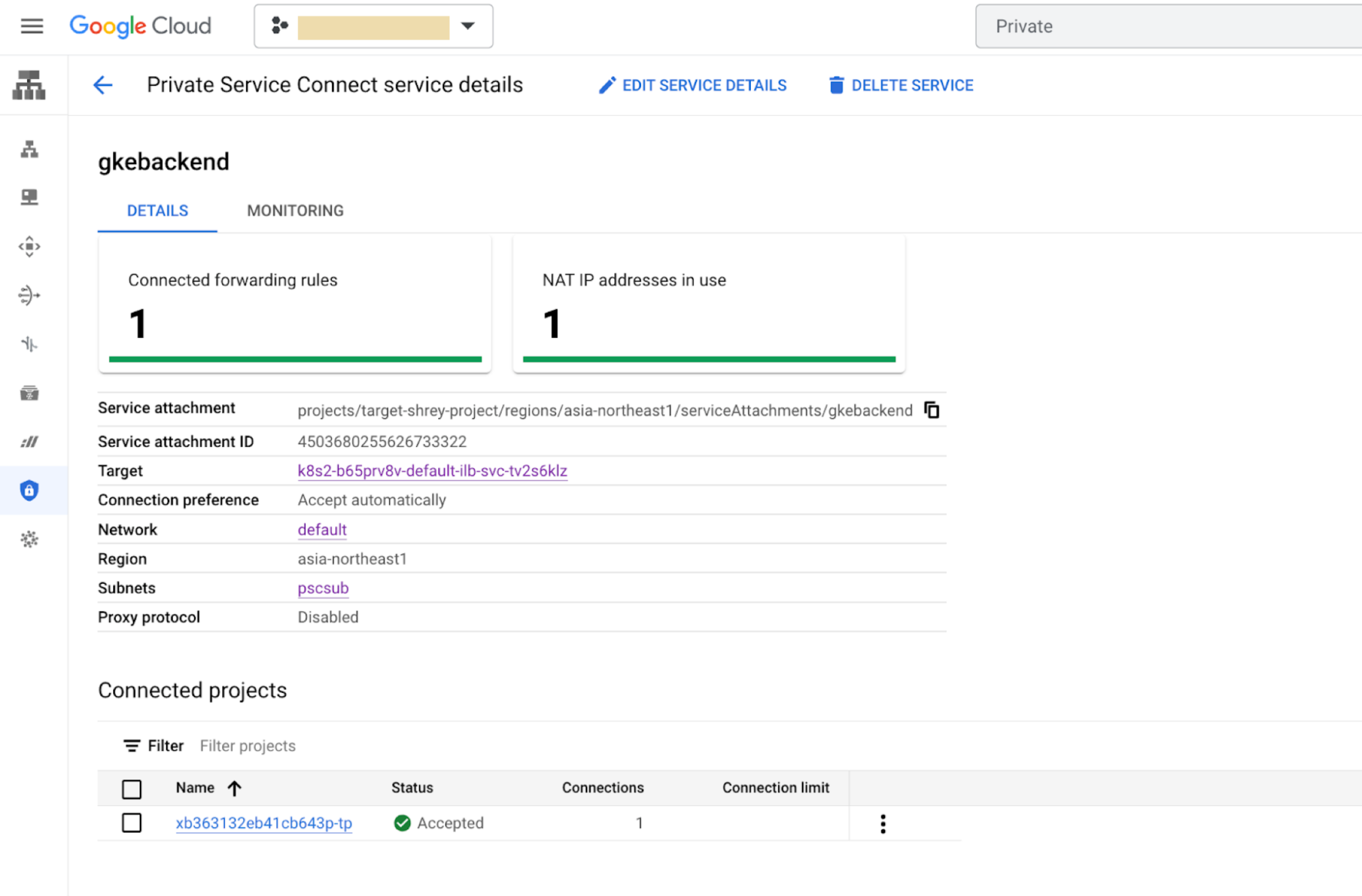
1. Using the Cloud console:
1. In the Google Cloud console, go to the **Private Service Connect** page.
[Go to Private Service Connect](https://console.cloud.google.com/net-services/psc/list/consumers)
2. Click **Published services**.
3. Click a service.
4. Check the **Region**row for the location.
2. Using a `gcloud command`:
```
gcloud compute service-attachments describe SERVICE_ATTACHMENT --region=REGION
```
Where:
- SERVICE_ATTACHMENT is the service attachment name. For example, `gkebackend`.
- REGION is the location. For example, `asia-northeast1`.
Something similar to the following is returned:
```
connectedEndpoints:
- endpoint: https://www.googleapis.com/compute/v1/projects/xb363132eb41cb643p-tp/regions/asia-northeast1/forwardingRules/example-ea
pscConnectionId: '6816512648152066'
status: ACCEPTED
connectionPreference: ACCEPT_AUTOMATIC
creationTimestamp: '2023-04-19T05:09:09.941-07:00'
description: ''
enableProxyProtocol: false
fingerprint: 0BZDAZ3zDCs=
id: '4503680255626733322'
kind: compute#serviceAttachment
name: gkebackend
natSubnets:
- https://www.googleapis.com/compute/v1/projects/target-project/regions/asia-northeast1/subnetworks/pscsub
pscServiceAttachmentId:
high: '21570167574103266'
low: '4503680255626733322'
region: https://www.googleapis.com/compute/v1/projects/target-project/regions/asia-northeast1
selfLink: https://www.googleapis.com/compute/v1/projects/target-project/regions/asia-northeast1/serviceAttachments/gkebackend
targetService: https://www.googleapis.com/compute/v1/projects/target-project/regions/asia-northeast1/forwardingRules/k8s2-tcp-b65prv8v-default-ilb-svc-tv2s6klz
```
### Resolution
1. Ensure the `connectedEndpoints.endpoint` value is referencing the tenant project of Apigee and ensure its status is `ACCEPTED`. You can find the tenant project by using the [Apigee Organizations API](https://docs.cloud.google.com/apigee/docs/reference/apis/apigee/rest/v1/organizations/get.md.txt):
```
curl -H "Authorization: Bearer $(gcloud auth print-access-token)" "https://apigee.googleapis.com/v1/organizations/ORG_NAME"
```
Where ORG_NAME is the name of the organization. For example,
`example-apigee-support`.
Something similar to the following is returned. The ID is in a field
named `apigeeProjectId`. For example,
`xb363132eb41cb643p-tp`.
```
{
"name": "example-apigee-support",
"createdAt": "1628148440954",
"lastModifiedAt": "1650563608527",
"environments": [
"dev"
],
"properties": {
"property": [
{
"name": "features.mart.connect.enabled",
"value": "true"
},
{
"name": "features.hybrid.enabled",
"value": "true"
}
]
},
"analyticsRegion": "asia-northeast1",
"authorizedNetwork": "default",
"runtimeType": "CLOUD",
"subscriptionType": "PAID",
"caCertificate": "CERTIFICATE_NUMBER",
"runtimeDatabaseEncryptionKeyName": "projects/example-apigee-support/locations/asia-northeast1/keyRings/phanim-key-ring-1/cryptoKeys/phanim-app-key-1",
"projectId": "example-apigee-support",
"state": "ACTIVE",
"billingType": "SUBSCRIPTION",
"addonsConfig": {
"advancedApiOpsConfig": {},
"integrationConfig": {},
"monetizationConfig": {}
},
"apigeeProjectId": "xb363132eb41cb643p-tp"
}
```
2. Ensure that the **Service attachment** has connectivity with the **Endpoint attachment** as described in [Southbound networking patterns, Check and manage attachment connectivity](https://docs.cloud.google.com/apigee/docs/api-platform/architecture/southbound-networking-patterns-endpoints.md.txt#check-and-manage-attachment-connectivity). In the UI from [step 1](https://docs.cloud.google.com/apigee/docs/api-platform/troubleshoot/playbooks/network-configuration/connectivity-with-sb-psc-targets.md.txt#step1) , ensure that:
1. The **Subnets** row references the Private Service Connect subnet. For example, `pscsub`.
2. The **Target** row references the correct internal load balancer for the target backends.
## Cause: Incorrect state of the endpoint attachment in Apigee
### Diagnosis
View the endpoint attachment on Apigee using an
[API call](https://docs.cloud.google.com/apigee/docs/reference/apis/apigee/rest/v1/organizations.endpointAttachments/get.md.txt):
```
curl -H "Authorization: Bearer $(gcloud auth print-access-token)" "https://apigee.googleapis.com/v1/organizations/ORG_NAME/endpointAttachments/ENDPOINT_ATTACHMENT_NAME"
```
Where:
- ORG_NAME is the name of the organization. For example, `example-apigee-support`.
- ENDPOINT_ATTACHMENT_NAME is the name of the endpoint attachment. For example, `example-ea`.
Something similar to the following is returned:
```
{
"name": "organizations/example-apigee-support/endpointAttachments/example-ea",
"location": "asia-northeast1",
"host": "7.0.4.2",
"state": "ACTIVE",
"connectionState": "ACCEPTED",
"serviceAttachment": "projects/target-project/regions/asia-northeast1/serviceAttachments/gkebackend"
}
```
### Resolution
Ensure the following:
- `state` is `ACTIVE`
- `connectionState` is `ACCEPTED`
- `serviceAttachment` refers to the correct target project and service attachment name
## Cause: Mismatch in the port configured in TargetEndpoint and the ILB
### Diagnosis
1. In the target project, find the port which the forwarding rule is exposing using the Cloud console:
1. In the Google Cloud console, go to the **Private Service Connect** page.
[Go to Private Service Connect](https://console.cloud.google.com/net-services/psc/list/consumers)
2. Click **Published services**.
3. Click a service. As shown in the following example, port 80 is exposed. 
### Resolution
Ensure that the same port 80 is the port in the `TargetEndpoint`
of the API proxy.
To check this, navigate to the API Proxy and verify the
`TargetEndpoint` URL:
1. Using the classic Apigee UI:
1. Log in to the [Apigee UI](https://apigee.google.com).
2. Click **Develop \> API Proxies**
3. Click a proxy.
4. Click **Develop**.
5. Check the **XML pane** for the following:
```
http://7.0.4.2:80
```
2. Using the Apigee UI in Google Cloud console:
1. In the Google Cloud console, go to the **Apigee** page.
[Go to Apigee](https://console.cloud.google.com/apigee)
2. In the **Proxy development** area, click **API proxies**.
3. Click a proxy.
4. Click **Develop**.
5. Check the **XML pane** for the following:
```
http://7.0.4.2:80
```
## Must gather diagnostic information
If the problem persists even after following the above instructions, gather
the following diagnostic information and then contact [Google Cloud Customer Care](https://cloud.google.com/support-hub/):
- Apigee organization
- Environment and API proxy seeing the issue
- [Downloaded debug session](https://docs.cloud.google.com/apigee/docs/api-platform/debug/trace.md.txt#download) (this will provide all the above info)
- Endpoint attachment being used
- Target project and service attachment