*This page
applies to **Apigee** and **Apigee hybrid**.*


*View [Apigee Edge](https://docs.apigee.com/api-platform/get-started/what-apigee-edge) documentation.*
![](https://fonts.gstatic.com/s/i/googlematerialicons/help/v13/gm_grey-24dp/1x/gm_help_gm_grey_24dp.png)

## Symptom


In some cases, external clients are not able to access/connect to Apigee in a desired manner. These include either network connectivity failures (TLS handshake fails) or `4xx/5xx` responses from Apigee.

## Error message


When sending an API request from your Client to Apigee, you see TLS
handshake failure or a `4xx/5xx` response even though the API
proxies might seem healthy in the Apigee UI.

## Possible causes

| Cause | Description | Error codes |
|---|---|---|
| [TLS errors at HTTPS load balancer](https://docs.cloud.google.com/apigee/docs/api-platform/troubleshoot/playbooks/network-configuration/access-routing-issues.md.txt#tls-errors) | You manage the TLS configuration of the HTTPS load balancer. Investigate any TLS errors in the HTTPS load balancer logs. | TLS handshake errors from the load balancer IP address |
| [Google Cloud Armor blocking the requests](https://docs.cloud.google.com/apigee/docs/api-platform/troubleshoot/playbooks/network-configuration/access-routing-issues.md.txt#cloud-armor-blocking) | If you're using Google Cloud Armor, there may be a rule blocking the request. | API response code may vary based on Google Cloud Armor configuration. Deny rules can return an `HTTP 403` (Unauthorized), `404` (Access Denied), or `502` (Bad Gateway) response or even another response code. |
| [Apigee proxy VMs are unable to forward the traffic to Apigee instance](https://docs.cloud.google.com/apigee/docs/api-platform/troubleshoot/playbooks/network-configuration/access-routing-issues.md.txt#proxy-unable-to-forward) | The Apigee API traffic router proxy configuration and its health need to be investigated | `502 Server Error` |
| [Incorrect network configuration](https://docs.cloud.google.com/apigee/docs/api-platform/troubleshoot/playbooks/network-configuration/access-routing-issues.md.txt#incorrect-network-config) | Ensure that the correct network is peered with Apigee VPC. | `502 Server error` |
| [Unattached environments on the new Apigee instance created as part of region expansion](https://docs.cloud.google.com/apigee/docs/api-platform/troubleshoot/playbooks/network-configuration/access-routing-issues.md.txt#unattached-environments) | After creating a new instance, for example a second region, you must attach environments to it, otherwise it cannot respond to API requests. | `503 error response` |

## Cause: TLS errors at HTTPS load balancer

### Diagnosis

1. Find the TLS certificate associated with the load balancer.
   1. Using the Google Cloud console:
      1. In the Google Cloud console, go to the **Load balancing**
         page.

         [Go to load balancing](https://console.cloud.google.com/net-services/loadbalancing/list/loadBalancers)
      2.
         Click the load balancer **Name** . The **Load balancer
         details** page opens.


         ![](https://docs.cloud.google.com/apigee/docs/api-platform/troubleshoot/playbooks/images/lb-details.png)

         ![](https://docs.cloud.google.com/apigee/docs/api-platform/troubleshoot/playbooks/images/lb-details.png)
      3. In the **Frontend** area, in the **IP:Port** column, ensure that you are looking at the right load balancer by verifying its IP address and port.
      4. In the **Certificate** column, click the certificate name to view the TLS certificate.
   2. Using a [gcloud command](https://docs.cloud.google.com/sdk/gcloud/reference/compute/target-https-proxies/list):
      1. List the load balancers with the following [gcloud command](https://docs.cloud.google.com/sdk/gcloud/reference/compute/target-https-proxies/list). This command also displays `SSL_CERTIFICATES` associated with each load balancer.

         ```
         gcloud compute target-https-proxies list --project=PROJECT_NAME
         ```

         Replace `PROJECT_NAME` with the name of your project.

         Something similar to the following is returned:

         ```xml
         NAME: example-proxy-https-proxy
         SSL_CERTIFICATES: example-ssl-cert
         URL_MAP: example-proxy-url-map
         REGION:
         CERTIFICATE_MAP: 
         ```
      2. View the TLS certificate with the following [gcloud command](https://docs.cloud.google.com/sdk/gcloud/reference/compute/ssl-certificates/describe) (this assumes you have `
         jq` or a similar tool installed on your machine):

         ```
         gcloud compute ssl-certificates describe CERTICATE_NAME \
         --project PROJECT_NAME --format json | jq -r '.certificate' | openssl x509 -text -noout
         ```


         Replace <var translate="no">CERTIFICATE_NAME</var> with the certificate
         name. For example, `example-ssl-cert`.

         Something similar to the following is returned:

         ```xml
         certCertificate:
             Data:
                 Version: 3 (0x2)
                 Serial Number:
                     51:3b:a4:60:fe:49:34:a2:09:af:14:85:96:a2:4f:d9
                 Signature Algorithm: sha256WithRSAEncryption
                 Issuer: C = US, O = Google Trust Services LLC, CN = GTS CA 1D4
                 Validity
                     Not Before: Jul 11 11:51:52 2023 GMT
                     Not After : Oct  9 12:44:45 2023 GMT
                 Subject: CN = 34.149.207.105.nip.io
                 Subject Public Key Info:
                     Public Key Algorithm: rsaEncryption
                         RSA Public-Key: (2048 bit)
                         .
                         .

                         Exponent: 65537 (0x10001)
                 X509v3 extensions:
                     X509v3 Key Usage: critical
                         Digital Signature, Key Encipherment
                     X509v3 Extended Key Usage:
                         TLS Web Server Authentication
                     X509v3 Basic Constraints: critical
                         CA:FALSE
                     X509v3 Subject Key Identifier:
                         A5:DB:7C:6A:8B:0B:7A:22:45:52:1E:85:29:32:77:18:A3:9D:87:76
                     X509v3 Authority Key Identifier:
                         keyid:25:E2:18:0E:B2:57:91:94:2A:E5:D4:5D:86:90:83:DE:53:B3:B8:92

                     Authority Information Access:
                         OCSP - URI:http://ocsp.pki.goog/s/gts1d4/qMhEcTt7LjA
                         CA Issuers - URI:http://pki.goog/repo/certs/gts1d4.der

                     X509v3 Subject Alternative Name:
                         DNS:34.149.207.105.nip.io
                     X509v3 Certificate Policies:
                         Policy: 2.23.140.1.2.1
                         Policy: 1.3.6.1.4.1.11129.2.5.3

                     X509v3 CRL Distribution Points:

                         Full Name:
                           URI:http://crls.pki.goog/gts1d4/LjtNmxrQfWE.crl
         ```


         Make sure that the common name (**CN** ) in the certificate
         matches the **Hostname** configured in **Apigee
         \> Admin \> Environments \>
         Groups** . Ensure that the certificate is valid and not
         expired. You may use `openssl` to perform these
         checks.
2. To check the TLS certificate returned by the load balancer, run the following `openssl` command from your client machine. Check to see if this certificate matches the one returned in [step 1](https://docs.cloud.google.com/apigee/docs/api-platform/troubleshoot/playbooks/network-configuration/access-routing-issues.md.txt#step1) above.

   ```
   openssl s_client -connect LB_HOSTNAME_OR_IP:443 -servername LB_HOSTNAME -showcerts
   ```

   Replace the following:
   - <var translate="no">LB_HOSTNAME_OR_IP</var>: the load balancer hostname or IP address. For example, `my-load-balancer`.
   - <var translate="no">LB_HOSTNAME</var>: the load balancer hostname. For example, `my-hostname`.


   To verify that the certificates match, run the following command
   from your client:

   ```
   echo | openssl s_client -connect HOST_NAME:443 -servername HOST_NAME | openssl x509 -noout -text | openssl md5
   ```


   Replace <var translate="no">HOST_NAME</var> with the hostname configured in
   Apigee (**Admin \> Environments \> Groups**).


   And then verify that the `md5` matches by running the following
   [gcloud](https://docs.cloud.google.com/sdk/gcloud/reference/compute/ssl-certificates/describe) command:

   ```
   gcloud compute ssl-certificates describe CERTIFICATE_NAME --project PROJECT_NAME --format json | jq -r '.certificate' | openssl x509 -noout -text | openssl md5
   ```


   Replace <var translate="no">CERTIFICATE_NAME</var> with the name of the
   certificate. For example, `my-certificate`
3. If the [step 1](https://docs.cloud.google.com/apigee/docs/api-platform/troubleshoot/playbooks/network-configuration/access-routing-issues.md.txt#step1) and [step 2](https://docs.cloud.google.com/apigee/docs/api-platform/troubleshoot/playbooks/network-configuration/access-routing-issues.md.txt#step2) certificates match (i.e., if `md5` values match), then proceed to collect a `packet capture `on the client side to investigate the TLS handshake failure. You can take the packet capture on your client side with tools like [Wireshark](https://www.wireshark.org/), [tcpdump](https://www.tcpdump.org/) or any other reliable tools.
4. Enable logs on the load balancer by following the instructions in [Enabling logging on an existing backend service](https://docs.cloud.google.com/load-balancing/docs/https/https-logging-monitoring.md.txt#enabling_logging_on_an_existing_backend_service).
5. Review the load balancer [logs](https://docs.cloud.google.com/load-balancing/docs/https/https-logging-monitoring.md.txt#viewing_logs) for any errors.

### Resolution

1. If your self-managed certificate on the load balancer is expired or has incorrect CN/SAN values, you may need to [replace the certificate on the load balancer](https://docs.cloud.google.com/load-balancing/docs/ssl-certificates/self-managed-certs.md.txt#replacing-certificates).
2. If the certificate returned by load balancer in [step 1](https://docs.cloud.google.com/apigee/docs/api-platform/troubleshoot/playbooks/network-configuration/access-routing-issues.md.txt#step1) and certificate in [step 2](https://docs.cloud.google.com/apigee/docs/api-platform/troubleshoot/playbooks/network-configuration/access-routing-issues.md.txt#step2) do not match, then it might mean that the load balancer is serving a stale/incorrect certificate, and you should file a ticket with [Google Cloud Customer Care](https://cloud.google.com/support-hub/).  
3. If a `tcpdump` indicates a TLS handshake failure, investigate if the connection failure is coming from the load balancer or from the client side.
   - If the failure or connection reset is from the client side, then check your client application to understand why it is misbehaving. For example, you could check the network configuration on your client side or verify that the client application has connectivity with Apigee.
   - If you see the failure/reset from load balancer itself, see [Troubleshoot general connectivity issues](https://docs.cloud.google.com/load-balancing/docs/https/troubleshooting-ext-https-lbs.md.txt#troubleshoot_general_connectivity_issues) and file a ticket with [Google Cloud Customer Care](https://cloud.google.com/support-hub/) if required.
4. If you see errors in the load balancer logs, see [Unexplained 5XX errors](https://docs.cloud.google.com/load-balancing/docs/https/troubleshooting-ext-https-lbs.md.txt#unexplained_5xx_errors) and file a ticket with [Google Cloud Customer Care](https://cloud.google.com/support-hub/) if required.


If you still require assistance, see
[Must gather diagnostic information](https://docs.cloud.google.com/apigee/docs/api-platform/troubleshoot/playbooks/network-configuration/access-routing-issues.md.txt#must-gather).

## Cause: Cloud Armor blocking the requests

### Diagnosis


If you see a `403`, `404` or a `502` error
response based on [Cloud Armor](https://docs.cloud.google.com/armor/docs/cloud-armor-overview.md.txt)
configuration, review the load balancer and MIG configuration to verify they
are configured correctly and appear healthy.

1. If you're using Google Cloud Armor in your Google Cloud environment, review the Google Cloud Armor configuration for any rules that may be blocking the request. The security policies can be found in [Configure Google Google Cloud Armor security policies](https://docs.cloud.google.com/armor/docs/configure-security-policies).
2. If you're not sure which rule is denying the traffic, you could try to enable logging at the load balancer as described in [Enabling logging on an existing backend service](https://docs.cloud.google.com/load-balancing/docs/https/https-logging-monitoring.md.txt#enabling_logging_on_an_existing_backend_service).
3.
   Once logging is enabled, perform a logs query to find any requests
   blocked by Google Cloud Armor policies:

   1. In the Google Cloud console, go to the **Logs Explorer** page.

      [Go to Logs Explorer](https://console.cloud.google.com/logs/query)
   2. Paste the following into the **Query** pane:

      ```sql
      jsonPayload.enforcedSecurityPolicy.outcome="DENY"
      ```
   3. Click **Run query**.
   4.
      The name of the enforced policy is displayed in
      `jsonPayload.enforcedSecurityPolicy.name` in the
      **Query results** pane:


      ![](https://docs.cloud.google.com/apigee/docs/api-platform/troubleshoot/playbooks/images/logs-explorer.png)

      ![](https://docs.cloud.google.com/apigee/docs/api-platform/troubleshoot/playbooks/images/logs-explorer.png)

### Resolution


Modify the Google Cloud Armor rules/configuration to align to your needs to
resolve this issue. If you require assistance with this, reach out to
[Google Cloud Customer Care](https://cloud.google.com/support-hub/).

## Cause: Apigee proxy VMs are unable to forward the traffic to Apigee instance

### Diagnosis

1.
   If API clients receive `HTTP 502` errors with the following
   error message, then the Apigee API traffic router proxy VMs
   might be in an unhealthy state.


   `502` errors such as the following may be received by the
   clients:

   ```html
   <html><head> <meta http-equiv="content-type"
     content="text/html;charset=utf-8"> <title>502 Server Error</title> </head>
     <body text=#000000 bgcolor=#ffffff> <h1>Error: Server Error</h1> <h2>The
     server encountered a temporary error and could not complete your
     request.<p>Please try again in 30 seconds.</h2> <h2></h2> </body></html>
   ```

   Review the load balancer logs for error messages such as the following:

   ```xml
   statusDetails: "failed_to_pick_backend"
   severity: "WARNING"
   ```


   There are a set of VMs (with an `apigee-proxy` prefix)
   running in a managed instance group (MIG) that forward the traffic to
   the Apigee instance. If you are seeing messages like the above, check
   the health of the `apigee-proxy` VMs part of the instance
   group through the following steps:
   1. In the Google Cloud console, go to the **Load balancing**
      page.

      [Go to load balancing](https://console.cloud.google.com/net-services/loadbalancing/list/loadBalancers)
   2.
      Click the load balancer **Name** . The **Load balancer details**
      page opens.


      ![](https://docs.cloud.google.com/apigee/docs/api-platform/troubleshoot/playbooks/images/lb-details-unhealthy.png)

      ![](https://docs.cloud.google.com/apigee/docs/api-platform/troubleshoot/playbooks/images/lb-details-unhealthy.png)
   3.
      In the **Backend** section, verify that all load balancer
      backends have a green check mark in the **Healthy** column.

2.
   Verify that the endpoint IP address in the MIG template matches the
   Apigee instance IP address.


   The `apigee-proxy` VMs are created using an instance
   template. The template defines the `ENDPOINT` IP address for
   connecting to the Apigee instance IP address.
   1. Get the Apigee instance IP address:

      ```
      curl -s -H "Authorization: Bearer (gcloud auth print-access-token)" \
      "https://apigee.googleapis.com/v1/organizations/ORG_NAME/instances/INSTANCE_NAME"
      ```

      Replace the following:
      - <var translate="no">ORG_NAME</var>: the name of your org. For example, `my-org`.
      - <var translate="no">INSTANCE_NAME</var>: the name of your instance. For example, `apigee-proxy-example`.
   2.
      Or, get the Apigee instance IP address using the
      Apigee UI:

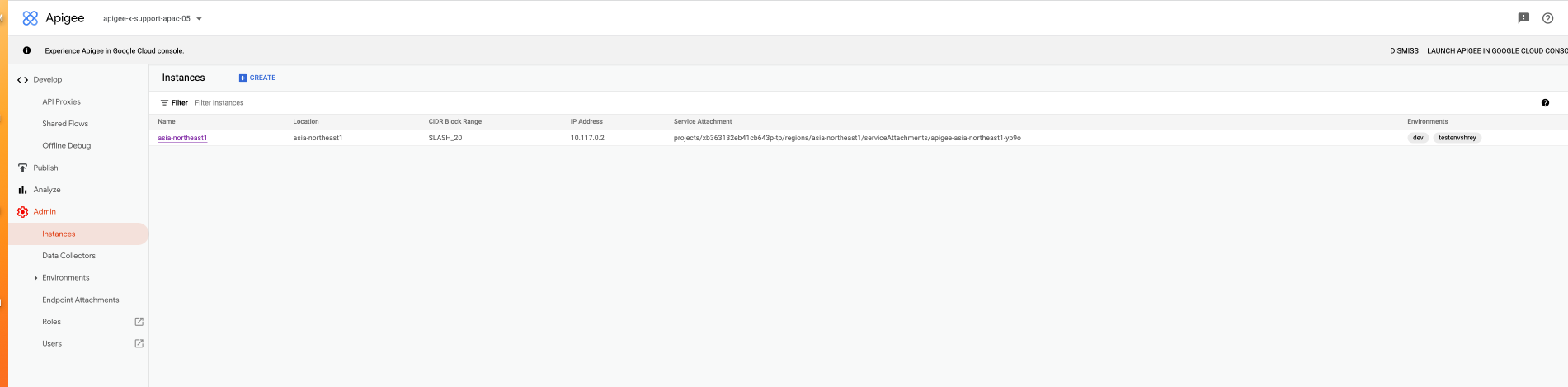
      1. In the [Apigee UI](https://apigee.google.com), click **Admin \> Instances**.
      2. The **IP addresses** column lists the IP address:

         ![](https://docs.cloud.google.com/apigee/docs/api-platform/troubleshoot/playbooks/images/instances.png)

         ![](https://docs.cloud.google.com/apigee/docs/api-platform/troubleshoot/playbooks/images/instances.png)
   3. Get the `ENDPOINT` IP address from the template:

      1.
         In the Google Cloud console, go to the **Load balancing** page.

         [Go to load balancing](https://console.cloud.google.com/net-services/loadbalancing/list/loadBalancers)
      2. Click the load balancer **Name** . The **Load balancer
         details** page opens.
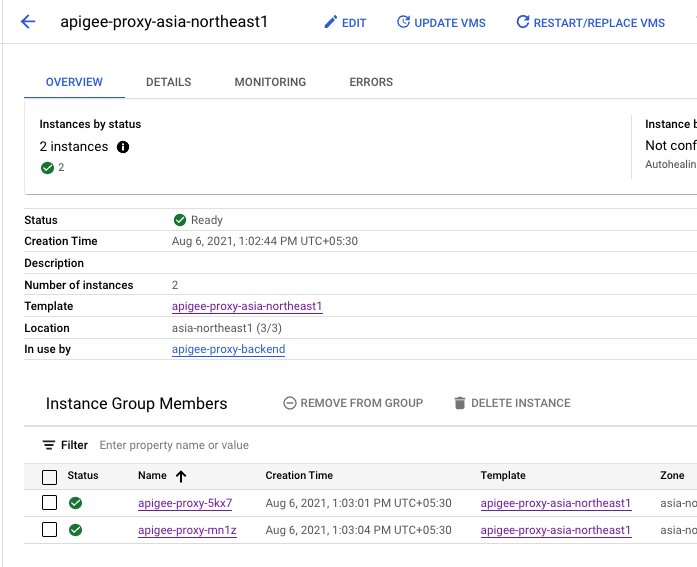
      3. In the **Backend** area, click a backend service name.
      4.
         In the **Instance group members** area, click a **Template**
         name.

         ![](https://docs.cloud.google.com/apigee/docs/api-platform/troubleshoot/playbooks/images/template-name.png)

         ![](https://docs.cloud.google.com/apigee/docs/api-platform/troubleshoot/playbooks/images/template-name.png)
      5.
         On the template page, scroll to **Custom metadata** which is
         where you will see the **ENDPOINT** IP address:


         ![](https://docs.cloud.google.com/apigee/docs/api-platform/troubleshoot/playbooks/images/custom-metadata.png)

         ![](https://docs.cloud.google.com/apigee/docs/api-platform/troubleshoot/playbooks/images/custom-metadata.png)


   Ensure that the **ENDPOINT** IP address matches the Apigee
   IP address returned in [step 2](https://docs.cloud.google.com/apigee/docs/api-platform/troubleshoot/playbooks/network-configuration/access-routing-issues.md.txt#step2). If it does not
   match, go to [Resolution](https://docs.cloud.google.com/apigee/docs/api-platform/troubleshoot/playbooks/network-configuration/access-routing-issues.md.txt#resolution3).

### Resolution

1. If the `apigee-proxy` VMs in the instance group display an unhealthy status, then ensure that you have a firewall rule in place which lets the load balancing IP address ranges `130.211.0.0/22` and `35.191.0.0/16` access the MIG.
2.
   In the Google Cloud console, go to the **Firewall** page.

   [Go to Firewall](https://console.cloud.google.com/networking/firewalls/list)
3. Ensure that an ingress firewall rule exists with `target-tag` like `gke-apigee-proxy` and source IP ranges like `130.211.0.0/22` and `35.191.0.0/16` over the `443 TCP` port:


   ![](https://docs.cloud.google.com/apigee/docs/api-platform/troubleshoot/playbooks/images/firewall-rule.png)

   ![](https://docs.cloud.google.com/apigee/docs/api-platform/troubleshoot/playbooks/images/firewall-rule.png)


   If the MIG has a different tag than `gke-apigee-proxy`,
   then make sure that the tag is added to the `target-tag` in the
   firewall rule.


   If the firewall rule does not exist, then add it.
4. If the **ENDPOINT** IP address does not match the Apigee instance IP address, it is possible that the instance was deleted and recreated, which would result in an IP address that no longer matches the IP address in the template. To update the template to use the new IP address, follow the instructions in [Changing instance IPs](https://docs.cloud.google.com/apigee/docs/api-platform/system-administration/change-instance-ips.md.txt).

## Cause: Incorrect network configuration

### Diagnosis

1. Locate the value for `authorizedNetwork` by running the
   following [API call](https://docs.cloud.google.com/apigee/docs/reference/apis/apigee/rest/v1/organizations/get.md.txt):

   ```
   curl -H "Authorization: Bearer $(gcloud auth print-access-token)" "https://apigee.googleapis.com/v1/organizations/ORG_NAME"
   ```

   Something similar to the following is returned:

   ```xml
   {
     "name": "apigee-example-org",
     "createdAt": "1621287579456",
     "lastModifiedAt": "1674063833580",
     "environments": [
       "test"
     ],
     "properties": {
       "property": [
         {
           "name": "features.mart.connect.enabled",
           "value": "true"
         },
         {
           "name": "features.hybrid.enabled",
           "value": "true"
         }
       ]
     },
     "analyticsRegion": "us-west1",
     "authorizedNetwork": "default",
     "runtimeType": "CLOUD",
     "subscriptionType": "PAID",
     "caCertificate": "certificate-number",
     "runtimeDatabaseEncryptionKeyName": "projects/apigee-example-org/locations/us-west1/keyRings/my-database-key-ring/cryptoKeys/my-database-key",
     "projectId": "apigee-example-org",
     "state": "ACTIVE",
     "billingType": "SUBSCRIPTION",
     "addonsConfig": {
       "advancedApiOpsConfig": {},
       "integrationConfig": {},
       "monetizationConfig": {}
     },
     "apigeeProjectId": "l09587a43efde330cp-tp"
   }
   ```

   In this example, the value for `authorizedNetwork` is default.
2.
   Verify that the `authorizedNetwork` value is the same as the
   network which is peered with `servicenetworking`:

   1.
      In the Google Cloud console of the host project, go to the
      **VPC network peering** page.

      [Go to VPC network peering](https://console.cloud.google.com/networking/vpc-connectivity/peering)
   2. The value listed for `servicenetworking-googleapis-com` in **Your VPC network** should be the same as the value returned from the API call. For example, `default`.
3.
   If you're using a Shared VPC, make sure that
   `authorizedNetwork` value has the value of the actual VPC in
   the host project which is peered with `servicenetworking`.

   1.
      In the Google Cloud console, go to the **Shared VPC** page.

      [Go to Shared VPC](https://console.cloud.google.com/networking/xpn/list)
   2. Select the host project.
   3. The value listed for `servicenetworking-googleapis-com` in **Your VPC network** should be the same as the value `authorizedNetwork` returned from the API call. For example, `default`.
4.
   Verify that the instance group associated with the load balancer is the
   same network as the `authorizedNetwork` value:

   1.
      In the Google Cloud console, go to the **Load balancing** page.

      [Go to load balancing](https://console.cloud.google.com/net-services/loadbalancing/list/loadBalancers)
   2.
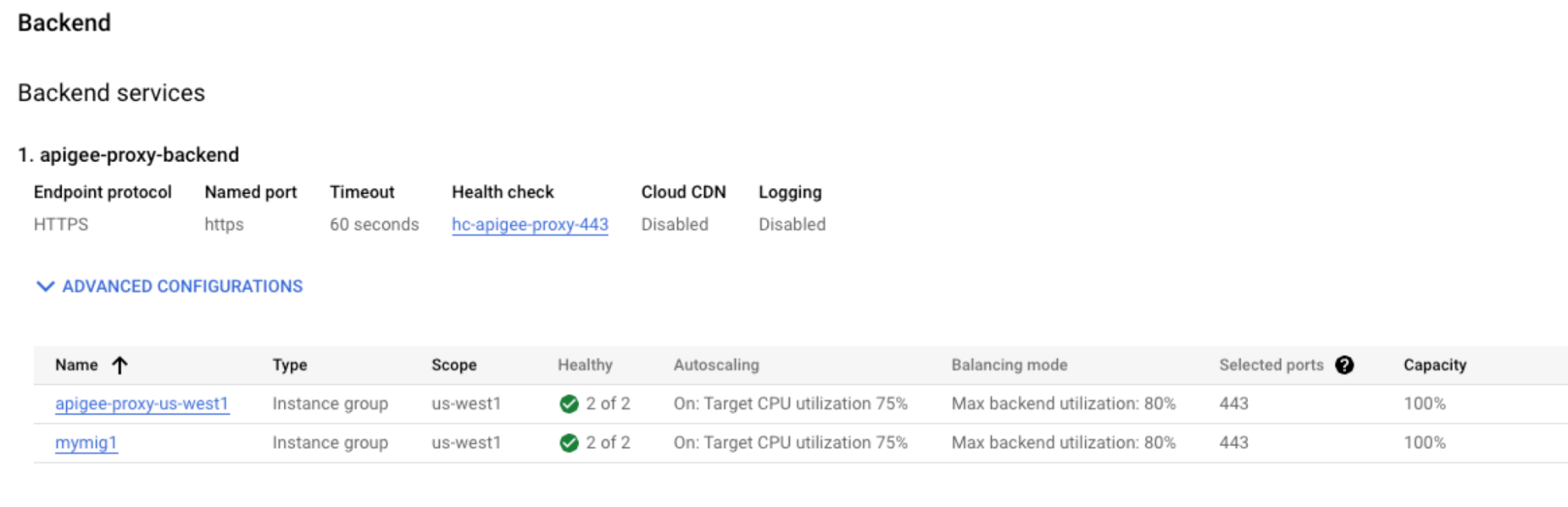
      Click a load balancer name. The **Load balancer details** page
      opens. A list of instance groups is displayed in the **Backend**
      area:

      ![](https://docs.cloud.google.com/apigee/docs/api-platform/troubleshoot/playbooks/images/backend.png)

      ![](https://docs.cloud.google.com/apigee/docs/api-platform/troubleshoot/playbooks/images/backend.png)
   3. Click the name of an instance group. The instance group **Overview** page is displayed.
   4. Click the **Details** tab.
   5. Scroll to the **Networking** section:


      ![](https://docs.cloud.google.com/apigee/docs/api-platform/troubleshoot/playbooks/images/networking.png)

      ![](https://docs.cloud.google.com/apigee/docs/api-platform/troubleshoot/playbooks/images/networking.png)
   6. Verify that the **Primary network** here is the same as the `authorizedNetwork` value. For example, `default`.
   7. Click the **Overview** tab.
   8. In the **Instance Group Members** section, click the name of an instance. The **Details** page is displayed.
   9. Scroll to the **Network Interfaces** section:


      ![](https://docs.cloud.google.com/apigee/docs/api-platform/troubleshoot/playbooks/images/network-interfaces.png)

      ![](https://docs.cloud.google.com/apigee/docs/api-platform/troubleshoot/playbooks/images/network-interfaces.png)
   10. Verify that the **Network** value is the same as `authorizedNetwork` value. For example, `default`.
   11. Go to the **Overview** tab and repeat [step h](https://docs.cloud.google.com/apigee/docs/api-platform/troubleshoot/playbooks/network-configuration/access-routing-issues.md.txt#steph) through [step j](https://docs.cloud.google.com/apigee/docs/api-platform/troubleshoot/playbooks/network-configuration/access-routing-issues.md.txt#stepj) for every instance in the **Instance Group Members** section.

### Resolution

1. If in either [step 2](https://docs.cloud.google.com/apigee/docs/api-platform/troubleshoot/playbooks/network-configuration/access-routing-issues.md.txt#step2) or [step 3](https://docs.cloud.google.com/apigee/docs/api-platform/troubleshoot/playbooks/network-configuration/access-routing-issues.md.txt#step3), the `authorizedNetwork` value is not the same as the network which is peered with `servicenetworking`, then make sure that you have peered the correct VPC network with `servicenetworking` by following the steps in [Step 4: Configure service networking](https://docs.cloud.google.com/apigee/docs/api-platform/get-started/install-cli.md.txt#service-networking).
2. If in step [4f](https://docs.cloud.google.com/apigee/docs/api-platform/troubleshoot/playbooks/network-configuration/access-routing-issues.md.txt#stepf) and [4j](https://docs.cloud.google.com/apigee/docs/api-platform/troubleshoot/playbooks/network-configuration/access-routing-issues.md.txt#stepj), the network values are not the same as the `authorizedNetwork` value, then verify that the `authorizedNetwork` is the network peered with `servicenetworking. `If it is peered correctly, and the network is still not the same as the `authorizedNetwork,` then this means the instance group was created incorrectly and you should contact [Google Cloud Customer Care](https://cloud.google.com/support-hub/).

## Cause: Unattached environment on the new Apigee instance created as a part of region expansion

### Diagnosis

1. You see a `503` error on the client side. For example:

   ```xml
   HTTP/2 503
   date: Thu, 08 Jun 2023 07:22:15 GMT
   content-length: 0
   via: 1.1 google
   alt-svc: h3=":443"; ma=2592000,h3-29=":443"; ma=2592000
   ```

   > [!NOTE]
   > **Note:** This `503` error is not displayed in the debug trace since the requests never reach the runtime Message Processor.

2. If you are seeing `503` errors on the second region immediately after a [region expansion](https://docs.cloud.google.com/apigee/docs/api-platform/system-administration/multi-region.md.txt):
   1. Ensure that the environments are attached to the new instance by running the following [API call](https://docs.cloud.google.com/apigee/docs/reference/apis/apigee/rest/v1/organizations.instances.attachments.md.txt):

      ```
      curl -H "Authorization: Bearer $(gcloud auth print-access-token)" "https://apigee.googleapis.com/v1/organizations/ORG_NAME/instances/NEW_INSTANCE/attachments"
      ```

      For example:

      ```
      curl -H "Authorization: Bearer $(gcloud auth print-access-token)" "https://apigee.googleapis.com/v1/organizations/apigee-example-org/instances/apigee-proxy-example/attachments"
      ```

      Something similar to the following is returned:

      ```xml
      {
        "attachments": [
          {
            "name": "9ed157df-5ef2-4cdc-b1d5-2643b480eb33",
            "environment": "dev",
            "createdAt": "1628153855420"
          },
          {
            "name": "a9e04dff-4ca4-4749-902f-5058e28c26a5",
            "environment": "prod",
            "createdAt": "1664517347106"
          }
        ]
      }
      ```


      In this example, the instance named `apigee-proxy-example`
      is attached to two environments: `dev` and
      `prod`.
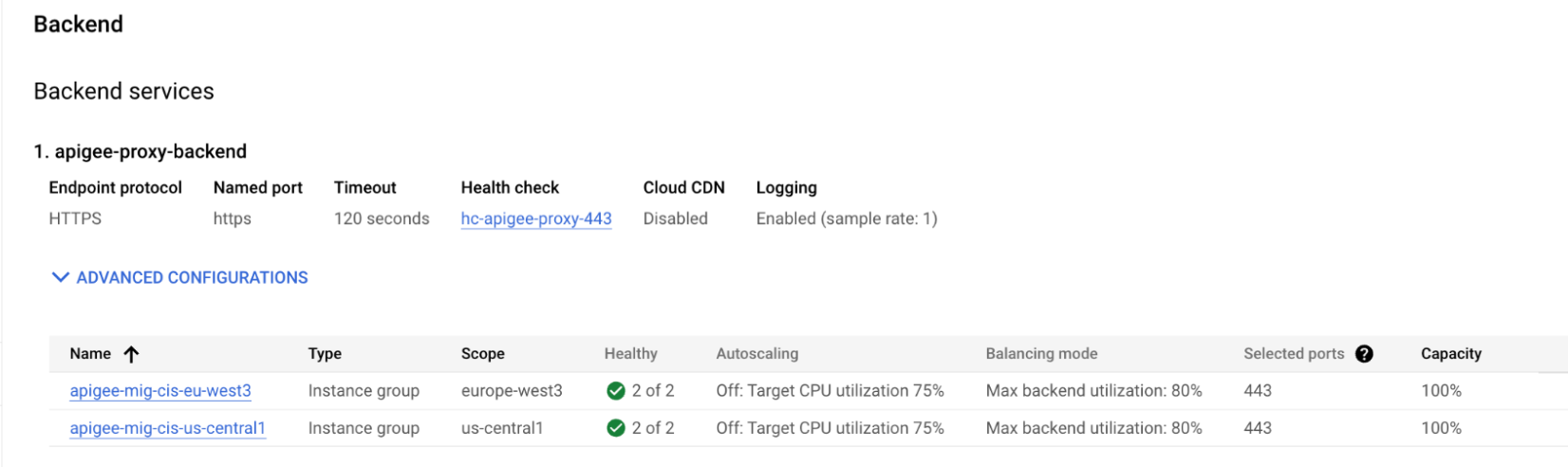
   2. Ensure that the managed instance group (MIG) for the second region has been created and is showing as healthy:
      1.
         In the Google Cloud console, go to the **Load balancing** page.

         [Go to load balancing](https://console.cloud.google.com/net-services/loadbalancing/list/loadBalancers)
      2. Click the load balancer **Name** . The **Load balancer details** page opens.
      3. Under **Backend** , you should see two MIGs; one for region 1, and one for region 2. Verify that both are healthy:

         ![](https://docs.cloud.google.com/apigee/docs/api-platform/troubleshoot/playbooks/images/backend-migs.png)

         ![](https://docs.cloud.google.com/apigee/docs/api-platform/troubleshoot/playbooks/images/backend-migs.png)
      4. Validate the second MIG by following the steps in [Apigee proxy VMs are unable to
         forward the traffic to Apigee instance](https://docs.cloud.google.com/apigee/docs/api-platform/troubleshoot/playbooks/network-configuration/access-routing-issues#proxy-unable-to-forward).

### Resolution

1.
   If the new instance is not attached to the environment, then attach the
   instance to the environment by following the instructions in
   [Attach environments to the new instance](https://docs.cloud.google.com/apigee/docs/api-platform/system-administration/multi-region.md.txt#env).


   Another option is make sure the load balancer routes the request to the
   correct backend where the environment is already attached. For example, of
   a nonprod env. You may want to attach this to only one region; however, the
   load balancer may be routing the request to the wrong region. You would need
   to update the load balancer config to make sure it routes to the correct
   region.
2. If a MIG is unhealthy, See [Diagnosis](https://docs.cloud.google.com/apigee/docs/api-platform/troubleshoot/playbooks/network-configuration/access-routing-issues.md.txt#diagnosis3) and [Resolution](https://docs.cloud.google.com/apigee/docs/api-platform/troubleshoot/playbooks/network-configuration/access-routing-issues.md.txt#resolution3) in [Apigee proxy VMs are unable to
   forward the traffic to Apigee instance](https://docs.cloud.google.com/apigee/docs/api-platform/troubleshoot/playbooks/network-configuration/access-routing-issues#proxy-unable-to-forward).

## Must gather diagnostic information


If the problem persists even after following the above instructions, gather
the following diagnostic information and then contact [Google Cloud Customer Care](https://cloud.google.com/support-hub/):

- Apigee organization
- Environment and API proxy seeing the issue
- Downloaded debug session (if the issue is intermittent)
- Verbose curl output of a failed request.
- Load balancer configured to send API calls to Apigee






