*This page
applies to **Apigee** and **Apigee hybrid**.*
*View [Apigee Edge](https://docs.apigee.com/api-platform/get-started/what-apigee-edge) documentation.*

## Symptom
Sending Apigee API logs to [Cloud Logging](https://docs.cloud.google.com/logging) is a common use case. This is generally done through the
[MessageLogging](https://docs.cloud.google.com/apigee/docs/api-platform/reference/policies/message-logging-policy.md.txt) policy or the
[ServiceCallout](https://docs.cloud.google.com/apigee/docs/api-platform/reference/policies/service-callout-policy.md.txt) policy. In both cases, Apigee uses the
[Cloud Logging API](https://docs.cloud.google.com/logging/docs/reference/api-overview.md.txt) to
write the logs.
In some cases, you might not see the Apigee API logs in
Cloud Logging.
## Error message
There is no error message displayed.
## Possible Causes
| Cause | Description | Troubleshooting instructions applicable for |
|---|---|---|
| [Cloud Logging API is not enabled](https://docs.cloud.google.com/apigee/docs/api-platform/troubleshoot/playbooks/cloud-logging-issues.md.txt#api-not-enabled) | Ensure that you have enabled Cloud Logging API in the Google Cloud project of your Apigee organization. | Apigee and Apigee hybrid |
| [IAM Service Account Credentials API is not enabled](https://docs.cloud.google.com/apigee/docs/api-platform/troubleshoot/playbooks/cloud-logging-issues.md.txt#service-account-api-not-enabled) | Ensure that you have enabled the IAM Service Account Credentials API in the Google Cloud project of your Apigee organization. | Apigee and Apigee hybrid |
| [Misconfigured Proxy Service account](https://docs.cloud.google.com/apigee/docs/api-platform/troubleshoot/playbooks/cloud-logging-issues.md.txt#misconfigured-proxy-sa) | The service account used at deploy time (Apigee) or in runtime configuration (Apigee hybrid) may have been deleted/misconfigured. | Apigee and Apigee hybrid |
| [Incorrect project name in policy configuration](https://docs.cloud.google.com/apigee/docs/api-platform/troubleshoot/playbooks/cloud-logging-issues.md.txt#incorrect-project-name) | The project name in the policy configuration is not the same as the one associated with the Apigee org. | Apigee and Apigee hybrid |
| [Missing roles/permissions for the runtime service account](https://docs.cloud.google.com/apigee/docs/api-platform/troubleshoot/playbooks/cloud-logging-issues.md.txt#missing-roles) | For Apigee hybrid, make sure that the runtime service account has the **Service Account Token Creator** role. This is equired to use Google authentication. | Apigee hybrid |
| [Log entry size exceeding the permitted Cloud Logging limit](https://docs.cloud.google.com/apigee/docs/api-platform/troubleshoot/playbooks/cloud-logging-issues.md.txt#exceeded-log-limit) | Cloud Logging has a 256 KB entry size limit which can't be changed. | Apigee and Apigee hybrid |
| [Exhaustion of write requests per minute quota for Cloud Logging API](https://docs.cloud.google.com/apigee/docs/api-platform/troubleshoot/playbooks/cloud-logging-issues.md.txt#cloud-logging-api-quota-exhausted) | Make sure that you don't exceed the write requests per minute quota value for cloud logging API in your Google Cloud project. | Apigee and Apigee hybrid |
## Cause: Cloud Logging API is not enabled
### Diagnosis
Verify that the **Cloud Logging API** is enabled. See
[List enabled services](https://docs.cloud.google.com/service-usage/docs/list-services.md.txt#enabled) for instructions on how to list enabled APIs
and services in the Google Cloud console.
### Resolution
If the **Cloud Logging API** is not enabled, enable it using the
steps in
[Enabling services](https://docs.cloud.google.com/service-usage/docs/enable-disable.md.txt#enabling). It can take a few minutes to enable the API.
If you cannot resolve the issue where logs are not seen in
Cloud Logging due to the Cloud Logging API not being enabled, see
[Must gather diagnostic information](https://docs.cloud.google.com/apigee/docs/api-platform/troubleshoot/playbooks/cloud-logging-issues.md.txt#must-gather).
## Cause: IAM Service Account Credentials API is not enabled
### Diagnosis
Verify that the **IAM Service Account Credentials API** is enabled. See
[List enabled services](https://docs.cloud.google.com/service-usage/docs/list-services.md.txt#enabled) for instructions on how to list enabled APIs
and services in the Google Cloud console.
### Resolution
If the **IAM Service Account Credentials API** is not enabled, enable it using the
steps in
[Enabling services](https://docs.cloud.google.com/service-usage/docs/enable-disable.md.txt#enabling). It can take a few minutes to enable the API.
If you cannot resolve the issue where logs are not seen in
Cloud Logging due to the IAM Service Account Credentials API not being enabled, see
[Must gather diagnostic information](https://docs.cloud.google.com/apigee/docs/api-platform/troubleshoot/playbooks/cloud-logging-issues.md.txt#must-gather).
## Cause: Misconfigured proxy service account
### Diagnosis
#### Apigee
1. Find the service account name.
1. Using the [Apigee UI](https://apigee.google.com):
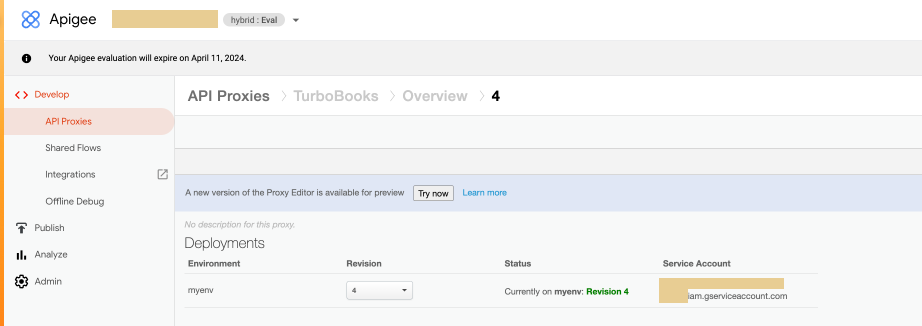
1. Click **Develop \> API Proxies** and then click on a proxy name. For example, **TurboBooks**.
2. Under **Deployments** , the **Service Account** name is displayed.

2. [Using the Apigee API](https://docs.cloud.google.com/apigee/docs/reference/apis/apigee/rest/v1/organizations.environments.apis.revisions.deployments.md.txt):
Issue the following Apigee API call:
```
curl -H "Authorization: Bearer $(gcloud auth print-access-token)" "https://apigee.googleapis.com/v1/organizations/ORG_NAME/environments/ENV_NAME/apis/PROXY_NAME/revisions/REVISION_NUMBER/deployments"
```
Replace the following:
- ORG_NAME: The name of your organization. For example, `apigee-example-org`.
- ENV_NAME: The name of the environment. For example, `myenv`.
- PROXY_NAME: The name of the proxy. For example, `TurboBooks`.
- REVISION_NUMBER: The revision number. For example, `4`.
For example:
```
curl -H "Authorization: Bearer $(gcloud auth print-access-token)" "https://apigee.googleapis.com/v1/organizations/apigee-example-org/environments/myenv/apis/TurboBooks/revisions/4/deployments"
```
Something similar to the following is returned:
```
{
"environment": "myenv",
"apiProxy": "TurboBooks",
"revision": "4",
"deployStartTime": "1687408163394",
"state": "READY",
"instances": [
{
"instance": "apiginstance",
"deployedRevisions": [
{
"revision": "4",
"percentage": 100
}
.
.
.
.
"serviceAccount": "projects/-/serviceAccounts/envsa-79@apigee-example-org.iam.gserviceaccount.com"
}
```
Where `serviceAccount` is the service account associated with
the API proxy.
2. Verify the following for this proxy service account:
1. This service account must be in the same Google Cloud project that you used to create your Apigee organization. For example, `apigee-example-org.`
2. The user who deploys the proxy has the `iam.serviceAccounts.actAs` permission on this service account.
- For a list of roles, see [Service Accounts roles](https://docs.cloud.google.com/iam/docs/roles-permissions/iam.md.txt).
- For instructions on how to view a specific user's roles, see [View current access](https://docs.cloud.google.com/iam/docs/granting-changing-revoking-access.md.txt#view-access).
3. The proxy service account has permissions needed to to call the Cloud Logging service.
- For a list of roles, see [Logging roles](https://docs.cloud.google.com/iam/docs/roles-permissions/logging.md.txt).
- For instructions on how to view the proxy service account permissions, see [View current access](https://docs.cloud.google.com/iam/docs/manage-access-service-accounts.md.txt#view-access).
#### Apigee hybrid
For Apigee hybrid, in addition to the steps listed in
[Apigee](https://docs.cloud.google.com/apigee/docs/api-platform/troubleshoot/playbooks/cloud-logging-issues.md.txt#apigee), open your `overrides.yaml` file
and ensure that there is a service account specified under each environment
that requires [Google authentication](https://docs.cloud.google.com/docs/authentication.md.txt).
For example:
```
envs:
- name: "ENVIRONMENT_NAME"
serviceAccountPaths:
runtime: "KEY_FILE_PATH"
```
Replace the following:
- ENVIRONMENT_NAME: The name of the environment. For example, `myenv`.
- KEY_FILE_PATH: The path to the runtime service account key file. You would have already typically created the service account in [Create service accounts](https://docs.cloud.google.com/apigee/docs/hybrid/latest/install-service-accounts) during installation.
### Resolution
1. If the service account is not in the same Google Cloud project that you used to create your Apigee organization, then a service account needs to be created in the same Google Cloud project and used. This is also mentioned in [Using Google authentication](https://docs.cloud.google.com/apigee/docs/api-platform/security/google-auth/overview.md.txt).
2. If the user who deploys the proxy does not have the `iam.serviceAccounts.actAs` permission on this service account, see [Grant a single role](https://docs.cloud.google.com/iam/docs/granting-changing-revoking-access.md.txt#grant-single-role).
3. If the proxy service account does not have permissions needed to to call the Cloud Logging service, see [Grant a single role](https://docs.cloud.google.com/iam/docs/manage-access-service-accounts.md.txt#grant-single-role).
If the steps in this document do not resolve the issue where the proxy
service account is configured incorrectly for Apigee and
Apigee hybrid, see
[Must gather diagnostic information](https://docs.cloud.google.com/apigee/docs/api-platform/troubleshoot/playbooks/cloud-logging-issues.md.txt#must-gather).
## Cause: Incorrect project name in policy
configuration
### Diagnosis
If you're using the
[MessageLogging policy](https://docs.cloud.google.com/apigee/docs/api-platform/reference/policies/message-logging-policy.md.txt) to send logs to Cloud Logging:
1. In the [Apigee UI](https://apigee.google.com), click **Develop \> API Proxies \> API proxy name \>
Develop** tab.
2. In the **Code** pane, locate the [``](https://docs.cloud.google.com/apigee/docs/api-platform/reference/policies/message-logging-policy.md.txt#cloudloggingelement) element.
3. Verify that the `` value is the correct project name:
```
projects/PROJECT_ID/logs/LOG_ID
```
Replace the following:
- PROJECT_ID: The Google Cloud project ID. For example, `apigee-example-org`.
- LOG_ID: The Cloud Logging log ID. For example, `apigee-logs`.
### Resolution
If the value in the `` element does not have the
correct value, update it to the correct value.
If the steps in this document do not resolve the issue, see
[Must gather diagnostic information](https://docs.cloud.google.com/apigee/docs/api-platform/troubleshoot/playbooks/cloud-logging-issues.md.txt#must-gather).
## Cause: Missing roles/permissions for the runtime service account
> [!NOTE]
> **Note:** This section is applicable for Apigee hybrid only.
### Diagnosis
Ensure that the runtime is able to impersonate the proxy service account.
Run the following
[gcloud command](https://docs.cloud.google.com/sdk/gcloud/reference/iam/service-accounts/get-iam-policy) to verify if the runtime service account has the
[iam.serviceAccountTokenCreator](https://docs.cloud.google.com/iam/docs/service-account-permissions.md.txt#token-creator-role) role on the proxy service account:
```
gcloud iam service-accounts get-iam-policy PROXY_SA_NAME@PROJECT_ID.iam.gserviceaccount.com
```
Replace the following:
- PROXY_SA_NAME: The name of the proxy service account. For example, `envsa-79`.
- PROJECT_ID: The Google Cloud project ID. For example, `apigee-example-org`.
Something similar to the following is returned:
```
- members:
- serviceAccount:RUNTIME_SA_NAME@PROJECT_ID.iam.gserviceaccount.com
role: roles/iam.serviceAccountTokenCreator
```
Replace the following:
RUNTIME_SA_NAME: The ID for the runtime service account.
For example, `apigee-runtime`.
For example:
```
gcloud iam service-accounts get-iam-policy envsa-79@apigee-example-org.iam.gserviceaccount.com
bindings:
- members:
- user:222larabrown@gmail.com
role: roles/iam.serviceAccountAdmin
- members:
- serviceAccount:apigee-runtime@apigee-example-org.iam.gserviceaccount.com
role: roles/iam.serviceAccountTokenCreator
- members:
- user:222larabrown@gmail.com
role: roles/iam.serviceAccountUser
etag: BwX-shcrL3o=
version: 1
```
If you do not see the `iam.serviceAccountTokenCreator` role
and expected member in the output, then follow the steps in
[Resolution](https://docs.cloud.google.com/apigee/docs/api-platform/troubleshoot/playbooks/cloud-logging-issues.md.txt#resolution-4) to grant the correct roles.
### Resolution
Grant the runtime service account the
`iam.serviceAccountTokenCreator` role on the proxy service
account by running the following
[gcloud command](https://docs.cloud.google.com/sdk/gcloud/reference/iam/service-accounts/add-iam-policy-binding):
```
gcloud iam service-accounts add-iam-policy-binding \
PROXY_SA_NAME@PROJECT_ID.iam.gserviceaccount.com \
--member=serviceAccount:RUNTIME_SA_NAME@PROJECT_ID.iam.gserviceaccount.com \
--role=roles/iam.serviceAccountTokenCreator
```
Replace the following:
- PROXY_SA_NAME: The name of the proxy service account. For example, `envsa-79`.
- PROJECT_ID: The Google Cloud project ID. For example, `apigee-example-org`.
- RUNTIME_SA_NAME: The ID for the runtime service account. For example, `apigee-runtime`.
If the steps in this document do not resolve the issue, see
[Must gather diagnostic information](https://docs.cloud.google.com/apigee/docs/api-platform/troubleshoot/playbooks/cloud-logging-issues.md.txt#must-gather).
## Cause: Log entry size exceeding the permitted logging limit
### Diagnosis
If you do not see some of the logs showing up in Cloud Logging after
ensuring the other causes described in this document are not the issue,
then it is possible that the size of some of the log entries sent from
Apigee exceeds 256 KB which is the hard limit for a log size entry on
Cloud Logging. See [Logging usage limits](https://docs.cloud.google.com/logging/quotas.md.txt#log-limits) for more information.
### Resolution
This is a non-configurable limit set on Cloud Logging and the only
workaround known currently is to keep the log entry size sent from Apigee
under 256 KB. If you are logging payload that has the potential to go above
this limit, either do not log this payload, or understand that some
transactions will not be logged once the limit is reached.
If the steps in this document do not resolve the issue, see
[Must gather diagnostic information](https://docs.cloud.google.com/apigee/docs/api-platform/troubleshoot/playbooks/cloud-logging-issues.md.txt#must-gather).
## Cause: Exhaustion of write requests per minute quota for Cloud Logging API
### Diagnosis
Sometimes customers experience that they are able to see the request in the debug session, while at the same time, the request is not getting logged into the logs explorer, despite being present in the Load Balancer logs.
The observed message loss could be attributed to quota exhaustion within the project. The Cloud Logging API enforces a rate limit of 120,000 write requests per minute. Exceeding this quota may result in message drops.For more information, see [View and manage quotas.](https://docs.cloud.google.com/docs/quotas/view-manage.md.txt)
These quotas can be increased within the Google Cloud console and this can be done by the customer itself by following the quota increase documentation.
### Resolution
Follow below procedure to increase a quota;
1. In the [**Quotas** page](https://console.cloud.google.com/quotas?project=_) use the checkboxes to select **Cloud Logging API** , and then click **Edit quotas** . If you get an error `Edit is not allowed for this quota`, you can contact [Google Cloud Customer Care](https://cloud.google.com/support-hub/) to request changes to the quota. Note also that billing must be enabled on the Google Cloud project to click the checkboxes.
2. In the Quota changes panel, select the service to expand the view and then fill in the **New limit** and **Request** description fields. Click **Next**.
3. Complete the form in the **Contact details** panel and Click **Submit request**.
For more information checkout this [documentation for Quotas and limits.](https://docs.cloud.google.com/logging/quotas.md.txt)
## Must gather diagnostic information
If the problem persists even after following the above instructions,
gather the following diagnostic information and then contact [Google Cloud Customer Care](https://cloud.google.com/support-hub/):
- Apigee organization.
- Environment and API proxy seeing the issue.
- [Downloaded debug session](https://docs.cloud.google.com/apigee/docs/api-platform/debug/trace.md.txt#download) (this will provide all the above info).
- The specific policy name in the API proxy which is sending logs to Cloud Logging.
- For Apigee hybrid: The `overrides.yaml` file.