*This page
applies to **Apigee** , but not to **Apigee hybrid**.*
*View [Apigee Edge](https://docs.apigee.com/api-platform/get-started/what-apigee-edge) documentation.*

> [!WARNING]
> **Important:** This topic only applies to organizations that were created with VPC peering enabled. See also [Apigee networking options](https://docs.cloud.google.com/apigee/docs/api-platform/get-started/networking-options.md.txt).
This document explains how to configure a Shared Virtual Private Cloud (VPC) host and attach
separate Apigee and backend target service projects to it.
[Shared VPC networks](https://cloud.google.com/vpc/docs/shared-vpc) let you implement a centrally governed
networking infrastructure with Google Cloud. You can use a single VPC network in a host project
to connect resources from multiple service projects.
## Benefit of Shared VPC
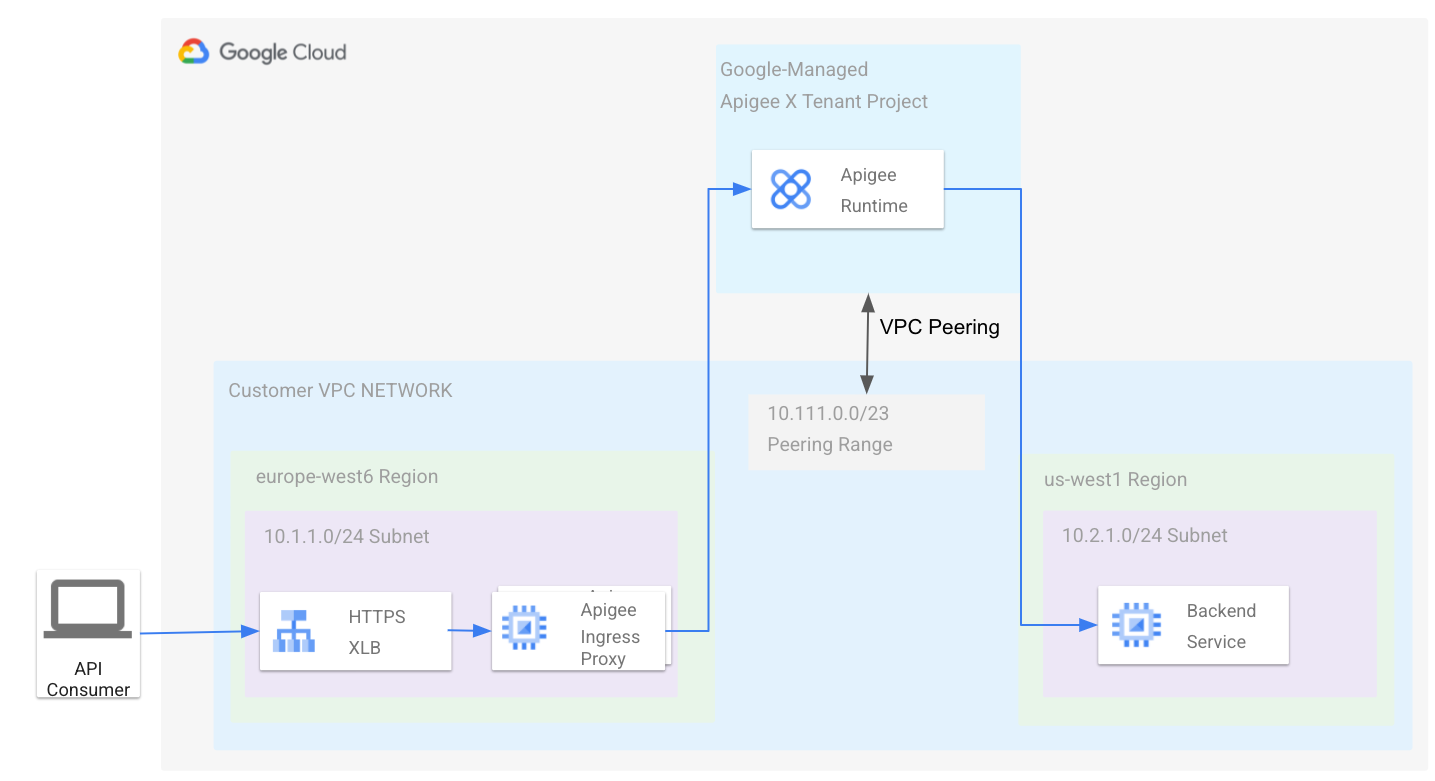
The Apigee runtime (running in a Google-managed VPC) is peered with the VPC owned by you. In
this topology, the Apigee runtime endpoint can communicate with your VPC network, as shown
in the following diagram:
See also [Apigee architecture
overview](https://docs.cloud.google.com/apigee/docs/api-platform/architecture/overview).
In many scenarios, the topology described above is overly simple, because the VPC network is
part of a single Google Cloud project, and many organizations want to follow [best practices for resource hierarchies](https://docs.cloud.google.com/architecture/landing-zones/decide-resource-hierarchy.md.txt) and separate their infrastructure into multiple
projects. Imagine a network topology where we have the Apigee tenant project peered to a
VPC network as before, but have internal backends located in another project's VPC. As shown
in this diagram:
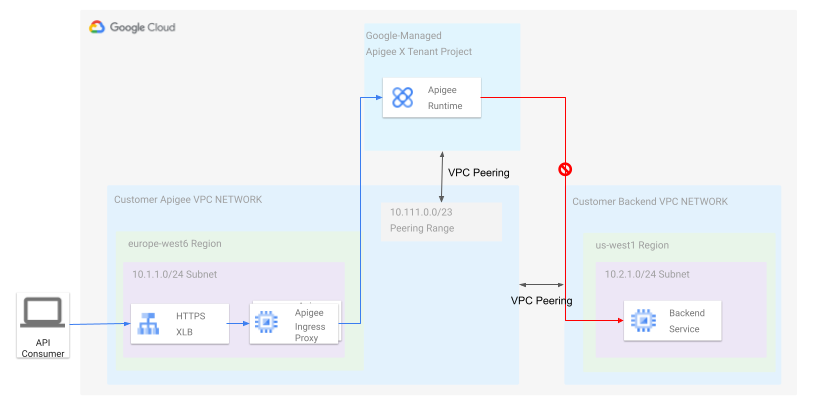
If you peer the your Apigee VPC to the Backend VPC, as shown in the diagram, then the backend
can be reached from the your Apigee VPC network and vice versa, because network peering is symmetric.
The Apigee tenant project, however, can only communicate with the Apigee VPC, as the peering is
not transitive, as described in the [VPC peering documentation](https://cloud.google.com/vpc/docs/vpc-peering).
To make it work, you could deploy additional proxies in your Apigee VPC to forward traffic
across the peering link to the backend VPC; however, this approach adds additional operational
overhead and maintenance.
Shared VPC offers a solution to the problem described above. Shared VPC lets you establish
connectivity between the Apigee runtime and backends that are located in other Google
Cloud projects in the same organization without additional networking components.
> [!TIP]
> **Note:** In scenarios where the backends are located in another Google Cloud organization, on-premises, or in another public cloud, you could explore using [Google Cloud Hybrid Connectivity](https://cloud.google.com/hybrid-connectivity) to establish hybrid network connectivity and routes propagation.
## Configuring Shared VPC with Apigee
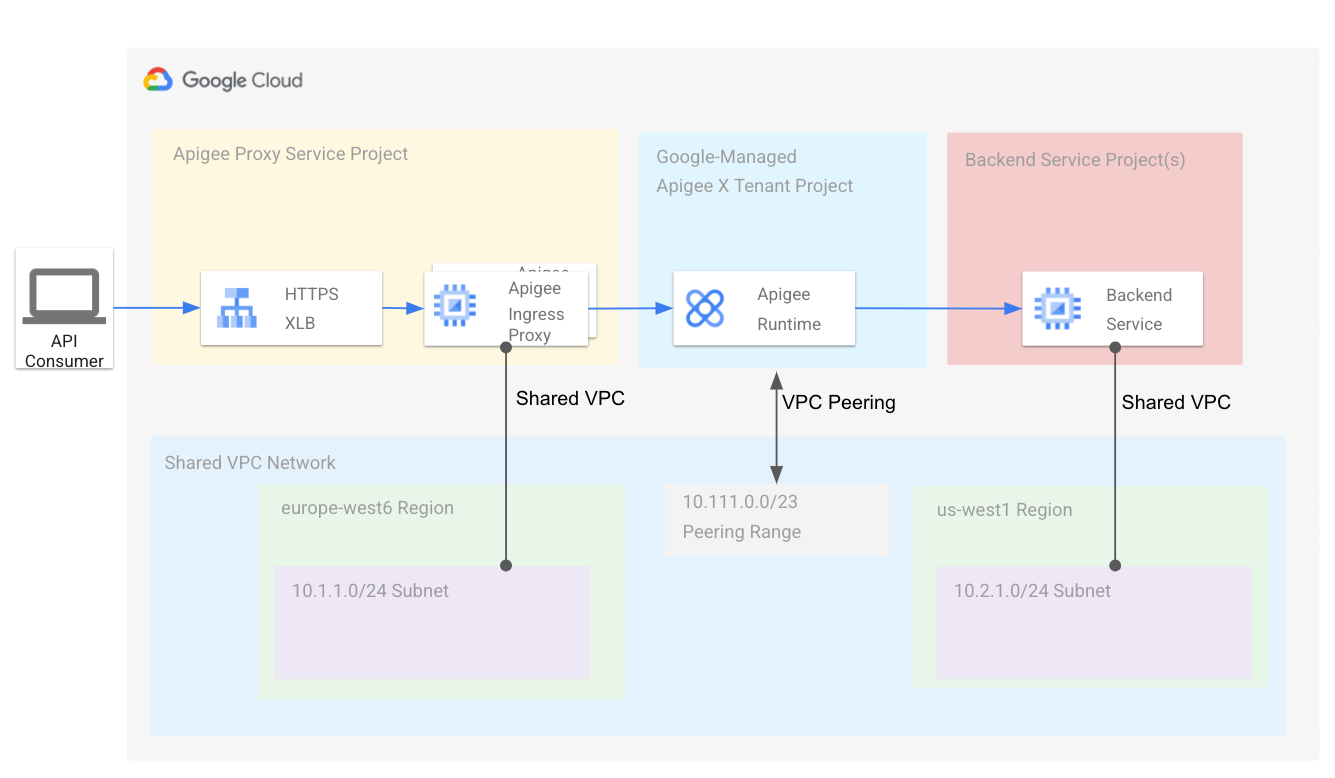
This section explains how to attach an Apigee VPC service project to a Shared VPC host.
Subnets
defined in the host project are shared with the service projects. In a later section, we explain how to
create a second subnet for backend services deployed in a second VPC service project. The following diagram shows
the resulting architecture:
Apigee provides a provisioning script to simplify creating the required topology. Follow
the steps in this section to download and use the provisioning script to set up
Apigee with a Shared VPC.
### Prerequisites
1. Review the concepts discussed in [Shared VPC overview](https://cloud.google.com/vpc/docs/shared-vpc). It's important to understand the concepts of *host project* and *service project*.
2. Create a new Google Cloud project that you can configure for Shared VPC. This project is the *host project* . See [Creating and managing projects](https://cloud.google.com/resource-manager/docs/creating-managing-projects).
3. Follow the steps in [Provisioning Shared VPC](https://cloud.google.com/vpc/docs/provisioning-shared-vpc) to provision the project for Shared VPC. You must be an organization admin or be granted appropriate administrative Identity and Access Management (IAM) roles to enable the host project for Shared VPC.
4. Create a second Google Cloud project. This project is a *service* project. Later, you will attach it to the host project.
### Download the script
Apigee provides a provisioning script to simplify creating the required topology. You need
to pull the script from GitHub:
1. Clone the GitHub project containing the script:
```
git clone https://github.com/apigee/devrel.git
```
2. Go to the following directory in the project:
```
cd devrel/tools/apigee-x-trial-provision
```
3. Set the following environment variables:
export HOST_PROJECT=HOST_PROJECT_ID
export SERVICE_PROJECT=SERVICE_PROJECT_ID
Where:
- `HOST_PROJECT_ID` is the project ID of the Shared VPC host project you created as one of the prerequisites.
- `SERVICE_PROJECT_ID` is the project ID of the Google Cloud service project you created in the prerequisites.
### Configure the host project
1. Set the following environment variables:
export NETWORK=YOUR_SHARED_VPC
export SUBNET=YOUR_SHARED_SUBNET
export PEERING_CIDR=CIDR_BLOCK
2. Where:
- `YOUR_SHARED_VPC` is the name of your Shared VPC network.
- `YOUR_SHARED_SUBNET` is the name of your Shared VPC subnet.
- `CIDR_BLOCK` is the CIDR block for the Apigee VPC. For example: `10.111.0.0/23`.
3. To configure the Apigee VPC peering and firewall, execute the script with these options:
```
./apigee-x-trial-provision.sh \
-p $HOST_PROJECT --shared-vpc-host-config --peering-cidr $PEERING_CIDR
```
The script configures the host project; your output will look similar to the following,
where the `NETWORK` and `SUBNET` represent the fully qualified
paths under the host project:
export NETWORK=projects/$HOST_PROJECT/global/networks/$NETWORK
export SUBNET=projects/$HOST_PROJECT/regions/us-west1/subnetworks/$SUBNET
4. Export the variables that were returned in the output.
### Configure the service project
In this step, you configure the service project. When the script is finished, it creates and
deploys a sample API proxy in your Apigee environment that you can use to test the provisioning.
1. Execute the `apigee-x-trial-provision.sh` script a second time to provision the service project with the shared network settings:
```
./apigee-x-trial-provision.sh \
-p $SERVICE_PROJECT
```
The script creates a sample proxy in your Apigee environment and prints a curl
command to `STDOUT` that you can call to test the provisioning.
2. Call the test API proxy. For example:
```
curl -v https://10-111-111-111.nip.io/hello-world
```
## Configure another service project for backend services
It's a best practice to separate your Google Cloud infrastructure into multiple projects.
See [Decide a resource hierarchy for your Google Cloud landing zone](https://docs.cloud.google.com/architecture/landing-zones/decide-resource-hierarchy.md.txt). This section explains how to deploy a backend
service in a separate service project and attach it to the
shared VPC host. Apigee can use the backend service as an API proxy target because both
the Apigee service project and backend service project are attached
to the Shared VPC host.
### Prerequisites
To do these steps, we assume you have your Shared VPC already set up and shared with the
backend service project, as described in [Setting up Shared VPC](https://cloud.google.com/vpc/docs/provisioning-shared-vpc#setting_up).
### Configure the service project
In this section, you will test a backend service in another shared VPC subnet, create a second
subnet in the host project, and use its private RFC1918 IP address as the target URL for your
Apigee API proxies.
1. From within your backend service project execute the following command to see all available shared subnets:
```
gcloud compute networks subnets list-usable --project $HOST_PROJECT --format yaml
```
Example output:
```
ipCidrRange: 10.0.0.0/20
network: https://www.googleapis.com/compute/v1/projects/my-svpc-hub/global/networks/hub-vpc
subnetwork: https://www.googleapis.com/compute/v1/projects/my-svpc-hub/regions/europe-west1/subnetworks/sub1
```
2. Create these environment variables:
BACKEND_SERVICE_PROJECT=PROJECT_ID
SHARED_VPC_SUBNET=SUBNET
Where:
- `PROJECT_ID` is the name of the service project you created for the backend services.
- `SUBNET` is one of the subnetworks output from the preceding command.
3. To create a backend `httpbin` service in the project for testing purposes, use the following command:
```
gcloud compute --project=$BACKEND_SERVICE_PROJECT instances create-with-container httpbin \
--machine-type=e2-small --subnet=$SHARED_VPC_SUBNET \
--image-project=cos-cloud --image-family=cos-stable --boot-disk-size=10GB \
--container-image=kennethreitz/httpbin --container-restart-policy=always --tags http-server
```
4. Create and deploy an Apigee API proxy by following the steps in [Create an API proxy](https://docs.cloud.google.com/apigee/docs/api-platform/get-started/create-proxy.md.txt).
5. Get the internal IP address of the virtual machine (VM) where the target service is running. You will use this IP in the next step to call the test API proxy:
```
gcloud compute instances list --filter=name=httpbin
```
6. To test the configuration, call the proxy. Use the VM's internal IP address that you obtained in the previous step. The following example assumes you named the proxy basepath `/myproxy`. For example:
```
curl -v https://INTERNAL_IP/myproxy
```
This API call returns `Hello, Guest!`.